AI Powered spread sheets – How to use spreadsheet AI tools


Discover how you could use AI tools and create spreadsheets that improves your productivity and saves time!
AI-powered Google Spreadsheet tools available on marketplace extensions offer significant benefits in terms of improving productivity and saving time for users across various industries. These tools leverage advanced machine learning algorithms and automation to streamline data analysis, visualization, and management tasks, making them indispensable for businesses and professionals alike.

One of the primary advantages of these AI-powered spreadsheet tools is their ability to handle complex data tasks with exceptional speed and accuracy. Traditional data manipulation often involves repetitive and time-consuming processes, but AI-driven tools can instantly perform tasks like data cleaning, sorting, and aggregation, significantly reducing the time required to prepare and analyze data. This allows users to focus on higher-value activities such as data interpretation and decision-making. Empowering Your Sheets with AI Magic: Unleash the Power of SheetAI!
SheetAI is a cutting-edge AI-powered Google Spreadsheet tool that revolutionizes how businesses and professionals work with data and content within the Google Sheets ecosystem. With a range of powerful features, SheetAI delivers significant time-saving and productivity-enhancing capabilities.

One of SheetAI's standout features is its ability to write personalized email first lines. Crafting engaging and personalized email introductions is a critical component of successful email marketing campaigns. SheetAI leverages its AI capabilities to generate attention-grabbing first lines that resonate with recipients, leading to higher open rates and better engagement. This not only saves time but also eliminates the need for expensive copywriting services, effectively reducing marketing budgets.
How to Start Using SheetAI:
→ Open Google Sheets: Begin by opening your Google Sheets document.
→ Access Extensions: In the top menu, click on "Extensions."
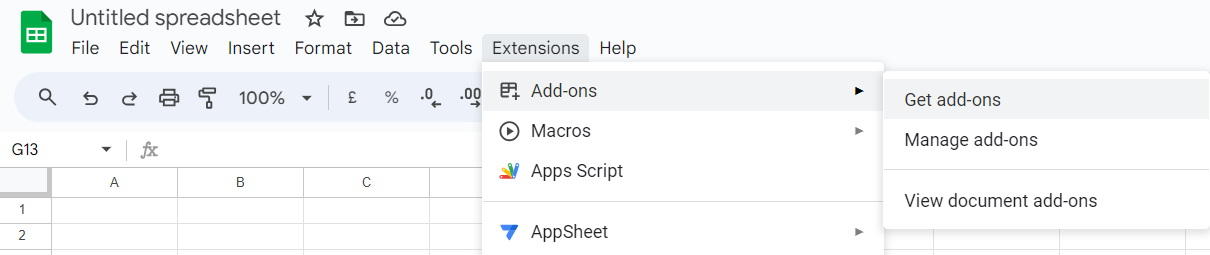
→ Choose SheetAI: From the Extensions menu, select "SheetAI."
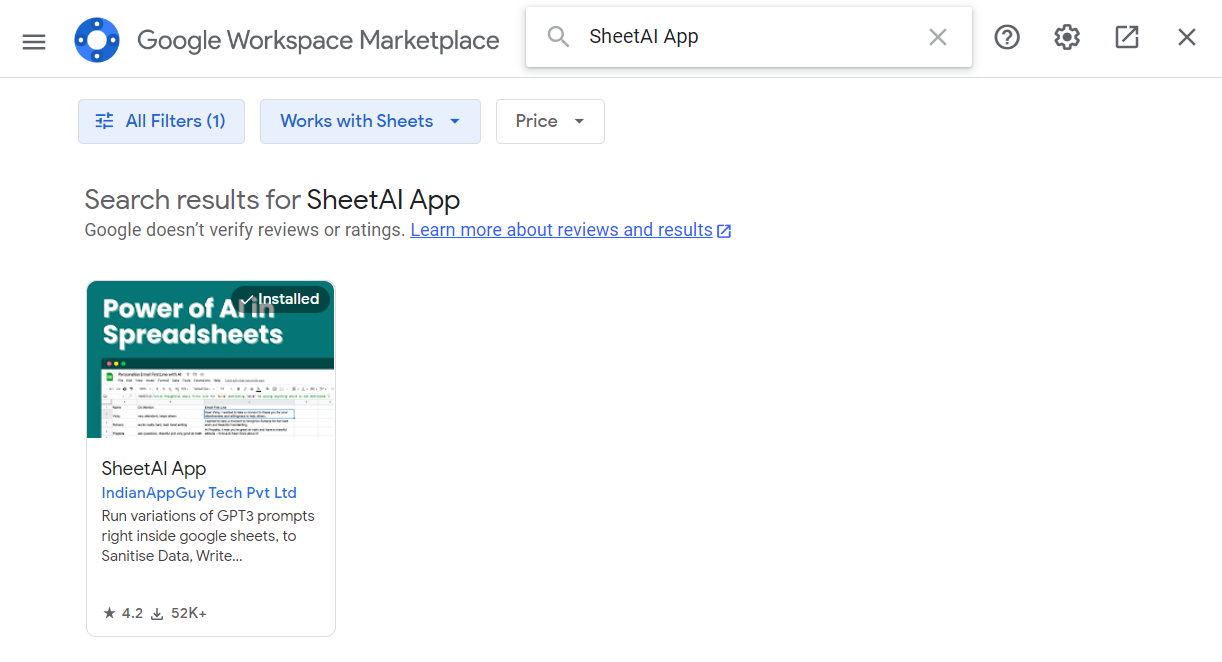
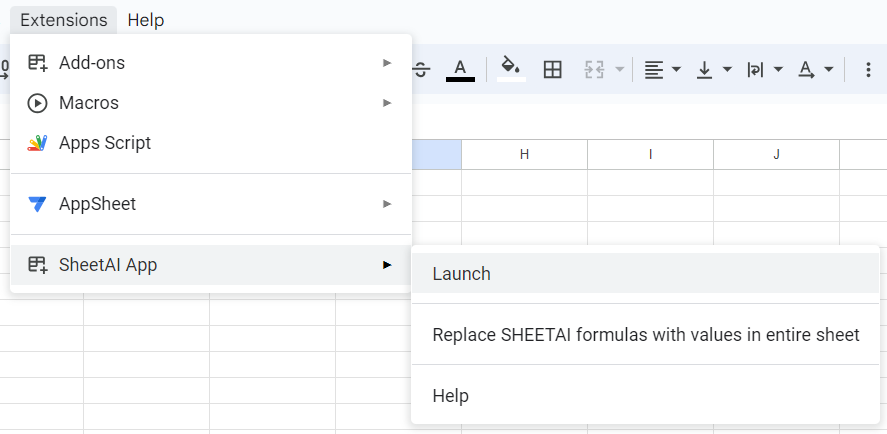
→ Launch SheetAI: Click on the "Launch" option within the SheetAI menu.
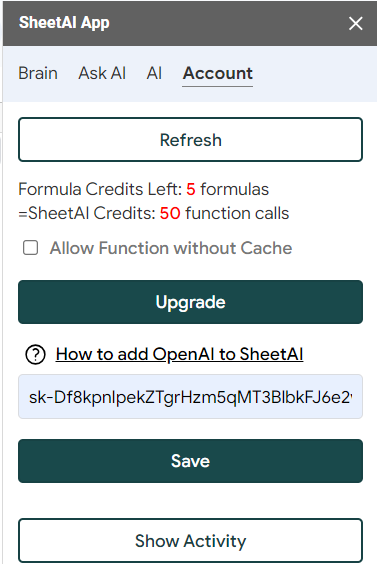
→ Obtain Your License Key: To use SheetAI, you need your free API key, follow the instructions provided in the blog at CLICK_HERE to obtain your OpenAI license key.
→ Copy Your License Key: Once you have your OpenAI license key, copy it to your clipboard.
→ Return to Google Sheets: Go back to your Google Sheets document.
→ Add Your License Key: In the SheetAI interface that you launched, find the field where you can input your license key.
→ Paste Your License Key: Right-click in the license key field and select "Paste" (or press Ctrl+V on your keyboard) to insert your OpenAI license key.
→ Activate SheetAI: After pasting your license key, confirm the entry and activate SheetAI.
You're now ready to harness the power of SheetAI in your Google Sheets!
Generating Creative Taglines with SHEETAI()
Using SheetAI's =SHEETAI() function to generate creative taglines is straightforward. Here's a step-by-step guide:
Open Your Google Spreadsheet: Start by opening your Google Sheets document.
Ask a Prompt in a Cell: Choose a cell where you want to generate a creative tagline. For example, let's say you want to create a tagline for a new product in cell C15.
Write a Prompt: In cell B15, type a prompt or description related to the product for which you need a tagline. For example, "Innovative Smartwatch for Health Enthusiasts."
Use the SHEETAI() Function: In another cell (e.g., C15), where you want the generated tagline to appear, use the =SHEETAI(C15) function.
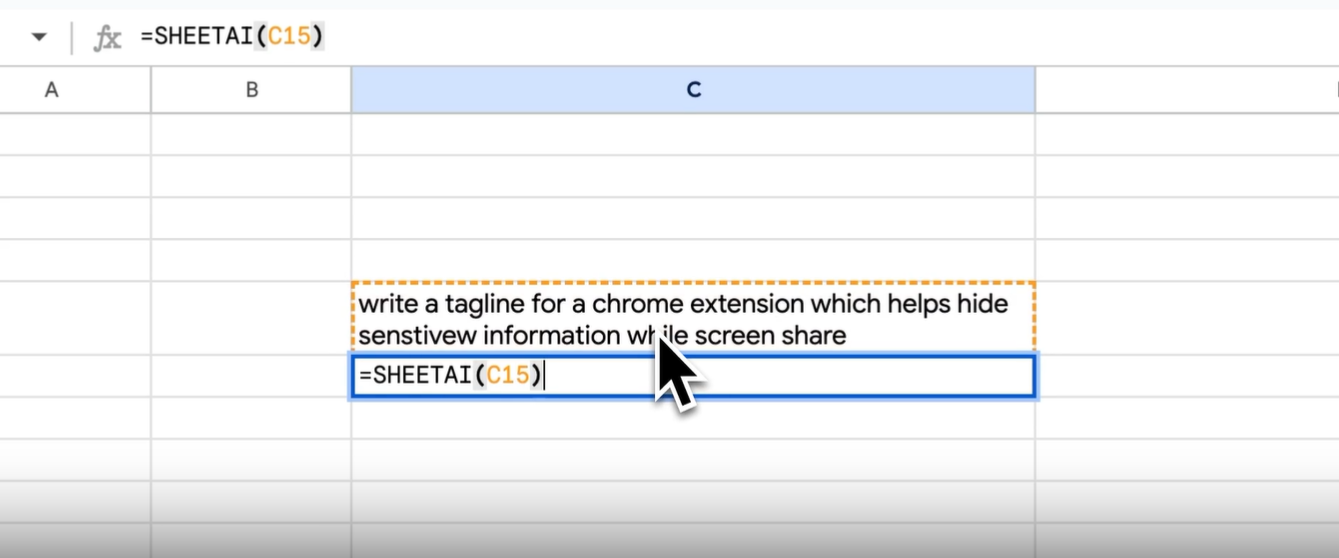
Use the SHEETAI() Function: In another cell (e.g., C15), where you want the generated tagline to appear, use the =SHEETAI(C15) function.
Press Enter: After entering the function in cell C15, hit Enter.
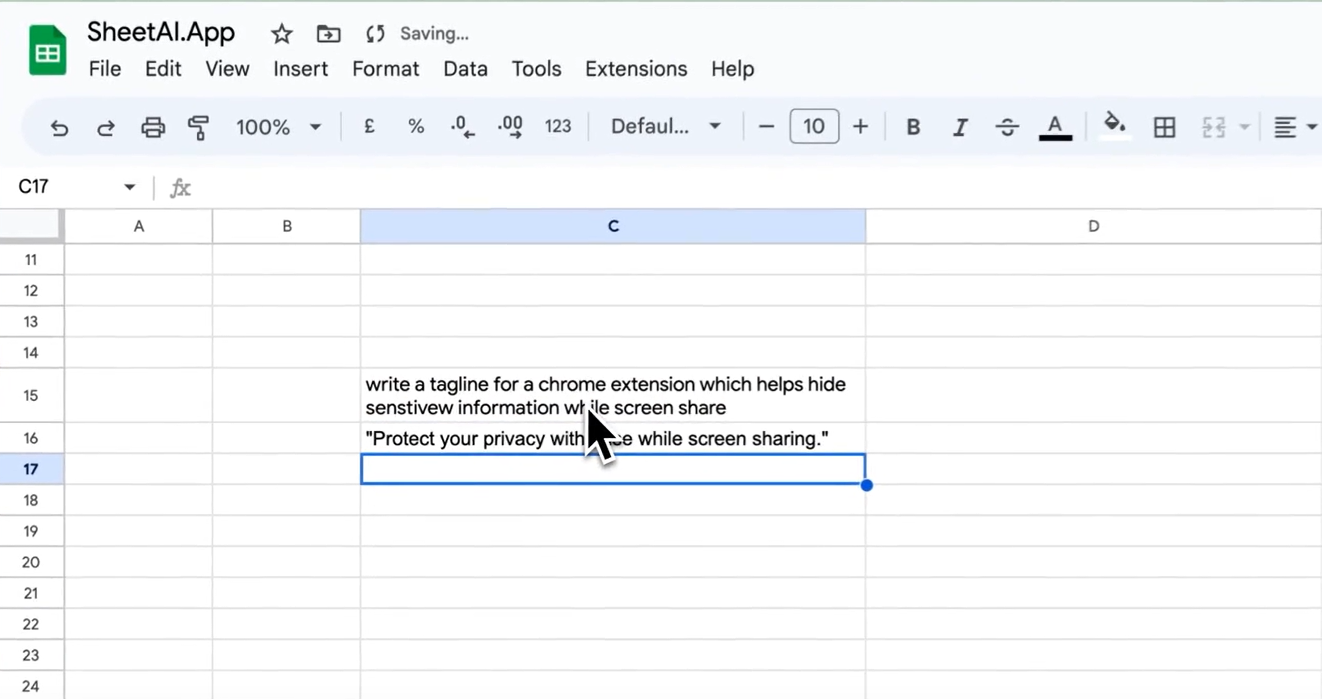
Harnessing SHEETAI_BRAIN for Informed Decisions
Utilizing SheetAI's SHEETAI_BRAIN feature to make informed decisions is simple. Follow these step-by-step instructions:
Open Google Sheets: Start by opening your Google Sheets document.
Ask a Relevant Question: In a cell (e.g., cell B20), pose a relevant question that pertains to a decision you need to make. For example, "Should we incorporate the XYZ product into our inventory?"

Provide a URL: In another cell (e.g., cell B21), paste the URL of the newer product you're considering but are unsure about. This URL will serve as the reference for SheetAI's analysis.
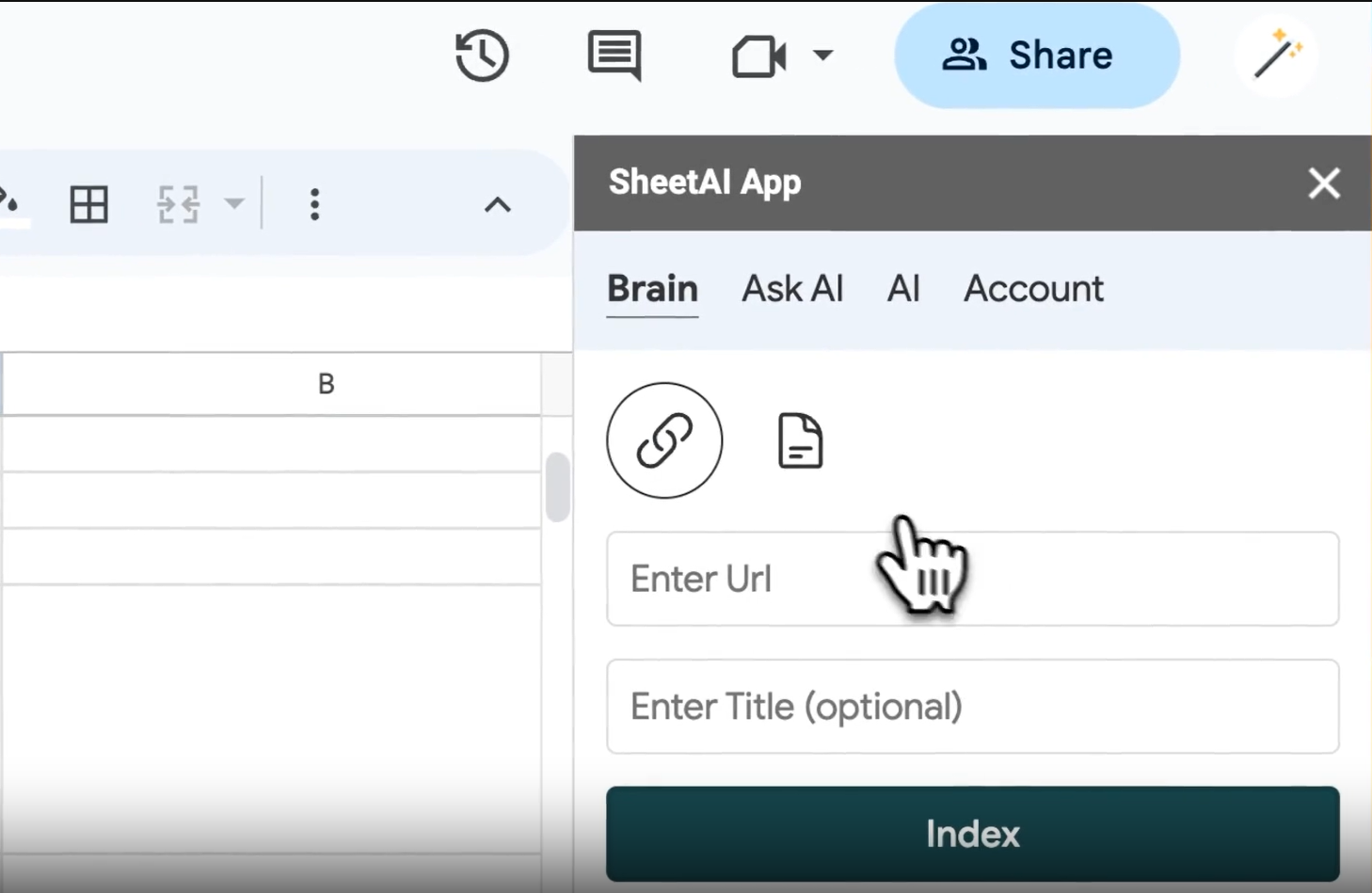
Activate SHEETAI_BRAIN: In a cell where you want the pros and cons to be displayed (e.g., cell C20), enter the formula =SHEETAI_BRAIN(B20, B21).
Press Enter: After inputting the formula, press Enter.
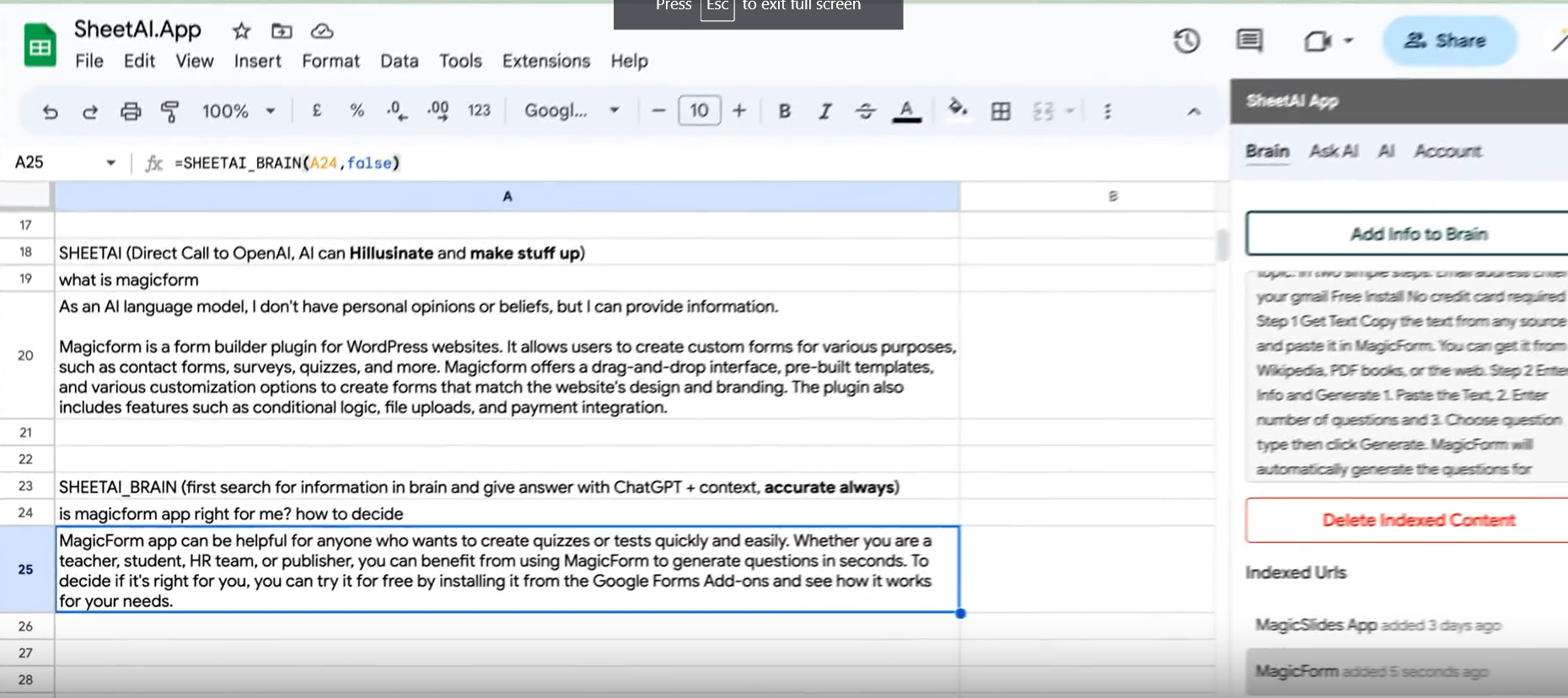
Streamlining Data Population with SHEETAI_FILL
Using SheetAI's SHEETAI_FILL feature to effortlessly populate data is a breeze. Here's a step-by-step guide:
Open Google Sheets: Start by opening your Google Sheets document.
Prepare Your Data: In one column (e.g., column A), enter the responses or data you want to use as a reference. This could be feedback form responses, product names, customer details, or any other information you need to populate.
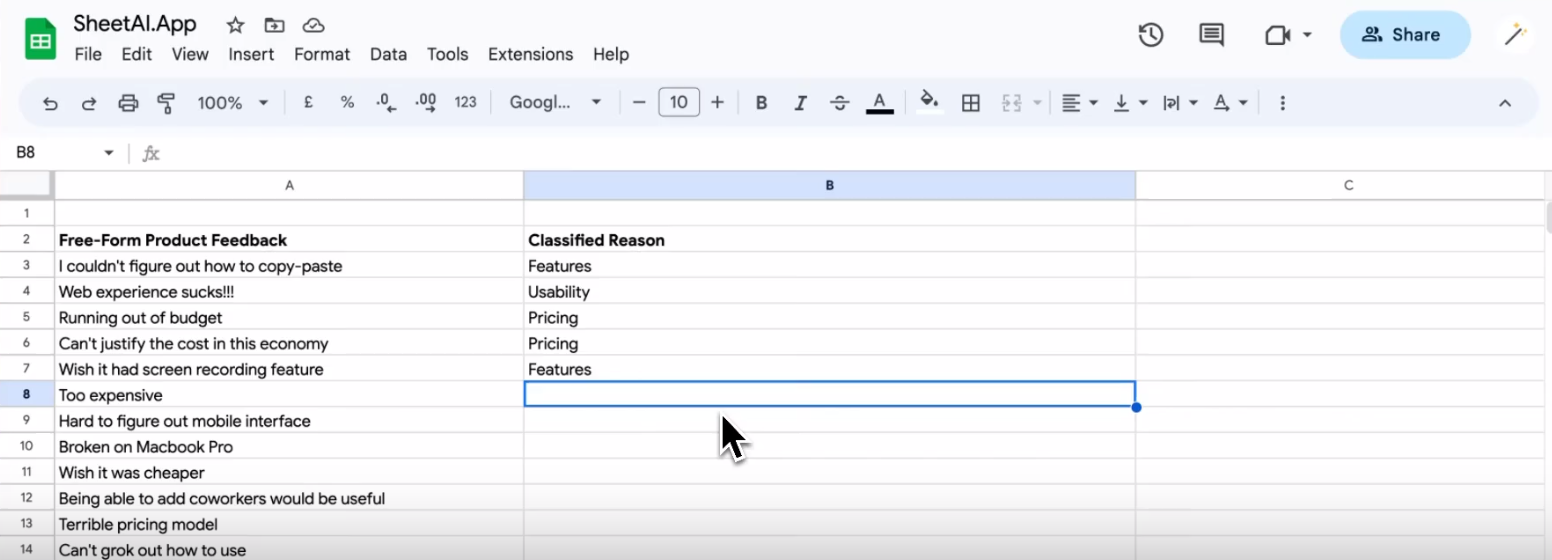
Choose a Destination Column: Select another column (e.g., column B) where you want the populated data to appear.
Activate SHEETAI_FILL: In the first cell of the destination column (e.g., cell B1), enter the formula =SHEETAI_FILL(A:A) if your source data is in column A.
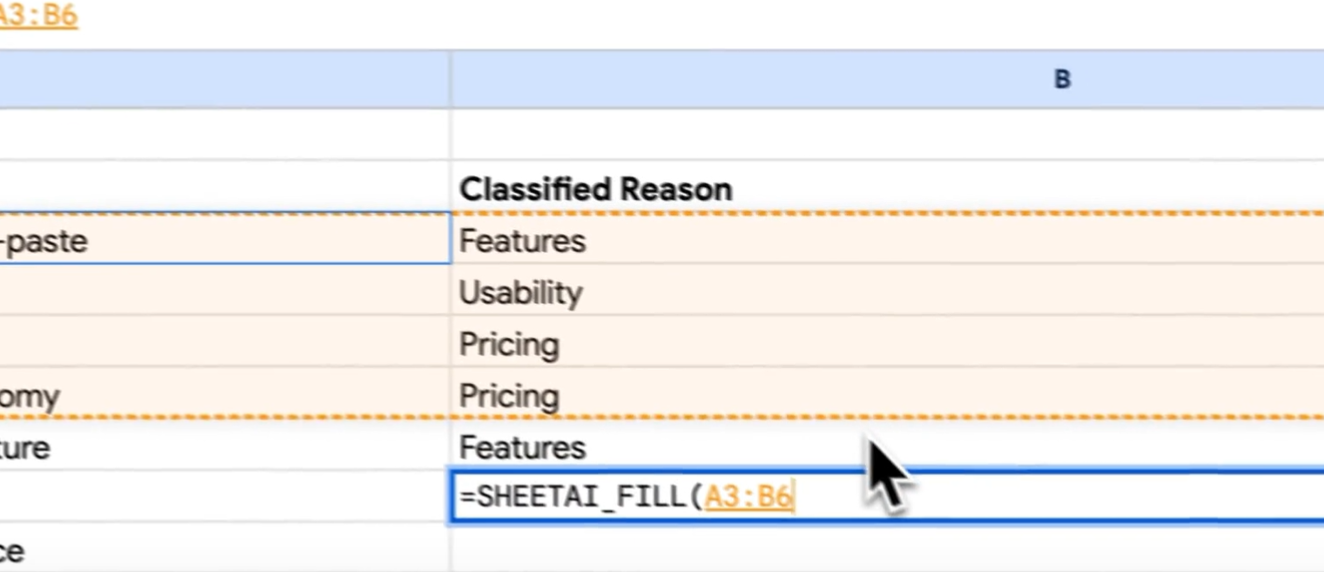
Press Enter: After inputting the formula, press Enter.
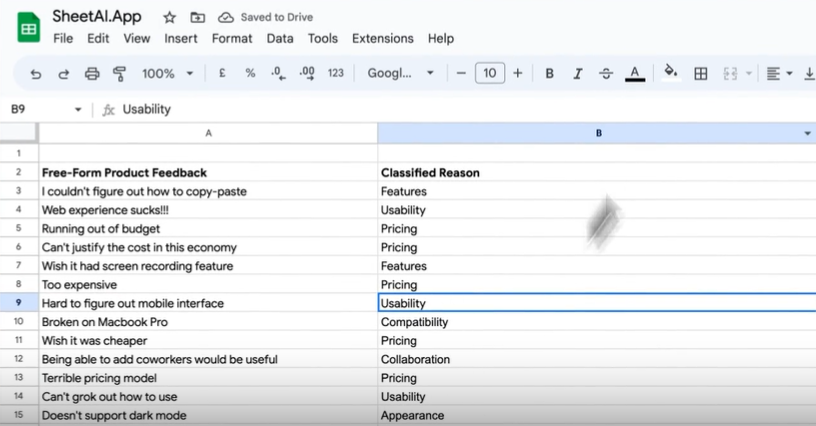
SheetAI's SHEETAI_FILL will then automatically populate the destination column with the data from the source column, based on the feedback or responses you provided. This feature is a time-saving solution for tasks like data cleaning, merging, and generating dummy data.
Unlock the future of productivity with AI spreadsheet tools. Experience the efficiency and accuracy of SheetAI's free version today, simplifying tasks and saving time. When you're ready for even more power and features, elevate your workflow with SheetAI's exclusive premium version. Upgrade now to supercharge your productivity and decision-making. Your success starts with SheetAI. Try it for free, and upgrade to premium for the ultimate spreadsheet experience.


