Difference Between PPT and PDF – Explained with Examples


Understand difference between PPT and PDF with examples. Learn its features, pro, cons, file sizes, security, editing capabilities, and best use cases.
Choosing between PPT and PDF can be confusing, especially when both formats are widely used for presentations, reports, business documents, and educational materials. While PPT and PDF may sometimes look similar, they are designed for completely different purposes.
A PPT (PowerPoint Presentation) is mainly used for creating interactive and editable presentations with animations, multimedia, and collaboration features. On the other hand, a PDF (Portable Document Format) is ideal for sharing finalised documents while preserving formatting, layout, and security across all devices.
Understanding the difference between PPT and PDF is important because using the wrong format can affect presentation quality, file compatibility, editing flexibility, and even document security. For example, PPT works best for live presentations and team collaboration, whereas PDF is better for secure sharing, printing, and professional document distribution.
In this guide, I’ll explain PPT vs PDF in detail, including their features, advantages, disadvantages, technical differences, common use cases, and when you should use each format. I’ll also show you how to convert PPT to PDF and PDF to PPT easily without losing formatting.
PPT vs PDF – What are They?
PowerPoint Presentation (PPT) is a Microsoft Office file format used to create slideshows. This service is free, but you can take a membership of Office 365, and leverage the benefits of Microsoft Copilot, as this can generate PPT automatically. But it is a highly paid resource, and comes only in business or enterprise plans.
So, use PPT when needed to make editable presentations for meetings or classrooms. Additionally, it comes with various benefits like:
- Editable Slides
- Multimedia Integration
- Interactive Elements
- As this is a Microsoft service, it integrates with cloud platforms like OneDrive and SharePoint, allowing you to collaborate with colleagues in real time.
Understanding PDF (Portable Document Format)
Portable Document Format (PDF) was developed by Adobe, which preserves a document’s layout and fonts. As compared to PPT, PDF is usually read-only.
Use it in situations where:
- The content should not be altered.
- Want the document to look the same on all devices.
- Security is a concern, as PDFs can be password-protected or restricted.
Also read: How to convert Keynote to Google Slides?
Historical Background of PPT and PDF
Understanding the history helps you to understand why these formats exist:
- PPT was introduced by Microsoft in 1987 as a tool to help professionals create presentations on computers.
- PDF was developed by Adobe in 1993 to solve the problem of sharing documents across different operating systems while preserving the layout.
Knowing this, you realise that:
- PPT is for creation and collaboration
- PDF is for sharing and preservation
Technical Difference Between PPT and PDF
Here’s the quick cut-to-cut comparison between both formats, i.e.
| Feature | PPT | |
| File Type | Editable presentation | Read-only document |
| Structure | Contains layers, animations, and media | Fixed layout, static content |
| Editing | Easy to modify | Requires specialised software to edit |
| File Size | Large due to media and animations | Smaller |
| Compatibility | Needs PowerPoint or compatible software | Open on any device with a PDF reader |
| Security | Limited protection | Passwords, encryption, and restricting copying |
| Interactivity | High | Low |
| Use Case | Presentations | Finalised reports, forms |
PPT vs PDF: Advantages and Disadvantages
PPT and PDF’s benefits and consequences help you to understand what fits best in your scenario:
#PPT Pros
- Editable and flexible
- Allows multimedia and interactive content
- Collaborative-friendly
Disadvantage:
- Large file size.
- Compatibility issues if recipients don’t have PowerPoint.
#PDF Advantages
- Preserves formatting across all devices
- Secure and password-protected
- Small file size and easy to share
Disadvantage:
- Limited editing options
- No multimedia support
Common Use Cases
Here’s how you can differentiate between PPT and PDF, depending on the situation:
| Scenario | Preferred Format | Reason |
| Business presentation | PPT | Editable slides, charts |
| Final report or contract | Security | |
| Classroom lecture | PPT | Interactive |
| Resume or portfolio | Maintains layout and professionalism | |
| Marketing brochure | Printable and easy sharing |
Convert PPT and PDF Easily with MagicSlides
I often need to convert my presentations to PDF for sharing. Here’s what I do:
- Open the PPT in Microsoft PowerPoint.
- Go to File > Save As > PDF.
- Choose options like Optimise for Standard (publishing online and printing).
- Save the PDF.
If you needed to convert multiple PDFs into PPT, then these steps won’t work. Instead, you have to use an automated solution that supports numerous conversions of PDFs to Microsoft PowerPoint simultaneously.
For the same, I recommend MagicSlides PPT to PDF Converter, as it allows you to convert multiple PDF files into fully editable PowerPoint presentations in just a few clicks.
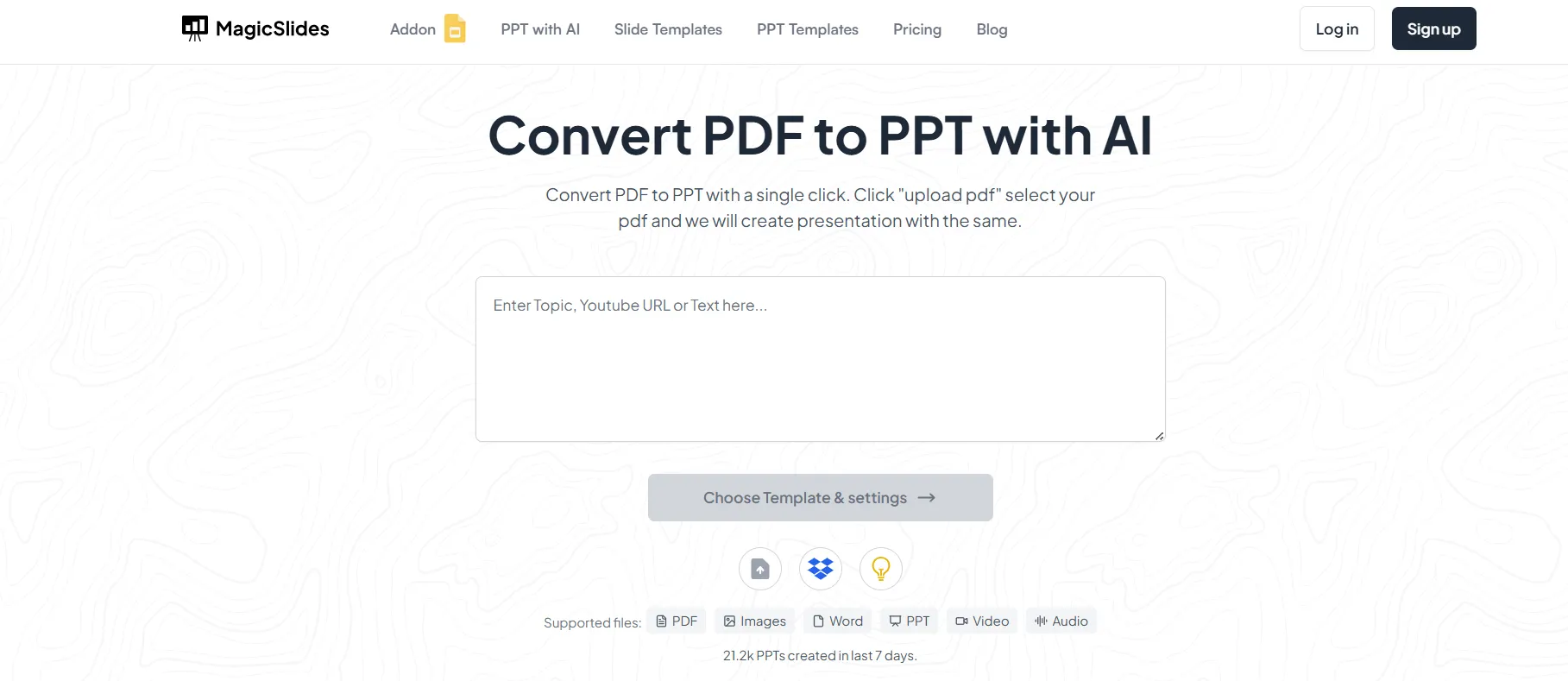
Step 1. Visit the MagicSlides Tools Page.
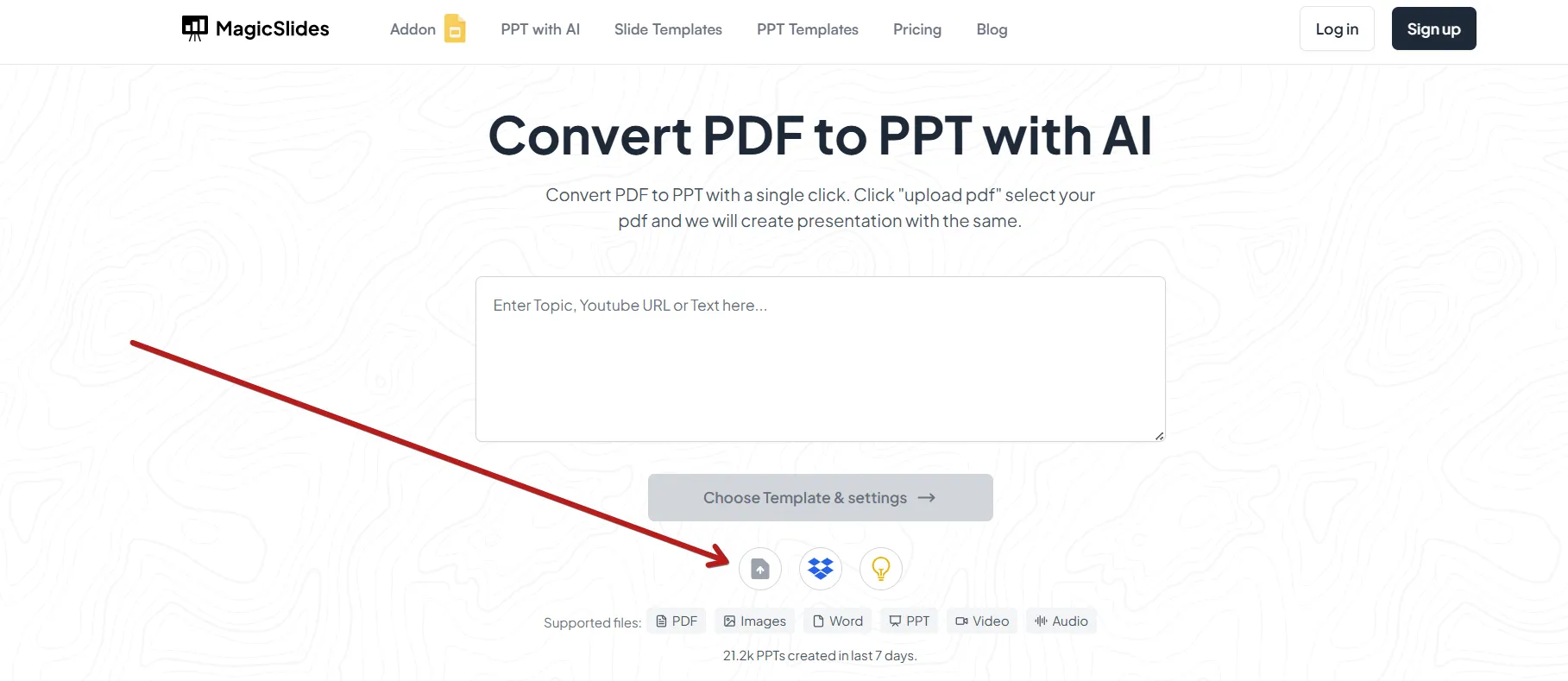
Step 2. Upload Your File.
Click “Upload” and choose your PDF or PPT file from your device.
Step 3. Let MagicSlides Do the Work.
The AI will automatically convert your document and format it to match the chosen file type.
Step 4. Download the Result.
Once the file is processed, click “Download” to save your new PPT or PDF to your computer.
I’ve used it to handle batch conversions. Moreover, it preserves the layout, fonts, and better than manual tools. It’s especially useful when you’re dealing with large numbers of documents. So, try now for free, and make your PDFs into PPT in seconds.
Related guide: How to convert PPT to Google Slides?
Author’s Verdict
After comparing PPT vs PDF in detail, it’s clear that both file formats serve different purposes and are important in modern workflows.
PPT is the better choice for creating interactive presentations, collaborating with teams, adding multimedia, and delivering live presentations in classrooms, meetings, or webinars. In contrast, PDF is ideal for sharing finalised documents, preserving formatting, improving compatibility, and protecting files with security features like passwords and restricted editing.
In simple terms:
- Use PPT for creating and presenting
- Use PDF for sharing and preserving
Many professionals actually use both formats together. They create presentations in PowerPoint and then convert them into PDF files for secure sharing, printing, or sending to clients and teams.
If you frequently work with presentations and documents, using the right conversion tool can save a huge amount of time. With MagicSlides AI, you can quickly convert PPT to PDF or PDF to PPT while preserving layouts, fonts, images, and formatting in just a few clicks.
Try MagicSlides now to simplify your presentation workflow and convert files effortlessly.
People Also Ask
Q1. Does converting PPT to PDF reduce file size?
Yes. PDFs are smaller than PPT files, especially if the presentation contains multimedia or large images.
Q2. Can animations and transitions in PPT work in PDF?
No, PDF files do not support animations or transitions present in PPT files.
Q3. Can I edit a PDF like a PPT?
No, editing a PDF is difficult without specialised software, whereas PPT files are fully editable with PowerPoint or compatible tools.


