How to Effectively Use Master Slides in MS PowerPoint


Learn to master PowerPoint’s master slides for consistent, professional presentations. Enhance design and save time effectively.
Master slides in Microsoft PowerPoint are a game-changer for anyone looking to create professional, consistent presentations without having to adjust each slide individually. By mastering the master slide, you can ensure that your presentation has uniform formatting, which saves time and enhances your presentation's overall aesthetics. This detailed guide will explore how to use master slides effectively and introduce how tools like Magicslides can complement your PowerPoint skills.
What are Master Slides?
Master slides are the backbone of your presentation's design template. They allow you to set the style for different types of slides (title slide, content slide, etc.) at once. When you change an element on a master slide, that change is automatically applied to all slides associated with that master.
Key Elements of a Master Slide
- Backgrounds: Set a consistent background color or image.
- Fonts and Colors: Standardize text styles and colors across all slides.
- Logos and Images: Place consistent graphics like logos.
- Footer Elements: Include slide numbers, footers, or date automatically.
How to Set Up Master Slides
Follow these steps to create or modify master slides in Microsoft PowerPoint:
- Open the View Menu: Go to the "View" tab and select "Slide Master." Here, you will see different slide layouts.
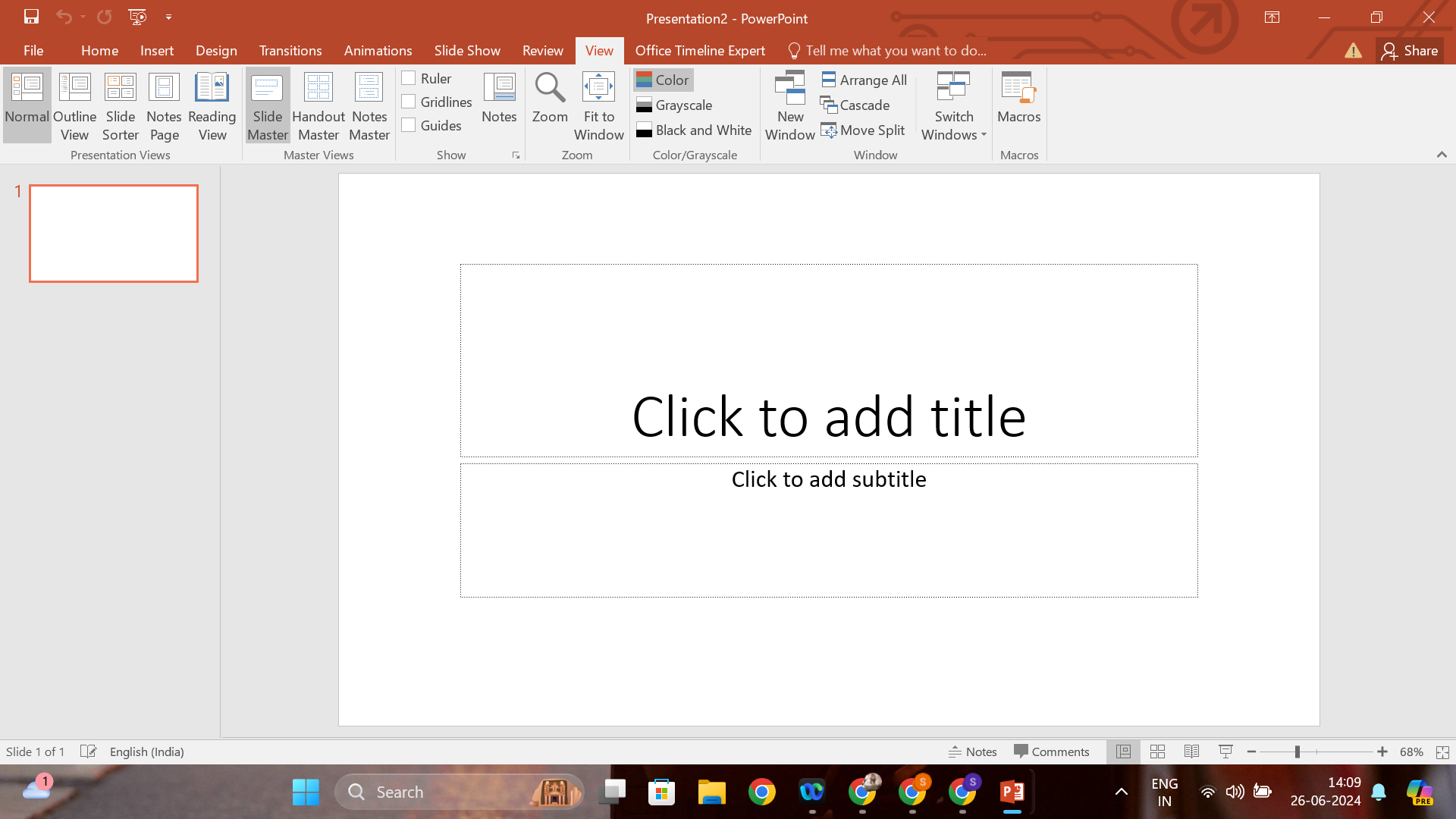
- Edit Master Slides: Choose the master slide at the top. Any changes you make here will affect every slide layout below it.
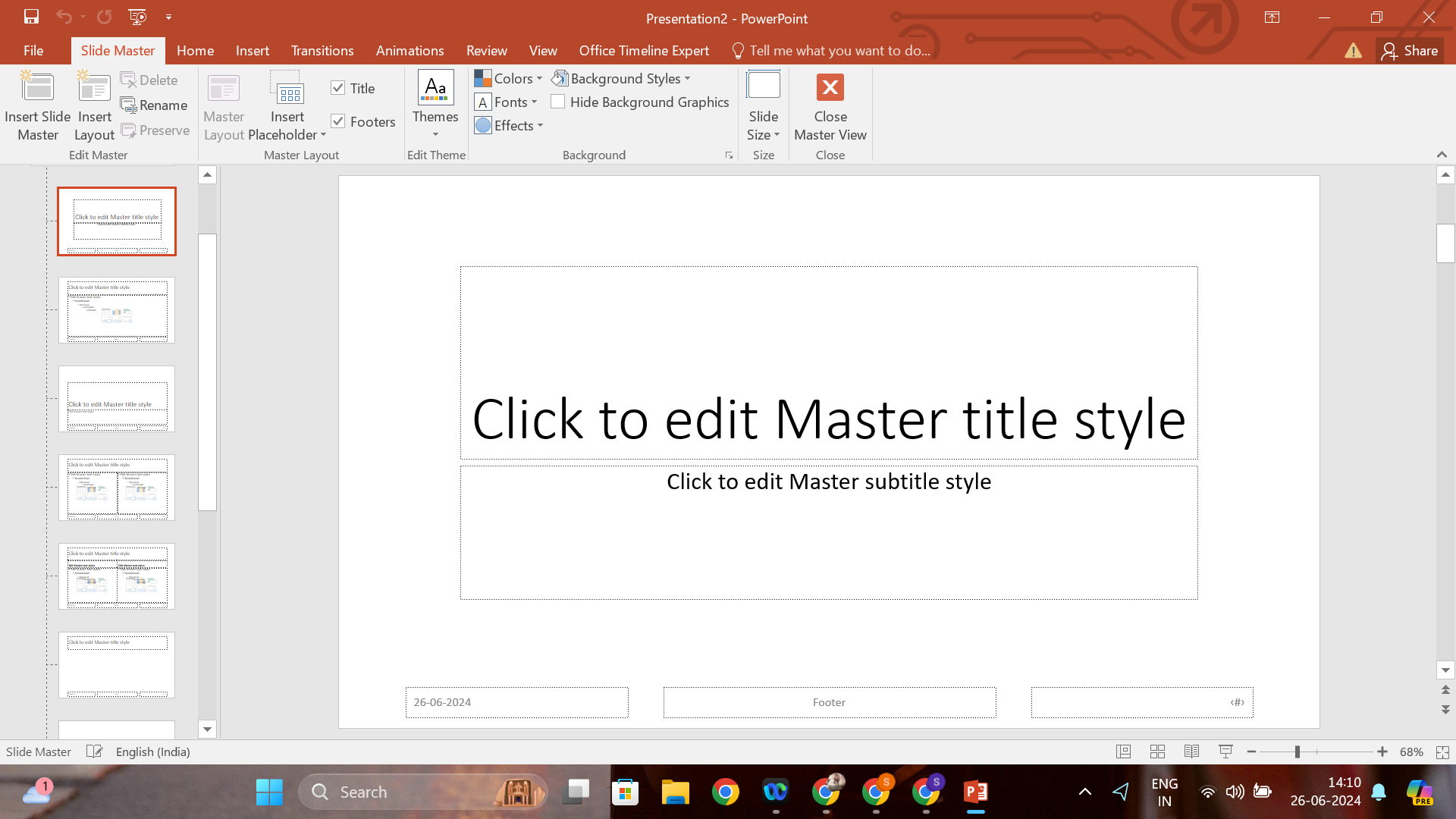
- Customize Layouts: You can also select individual layouts to make specific adjustments that won’t impact the overall master slide.
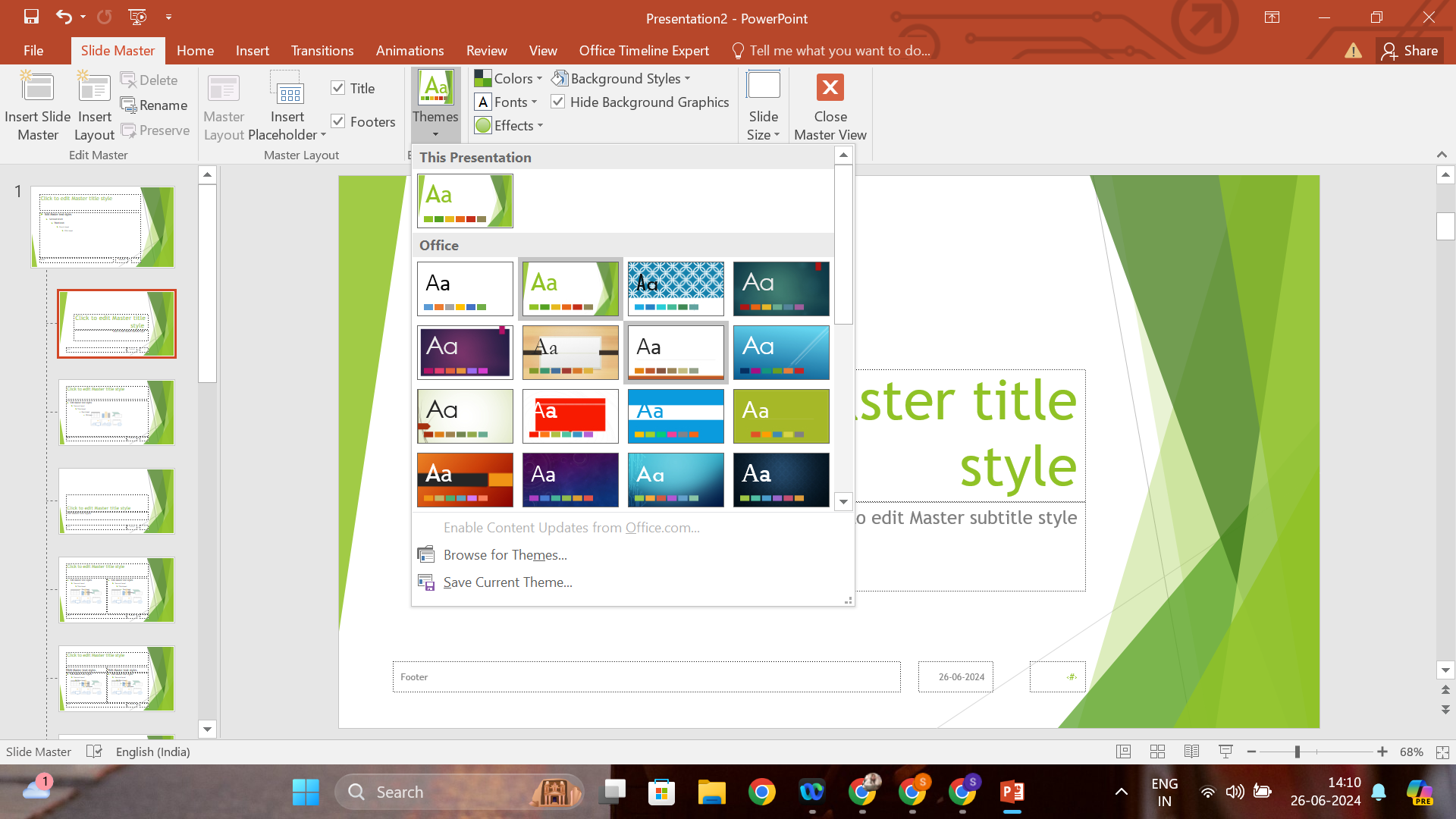
- Save Your Theme: Once you’re satisfied with your master slides, you can save these settings as a theme, which you can reuse or share.
Tips for Using Master Slides Effectively
- Keep It Simple: Avoid cluttering your master slides with too much content. Stick to broad design elements and leave detailed content for individual slides.
- Consistency Is Key: Ensure that your fonts, colors, and logos are consistent. This not only looks professional but also reinforces your brand.
- Use Placeholders Wisely: Utilize placeholders for text, images, and other media. This ensures that content added in normal view aligns correctly.
Leveraging Master Slides in Different Scenarios
Corporate Presentations
In corporate settings, master slides ensure that every department uses slides that reflect the company’s branding guidelines. This is crucial for maintaining a professional image.
Educational Settings
Teachers can use master slides to create templates for different lesson types, making it easy to prepare for each class while maintaining a consistent look.
Conferences and Workshops
Event organizers can design a master slide with the event’s theme and logo, ensuring all presentations at the conference have a uniform appearance.
Complementing PowerPoint with Magicslides
While PowerPoint's master slides are powerful, tools like Magicslides can enhance your presentation capabilities. Magicslides offers features that complement your PowerPoint designs by allowing even more flexibility and creativity. It’s particularly useful for those who want to add advanced interactive elements or integrate real-time data without heavy lifting.
Key Features of Magicslides:
- Enhanced Interactivity: Add interactive elements like polls and quizzes directly into your slides.
- Real-Time Data Integration: Update your slides with real-time data, perfect for dynamic presentations like market trends or live feedback sessions.
- Creative Flexibility: While PowerPoint sets a strong foundation, Magicslides allows for more creative designs and animations that can make your presentation stand out.
Conclusion
Master slides are a fundamental feature of MS PowerPoint that can significantly streamline the process of making professional presentations. By learning to effectively use master slides, you save time, maintain consistency, and can focus more on your presentation's content rather than its design.
Tools like Magicslides serve as a perfect complement, providing additional features that enhance the interactivity and dynamism of your presentations. Whether you are a business professional, educator, or event organizer, mastering these tools can elevate your presentation skills to the next level.


