How to Cast PowerPoint in Chrome


Learn how to cast a PowerPoint presentation in Chrome to a larger screen or device seamlessly
Presenting PowerPoint slides remotely or to a group can be incredibly useful, especially when you're using Google Chrome.
Whether you're presenting from your laptop or sharing your PowerPoint presentation on a larger screen, casting can make your presentations more engaging.
In this guide, we’ll walk you through how to cast a PowerPoint presentation in Chrome for both in-person and remote presentations.
How to Cast PowerPoint in Chrome | Steps to Cast PowerPoint in Chrome
Step 1: Open Your PowerPoint Presentation in Google Chrome
First, open Google Chrome on your computer. To cast your PowerPoint presentation, you need to upload it to a cloud platform like Google Drive.
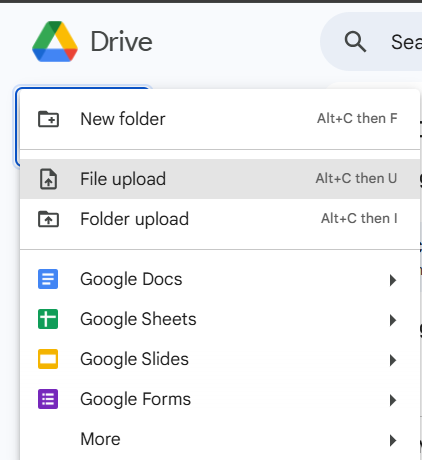
Once your presentation is uploaded, right-click on the file and choose Open with > Google Slides.
This will convert your PowerPoint file into Google Slides format.
Step 2: Connect to a Casting Device
Ensure that your casting device (like a smart TV, Chromecast, or a compatible display) is set up and connected to the same Wi-Fi network as your computer.

In Google Chrome, click the three vertical dots in the upper-right corner to open the Chrome menu.
Select Cast from the dropdown. Your casting devices should appear in the list.
Step 3: Select Your Casting Device
From the list of available devices, select the one you want to cast your PowerPoint (now in Google Slides) presentation to.
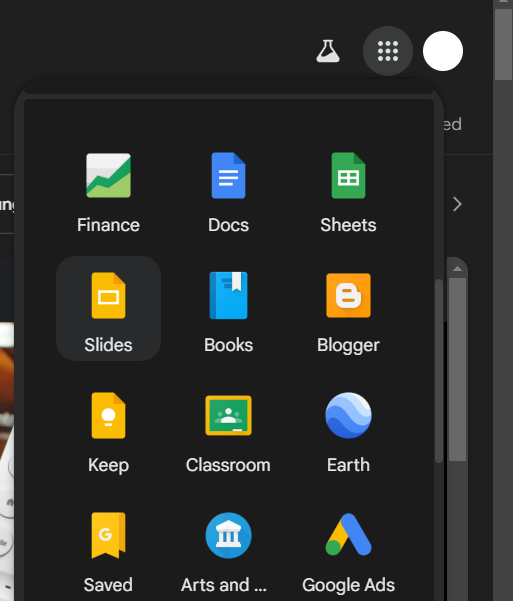
You’ll see options to cast either your entire desktop or a specific tab. Choose Cast tab if you want to cast only the Google Slides presentation.
Step 4: Start Your Presentation
Once connected, go back to Google Slides and click the Present button in the upper-right corner.
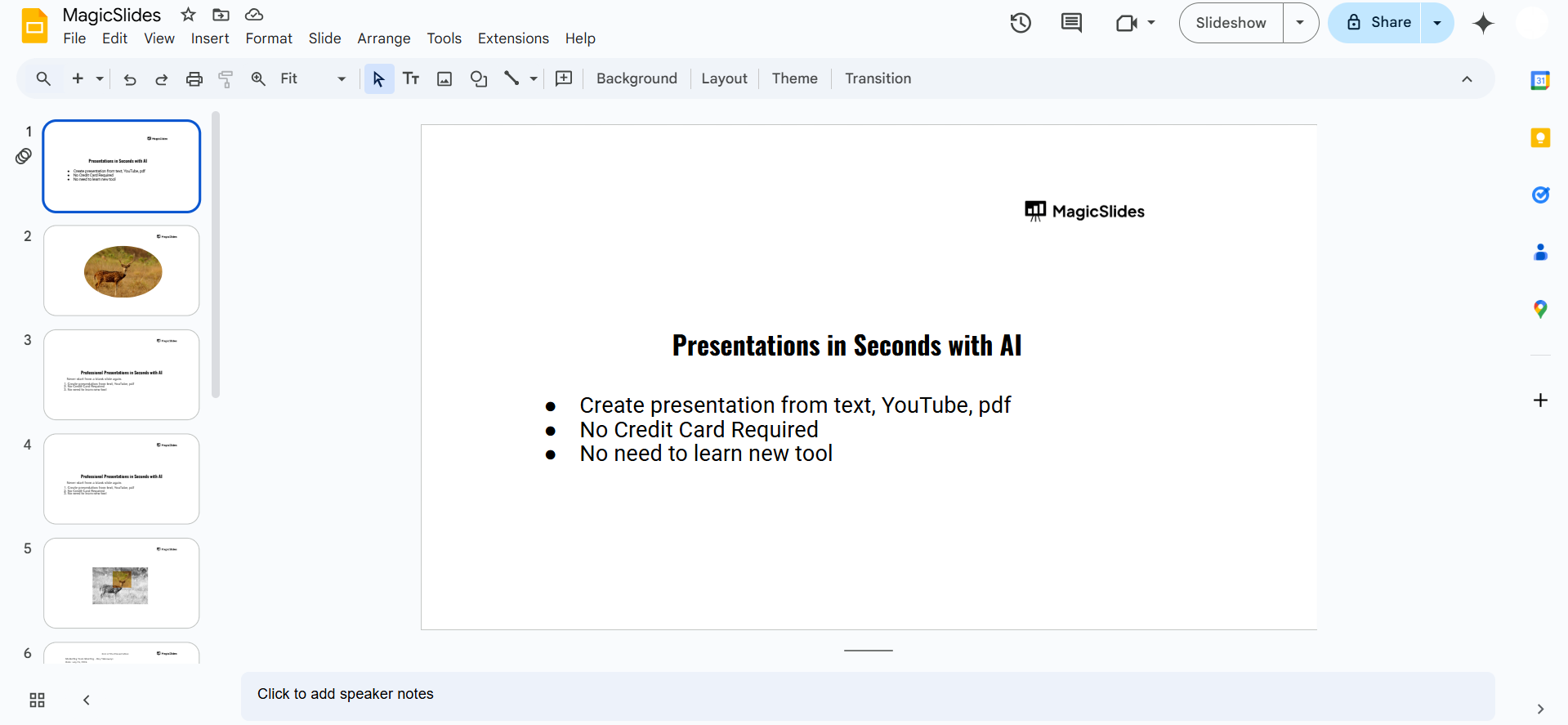
Your presentation should now appear on the casting device. You can control your presentation from your computer or use a remote if connected for seamless control.
Step 5: Adjust Settings as Needed
If you need to adjust the presentation display, go back to your casting settings in Chrome.
You can change the volume, resolution, or switch between casting your desktop or a tab. After discovering how to cast PowerPoint in Chrome, learn how to make slides automatically transition in PowerPoint for a smooth viewing experience.
Casting PowerPoint presentations in Chrome is useful, but what if creating those presentations was just as seamless? MagicSlides.app lets you generate professional slides instantly from topics, PDFs, or even YouTube links. Simplify your workflow and captivate your audience with MagicSlides.app Click now to learn more!
Conclusion
Casting a PowerPoint presentation through Google Chrome is a simple and effective way to present on a larger screen or remotely.
By uploading your presentation to Google Slides, you can easily cast it to any compatible device.
With these easy steps, you'll be able to cast your PowerPoint presentations without a hitch, whether for professional meetings or classroom settings.
FAQs on Casting PowerPoint in Chrome
Can I cast a PowerPoint presentation directly from Microsoft PowerPoint?
No, you need to upload your PowerPoint file to Google Drive and convert it to Google Slides for casting.
Do I need to install any additional software to cast PowerPoint presentations in Chrome?
No additional software is needed if you’re using a device like Chromecast, which is supported by Google Chrome.
Can I cast my PowerPoint presentation without an internet connection?
If you're casting a local PowerPoint file, you will need an internet connection to upload it to Google Drive. However, once uploaded, you can present offline if the file is saved in Google Slides.
Now you can cast your PowerPoint presentation effortlessly in Chrome, whether at home, at work, or in a classroom!


