How to Make Slides Automatically Transition in PowerPoint


Automatically transitioning slides in PowerPoint creates a smooth, hands-free flow for your presentations
Setting slides to automatically transition in PowerPoint can greatly enhance the flow of your presentations, making them look seamless and professional.
This feature is especially useful during self-running slideshows, such as kiosk displays or automated reports, where you want slides to move on their own without manual intervention.
In this guide, we'll walk you through the steps to set up automatic slide transitions in PowerPoint.
How to Make Slides Automatically Transition in PowerPoint: A Step-by-Step Guide
Step 1: Open Your PowerPoint Presentation
Start by opening your PowerPoint presentation where you want to add automatic slide transitions.
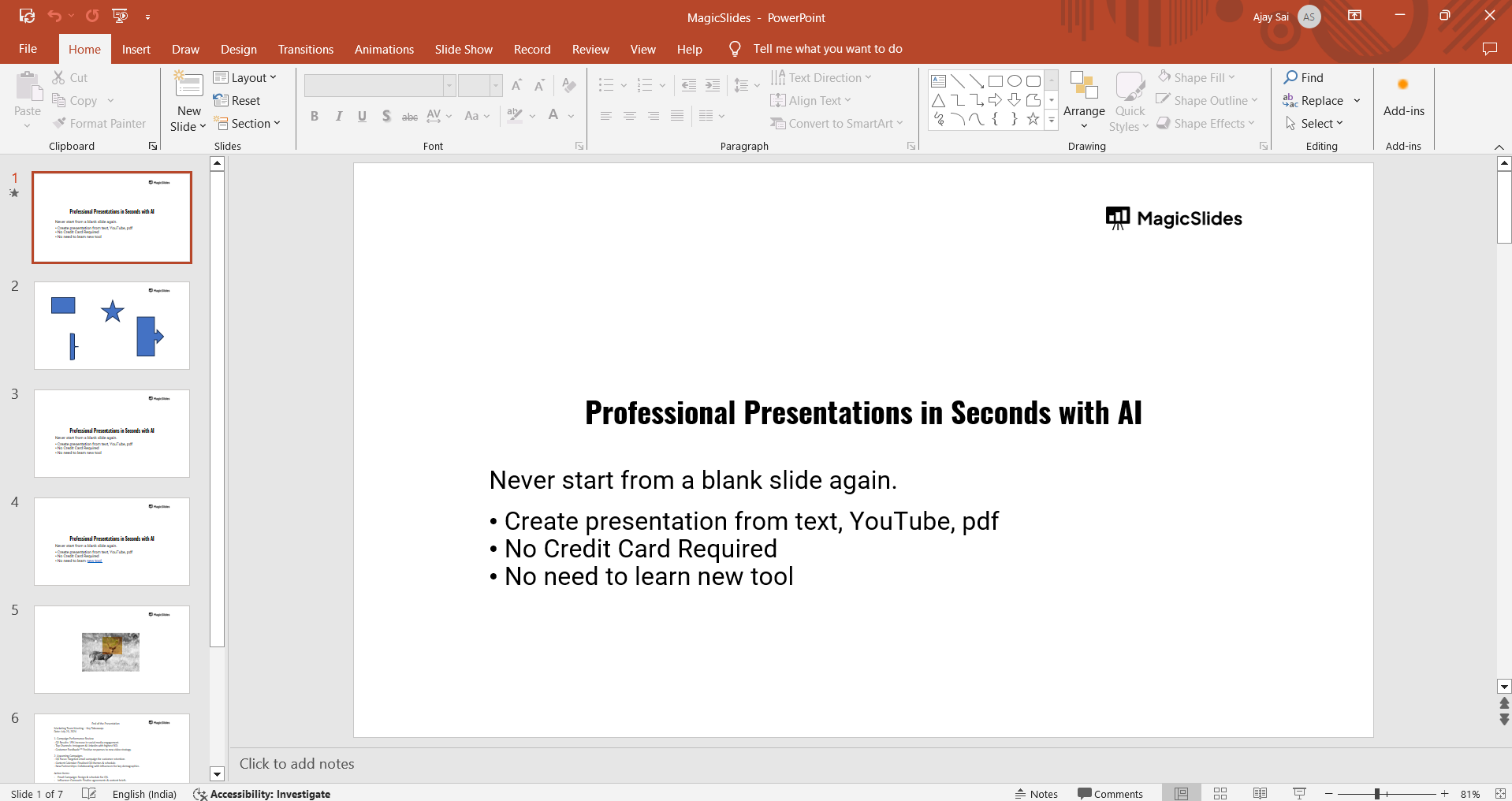
Navigate to the slide that you want to set to transition automatically.
If you want all slides to have the same settings, it’s best to start from the first slide.
Step 2: Go to the Transitions Tab
Click on the "Transitions" tab located in the top menu of PowerPoint. This tab contains all the transition effects and options available for your slides.
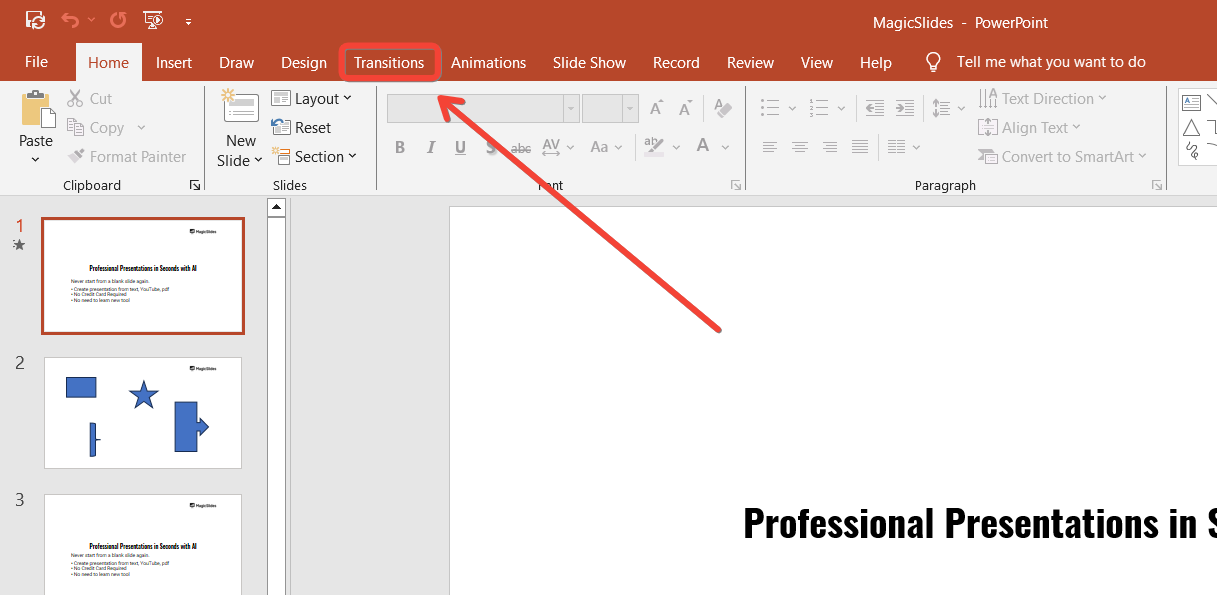
You’ll see various transition styles like Fade, Wipe, Push, and many more that can add visual interest to your presentation.
Step 3: Choose a Transition Effect
Select a transition effect from the options available in the "Transitions" tab. Click on an effect to preview it on the selected slide.
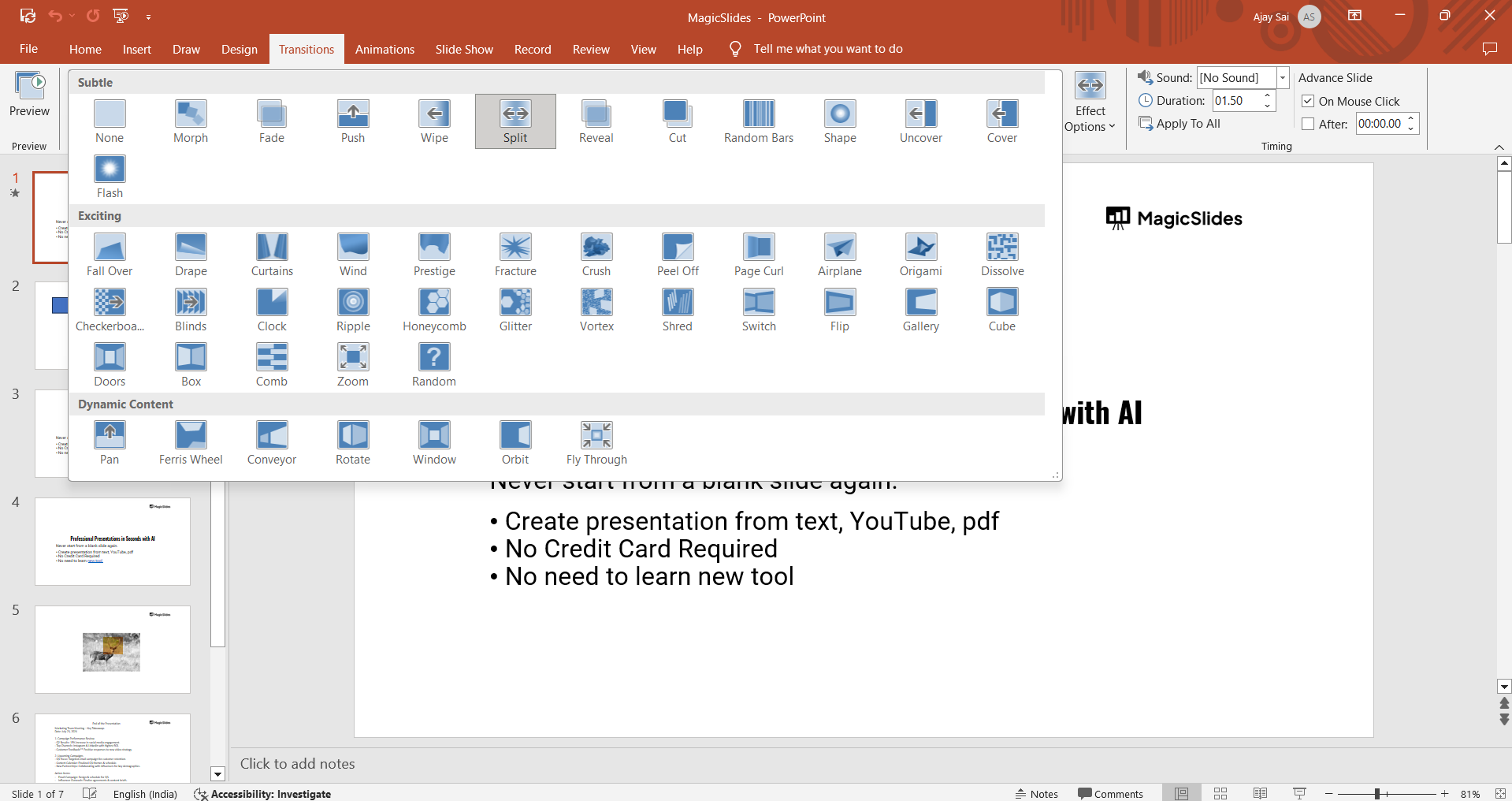
You can choose simple effects like Fade or more dynamic ones like Morph, depending on your presentation’s style.
Step 4: Set the Transition Duration
After selecting the transition effect, adjust the duration in the “Duration” box located on the right side of the Transitions tab.
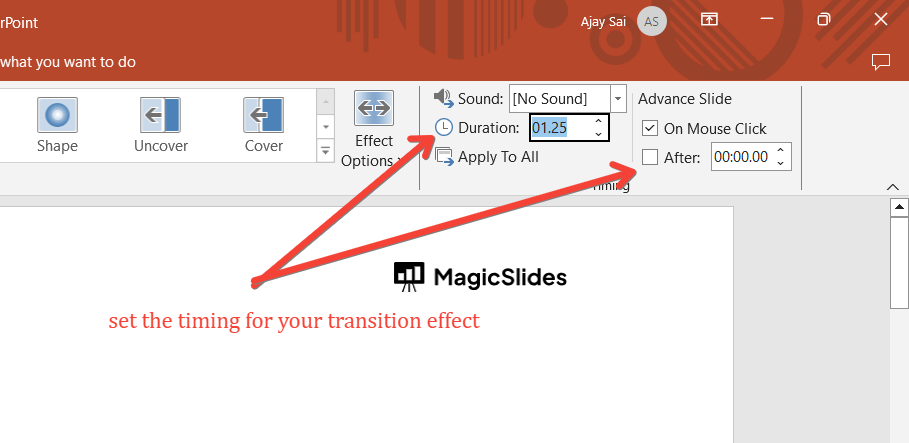
This setting controls how long the transition effect will last, allowing you to speed it up or slow it down based on your preference.
Step 5: Set Slides to Transition Automatically
Under the “Timing” section in the Transitions tab, look for the “Advance Slide” options.
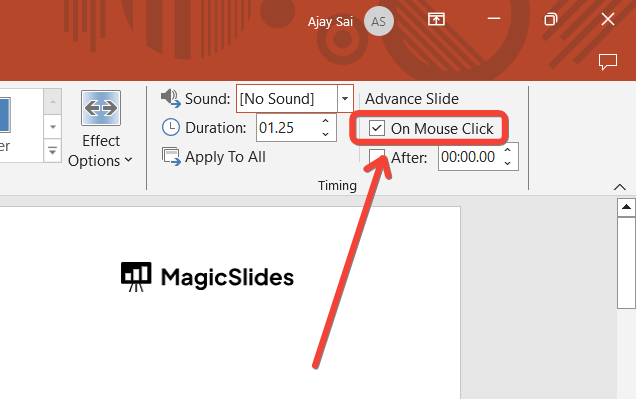
Uncheck the “On Mouse Click” box and check the “After” box. Set the time in seconds for how long you want the slide to display before transitioning to the next one.
For example, setting it to “5 seconds” will advance the slide automatically after 5 seconds.
Step 6: Apply to All Slides (Optional)
If you want the same transition settings to apply to all slides in your presentation, click the “Apply to All” button in the Timing section.
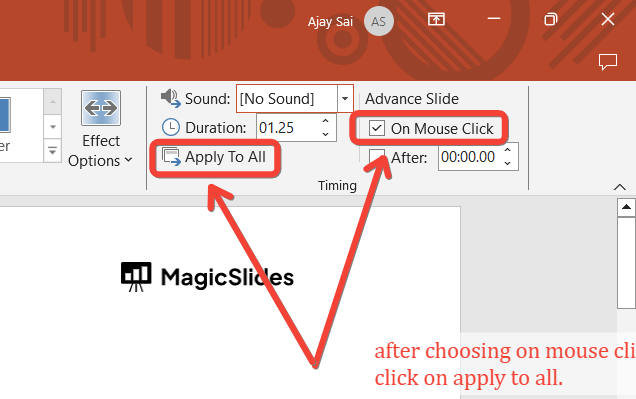
This will ensure every slide transitions automatically with the same effect and timing settings, providing a consistent look throughout your presentation.
Now that you've automated slide transitions in PowerPoint, check out how to add animations to all your slides to bring more life and flow to your presentation.
Conclusion
Automating slide transitions in PowerPoint enhances the overall flow of your presentations, allowing them to run smoothly without manual input.
By following these steps, you can easily set up automatic transitions that align with your presentation style and timing needs.
Experiment with different effects and timings to find what works best for your audience, creating a polished and engaging slideshow experience.
FAQs are here to help!
Can I set different timings for each slide transition in PowerPoint?
Yes, you can customize the timing for each slide by adjusting the "After" setting individually for each slide.
Will the automatic transitions work during a manual presentation?
Yes, but the slides will automatically advance after the set time, even if you are manually controlling the presentation.
Can I combine automatic transitions with animations on my slides?
Yes, automatic transitions work alongside slide animations, allowing for more dynamic and engaging presentations.


