How can you Add a Hyperlink to a Slide in PowerPoint?


Easily add hyperlinks in PowerPoint to connect your slides to external resources and enhance interactivity.
Adding hyperlinks to your PowerPoint slides is an excellent way to enhance interactivity and connect your presentation to additional resources, such as websites, other slides within the presentation, or even external documents.
Hyperlinks can guide your audience to supplementary information, making your presentation more engaging and informative.
In this blog post, we will walk you through the steps to add a hyperlink to a slide in PowerPoint, ensuring that your presentation is both dynamic and user-friendly.
How can you Add a Hyperlink to a Slide in PowerPoint?
Step 1: Open PowerPoint
Begin by launching Microsoft PowerPoint on your computer.
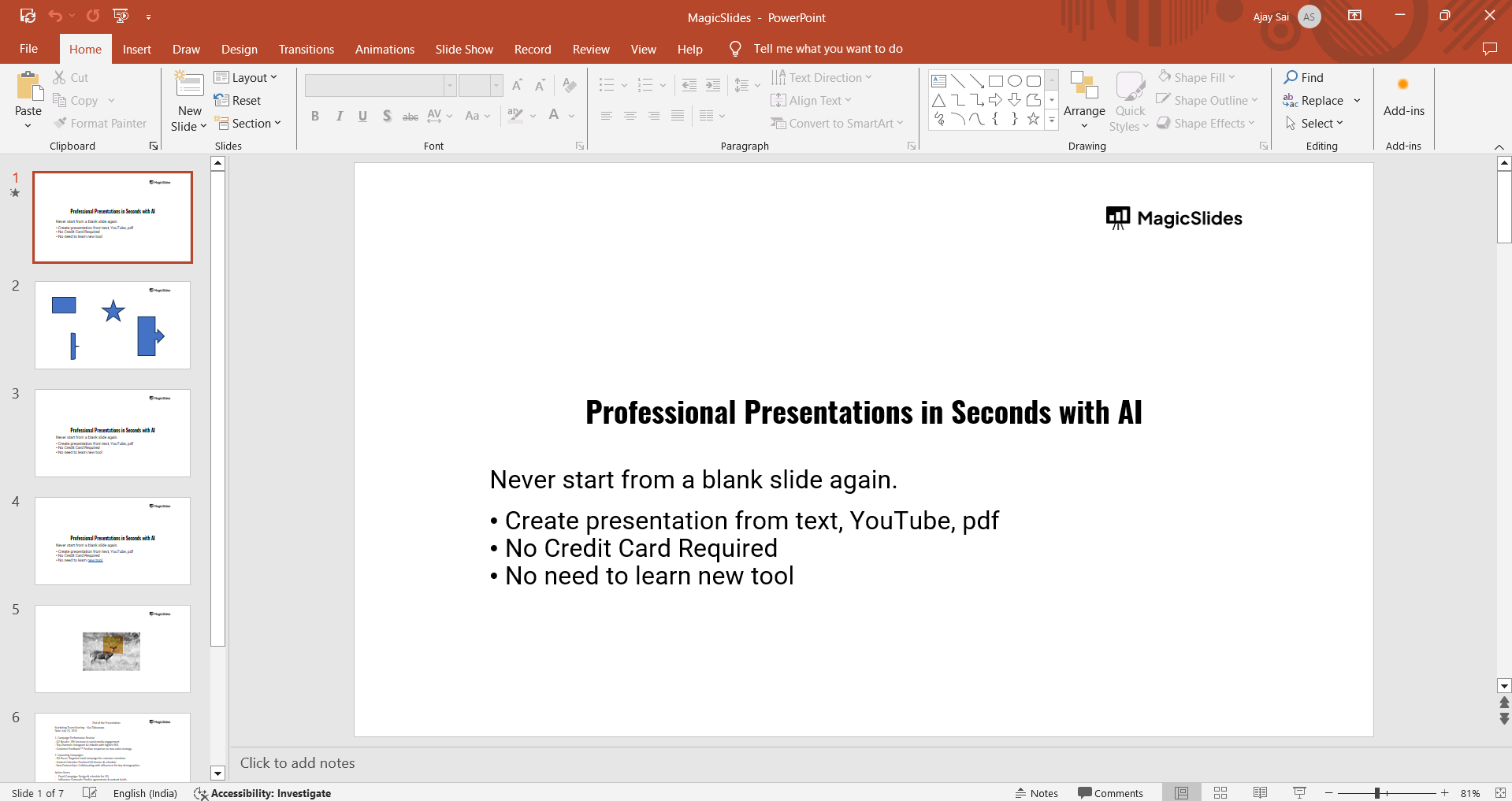
You can find it by searching in the Start menu or selecting the icon if it’s pinned to your taskbar.
Step 2: Create or Open a Presentation
Once PowerPoint is open, either create a new presentation or open an existing one where you want to add a hyperlink. To create a new presentation, select "Blank Presentation" or choose a template.
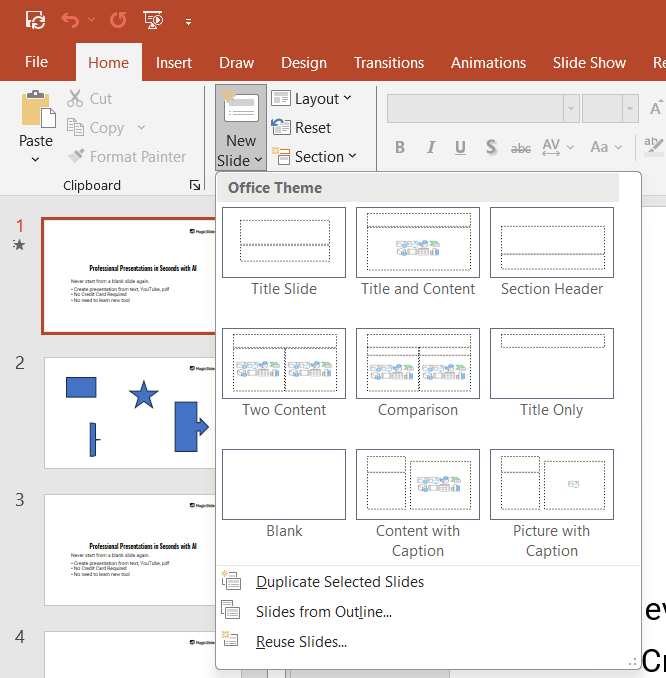
To open an existing presentation, click on "File" in the top-left corner, then "Open," and browse to the presentation file you wish to work on.
Step 3: Select the Text or Object
To add a hyperlink, first, select the text, image, shape, or other object on your slide that you want to turn into a hyperlink.
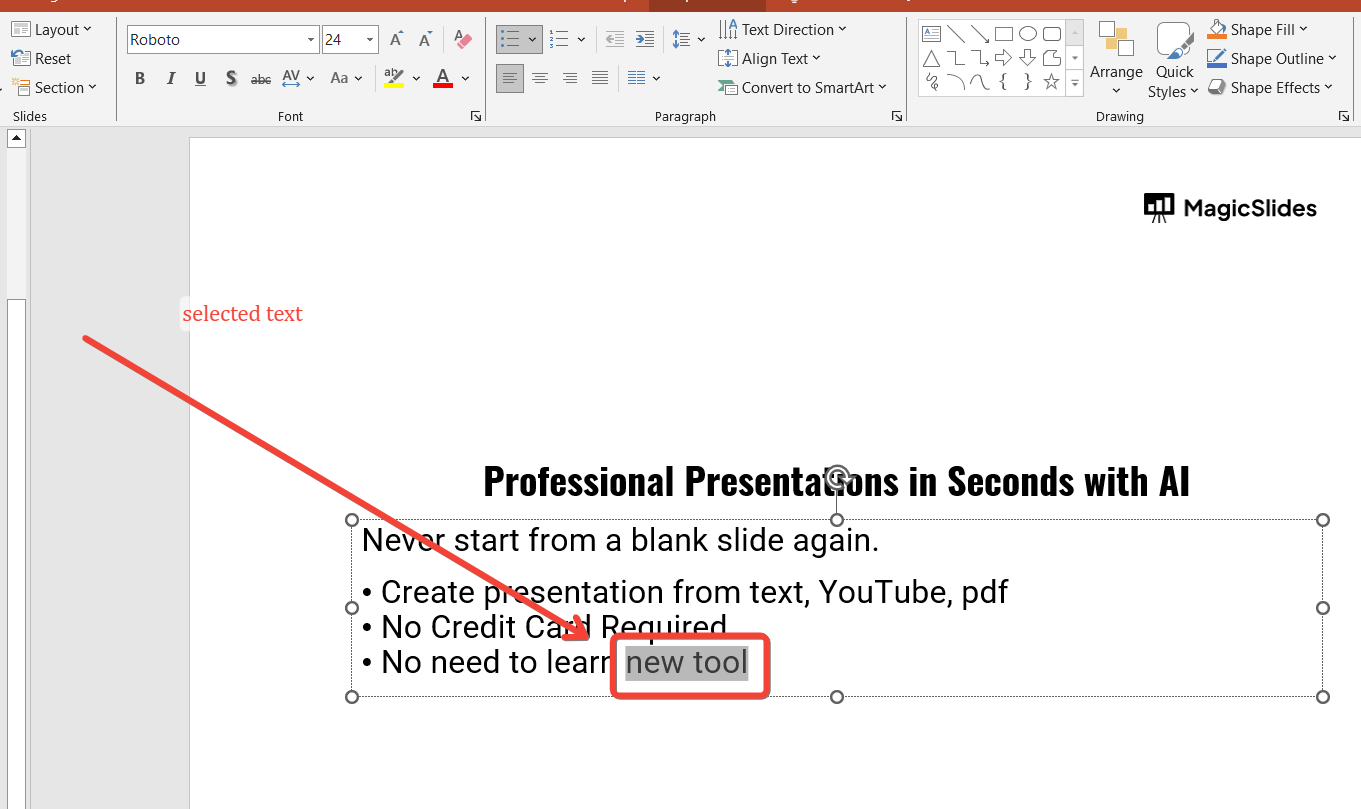
Click on the object or highlight the text so it’s selected.
Step 4: Insert the Hyperlink
With the text or object selected, go to the "Insert" tab on the PowerPoint ribbon. In the "Links" group, click on "Link" or "Hyperlink."
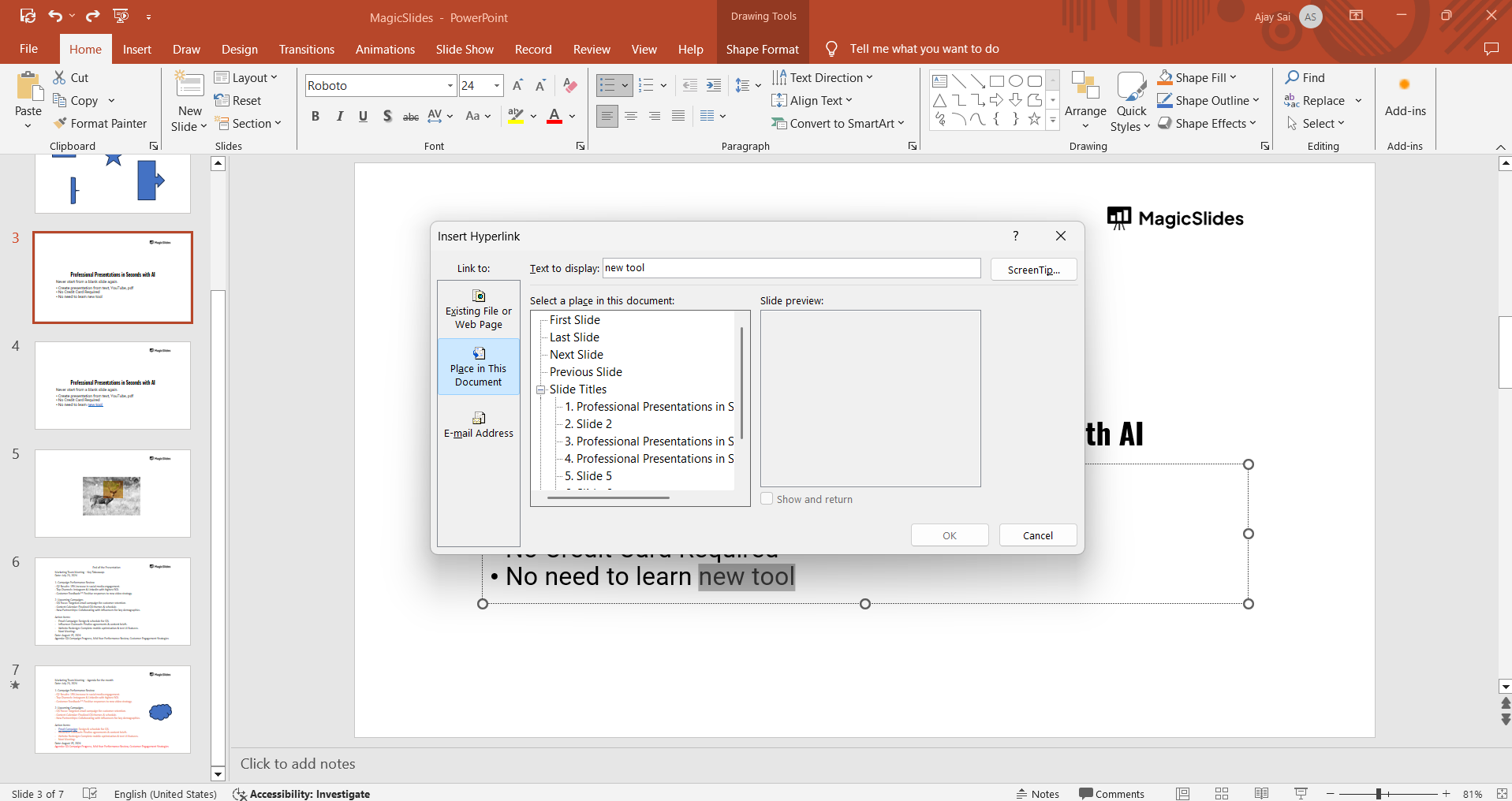
This action will open the "Insert Hyperlink" dialog box, where you can set the destination for your hyperlink.
Step 5: Choose the Hyperlink Type
In the "Insert Hyperlink" dialog box, you have several options for the type of hyperlink you want to create:
- Existing File or Web Page: Link to an external file or a webpage by entering the URL or browsing for the file.
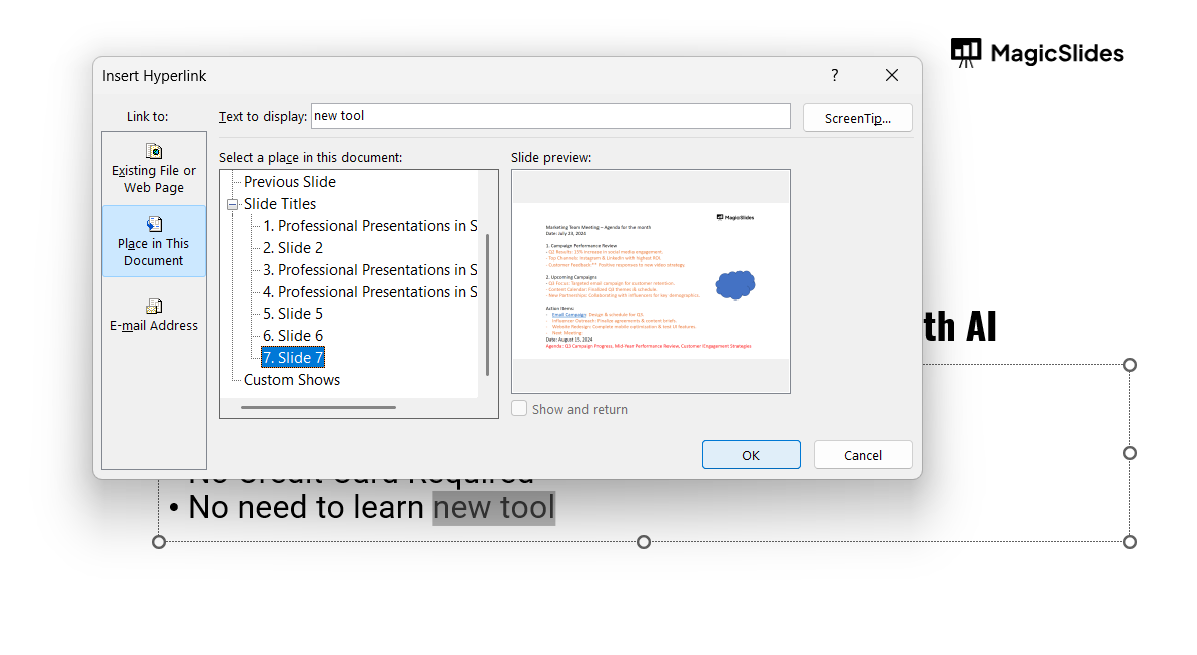
- Place in This Document: Link to another slide within the same presentation.
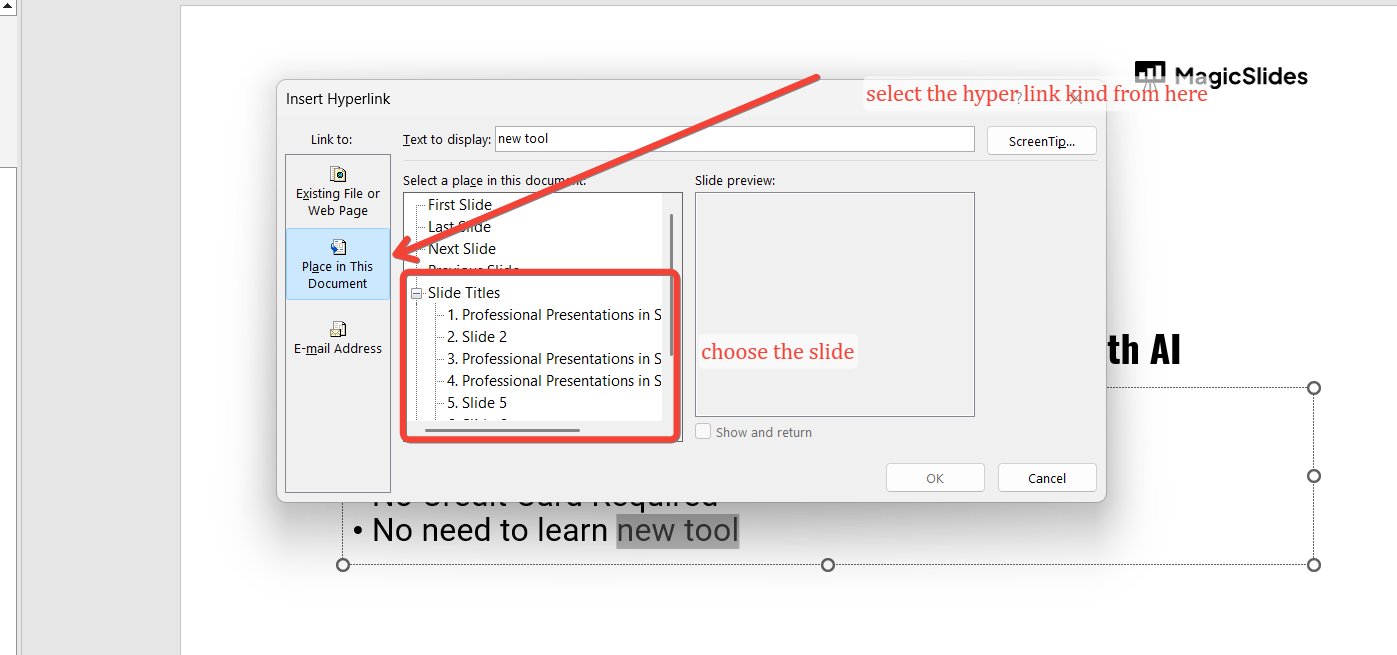
- Create New Document: Link to a new document that will be created.
- E-mail Address: Link to an email address, allowing the audience to send an email directly from the slide.
Select the appropriate option based on where you want the hyperlink to lead.
Step 6: Enter the Hyperlink Information
Depending on the type of hyperlink you choose, you will need to enter the relevant information:
- For a web page, enter the URL.
- For a file, browse to its location on your computer.
- For a slide in the presentation, select the slide from the list.
- For an email address, enter the recipient's email address and an optional subject line.
Once the information is entered, click "OK" to apply the hyperlink.
Step 7: Test the Hyperlink
To ensure that your hyperlink works correctly, run your presentation in "Slide Show" mode.
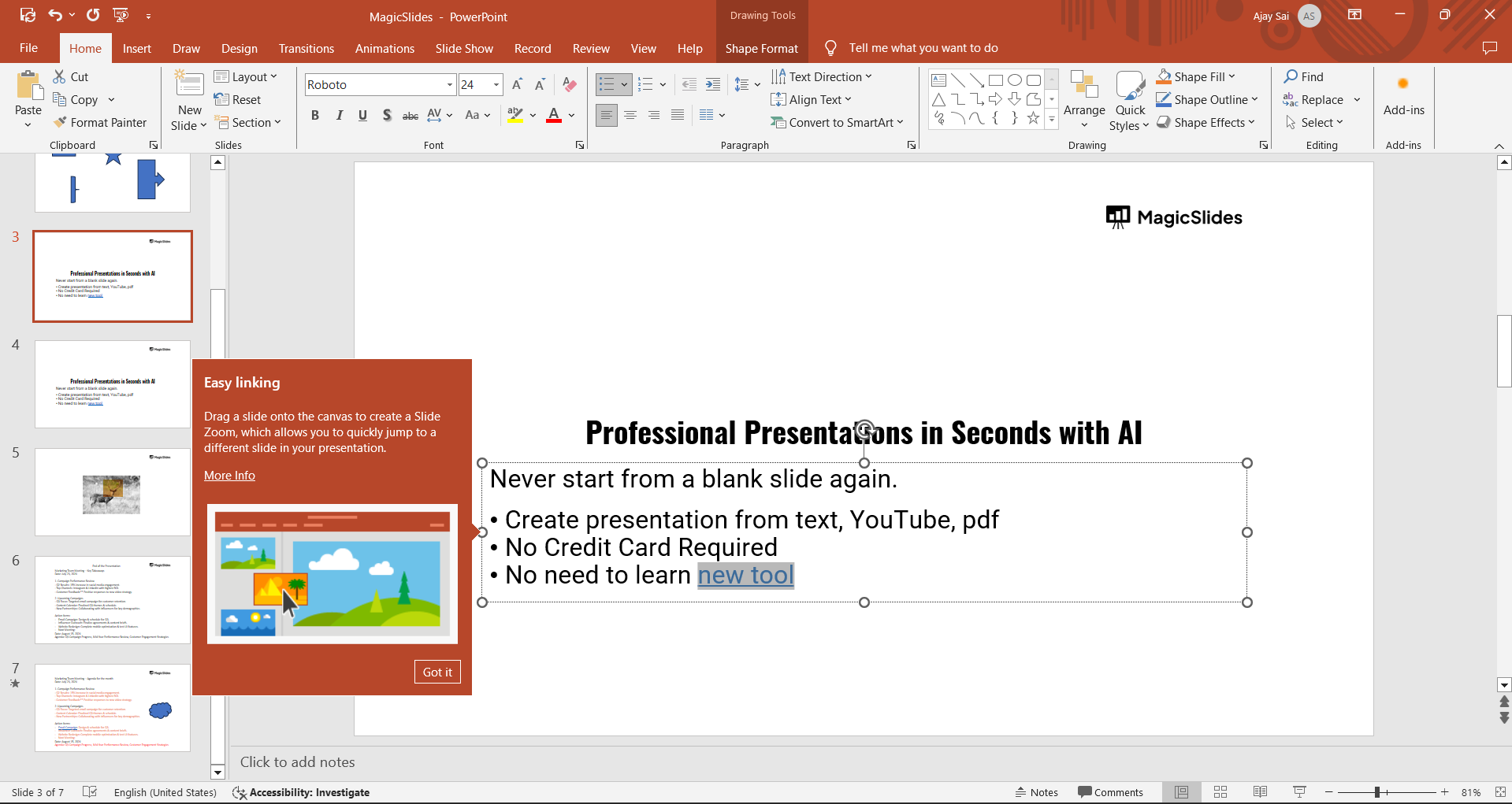
Click on the hyperlinked text or object to see if it takes you to the intended destination.
PowerPoint’s "Merge Shapes" tool combines or subtracts shapes to create custom visuals and unique designs.
Conclusion
Adding a hyperlink to a PowerPoint slide is a simple yet powerful way to make your presentation more interactive and informative.
By following these steps, you can link to external websites, other slides, files, or even email addresses, enhancing the functionality of your presentation.
Hyperlinks provide your audience with easy access to additional resources and can make your presentation more engaging.
Tired of making presentations? what if we tell you you can make a presentation with just a prompt, convert YouTube videos to PPTs, convert website content to PPTs? Yes! checkout magicslides.app that does all and enjoy the free credits to make presentations in seconds.
FAQs are here to guide!
Can I hyperlink to another slide within the same presentation?
Yes, you can hyperlink to any slide within your presentation by selecting "Place in This Document" in the hyperlink options.
Can I add multiple hyperlinks to the same slide?
Yes, you can add multiple hyperlinks to different text or objects on the same slide.
How do I remove a hyperlink in PowerPoint?
Right-click the hyperlinked text or object and select "Remove Hyperlink" from the context menu.


