How do Google forms work


Unlock the potential of data collection with Google Forms by understanding the simple yet powerful process.
Google Forms streamline data collection, surveys, and quizzes, making them a versatile tool for various purposes. In this step-by-step guide, we'll delve into how Google Forms work, from creating a form to analyzing responses. Whether you're a teacher, business professional, or event organizer, mastering Google Forms can revolutionize how you gather and interpret data.
How Google Forms Work: A Step-by-Step Guide
Step 1: Create a Form
Open Google Forms (forms.google.com) and sign in to your Google account. Click on the "+ Blank" button to create a new form. Add questions, choose question types, and customize the form to suit your needs.
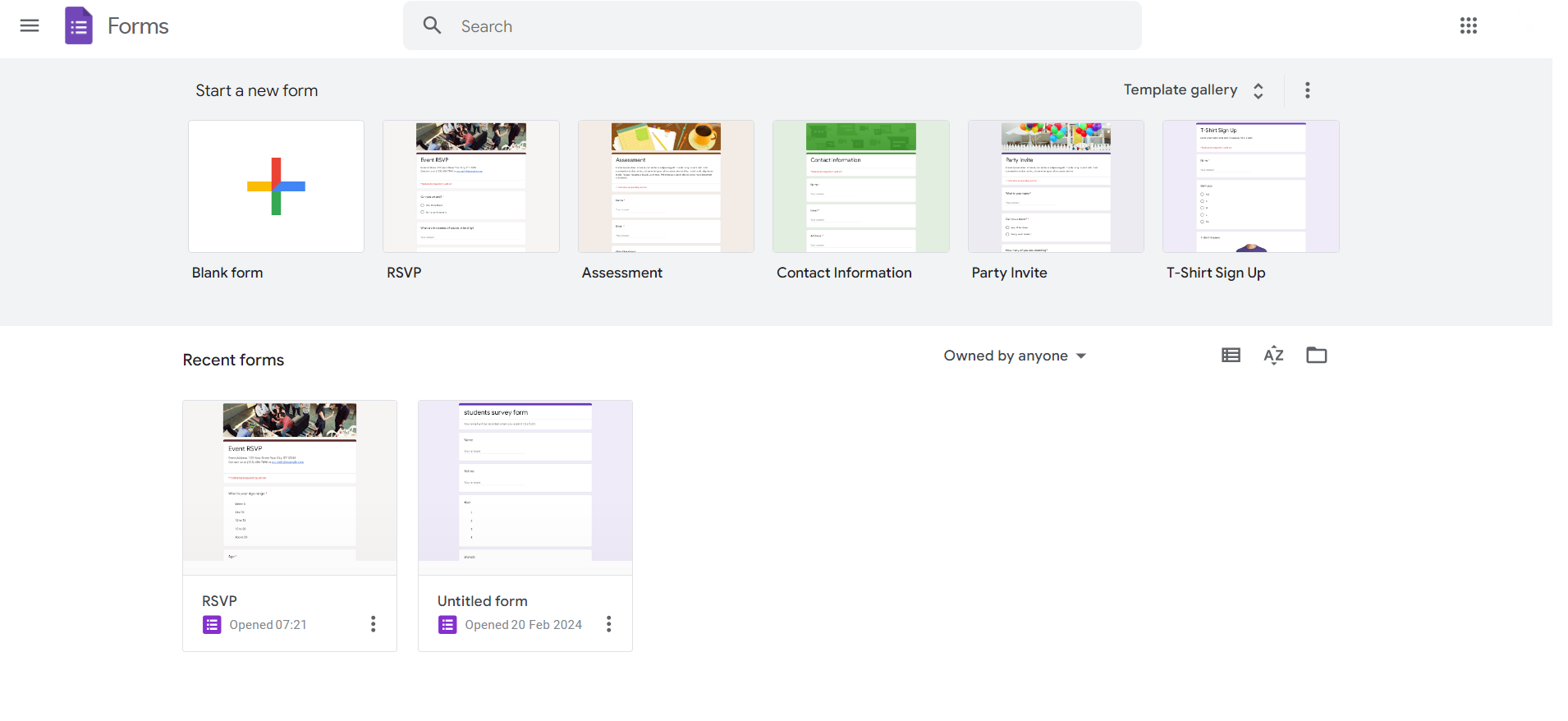
Step 2: Access the "Responses" Tab
In the form editor, click on the "Responses" tab at the top. Here, you can view a summary of responses, review individual responses, and explore additional options.
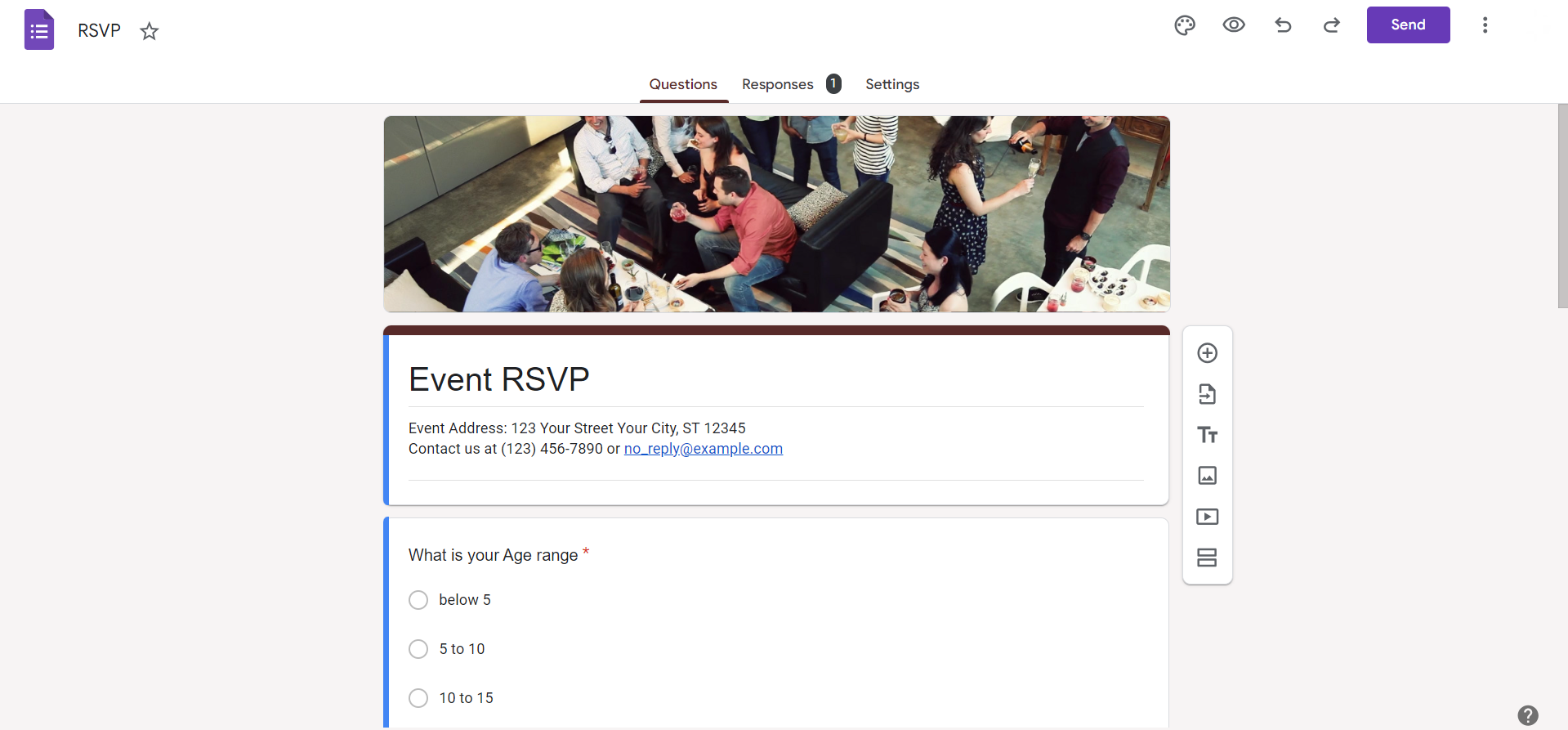
Step 3: Explore the "Summary" and "Individual" Options
Choose "Summary" to see visual representations like charts and graphs based on the responses. Opt for "Individual" to review each respondent's answers individually, allowing in-depth analysis.

Step 4: Customize Views and Filters
Click on the "More" button (three dots) to access additional options. Customize views, apply filters, and even download responses in various formats for further analysis.
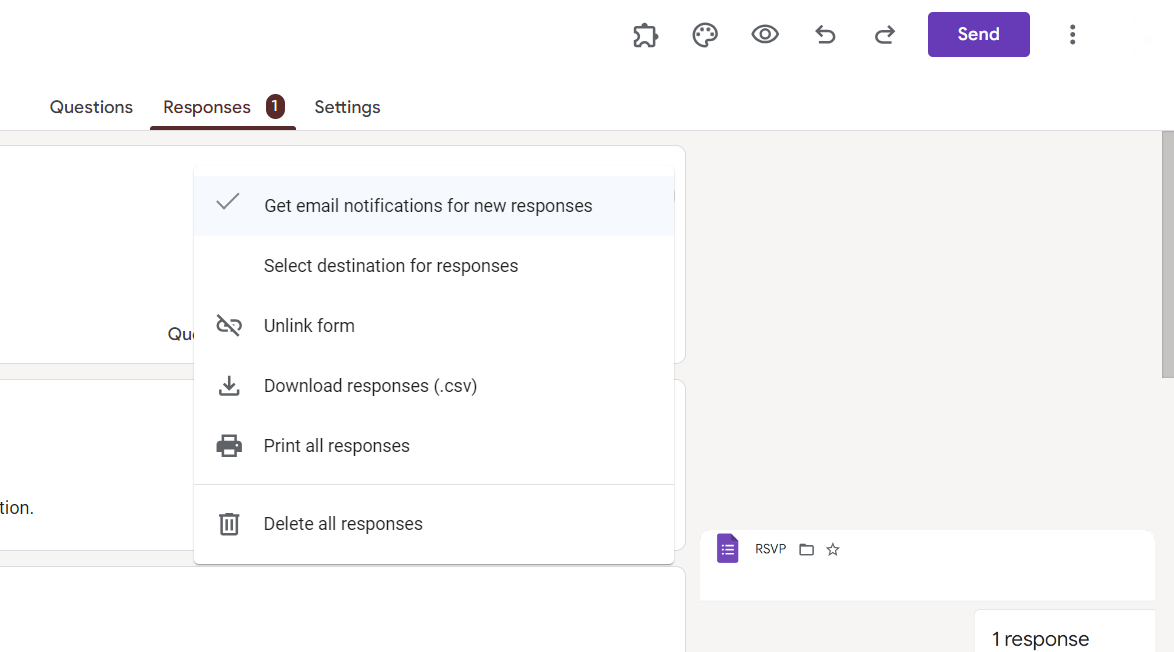
Step 5: Navigate to the "Settings" Tab
In the form editor, find and click on the "Settings" gear icon. Adjust settings such as limiting responses, collecting email addresses, or enabling response edits.
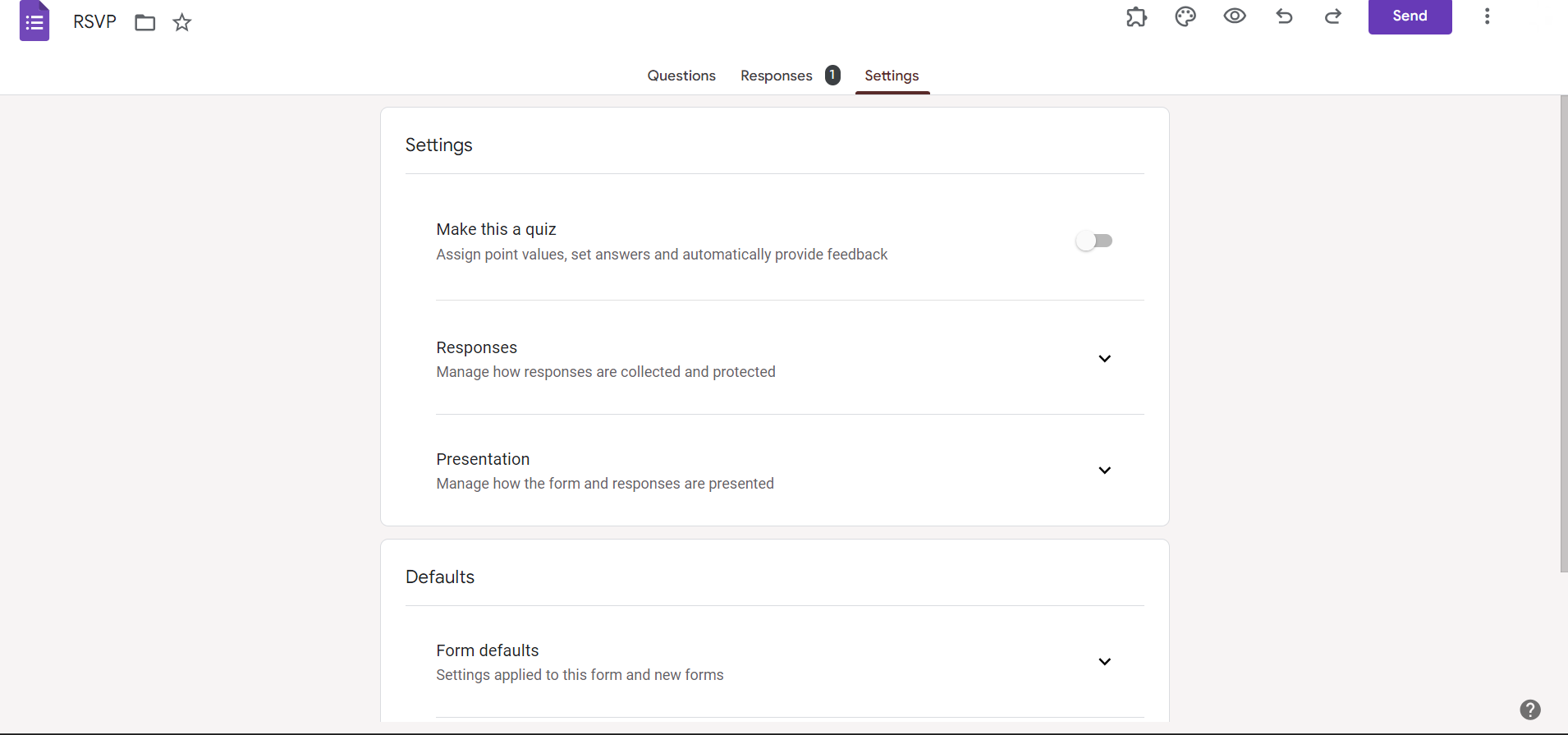
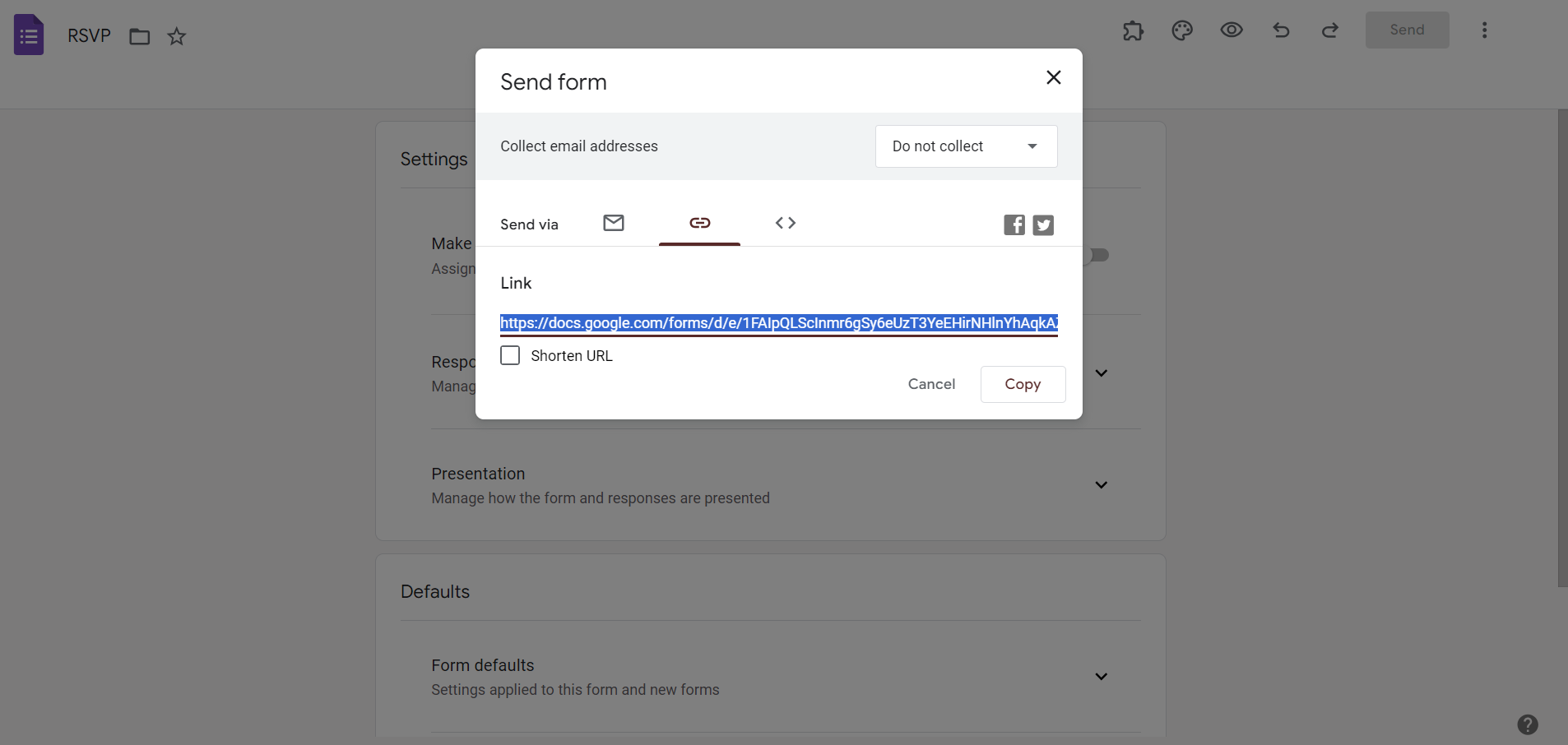
Step 6: Share and Collect Responses
Click on the "Send" button to generate a link or embed code to share your form. Respondents fill out the form, and their responses are automatically collected in the "Responses" tab.
Conclusion:
Google Forms provide a seamless and efficient way to collect and analyze data for a variety of purposes. From creating customized forms to exploring response summaries and adjusting settings, each step plays a crucial role in the form's functionality. By mastering these key steps, you can harness the full potential of Google Forms, transforming the way you gather information and make informed decisions.
Frequently Asked Questions:
Can I customize the appearance of my Google Form to match my brand or theme?
Yes, Google Forms allow customization of themes, backgrounds, and overall appearance for a personalized touch.
Is it possible to receive email notifications for each response submitted to my form?
Absolutely, you can enable email notifications in the form settings to stay updated on incoming responses.
Can respondents edit their submitted answers after completing the form?
By default, respondents can't edit their responses, but the form creator can enable response editing.
How do I prevent multiple submissions from the same person on my Google Form?
In the form settings, you can limit responses to one per person, ensuring data accuracy.


