Addon google slides iconPPT with AISlide TemplatesPPT TemplatesPricingBlog
    PPT with AISlide TemplatesPPT TemplatesPricingBlog
    1. Home
    2. Blog
    3. How to add answers to Google Forms


    How to add answers to Google Forms

    magicslides app

    Published By

    magicslides app
    Mohit Kumar Jha

    Approved By

    Mohit Kumar Jha

    Published On

    July 23th, 2024

    Reading Time

    3 min read

    Optimize your Google Forms by mastering the process of adding clear and concise answers.

    Google Forms is a versatile tool for collecting information, feedback, and conducting surveys. One crucial aspect is adding answers to create effective and interactive forms. In this step-by-step guide, we'll navigate through the process of seamlessly adding answers to your Google Forms, ensuring a streamlined experience for both you and your respondents.

    How to add answers to Google Forms

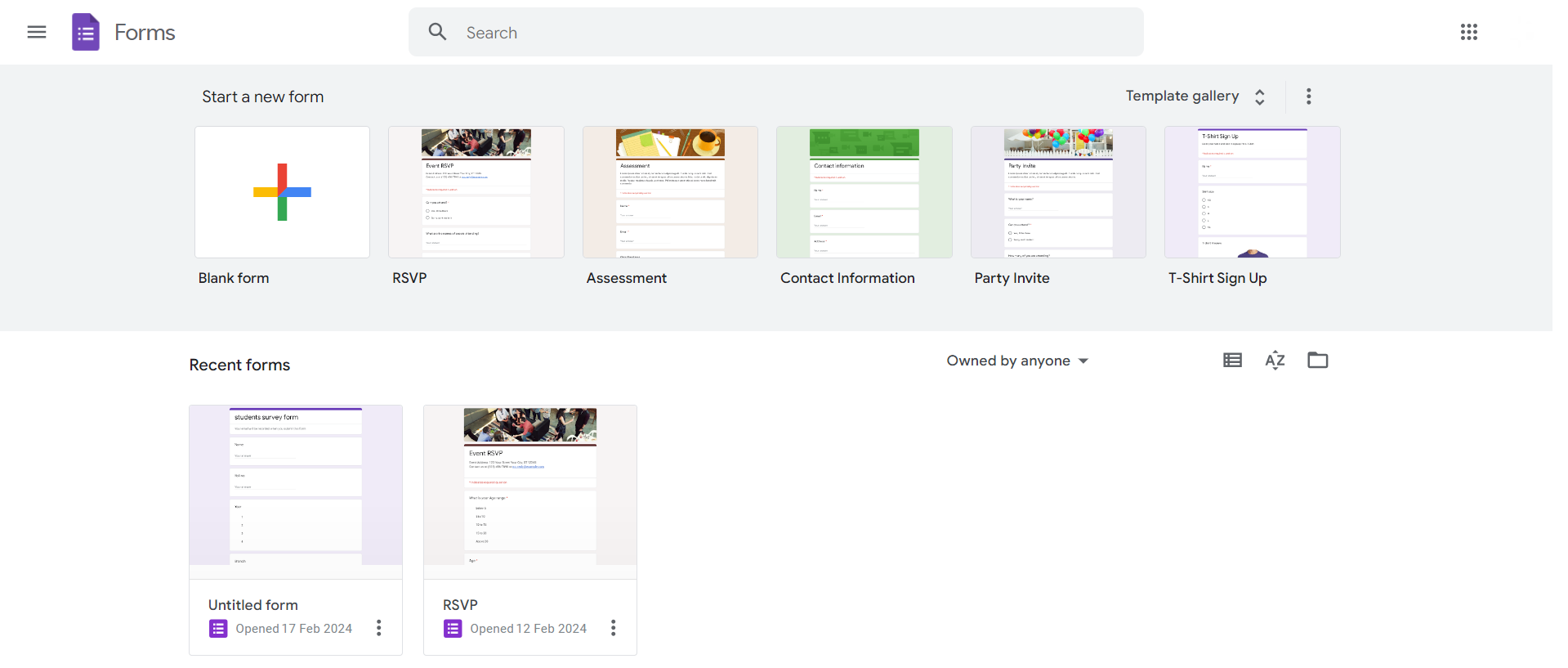
    Step 1: Create or Open Your Google Form

    Begin by creating a new form or opening an existing one in Google Forms. If starting fresh, choose a template or build your questions.
    notion image

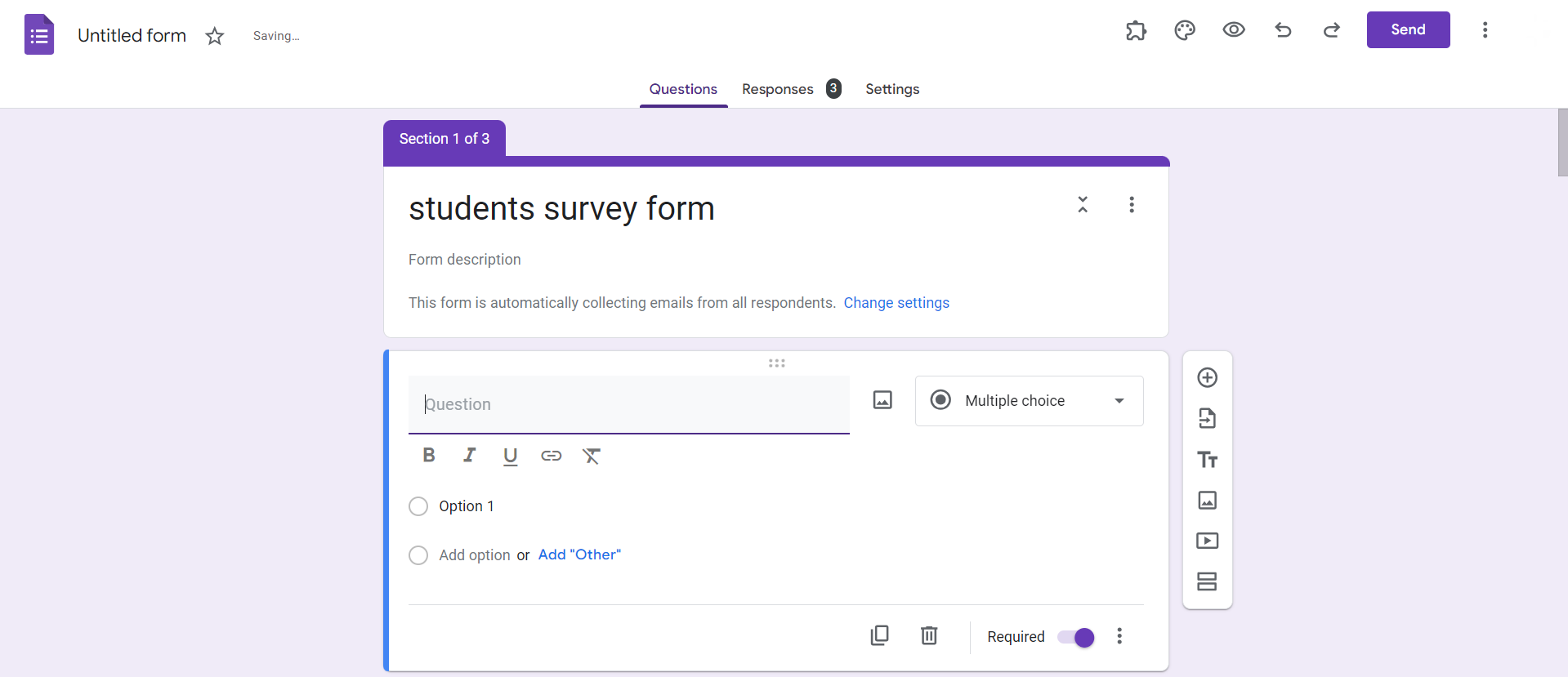
    Step 2: Add a Question to Your Form

    Click on the "+ Add question" button to include a new question in your form. Choose the question type that fits your needs, such as multiple choice, short answer, or dropdown.
    notion image

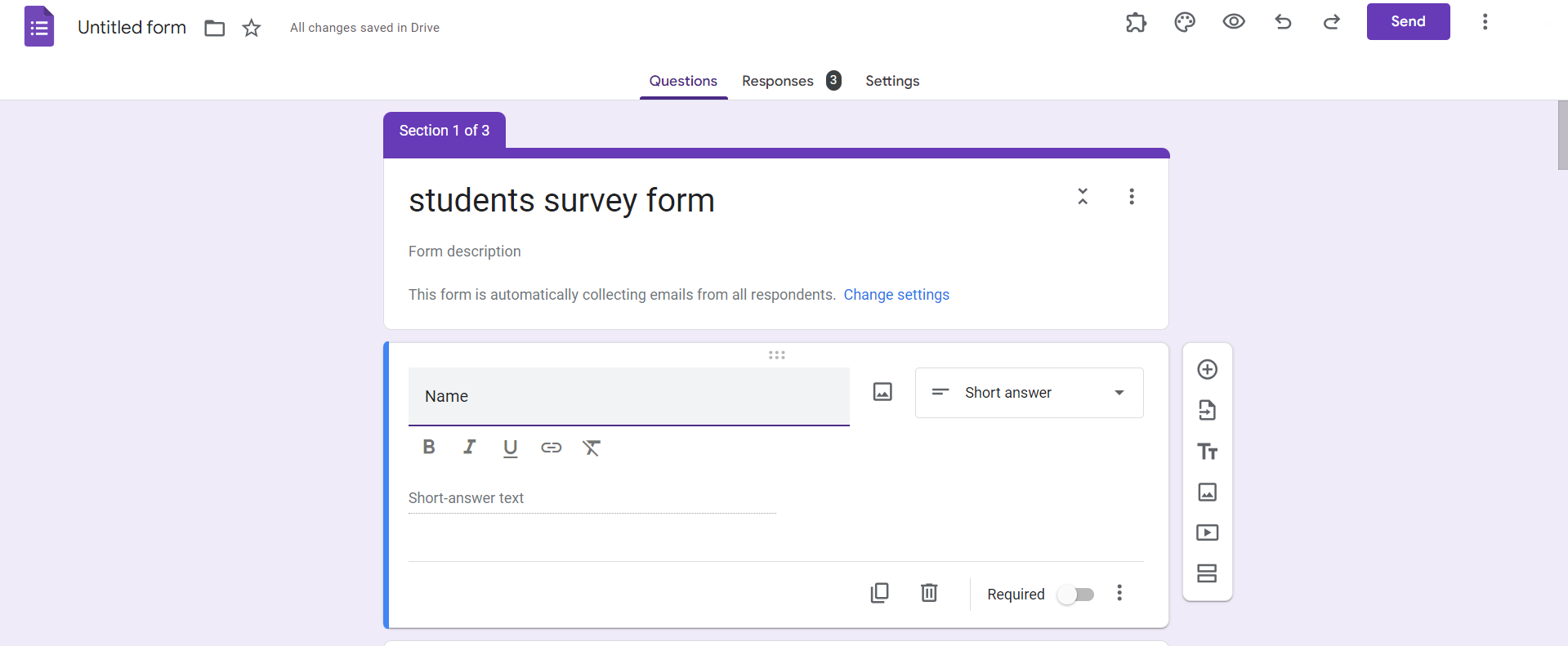
    Step 3: Input Your Question Text

    Compose your question in the provided text box. Make it clear, concise, and easy for respondents to understand.
    notion image

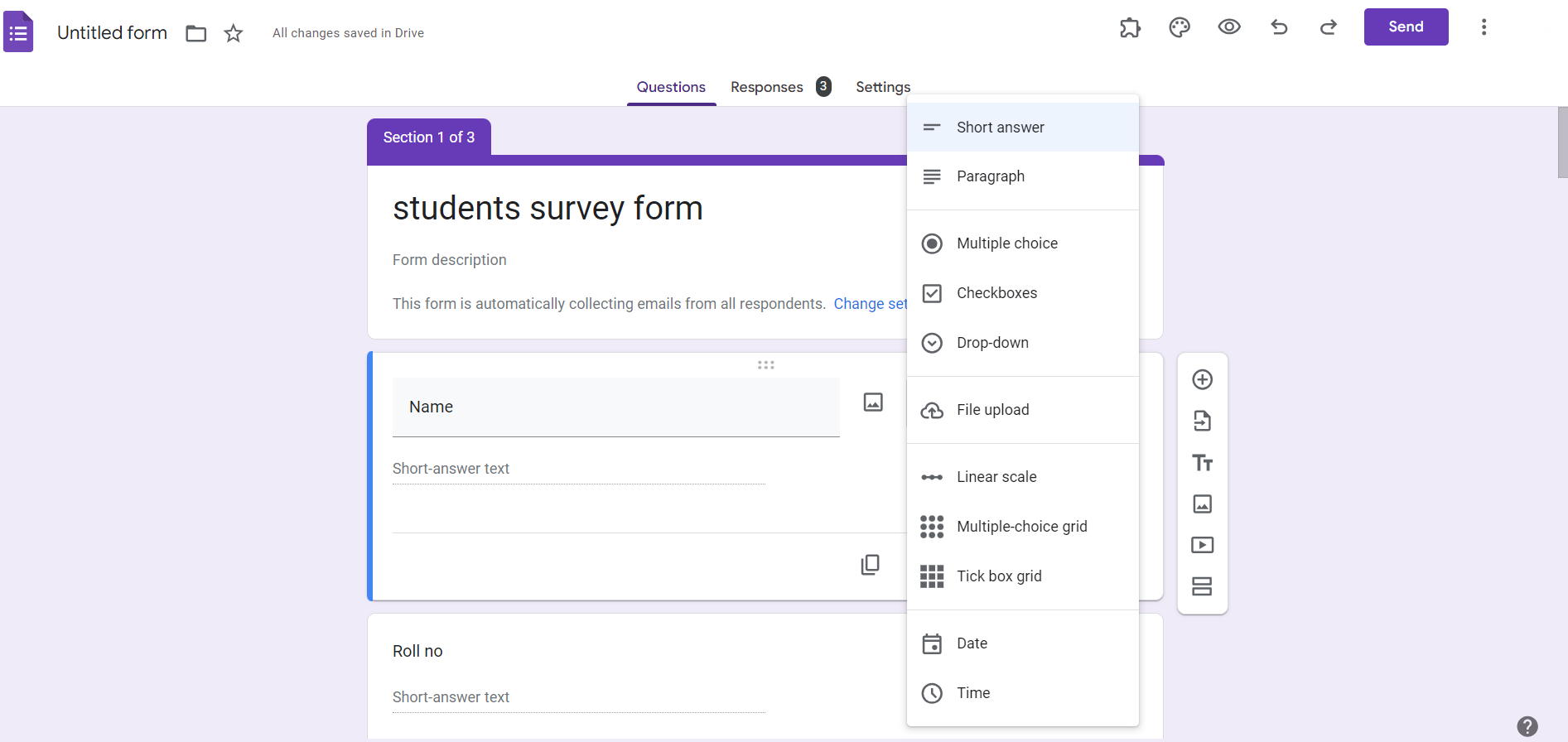
    Step 4: Define Answer Options

    For question types like multiple choice or dropdown, input the answer options in the designated fields. For short answer questions, respondents will type their answers directly.
    notion image

    Step 5: Specify Correct Answers (For Quiz Forms)

    If your form is a quiz, toggle on the "Answer Key" option for relevant questions. For multiple-choice questions, mark the correct answer(s) by checking the box next to them.
    notion image

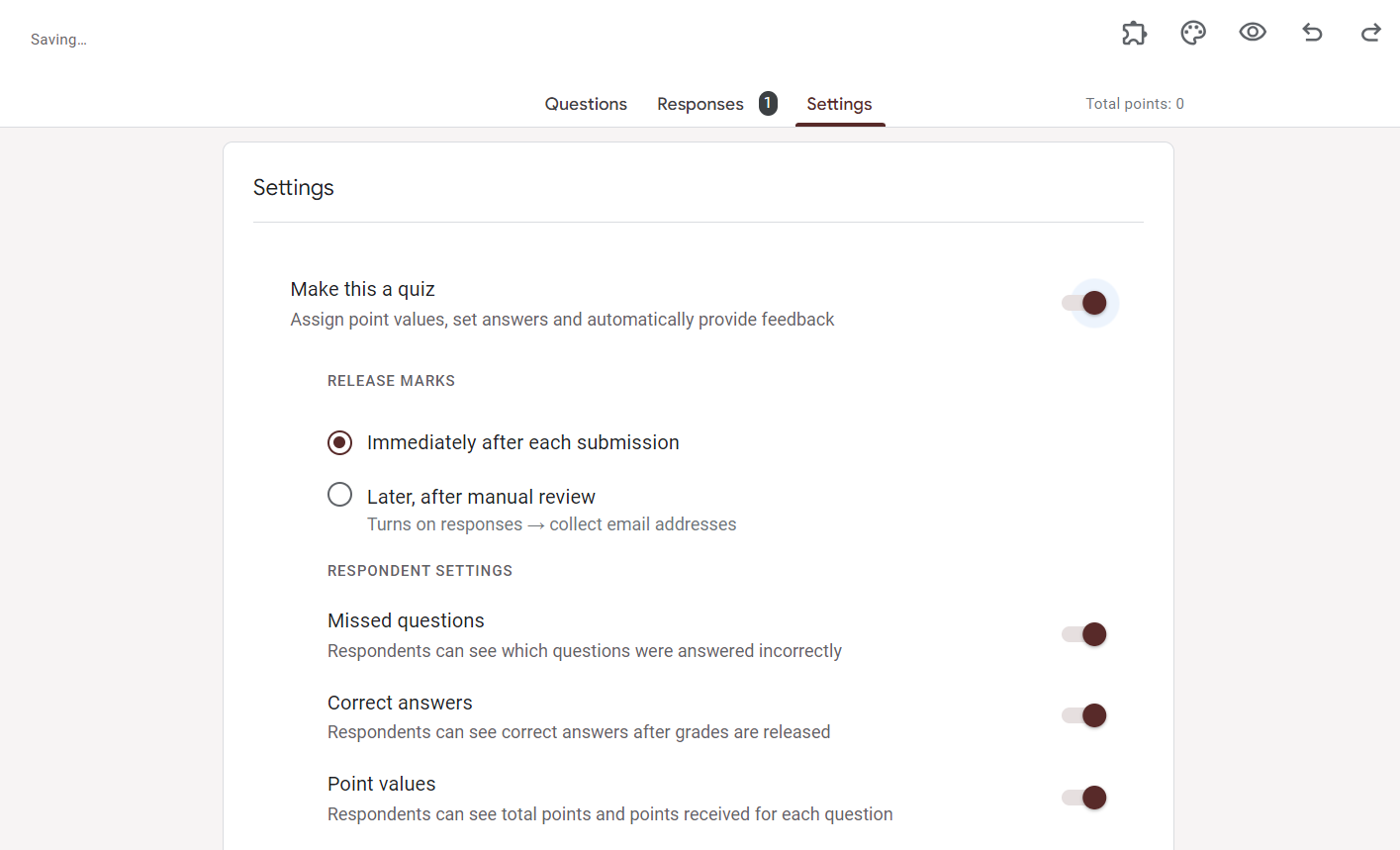
    Step 6: Set Scoring (For Quiz Forms, Optional)

    If applicable, assign points to each question by entering values in the "Points" field. This is beneficial for automatic scoring in quiz-style forms.
    notion image

    Step 7: Continue Adding Questions

    Repeat steps 2-6 to add additional questions to your form. Keep a cohesive structure and ensure each question has clear answer options.

    Conclusion:

    Effectively adding answers to your Google Forms is pivotal for gathering accurate and organized responses. Whether you're creating a survey, a quiz, or a registration form, providing clear questions and answer options enhances the user experience. Take advantage of the platform's flexibility to tailor your questions and answers to the specific needs of your form. By following these simple steps, you'll be on your way to crafting informative and engaging Google Forms that efficiently collect the data you seek.

    Frequently Asked Questions:

    Can I edit or add answers after I've already shared the Google Form?
    Yes, you can modify questions and answers even after the form is shared, ensuring flexibility.

    Are there character or length limits for answers in Google Forms?

    While Google Forms doesn't have strict character limits, concise answers are recommended for clarity.

    Can I randomize answer options to avoid bias in multiple-choice questions?

    As of my last update in January 2022, Google Forms doesn't have built-in randomization for answer options.

    How can I prevent participants from seeing correct answers in quiz-style Google Forms?

    After setting the form as a quiz, uncheck the option to "Release score" to keep answers confidential.

    Share on socials

    About the author

    Sanskar Tiwari profile photo
    Sanskar Tiwari— Founder at MagicSlides

    Sanskar is Founder at IAG Tech, For the past 3 years sanskar have build more than 24+ products, taught 100k students how to code.

    More from Sanskar

    More from the blog

      250+ Good Morning Messages for Her (Romantic, Deep, Cute & Sweet)

      30 January 2026

      200+ Heart Touching Birthday Wishes for Sister (Short, Funny and More)

      29 January 2026

      50+ History Presentation Topics For 2026

      28 January 2026

      How to Add Music to Your Canva Presentation: A Step-by-Step Guide

      27 January 2026

      15 Quick Tips To Use ChatGpt At Work

      22 January 2026

      11 Best AI Tools for Business in 2025

      22 January 2026

      How to Create an Infographic That Clearly Communicates Your Message

      20 January 2026

      How to Create a Sales Presentation Template in Google Sheets

      20 January 2026

      How to Make a Pie Chart on Google Slides in Simple Steps

      19 January 2026

    Table of Contents

    Create Presentations in Seconds

    Transform your ideas into professional presentations with AI. No design skills needed.

    Try MagicSlides Free

    Create Stunning Presentations with AI in Seconds ✨

    Transform any topic, text, YouTube video, PDF or URL into beautiful presentations instantly with MagicSlides AI.

    Try MagicSlides AI Presentation Maker
    MagicSlides AI Presentation

    Footer

    Solutions

    • MagicSlides App
    • Google Slides Add-on
    • MagicSlides in Chrome
    • MagicSlides in Figma
    • MagicSlides in ChatGPT
    • MagicSlides in Telegram
    • MagicSlides in Zapier
    • MagicSlides in Figma Slides

    Tools

    • AI PPT Tools
    • QR Code Generator
    • Design Tools
    • PPT Templates
    • Slide Templates
    • PDF Tools

    Examples

    • AI Presentations
    • PPT by MagicSlides
    • Quizzes
    • Charts
    • Coloring Pages

    Resources

    • Changelog
    • Documentation
    • API Docs

    Top Blogs

    • How to Create Presentation Using ChatGPT
    • 100+ Best Seminar Topics for Students in 2025

    Company

    • Help
    • MCP
    • Blog
    • Pricing
    • Affiliate Program
    • Manage Subscription
    • Privacy Policy
    • Contact Us
    • Terms & Conditions
    • Refund & Cancellation Policy

    We also built

    • SheetAI - GPT For Sheets
    • MagicForm - GPT For Google Forms
    • SecondBrain.fyi
    • BlogBee - Free Blogging Platform

    © 2026 IndianAppGuy Tech Pvt Ltd. All rights reserved.