How to Add border to Graphics Canva


Enhance your Canva designs by adding customizable borders to graphics with these simple, step-by-step instructions
Adding borders to graphics in Canva is an easy way to enhance their visual appeal and make them stand out.
Whether you’re creating social media posts, presentations, or marketing materials, borders can help emphasize key elements.
This step-by-step guide will show you how to add borders to graphics in Canva effortlessly.
How to Add a Border to Graphics in Canva | Steps to Add a Border to Graphics in Canva
Step 1: Open Your Canva Design
Log in to your Canva account and open the design where you want to add a border.

Select the specific graphic or image you want to apply a border to.
Step 2: Add a Shape as a Border
In the left-hand toolbar, click on “Elements.” Search for a shape, such as a rectangle, circle, or any other shape that complements your graphic.
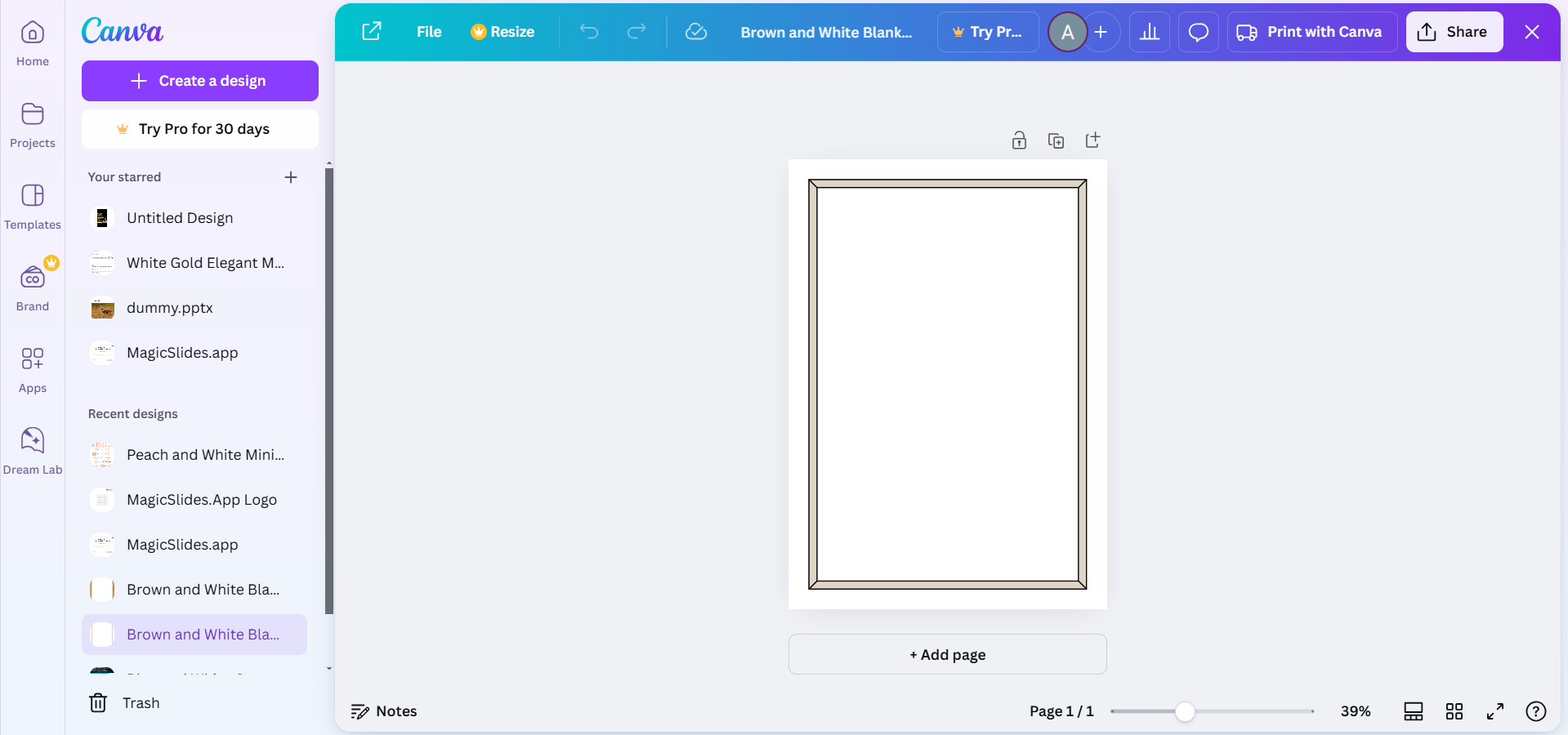
Drag the shape onto your canvas and position it over the graphic.
Step 3: Adjust the Shape to Fit the Graphic
Resize the shape by dragging its edges to surround your graphic perfectly.
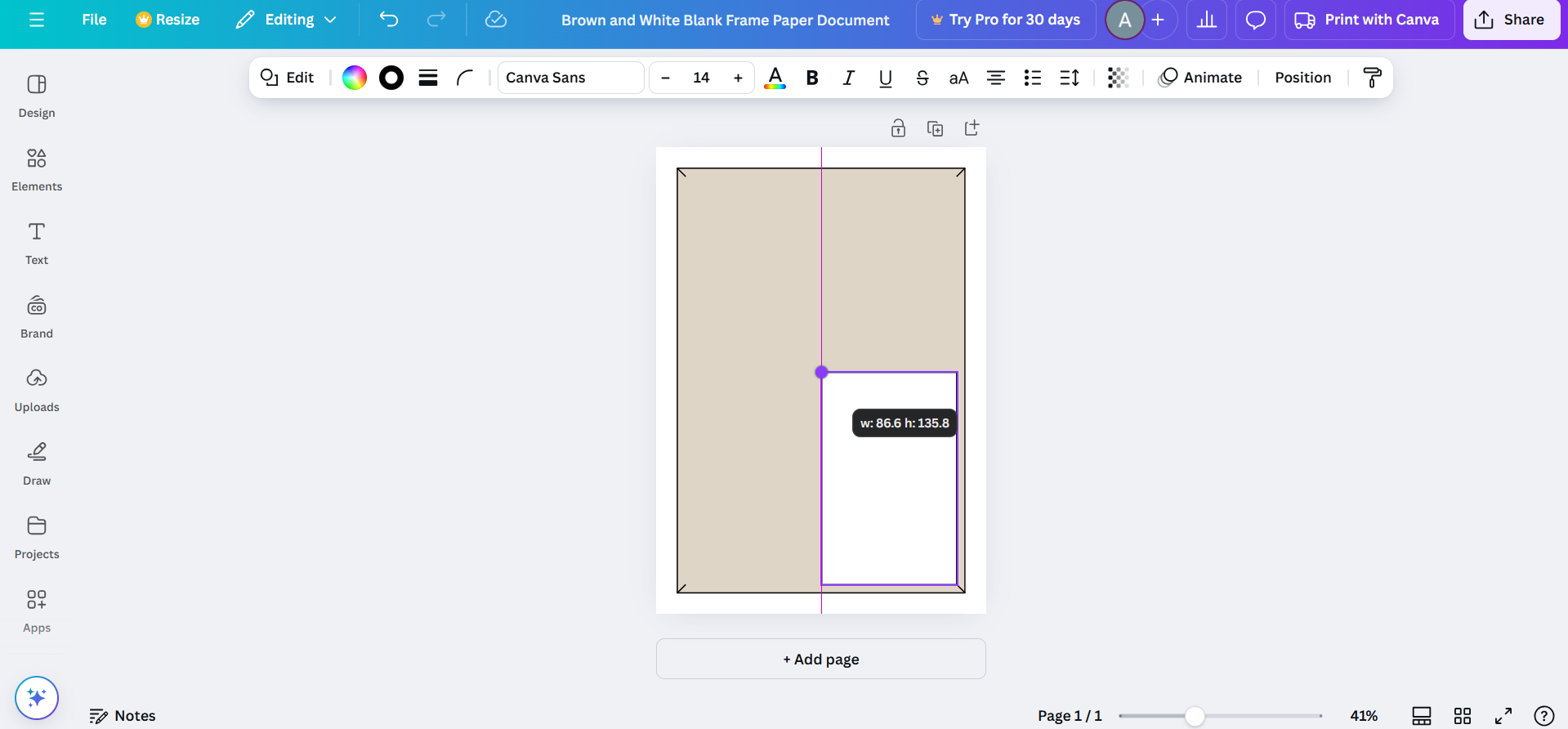
Make sure the shape slightly overlaps the graphic to create a clean border effect.
Step 4: Customize the Border Color and Thickness
Select the shape (border) and click on the color tile in the toolbar to choose a color.
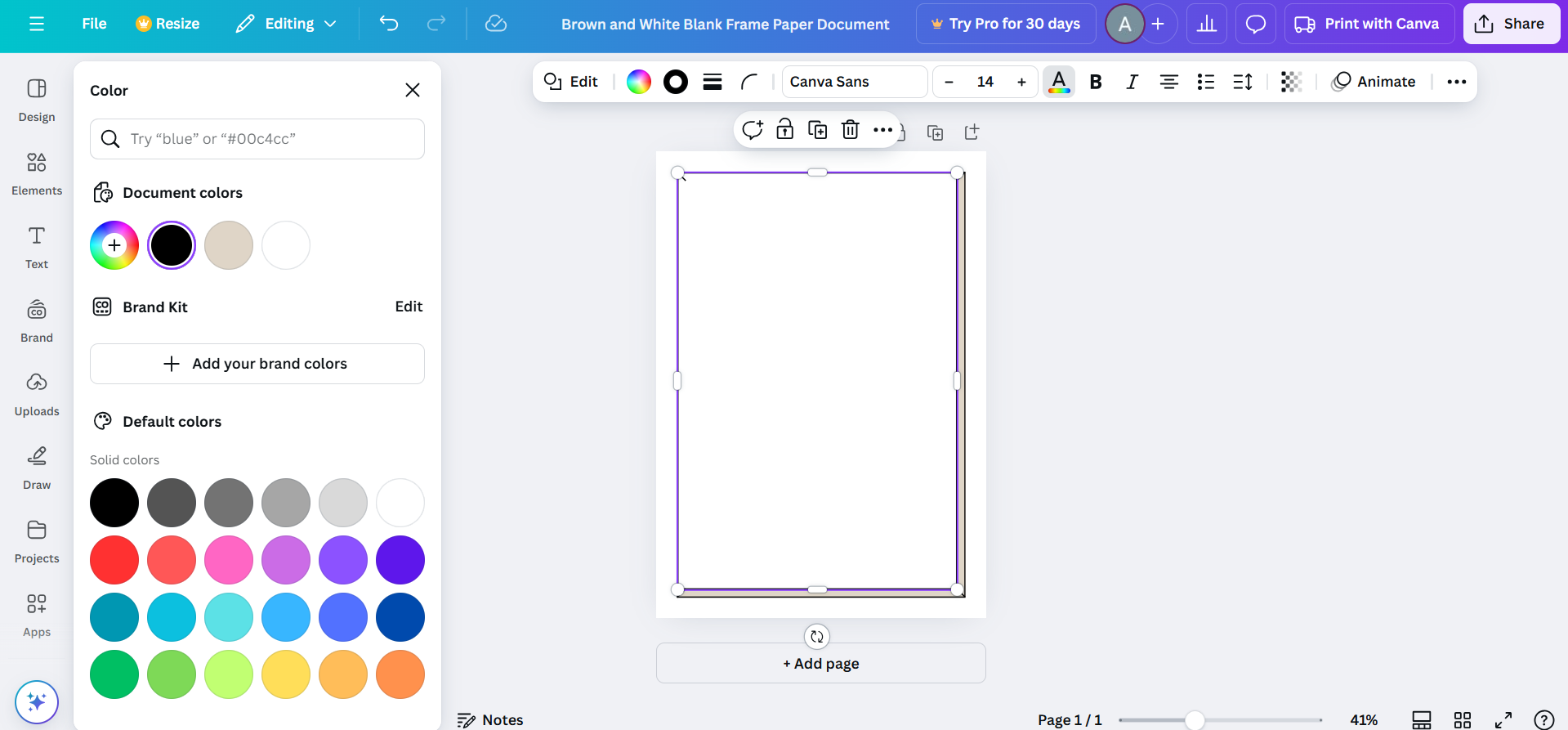
Adjust the transparency or thickness of the shape by using the “Line Weight” or opacity options to achieve your desired look.
Step 5: Final Adjustments
Ensure the border aligns perfectly with the graphic for a polished appearance.
Preview the design to check if the border enhances the overall visual appeal without overwhelming the graphic.
After adding a border to graphics in Canva, enhance your designs by learning how to create a flyer in Canva for professional marketing materials.
Conclusion
Adding a border to graphics in Canva is a simple process that can dramatically improve your design's visual impact.
Whether you’re highlighting specific elements or creating a cohesive layout, Canva’s tools make it easy to customize borders to suit your needs.
With these steps, you can add borders like a pro and make your designs truly stand out.
FAQs on Adding Borders to Graphics in Canva
Can I add a border to text in Canva?
Yes, you can add borders to text by placing a shape behind it or using text effects.
Can I customize the border style?
Absolutely! Canva allows you to change the thickness, color, and even style (solid, dashed, etc.) of borders.
Is it possible to add borders to multiple graphics at once?
No, you’ll need to apply borders to each graphic individually, but you can duplicate styled elements for consistency.
By following these simple steps, you can easily add borders to your graphics in Canva and elevate your design projects!


