How to Make Flyer in Canva


Design stunning and professional flyers in Canva with ease, perfect for promoting events or services
Flyers are a powerful and versatile way to promote events, products, or services.
Canva, with its intuitive design tools and vast library of templates, makes creating professional flyers simple and efficient even for those without design experience.
Follow this step-by-step guide to craft an eye-catching flyer in Canva that suits your needs.
How to Make a Flyer in Canva | Steps to Make a Flyer in Canva
Step 1: Log in to Canva
Go to Canva and log in to your account.
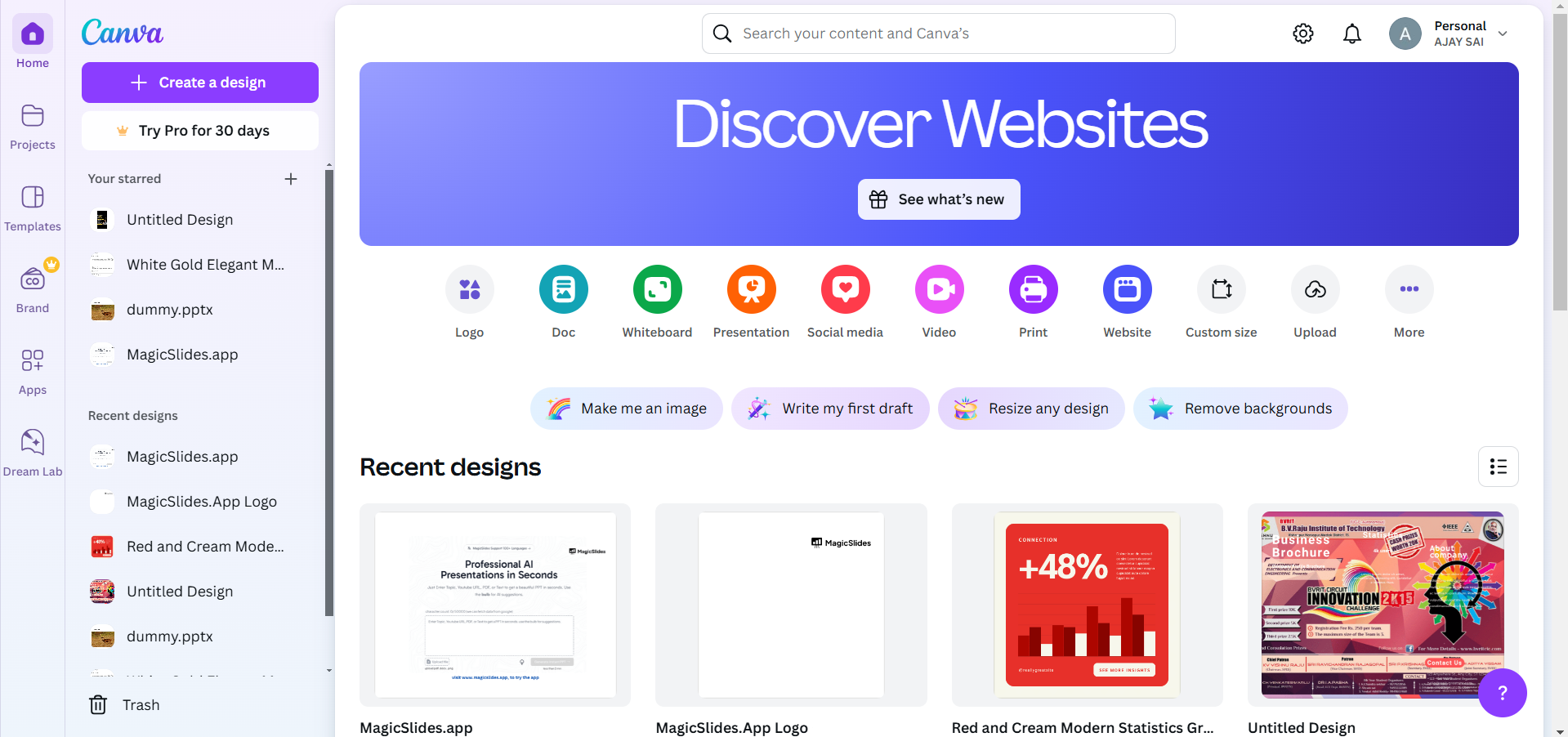
If you’re new to Canva, sign up for free with your email, Google, or Facebook account.
Step 2: Select a Flyer Template
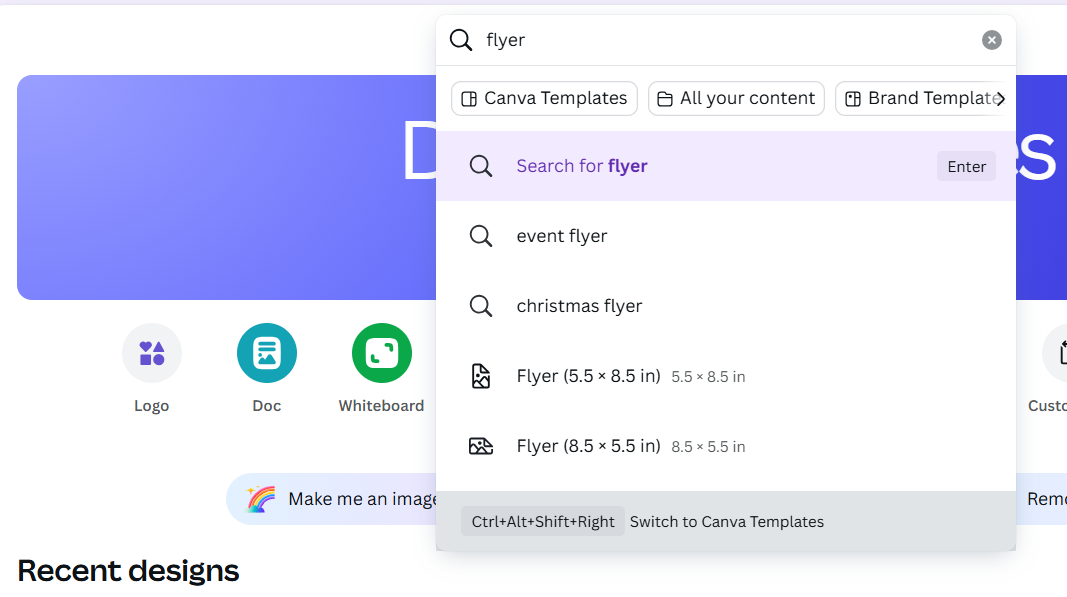
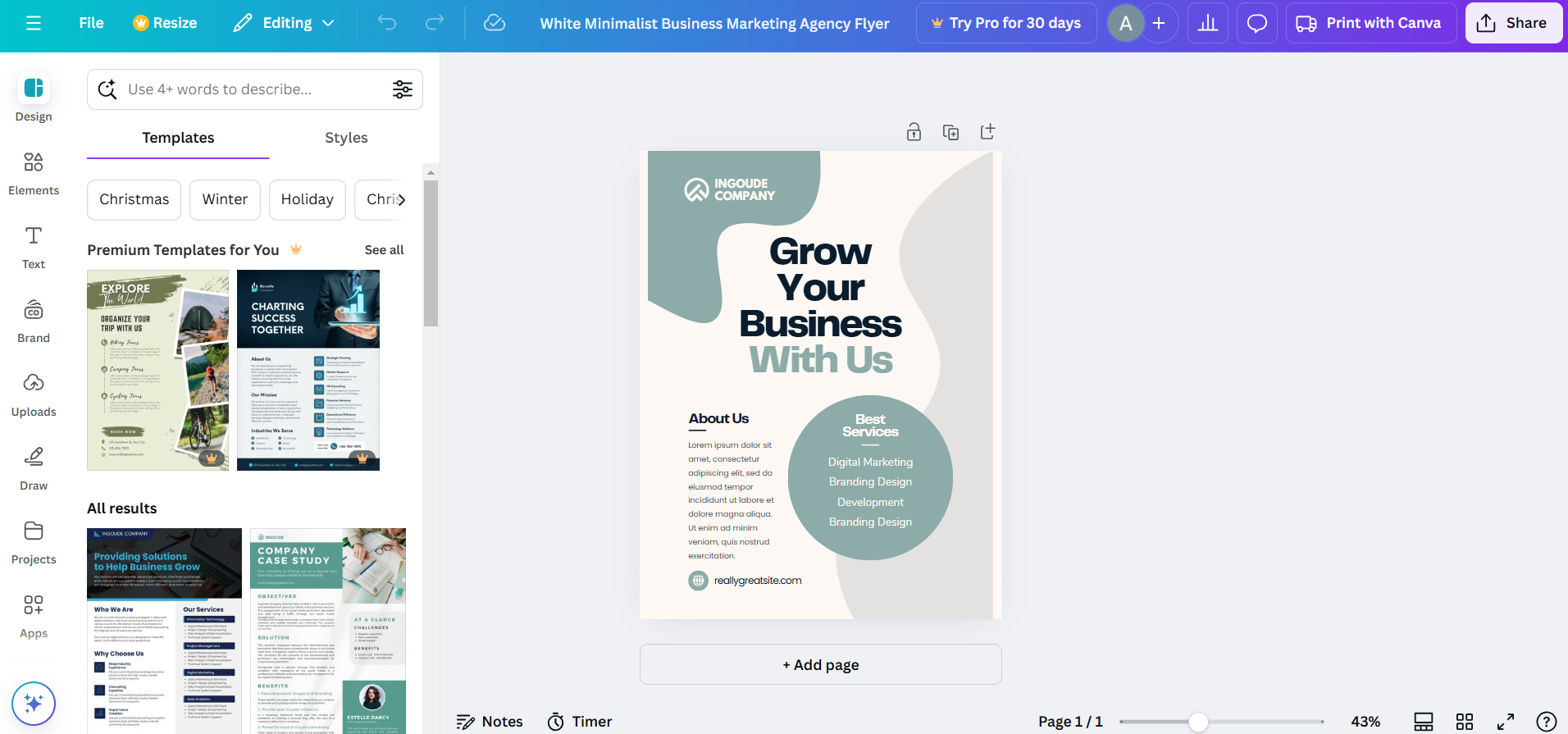
From the Canva homepage, type “Flyer” in the search bar and press Enter.
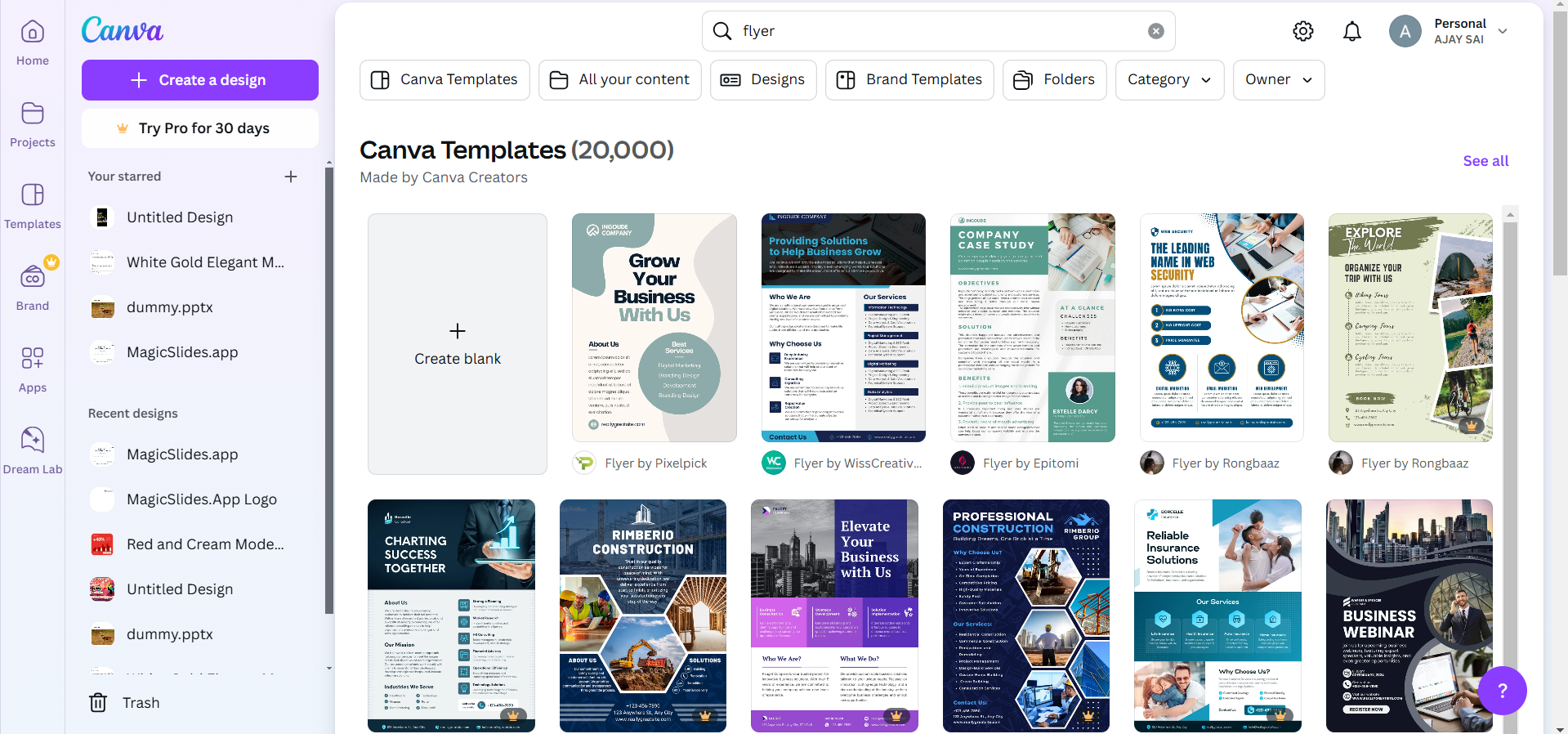
Browse through the available templates to find one that matches your flyer’s purpose and style.
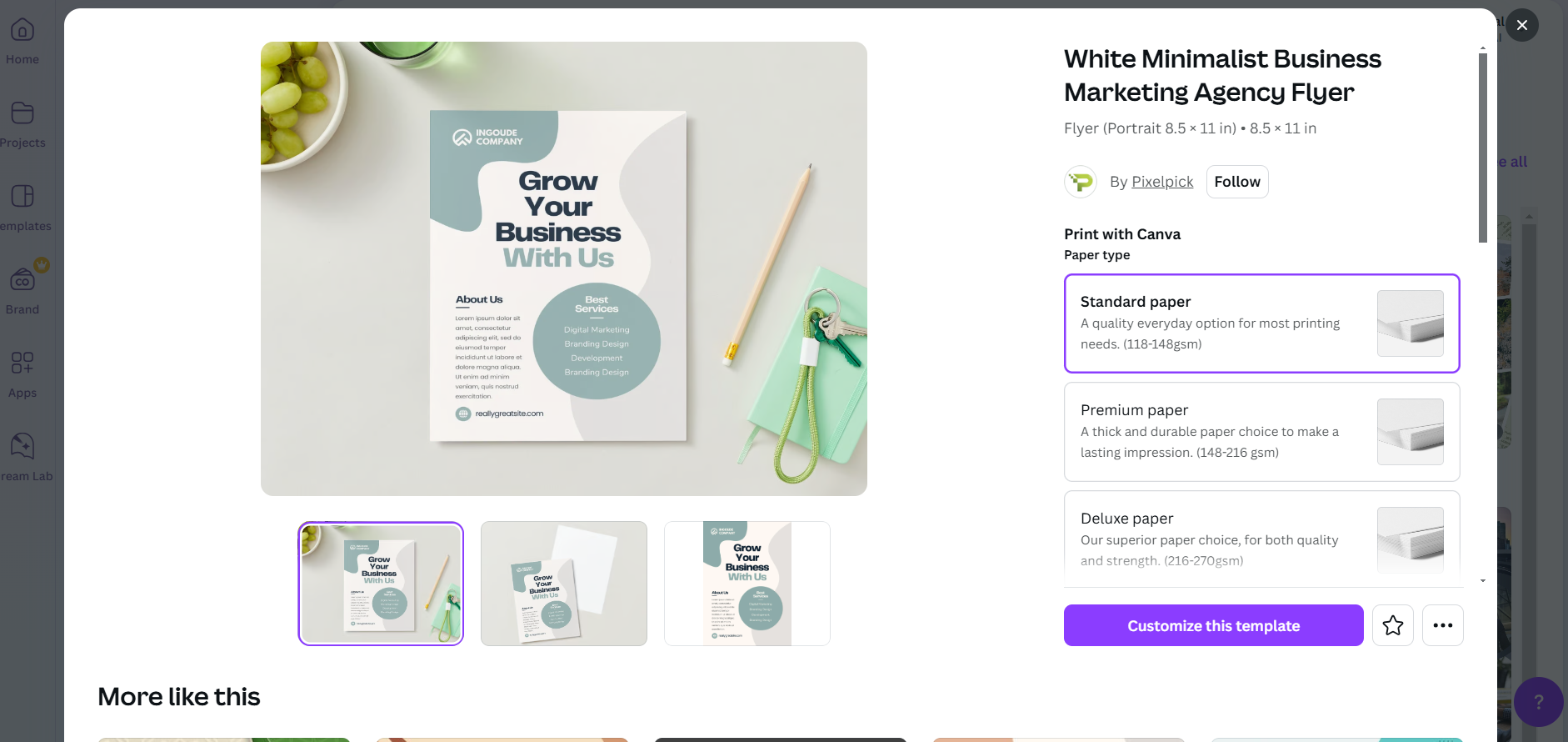
Click on your chosen template to open the editor.
Step 3: Customize the Flyer Content
Replace the placeholder text with your details, such as the event name, date, time, and location.
Add a catchy headline to grab attention and include concise, relevant information to engage readers.
Use Canva’s text editing tools to adjust fonts, sizes, and colors to align with your brand or theme.
Step 4: Add Images and Graphics
Click on the “Elements” tab to browse Canva’s library of graphics, shapes, and icons.
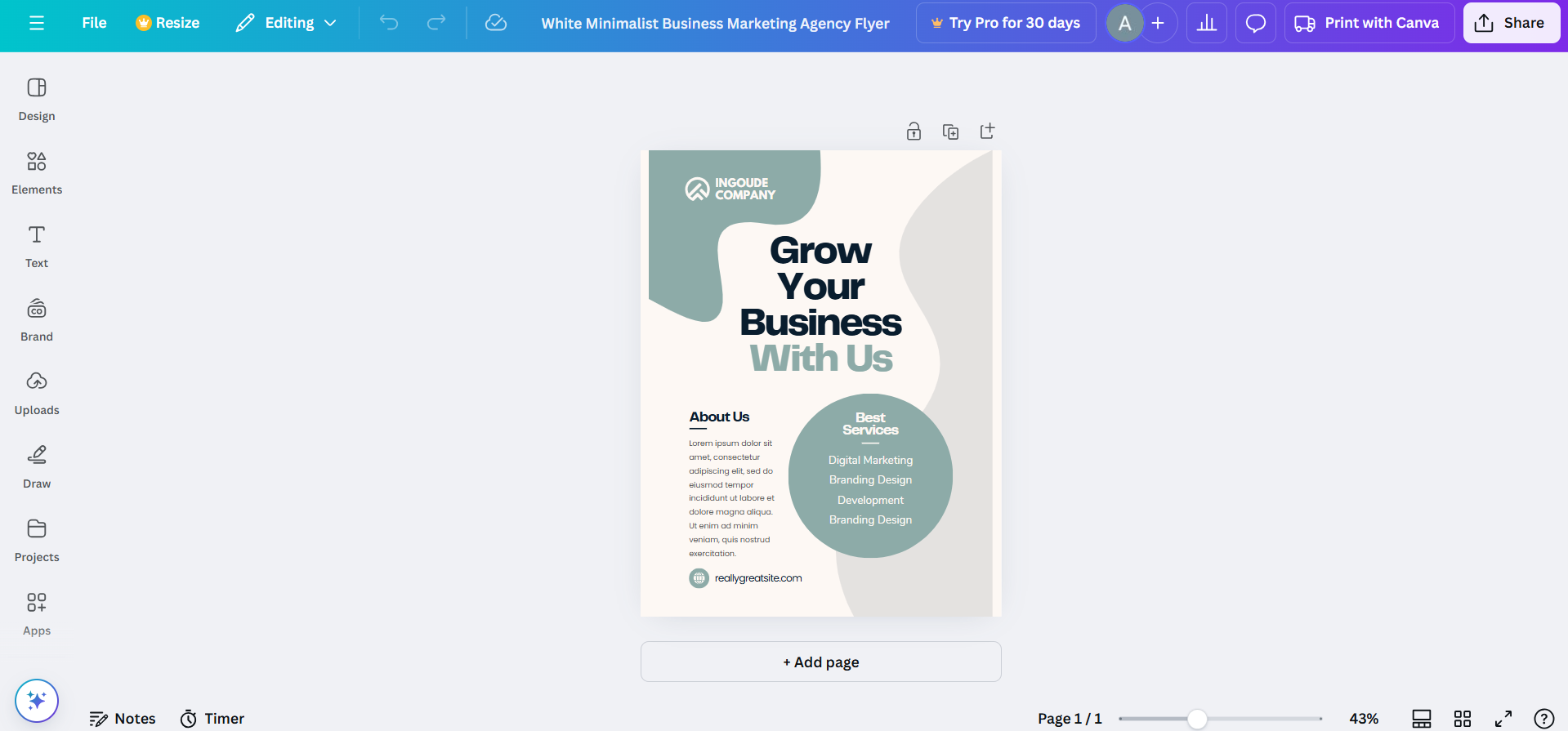
Use the “Uploads” tab to upload your own images or logos if needed.
Drag and drop images onto the flyer and adjust their size and position as required.
Step 5: Experiment with Colors and Backgrounds
Click on the background of your flyer and select the “Background” tab to change its color or texture.
Choose a color scheme that complements your content and enhances readability.
Use Canva’s pre-set palettes or create a custom palette to match your branding.
Step 6: Incorporate Visual Hierarchy
Highlight key information by making it larger, bolder, or more colorful than other text.
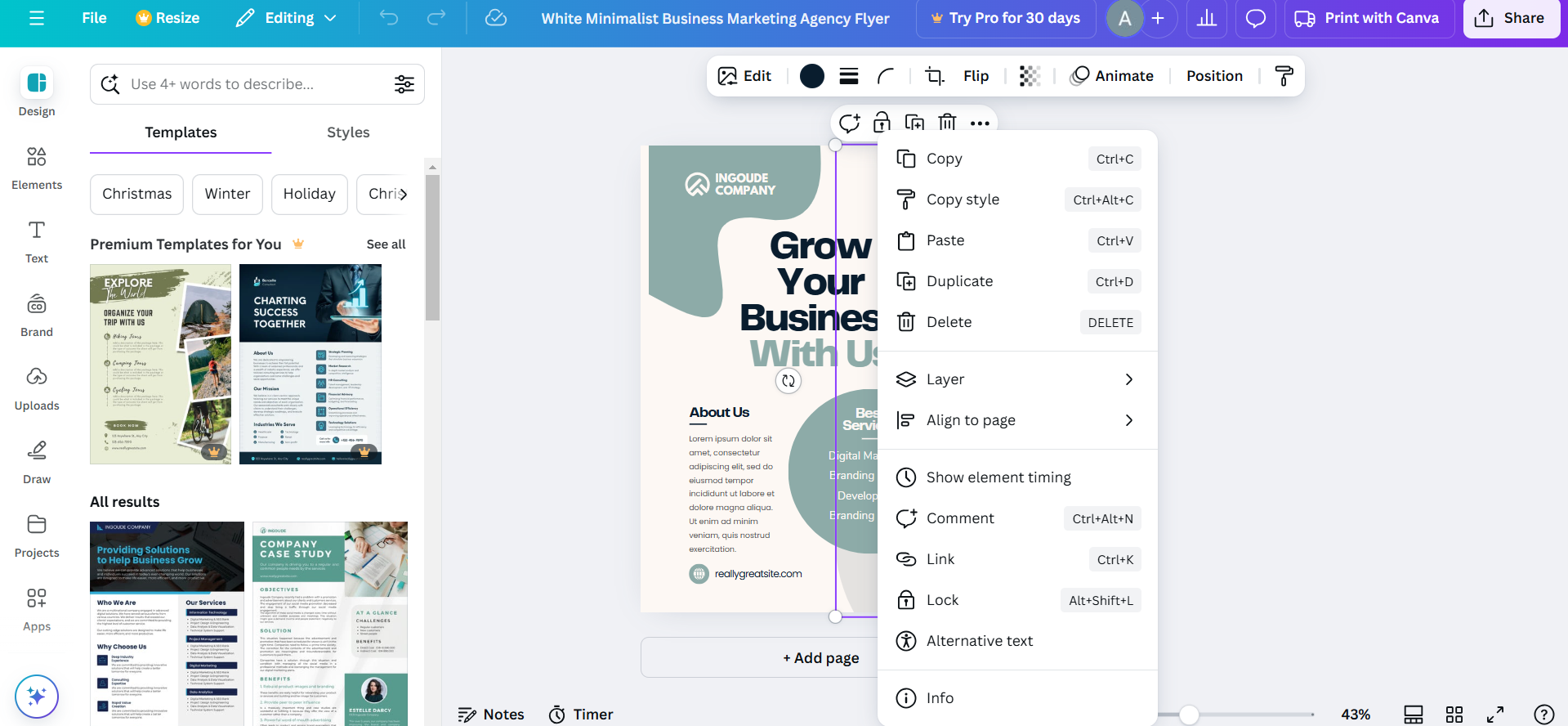
Ensure the flyer layout guides the viewer’s eye smoothly from one section to another.
Step 7: Review and Finalize Your Design
Double-check all text for typos and ensure the information is accurate.
Preview the flyer in full-screen mode to assess its overall look and balance.
Step 8: Download and Share
Click the “Share” button in the top-right corner and choose “Download.”
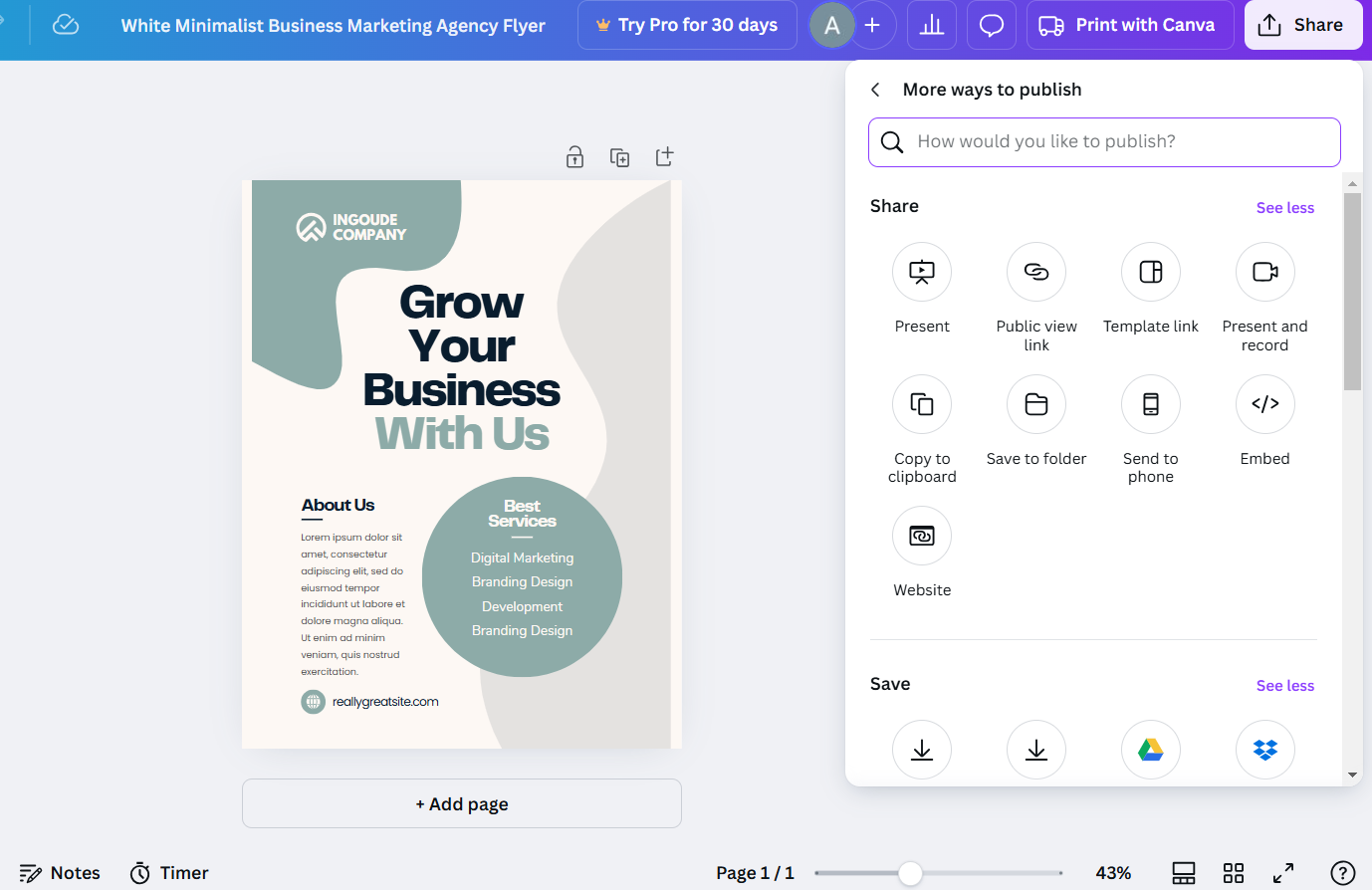
Select the file type (e.g., PDF for printing, PNG for online use).
Save the flyer to your device and share it digitally or print it for distribution.
Conclusion
Creating a flyer in Canva is a straightforward process that allows you to produce high-quality designs with ease.
By leveraging Canva’s templates, customization options, and user-friendly interface, you can create a flyer that effectively communicates your message and attracts your target audience.
Start designing today and make a lasting impression with your unique flyer!
FAQs on Making a Flyer in Canva
Can I make a flyer in Canva for free?
Yes, Canva offers free templates and design tools, but some premium elements require a subscription.
What’s the best file format for printing a flyer?
The best format is PDF Print, as it ensures high-quality resolution for professional printing.
Can I resize my flyer for different platforms?
Yes, with Canva Pro, you can use the Resize feature to adapt your flyer for various formats and platforms.


