How to add correct answers to Google Forms


Craft quizzes with confidence! Learn how to seamlessly add correct answers to your Google Forms assessments.
Google Forms is a versatile tool for creating surveys, quizzes, and assessments. To ensure the accuracy and effectiveness of your quizzes, it's crucial to incorporate correct answers. In this guide, we'll walk you through the step-by-step process of adding correct answers to your Google Forms, providing a seamless experience for both creators and respondents.
Steps to Add Correct Answers in Google Forms:
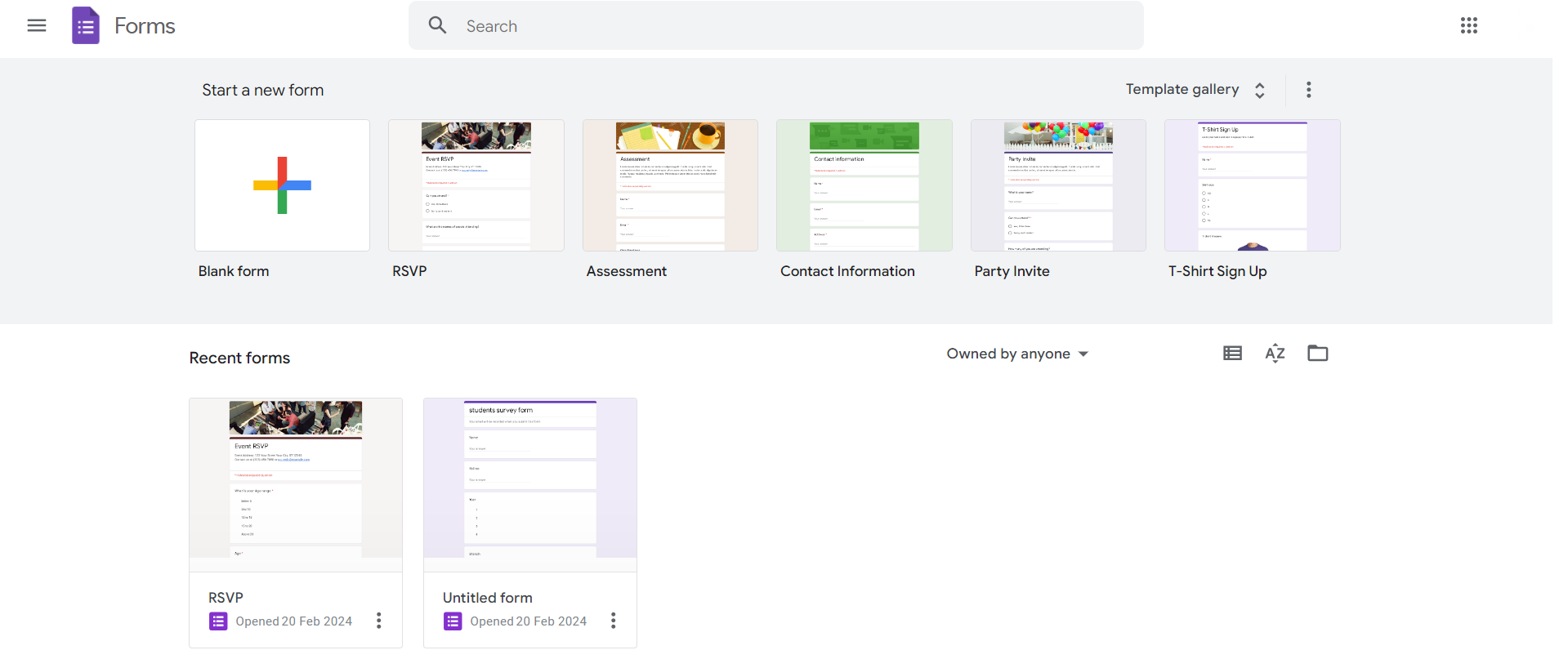
Access Google Forms:
Start by logging into your Google account and opening Google Forms.
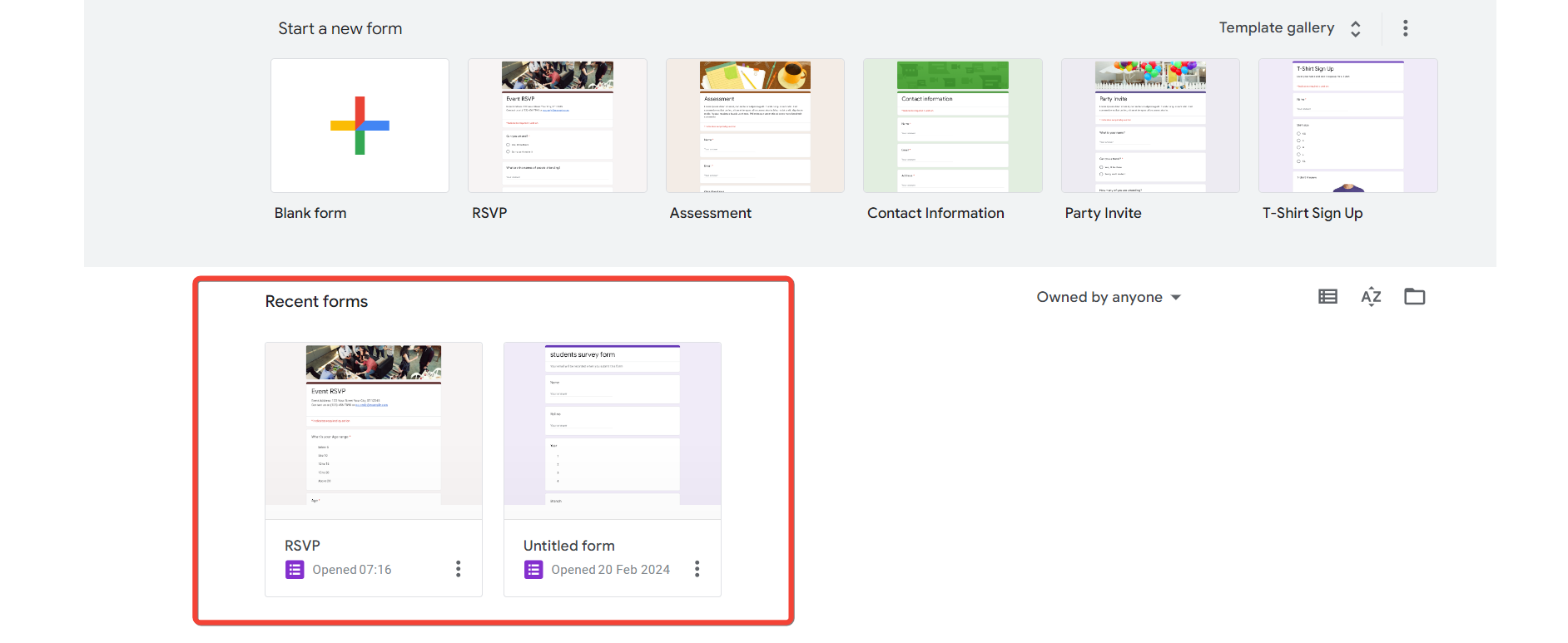
Create or Open a Form:
Either create a new form or open an existing one that you'd like to modify.
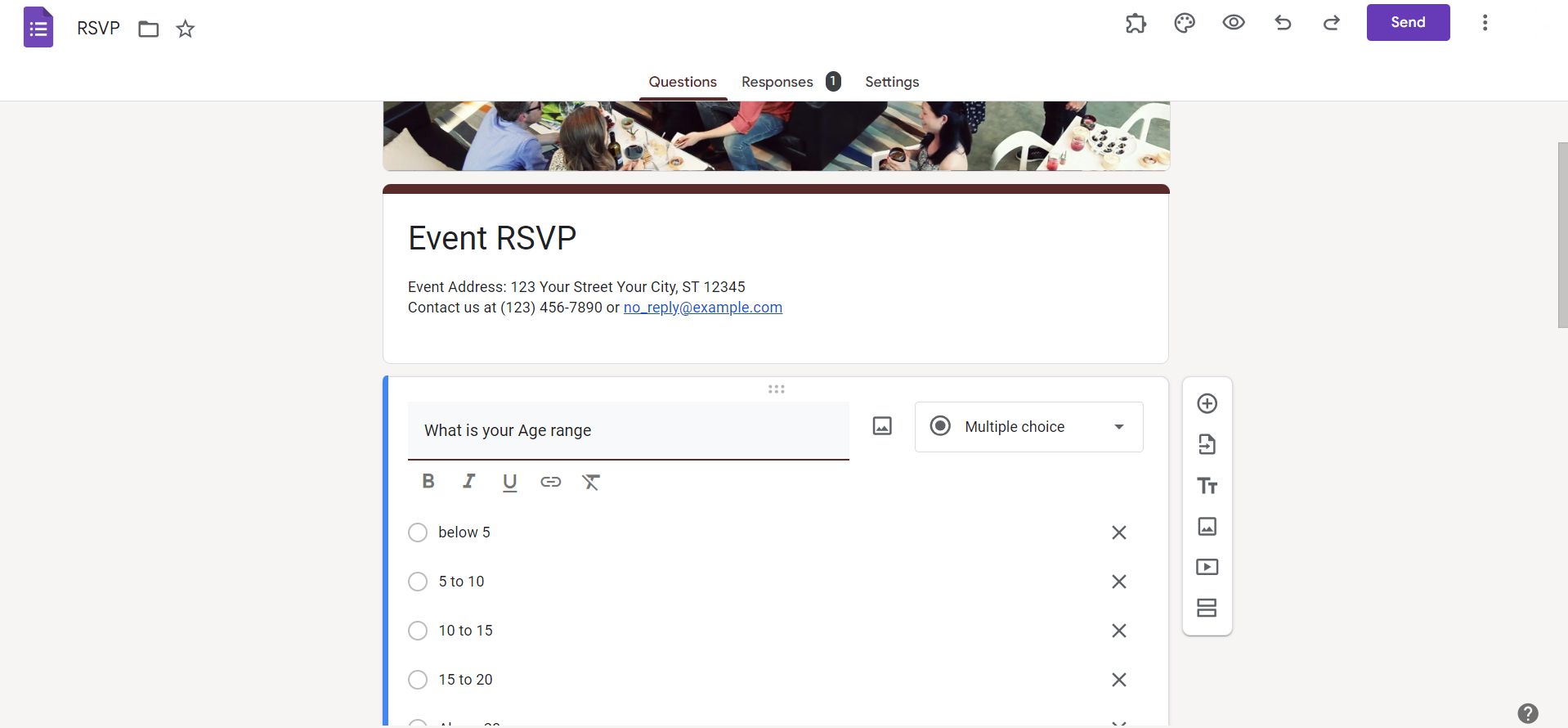
Add a Question:
If you haven't already, add a question to your form. Choose the appropriate question type for your quiz, such as multiple choice, true/false, or short answer.
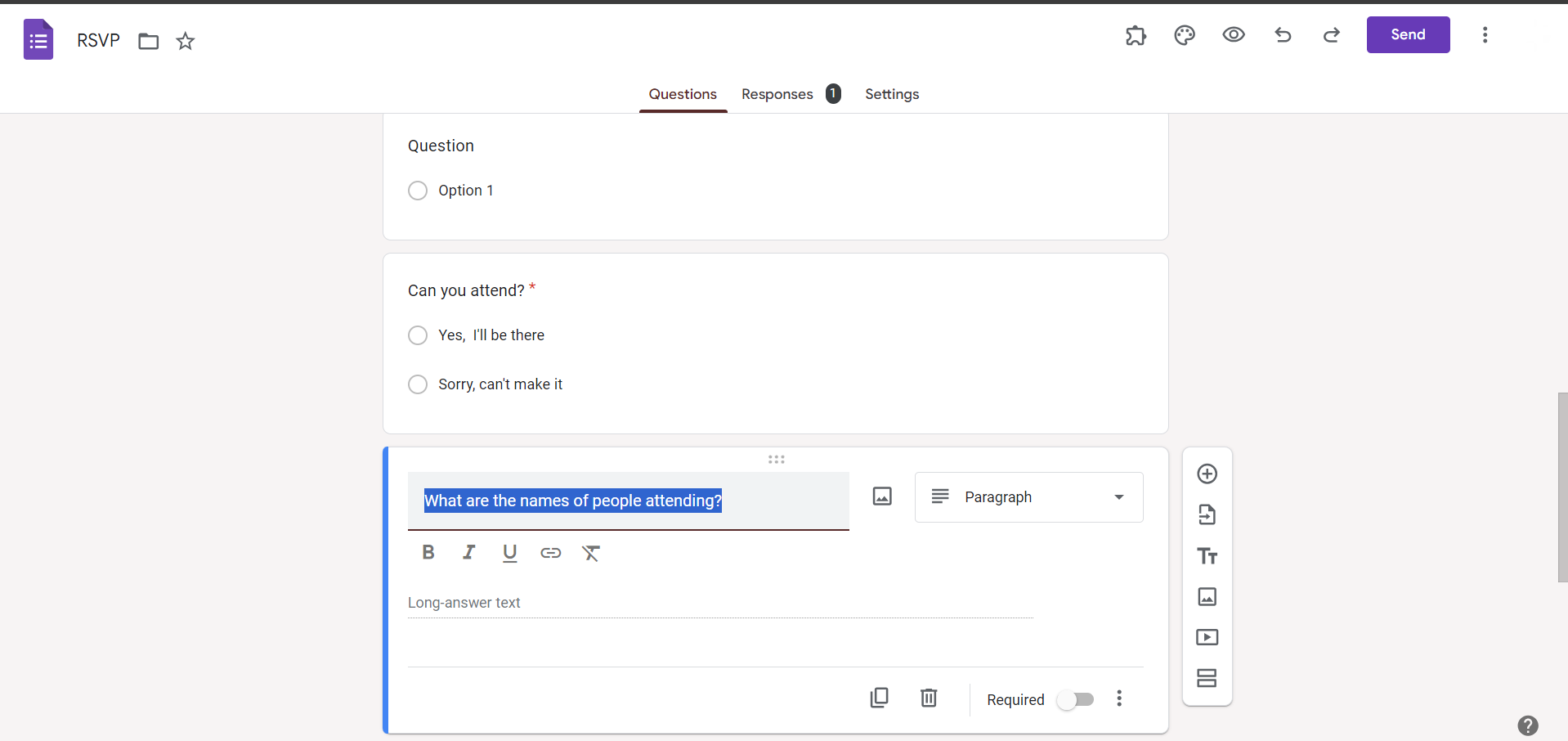
Enter Question Text:
Type in the question you want to ask in the designated question text box.
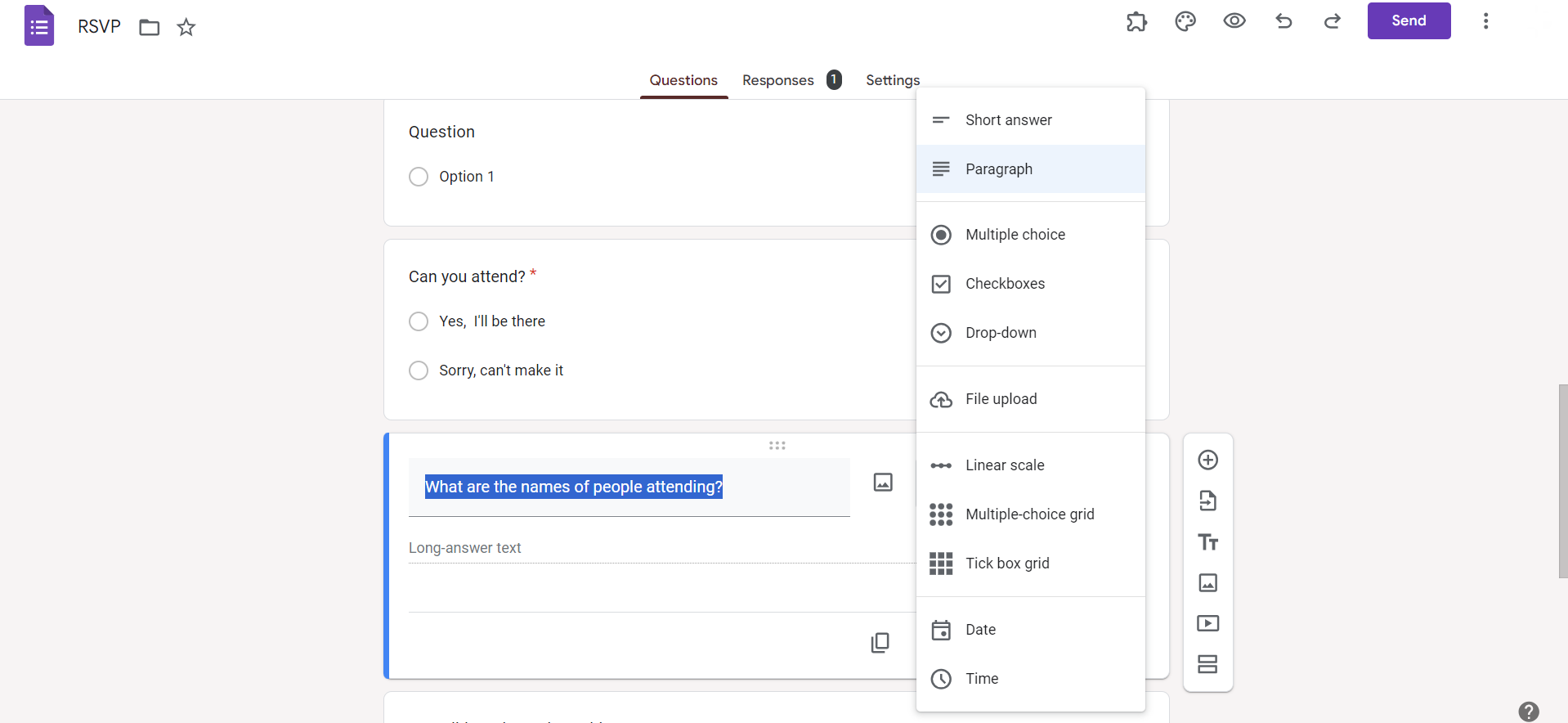
Select Question Type:
Choose the type of answer format for your question, such as multiple choice or short answer.
Toggle "Answer Key":
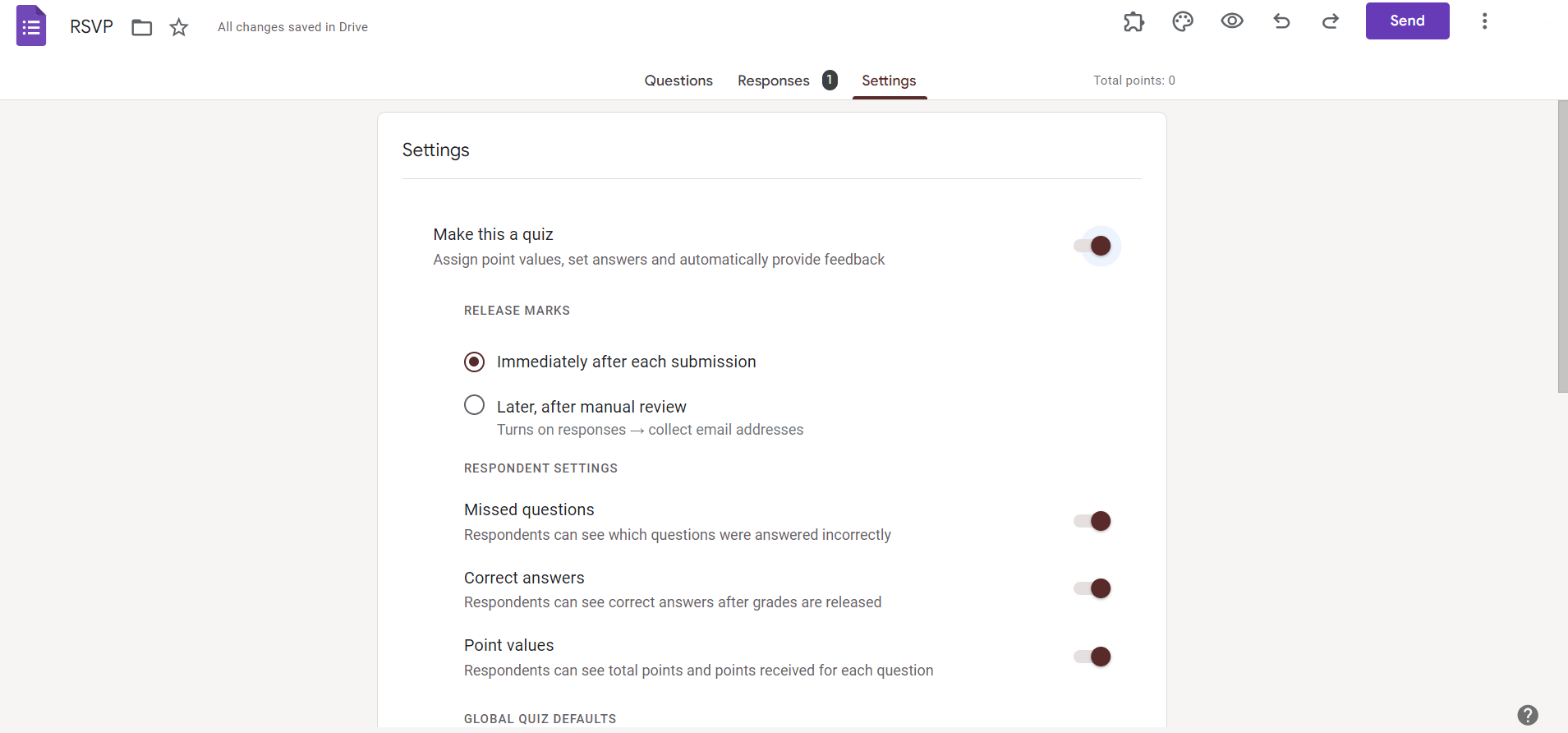
After setting up your question, click on the three dots (ellipsis) at the bottom of the question box and select "Answer Key."
Choose Correct Answer(s):
For multiple-choice questions, select the correct answer from the provided options. For short answer questions, type in the correct response.
Assign Points (Optional):
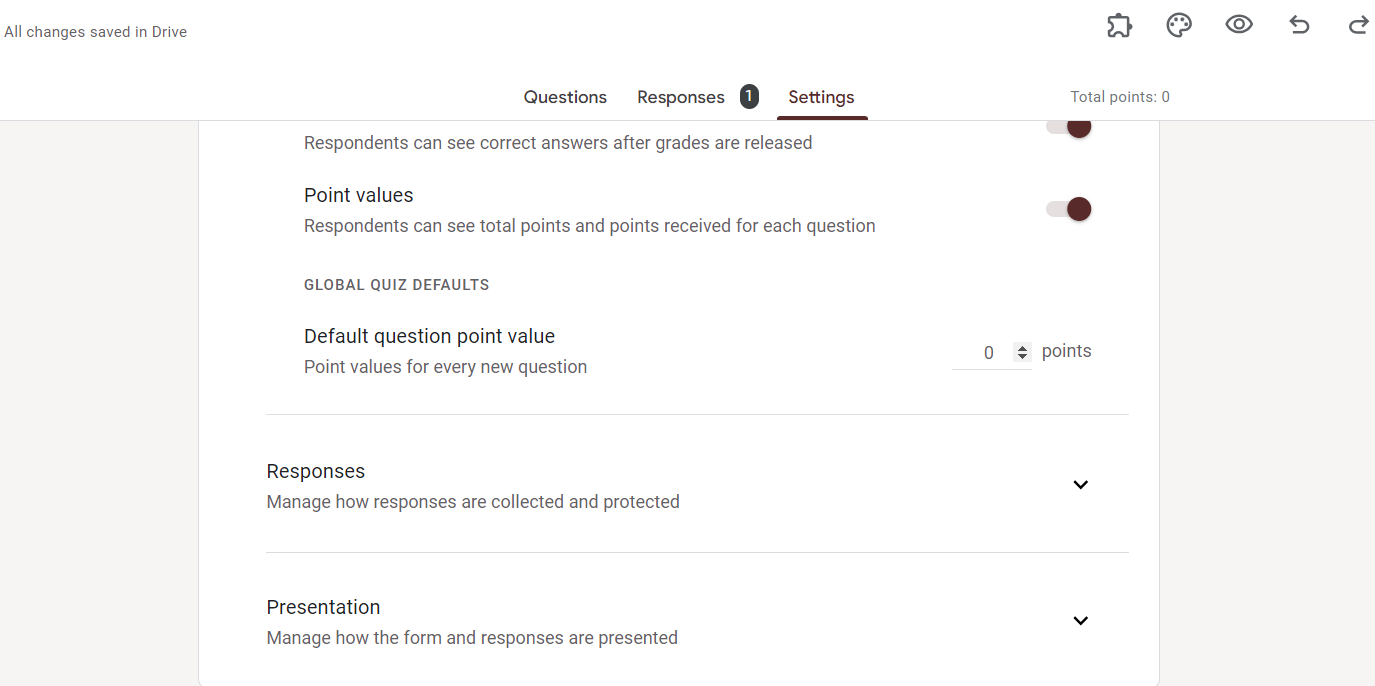
If your quiz is graded, you can assign points to each question. Click on "Points" to specify the value.
Continue Adding Questions:
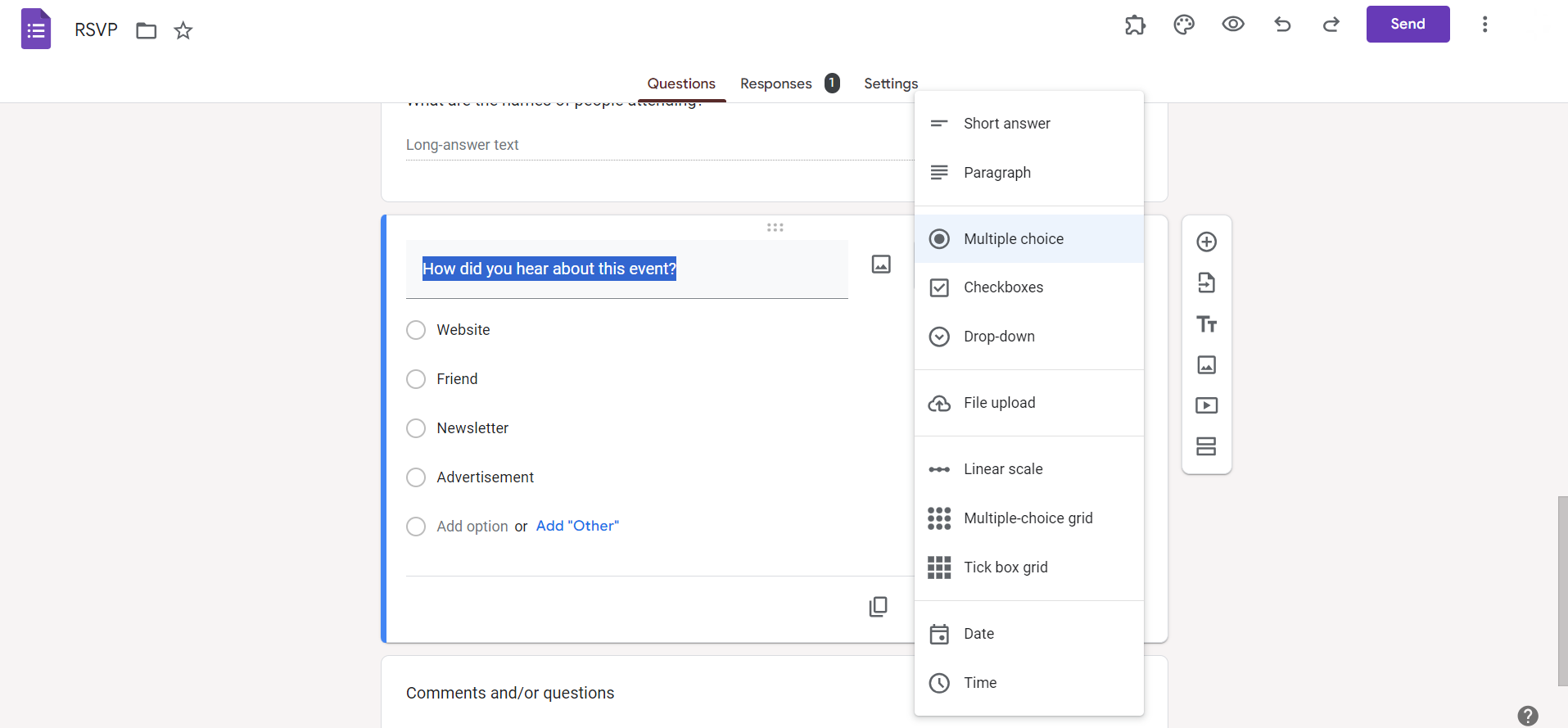
Repeat the process for each question in your form, ensuring you designate the correct answers.
Review and Save:
Double-check your quiz for accuracy. Once satisfied, click "Save" to store your correct answers and settings.
Conclusion:
Adding correct answers to your Google Forms quizzes is an essential step to create accurate assessments. By following these simple yet crucial steps, you can ensure that your quizzes are effective tools for evaluating knowledge and understanding. Take advantage of the versatile features within Google Forms to streamline the quiz creation process and provide a seamless experience for both creators and respondents. Elevate your assessments by incorporating correct answers and make the most out of Google Forms for an efficient and reliable quiz-taking experience.
Frequently Asked Questions:
Can I have multiple correct answers for a single question in Google Forms?
Google Forms currently supports only one correct answer per question for multiple-choice and dropdown questions.
Can I edit correct answers after participants have submitted the form?
Correct answers can be modified even after responses are collected, ensuring flexibility for updates and improvements.
How can I view individual responses and see which questions were answered correctly?
Utilize the "Responses" tab in Google Forms to review individual responses, including correct and incorrect answers.
Can I randomize answer options while still designating the correct answer?
Yes, you can shuffle answer options in Google Forms without affecting the correctness of the designated answer.


