How to Add Footnotes in Google Docs with Keyboard Shortcut?


Learn how to add footnotes in Google Docs with simple steps, keyboard shortcuts, editing tips, formatting best practices, and citation examples for any document.
The easiest way to learn how to add footnotes in Google Docs is to place your cursor where you want a citation, click Insert > Footnote, and type your reference at the bottom of the page. Google Docs automatically adds the superscript number and keeps all footnotes organized.
If you are learning how to add footnotes in Google Docs you will be happy to know that it takes a few seconds. Google Docs has a built-in footnote feature so you do not have to number references yourself. If you also work with presentations, you may have searched for how to add footnotes in Google Slides, but the process is different because Google Slides does not offer a native footnote feature.
Footnotes in Google Docs make it easy to cite sources and add information. This is helpful whether you are writing a research paper, an assignment, a report or an article. You can add footnotes without making your content look cluttered.
In this guide, you’ll learn how to add a footnote in Google Docs, use the keyboard shortcut, edit or delete footnotes, and follow formatting best practices for professional-looking documents.
How to Add Footnotes in Google Docs?
Adding a footnote in Google Docs only takes a few clicks. Here’s how to add footnotes in Google Docs from start to finish.
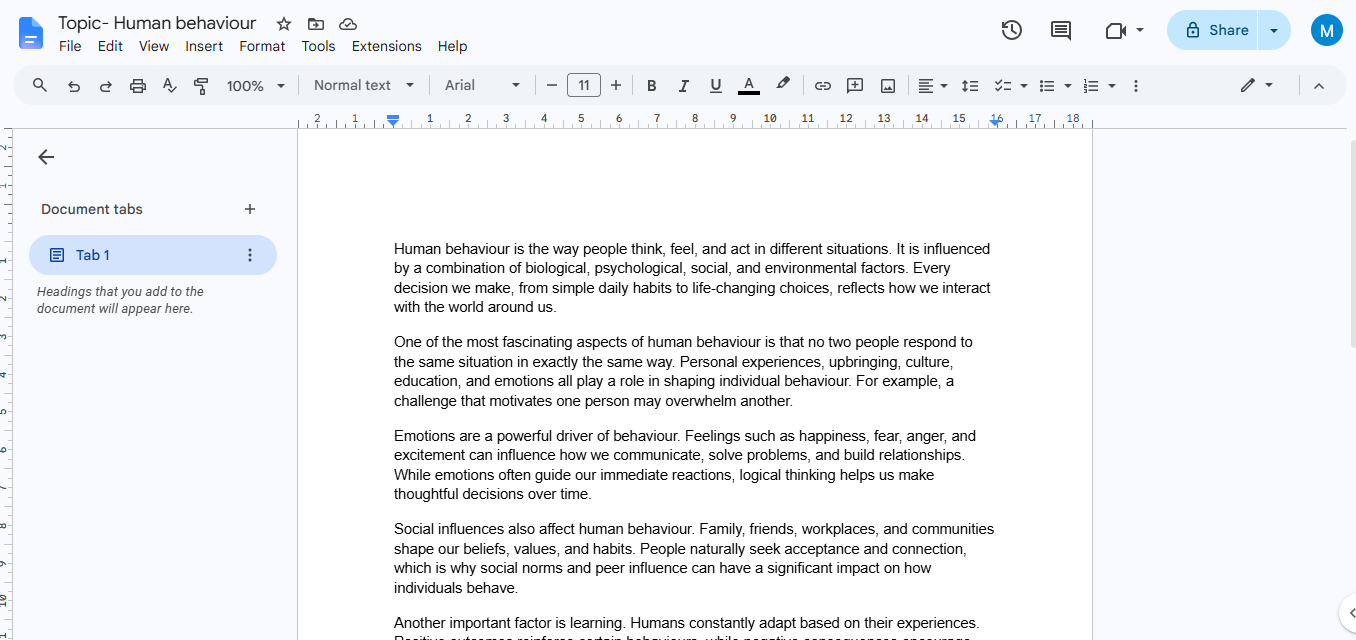
Step 1. Open the document where you want to add a citation or note. Then, place your cursor exactly where the footnote reference should appear.
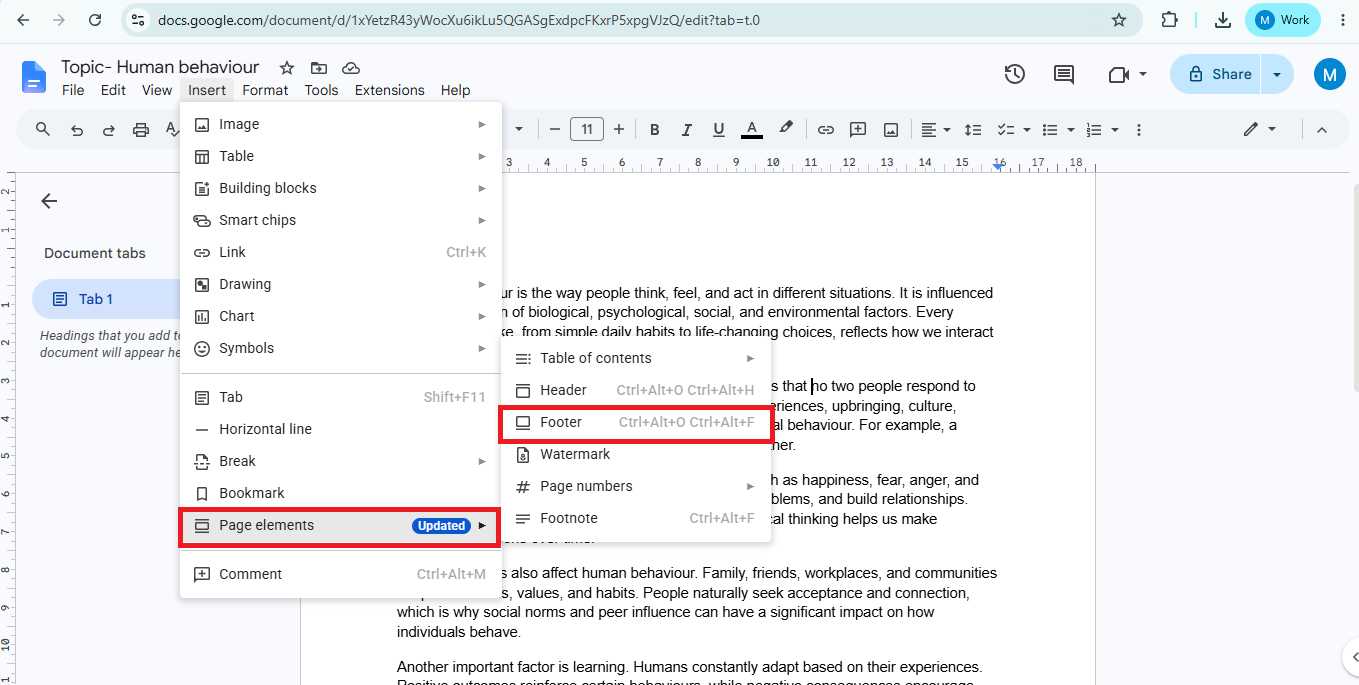
Step 2. Click Insert in the top menu and select page creation and there you find Footnote. You can also use the keyboard shortcut to insert footnote in Google Docs instantly.
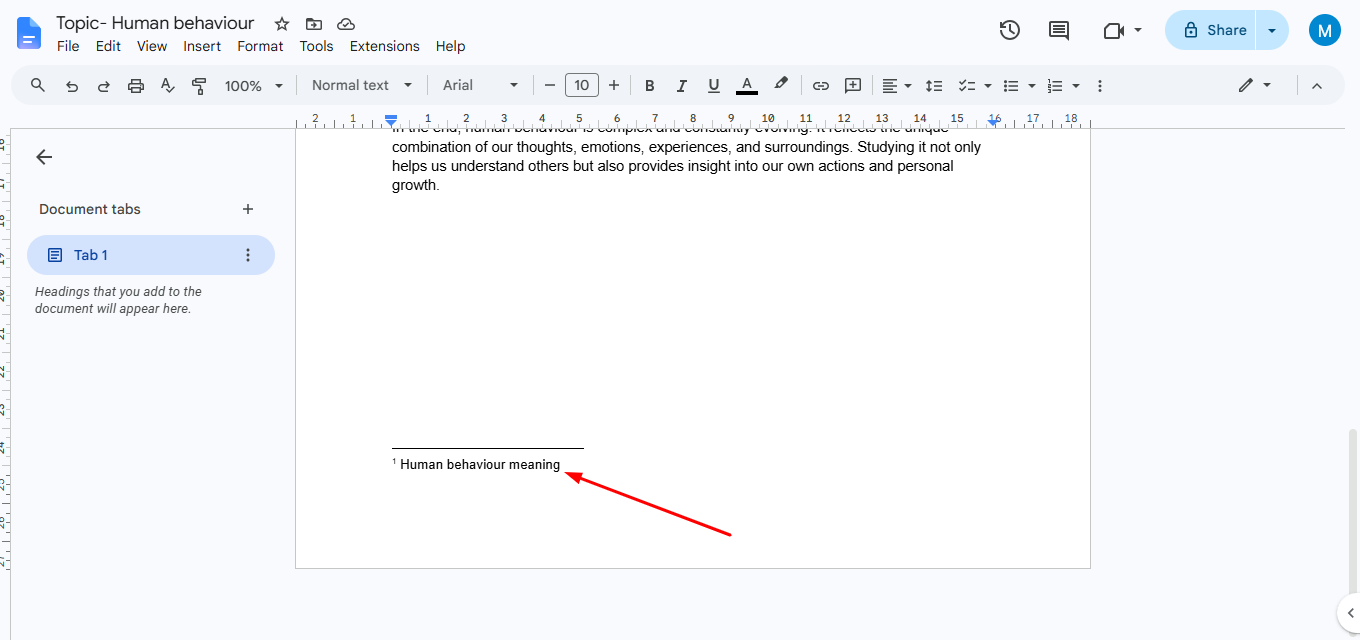
Step 3. Google Docs automatically adds a superscript number in your text and creates a matching footnote at the bottom of the page. Enter your citation, explanation, or reference there. As you add more references, Google Docs footnotes are numbered automatically. You don’t have to worry about updating the sequence manually.
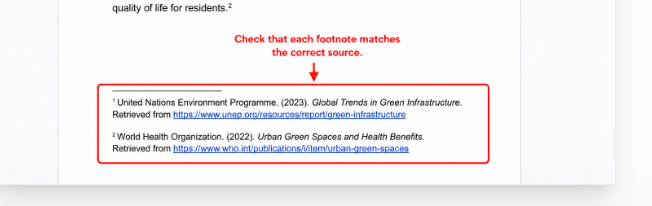
Step 4. Before sharing or printing your document, check that each footnote in Google Docs matches the correct source and follows your required citation style, such as MLA, APA, or Chicago. This is the easiest how to add a footnote in Google Docs workflow for creating accurate, professional documents. If you also create presentations, you may wonder how to insert footnote in PowerPoint, but unlike Google Docs, PowerPoint requires a manual approach.
Turn Your Google Docs into Presentations
Once you’ve finished writing and citing your sources in Google Docs, the next step is often creating a presentation. Instead of copying your content into slides manually, MagicSlides AI can help you convert your document into a professional presentation in just a few minutes.
MagicSlides AI Presentation Maker transforms documents, PDFs, web pages, YouTube videos, and text prompts into well-designed presentations with AI-generated layouts and visuals. This is especially useful for students, educators, researchers, and professionals who frequently turn reports or assignments into slide decks. By adding accurate footnotes in Google Docs first and then using MagicSlides AI to build your presentation, you can save time while keeping your information organized and credible.

Keyboard Shortcut to Add Footnotes in Google Docs
If you add citations regularly, using a keyboard shortcut is much faster than opening the Insert menu every time. It’s the quickest way to insert footnote in Google Docs while keeping your writing flow uninterrupted.
- Windows Shortcut- Press Ctrl + Alt + F to instantly create a new footnote. Google Docs places a superscript number where your cursor is and moves you to the bottom of the page to enter your reference.
- Mac Shortcut- On a Mac, press ⌘ Command + Option + F. The result is the same—a new footnote is added automatically, ready for your citation or note.
When to Use the Shortcut
The keyboard shortcut is especially useful when writing research papers, reports, or academic assignments with multiple footnotes in Google Docs. It saves time, reduces unnecessary clicks, and helps you focus on writing instead of navigating menus. Whether you’re learning how to insert footnote in Google Docs for the first time or adding dozens of citations, this shortcut makes the process much more efficient.
Best Practices for Using Footnotes in Google Docs
Using footnotes correctly makes your document easier to read and more credible. These simple tips will help you create clear and professional references.
- Use footnotes for essential citations or short explanations. Long notes can distract readers from your main content.
- Choose one citation style such as MLA, APA, or Chicago and use it consistently throughout your document. This is especially important for academic writing and research papers.
- Only add footnotes when they provide useful information or support your claims. Too many references on a page can make your document look cluttered.
- Double-check your references and source citations for accuracy. Make sure author names, publication dates, page numbers, and URLs (if applicable) are correct.
- Before submitting or publishing your document, review all footnotes to ensure they are numbered correctly and match your bibliography or reference list. A final check helps create a polished, professional document.
Footnotes vs. Endnotes in Google Docs
Footnotes and endnotes are really useful because they give you information or tell you where something came from. The thing is, footnotes and endnotes show up in places. So it is an idea to know what makes footnotes and endnotes different. This way you can pick the one for your document when you are working on it.
| Feature | Footnotes | Endnotes |
|---|---|---|
| Location | Bottom of the same page | End of the document or chapter |
| Best For | Quick references and explanations | Long reports, books, and theses |
| Reader Experience | Readers can view citations without leaving the page | Readers must scroll to the end of the document |
| Google Docs Support | Built-in feature | No built-in endnote feature |


