How to Add GIF in Google Docs?


Learn how to enhance your Google Docs with animated GIFs effortlessly using simple step-by-step instructions. Upgrade your documents today!
Google Docs is a versatile tool for creating and editing documents, but did you know you can also add GIFs to your documents to make them more dynamic and engaging? Adding GIFs can be a great way to illustrate a point, add humor, or simply liven up your document. In this step-by-step guide, we'll walk you through the process of adding GIFs to your Google Docs.
How to Add GIF in Google Docs
Before you can add GIFs to your Google Docs, make sure you're signed in to your Google account and have access to Google Docs. If you don't have a Google account, you'll need to create one to use Google Docs.
Step 1: Open Google Docs
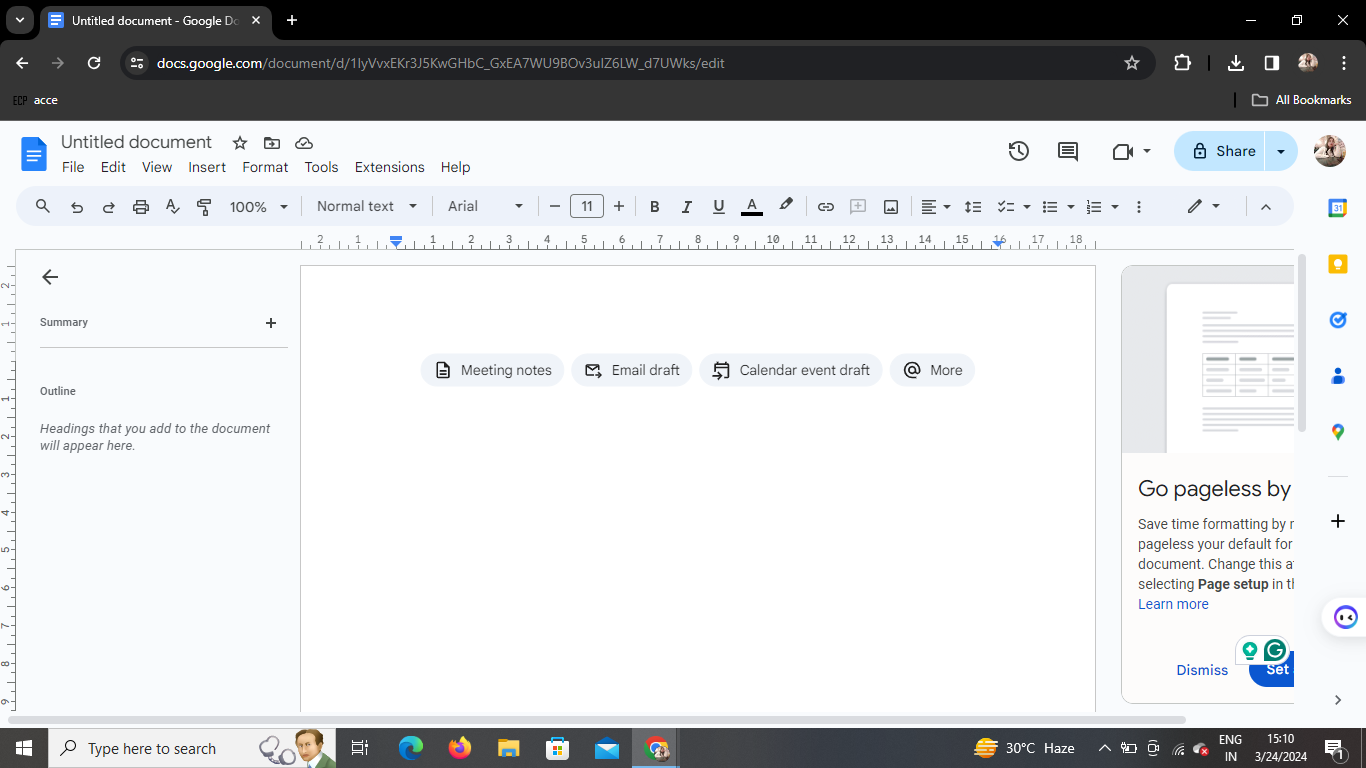
Start by opening Google Docs in your web browser. If you're not already signed in, you'll need to sign in with your Google account.
Step 2: Click on the Image Icon
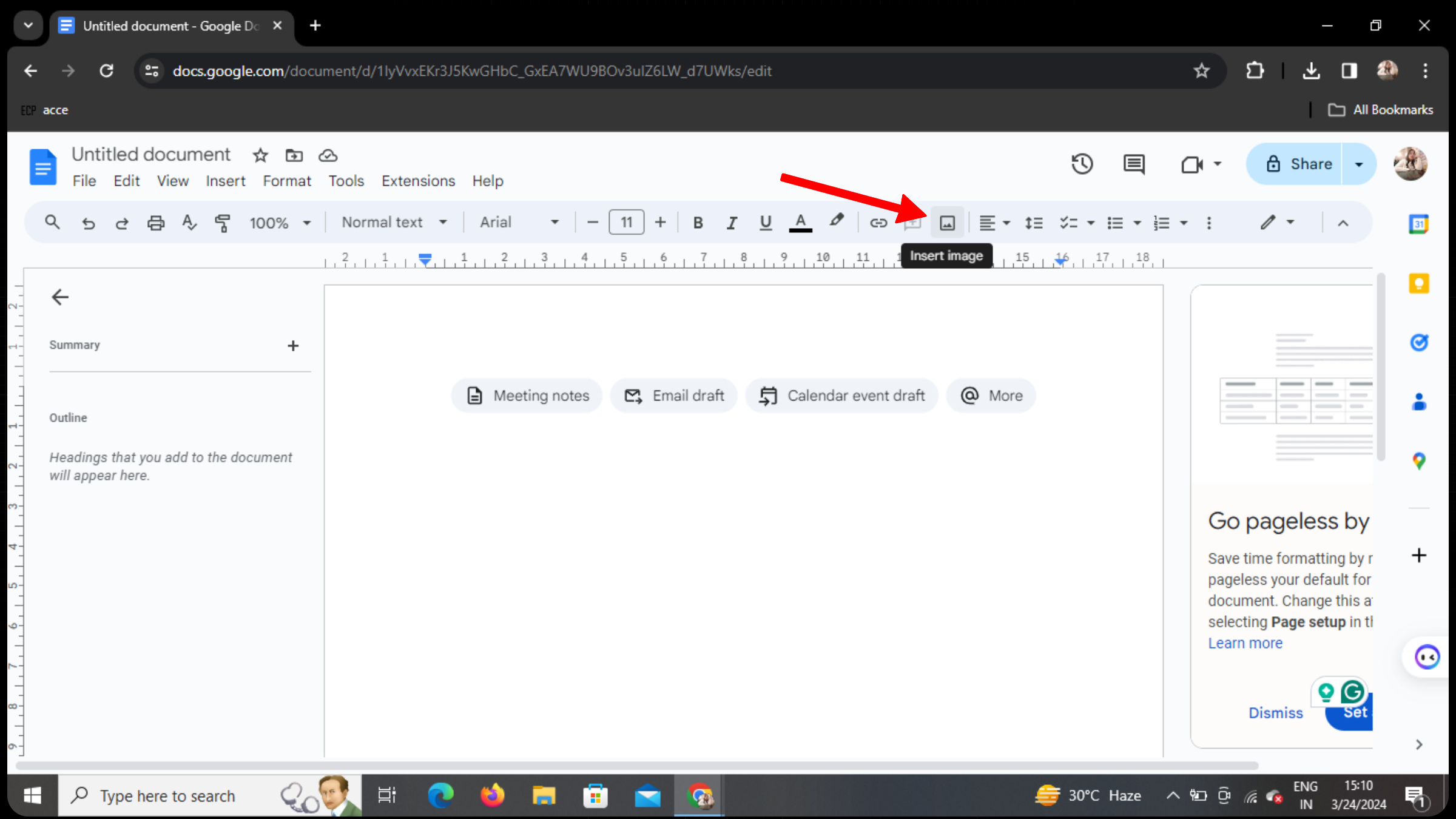
Once you're in Google Docs, create a new document or open an existing one. Next, look for the image icon in the toolbar at the top of the document. It looks like a square with a mountain and sun.
Step 3: Choose Upload From Computer
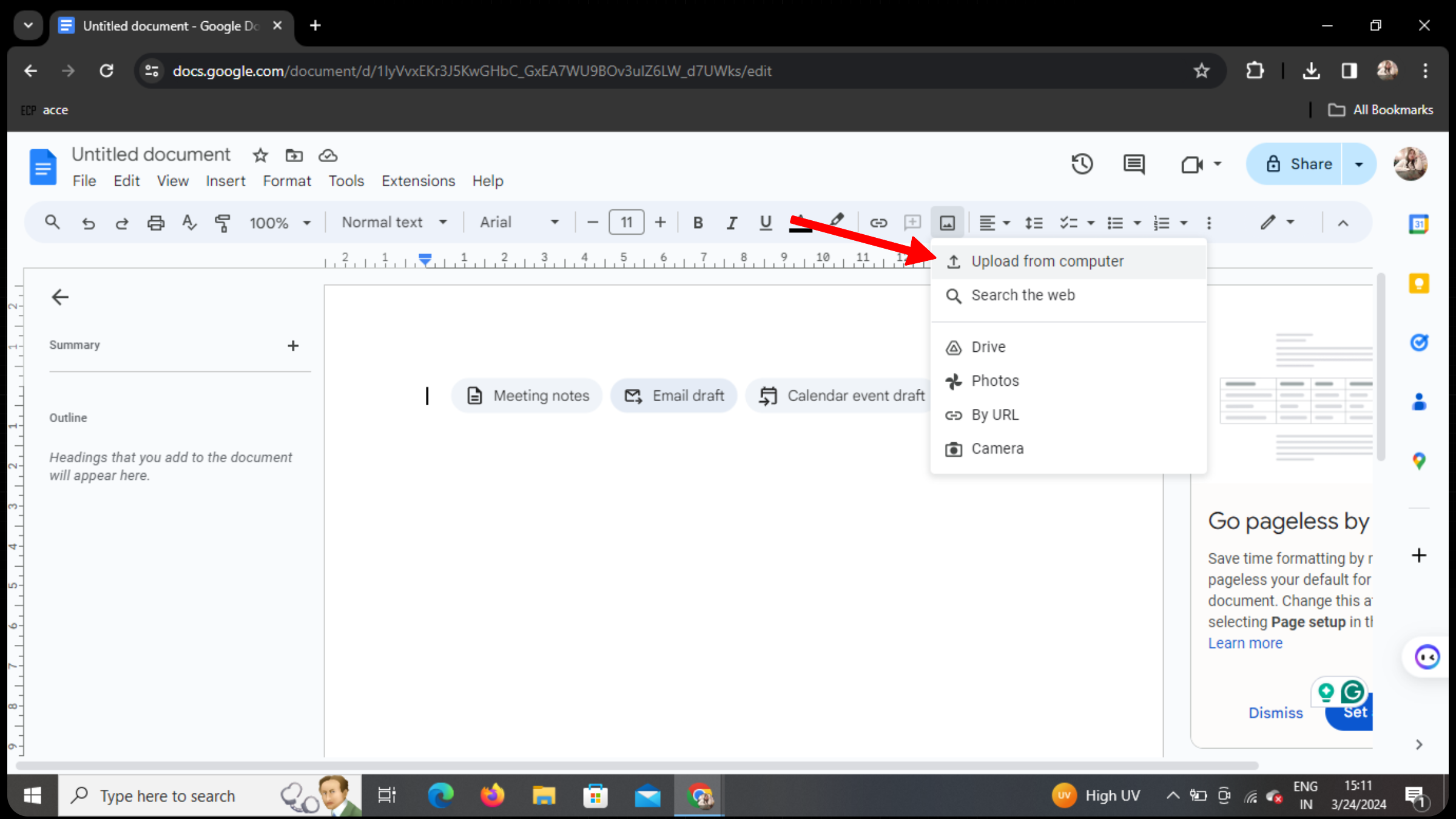
Click on the image icon, and a menu will appear. From the menu, select "Upload from computer." This will allow you to upload a GIF file from your computer to add to your document.
Step 4: Choose Your GIF
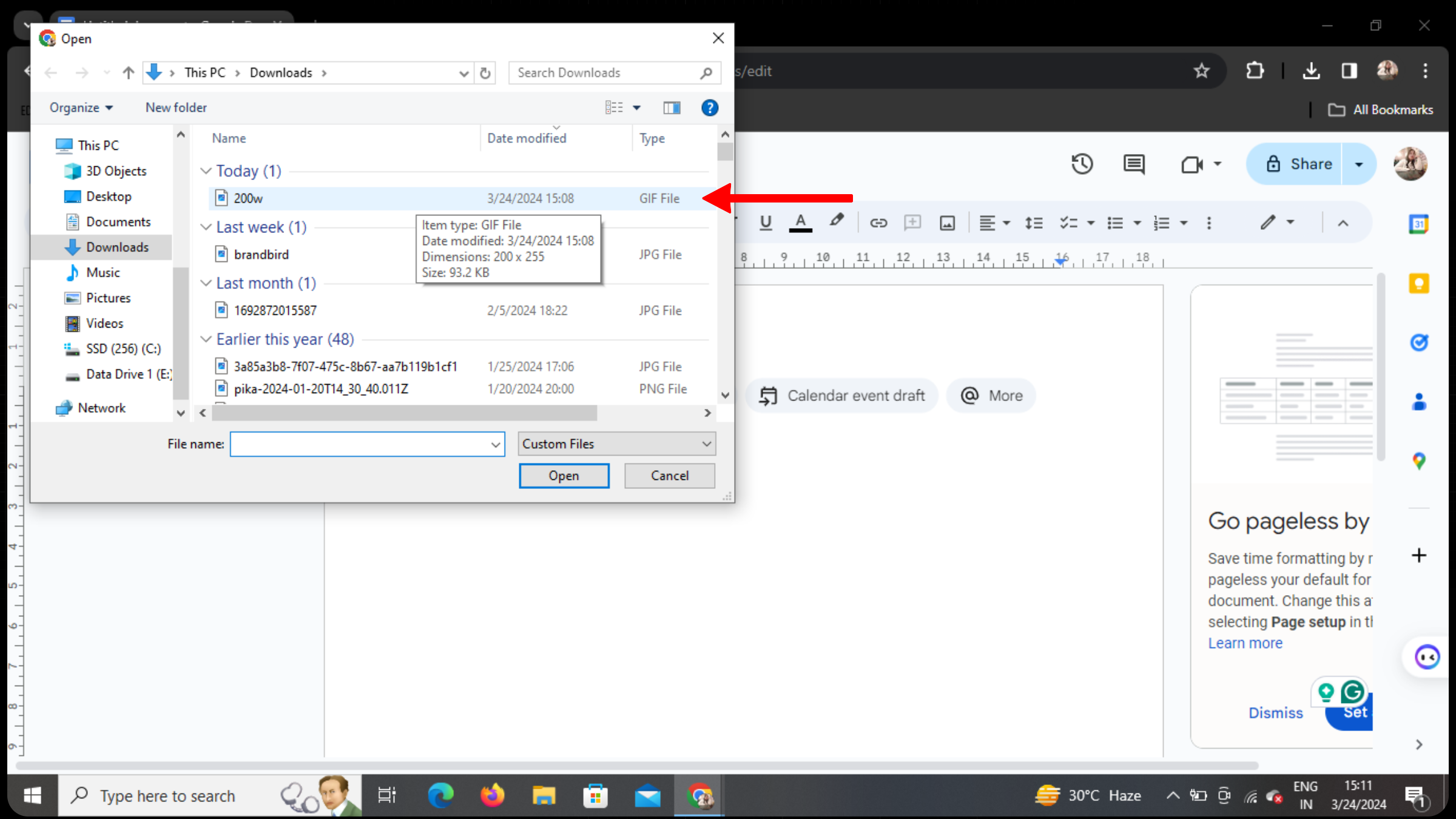
After selecting "Upload from computer," a file dialog will appear, allowing you to browse your computer for the GIF you want to add to your document. Once you've found the GIF, select it and click "Open."
Step 5: Upload and Save
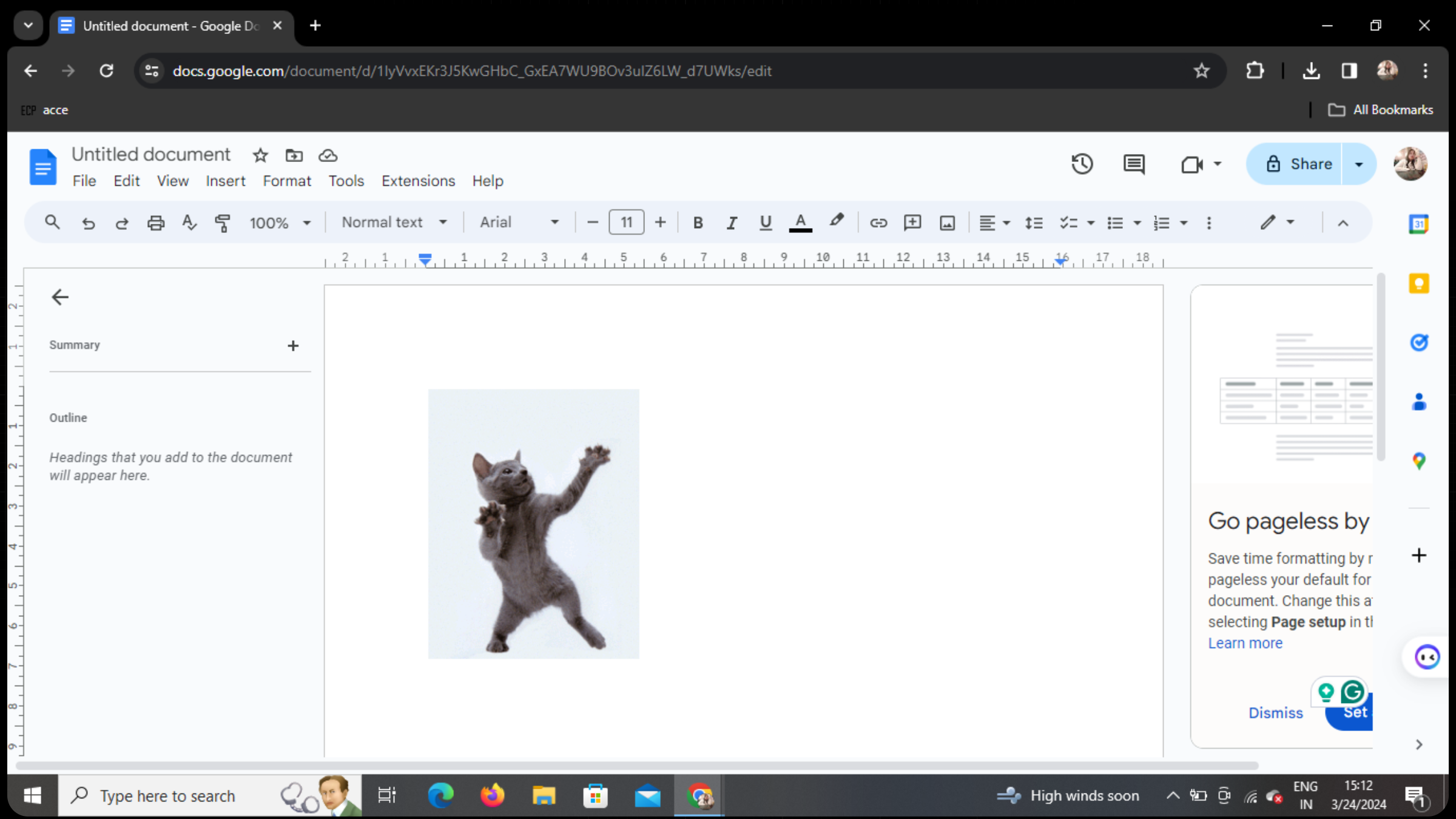
Once you've chosen your GIF, Google Docs will upload it to your document. Depending on the size of the GIF and your internet connection, this may take a moment. Once the GIF has been uploaded, you can resize and reposition it within your document as needed. Finally, make sure to save your document to preserve the changes.
Conclusion
Adding GIFs to your Google Docs is a simple way to make your documents more visually appealing and engaging. Whether you're creating a presentation, report, or just a fun document for friends, GIFs can help you convey your message in a unique and entertaining way. With these easy steps, you can start adding GIFs to your Google Docs today!
FAQs
Can I add GIFs to Google Slides as well?
Yes, you can add GIFs to Google Slides using a similar process. Simply open Google Slides, click on the "Insert" menu, and choose "Image." From there, you can upload a GIF file from your computer.
Are there any size limitations for GIFs in Google Docs?
While there's no specific size limit for GIFs in Google Docs, larger GIFs may take longer to upload and may affect the performance of your document.
Can I search for GIFs directly within Google Docs?
Currently, Google Docs does not have a built-in feature for searching and adding GIFs from the web. You'll need to find the GIF you want to use separately and then upload it to your document.
Will GIFs play automatically in Google Docs?
Yes, GIFs will play automatically in Google Docs once they've been uploaded. You can also click on the GIF to pause or resume playback.
Can I use animated GIFs in Google Docs for professional documents?
While GIFs can add visual interest to your documents, it's important to use them judiciously, especially in professional settings. Consider whether the GIF enhances your message or distracts from it before adding it to your document.


