How to add pictures in powerpoint presentation in mobile phone


Easily enhance your presentations by adding pictures using the PowerPoint mobile app with these simple steps
Adding pictures to a PowerPoint presentation using your mobile phone is a convenient way to enhance your slides, especially when you're on the go. Whether you're working on a last-minute update or creating a presentation from scratch, your mobile device provides the flexibility to add visual elements quickly and easily.
In this blog post, we’ll walk you through the steps to insert pictures into your PowerPoint presentation using the mobile app, ensuring your slides are both visually appealing and informative.
How to add pictures in powerpoint presentation in mobile phone
Step 1: Open the PowerPoint App
Begin by opening the Microsoft PowerPoint app on your mobile device. If you don't already have it installed, you can download it from the App Store (for iOS users) or Google Play Store (for Android users).
Once installed, tap on the app icon to launch PowerPoint.

Step 2: Create or Open a Presentation
After launching the app, you'll need to either create a new presentation or open an existing one. To start a new presentation, tap the "+" or "New" button, and choose a template or a blank presentation.

If you're working on an existing project, navigate to "Open" and select your file from the available options like your device’s storage or cloud services such as OneDrive.
Step 3: Navigate to the Slide Where You Want to Add a Picture or create a new Presentation
Once your presentation is open, swipe through the slides to find the one where you want to add a picture.
If you need to add a new slide for the picture, tap the "+" icon at the bottom of the screen and select a layout that suits your needs.
Step 4: Tap on the Insert Button
To insert a picture, locate and tap the "Insert" button, usually represented by a plus sign (+) or an image icon with a plus sign.

This option is typically found at the bottom of the screen or in the toolbar at the top, depending on your device and the version of the app you're using.
Step 5: Choose the Picture Source
A menu will appear with several options for adding a picture.
You can select an image from your photo library, take a new photo with your device’s camera, or choose an image from online sources like OneDrive.

Tap the appropriate option based on where your picture is stored.
Step 7: Adjust the Picture on the Slide
After the picture has been inserted into your slide, you can adjust its size and position to fit the design of your slide.
Tap on the picture to select it, and use the handles around the image to resize it. Drag the picture to the desired location on the slide. Learn how to edit a footer in PowerPoint to make a presentation add more detailing.
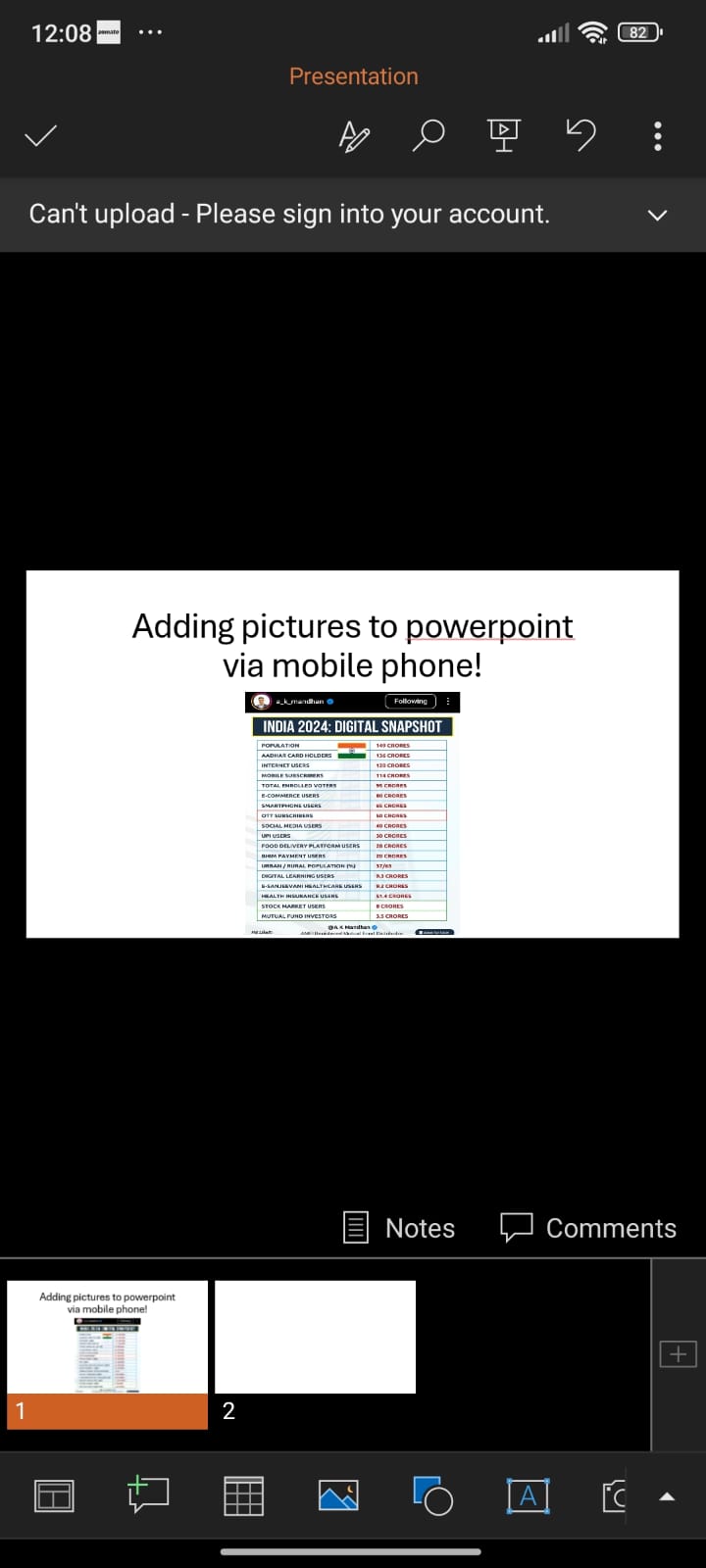
You can also use the editing tools in the toolbar to crop the image, add effects, or make other adjustments to enhance its appearance.
Conclusion
Adding pictures to your PowerPoint presentation on a mobile phone is a straightforward process that allows you to create visually engaging slides no matter where you are.
By following these steps, you can easily insert and customize images to complement your content, making your presentation more dynamic and effective.
Whether you're using an iPhone, Android, or any other mobile device, the PowerPoint app offers the tools you need to design professional-quality presentations on the go.
Tired of maing presentations? what if we tell you you can make presentation with just a prompt, convert YouTube videos to PPTs, convert website content to PPTs? Yes! checkout magicslides.app that does all and enjoy the free credits to make presentations in seconds
FAQs that come handy!
Can I add pictures from online sources using the PowerPoint mobile app?
Yes, you can add pictures from online sources using the PowerPoint mobile app.
When you tap the "Insert" button, select options like OneDrive or Bing to access and insert images from cloud storage or the web directly into your presentation.
How can I resize a picture after adding it to a slide on my mobile device?
To resize a picture on a mobile device, simply tap on the image to select it. You’ll see handles (small circles) appear around the edges of the picture. Drag these handles inward or outward to adjust the size.
You can also move the picture by tapping and dragging it to your desired location on the slide.
Is it possible to edit the picture after inserting it in the PowerPoint mobile app?
Yes, the PowerPoint mobile app allows basic editing of pictures after they are inserted. You can use the available tools to crop the image, adjust brightness, contrast, and add effects or borders.
Simply tap on the picture and look for editing options in the toolbar or menu that appears.


