How to Edit Footer in PowerPoint (Step-by-Step)


Learn how to edit footer in PowerPoint with this easy guide. Customize slide numbers, text, and design for professional PPT presentations.
How to Edit Footer in PowerPoint – Step-by-Step Guide
Your PowerPoint presentation’s footer is more than just a space for slide numbers or dates—it’s a powerful element for branding, professionalism, and consistency.
Whether you want to add your company name, customise slide numbers, or create a polished presentation design, learning how to edit the footer in PowerPoint is essential.
In this guide, we’ll walk you through multiple ways to edit footers in PowerPoint, along with tips and best practices.
Why Editing Footers in PowerPoint is Important?
Editing footers isn’t just a small design tweak; it can significantly improve your presentation.
Here’s why it matters:
- Branding: Add company name, website, or tagline.
- Professionalism: Makes slides look structured and polished.
- Navigation: Helps the audience follow slide numbers.
- Consistency: Keeps design uniform across slides.
Steps to Edit Footers in PowerPoint:
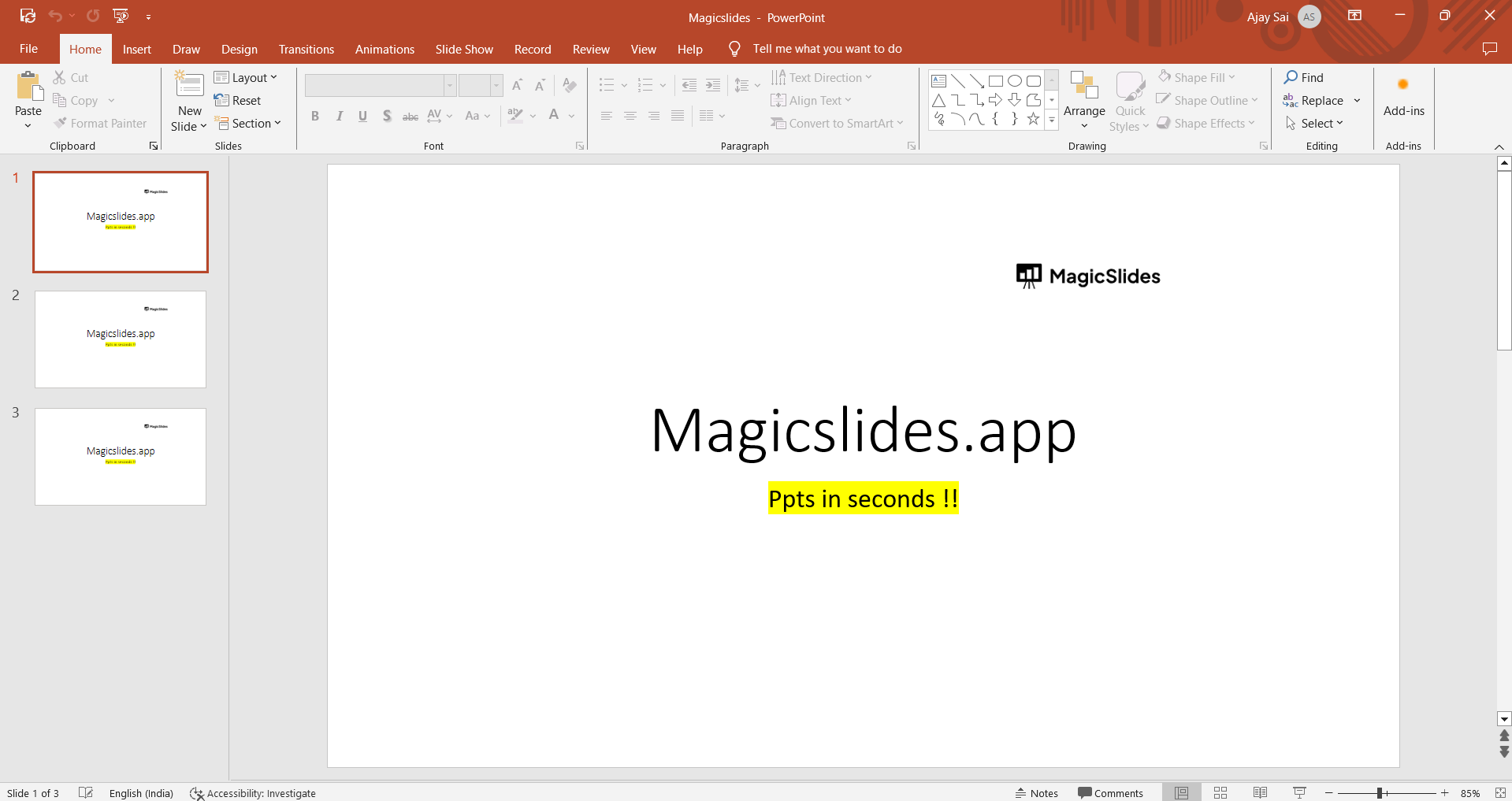
Step 1: Open Your Presentation
Begin by opening your PowerPoint presentation. Navigate to the slide where you want to edit the footer, or work on the footer at the master slide level for consistent changes throughout your presentation.
Step 2: Access the Slide Master View
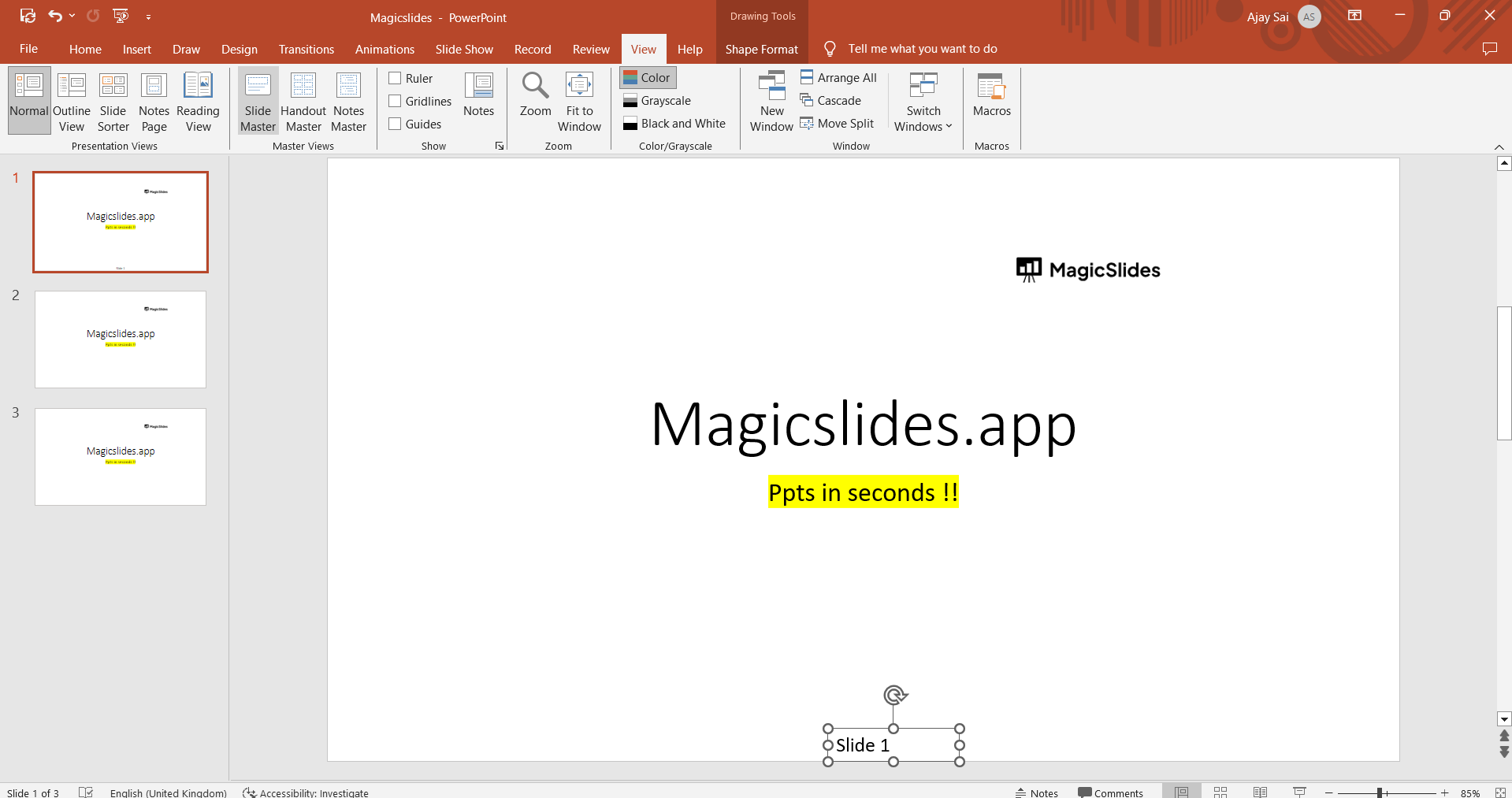
To edit the footer across all slides or to modify the layout of specific slides, go to the "View" tab and select "Slide Master." This opens the Slide Master View, allowing you to edit the master slide layout.
Step 3: Edit the Footer
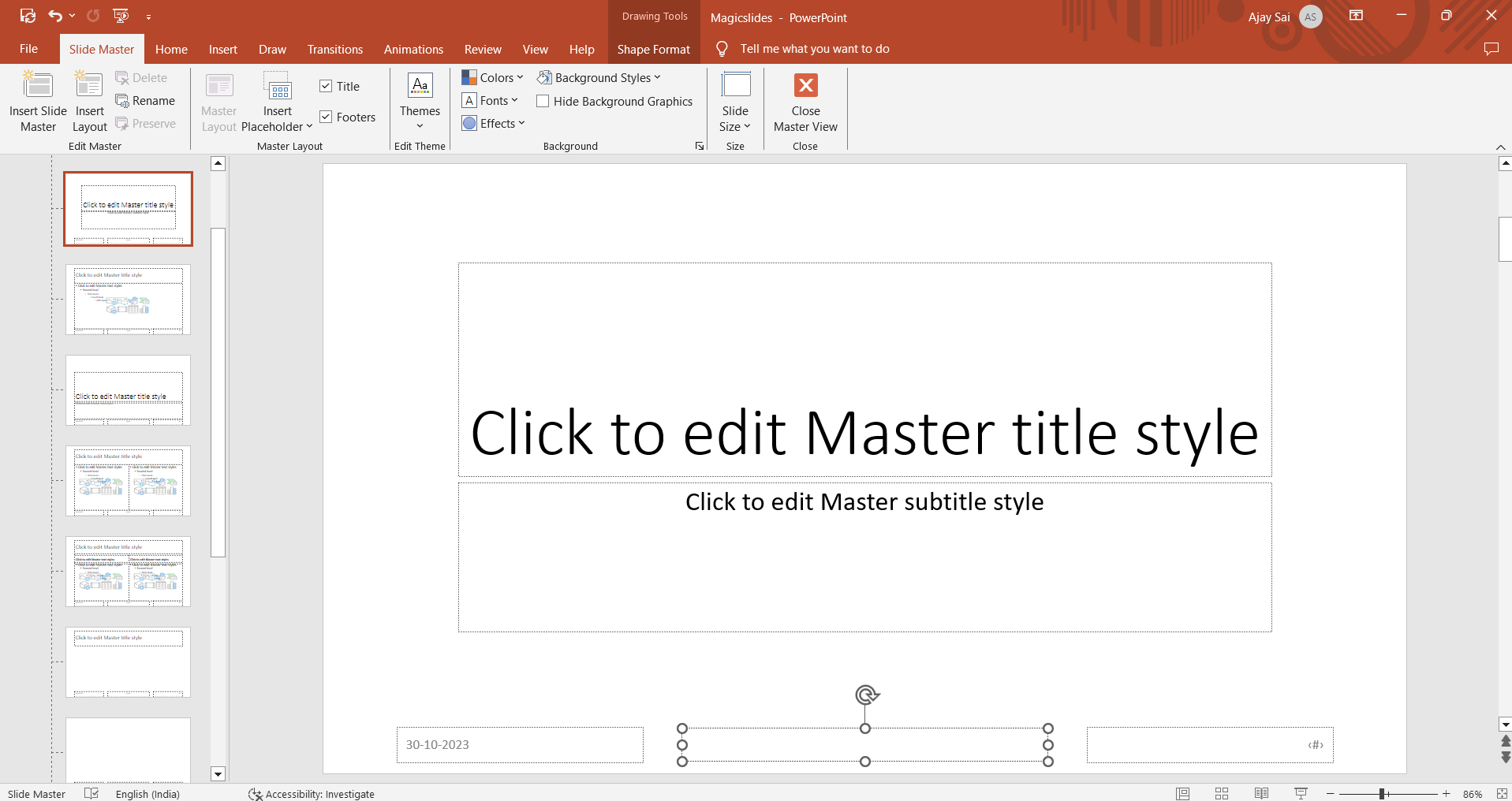
In the Slide Master View, locate the footer area, which typically contains placeholders for date, slide number, and footer text. Click within the footer text box to make changes to the text, such as adding your organization's name or other details.
Step 4: Customize Font and Format
You can also customize the font, font size, color, and alignment of the text within the footer. Use the formatting options in the "Home" tab to make these adjustments.
Step 5: Apply Changes
Once you've made the desired edits to your footer, click "Close Master View" or navigate to specific slides within your presentation where you want the changes to be applied.
Step 6: Review Your Presentation
Go through your presentation to ensure that the footer changes have been applied correctly and that your slides look polished and professional.
Create Professional Presentations Faster with MagicSlides AI
Editing footers is just one small part of building a great presentation, but designing entire slides manually can take hours.
That’s where MagicSlides, an AI PPT Maker, can completely change your workflow.

Why Use MagicSlides?
- Generate complete presentations from a topic in seconds
- Automatically apply consistent design and formatting
- AI-powered content creation
- Perfect for students, professionals, and teams
Example:
Instead of manually:
- Creating slides
- Formatting layouts
- Editing footers
You can simply enter your topic into MagicSlides and get a ready-to-use presentation instantly.
Also read: How to Remove Footer in PowerPoint?
Conclusion:
Editing footers in PowerPoint is a fundamental skill that can significantly enhance the quality of your presentations. Whether it's for branding, content organization, or design improvement, making your footers stand out is essential for effective communication.
With these simple steps, you can take control of your PowerPoint footers and create presentations that leave a lasting impression on your audience.
Adding footnotes is 90% work done. Get your work done a cent present by knowing how to edit a footnote with this simple trick
Frequently Asked Questions:
Can I edit footers on a specific slide without affecting others in the presentation?
Yes, you can edit footers on individual slides by navigating to the specific slide and modifying the footer.
How can I change the footer style and font size to match my presentation's design?
To customize footer styles, font, and size, access the Slide Master View, select the footer, and use the formatting options in the "Home" tab.
Can I add images or logos to the footer for branding purposes?
While you can't directly insert images into the footer, you can add a text box and place your image or logo alongside the text in the footer.


