Addon google slides iconPPT with AISlide TemplatesPPT TemplatesPricingBlog
    PPT with AISlide TemplatesPPT TemplatesPricingBlog
    1. Home
    2. Blog
    3. How to add text box in PowerPoint


    How to add text box in PowerPoint

    magicslides app

    Published By

    magicslides app
    Sanskar Tiwari

    Approved By

    Sanskar Tiwari

    Published On

    January 13th, 2025

    Reading Time

    3 min read

    Transform your PowerPoint slides with impactful text boxes—master the art with these simple steps!

    Enhance your PowerPoint presentations by mastering the art of adding text boxes. Whether you're emphasizing a point or organizing content, inserting text boxes is a fundamental skill. Let's delve into the simple steps to make your text stand out and create visually appealing slides.

    How to add text box in powerpoint

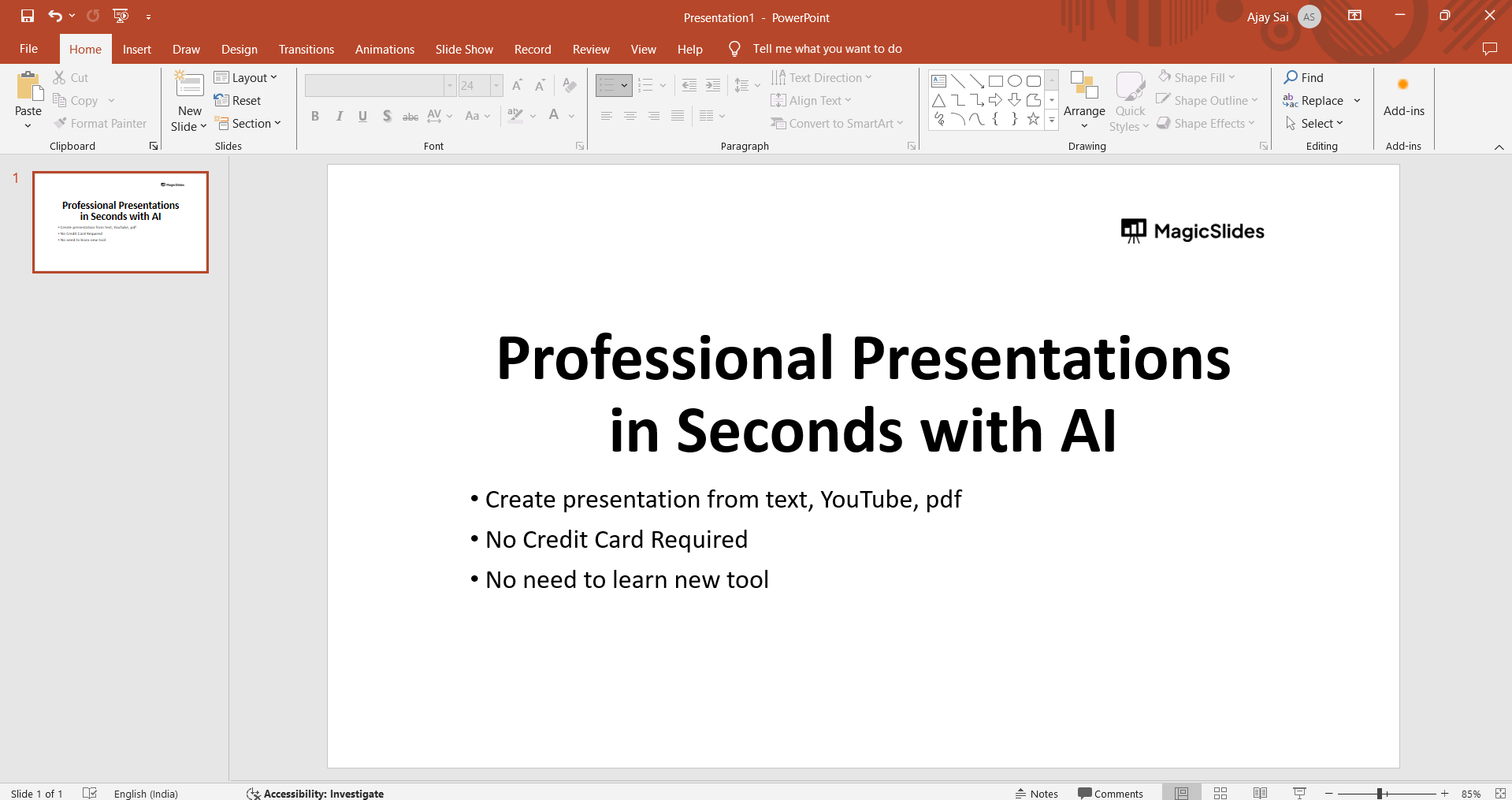
    Step 1: Open Your PowerPoint Presentation

    Launch PowerPoint and open the presentation where you want to add a text box. Ensure you're on the slide where you intend to incorporate textual content.
    notion image

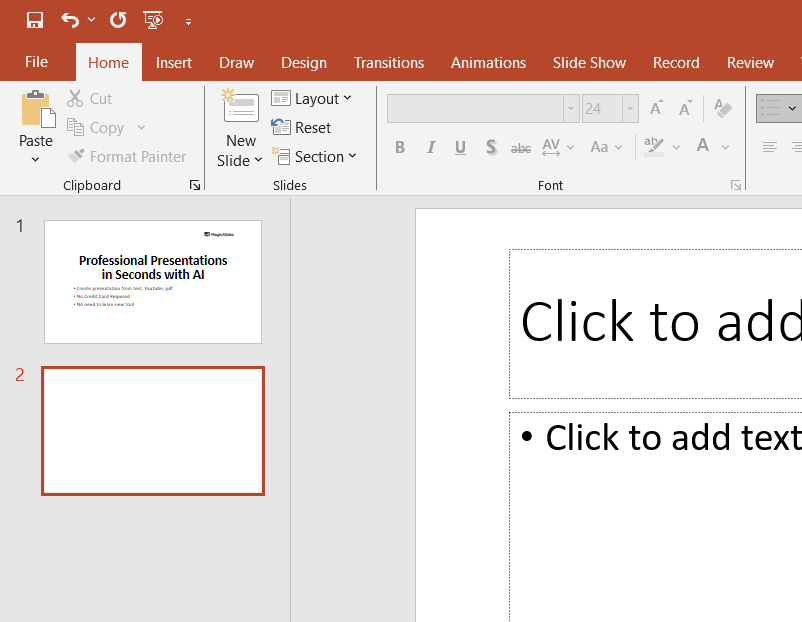
    Step 2: Navigate to the Slide

    Use the navigation tools to move to the specific slide where you want to insert the text box. Consider the layout and design of your slide to determine the most effective placement for your text.
    notion image

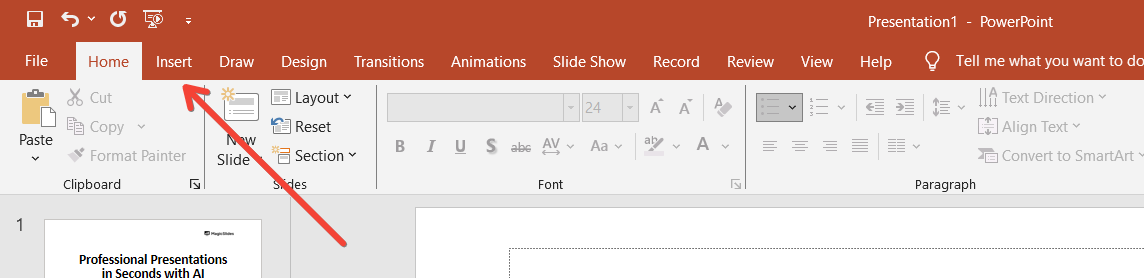
    Step 3: Select "Text Box" from the Ribbon

    Once on the desired slide, locate the "Insert" tab on the ribbon at the top of the screen. Click on it, and within the "Text" group, you'll find the "Text Box" option. Click on "Text Box" to initiate the process.
    notion image

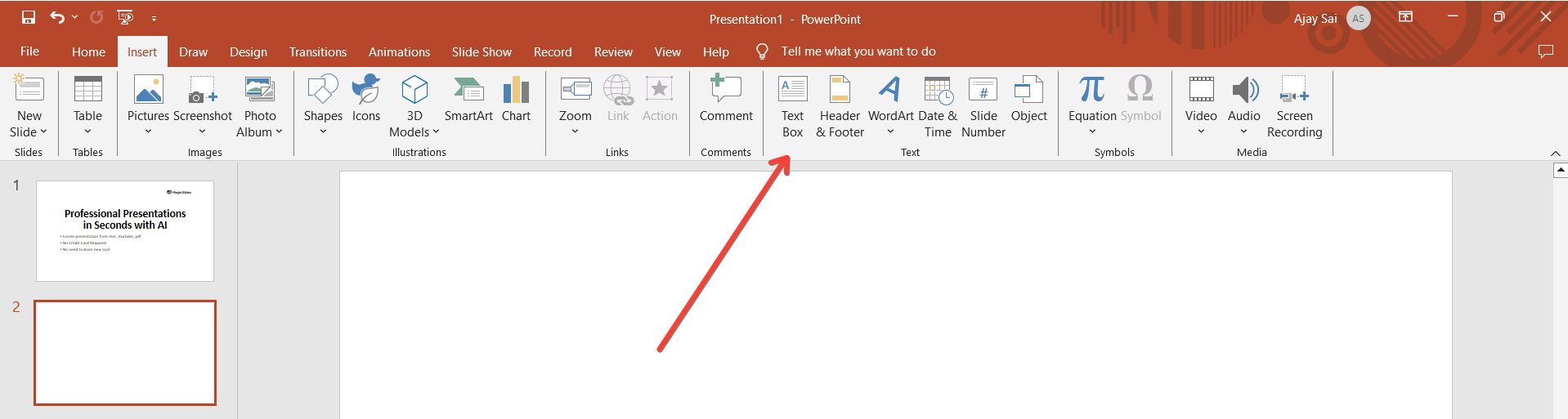
    Step 4: Draw the Text Box on Your Slide

    After selecting "Text Box," your cursor will transform into a crosshair. Click and drag on the slide to draw the text box to your desired size. This flexibility allows you to control the dimensions based on your content and design preferences.
    notion image

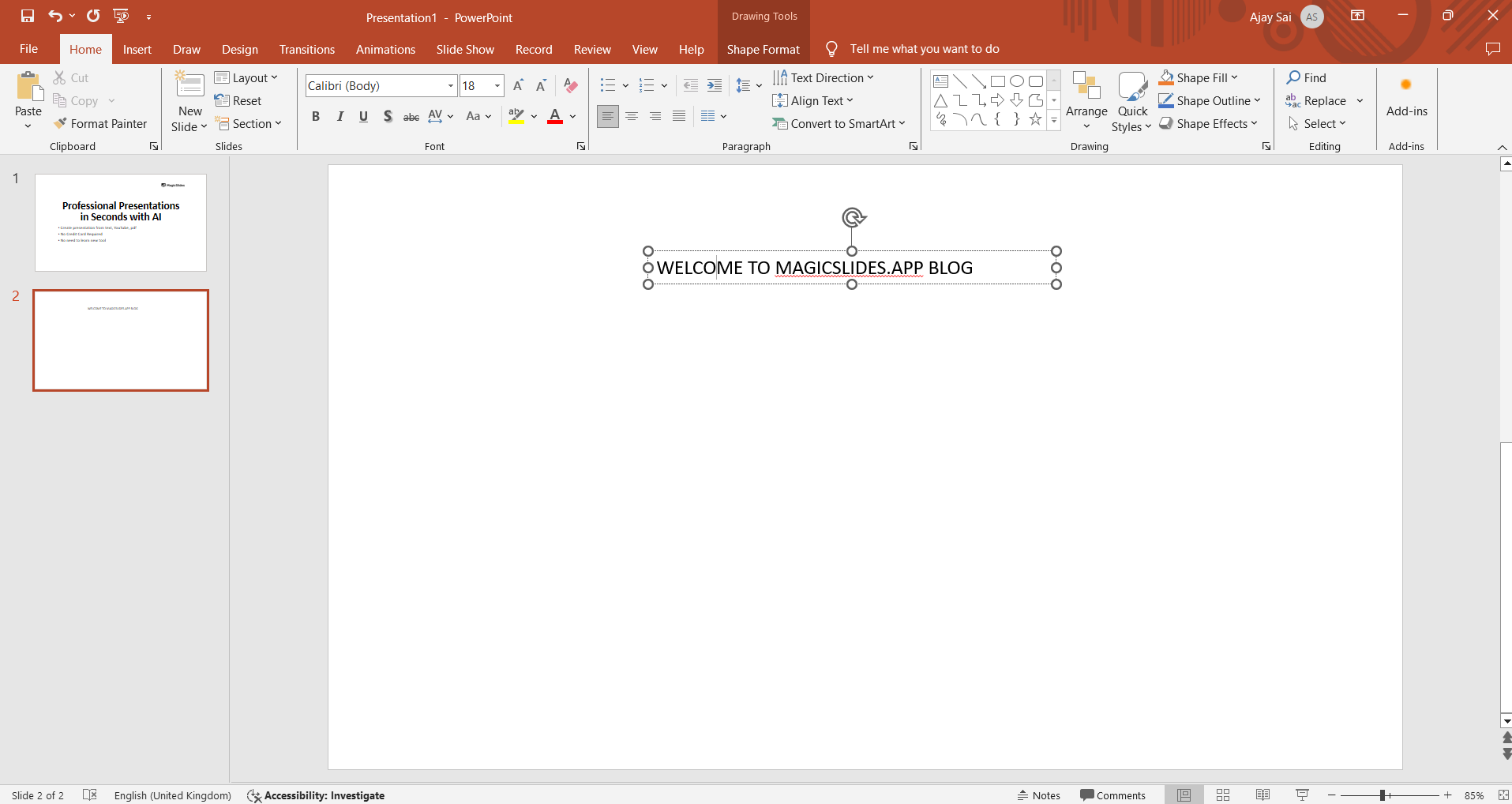
    Step 5: Type Your Text

    With the text box in place, click inside it, and begin typing your text. PowerPoint provides various formatting options, enabling you to customize the font, size, color, and style to align with your presentation's visual theme.
    notion image

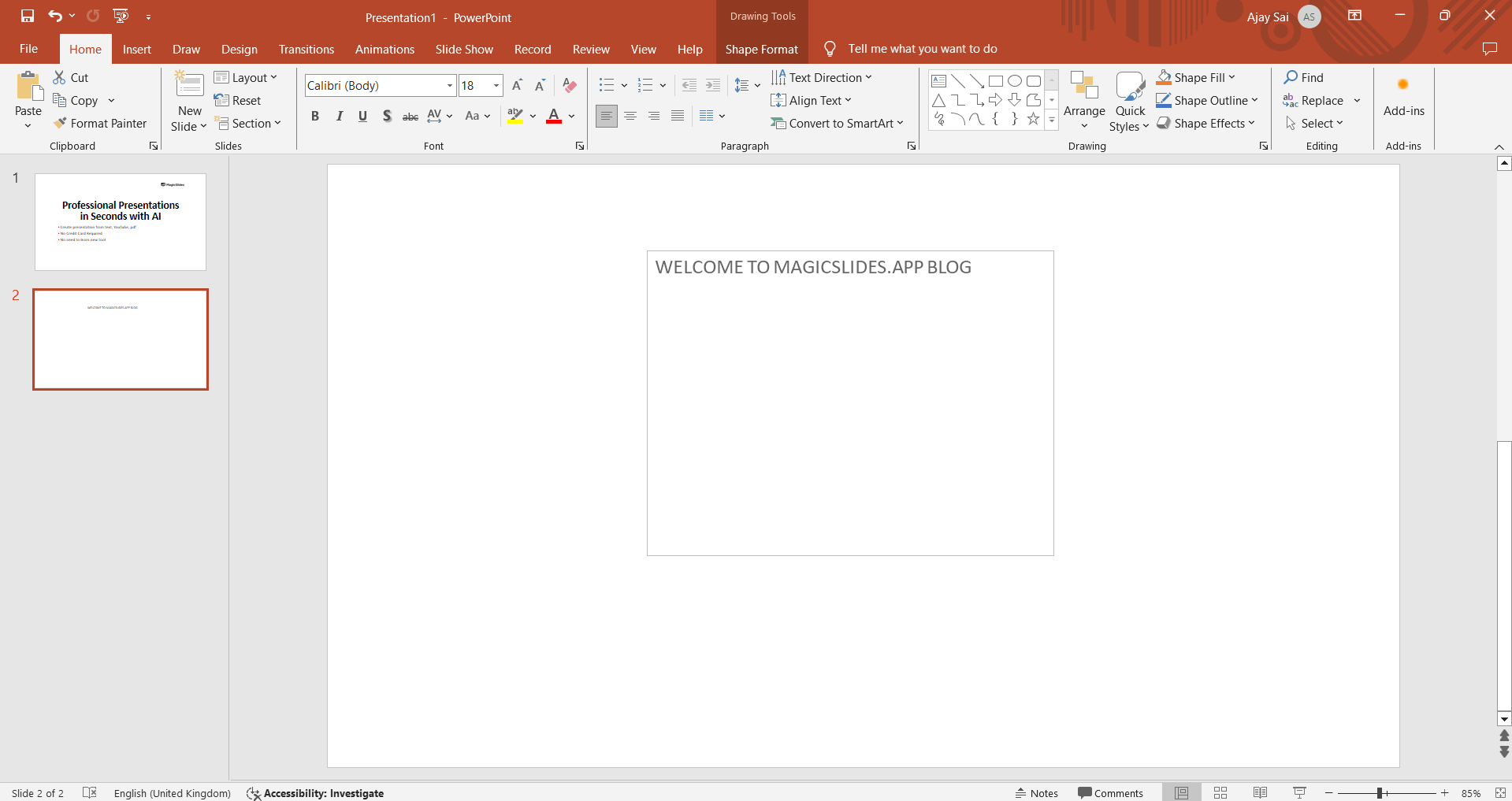
    Step 6: Move and Resize with Ease

    To refine the positioning and size of your text box, click on its border to select it. You can then drag the text box to move it to a different location on the slide. Alternatively, use the corner handles to resize the text box, ensuring it fits seamlessly into your overall design.
    notion image

    Conclusion:

    Adding text boxes in PowerPoint is a straightforward yet powerful technique that empowers you to customize and organize your content effectively. Whether you're a novice or a seasoned presenter, mastering this skill elevates your ability to convey information with clarity and precision. Enhance your presentations by strategically incorporating text boxes for a more engaging and professional look, allowing your audience to focus on the key points of your message.

    Frequently Asked Questions:

    Can I customize the appearance of the text box in PowerPoint? Absolutely! PowerPoint allows extensive customization—font, color, size, and style—ensuring a tailored and polished look.
    Is it possible to add multiple text boxes on one slide? Certainly! You can add as many text boxes as needed, arranging them to suit your content layout.
    Can I animate text boxes for dynamic presentations? Yes, PowerPoint offers various animation options for text boxes, enhancing engagement and delivering information in stages.
    How can I link a text box to another slide or external content? PowerPoint enables hyperlinking within text boxes. Right-click, choose "Hyperlink," and connect to slides or external sources.

    Share on socials

    About the author

    Mehjabi Khan profile photo
    Mehjabi Khan— Writer

    Mehjabi Khan is one of our talented writers with a background in creating content for major companies like Mahindra and Suzuki. She has a knack for explaining complex ideas in a way that’s easy to understand and enjoyable to read. When she's not writing, Mehjabi loves to cook, bringing the same creativity to her recipes as she does to her articles.

    More from Mehjabi

    More from the blog

      250+ Good Morning Messages for Her (Romantic, Deep, Cute & Sweet)

      30 January 2026

      200+ Heart Touching Birthday Wishes for Sister (Short, Funny and More)

      29 January 2026

      50+ History Presentation Topics For 2026

      28 January 2026

      How to Add Music to Your Canva Presentation: A Step-by-Step Guide

      27 January 2026

      15 Quick Tips To Use ChatGpt At Work

      22 January 2026

      11 Best AI Tools for Business in 2025

      22 January 2026

      How to Create an Infographic That Clearly Communicates Your Message

      20 January 2026

      How to Create a Sales Presentation Template in Google Sheets

      20 January 2026

      How to Make a Pie Chart on Google Slides in Simple Steps

      19 January 2026

    Table of Contents

    Create Presentations in Seconds

    Transform your ideas into professional presentations with AI. No design skills needed.

    Try MagicSlides Free

    Create Stunning Presentations with AI in Seconds ✨

    Transform any topic, text, YouTube video, PDF or URL into beautiful presentations instantly with MagicSlides AI.

    Try MagicSlides AI Presentation Maker
    MagicSlides AI Presentation

    Footer

    Solutions

    • MagicSlides App
    • Google Slides Add-on
    • MagicSlides in Chrome
    • MagicSlides in Figma
    • MagicSlides in ChatGPT
    • MagicSlides in Telegram
    • MagicSlides in Zapier
    • MagicSlides in Figma Slides

    Tools

    • AI PPT Tools
    • QR Code Generator
    • Design Tools
    • PPT Templates
    • Slide Templates
    • PDF Tools

    Examples

    • AI Presentations
    • PPT by MagicSlides
    • Quizzes
    • Charts
    • Coloring Pages

    Resources

    • Changelog
    • Documentation
    • API Docs

    Top Blogs

    • How to Create Presentation Using ChatGPT
    • 100+ Best Seminar Topics for Students in 2025

    Company

    • Help
    • MCP
    • Blog
    • Pricing
    • Affiliate Program
    • Manage Subscription
    • Privacy Policy
    • Contact Us
    • Terms & Conditions
    • Refund & Cancellation Policy

    We also built

    • SheetAI - GPT For Sheets
    • MagicForm - GPT For Google Forms
    • SecondBrain.fyi
    • BlogBee - Free Blogging Platform

    © 2026 IndianAppGuy Tech Pvt Ltd. All rights reserved.