How to Add Text Effects to a Title in PowerPoint?


Learn how to add text effects and WordArt to PowerPoint titles using shadows, glow, 3D, and transform effects. Plus, discover how MagicSlides can create presentations faster.
A well-designed title can instantly make a PowerPoint presentation look more professional and engaging. Instead of using plain text, you can use WordArt and text effects to add visual interest to your presentation titles. PowerPoint lets you customize titles with effects such as shadows, glow, reflection, 3D rotation, and text transformations.
In this guide, we’ll show you how to add text effects to a title in PowerPoint, create WordArt, and choose effects that make your slides stand out without making them difficult to read. We’ll also look at an easier option for creating polished presentations with AI. If you don’t want to spend hours formatting individual slides, MagicSlides AI PPT Maker can help you turn a simple idea or prompt into a complete presentation with professionally designed slides.
What Is WordArt in PowerPoint?
WordArt is a PowerPoint feature that lets you turn ordinary text into more visually styled text. It can be especially useful for presentation titles, section headings, and other elements that need more visual impact.
With WordArt, you can change the appearance of your title using different fonts, colors, outlines, shadows, glow, reflection, 3D effects, and transformations. These options give you more control over how your title looks compared with standard text formatting.
For example, you can create a title with a subtle shadow for better readability, add a glow to give it a modern look, or use a transform effect to curve or reshape the text. You can also combine effects with your presentation’s colors and overall design.
However, it’s best to use text effects carefully. Too many effects can make a title look cluttered or difficult to read. Choose an effect that supports your presentation’s style and keeps the title clear.
If you’re creating a complete presentation rather than just formatting one title, an AI presentation maker such as MagicSlides can help you generate professionally structured slides without having to design every element manually.
How to Add Text Effects to a Title in PowerPoint
Adding text effects to a PowerPoint title is simple. You can use the built-in formatting options to give your title a more creative and professional appearance.
Step 1: Add or Select Your Title
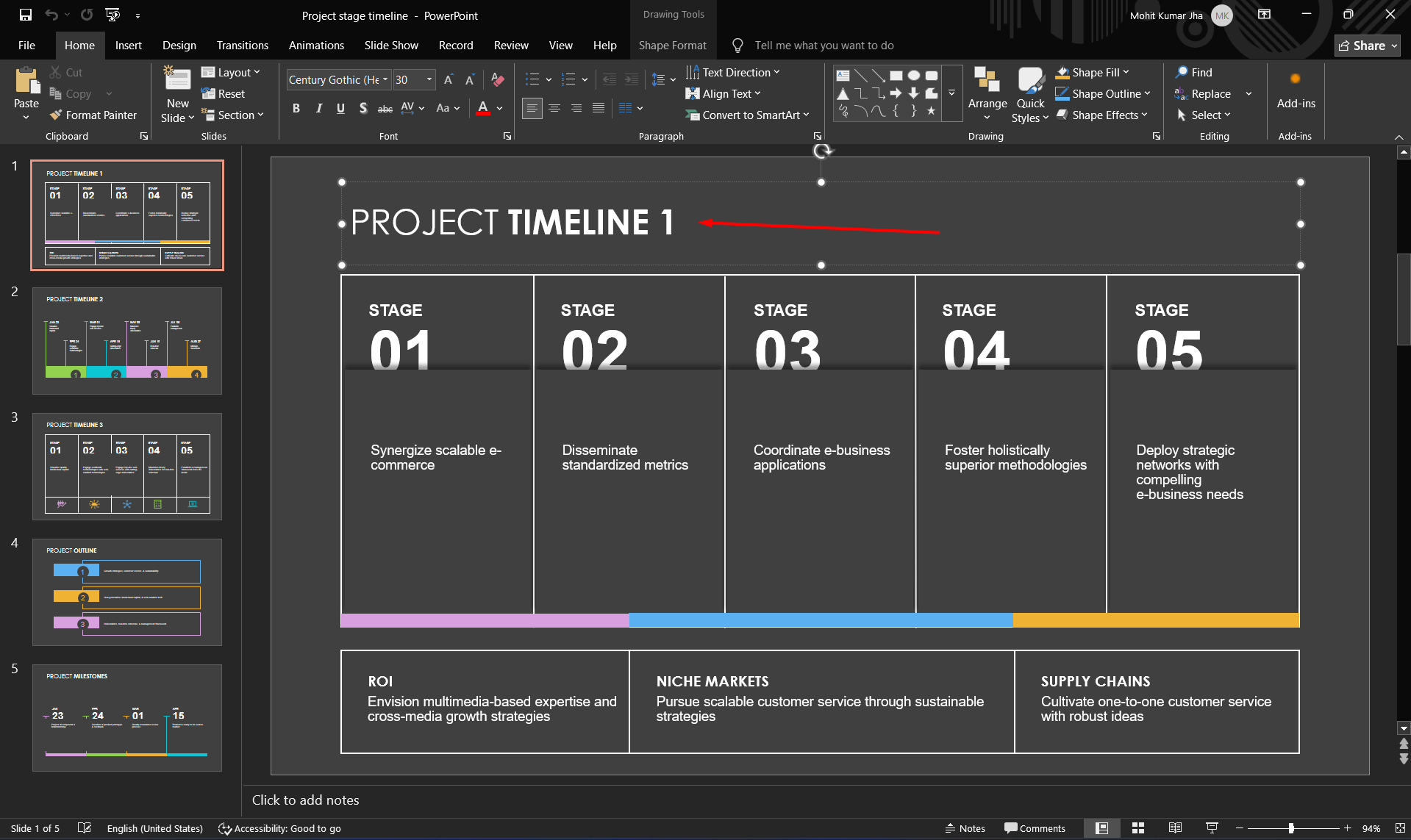
Open your PowerPoint presentation and add a title to your slide. If you already have a title, click the text box to select it.
Step 2: Select the Text
Highlight the title text you want to format. Selecting the text ensures that the effects you choose are applied to the title rather than other elements on the slide.
Step 3: Open Text Effects
Go to the Shape Format or Format tab in the PowerPoint ribbon. Look for Text Effects in the WordArt Styles section. Click it to see the available options.
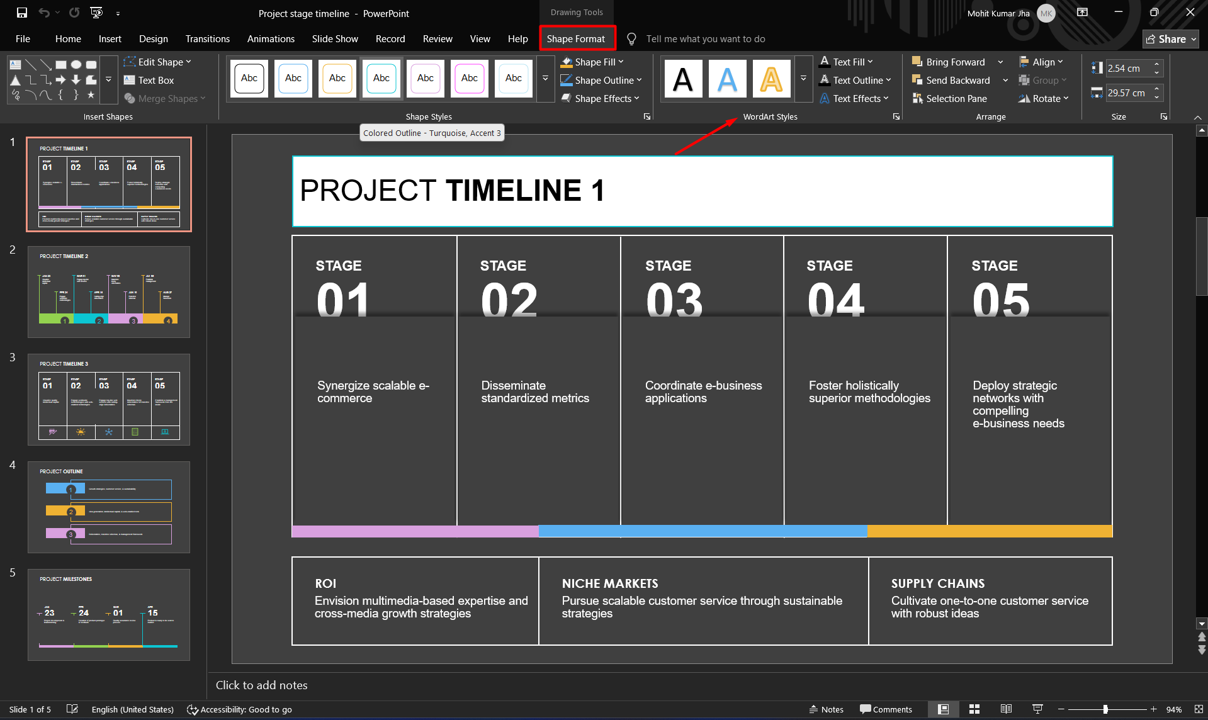
Step 4: Choose an Effect
PowerPoint provides several text-effect options, including:
- Shadow – Adds depth and can make your title easier to read.
- Reflection – Creates a reflected version of the text beneath the title.
- Glow – Adds a soft glow around the letters.
- 3-D Format – Gives the text a three-dimensional appearance.
- 3-D Rotation – Changes the viewing angle of the text.
- Transform – Lets you curve, bend, or reshape the title.
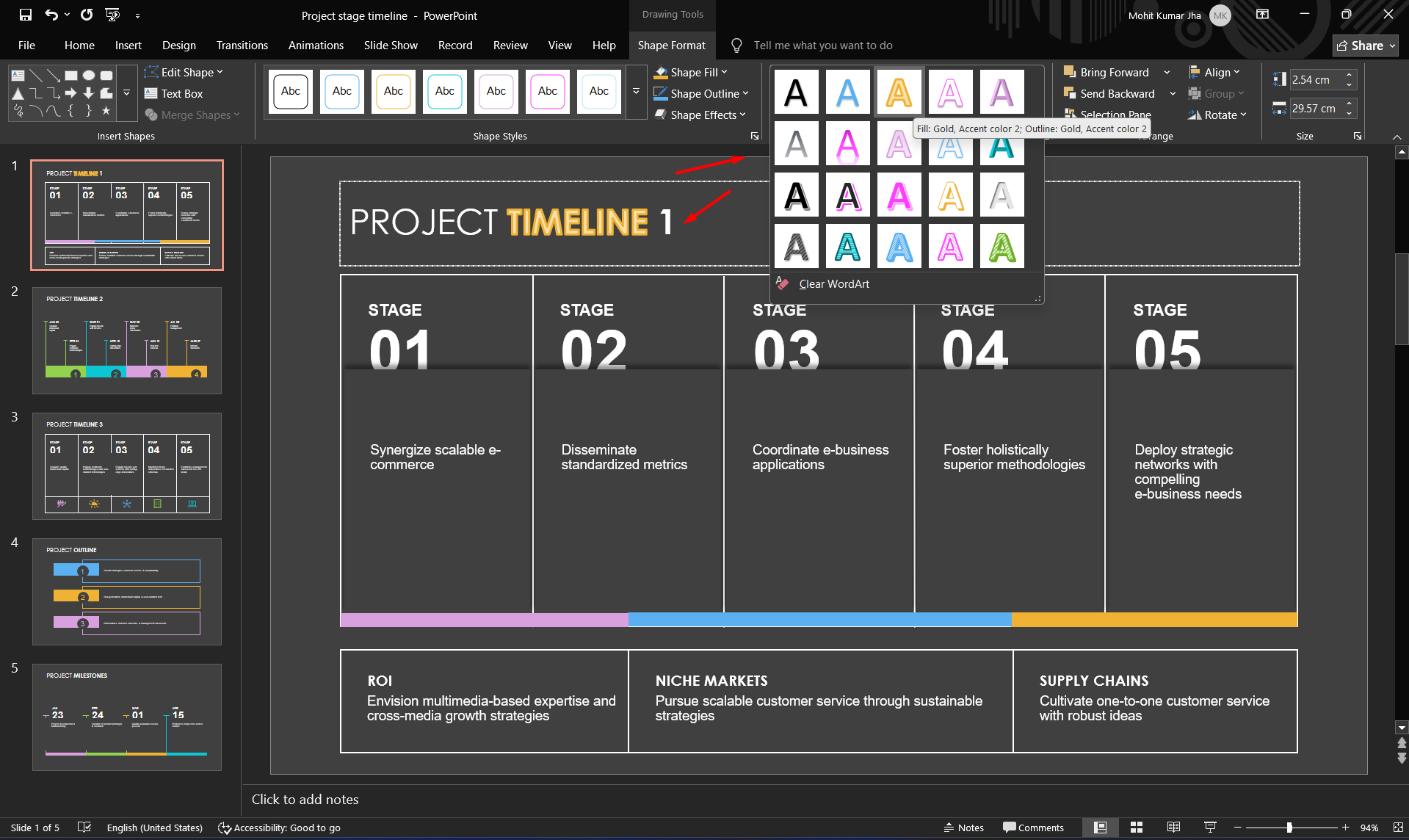
Choose an effect that matches the style of your presentation. You can preview different options before deciding which one works best.
Step 5: Customize the Effect
After selecting an effect, use the available formatting options to adjust settings such as color, transparency, size, softness, distance, or rotation. Small adjustments can make a big difference to the final appearance.
Step 6: Adjust the Title
Finally, change the font, size, color, and position of your title if necessary. Make sure there is enough contrast between the text and the slide background.
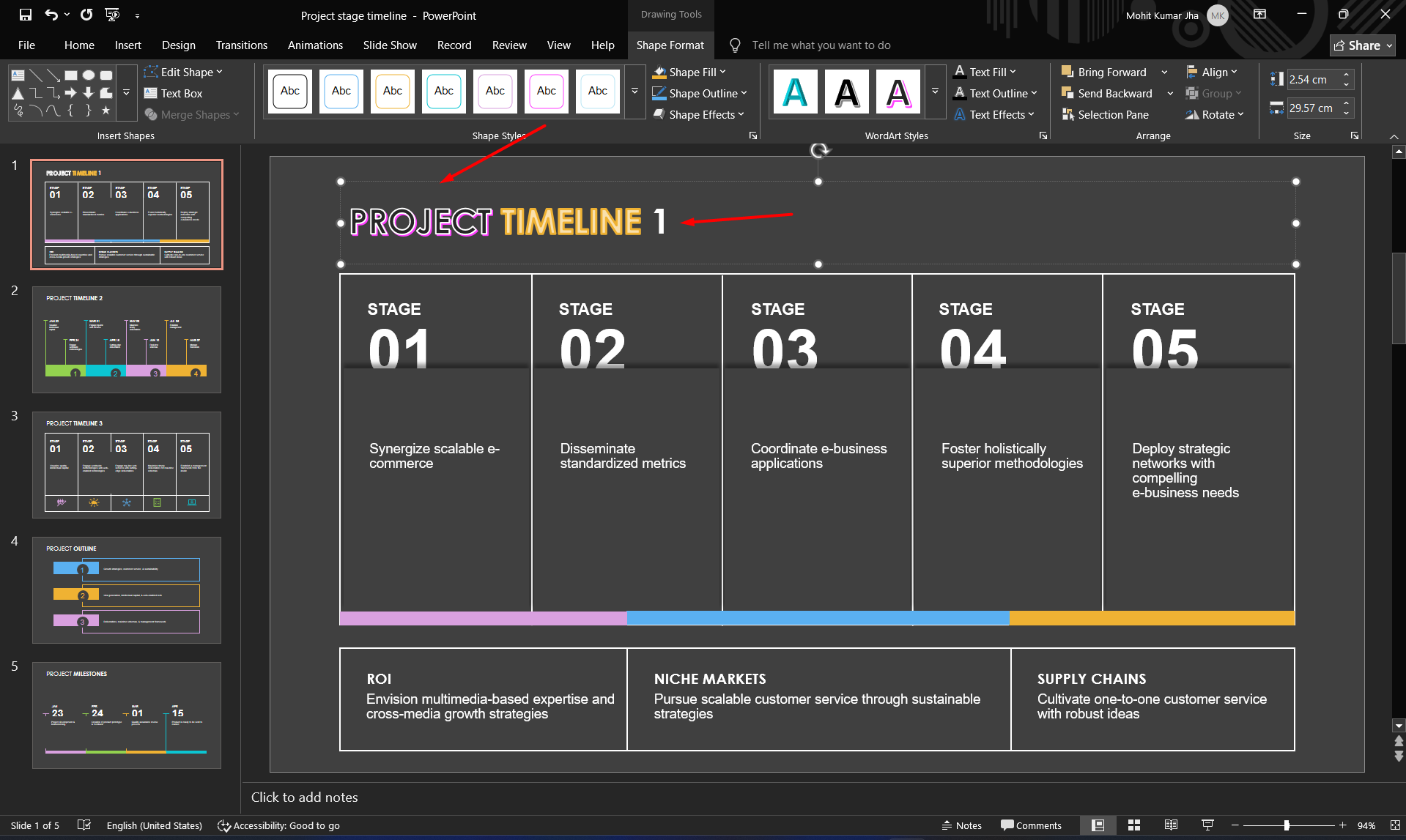
The key is to keep your title readable. A simple shadow or glow is often enough to make a title stand out without overwhelming the slide.
How to Create a WordArt Title in PowerPoint
If you want more creative control over your presentation title, you can create it using WordArt. This gives you access to additional styling options and makes it easier to apply text effects.
Step 1: Insert WordArt
Open your PowerPoint slide and go to the Insert tab. Select WordArt from the Text section. PowerPoint will display several WordArt styles to choose from.
Step 2: Choose a Style
Select a style that fits your presentation. You don’t have to use the default colors or formatting. The WordArt style is simply a starting point that you can customize later.
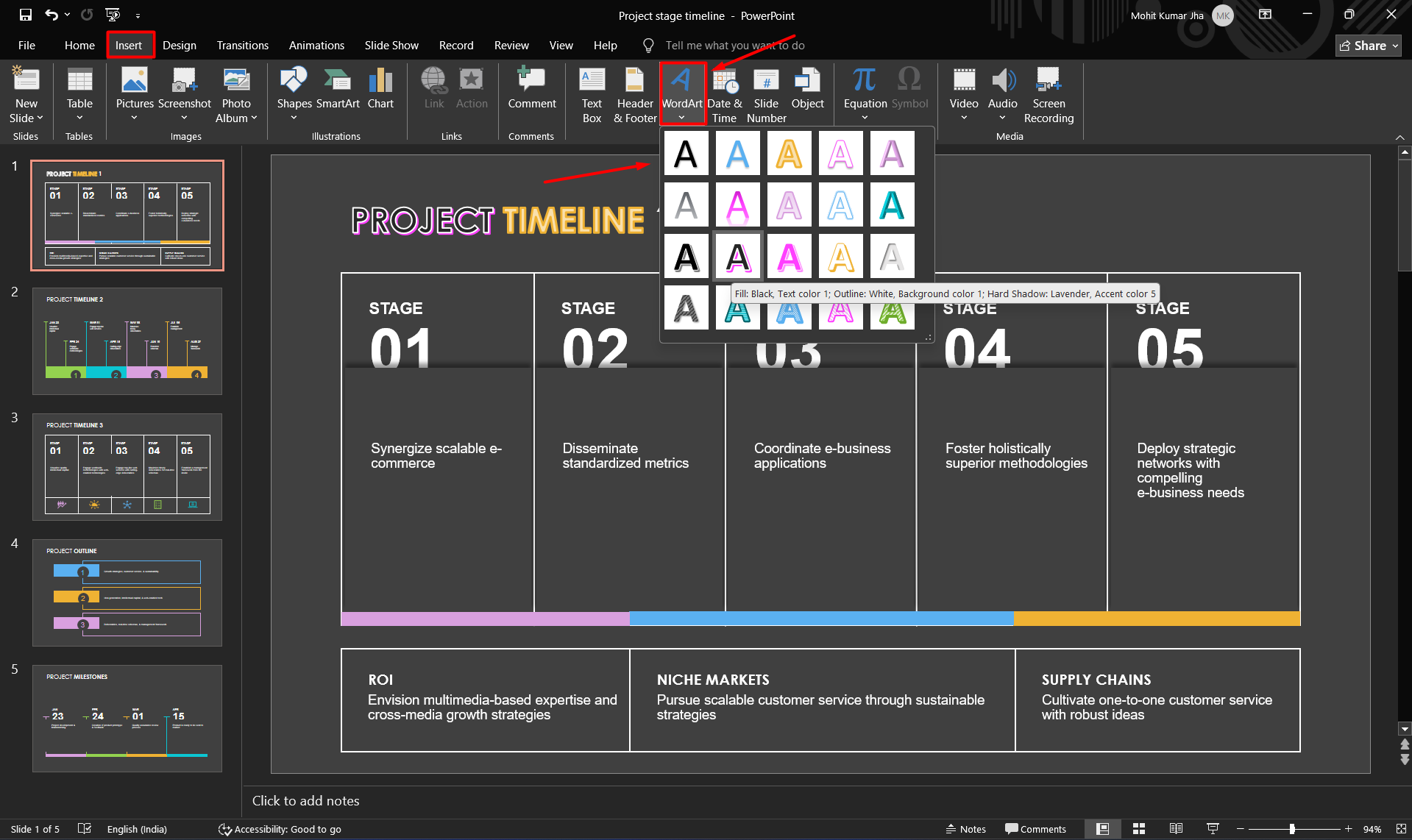
Step 3: Enter Your Title
Click inside the WordArt placeholder and type your presentation title. You can then resize the text box and position the title wherever you want on the slide.
Step 4: Customize Your WordArt
Select the WordArt and open the Shape Format tab. From here, you can modify the font, text fill, outline, and other formatting options. You can also apply effects such as shadow, glow, reflection, and 3D rotation.
Step 5: Apply a Transform Effect
For a more creative title, open Text Effects > Transform. You can choose different shapes that curve, bend, or otherwise change the appearance of your text.
When using WordArt, remember that more effects don’t necessarily mean a better design. Choose one or two effects that complement your presentation’s theme and keep the title easy to read.
If you’re creating a presentation from scratch and want to avoid manually designing every slide, MagicSlides AI offers a faster approach. You can start with a topic or prompt and let AI generate a structured presentation that you can customize afterward.
Best Text Effects for PowerPoint Titles
PowerPoint offers several text effects, but not every effect works well for every presentation. The best choice depends on your topic, audience, and overall slide design.
- Shadow: A shadow is one of the easiest ways to make a title stand out. It adds depth to the text and can improve readability when your title is placed over a busy or colorful background. For professional presentations, a subtle shadow is usually more effective than a heavy one.
- Glow: A glow effect adds a soft outline around your title. It can work particularly well for creative, technology, gaming, or event presentations. Use a color that complements your presentation rather than choosing a glow that competes with the title.
- Reflection: Reflection creates a mirrored version of your text beneath the original title. It can give a decorative look to a slide, although it should be used sparingly. It works best when the title is large, and there is enough space around it.
- 3D Rotation: 3D rotation changes the angle from which your text appears. It can give a title a more dimensional appearance and work well for creative presentations. However, extreme rotation can make the text difficult to read.
- Transform: Transform effects let you curve, bend, or reshape text. They’re useful when you want to create a distinctive title or recreate a particular visual style. Curved or arched titles can work especially well on cover slides.
The most important rule is to prioritize readability over decoration. A well-chosen effect can make your title more memorable, while too many effects can make your presentation look cluttered.
Common Mistakes When Formatting PowerPoint Titles
Text effects can make titles stand out, but too many can make your slides look cluttered.
- Too many effects: Stick to one or two effects.
- Hard-to-read fonts: Choose clear, professional fonts.
- Poor contrast: Make sure the title stands out from the background.
- Too much 3D: Avoid extreme rotations that reduce readability.
- Inconsistent styles: Keep title fonts, colors, and effects consistent across slides.
The goal is simple: make your title visually appealing without sacrificing readability.
An Easier Way to Create Professional PowerPoint Titles with AI
Formatting every title and slide manually can take time. If you want to create a complete presentation faster, MagicSlides AI PPT Maker can help.

Simply enter your topic or prompt, and MagicSlides can generate a presentation with structured content and professionally designed slides. You can then customize the text, layouts, and visuals to match your needs.
This is especially useful when you want to move quickly from an idea to a finished presentation without spending hours choosing fonts, layouts, and formatting options.
For detailed text effects, PowerPoint still gives you more manual control. But for creating an entire presentation quickly, MagicSlides can simplify the process.
Conclusion
Adding text effects or WordArt can make your PowerPoint titles more eye-catching and professional. Keep your design simple, use effects that improve readability, and maintain a consistent style across your slides.
If you want to skip the manual formatting and create a complete presentation faster, MagicSlides AI can turn your ideas into professionally structured slides in minutes.
Also read: How to Delete a Slide in PowerPoint: Easy Step-by-Step Guide
Frequently Asked Questions
Q1. How do I add text effects to a title in PowerPoint?
Select your title, open the Shape Format tab, choose Text Effects, and select an effect such as Shadow, Glow, Reflection, 3D, or Transform.
Q2. How do I create WordArt in PowerPoint?
Go to Insert > WordArt, choose a style, enter your title, and customize the font, color, outline, and text effects.
Q3. Can I curve text in PowerPoint?
Yes. Select your text, go to Text Effects > Transform, and choose a curved or other transformed text style.
Q4. What is the best text effect for a PowerPoint title?
A subtle shadow, glow, or transform effect can make a title stand out while keeping it readable. The best choice depends on your presentation’s design.
Also read: What Is a Thesis Statement? Definition, Examples & How to Write One


