How to Delete a Slide in PowerPoint: Easy Step-by-Step Guide


Learn how to delete a slide in PowerPoint on Windows, Mac, and mobile. Follow simple steps to remove single or multiple slides and undo deletions.
If you’re working on a PowerPoint presentation and need to remove a slide, you can delete it in just a few clicks. Whether you want to remove a single slide, delete several slides at once, or clean up an unwanted section of your presentation, PowerPoint provides several simple options.
In this guide, you’ll learn how to delete a slide in PowerPoint on Windows, Mac, the web, and mobile devices. We’ll also cover keyboard shortcuts, how to delete multiple slides, how to undo a deleted slide, and when it’s better to hide a slide instead of removing it permanently.

Before You Delete a Slide
Before deleting a slide, make sure you no longer need its content. If you’re unsure, consider using Hide Slide instead, which keeps the slide in your presentation without showing it during the slideshow.
For larger presentations, review your slides in Slide Sorter view to spot duplicate or outdated content before deleting it.
Always save your presentation before making major changes, especially when working on an important file.
Tip: Accidentally deleted a slide? Press Ctrl + Z on Windows or Command + Z on Mac to restore it.
How to Delete a Slide in PowerPoint
Deleting an unwanted slide from a PowerPoint presentation takes only a few seconds. In the desktop version of Microsoft PowerPoint, you can remove a slide from the thumbnail pane using the Delete Slide option or simply press the Delete key.
The easiest way to delete a single slide is from the slide thumbnail pane on the left side of your PowerPoint window.
Method 1: Right-Click the Slide
- Open your PowerPoint presentation.
- Locate the slide thumbnail pane on the left.
- Select the slide you want to remove.
- Right-click the selected slide.
- Choose Delete Slide.

PowerPoint will immediately remove the slide from the presentation.
Method 2: Use the Delete Key
You can also delete a slide using your keyboard:
- Select the slide thumbnail you want to remove.
- Press the Delete key.
- The selected slide will be removed.

Tip: Select the slide thumbnail itself before pressing Delete. If you have selected a text box, image, or another object on the slide, PowerPoint may delete that object instead.
How to Delete Multiple Slides in PowerPoint
If you need to remove several slides, you don’t have to delete them one at a time. PowerPoint lets you select multiple slides and remove them together.
Delete Individual Slides
To select separate slides:
- Click the first slide you want to delete.
- Hold Ctrl on Windows or Command on Mac.
- Click the other slides you want to remove.
- Press Delete.

Delete a Range of Slides
For consecutive slides:
- Select the first slide in the range.
- Hold Shift.
- Select the last slide in the range.
- Press Delete.
This selects every slide between the first and last slide, allowing you to remove them at once.
How to Delete a Slide in PowerPoint on Mac?
The process is almost the same in PowerPoint for Mac.
- Open your presentation in PowerPoint.
- Select the unwanted slide from the thumbnail pane.
- Right-click or Control-click the slide.
- Select Delete Slide.
You can also select a slide and press the Delete key.
For multiple slides, hold Command while selecting individual slides, or use Shift to select a continuous range. Then press Delete.
How to Delete a Slide in PowerPoint for the Web?
PowerPoint for the web provides a similar way to remove slides from an online presentation.
- Open the presentation in PowerPoint for the web.
- Select the slide you want to remove from the thumbnail pane.
- Right-click the slide.
- Select Delete Slide.
You can also select multiple slides before deleting them.
Because PowerPoint for the web runs in your browser, the exact interface may vary slightly depending on your browser window and Microsoft 365 experience.
How to Delete a Slide in PowerPoint on Mobile?
You can also remove slides using the PowerPoint mobile app on compatible Android and iOS devices.
Open the presentation and navigate to the slide you want to remove. Select the slide thumbnail and look for the available slide options. Choose Delete or Delete Slide, depending on the version of the PowerPoint app you’re using.
Mobile controls can differ between Android, iPhone, and iPad, so the location of the delete command may not be identical to the desktop interface.
How to Delete a Slide Using Slide Sorter View?
If you’re working with a large PowerPoint presentation, Slide Sorter can make deleting slides easier.
Slide Sorter displays your presentation as a grid of slide thumbnails, allowing you to see many slides at once.
To use it:
- Open your PowerPoint presentation.
- Go to the View tab.
- Select Slide Sorter.
- Click the slide you want to delete.
- Press Delete.
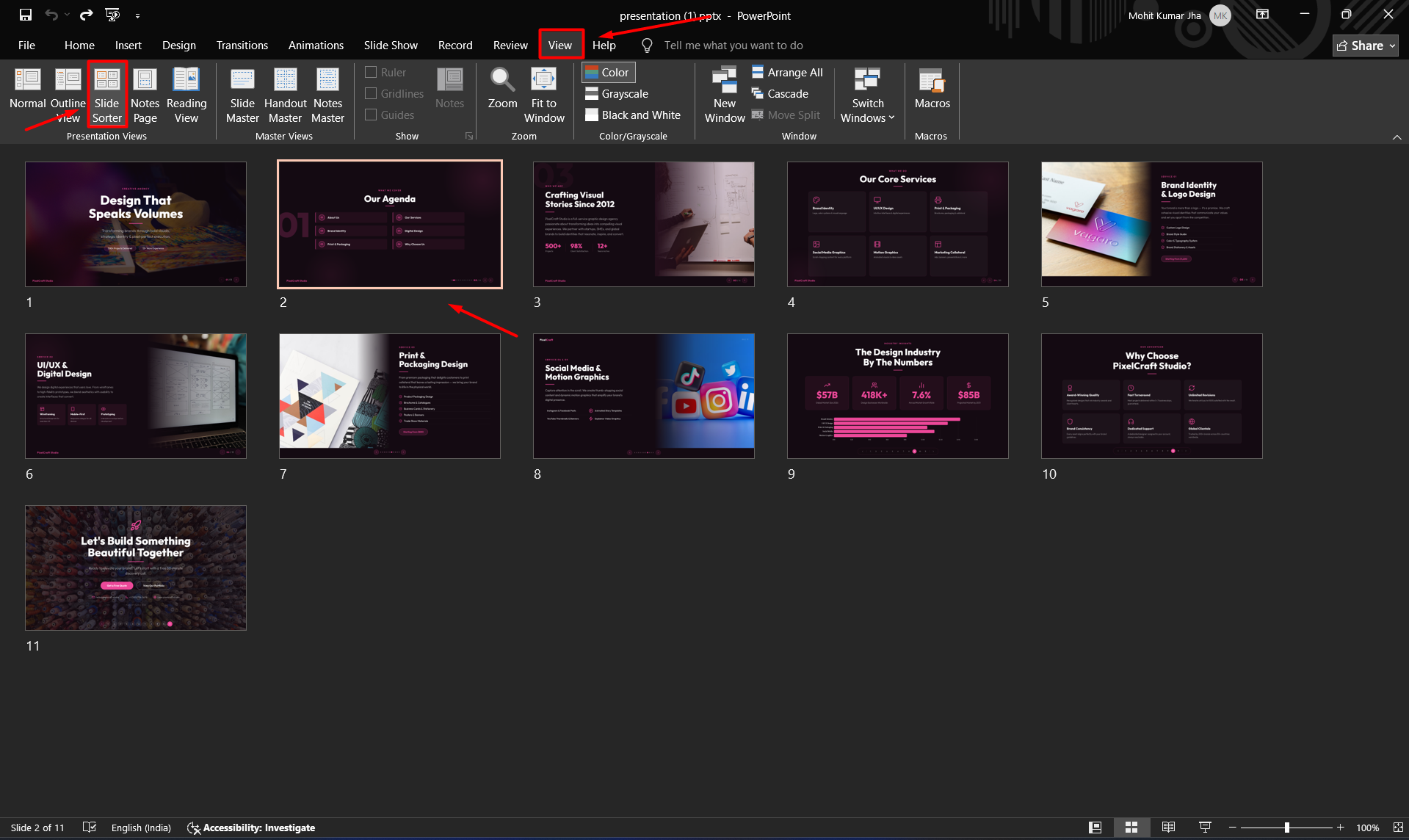
You can also select multiple slides using Ctrl or Command and delete them together.
Slide Sorter is particularly useful when you’re reorganizing a long presentation because you can identify duplicate, outdated, or unnecessary slides more easily.
How to Undo a Deleted Slide in PowerPoint?
Deleted a slide by mistake? You can usually restore it immediately with the Undo command.
On Windows, press:
- Ctrl + Z
On Mac, press:
- Command + Z
You can also select the Undo button in the PowerPoint toolbar.
If you notice the mistake immediately, undo is the quickest way to bring the deleted slide back with its content and formatting.
Delete vs. Hide a Slide in PowerPoint
Deleting isn’t always the best option. If you think you might need a slide later, consider hiding it instead.
A deleted slide is removed from the presentation. A hidden slide remains in the file but is skipped during the normal slideshow.
To hide a slide, right-click its thumbnail and select Hide Slide.
This can be useful when creating different versions of a presentation. For example, you might hide a detailed slide during a short presentation while keeping it available for a longer meeting.
Use Delete Slide when you’re sure you no longer need the slide. Use Hide Slide when you want to keep the content available for later.
Why Can’t I Delete a Slide in PowerPoint?
If PowerPoint isn’t deleting a slide as expected, check the following:
- Make sure the slide thumbnail is selected. Selecting an object on the slide can cause PowerPoint to delete the object instead.
- Check whether you’re in the correct view. Normal view and Slide Sorter view both allow you to manage slides.
- Try the right-click method. Select the slide thumbnail and choose Delete Slide.
- Check your PowerPoint version. The interface can differ between desktop, web, and mobile versions.
- Use Undo if something else was deleted. Press Ctrl + Z on Windows or Command + Z on Mac.
Tips for Managing PowerPoint Slides Efficiently
Deleting slides is only one part of keeping a presentation organized. Before removing a slide permanently, consider whether you should rearrange, duplicate, edit, or hide it instead.
For larger presentations, Slide Sorter can help you review the overall structure and identify slides that are repeated or no longer relevant. You can also select multiple slides at once when reorganizing a presentation.
If you’re frequently creating presentations from scratch, tools such as MagicSlides can also help you generate and structure presentation content more efficiently, reducing the amount of manual slide editing required.
Create Better Presentations Without Starting From Scratch
Deleting unnecessary slides is one way to keep a presentation organized, but creating a polished presentation slide by slide can still take considerable time. If you’re spending too much time building layouts, writing content, and formatting slides, MagicSlides can help simplify the process.
With MagicSlides, you can turn an idea, topic, or existing content into a structured presentation in less time. Instead of starting with a blank PowerPoint file, you can use AI Presentation Tool to help generate presentation content, organize information into slides, and create a more consistent presentation structure.

Whether you’re preparing a business presentation, sales deck, classroom presentation, or project report, MagicSlides helps reduce the repetitive work involved in creating slides so you can spend more time refining your message and less time formatting your presentation.
Ready to create your next presentation faster? Try MagicSlides and turn your ideas into presentation-ready slides.
Conclusion
Deleting a slide in PowerPoint is simple: select the slide thumbnail, right-click and choose Delete Slide, or select the slide and press Delete. You can use the same basic process to remove multiple slides, whether you’re working on Windows, Mac, the web, or a mobile device.
If you’re unsure about removing a slide permanently, use Hide Slide instead. And if you delete something accidentally, Ctrl + Z or Command + Z can quickly undo the change.
Also read: How to Do Hanging Indent on Google Slides: Step-by-Step Guide
Frequently Asked Questions
Q1. What is the shortcut to delete a slide in PowerPoint?
Select the slide thumbnail and press the Delete key. On Windows, you can also select multiple slides using Ctrl and then press Delete.
Q2. Can I delete multiple slides at once?
Yes. Select multiple slides using Ctrl on Windows or Command on Mac. For a continuous range, select the first slide, hold Shift, and select the last slide. Then press Delete.
Q3. Can I recover a deleted slide?
Yes, if you deleted it recently, use Ctrl + Z on Windows or Command + Z on Mac to undo the action.
Q4. Is hiding a slide the same as deleting it?
No. Deleting removes the slide from the presentation, while hiding keeps the slide in the file but prevents it from appearing during the normal slideshow.
Q5. Can I delete a slide without deleting the PowerPoint presentation?
Yes. Deleting a slide only removes that individual slide from the presentation. The rest of your PowerPoint file remains intact.
Also read: What Is an Infographic Presentation? Examples, Types & How to Create One


