How to attach a google form to an email


Effortlessly collect responses! Learn how to attach Google Forms directly to your emails for seamless communication.
Enhancing communication and gathering information has never been easier. In this guide, we'll walk you through the simple steps of attaching a Google Form to an email. Whether you're collecting survey responses or streamlining RSVPs, integrating a Google Form directly into your email can significantly boost engagement and efficiency. Let's dive into the seamless process of attaching Google Forms to your emails.
How to attach a Google form to an email
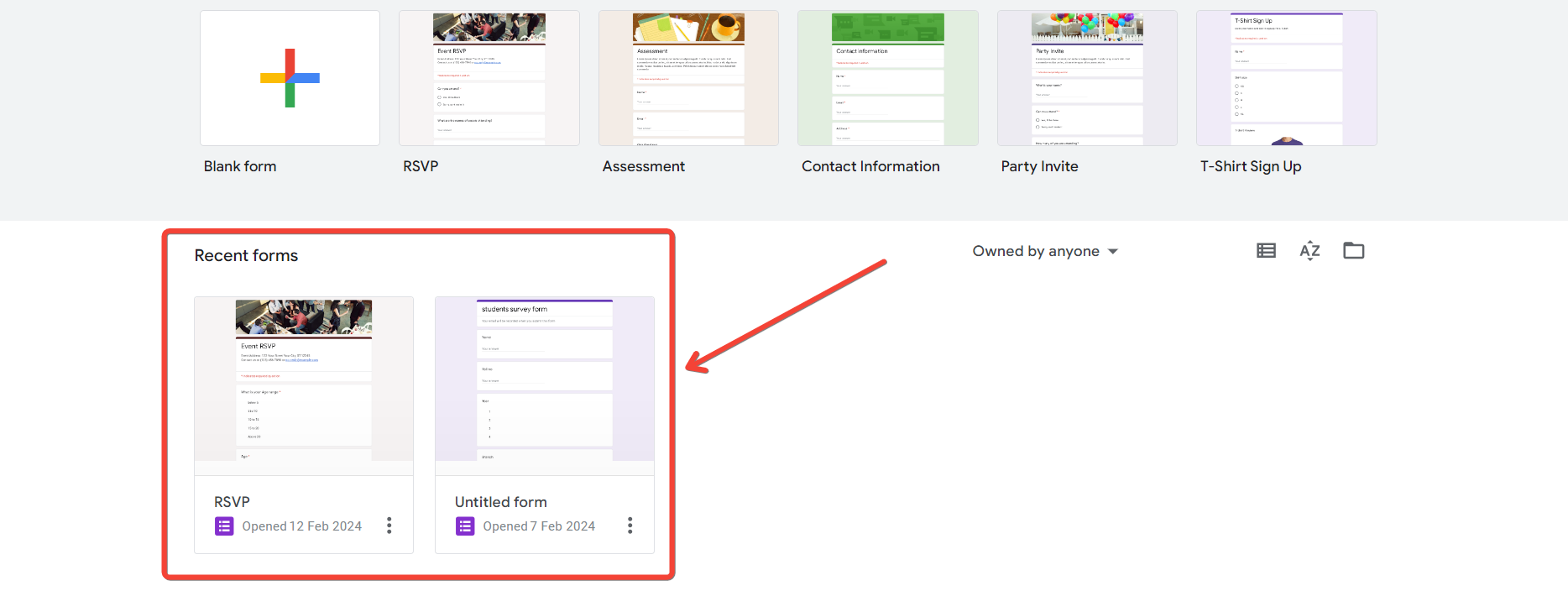
Create Your Google Form:
Start by creating the Google Form you want to share. Customize questions, design, and settings according to your requirements.
Access the Form Menu:
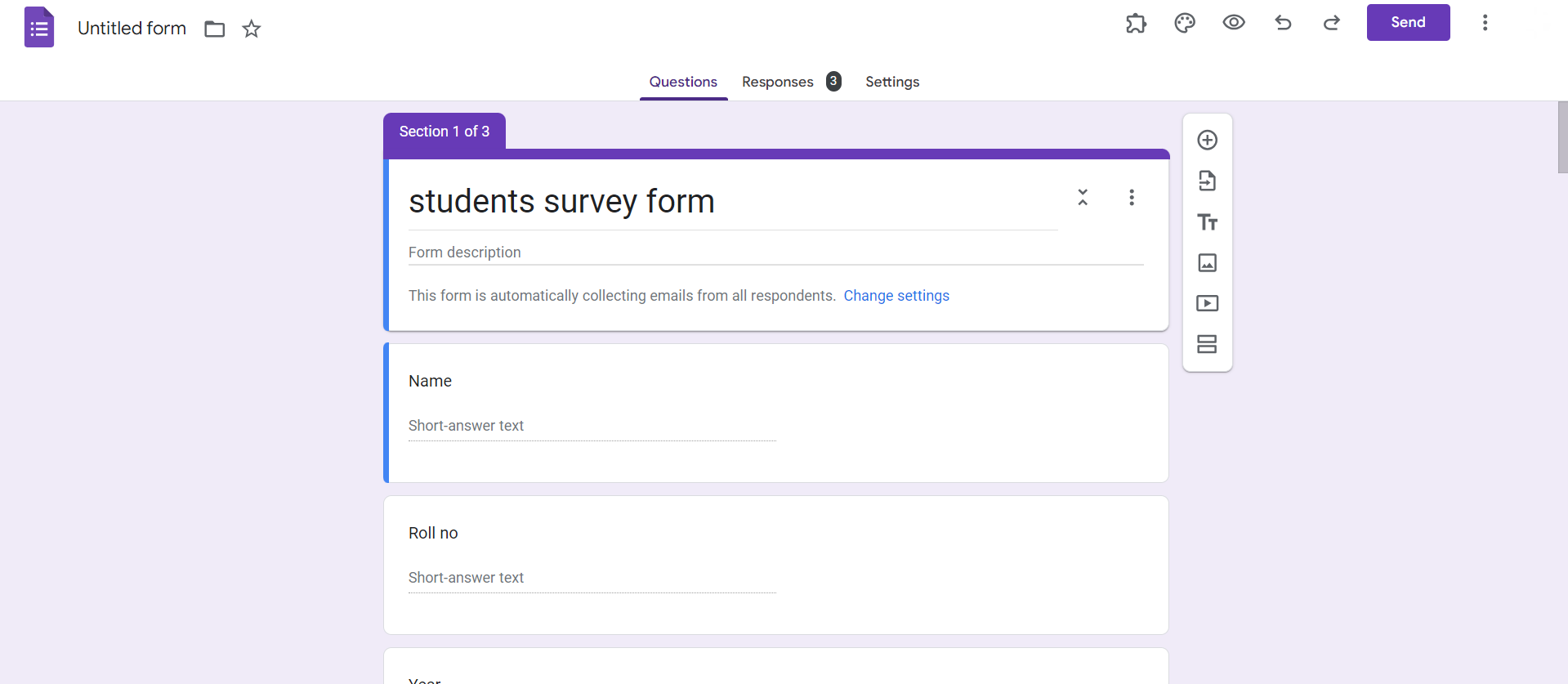
After creating the form, click on the "Send" button located in the upper-right corner of the screen.
Choose the Email Icon:
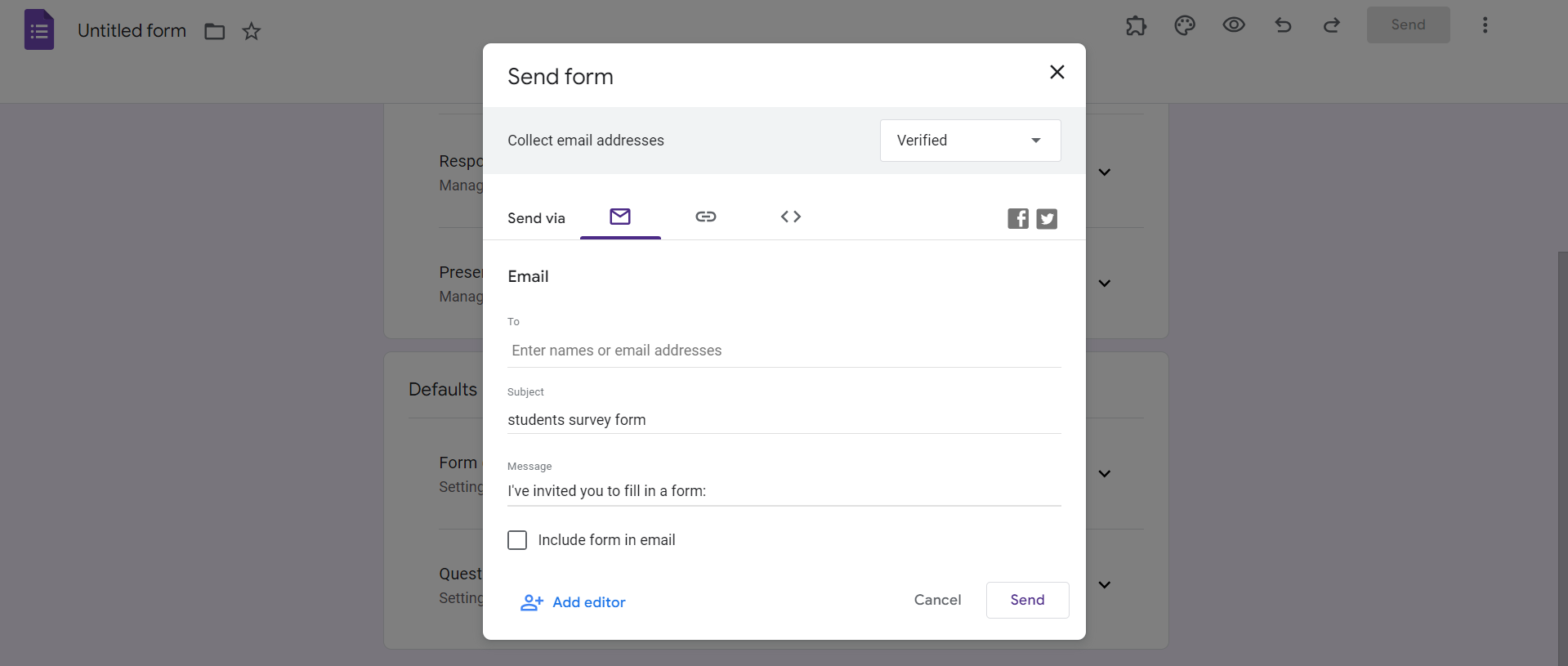
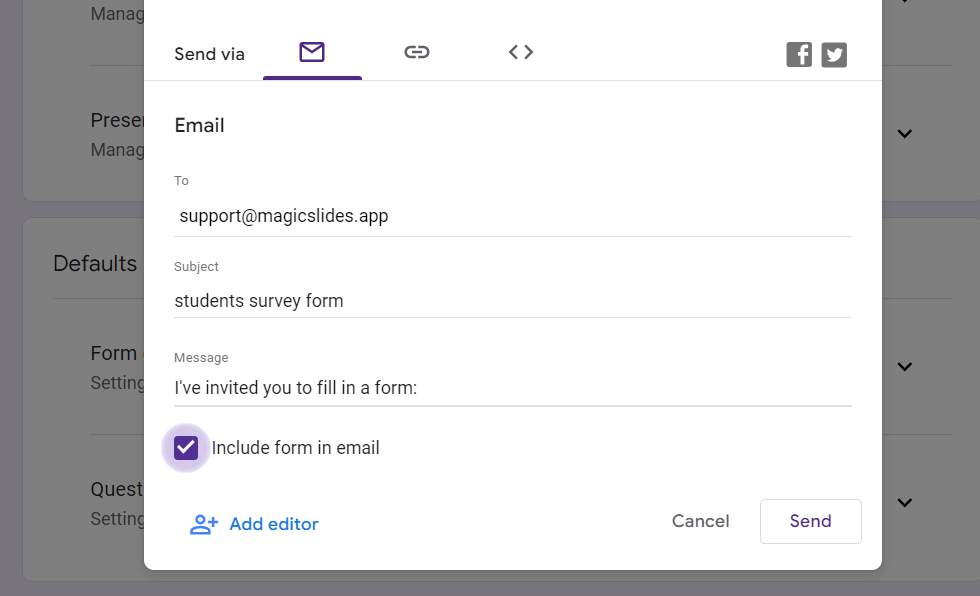
In the pop-up menu, click on the email icon. This action will open a new window with options to share your form via email.
Enter Recipient Email Addresses:
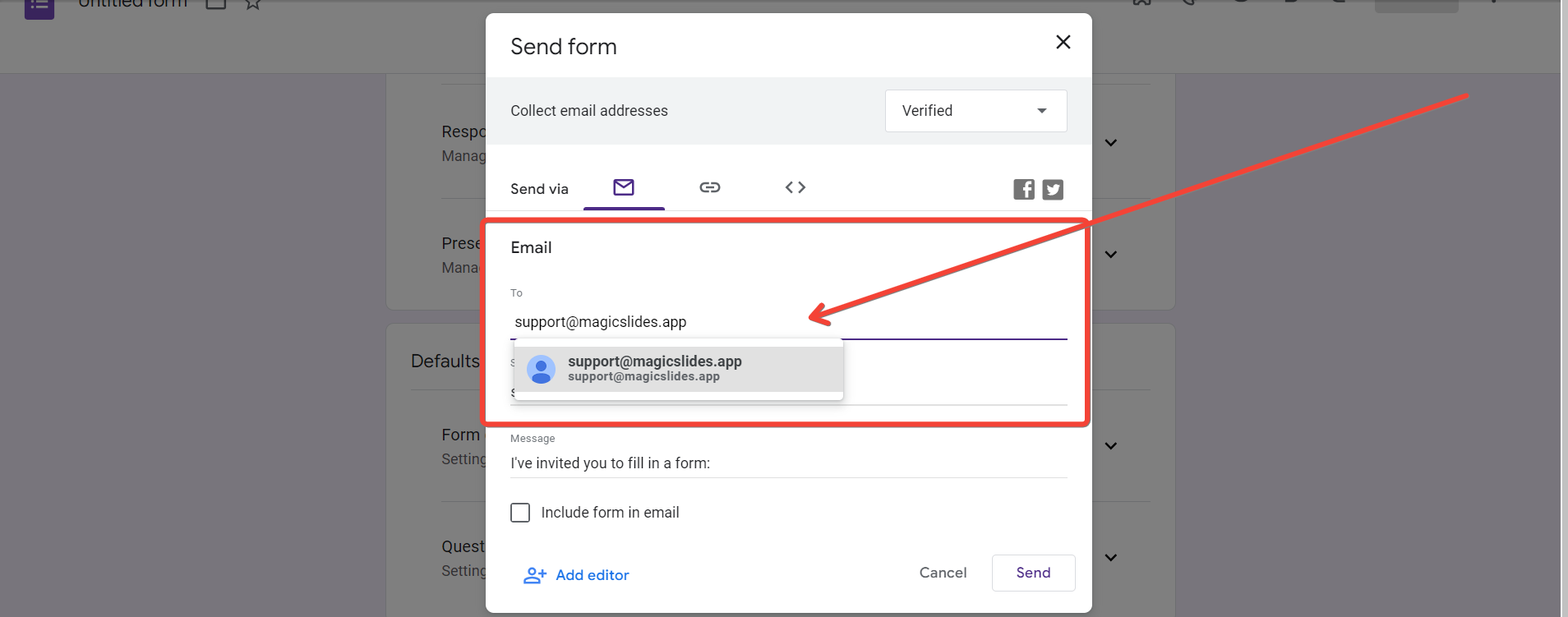
In the email window, enter the email addresses of the recipients. You can customize the subject and message to provide context for your form.
Toggle the "Include Form in Email" Option:
Below the email message, you'll find an option to "Include form in email." Toggle this option to ensure the form is embedded in the email body.
Adjust Additional Settings (Optional):
Google Forms offers additional settings, such as restricting responses or collecting email addresses. Adjust these settings based on your preferences.
Click "Send":
Once you've configured the settings, click the "Send" button to dispatch the email with the attached Google Form.
Conclusion:
Attaching a Google Form to your emails simplifies the process of gathering information and boosts engagement with your audience. By following these straightforward steps, you can seamlessly integrate your forms into your email communication. Whether you're sending out surveys, event invitations, or feedback forms, this method ensures that your recipients can conveniently respond without navigating away from their email. Enhance your communication strategy with this quick guide on attaching Google Forms to emails and witness the efficiency it brings to your data collection efforts.
Frequently Asked Questions:
Can I track individual responses when I attach a Google Form to an email?
Yes, each respondent's answers are recorded separately, providing detailed insights into individual responses.
Do recipients need a Google account to fill out the form attached to the email?
No, respondents can complete the Google Form without a Google account, ensuring accessibility for all.
Can I edit the Google Form after sending it via email without affecting responses?
Yes, you can edit the form even after sending it, and responses will be updated in real-time.
Are there limitations on the number of recipients when attaching a Google Form to an email?
Google Forms can be sent to a large number of recipients, but consider Gmail's sending limits.


