How to Attach a Hyperlink in PowerPoint (Step-by-Step Guide)


Learn how to attach a hyperlink in PowerPoint to text, images, shapes, slides, files, and websites with this easy step-by-step guide.
Adding hyperlinks in Microsoft PowerPoint makes your presentations more interactive and professional. Whether you want to open a website, jump to another slide, launch a file, or let viewers send an email with one click, PowerPoint provides built-in hyperlink tools that are simple to use.
This guide explains every method for attaching hyperlinks in PowerPoint, including text, images, shapes, buttons, files, email addresses, and slides.
What Is a Hyperlink in PowerPoint?
A hyperlink is a clickable element inside your presentation that directs users to another location when clicked.
A hyperlink can point to:
- A website
- Another slide
- Another PowerPoint presentation
- A PDF or document
- An email address
- A local file
- A custom action
Hyperlinks are commonly used in business presentations, training materials, classroom lessons, interactive kiosks, and portfolio presentations.
How to Attach a Hyperlink to Text in PowerPoint?
This is the most common method.
Step 1. Open your PowerPoint presentation.
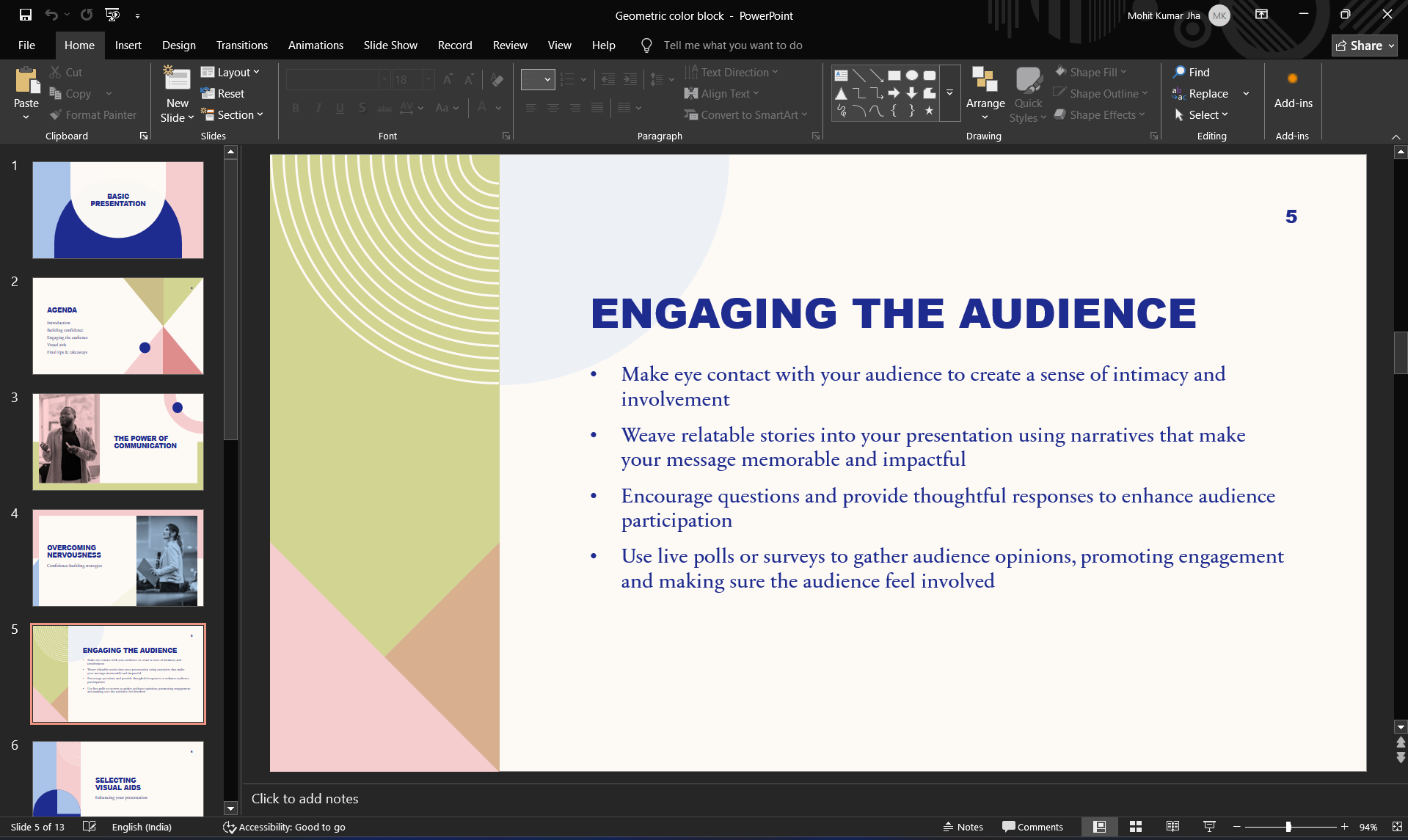
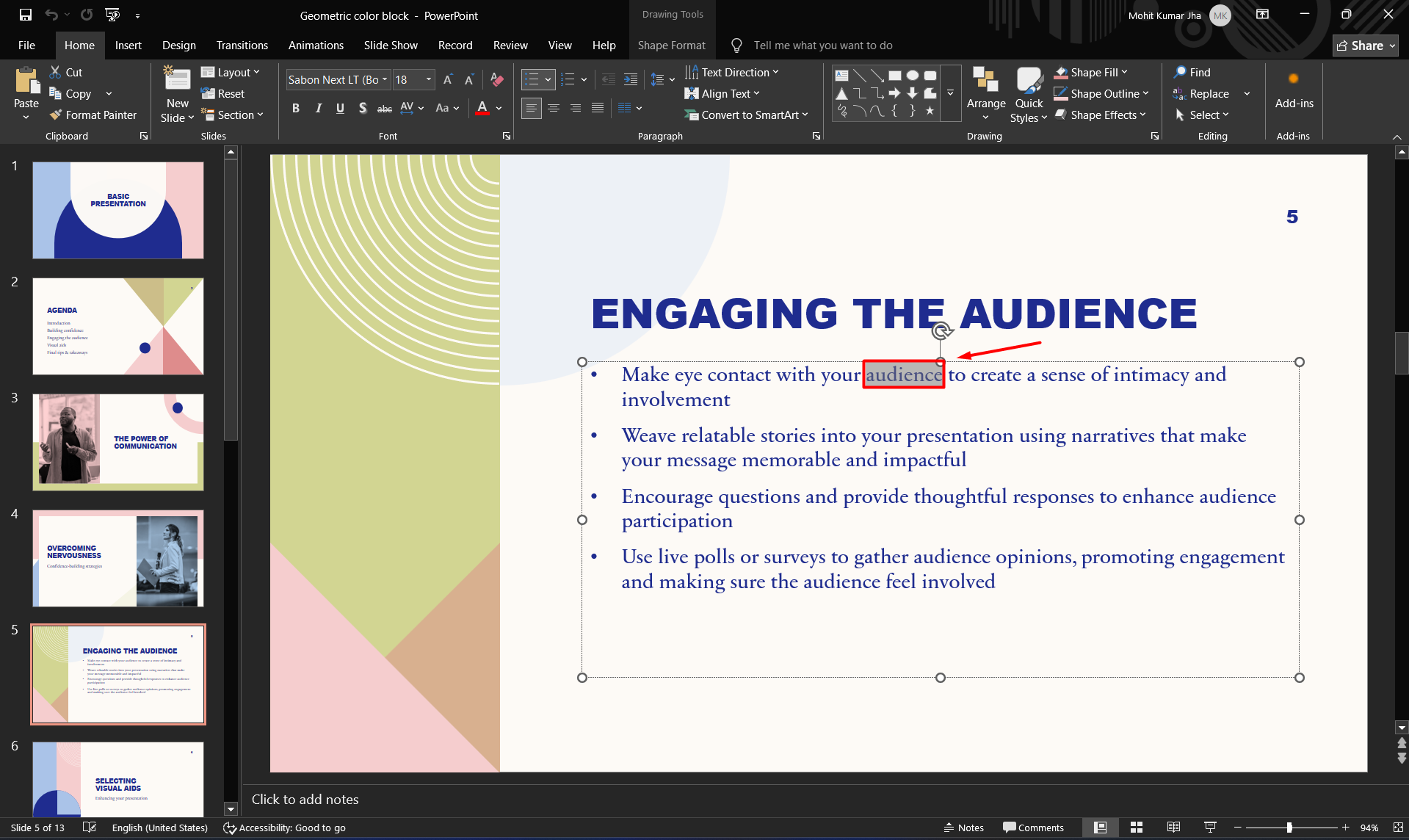
Step 2. Select the text you want to make clickable.
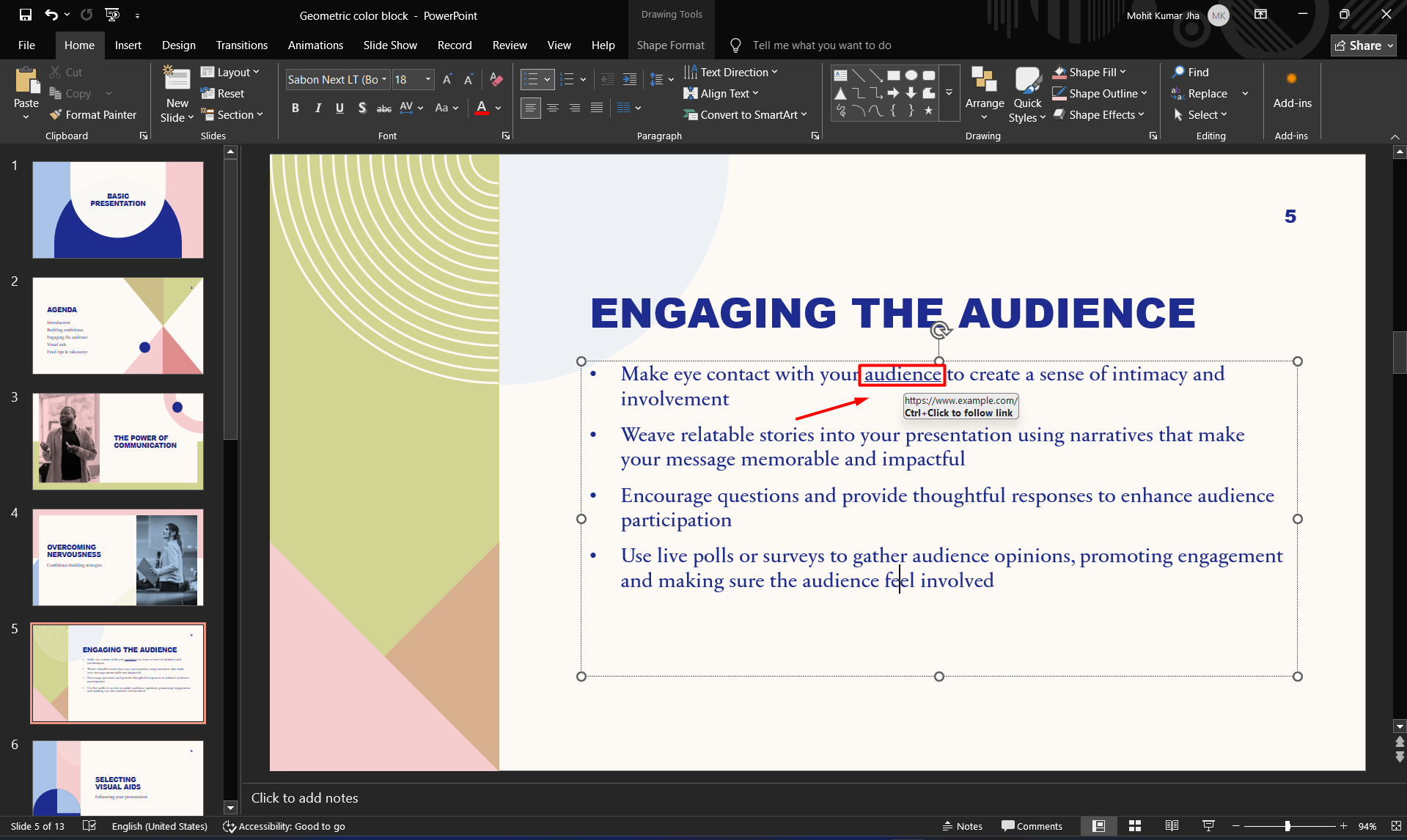
Step 3. Right-click the selected text. Choose Link or Hyperlink (the name may vary slightly depending on your version of PowerPoint).
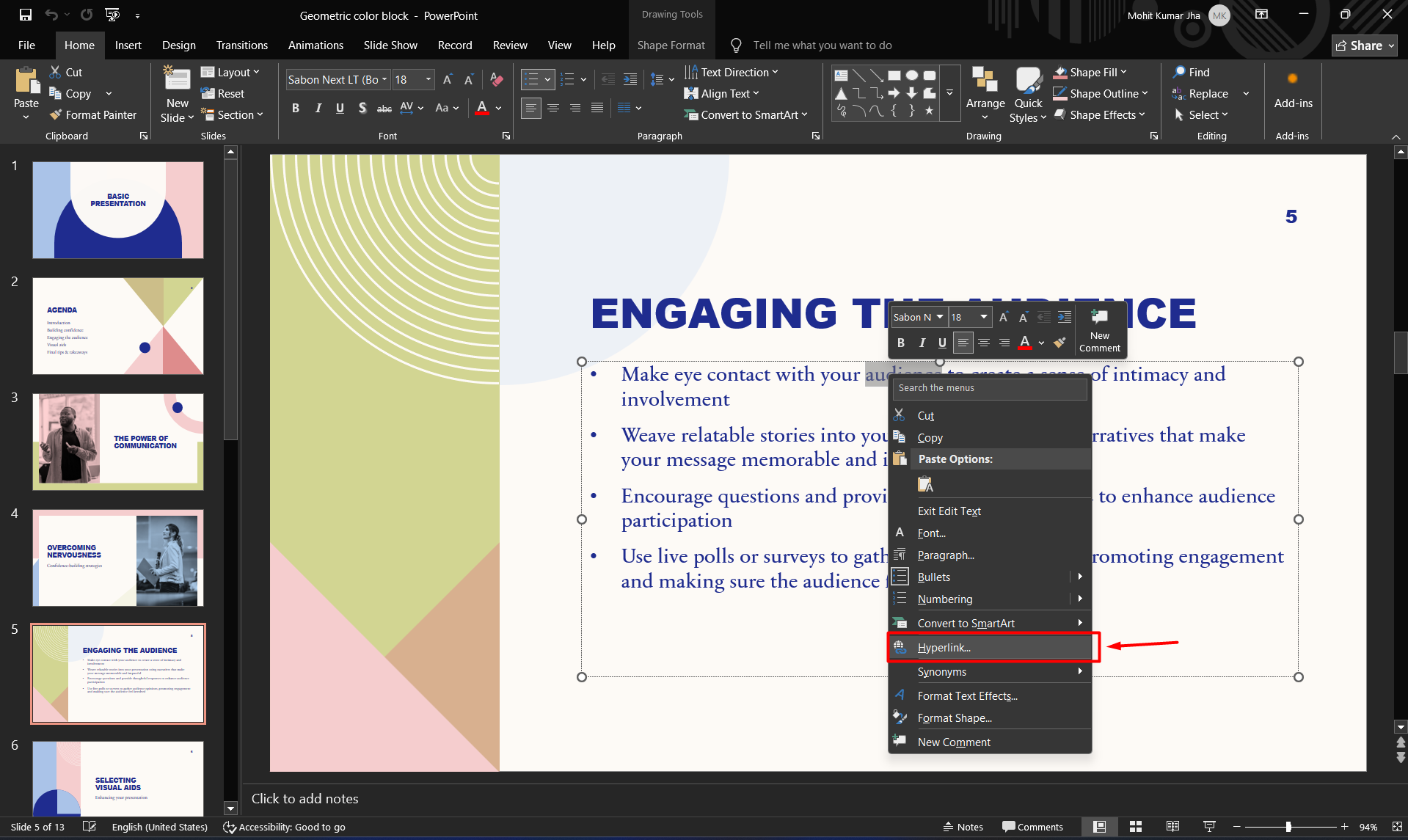
You can also press:
- Ctrl + K (Windows)
or
- ⌘ + K (Mac)
Step 4. The Insert Hyperlink window opens. Choose one of the available options:
- Existing File
- Web Page
- Place in This Document
- Email Address
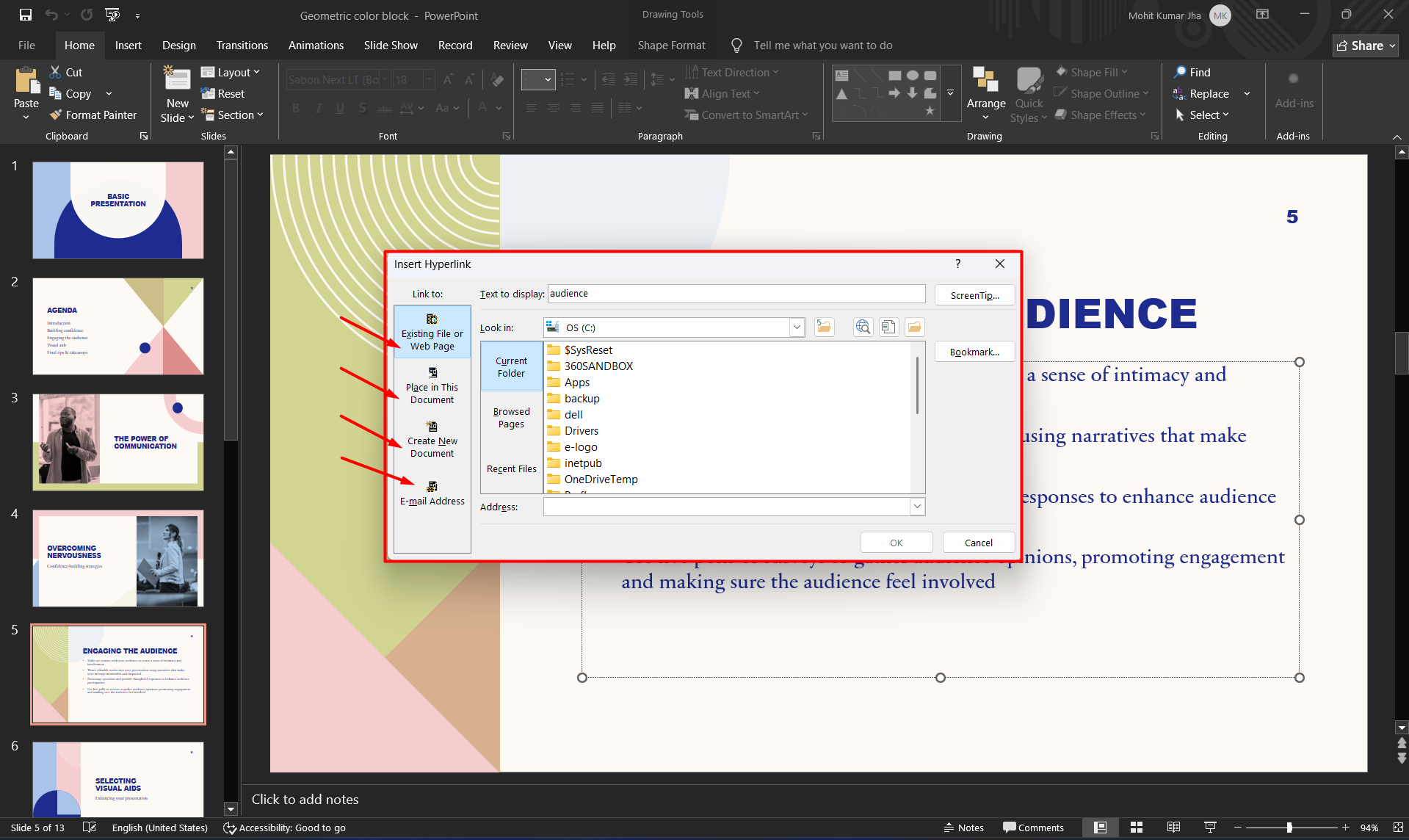
Step 5. Enter the destination.
For example: https://www.example.com
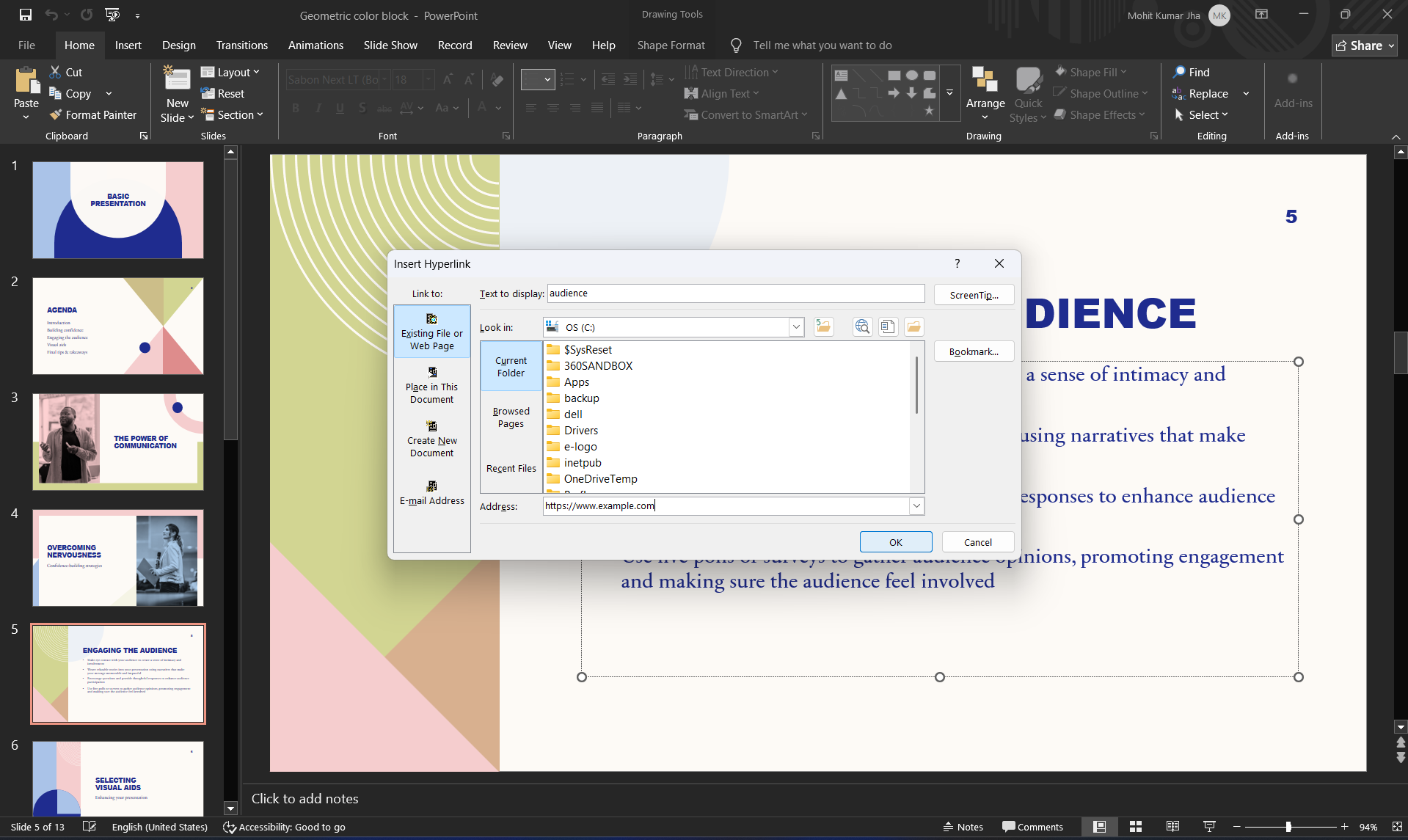
Step 6. Click OK. Your selected text is now clickable during Slide Show mode.
How to Add a Hyperlink to an Image?
Images can also function as clickable links.
Steps
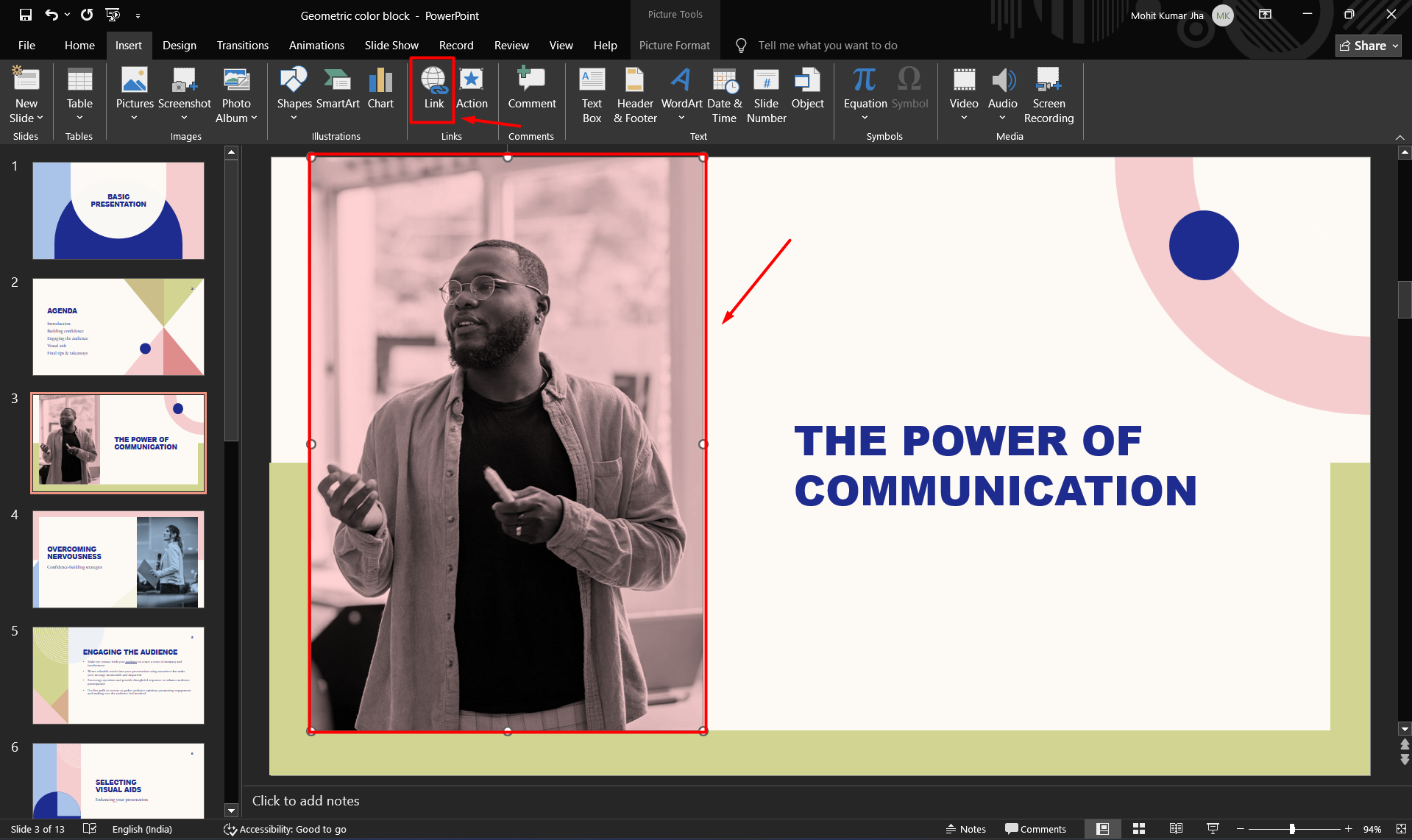
- Select the image.
- Go to Insert → Link.
- Paste the website URL.
- Click OK.
Now, clicking the image during the presentation opens the linked webpage.
How to Hyperlink a Shape?
Shapes are often used as buttons.
Steps
- Insert a shape.
- Click the shape.
- Select Insert → Link.
- Choose the desired destination.
- Click OK.
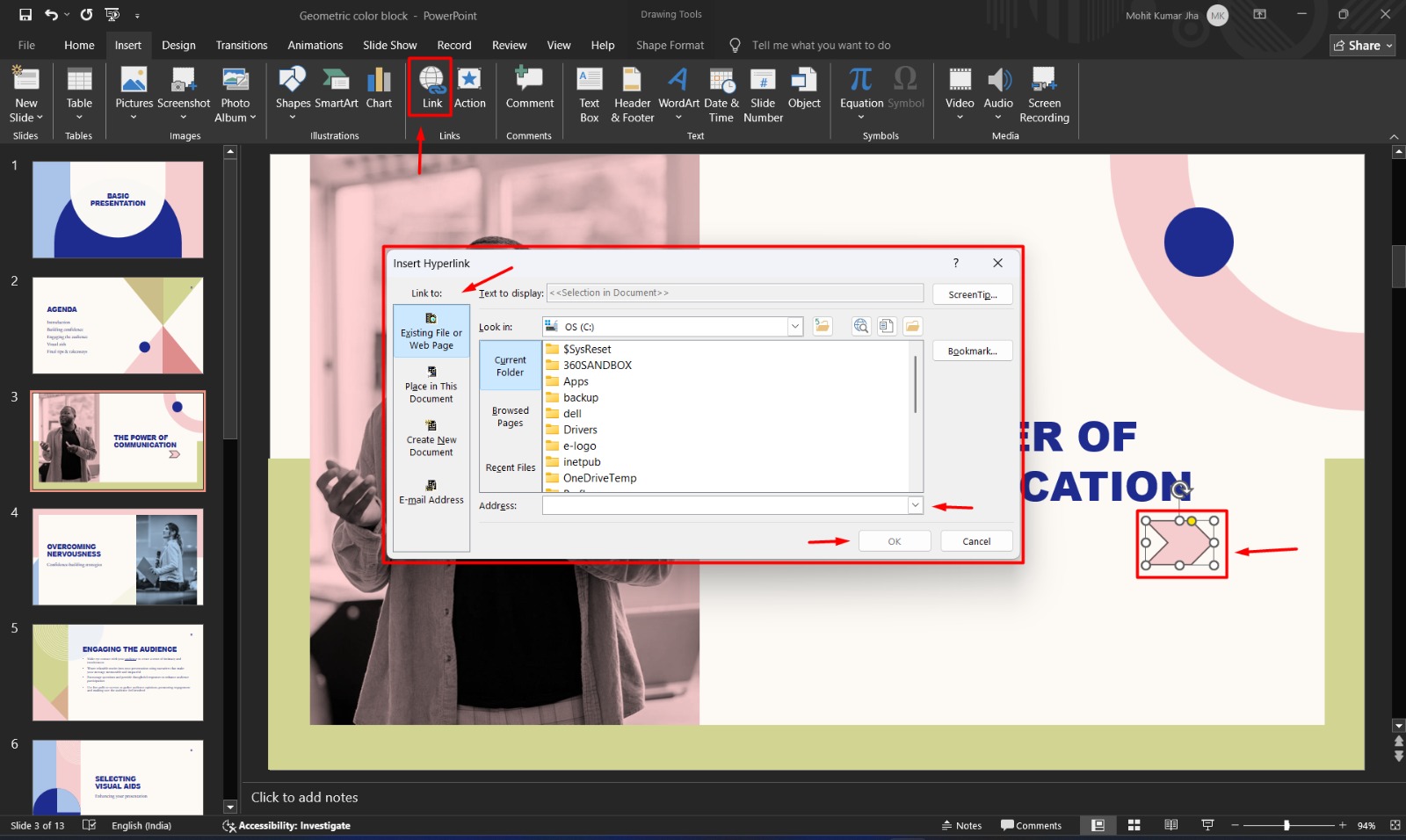
Many presenters use rectangles, arrows, and icons as navigation buttons.
How to Link to Another Slide?
Internal slide links help users navigate interactive presentations.
Steps
- Select the text or object.
- Open Insert → Link.
- Choose Place in This Document.
- Select the slide.
- Click OK.
This is useful for:
- Table of Contents
- Quiz presentations
- Training modules
- Interactive learning
- Product catalogs
How to Hyperlink to a Website?
To open a webpage:
- Select text or an object.
- Open the hyperlink window.
- Choose Existing File or Web Page.
- Paste the full website URL.
Example:
- https://support.microsoft.com
- Always include the full URL beginning with https://.
How to Link to a PDF or Other File
PowerPoint can open files stored on your computer.
Supported examples include:
- Word document
- Excel spreadsheet
- Another PowerPoint presentation
Steps
- Select the object.
- Open Insert → Link.
- Browse to the file.
- Select it.
- Click OK.
Tip: If you move the linked file after creating the presentation, the hyperlink may stop working. Keep linked files in the same project folder when sharing presentations.
How to Hyperlink an Email Address?
You can let viewers email you directly.
Steps
- Select the text.
- Open the hyperlink dialog.
- Choose Email Address.
- Enter:
- Email address
- Optional subject line
Example:
- support@example.com
- Clicking the link opens the user’s default email application.
How to Edit a Hyperlink?
To change an existing hyperlink:
- Right-click the linked object.
- Select Edit Hyperlink.
- Change the destination.
- Click OK.
How to Remove a Hyperlink
To remove a hyperlink without deleting the text:
- Right-click the linked object.
- Choose Remove Link.
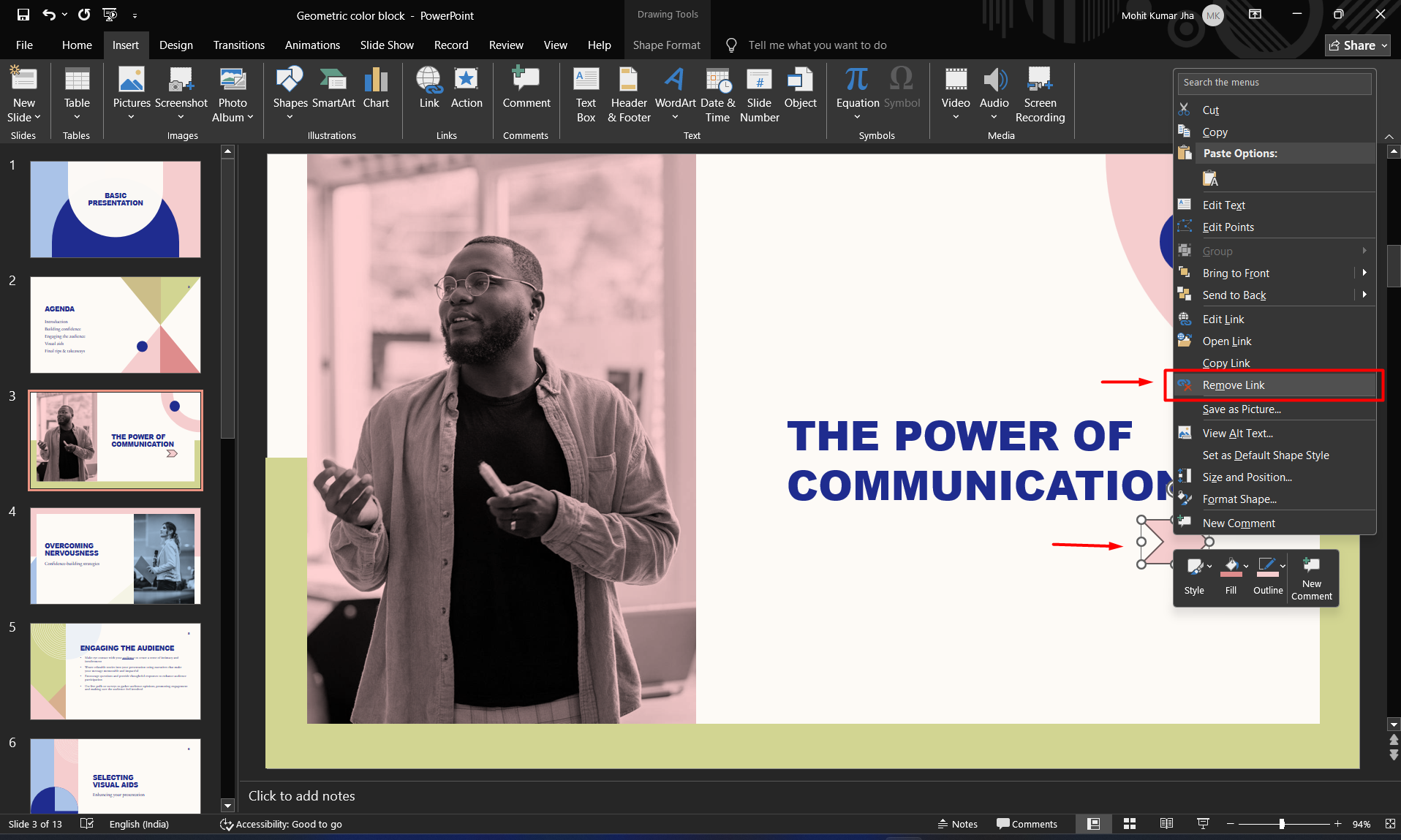
The text or image remains, but it is no longer clickable.
Best Practices for Using Hyperlinks in PowerPoint
To create a professional presentation:
- Use descriptive link text instead of raw URLs.
- Test every hyperlink before presenting.
- Keep linked files organized in one folder.
- Use buttons or icons for navigation.
- Avoid adding too many links on a single slide.
- Use consistent colors for clickable elements.
- Ensure linked text has sufficient contrast for readability.
Create Interactive PowerPoint Presentations Faster with MagicSlides
If you’re creating presentations regularly, manually adding hyperlinks to every slide can become time-consuming. This is especially true for presentations with multiple sections, interactive menus, or clickable navigation.
MagicSlides is an AI-powered presentation tool that helps you create professional PowerPoint presentations in minutes. Instead of starting from scratch, you can generate slides from prompts, documents, PDFs, YouTube videos, or web pages, then customize them to fit your needs.

When your presentation is ready, you can enhance it by adding hyperlinks to:
- Navigate between slides with clickable menus
- Link to external websites and online resources
- Open PDFs, documents, or supporting files
- Add email links for easy communication
- Create interactive training materials and product demos
Using MagicSlides alongside PowerPoint allows you to spend less time building presentations and more time refining your content. Once your slides are generated, you can easily add hyperlinks using PowerPoint’s built-in Insert → Link feature to create a seamless, interactive experience for your audience.
Pro Tip: If you’re creating large presentations with dozens of slides, use MagicSlides to generate the initial deck, then add internal hyperlinks for a clickable table of contents and section navigation. This makes long presentations easier to navigate during meetings, workshops, and training sessions.
Also read: How to Record Slideshow in PowerPoint (Step-by-Step Guide)
Final Thoughts
Hyperlinks are one of PowerPoint’s most useful features for creating interactive, engaging presentations. Whether you’re linking to websites, files, email addresses, or other slides, the process takes only a few clicks and can significantly improve navigation and user experience.
Before presenting or sharing your file, always test every hyperlink in Slide Show mode and keep any linked files organized in the same folder as your presentation. This simple step helps prevent broken links and ensures your audience can access all referenced content without interruption.
Frequently Asked Questions
Q1. How do I attach a hyperlink in PowerPoint?
Select the text, image, or object, press Ctrl + K (Windows) or ⌘ + K (Mac), enter the destination URL, file, slide, or email address, and click OK.
Q2. Can I hyperlink an image in PowerPoint?
Yes. Select the image, choose Insert → Link, enter the destination, and save the hyperlink.
Q3. Can I link one slide to another?
Yes. Use Place in This Document in the hyperlink dialog to connect slides for interactive navigation.
Q4. Can I hyperlink a PDF?
Yes. You can link to a PDF stored on your computer. Keep the PDF in the same folder as your presentation when sharing it to avoid broken links.
Q5. Why doesn’t my hyperlink open?
Common causes include an incorrect URL, moved files, testing outside Slide Show mode, or no internet connection for web links.
Also read: Google Slides vs PowerPoint: Which Presentation Software Is Better in 2026?


