How to Autofill in Google Sheets?


Learn how to streamline data entry in Google Sheets with autofill techniques. Save time and boost productivity effortlessly.
Google Sheets offers a variety of powerful features to streamline your workflow, and autofill is one of the most convenient tools at your disposal. Autofill allows you to quickly populate cells with data based on a pattern, saving you time and effort. Whether you're entering dates, numbers, or text, mastering autofill can significantly boost your productivity. In this guide, we'll walk you through the process of autofilling in Google Sheets, step by step.
How to Autofill in Google Sheets?
Before we dive into the specifics of autofilling, make sure you have access to Google Sheets and are signed in to your Google account. If you don't have a Google account, you can create one for free.
Step 1: Open Google Sheets
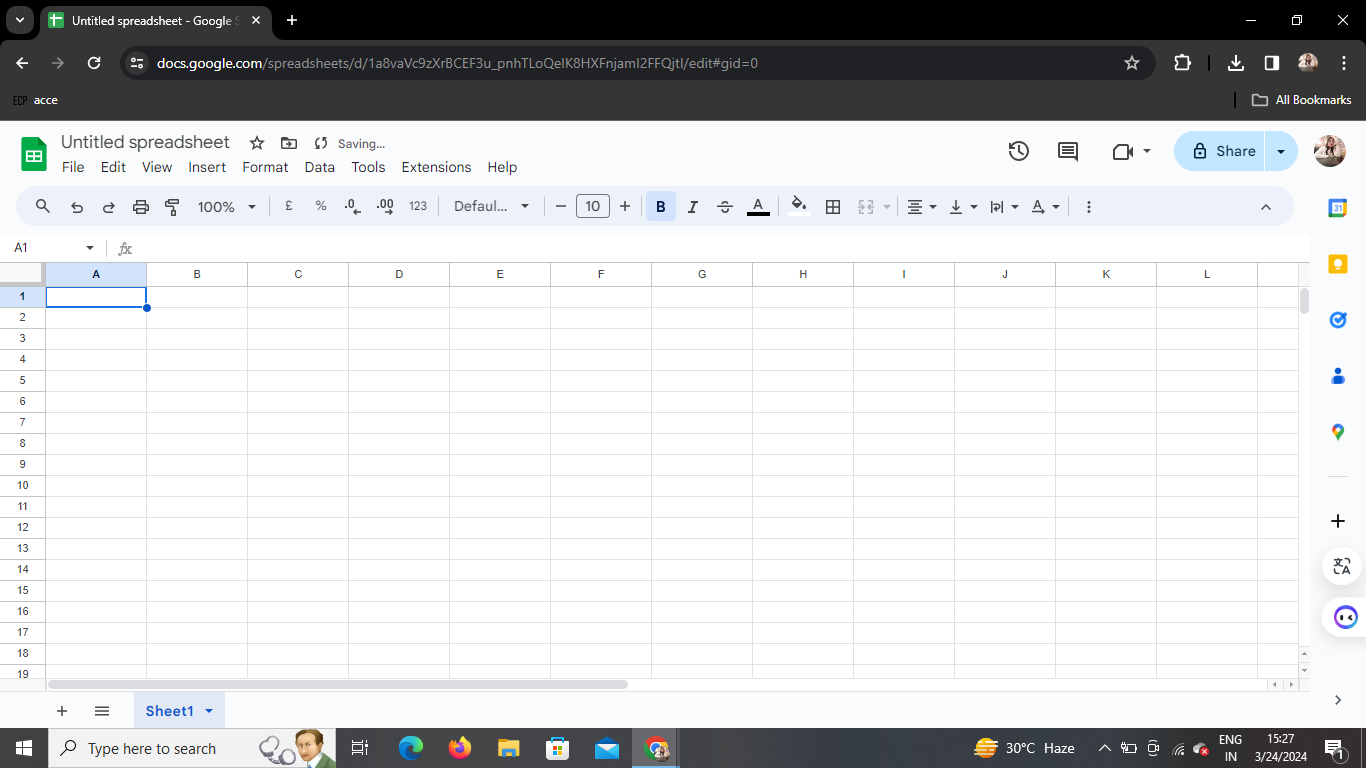
To begin autofilling in Google Sheets, open the Sheets application either through your web browser or the Google Sheets mobile app. If you're using a web browser, navigate to sheets.google.com and sign in with your Google account credentials.
Step 2: Enter Your Data
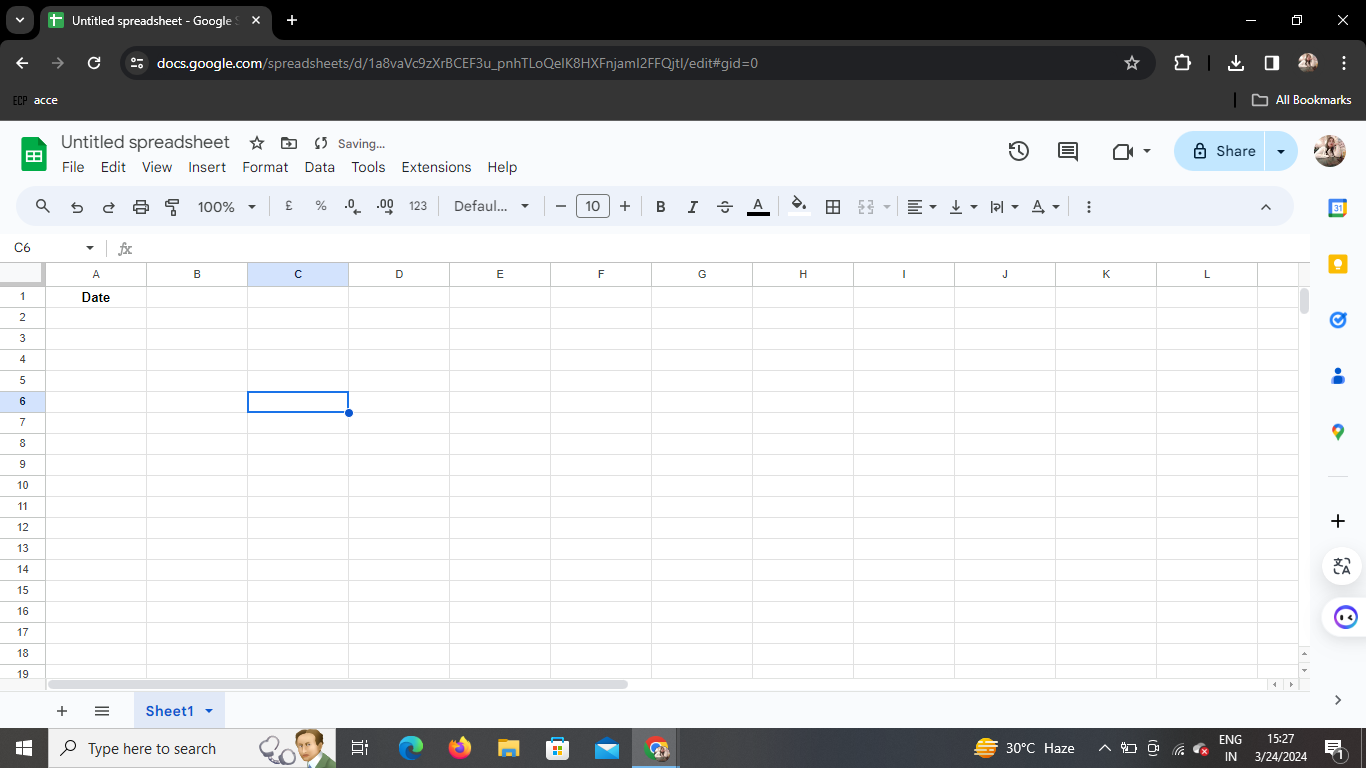
Once you have Google Sheets open, enter the data you want to autofill into the appropriate cells. For example, if you're entering a series of dates, input the first date into the desired cell.
Step 3: Activate Autofill
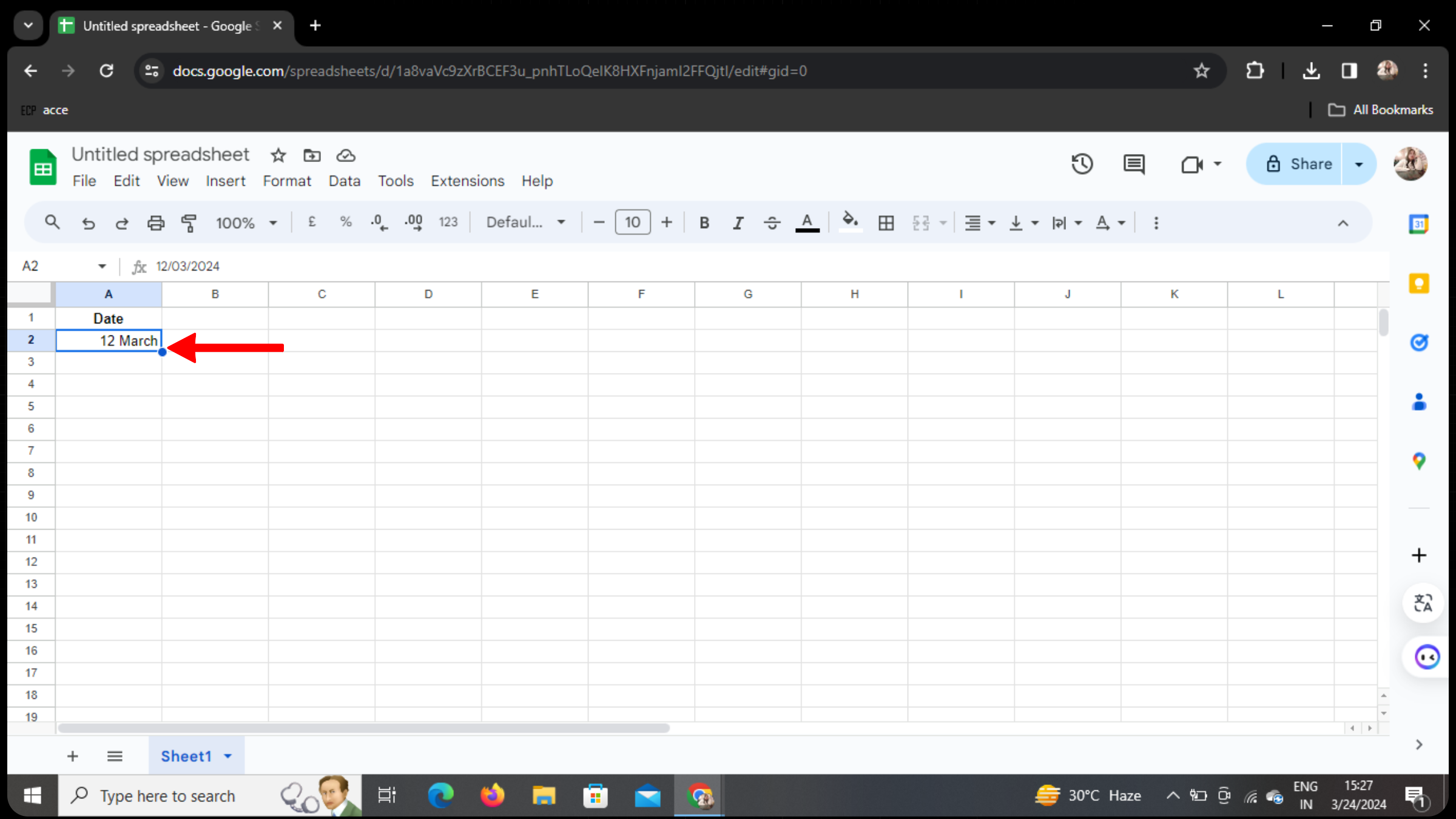
After entering your data, place your cursor on the bottom right corner of the cell containing the data you want to use as the basis for autofill. You'll notice a small square in the corner of the cell.
Step 4: Autofill the Cells
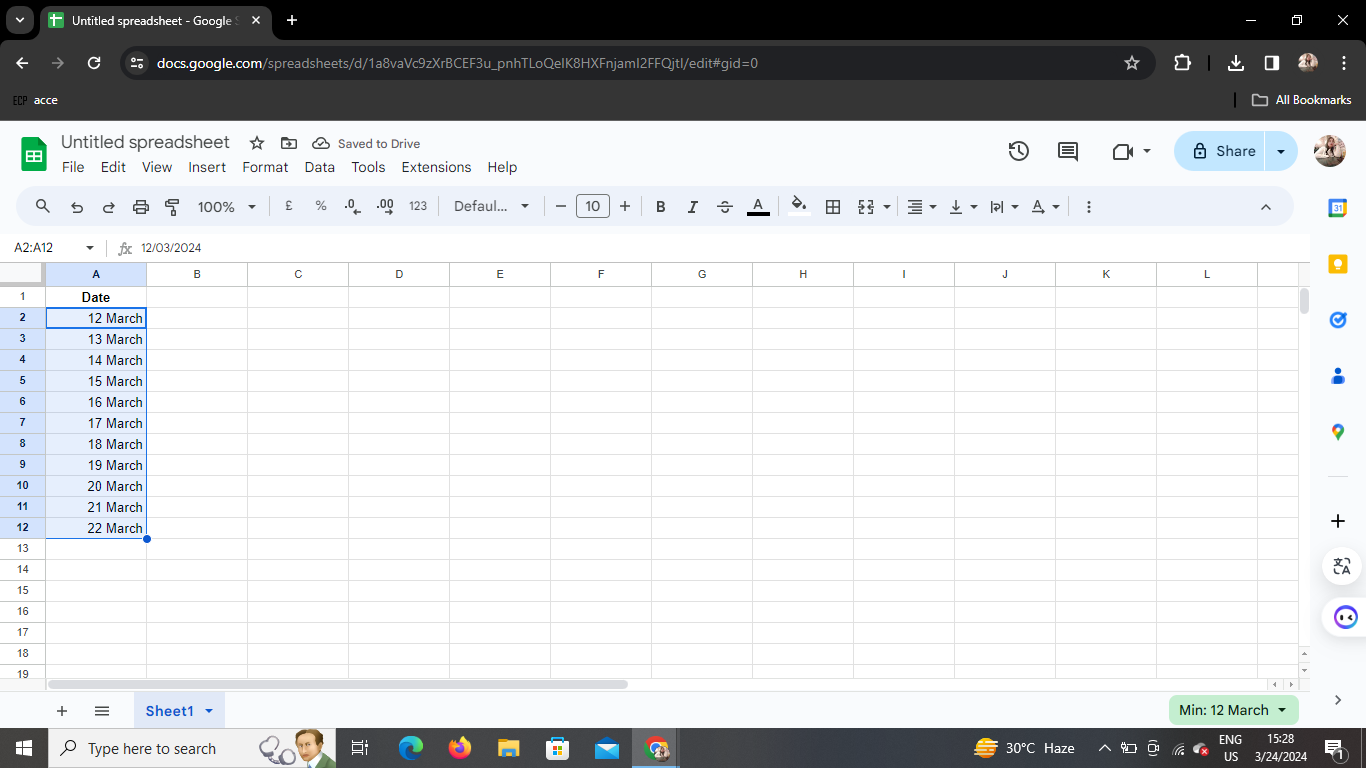
Click and drag the square handle (also known as the fill handle) in the direction you want to autofill. As you drag, a preview of the autofilled data will appear, allowing you to adjust the range as needed. Release the mouse button when you've selected the desired cells.
Step 5: Verify Autofill
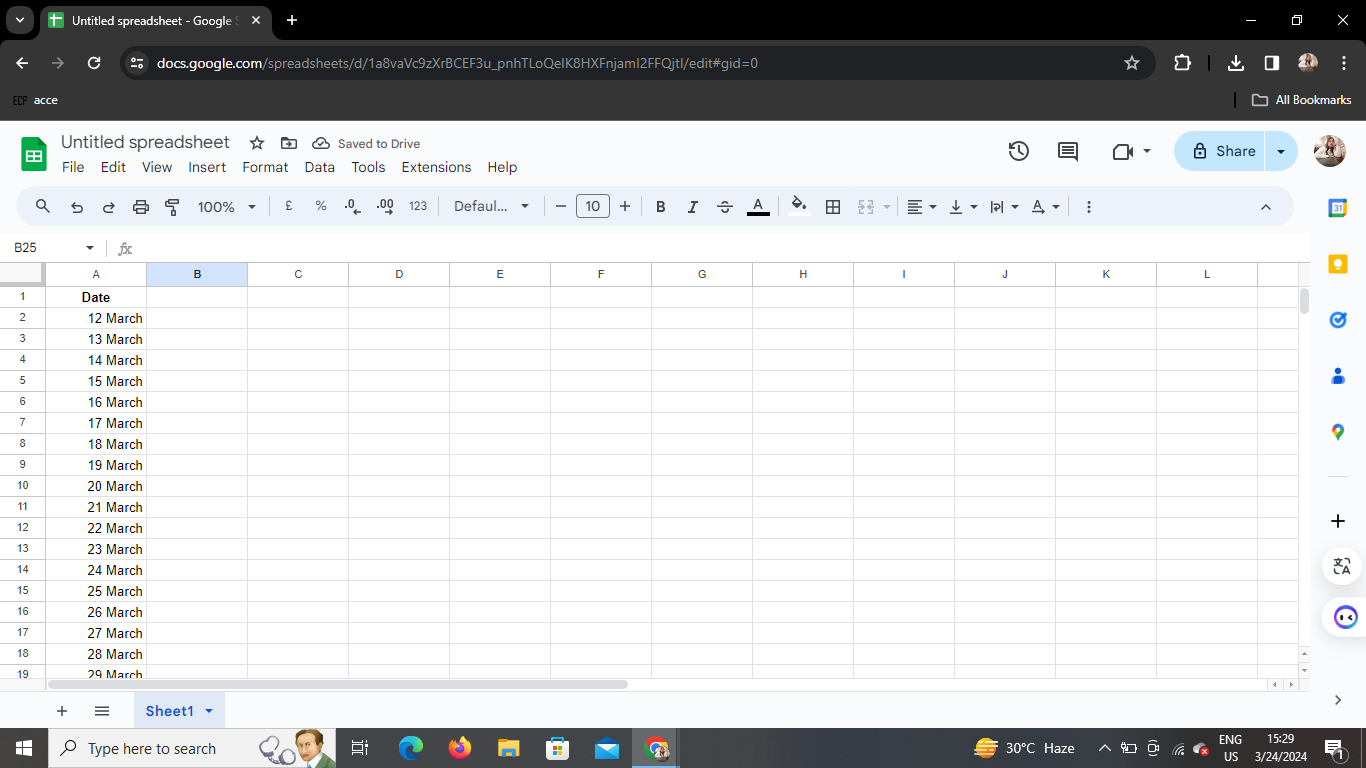
Once you release the mouse button, Google Sheets will autofill the selected cells based on the pattern of the original data. Verify that the autofilled data is accurate and matches your intended pattern.
Conclusion
Autofilling in Google Sheets is a simple yet powerful feature that can save you time and effort when working with large datasets. By following the steps outlined in this guide, you can quickly and efficiently populate cells with data based on a pattern, allowing you to focus on more important tasks.
Frequently Asked Questions
How can I autofill weekdays or months in Google Sheets? You can autofill weekdays or months by entering the first day or month in a cell, then dragging the fill handle while holding down the right mouse button. Release the button and select "Fill weekdays" or "Fill months" from the context menu.
Can I autofill custom sequences in Google Sheets? Yes, you can autofill custom sequences by entering the first few values in a sequence, then using the fill handle to extend the pattern. Google Sheets will automatically detect and continue the sequence based on your input.
Is there a limit to the number of cells I can autofill in Google Sheets? While there isn't a specific limit to the number of cells you can autofill, performance may be affected when working with extremely large datasets. It's always a good idea to break up your data into smaller chunks if you encounter any slowdowns.
Can I autofill data in non-adjacent cells in Google Sheets? No, Google Sheets does not currently support autofilling data in non-adjacent cells. However, you can achieve a similar result by autofilling the data in one column or row, then copying and pasting it into the desired non-adjacent cells.
Does Google Sheets autofill work with formulas? Yes, Google Sheets autofill works seamlessly with formulas. Simply enter the formula in the first cell, then drag the fill handle to autofill the formula in adjacent cells. Make sure to adjust cell references in the formula as needed.


