How to Blur in PowerPoint


Blurring in PowerPoint helps emphasize important content by subtly downplaying less significant elements
Blurring elements in PowerPoint can be a powerful tool to draw attention to key aspects of your presentation while subtly downplaying others.
Whether you want to blur out sensitive information or create a focus effect around an important section of your slide, PowerPoint provides a few easy ways to add blur effects to images, shapes, and text.
In this guide, I’ll walk you through the steps to blur elements in PowerPoint to enhance your presentations.
How to Blur in PowerPoint: A Step-by-Step Guide
Step 1: Insert an Image or Shape to Blur
Begin by opening your PowerPoint presentation and navigating to the slide where you want to apply the blur effect.
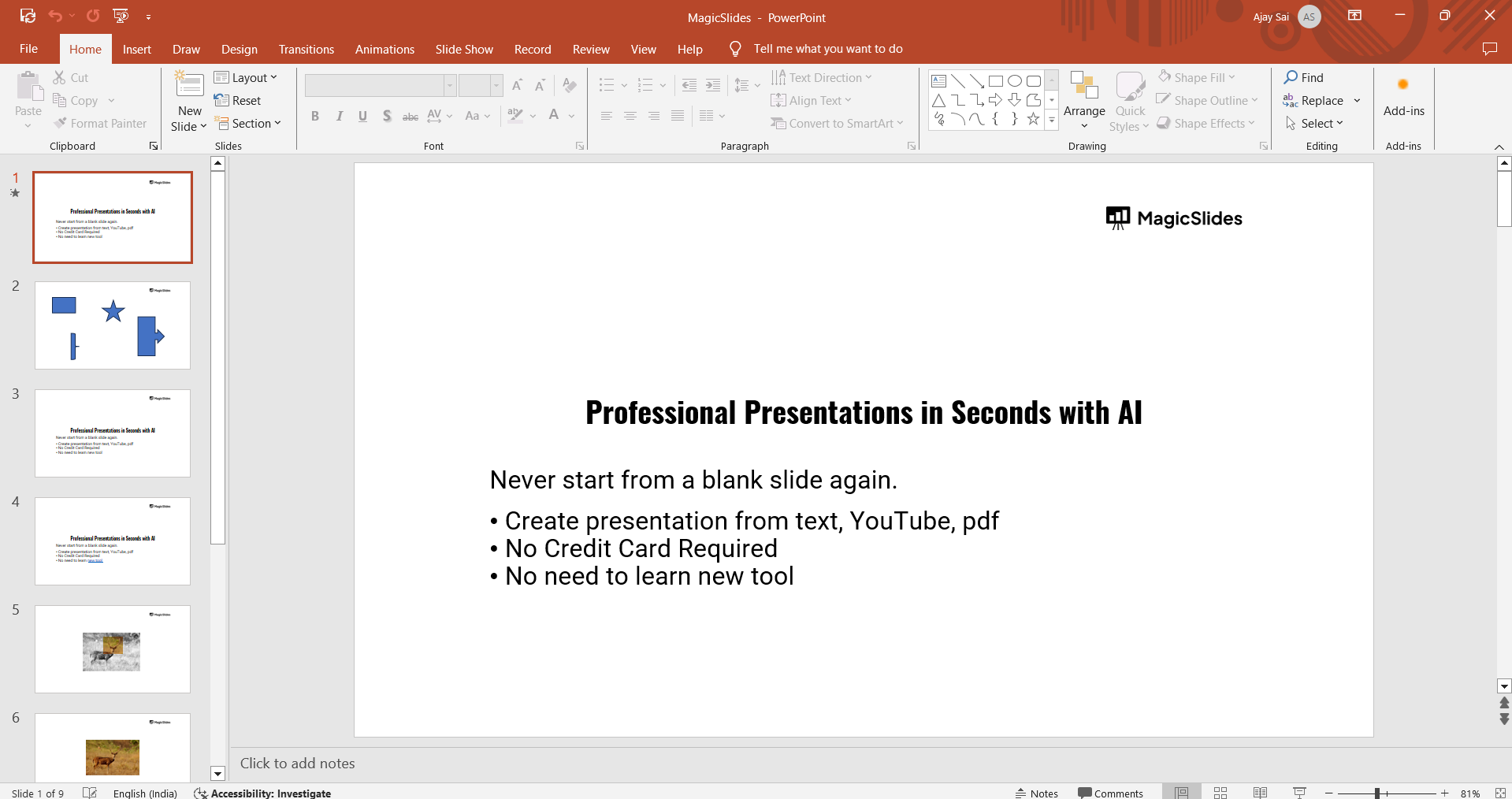
Insert the image or shape you want to blur by clicking on the "Insert" tab and choosing "Pictures" to add an image or "Shapes" to insert a shape.
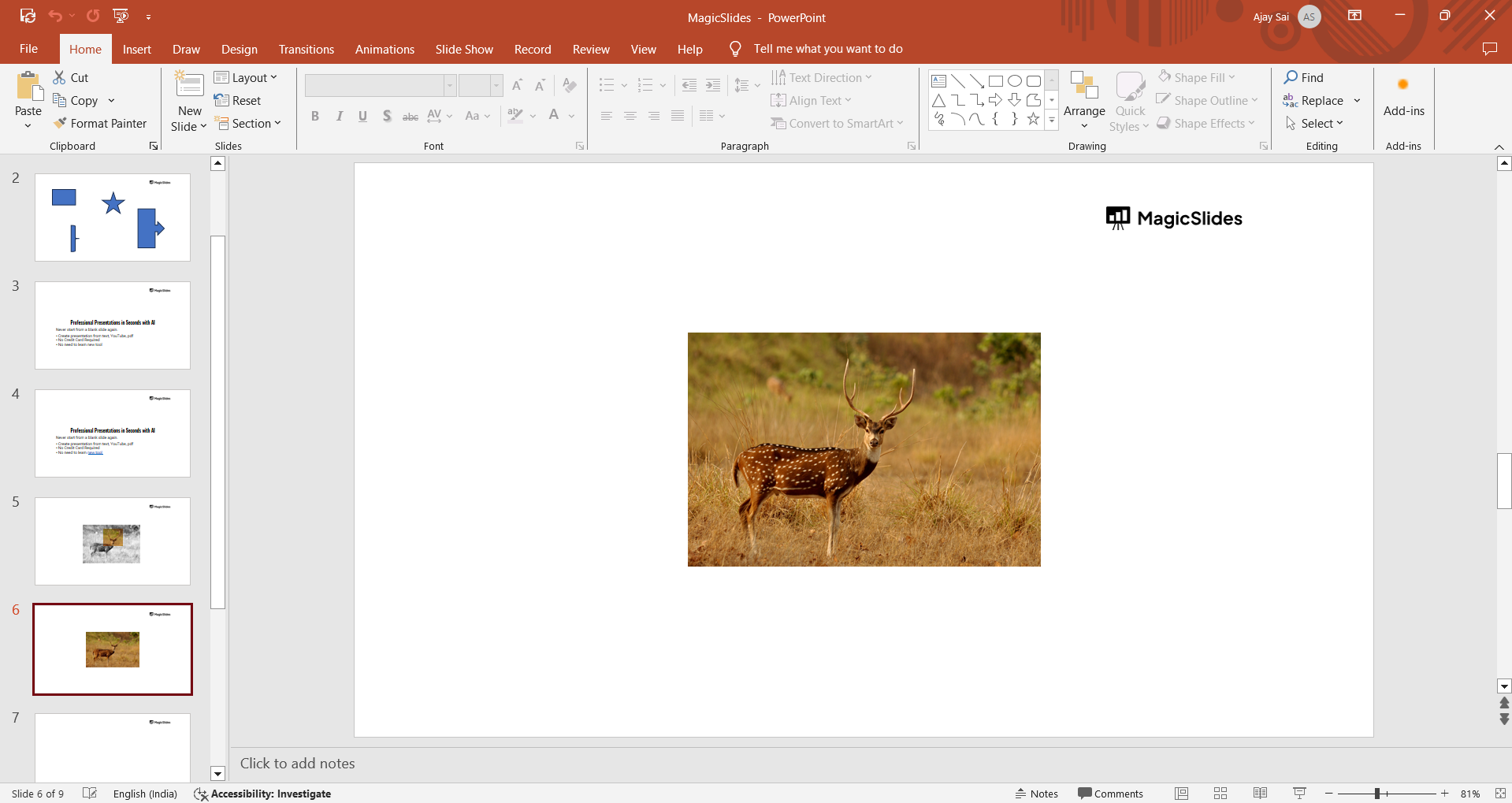
Once your element is added to the slide, select it to apply the blur effect.
Step 2: Apply the Blur Effect to Images
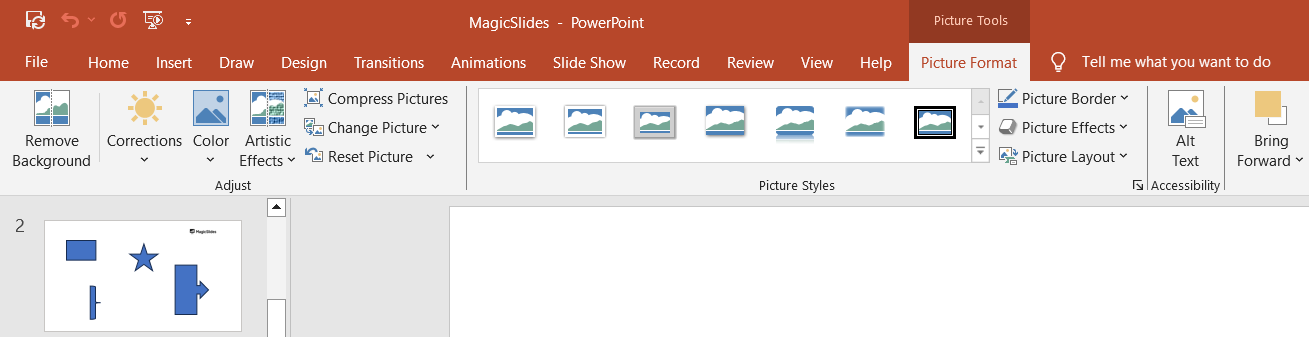
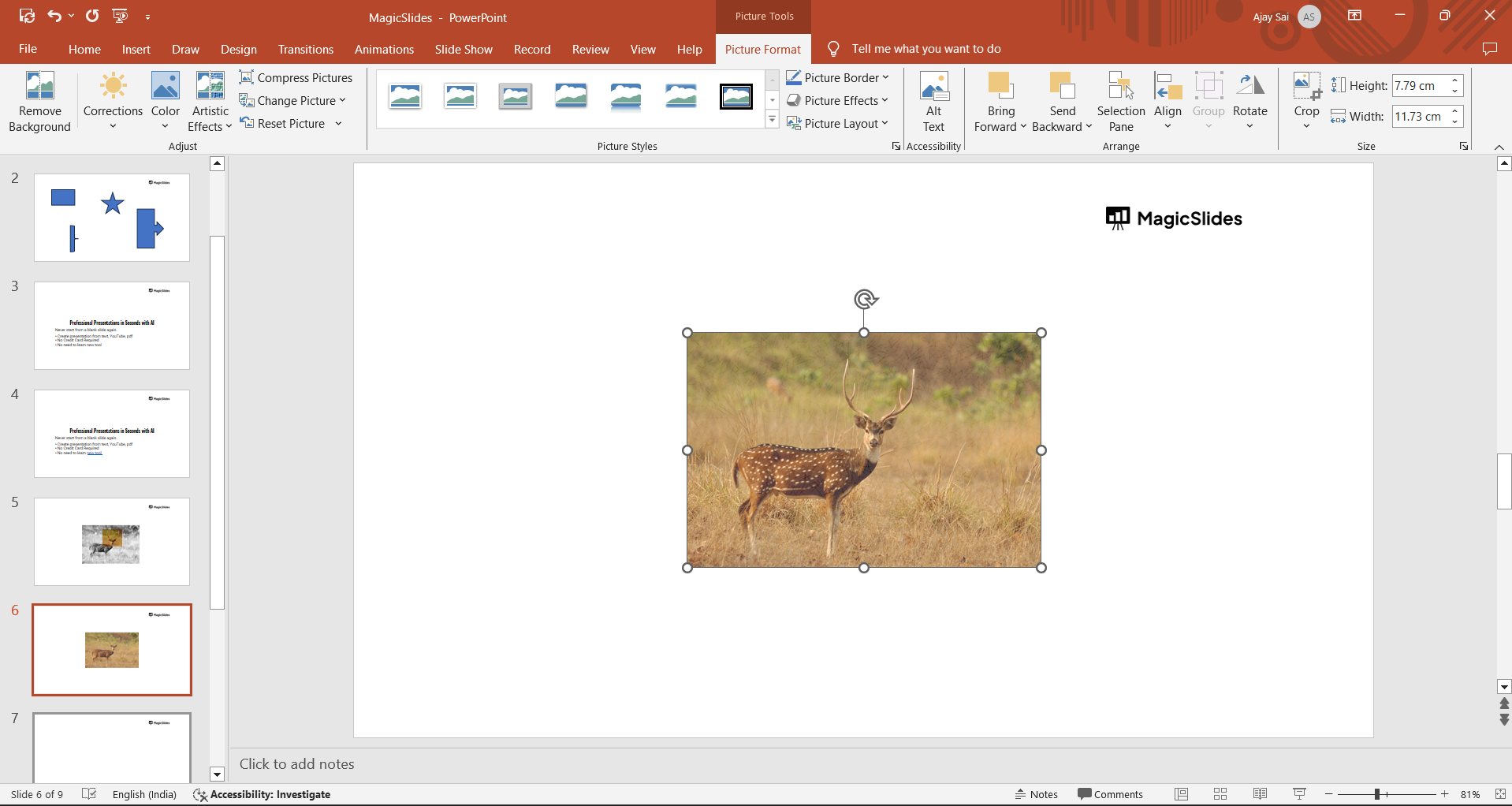
To blur an image, first click on the image to select it. Then, go to the "Format" tab that appears in the toolbar, and under "Picture Effects," select "Artistic Effects."
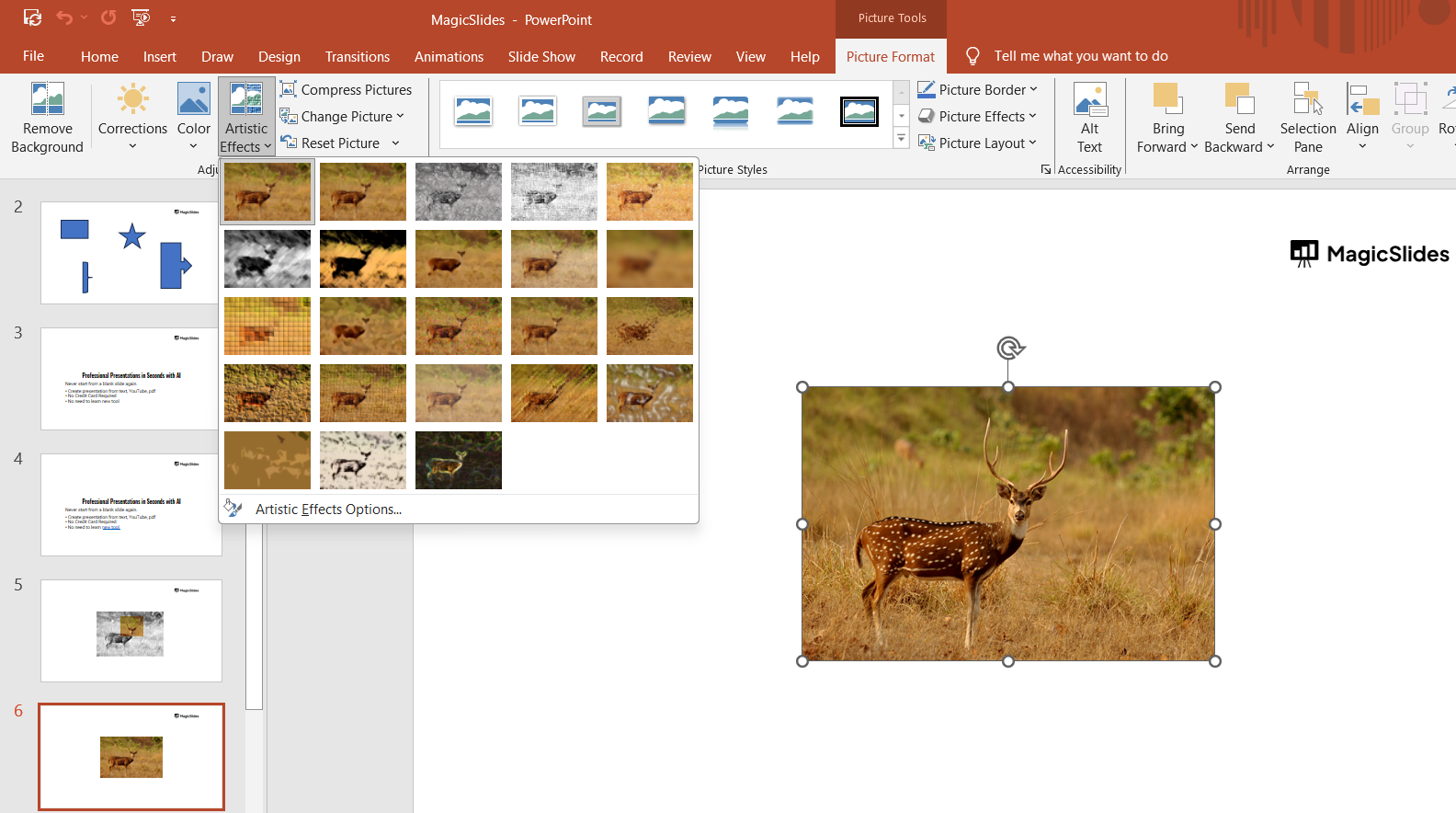
From the drop-down menu, choose the "Blur" option. The image will now have a soft blur applied, which can be adjusted depending on your preferences.
Step 3: Adjust the Blur Intensity for Images
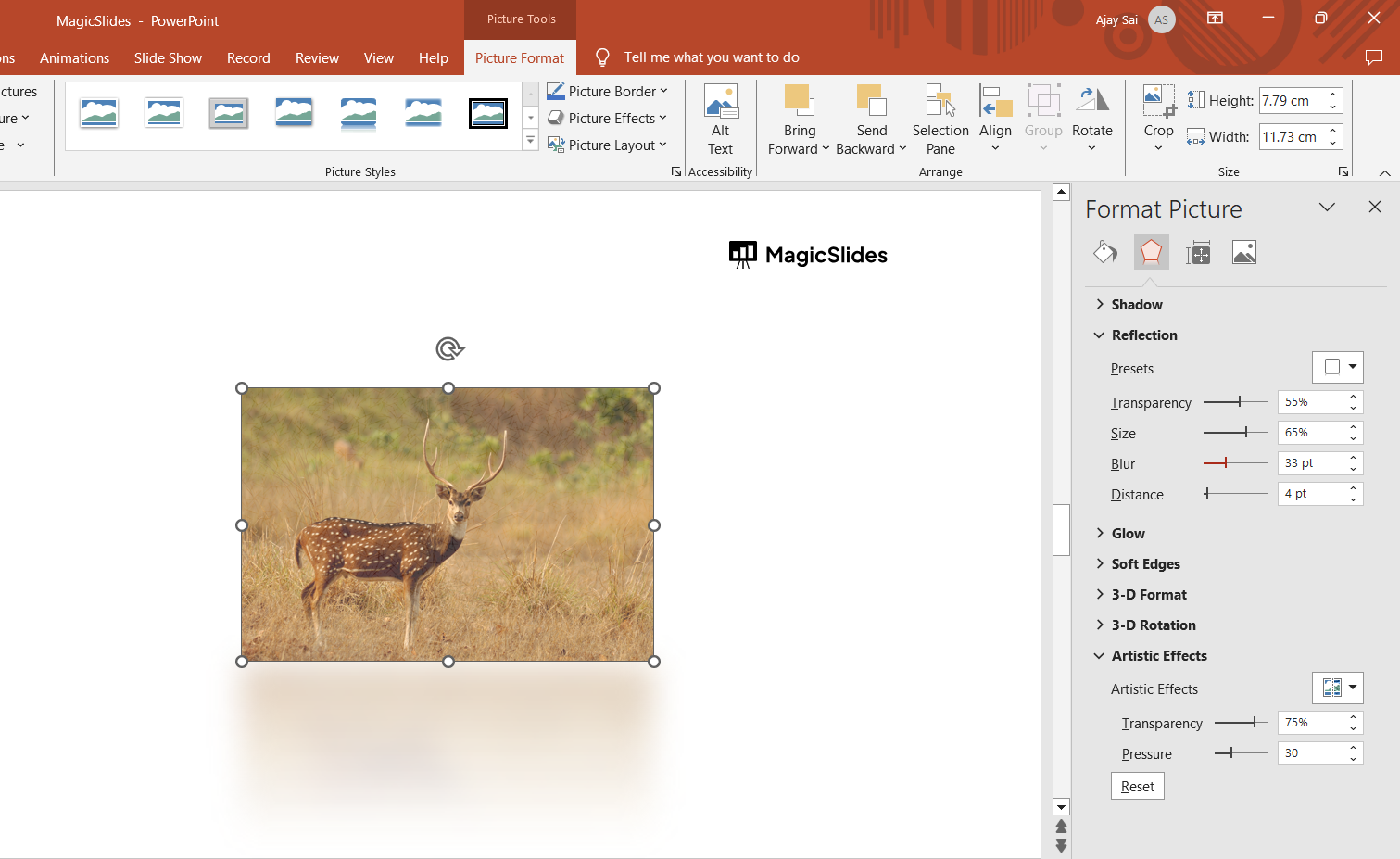
After applying the blur, you can further adjust the intensity. Click on "Artistic Effects Options" at the bottom of the "Artistic Effects" menu.
A new panel will open on the right side where you can adjust the level of blur by moving the slider under "Radius."
Increase the radius for a stronger blur or decrease it for a subtle effect.
Now that you've mastered blurring in PowerPoint, elevate your presentation by learning how to use the Eyedropper tool in PowerPoint, which allows you to match colors with precision.
Conclusion
Blurring elements in PowerPoint is an effective way to highlight or hide specific content, helping guide your audience's attention where it matters most.
With PowerPoint’s built-in blur tools, you can easily create professional and visually striking presentations.
Whether you're blurring images, shapes, or backgrounds, these steps will help you apply the effect efficiently and enhance your presentation’s overall impact.
FAQs are here to help!
Can I blur only part of an image in PowerPoint?
No, PowerPoint’s blur effect applies to the entire image, but you can use shapes to blur specific areas.
Can I remove the blur effect after applying it?
Yes, simply select the blurred element, go to "Artistic Effects," and choose "None" to remove the blur.
Is it possible to blur text in PowerPoint?
PowerPoint doesn't have a direct blur effect for text, but you can blur text by converting it into an image and then applying the blur.


