How to use Eyedropper in PowerPoint


The Eyedropper tool in PowerPoint helps you match colors precisely for consistent and professional designs
PowerPoint’s Eyedropper tool makes it easy to match colors from any element in your presentation or even outside of PowerPoint.
This feature ensures color consistency throughout your slides, helping you create a cohesive and professional-looking presentation.
Here’s a step-by-step guide on how to use the Eyedropper tool effectively in PowerPoint.
How to Use Eyedropper in PowerPoint: A Step-by-Step Guide
Step 1: Open PowerPoint and Select an Object
Start by opening your PowerPoint presentation and navigating to the slide with the object (shape, text, or background) you want to recolor.
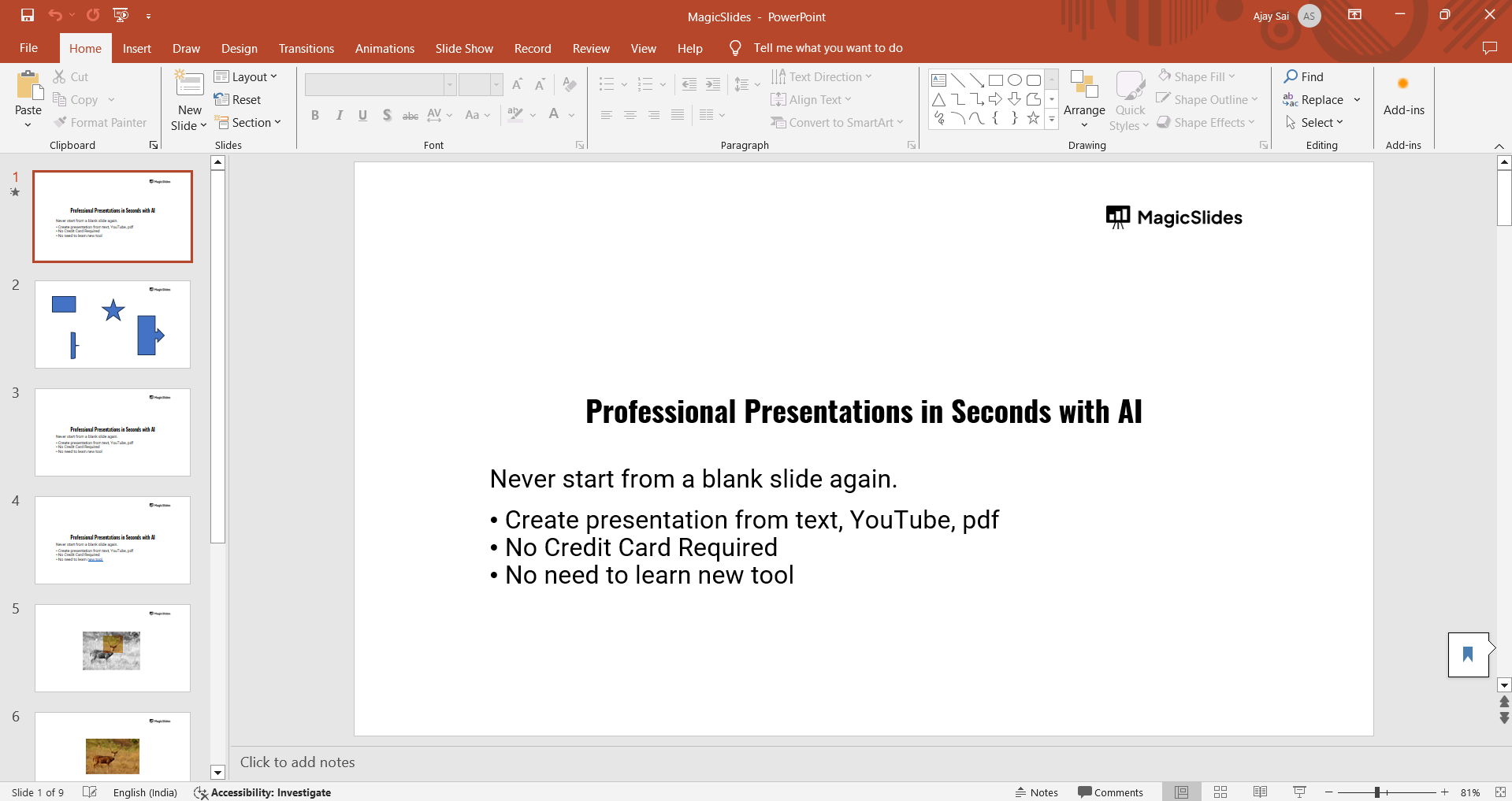
Select the object you wish to change the color of by clicking on it.
Step 2: Access the Eyedropper Tool
Once you’ve selected the object, go to the "Format" tab. If it's a shape, click on "Shape Fill." For text, click on "Text Fill."
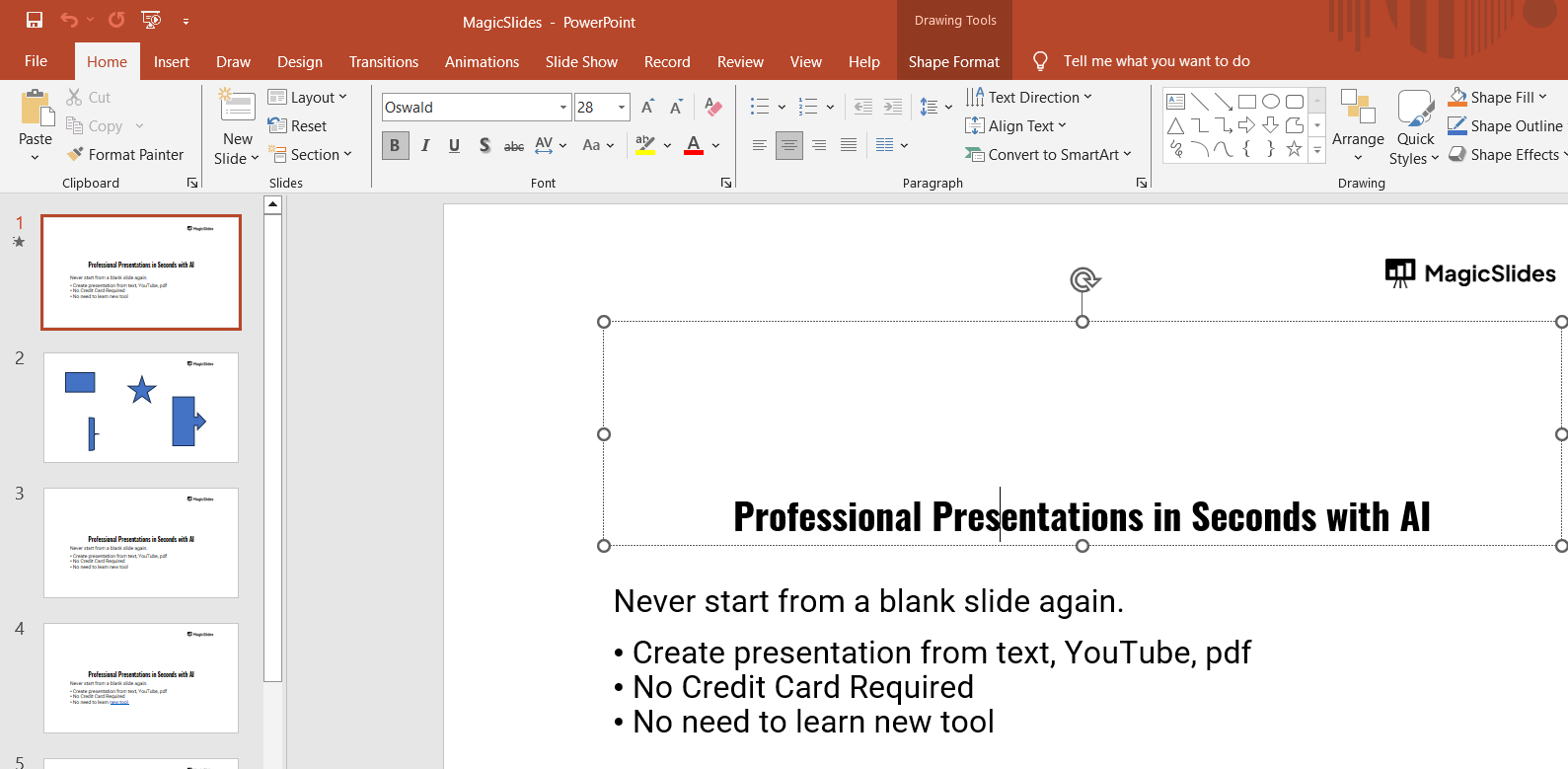
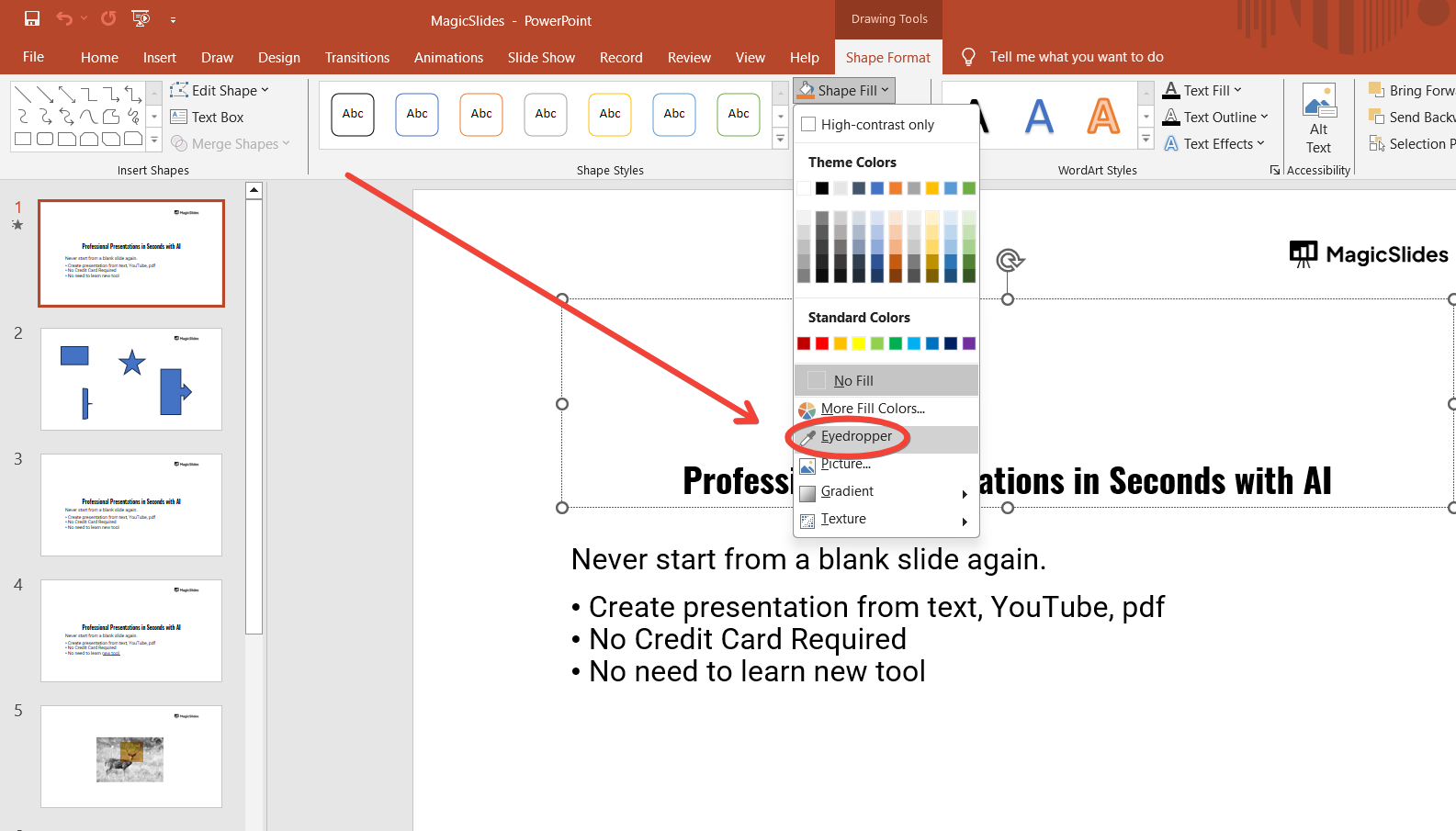
From the dropdown menu, choose the "Eyedropper" option. This activates the Eyedropper tool, allowing you to select colors from the slide.
Step 3: Use the Eyedropper to Pick a Color
After selecting the Eyedropper, your cursor will turn into an eyedropper icon.
Move the cursor over the object or area in your slide that contains the color you want to replicate.
Click when you are on the desired color, and it will be applied to the selected object.
Step 4: Sample a Color from Outside PowerPoint (Optional)
You can also sample colors from outside PowerPoint, such as from a website or other programs.
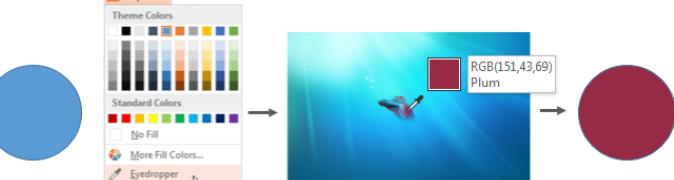
After selecting the Eyedropper tool, click and hold while moving the cursor outside the PowerPoint window to the external color source.
Release the mouse button once you've reached the color you want, and it will apply the color to your selected object.
Step 5: Fine-Tune the Color (Optional)
If the sampled color needs adjustments, go to "More Fill Colors" after selecting your color.
You can further tweak the color’s brightness, saturation, or hue using the color dialog box, giving you more control over the final look.
Conclusion
The Eyedropper tool in PowerPoint is a powerful feature for achieving perfect color matching, whether within your slides or from external sources.
By following these simple steps, you can ensure that your presentation maintains a unified and professional color scheme, improving the overall aesthetic of your slides.
FAQs are here to guide!
Can I use the Eyedropper tool on images or objects outside PowerPoint?
Yes, the Eyedropper tool allows you to sample colors from other applications or images outside PowerPoint.
Is the Eyedropper tool available in all versions of PowerPoint?
No, the Eyedropper tool is available in PowerPoint 2013 and newer versions, including PowerPoint for Microsoft 365.
How do I undo a color change after using the Eyedropper tool?
You can easily undo a color change by pressing "Ctrl + Z" or selecting another color from the "Fill" options.


