How to change background color on PowerPoint


Changing the background color in PowerPoint enhances your presentation’s style and visual impact
Changing the background color in PowerPoint can dramatically enhance the visual appeal of your presentation.
Whether you're looking for a subtle tone or a bold background to match your theme, PowerPoint offers a simple way to customize the look and feel of your slides.
In this guide, I’ll take you through the steps to change the background color of a PowerPoint slide easily.
How to Change Background Color on PowerPoint: A Step-by-Step Guide
Step 1: Open Your PowerPoint Presentation
Begin by launching PowerPoint and opening the presentation where you want to change the background color.
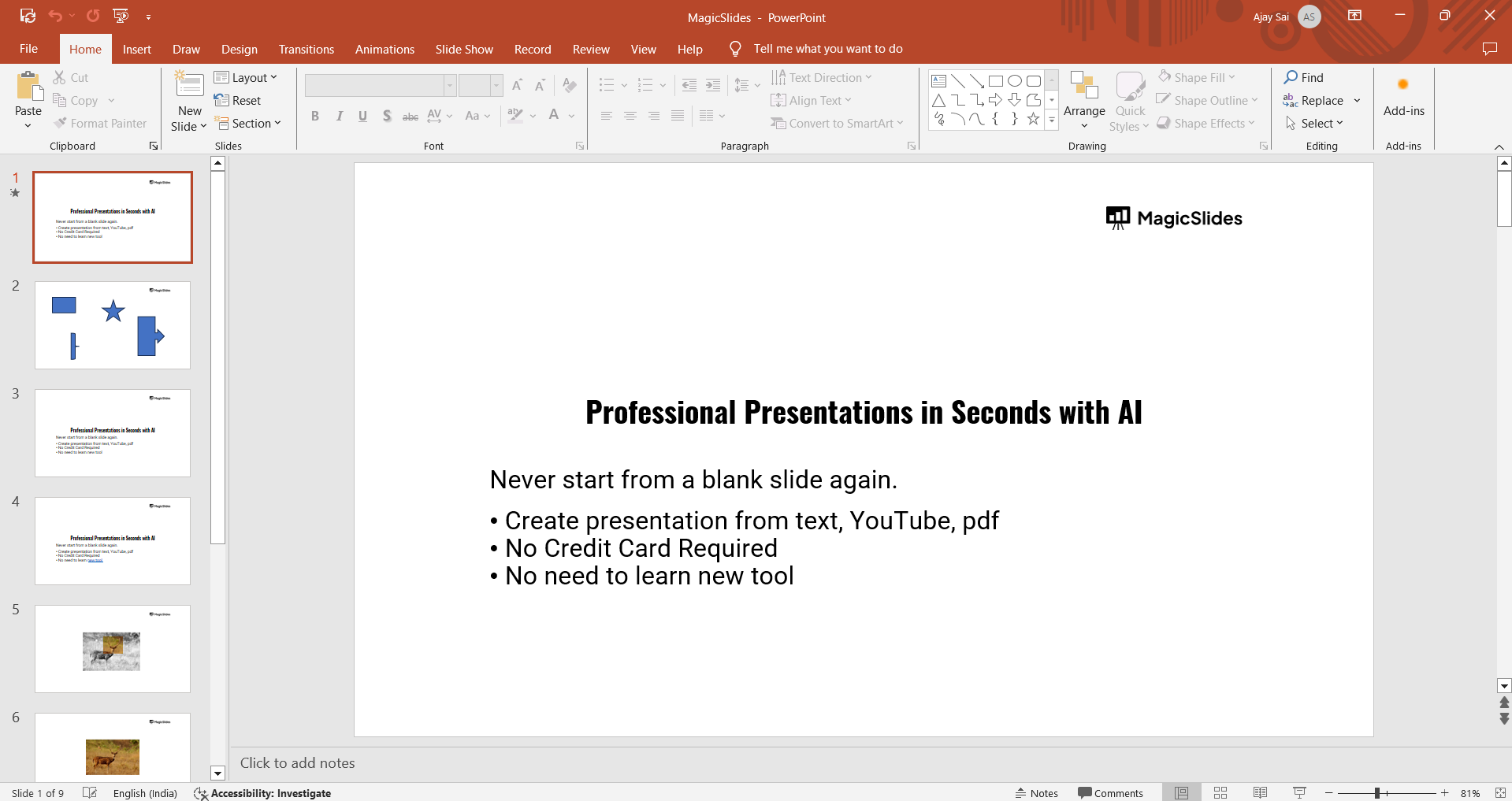
You can either start with a new presentation or modify an existing one by selecting it from the recent files or by clicking “Open” in the File menu.
Step 2: Select the Slide(s) to Modify
Once your presentation is open, click on the slide or slides for which you want to change the background color.
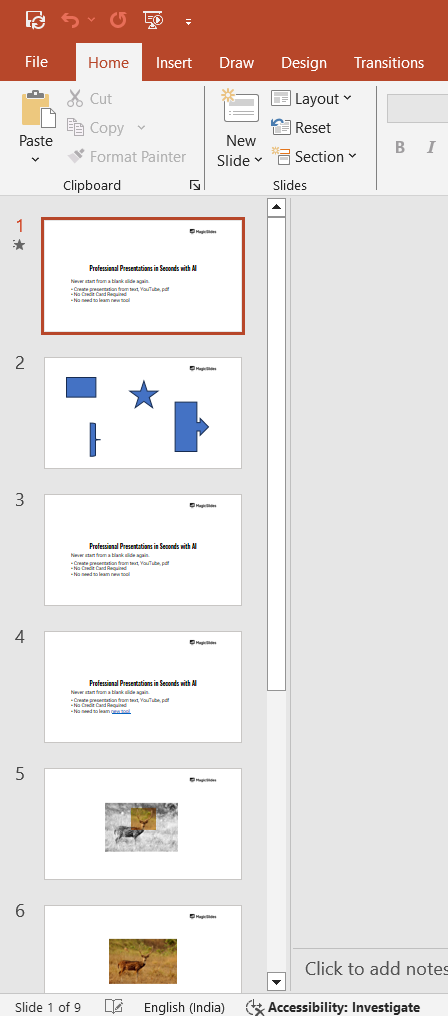
If you wish to apply the background color change to all slides, select multiple slides by holding down the "Ctrl" key (or "Cmd" on Mac) and clicking on the specific slides in the left-hand slide panel.
Step 3: Open the “Design” Tab
At the top of the screen, navigate to the “Design” tab on the ribbon.
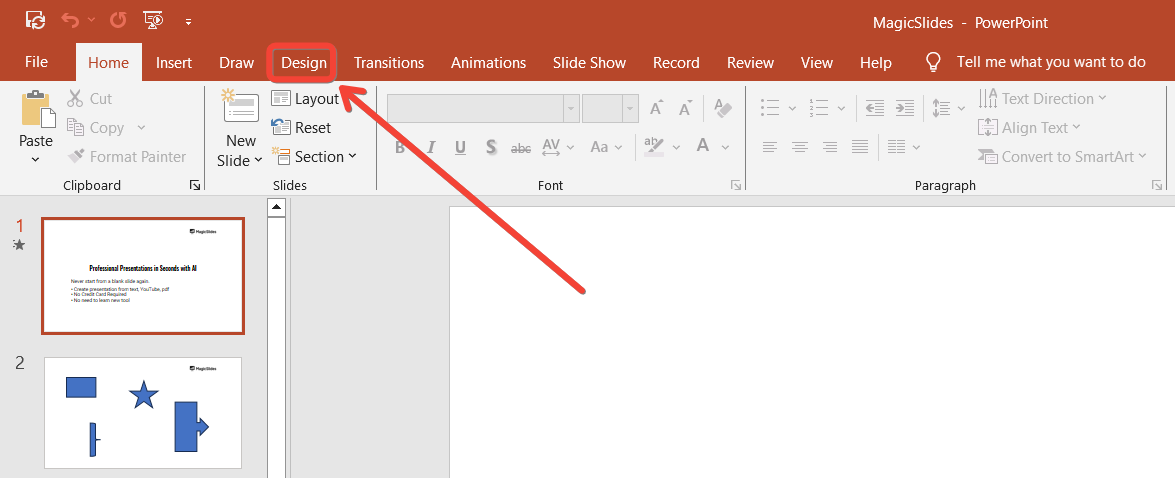
The Design tab is where you can modify the overall look of your slides, including colors, themes, and slide layouts.
Step 4: Click on “Format Background”
In the “Design” tab, locate the “Format Background” option, typically on the far-right side of the ribbon.
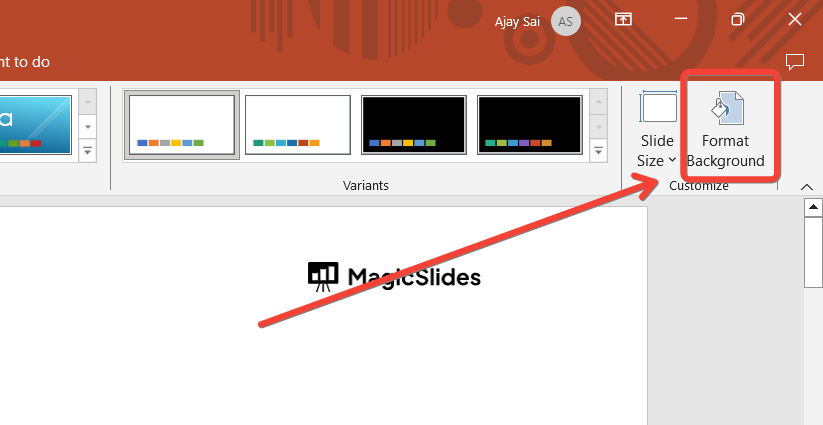
Click on it, and a sidebar will appear on the right side of your screen with various background options.
Step 5: Choose a Solid Color or Gradient
In the “Format Background” sidebar, you can now select “Solid Fill” to choose a single color for the background or “Gradient Fill” if you want to use multiple colors for a gradient effect.
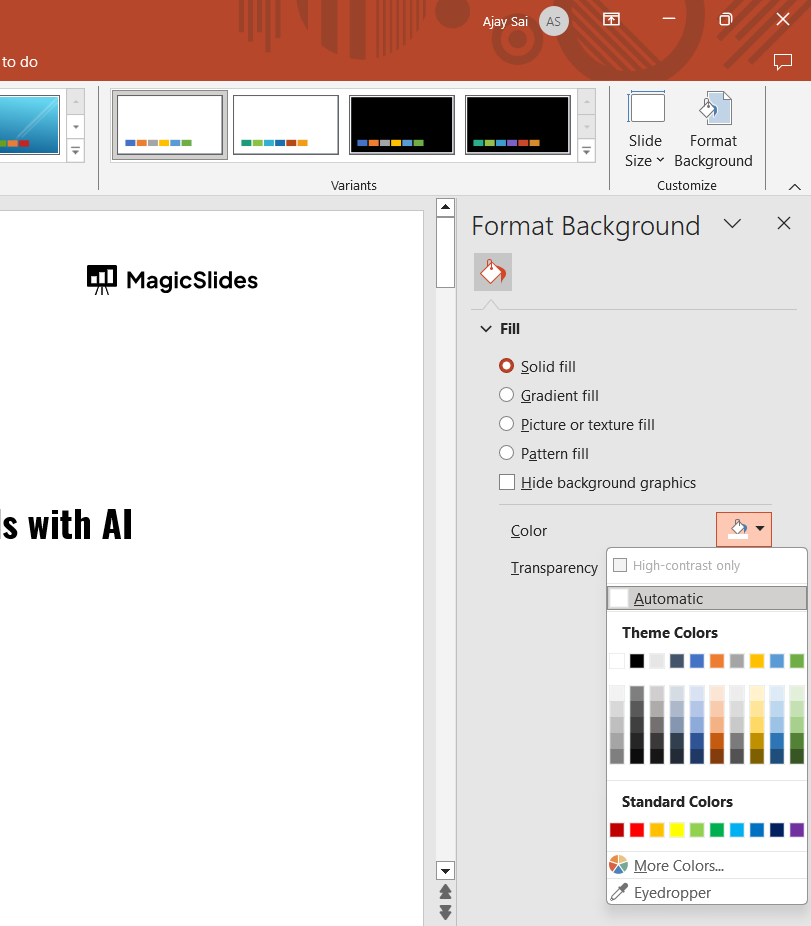
When selecting “Solid Fill,” a color palette will appear. Click on the color icon to choose from preset colors or click “More Colors” to customize a color.
Step 6: Apply the Color to One or All Slides
Once you’ve chosen your desired background color, you can either apply it to the selected slide by clicking “Apply” or apply it to all slides by clicking the “Apply to All” button at the bottom of the sidebar.
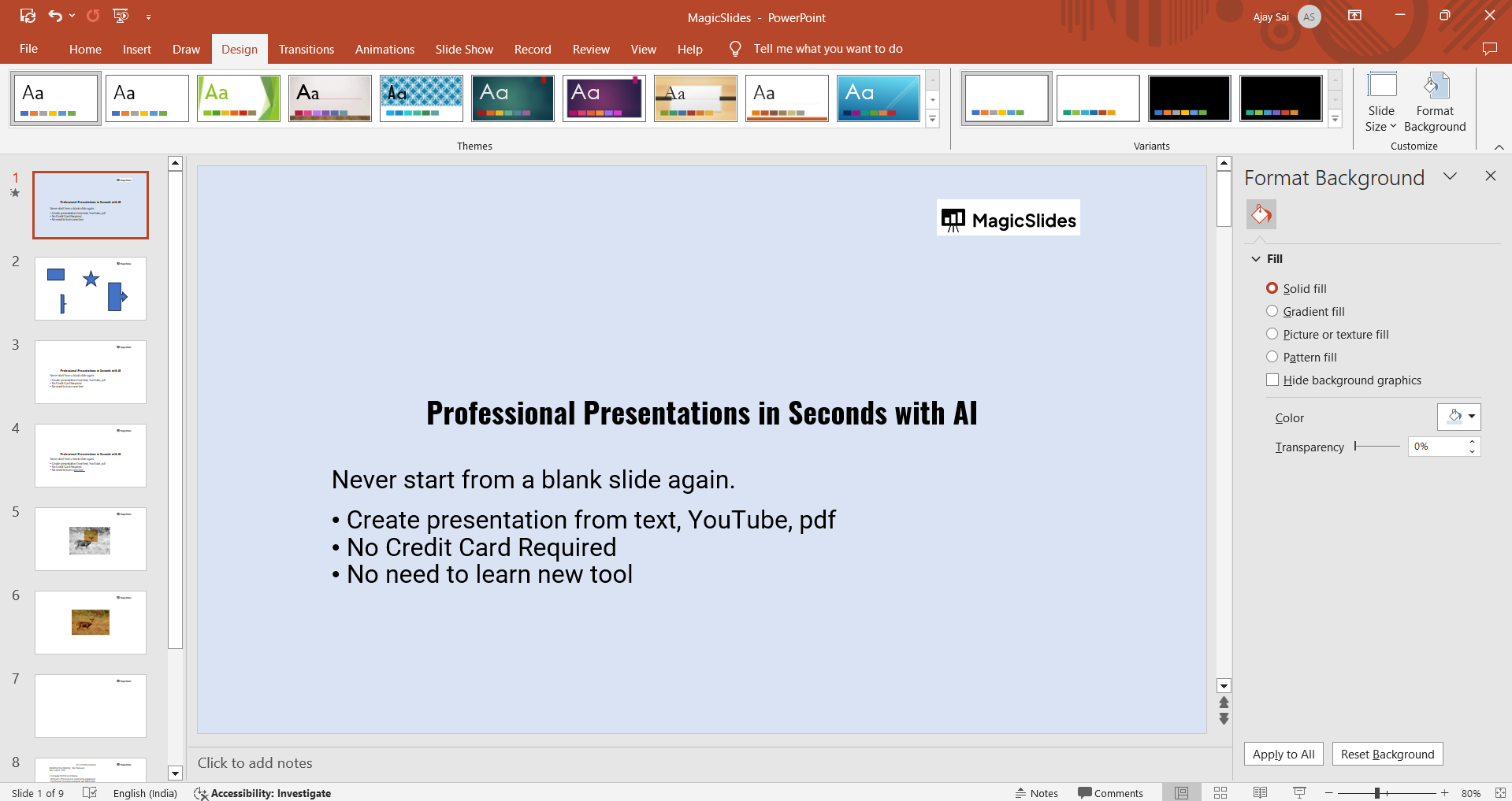
This will change the background color across your entire presentation.
Step 7: Save Your Presentation
After you’re satisfied with the background color change, save your presentation. You can do this by going to “File” and selecting “Save” or “Save As” to create a new version of the presentation.
Now that you've changed the background color in PowerPoint, why not learn how to make a Gantt chart in PowerPoint to bring visual organization to your projects?
Conclusion
Changing the background color of your PowerPoint slides is a quick way to customize the look and make your content stand out.
Whether you apply a solid color or opt for a gradient effect, PowerPoint makes it simple to adjust the design and personalize your presentation.
Follow these easy steps, and you’ll have a visually striking presentation in no time.
FAQs can take you forward!
Can I apply a background color to all slides at once?
Yes, click "Apply to All" in the "Format Background" panel to apply the color to all slides.
Can I choose custom colors for the background?
Yes, select “More Colors” under the color palette to create a custom background color.
Can I use gradient colors for the background in PowerPoint?
Yes, PowerPoint allows you to apply gradient colors by selecting the “Gradient Fill” option.


