How to Change color of symbols in Google Slides


Easily customize symbol colors in Google Slides to enhance your presentation’s visual appeal and consistency
Customizing the color of symbols in Google Slides is a great way to enhance the visual appeal and emphasize important content.
Whether you're editing icons, shapes, or text symbols, this guide will walk you through the steps to adjust their colors to suit your presentation’s theme or highlight specific elements effectively.
How to Change the Color of Symbols in Google Slides | Steps to Change the Color of Symbols in Google Slides
Step 1: Open Your Google Slides Presentation
Log in to your Google account and access the Google Slides presentation you want to edit.

Navigate to the slide that contains the symbol or shape you wish to modify.
Step 2: Select the Symbol or Shape
Click on the symbol, icon, or shape that you want to change the color of.
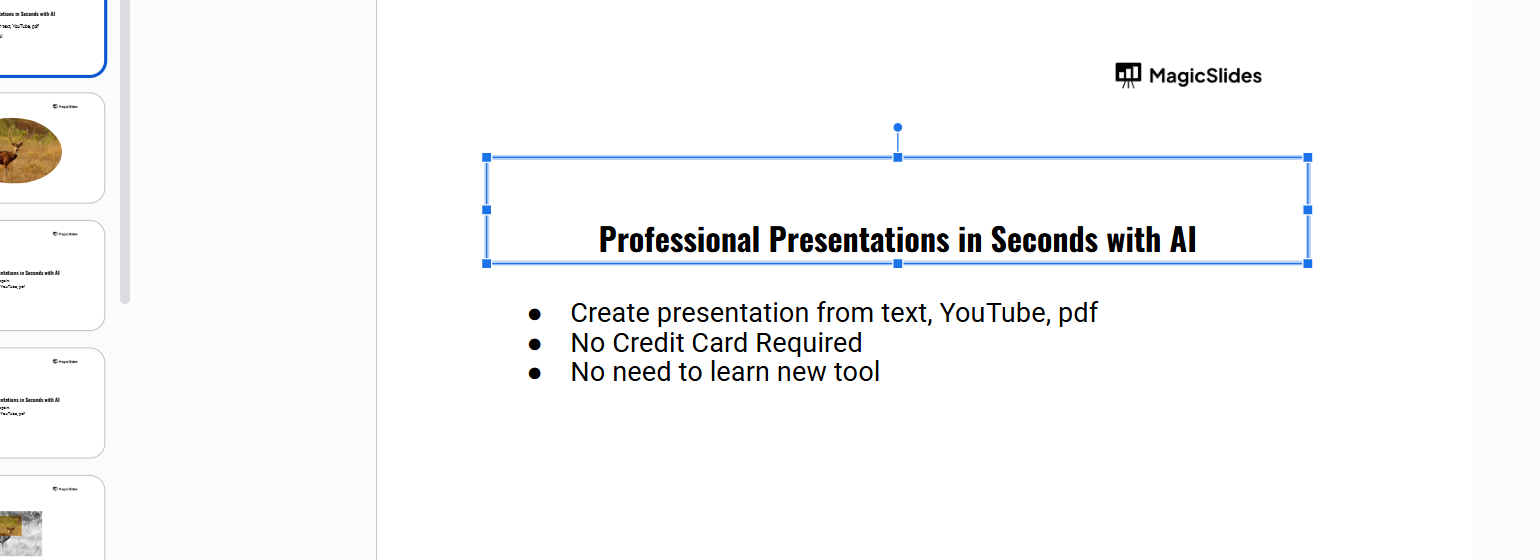
Ensure the object is highlighted with a blue border, indicating it is selected.
Step 3: Access the Color Options
In the toolbar at the top, click on the Fill Color icon (paint bucket symbol) for shapes or icons.
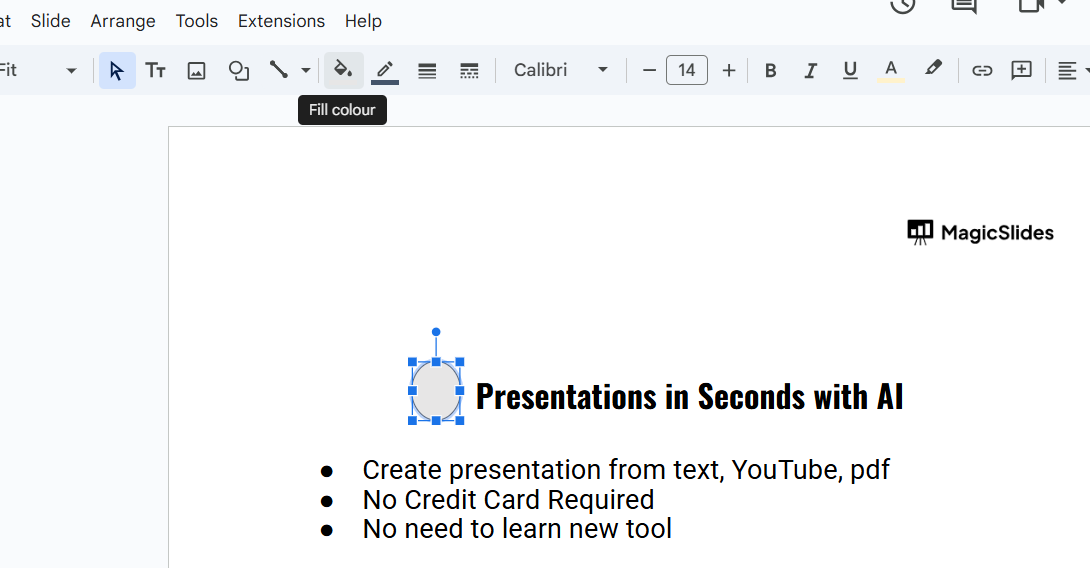
For text symbols, use the Text Color icon (capital "A" with a color bar).
Step 4: Choose a New Color
From the dropdown menu, select a color from the preset options, or click “Custom” to create a unique color.
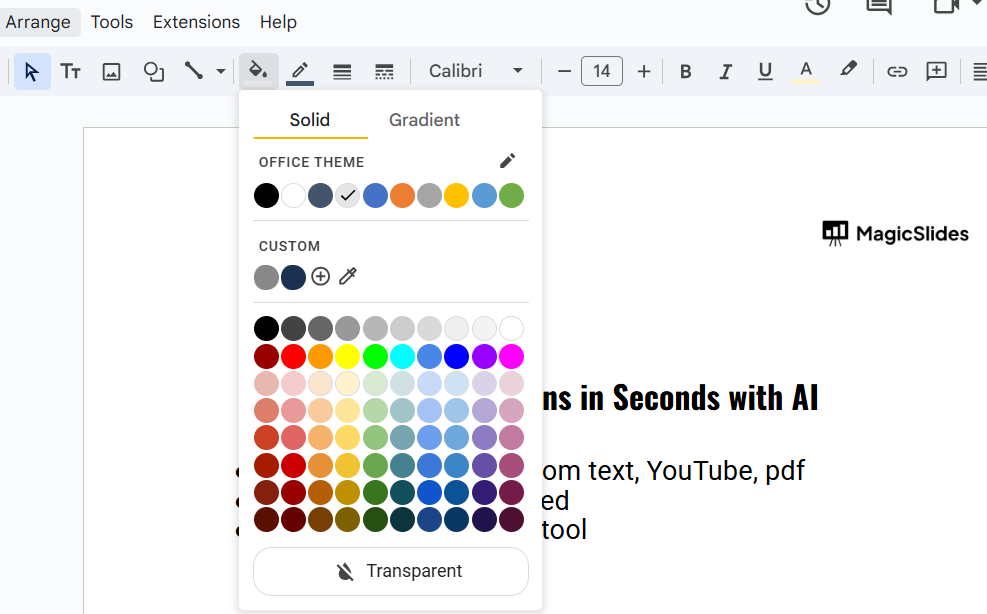
Use the color picker or enter a HEX code for precise customization.
Step 5: Apply the Color to the Symbol
Once you select your desired color, it will automatically apply to the selected symbol.

If you’re editing text symbols, ensure the text is visible and contrasts well with the background.
Step 6: Repeat for Additional Symbols (if needed)
If you have multiple symbols to edit, repeat the above steps for each one. Ensure consistency in your color choices for a cohesive design.
After learning how to change the color of symbols in Google Slides, enhance your slides by adding a sound when slides transition in Google Slides for a more engaging presentation.
Conclusion
Changing the color of symbols in Google Slides is a straightforward process that can significantly improve your presentation's aesthetics and effectiveness.
By following these steps, you can easily customize your symbols to align with your presentation theme and captivate your audience.
Take advantage of this feature to highlight important elements and create visually engaging slides.
FAQs on Changing the Color of Symbols in Google Slides
Can I change the color of imported icons or images?
If the icon is a vector shape, you can adjust its color. However, for non-editable images, you’ll need to use external tools.
How do I ensure color consistency across all slides?
Use the same color palette or custom HEX codes for all symbols to maintain a unified theme.
Can I apply gradients to symbols in Google Slides?
Yes! While Google Slides doesn’t support gradients natively, you can create gradient symbols in external tools like Google Drawings and import them into your slides.
By mastering these simple steps, you’ll be able to customize symbols effortlessly, enhancing the visual impact of your presentation.


