How to Add a sound when slides transition Google Slides


Enhance your Google Slides presentation by adding sound effects to transitions for a dynamic experience
Adding sound effects to slide transitions in Google Slides can make your presentation more engaging and interactive.
While Google Slides does not natively support adding transition sounds, you can achieve this effect using workarounds, such as embedding audio files that play during slide changes.
Follow this guide for a step-by-step approach to incorporating sound into your Google Slides presentation.
Steps to Add Sound When Slides Transition in Google Slides
Step 1: Prepare the Sound File
Choose or create a sound file you want to use for slide transitions. Save the audio file in a supported format such as MP3 or WAV.
Upload the file to Google Drive for easy access.
Step 2: Open Your Google Slides Presentation
Log in to your Google account and open the presentation where you want to add sound.
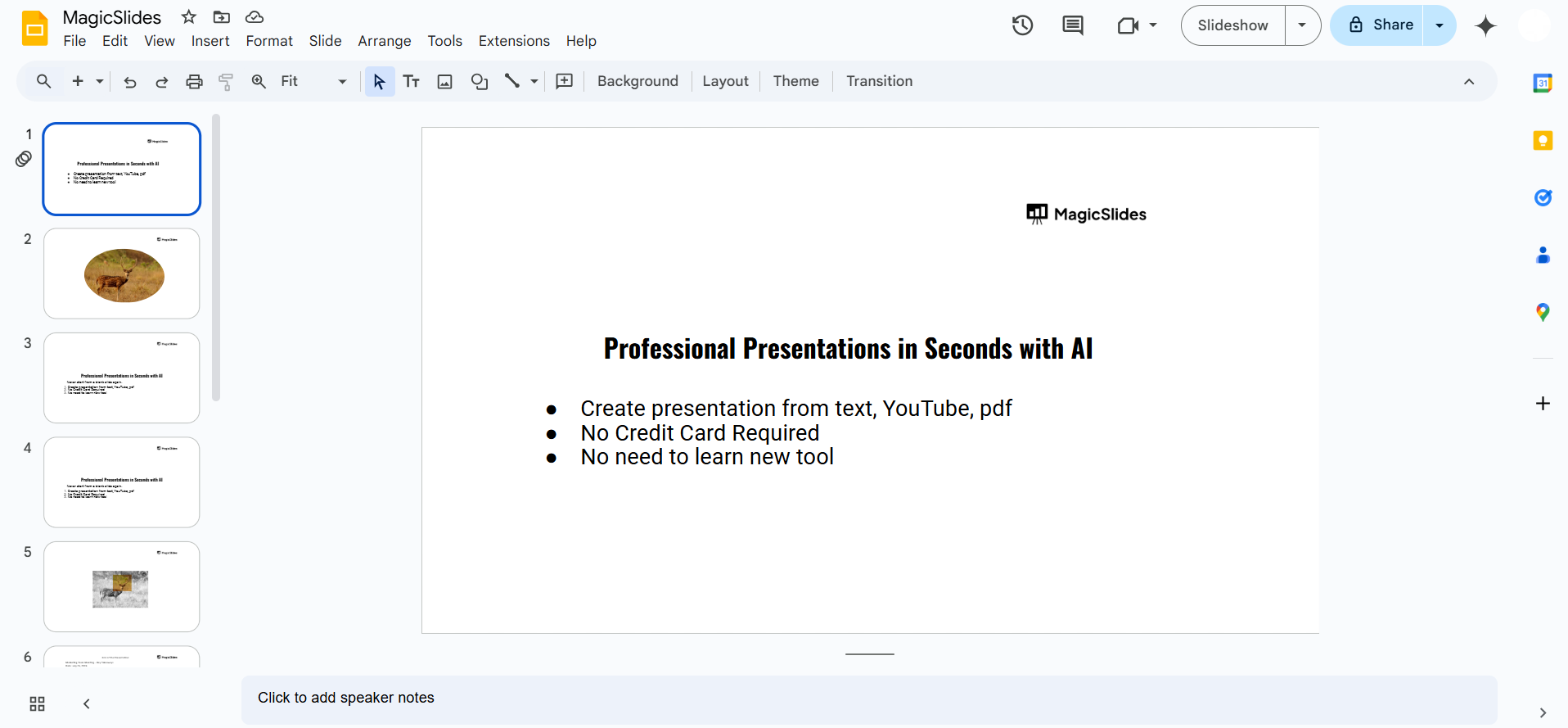
Navigate to the slide where you want the sound effect to play.
Step 3: Insert the Audio File
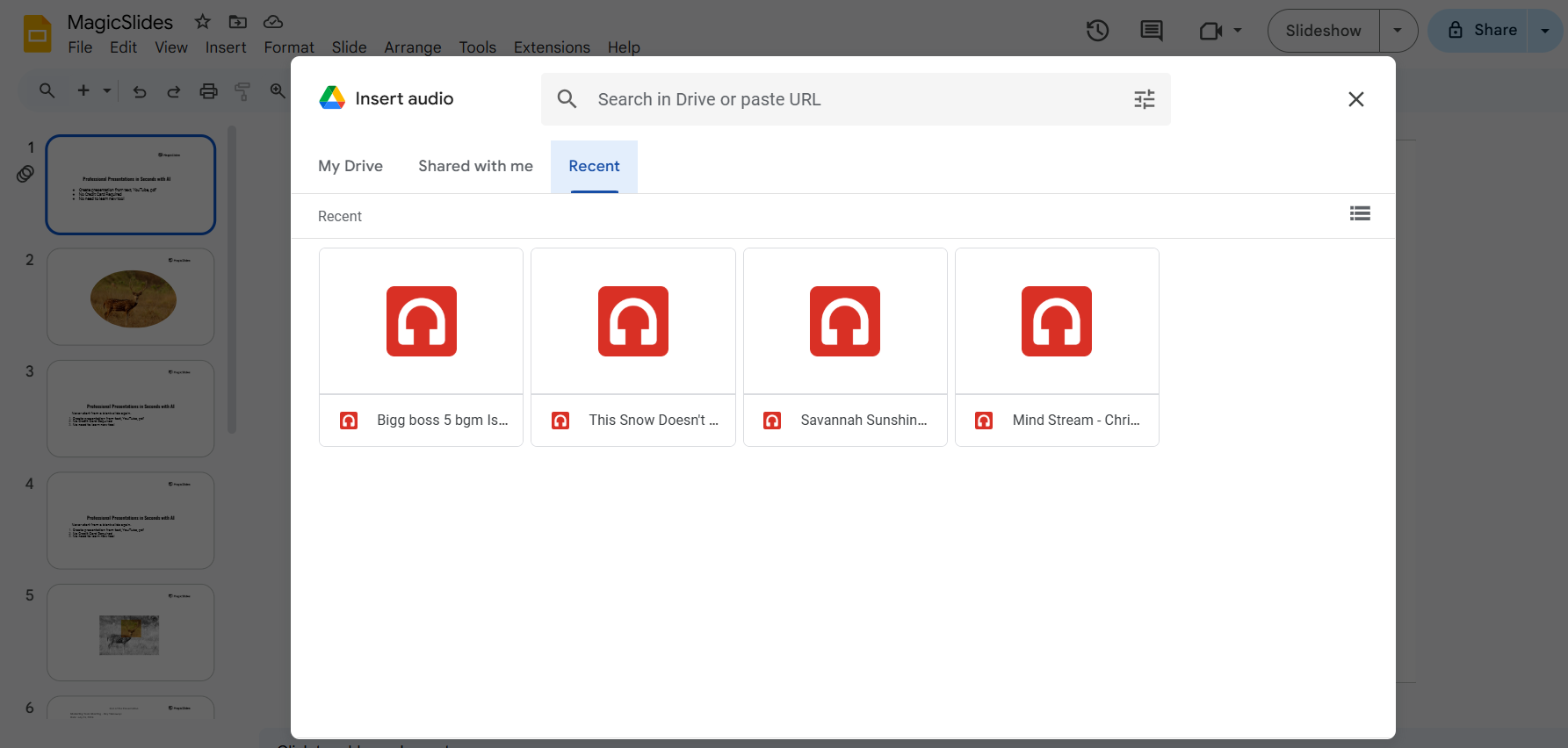
Go to the menu bar and select Insert > Audio. A pop-up window will appear, allowing you to browse your Google Drive. Select the desired audio file.
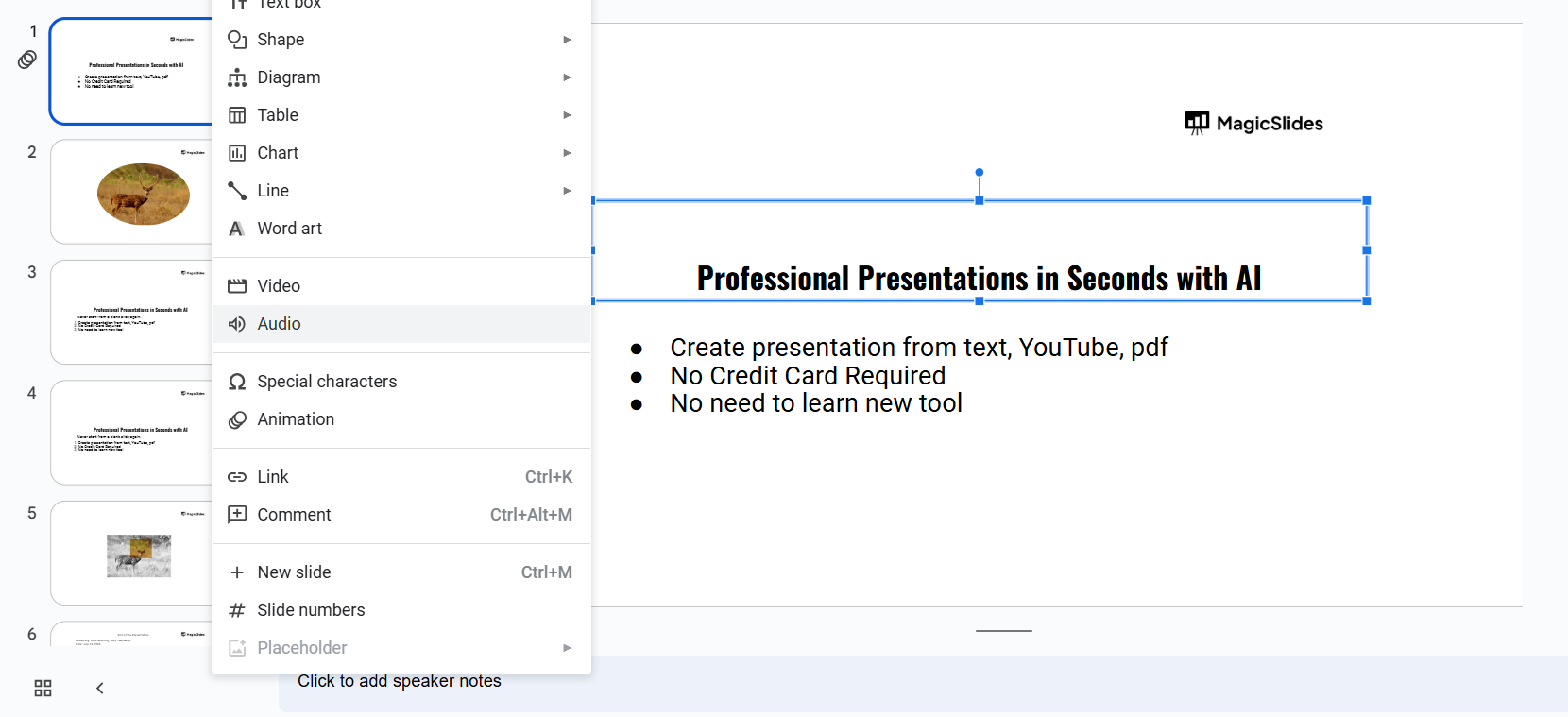
Click Insert to add the sound to the selected slide.
Step 4: Position the Audio Icon
An audio icon will appear on the slide.
Drag and position the icon in a discreet location where it won’t distract viewers during the presentation.
Step 5: Adjust Playback Settings
Click on the audio icon and then select Format Options from the toolbar.
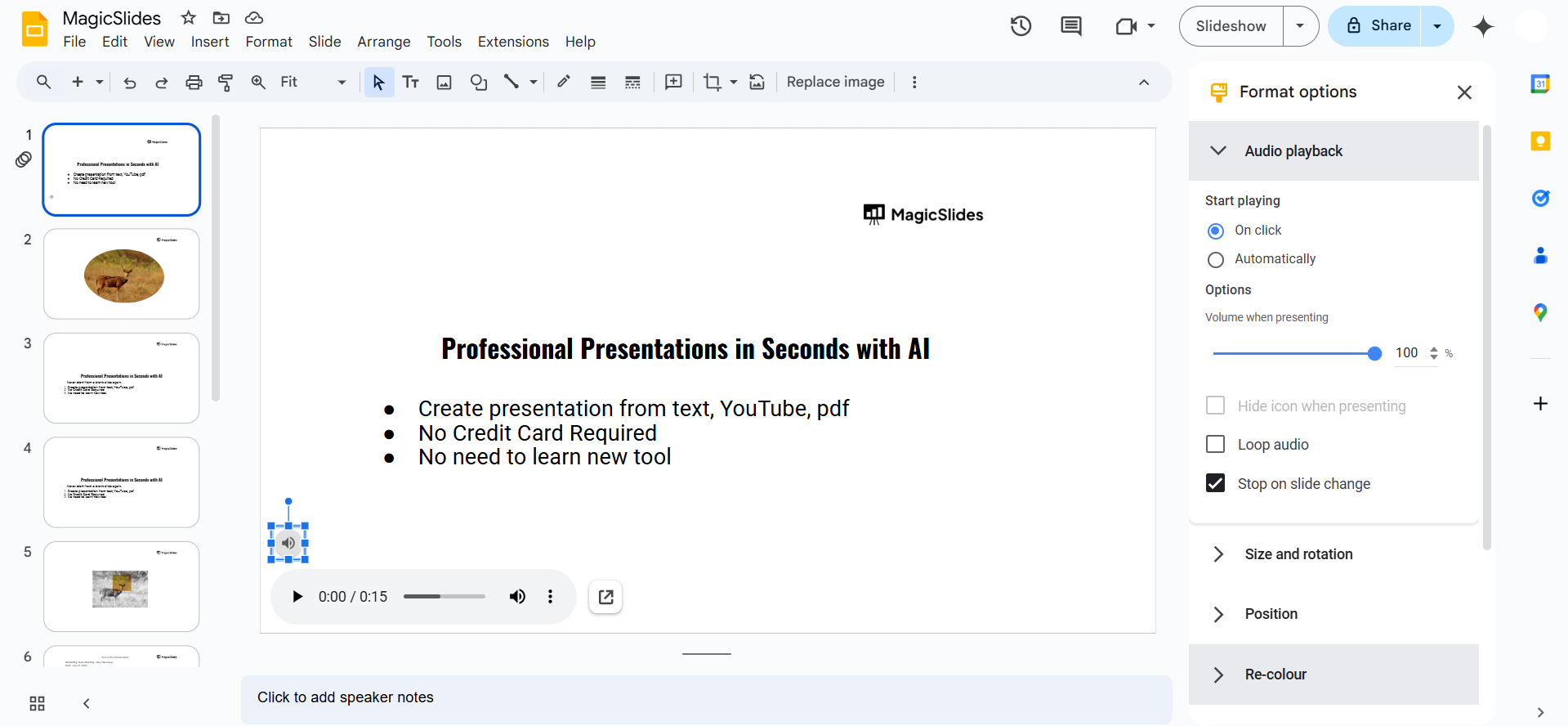
Under Audio Playback, choose the option Play Automatically to ensure the sound plays when the slide appears. Adjust volume settings as needed for your audience.
Step 6: Test the Presentation
Click Present to view your slides with the added sound. Ensure the sound plays smoothly during transitions and make adjustments if necessary.
Once you've added sound to slide transitions in Google Slides, explore how to customize animations in Google Slides to make your presentation even more dynamic.
Conclusion
Adding sound to slide transitions in Google Slides can elevate your presentation, making it more dynamic and engaging.
By following these steps, you can successfully integrate audio into your slides, ensuring a professional and captivating delivery.
Keep in mind that less is often more when using sound effects to maintain a polished presentation.
FAQs on Adding Sound When Slides Transition in Google Slides
Can I use YouTube audio for slide transitions?
Yes, you can insert YouTube videos and play the audio during slide transitions, but it requires additional timing adjustments.
Does Google Slides support native transition sound effects?
No, Google Slides does not have built-in support for transition sound effects, but workarounds like embedding audio files can achieve a similar result.
How do I ensure the sound plays across multiple slides?
To play sound across multiple slides, use a single audio file set to Loop Playback under Format Options and adjust its timing to span the desired slides.
By incorporating sound strategically, you can create a memorable and engaging presentation that resonates with your audience.


