How to change default font in PowerPoint


let’s explore the trick behind how to change default font in power point
Changing the default font in PowerPoint can help you create a consistent and professional-looking presentation that aligns with your branding or personal style.
By setting a default font, you save time and ensure uniformity across all your slides.
In this blog, we'll guide you through the simple steps to change the default font in PowerPoint.
Changing the default font in PowerPoint allows you to set your preferred font style for all new text boxes and placeholders you add to your presentations.
Here's a step-by-step guide on how to change the default font in PowerPoint:
How to change default font in PowerPoint
Step 1: Open PowerPoint:
Start by opening Microsoft PowerPoint on your computer.
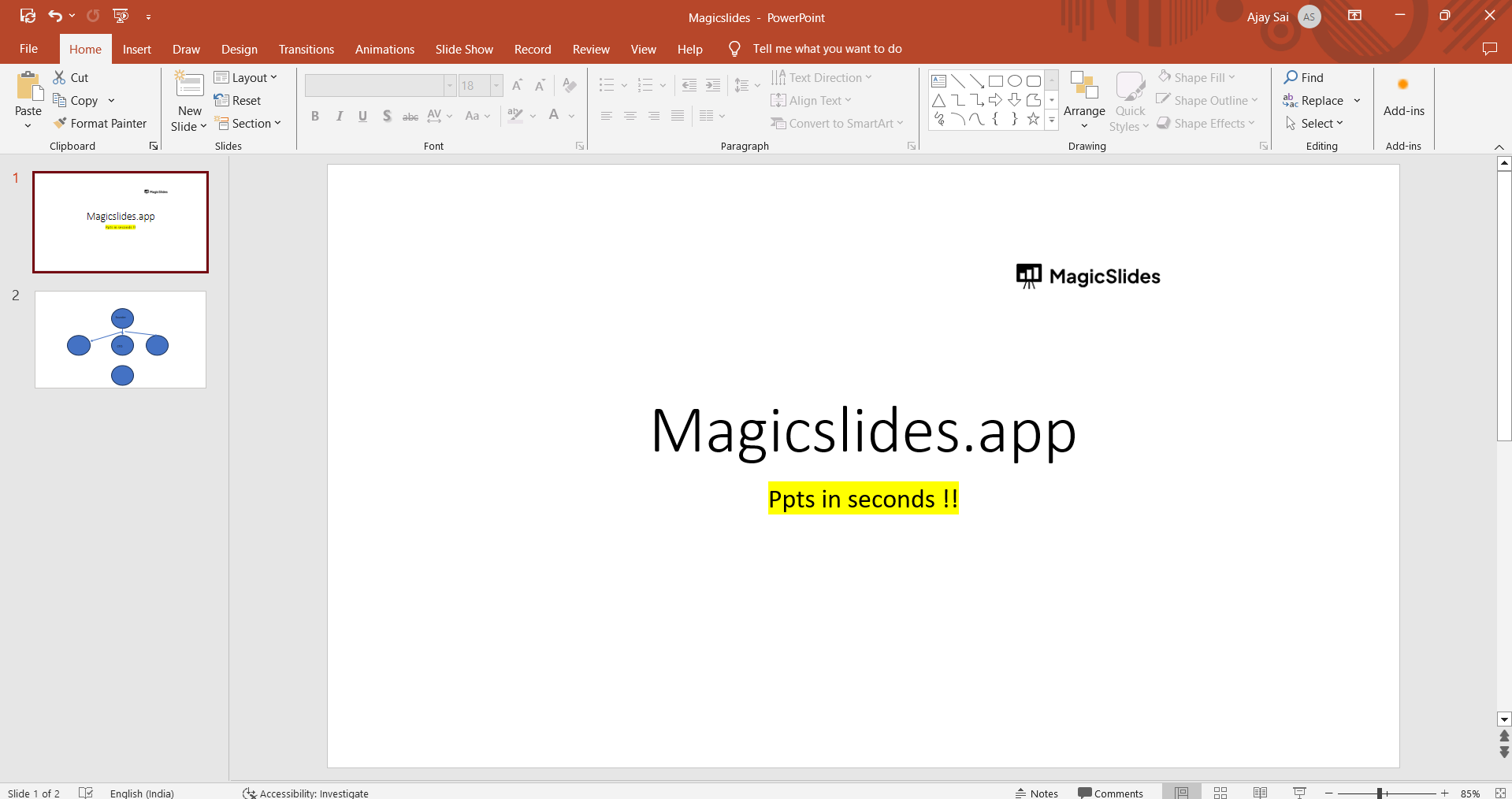
Step 2: Create a New Blank Presentation:
You can either create a new blank presentation or open an existing one. The process for changing the default font remains the same.
Step 3: Access the Slide Master View:
To change the default font for all slides and layouts in your presentation, you'll need to access the Slide Master view. To do this:
- Click on the "View" tab in the PowerPoint ribbon at the top.
- In the "Master Views" group, click on "Slide Master."
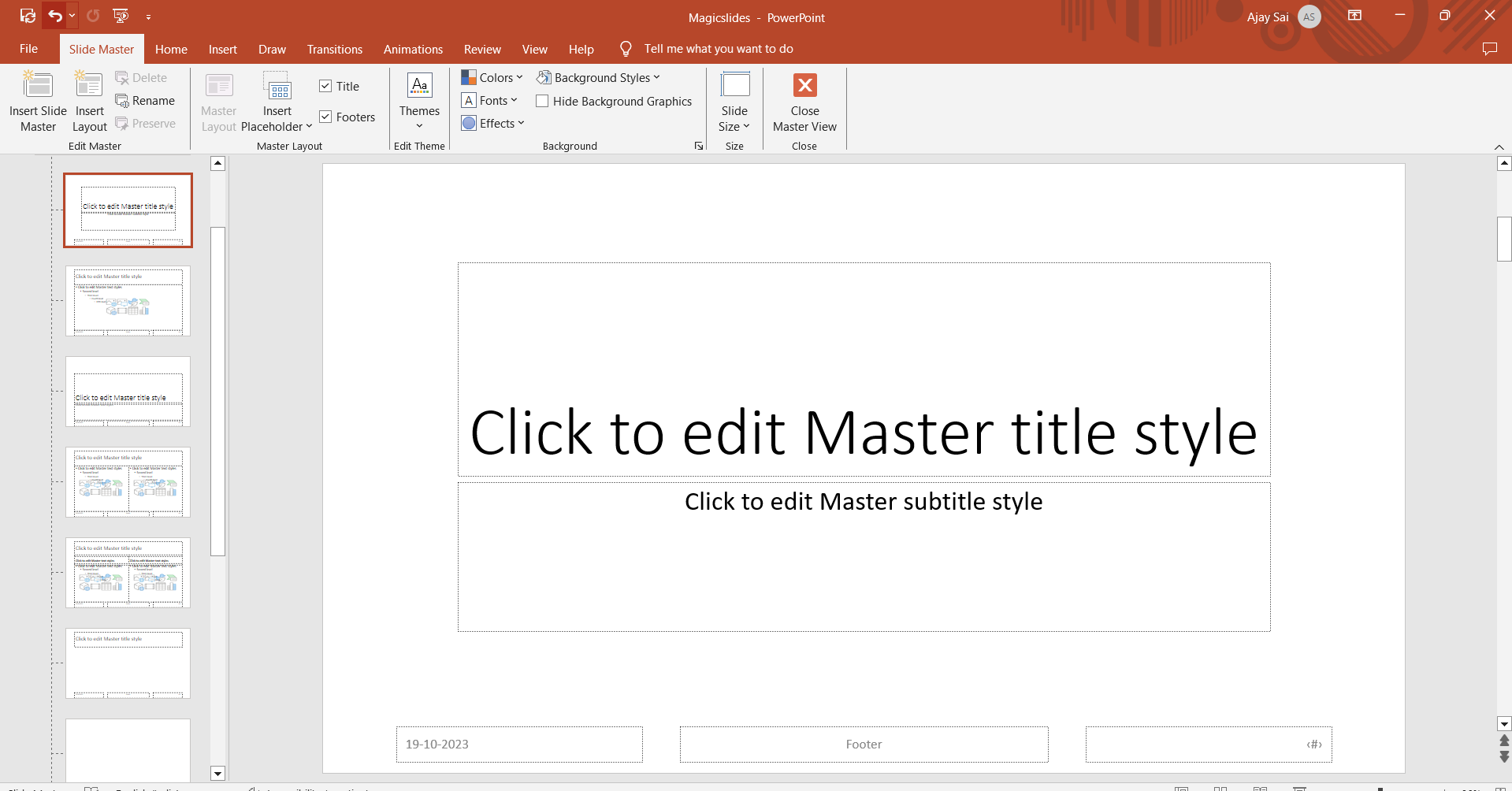
Step 4: Select the Slide Master:
In the left-hand pane, you'll see a list of slide layouts and the Slide Master. Click on the topmost slide, which represents the Slide Master. This is where you can make changes that will apply to all slides in your presentation.
Step 5: Select the Text Placeholder:
In the Slide Master view, click on the text placeholder where you want to change the default font. Common placeholders are Title, Subtitle, and the content placeholders.
Step 6: Change the Font:
After selecting the placeholder, go to the "Home" tab in the PowerPoint ribbon.
In the Font group, click the dropdown menu next to the font name and choose your preferred font from the list.
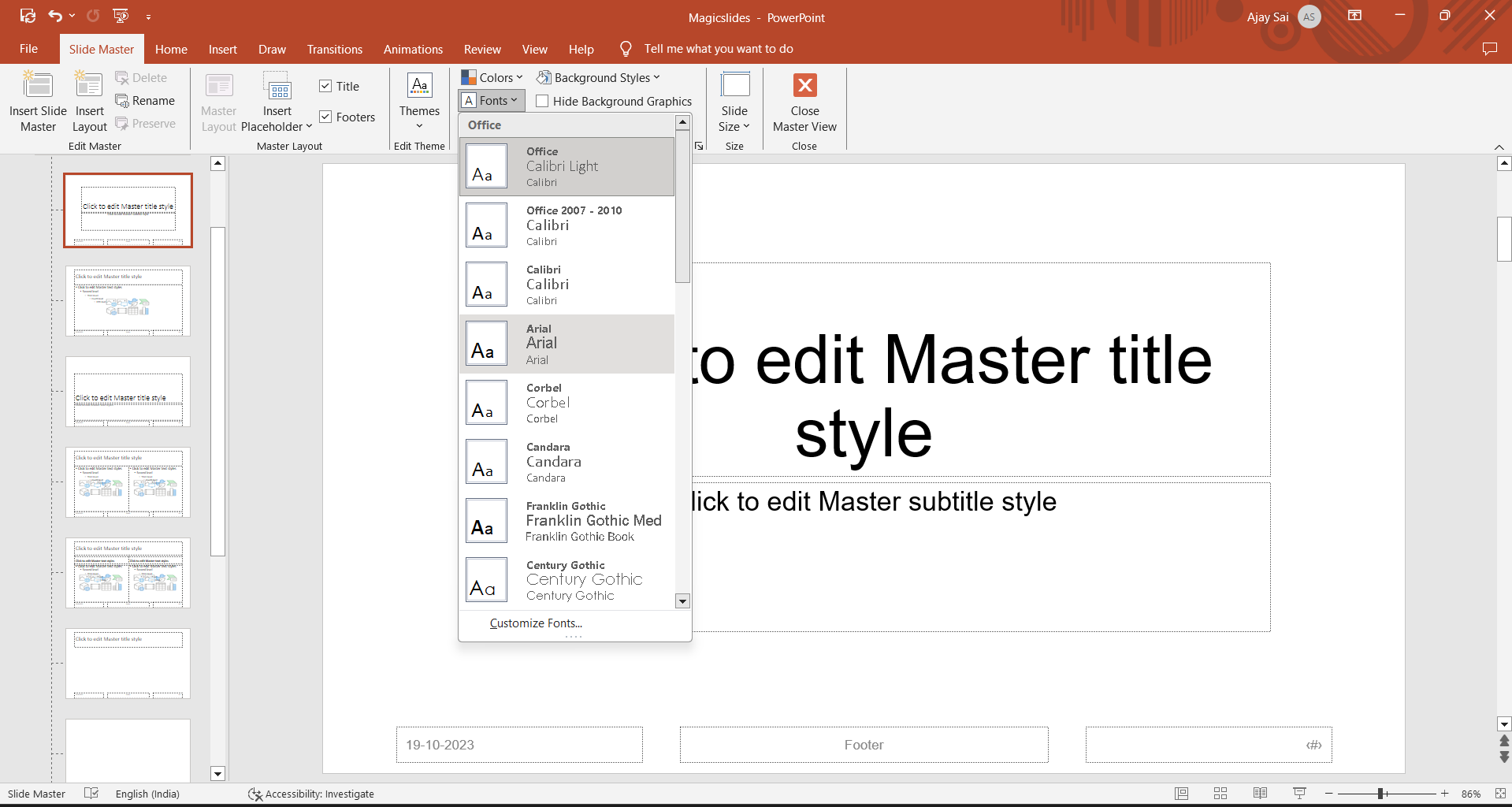
Now that you’ve learnt to upload additional fonts to your slides, you may be interested in knowing how to change the default font in PowerPoint.
Step 7: Apply Changes to All Slides:
Once you've made your desired changes, they will be applied to all slides and layouts in your presentation.
Step 8: Save Your Presentation:
Don't forget to save your PowerPoint presentation to keep your changes.
Conclusion:
Changing the default font in PowerPoint through the Slide Master view allows you to ensure consistency and maintain your preferred font style throughout your presentation.
By following the steps outlined in this guide, you can easily customize the default font to match your specific design and formatting preferences.
Tired of making presentations? what if we tell you you can make a presentation with just a prompt, convert YouTube videos to PPTs, convert website content to PPTs? Yes! checkout magicslides.app that does all and enjoy the free credits to make presentations in seconds.
FAQs are here to help!
How can I change the default font in PowerPoint?
You can change the default font by modifying the Slide Master, which will apply your chosen font to all slides in your presentation.
Will changing the default font affect existing text in my slides?
Yes, changing the default font through the Slide Master will update the font across all existing slides that use the default text placeholders.
Can I set different default fonts for different sections of my presentation?
Yes, you can create multiple slide layouts within the Slide Master, each with its own default font, to apply different fonts to various sections of your presentation.


