How to change master slide in PowerPoint


Master slides in PowerPoint streamline design. Follow these steps to effortlessly change your presentation’s layout
Master slides in PowerPoint are like templates that control the overall layout and design of your presentation. Changing the master slide can help you apply consistent styles, fonts, and elements across multiple slides in your presentation. In this guide, we'll explore a step-by-step process to help you change the master slide in PowerPoint, allowing you to customize your presentation with ease.
How to change master slide in PowerPoint
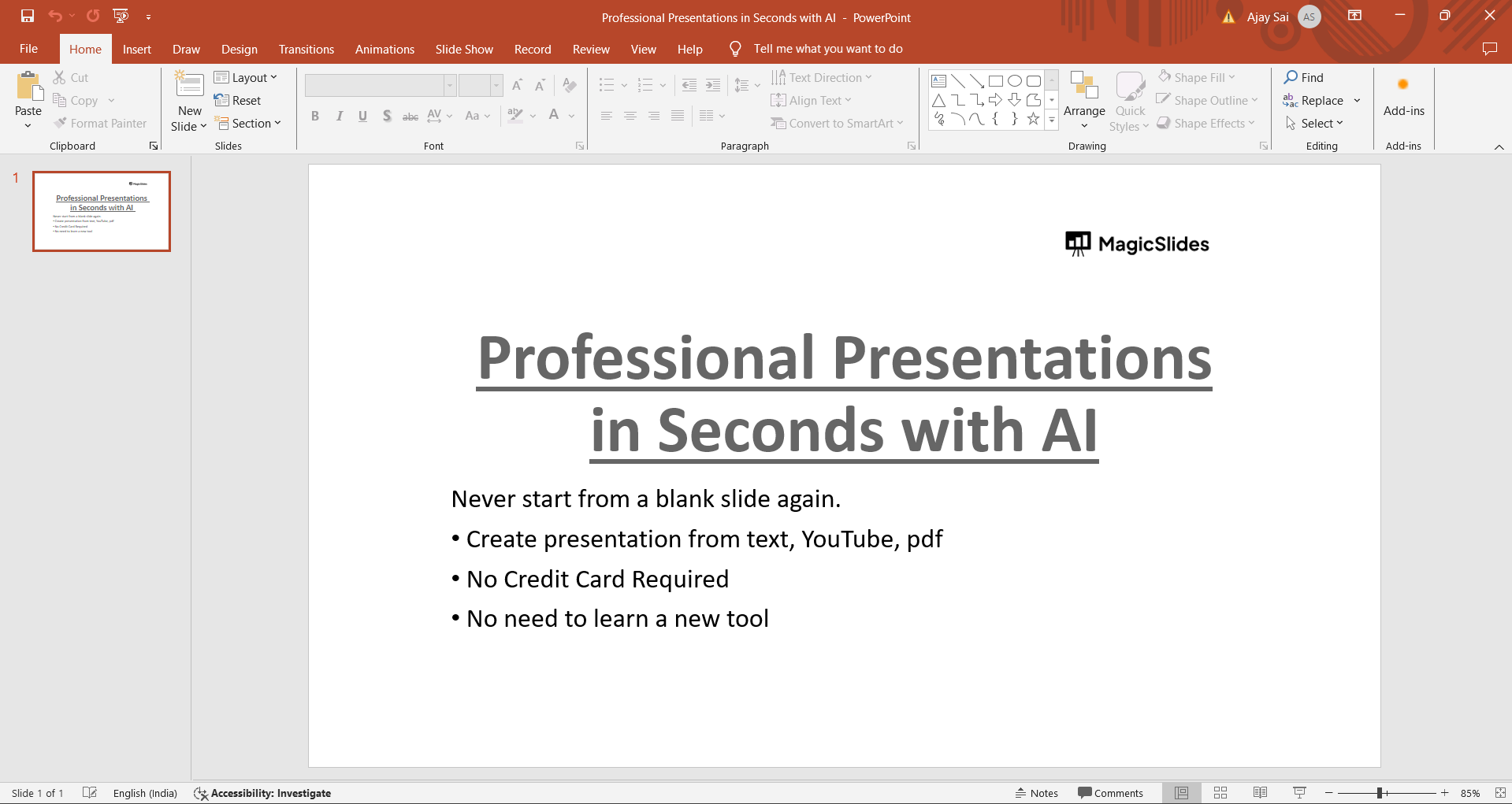
Step 1: Open Your PowerPoint Presentation
Begin by opening the PowerPoint presentation that you want to edit. Ensure that you are in the slide view where you want to make changes to the master slide.
Step 2: Access the Slide Master View
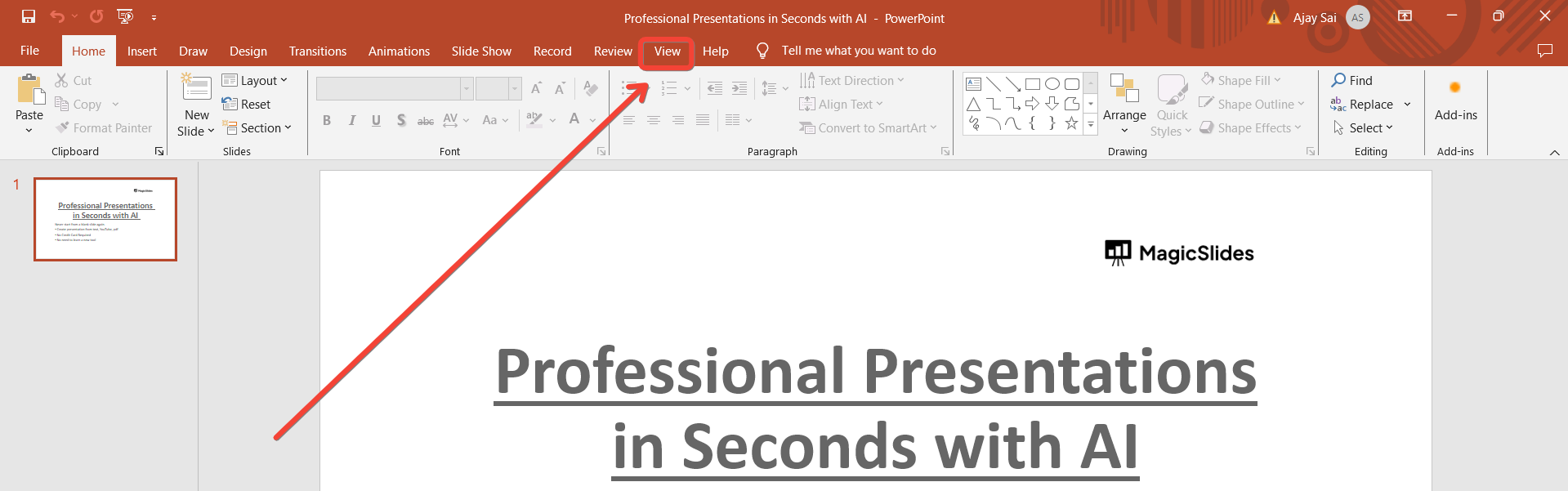
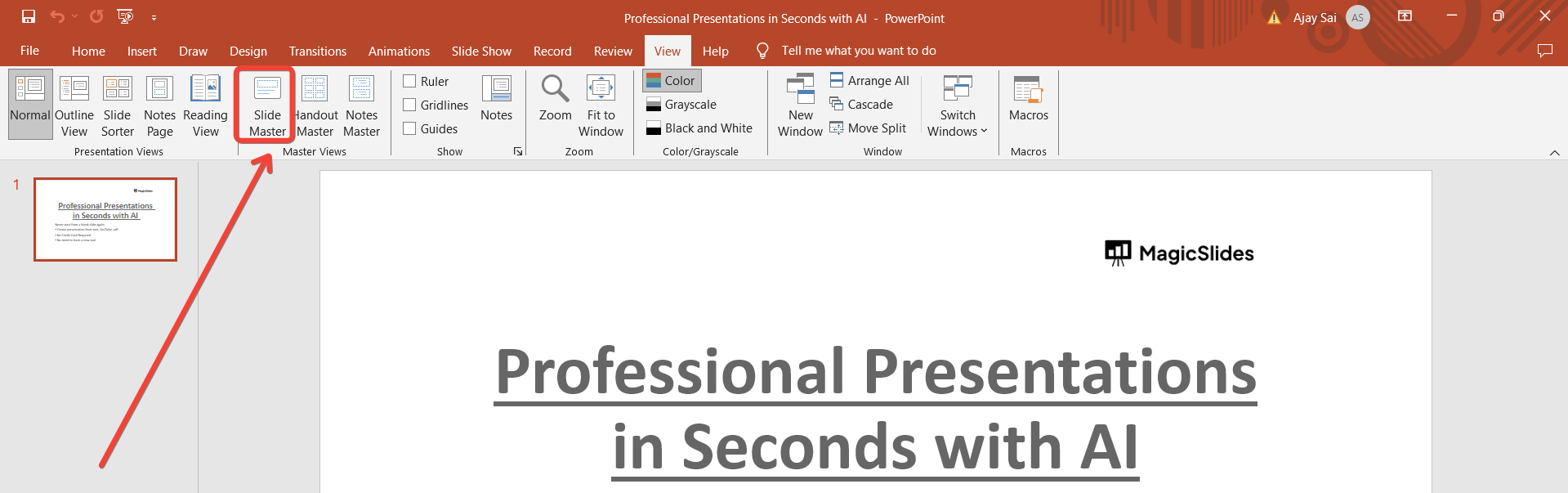
Navigate to the "View" tab on the PowerPoint ribbon. In the "Master Views" group, click on "Slide Master." This action will switch your view to the Slide Master view, where you can see and edit the master slide layouts.
Step 3: Make Changes to the Master Slide
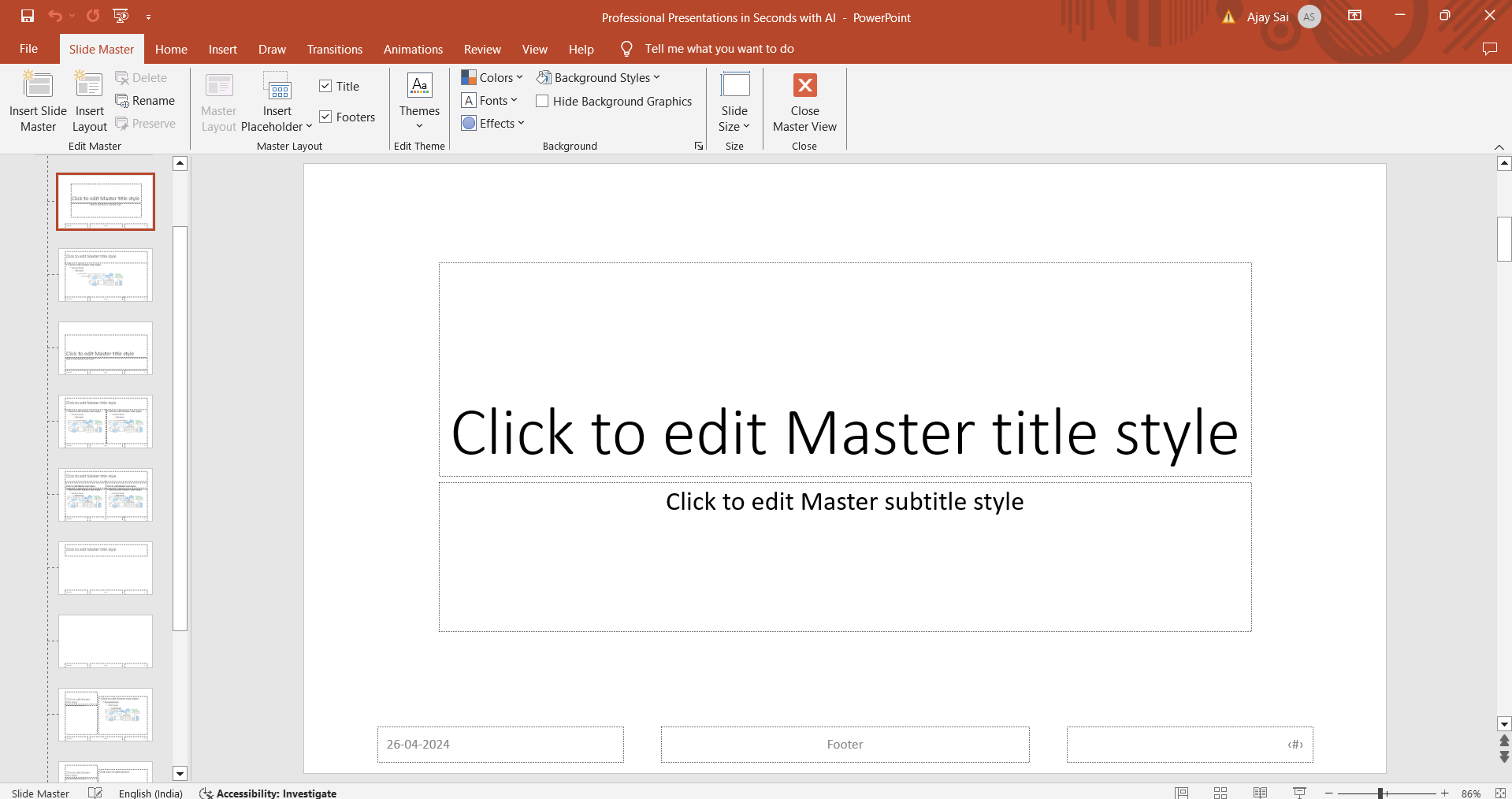
In the Slide Master view, you can make various changes to the master slide layout, such as adding placeholders, adjusting backgrounds, changing fonts, and more. Click on the desired master slide layout to make changes to it.
Step 4: Apply Changes to All Slides
Any changes you make in the Slide Master view will be applied to all slides based on that master slide. This ensures consistency throughout your presentation. You can customize different master slide layouts as needed.
Step 5: Exit Slide Master View
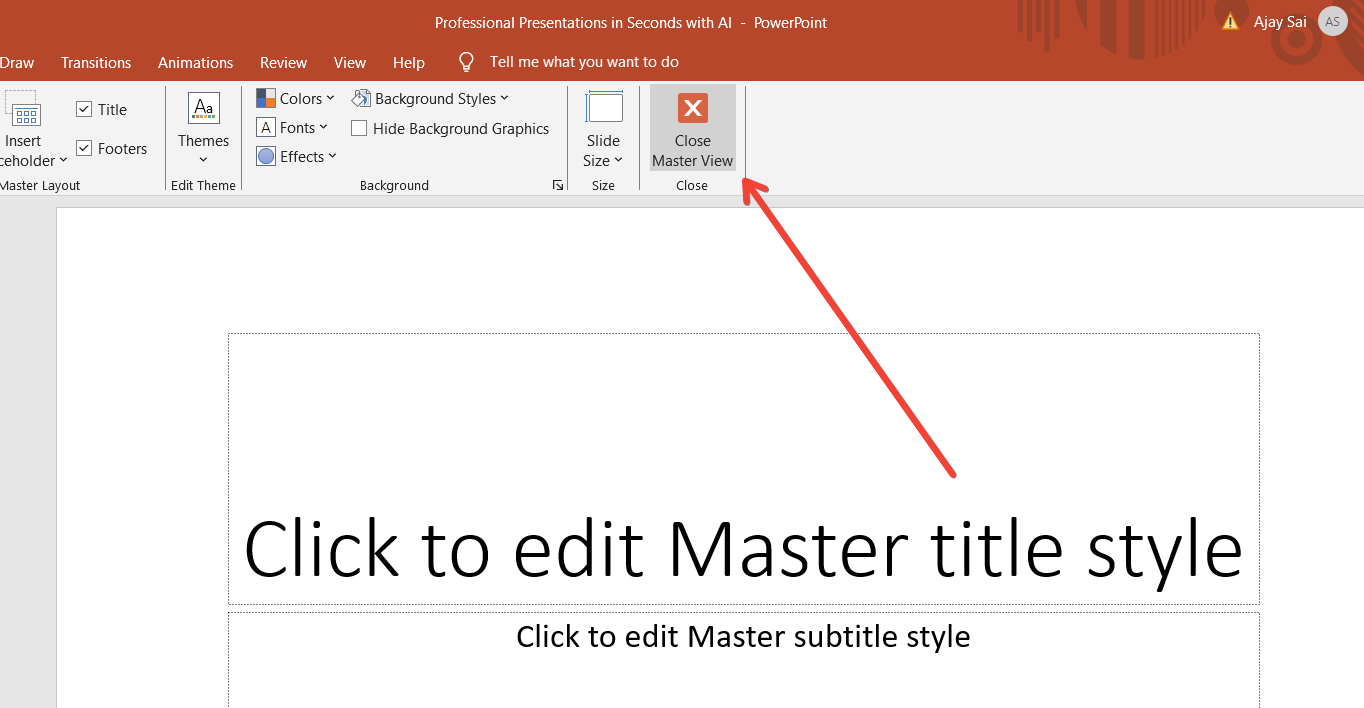
Once you've made the necessary changes to the master slide, exit the Slide Master view. To do this, simply click on the "Close Master View" button in the Slide Master tab or click on the "Normal" button in the status bar at the bottom of the window.
Conclusion:
Changing the master slide in PowerPoint gives you greater control over the overall design and layout of your presentation. By following this step-by-step guide, you can easily access and modify master slides to create a cohesive and professional-looking presentation. Whether you want to tweak the background, add logos, or adjust placeholders, the Slide Master view provides a centralized place to make these changes, ensuring consistency across all slides. Take advantage of PowerPoint's master slide feature to enhance the visual appeal and effectiveness of your presentations.
→ Don’t let your presentations go missed, know the simple method to see your unsaved presentations with this simple tutorial: https://www.magicslides.app/blog/how-to-see-unsaved-powerpoint-files
Frequently Asked Questions:
Why should I change the master slide in PowerPoint?
Changing the master slide allows you to maintain consistency and apply uniform design elements throughout your presentation.
Can I customize individual slides after changing the master slide?
Yes, you can still customize individual slides even after changing the master slide. The master slide sets the foundation, but you have flexibility.
Will changing the master slide affect existing content?
Changing the master slide generally doesn't affect existing content on slides. However, formatting changes like font styles or placeholders may impact content.
Can I revert to the original master slide layout if needed?
Yes, you can always revert to the original master slide layout. Simply go back to the Slide Master view and make adjustments as necessary.


