How to see unsaved PowerPoint files


Learn how to rescue your unsaved PowerPoint files and avoid losing valuable work.
Accidents happen, and sometimes we forget to save our work in PowerPoint before closing the application. Fortunately, PowerPoint often saves unsaved files automatically, allowing you to recover your progress. In this guide, we'll explore how to find and recover unsaved PowerPoint files, ensuring that your hard work is not lost.
How to see unsaved PowerPoint files
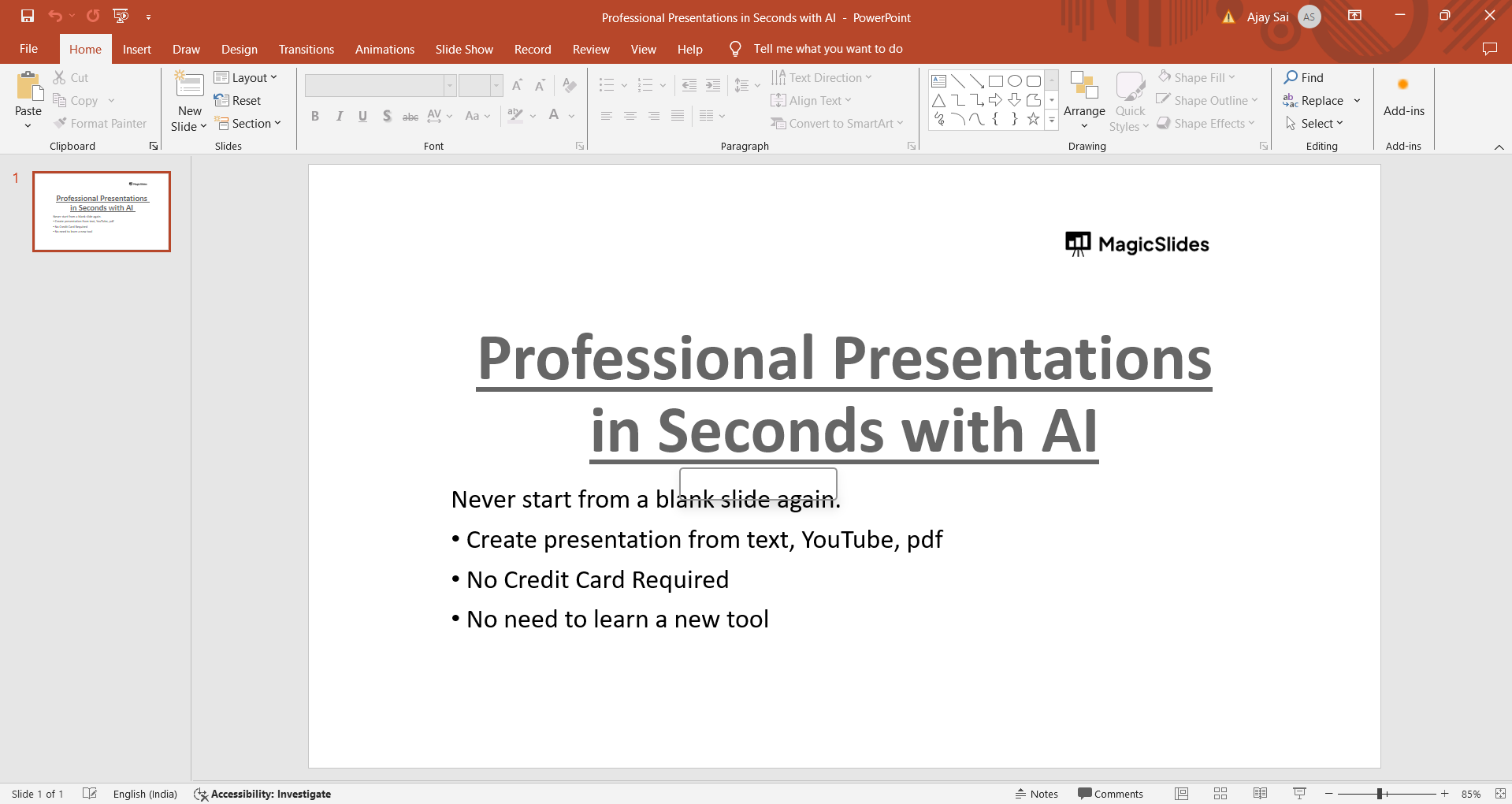
Step 1: Open PowerPoint
Begin by opening Microsoft PowerPoint on your computer. Even if you closed PowerPoint without saving, there's a chance that your unsaved work is recoverable.
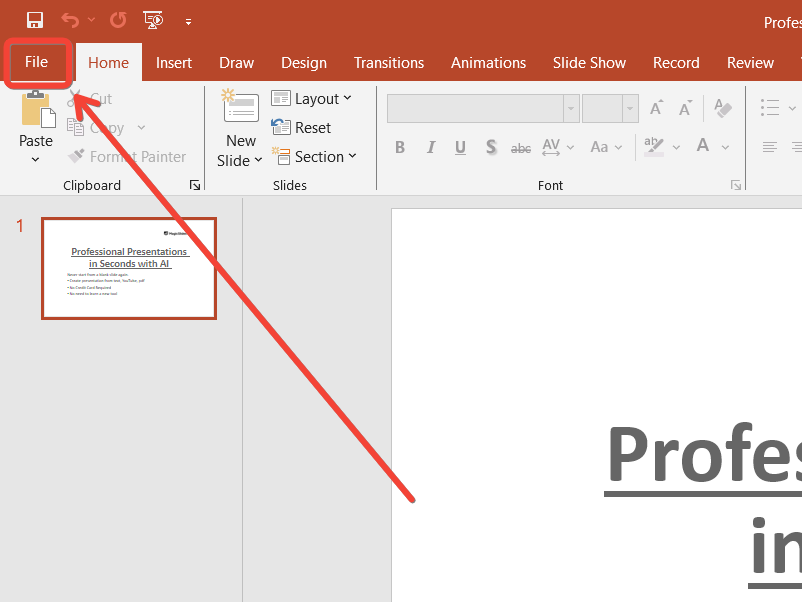
Step 2: Click on "File"
Once PowerPoint is open, click on the "File" tab in the top left corner of the window. This will take you to the File menu.
Step 3: Select "Open"
In the File menu, select "Open" from the options on the left-hand side. This will open the Open dialog box, where you can browse for files.

Step 4: Navigate to "Recent"
Within the Open dialog box, you'll see a list of recent presentations. Scroll down to the bottom of this list.
Step 5: Look for "Recover Unsaved Presentations"
At the bottom of the Recent Presentations list, you should see an option that says "Recover Unsaved Presentations." Click on this option.
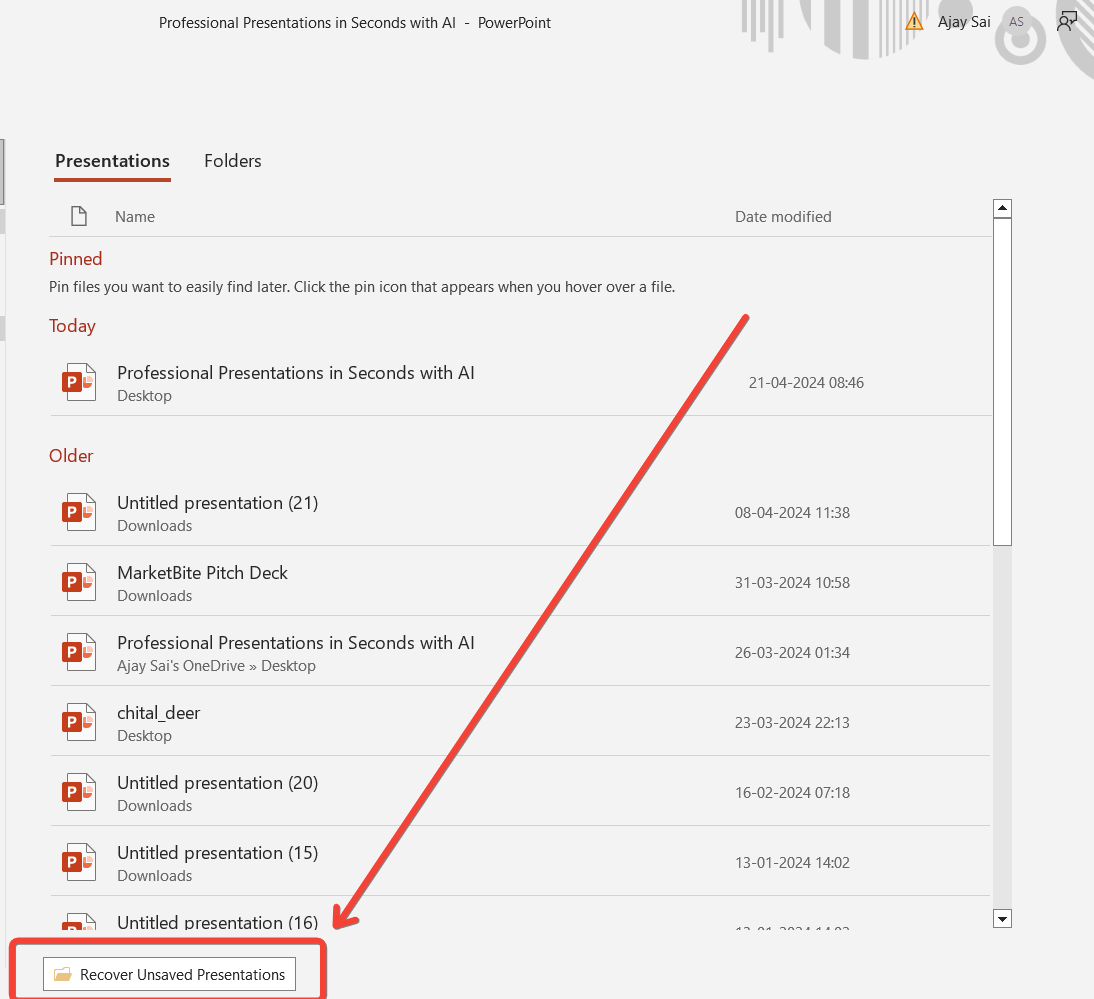
Step 6: Choose the Unsaved File
A new window will open, showing a list of unsaved presentations. These are typically named "Presentation1," "Presentation2," and so on. Select the file that you want to recover.

Step 7: Save the Recovered File
After selecting the unsaved file, PowerPoint will open it for you. Take this opportunity to save the file with a meaningful name and location on your computer to prevent future loss.
Conclusion:
Losing unsaved work can be frustrating, but PowerPoint provides a built-in feature to help you recover your progress. By following these steps, you can easily access and recover unsaved PowerPoint files, ensuring that your presentations are safeguarded against accidental closures or system crashes. Make it a habit to save your work regularly, but rest assured that PowerPoint has your back with its recovery options when needed.
→ Let not your files be missed the next time, learn the simplest way to save your PowerPoint files with this quick tutorial: https://www.magicslides.app/blog/how-to-save-powerpoint-template
Frequently Asked Questions:
Does PowerPoint save unsaved files automatically?
PowerPoint often auto-saves unsaved files as temporary versions, accessible through the "Recover Unsaved Presentations" feature.
Can I recover an unsaved PowerPoint file if I didn't use the "Recover Unsaved Presentations" feature?
If you didn't use the feature, recovery options depend on system settings and may not always be possible.
Where are unsaved PowerPoint files stored on my computer?
Unsaved files are usually stored in a temporary location determined by your operating system and PowerPoint settings.
How frequently does PowerPoint auto-save unsaved files?
PowerPoint auto-saves unsaved files periodically, but the frequency can vary based on system settings and usage.


