How to change size of PowerPoint Shape without changing Shape


Resize shapes in PowerPoint easily while keeping their proportions intact for polished and professional presentations
How to Change the Size of a PowerPoint Shape Without Altering Its Proportions
Shapes are an essential element in PowerPoint presentations, allowing you to highlight ideas and organize content.
Adjusting the size of a shape while maintaining its original proportions ensures your design remains consistent and visually appealing.
Follow these step-by-step instructions to resize shapes accurately without distorting them.
Steps to Change the Size of a PowerPoint Shape Without Changing Its Proportions
Step 1: Open Your PowerPoint Presentation
Launch PowerPoint and open the presentation containing the shape you want to resize.
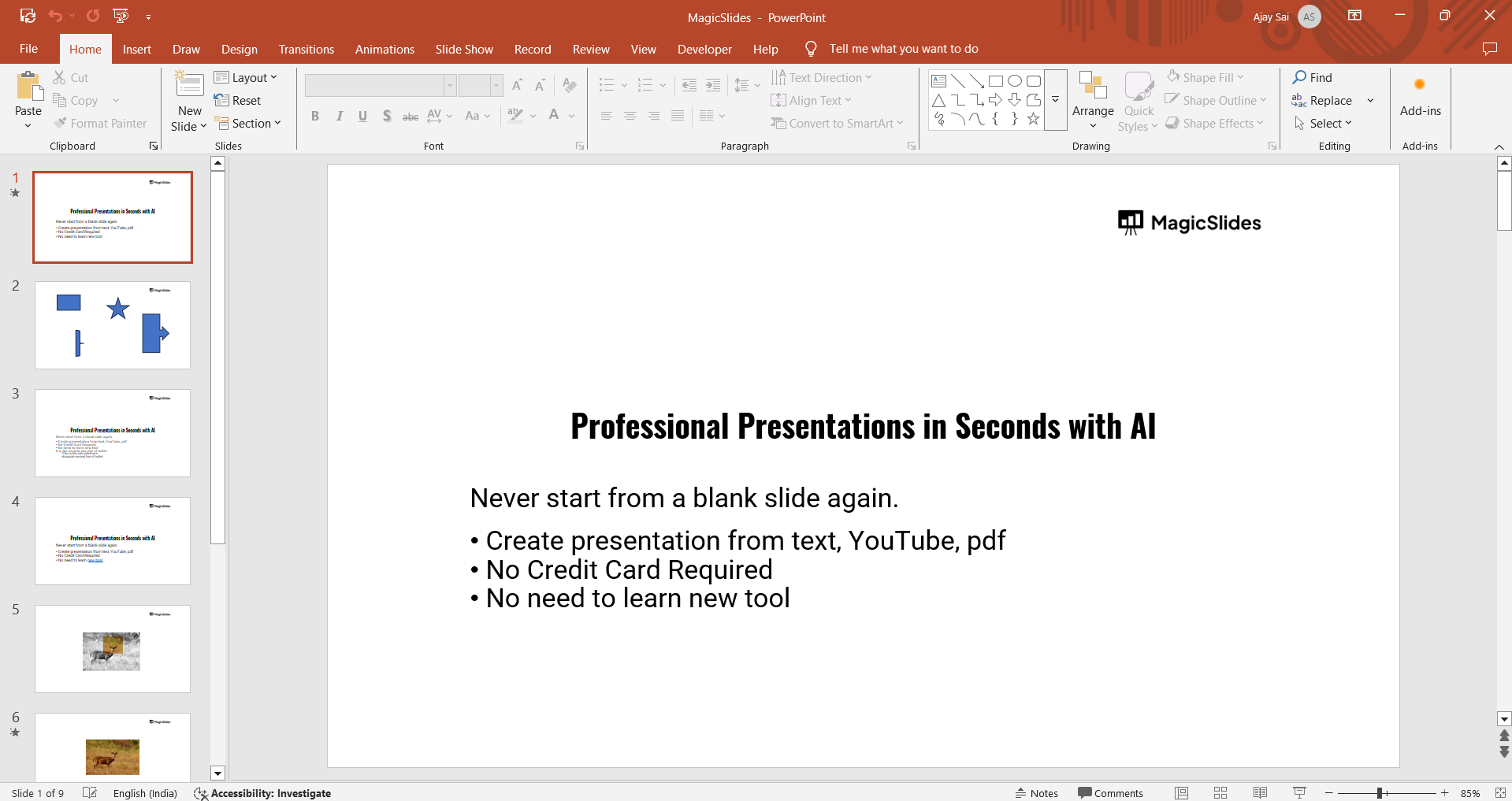
Navigate to the slide with the shape and select it.
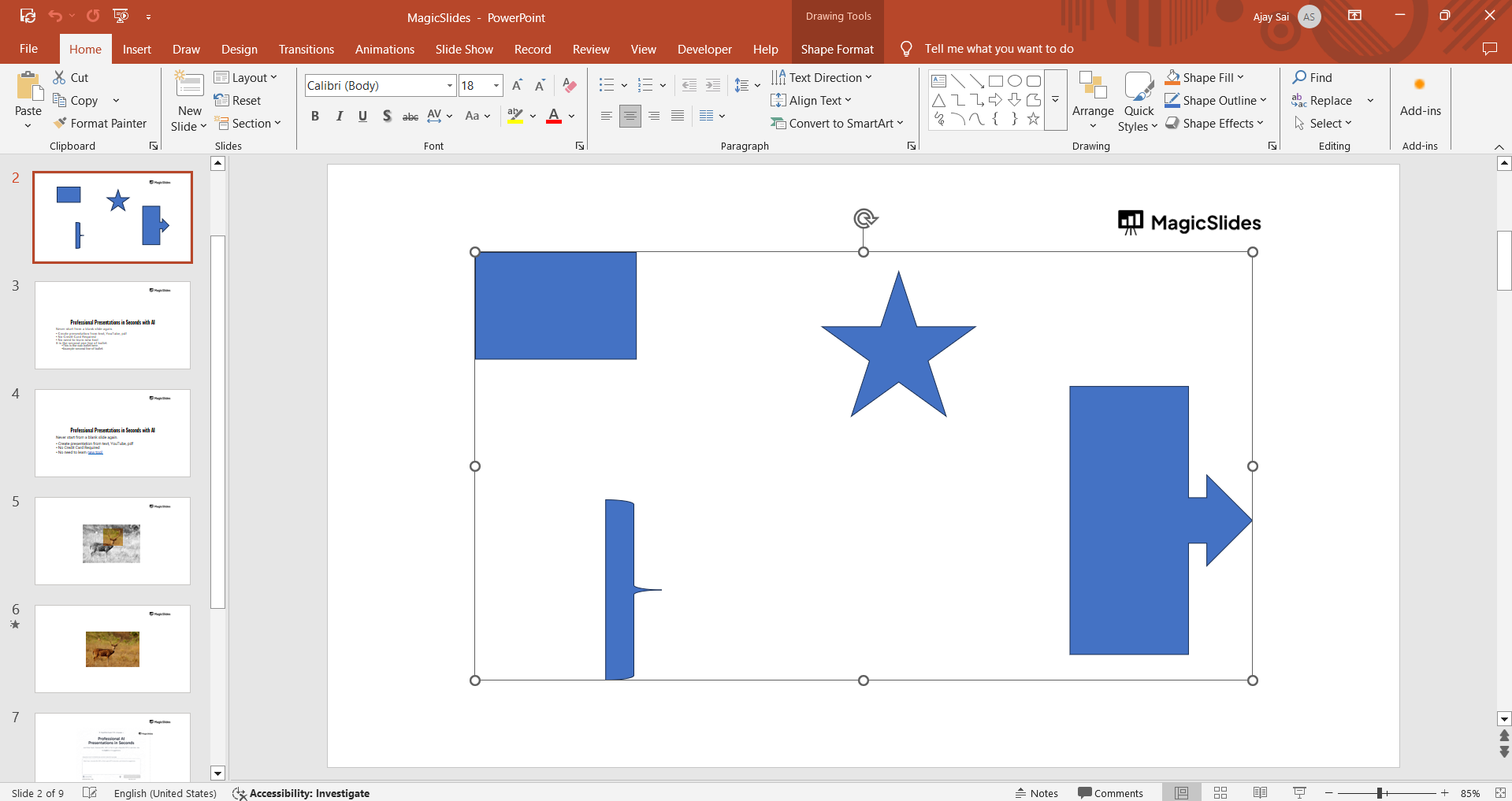
Step 2: Use the Corner Handles for Resizing
Click on the shape to activate its selection box, revealing resizing handles around it.
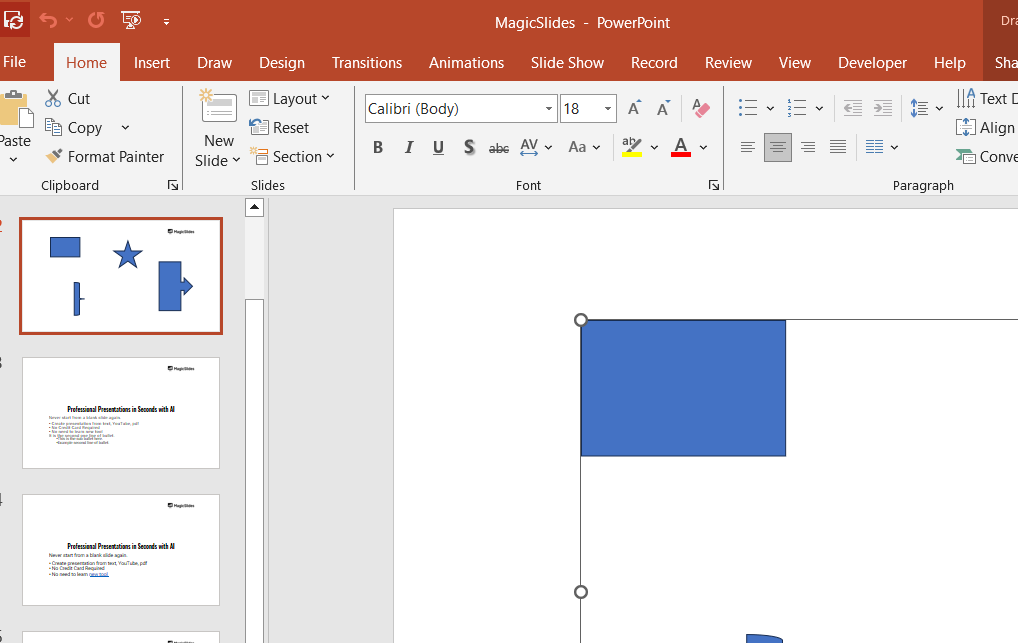
Drag one of the corner handles while holding the Shift key. This ensures the shape’s proportions remain unchanged.
Step 3: Adjust Shape Size with the Format Options
Go to the Shape Format tab on the toolbar.
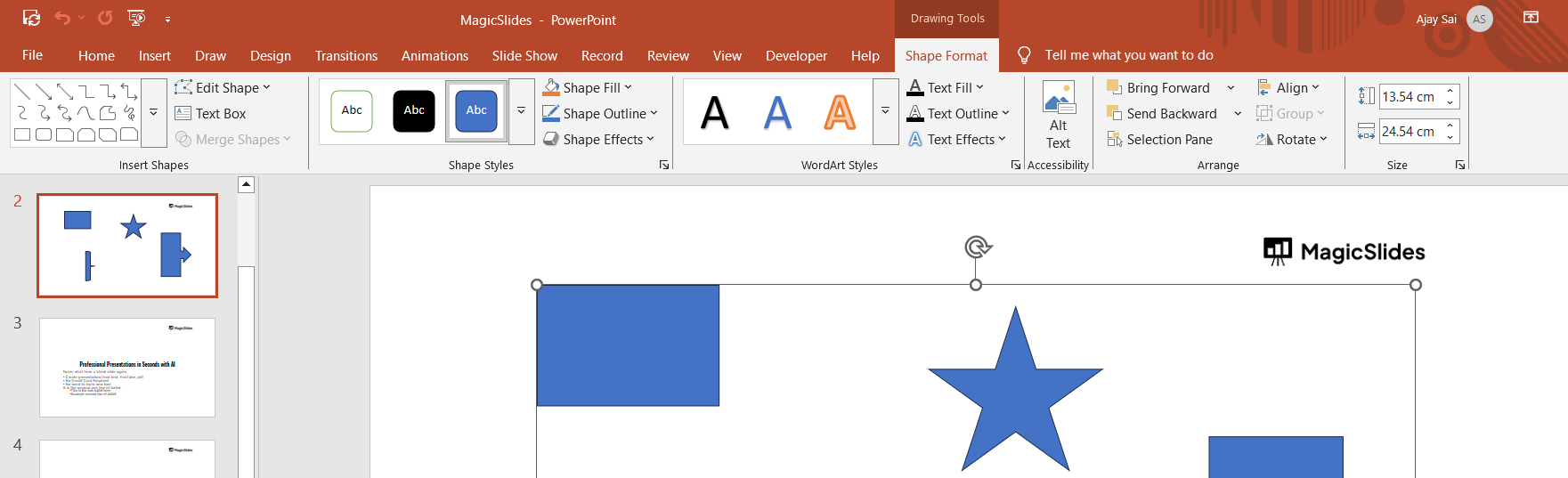
Locate the Size group, where you can enter specific height and width dimensions.
Ensure the Lock Aspect Ratio option is checked to maintain proportions automatically.
Step 4: Verify the Changes
Check the resized shape to ensure it fits well within your slide layout. Adjust the positioning if needed to align it with other elements. After resizing shapes in PowerPoint, explore how to change slide size in PowerPoint to customize your presentations further.
Conclusion
Resizing shapes in PowerPoint without altering their proportions is a straightforward yet vital skill for creating polished presentations.
By following these steps, you can ensure your shapes retain their original look while perfectly fitting your design.
Mastering this technique will enhance your ability to craft visually balanced slides.
FAQs on Resizing Shapes in PowerPoint Without Changing Proportions
Can I resize multiple shapes simultaneously without changing their proportions?
Yes, select all the shapes, hold the Shift key, and drag a corner handle to resize them proportionally.
Why doesn’t my shape retain its proportions when I resize it?
Ensure you’re dragging from a corner handle and holding the Shift key or using the Lock Aspect Ratio option.
Is this feature available in all versions of PowerPoint?
Yes, maintaining proportions while resizing shapes is supported in most versions of PowerPoint.
By maintaining your shapes’ proportions, your slides will look professional and maintain consistent visual appeal.


