How to change table border color in PowerPoint


Learn how to customize table borders in PowerPoint by changing the border color for enhanced presentation.
Customizing table borders in PowerPoint can significantly enhance the appearance of your slides, making your data stand out.
Changing the border color of your tables is a simple yet effective way to align your presentation’s design with your branding or personal style.
In this blog post, we’ll guide you through the steps to change the table border color in PowerPoint, helping you create visually appealing and professional presentations.
How to Change Table Border Color in PowerPoint
Step 1: Open Your PowerPoint Presentation
Before you start customizing the table, ensure your presentation is ready:
- Launch PowerPoint: Open the PowerPoint application on your computer and either create a new presentation or open an existing one where you want to customize the table.
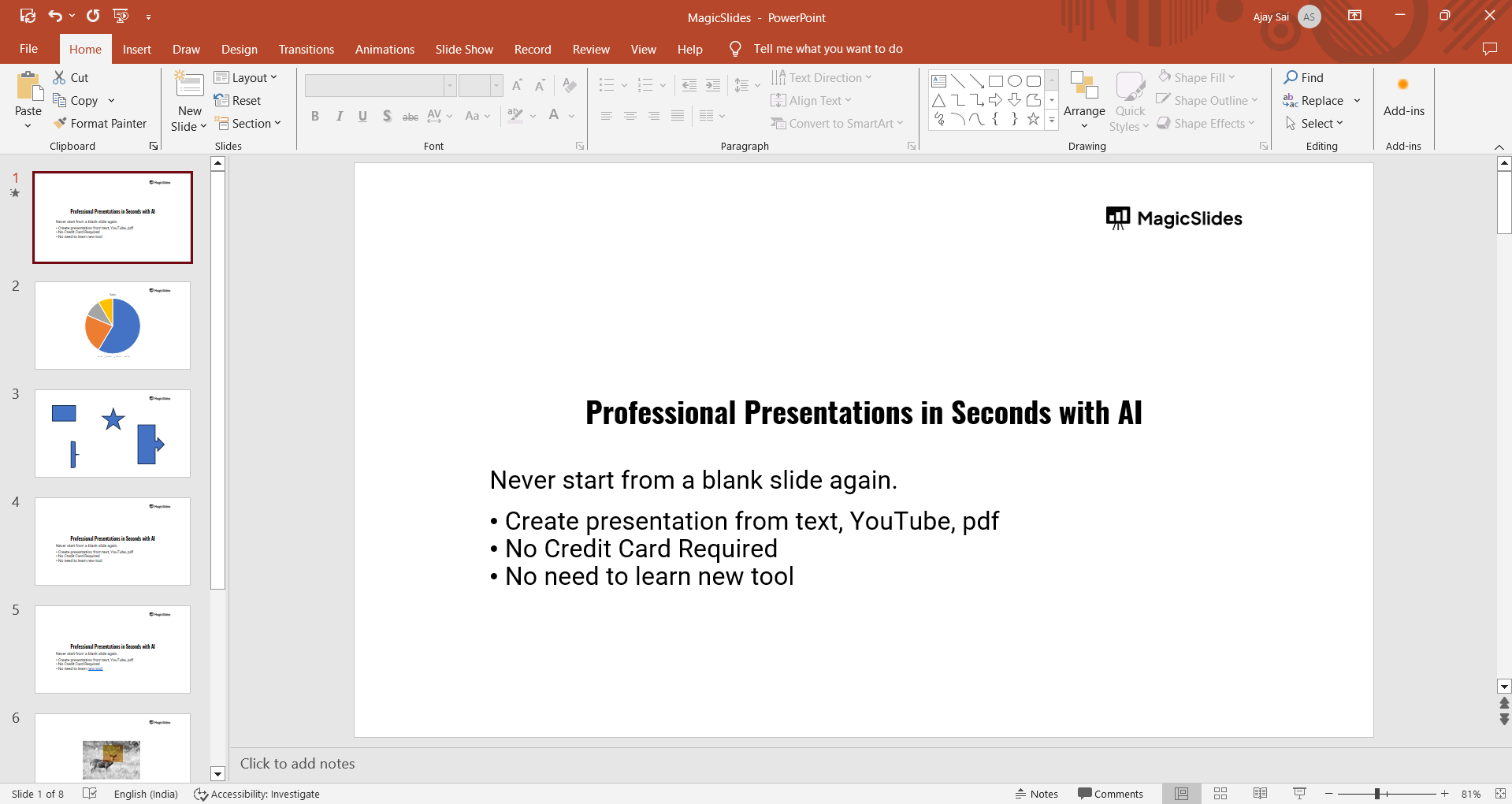
- Navigate to the Slide: Select the slide that contains the table you want to modify. If you haven’t created a table yet, you can insert one by going to the "Insert" tab and selecting "Table."
Step 2: Select the Table
To change the border color, you first need to select the table:
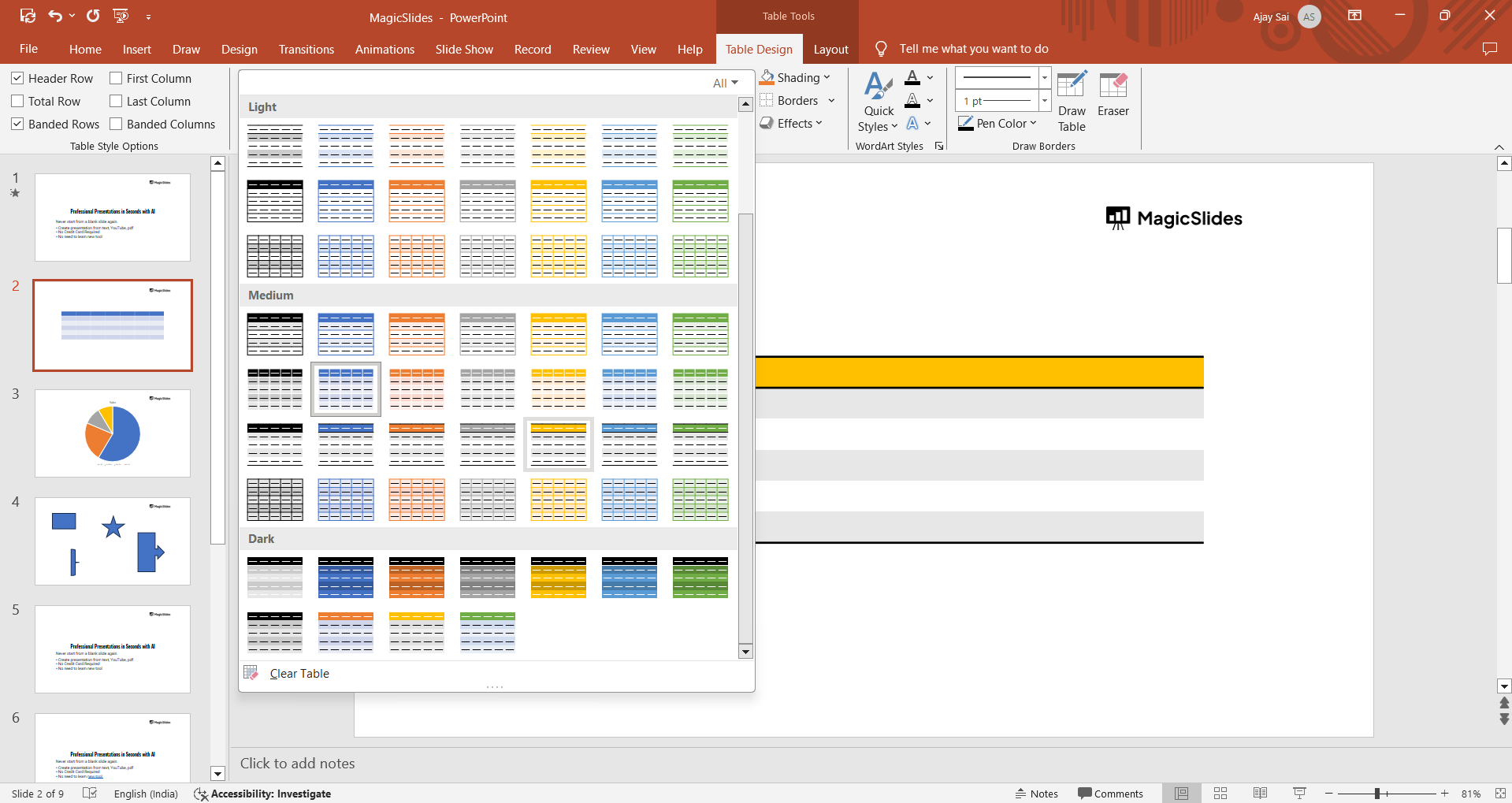
- Click on the Table: Click anywhere inside the table to select it. Once selected, the "Table Design" and "Layout" tabs will appear in the ribbon at the top of the screen.
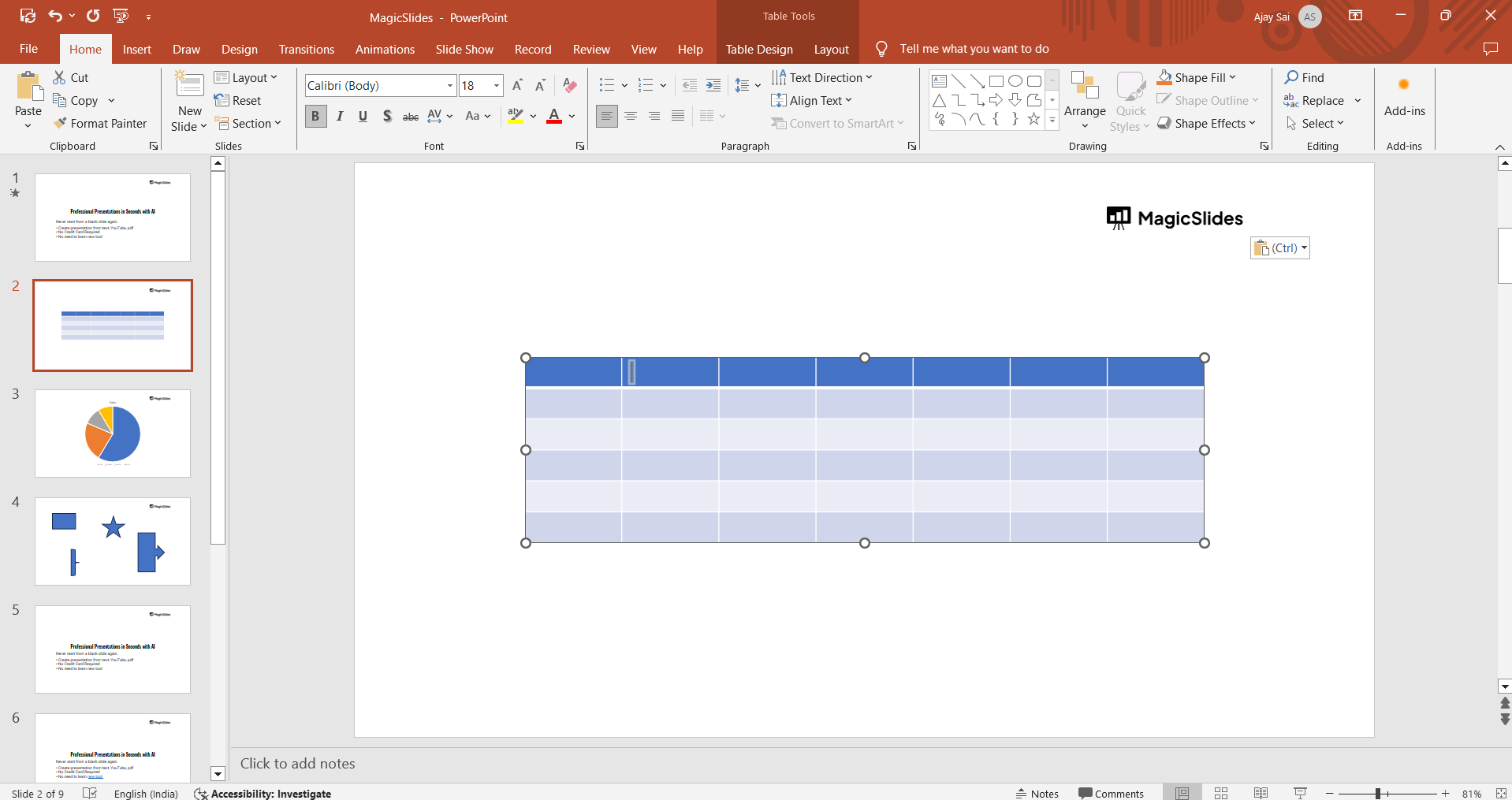
- Highlight Specific Cells (Optional): If you want to change the border color of specific cells within the table, click and drag to highlight those cells.
Step 3: Access Border Settings
PowerPoint allows you to customize the table borders through the "Table Design" tab:
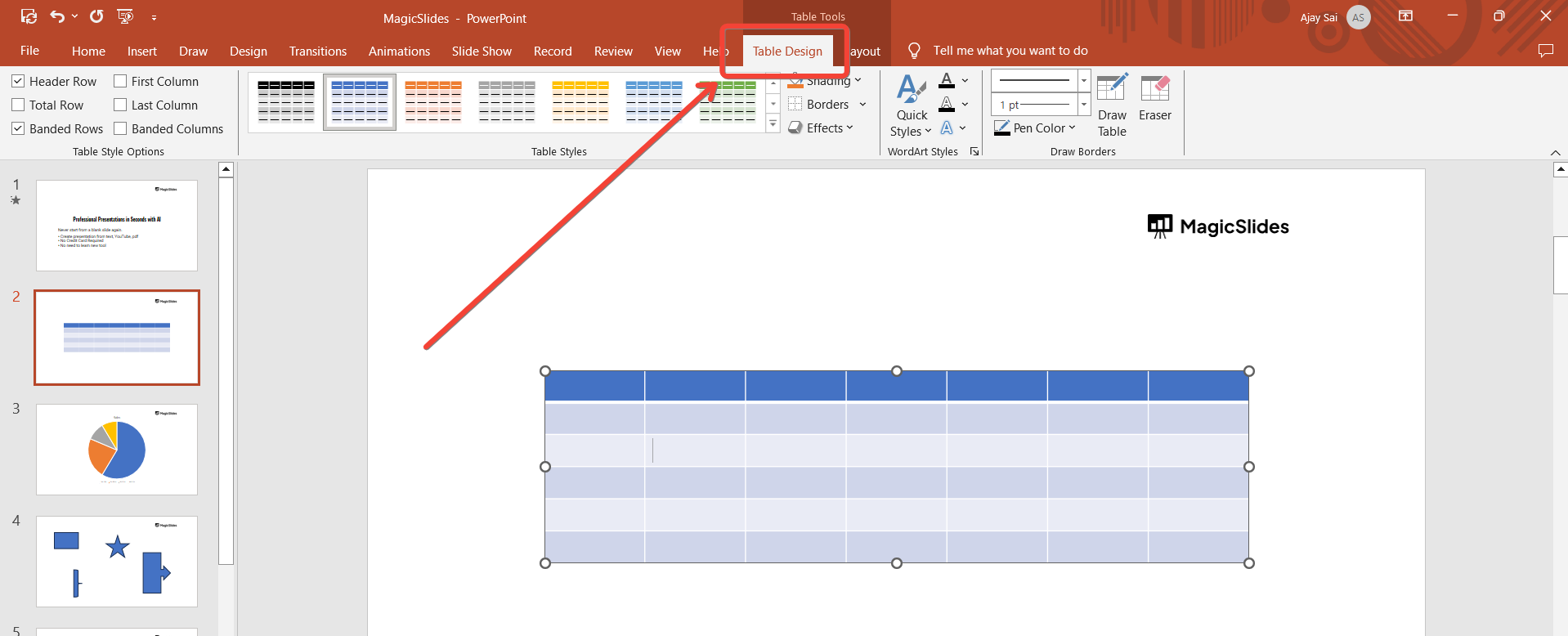
- Go to the Table Design Tab: With the table selected, click on the "Table Design" tab in the ribbon. This tab provides various options for customizing your table, including border styles and colors.
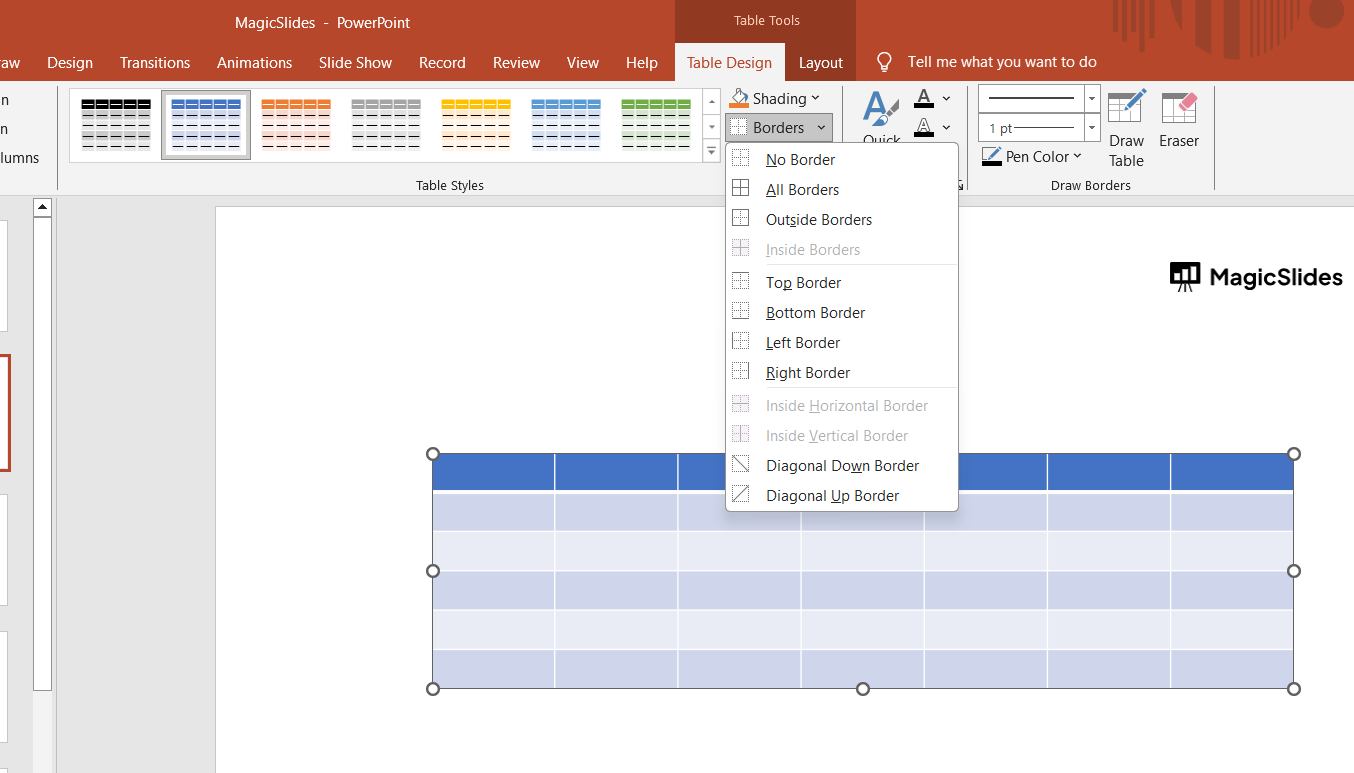
- Open Border Styles: In the "Table Design" tab, locate the "Borders" button in the "Draw Borders" group. Click on it to open a dropdown menu with border options.
PowerPoint's Slide Master controls all main slide tasks, ensuring consistency and efficiency in your presentation.
Step 4: Change the Border Color
Now that you have accessed the border settings, you can modify the border color.
Apply the Color: Once you’ve chosen your desired color, click on the border style you want to change (e.g., "All Borders," "Outside Borders," "Inside Borders") from the "Borders" dropdown menu.
The new color will be applied to the selected borders of your table.
Step 6: Review and Finalize Your Table
Save Your Presentation: Once you’re satisfied with the table customization, save your presentation to ensure your changes are not lost.
Conclusion
Changing the table border color in PowerPoint is a simple yet impactful way to enhance your presentation’s visual appeal. By following these steps, you can customize your table borders to match your presentation’s theme and ensure that your data is presented clearly and professionally.
Whether you’re aiming for a subtle change or a bold contrast, PowerPoint’s table design tools give you the flexibility to create tables that effectively support your message.
Tired of making presentations? what if we tell you you can make a presentation with just a prompt, convert YouTube videos to PPTs, convert website content to PPTs? Yes! checkout magicslides.app that does all and enjoy the free credits to make presentations in seconds.
FAQs can take you forward!
Can I change the border color of specific cells within a table?
Yes, you can select specific cells and change their border color individually.
Where do I find the option to change the table border color in PowerPoint?
You can change the table border color in the "Table Design" tab under the "Pen Color" option.
Can I adjust the thickness of the table borders in PowerPoint?
Yes, you can adjust the border thickness using the "Line Weight" option in the "Table Design" tab.


