How to clear Formatting in PowerPoint


Easily reset text to its default style in PowerPoint by clearing unwanted formatting for cleaner presentations
When working on a PowerPoint presentation, you may need to clear formatting that has been applied to text or elements in your slides.
Clearing formatting helps reset text to its default style, ensuring consistency and a cleaner design.
In this step-by-step guide, I will walk you through how to clear formatting in PowerPoint to simplify your slides and ensure a professional appearance.
How to Clear Formatting in PowerPoint: A Step-by-Step Guide
Step 1: Open Your PowerPoint Presentation
Start by opening your PowerPoint presentation. Navigate to the specific slide where you want to clear formatting from text or other elements.
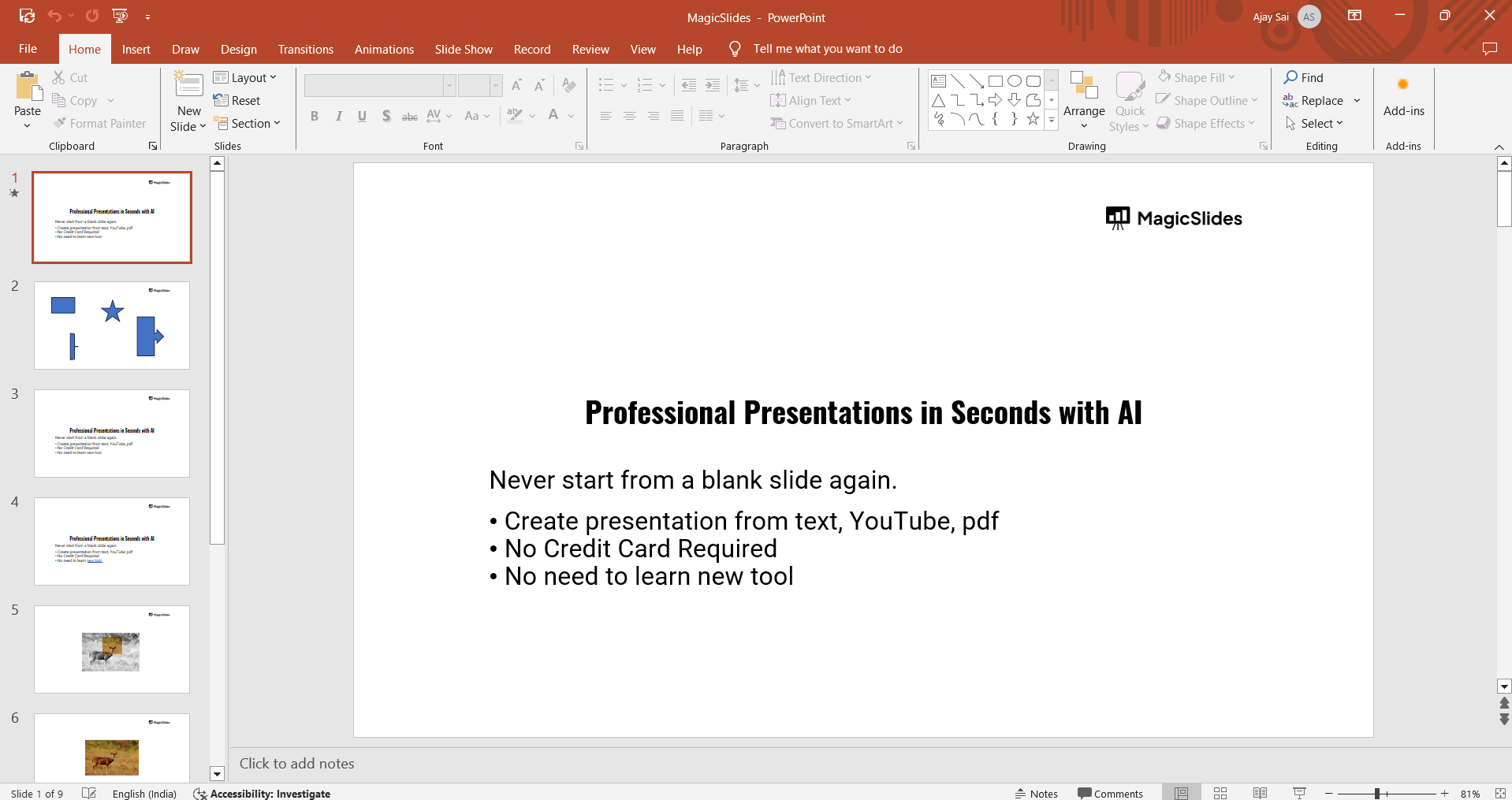
Make sure the content you want to adjust is selected or visible.
Step 2: Select the Text or Object
Highlight the text or click on the object from which you want to remove formatting.
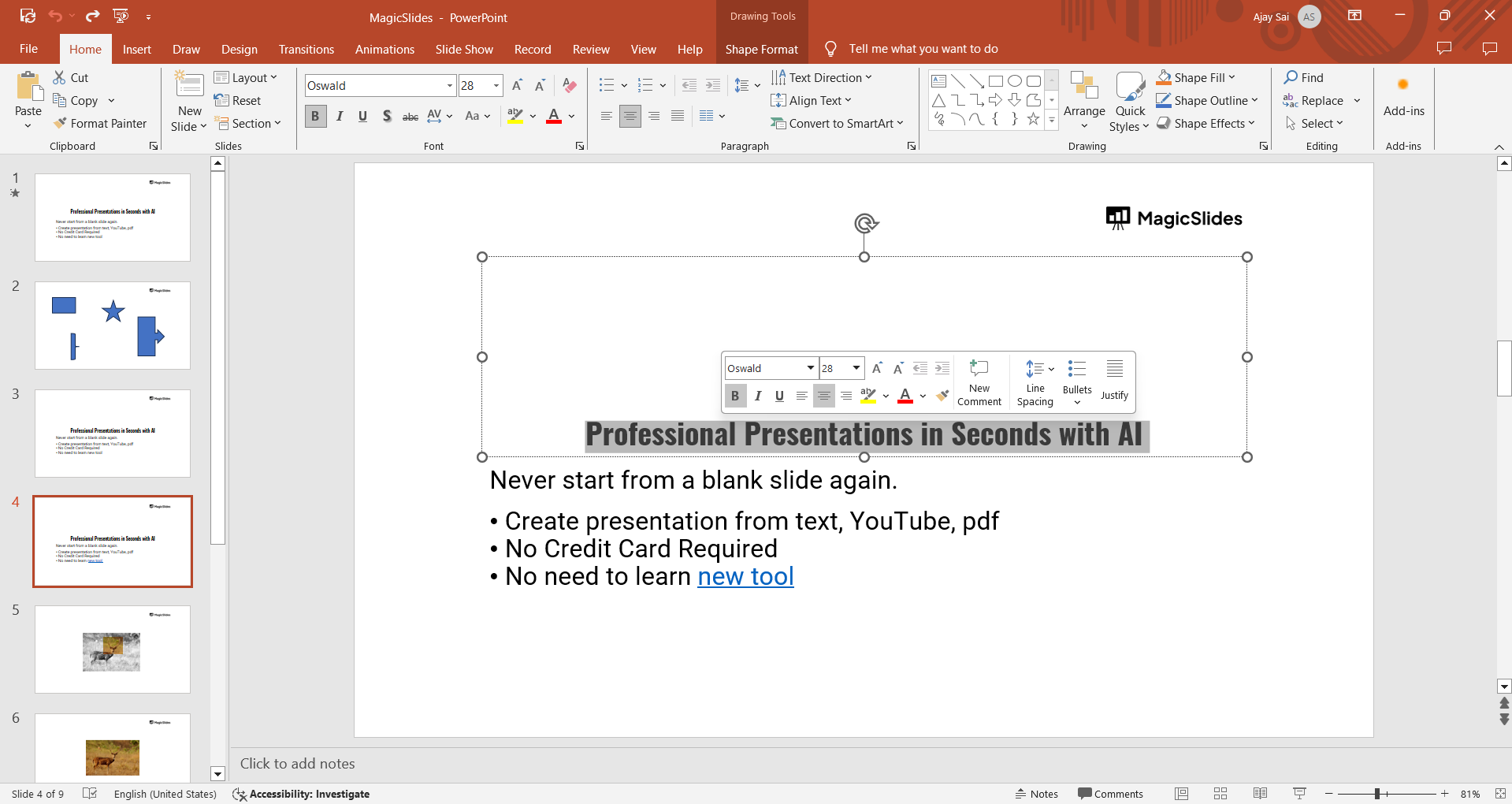
You can select a single word, sentence, paragraph, or even an entire text box depending on how much formatting you want to clear.
Step 3: Go to the "Home" Tab
After selecting the text, go to the "Home" tab located at the top of the PowerPoint window.
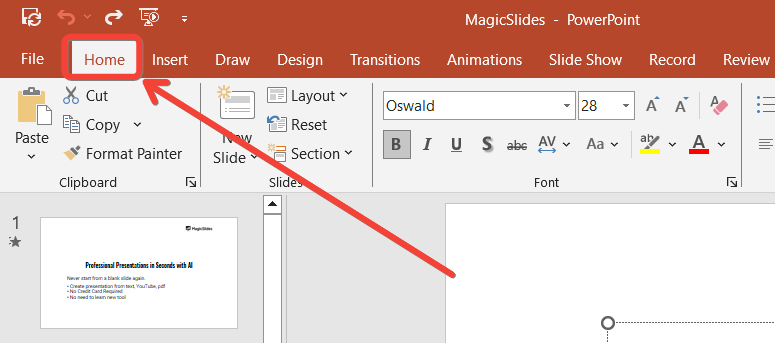
This tab contains most of the basic formatting and editing tools for your slides.
Step 4: Click on "Clear All Formatting" Icon
Within the "Home" tab, look for the "Clear All Formatting" icon, which is typically represented by an eraser symbol in the "Font" group.
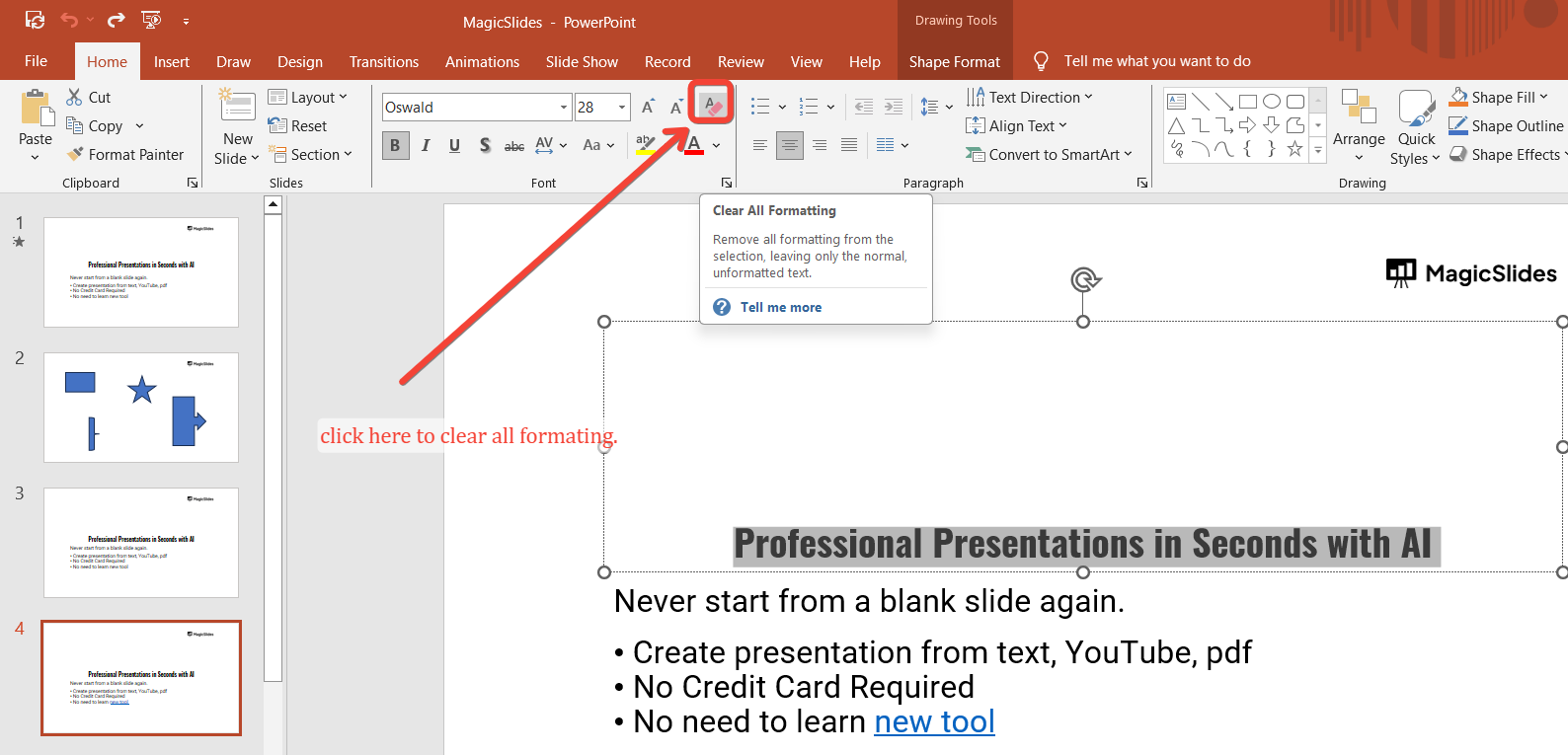
Click this button to instantly remove all formatting from the selected text or object.
This will reset the text to the default font, size, and style.
Step 5: Repeat as Needed
If there are other sections in your PowerPoint where formatting needs to be cleared, simply repeat the same steps.
This will help ensure your entire presentation maintains a clean, consistent style.
Once you've cleared formatting in PowerPoint, you might find it helpful to explore how to unstar a slide in PowerPoint, ensuring only key slides are highlighted.
Conclusion
Clearing formatting in PowerPoint is a quick and easy way to reset your text to its default settings, making your slides more consistent and professional.
By following these simple steps, you can ensure that unnecessary formatting doesn’t clutter your presentation, allowing your content to shine.
FAQs can come handy!
Does clearing formatting remove all text styles in PowerPoint?
Yes, clearing formatting removes bold, italics, colors, font changes, and other applied text styles, resetting everything to the default settings.
Can I undo clearing formatting if I made a mistake?
Yes, you can easily undo this action by pressing "Ctrl + Z" (Windows) or "Command + Z" (Mac) to restore the previous formatting.
Does clearing formatting affect the slide layout?
No, clearing formatting only affects the selected text or object. The overall slide layout and design elements remain unchanged.


