How to unstar a slide in PowerPoint


Unstarring a slide in PowerPoint helps organize your presentation and removes unnecessary highlights easily
In PowerPoint, starring a slide helps mark it as important or easily accessible, especially when collaborating or presenting.
However, if you no longer need the slide marked, you can easily "unstar" it. In this guide, I'll walk you through the simple process of un starring a slide in PowerPoint.
How to Unstar a Slide in PowerPoint: A Step-by-Step Guide
Step 1: Open Your PowerPoint Presentation
Start by launching PowerPoint and opening the presentation where the slide has been starred.
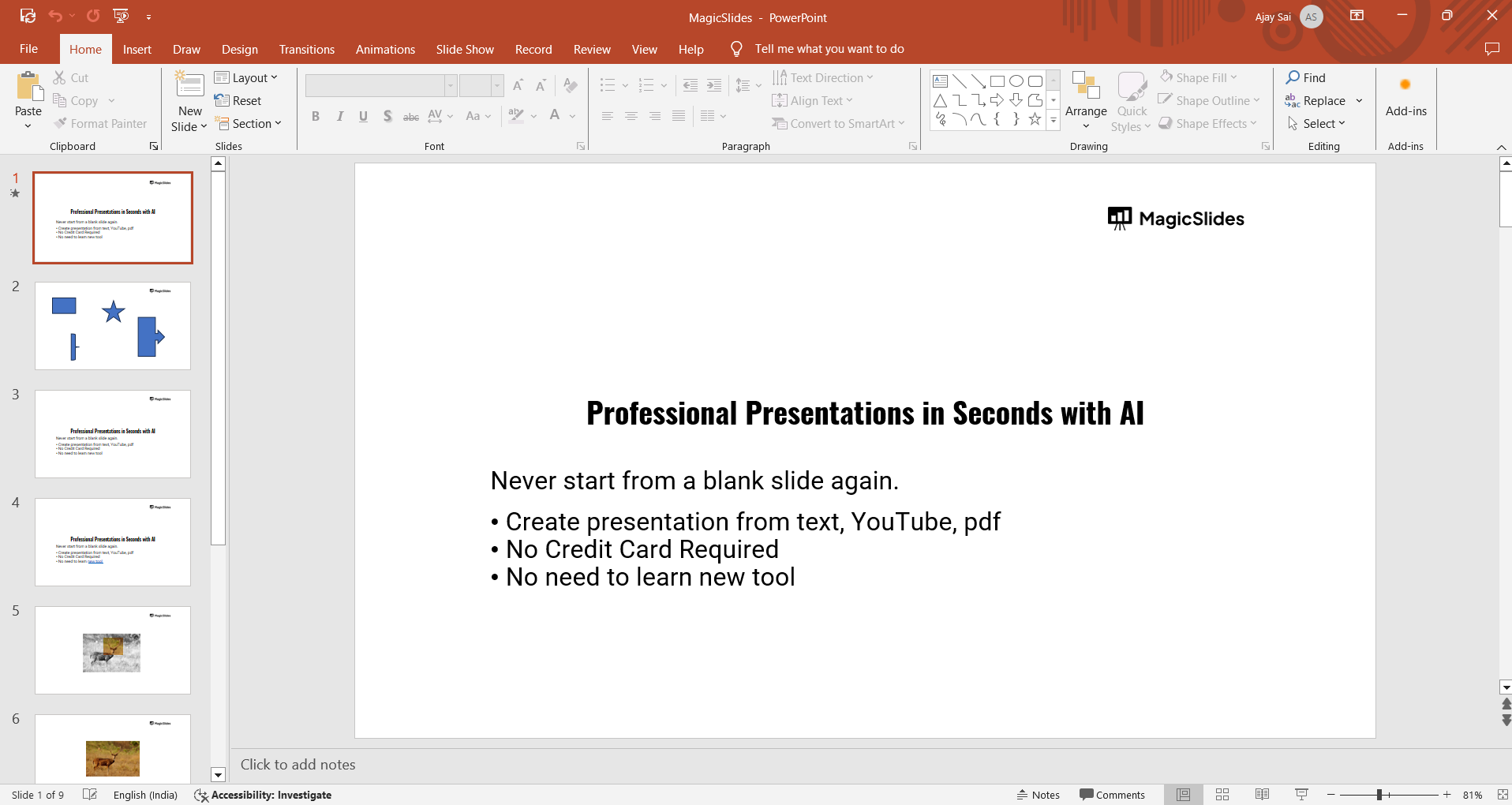
Navigate to the slide that you want to unstar by scrolling through the slide pane on the left side of the screen.
Step 2: Locate the Star Icon
Once you've selected the slide, look for the small star icon. It typically appears next to the slide number or within the thumbnail view of the slide on the left-hand side.
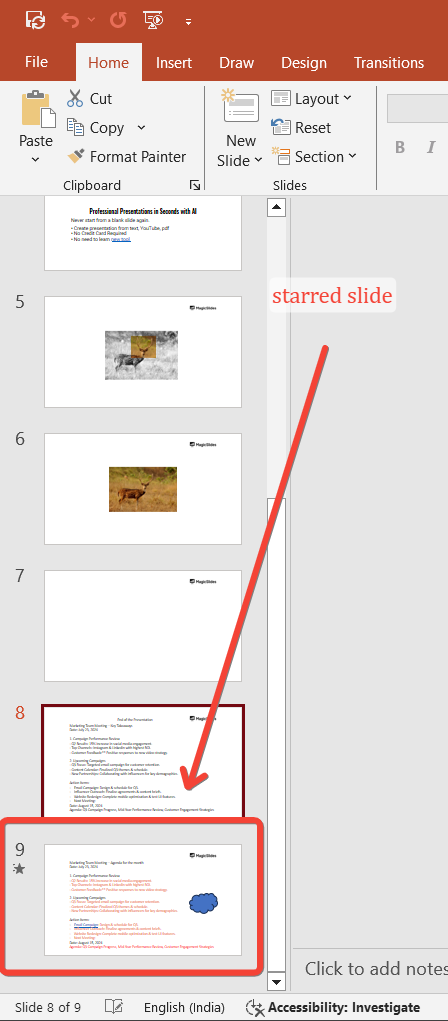
This star indicates that the slide is currently starred.
Step 3: Click on the Star Icon
To unstar the slide, simply click on the star icon.
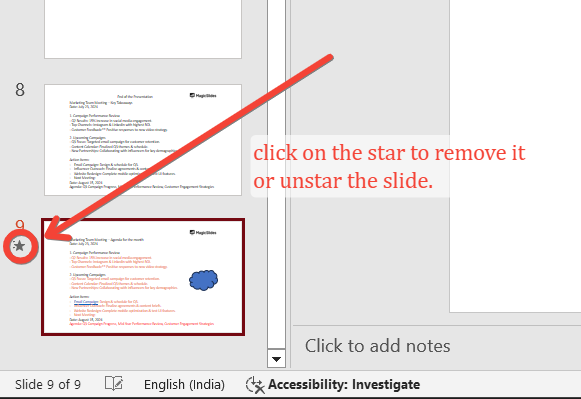
Upon clicking, the star will be removed, and the slide will no longer be marked as a favorite or important.
Step 4: Verify the Unstarred Slide
After clicking the star, check if the icon has disappeared. This confirms that the slide is now unstarred.
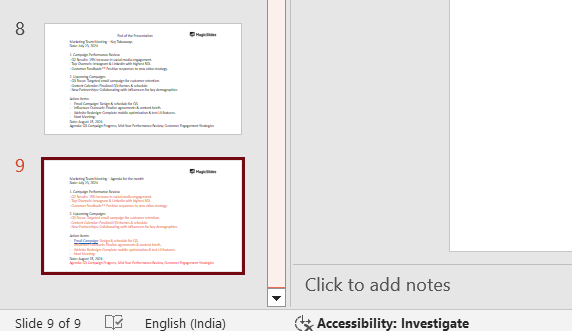
You can move on to other slides if you need to unstar more or save your presentation if you’re done.
Note: In many cases un starring the starred slide means removing the transitions applied to be removed, so make sure whether you would like to remove the transition or not in such a case.
Step 5: Save Your Presentation
Once you've finished un starring slides, don't forget to save your presentation.
Click "File" in the top-left corner and choose "Save" or press "Ctrl + S" to ensure all changes, including unstarring the slides, are saved.
Now that you know how to unstar a slide in PowerPoint, dive into how to animate a slide in PowerPoint to create more dynamic and engaging presentations.
Conclusion
Un starring a slide in PowerPoint is a quick and simple process, allowing you to better organize and manage your presentation.
Whether you're collaborating with others or just need to declutter your slide deck, knowing how to unstar slides ensures your presentation stays streamlined and focused on what’s important.
FAQs are here to help!
Can I unstar multiple slides at once in PowerPoint?
No, you will need to unstar each slide individually by clicking the star icon for each one.
Will un starring a slide affect its content?
No, un starring a slide only removes its highlighted status; it does not affect the slide's content or layout.
Can I star and unstar slides in PowerPoint mobile version?
Yes, you can star and unstar slides in the mobile version of PowerPoint by following a similar process.


