How to Animate a slide PowerPoint


Animating slides in PowerPoint enhances presentations by making content engaging, dynamic, and visually appealing
Adding animations to your slides in PowerPoint is a great way to make your presentation more dynamic and engaging.
Animations can help emphasize key points, reveal content gradually, and capture your audience's attention.
In this step-by-step guide, I’ll show you how to animate a slide in PowerPoint to enhance the flow and impact of your presentation.
How to Animate a Slide in PowerPoint: A Step-by-Step Guide
Step 1: Open Your PowerPoint Presentation
Start by opening your PowerPoint presentation where you want to add animations.
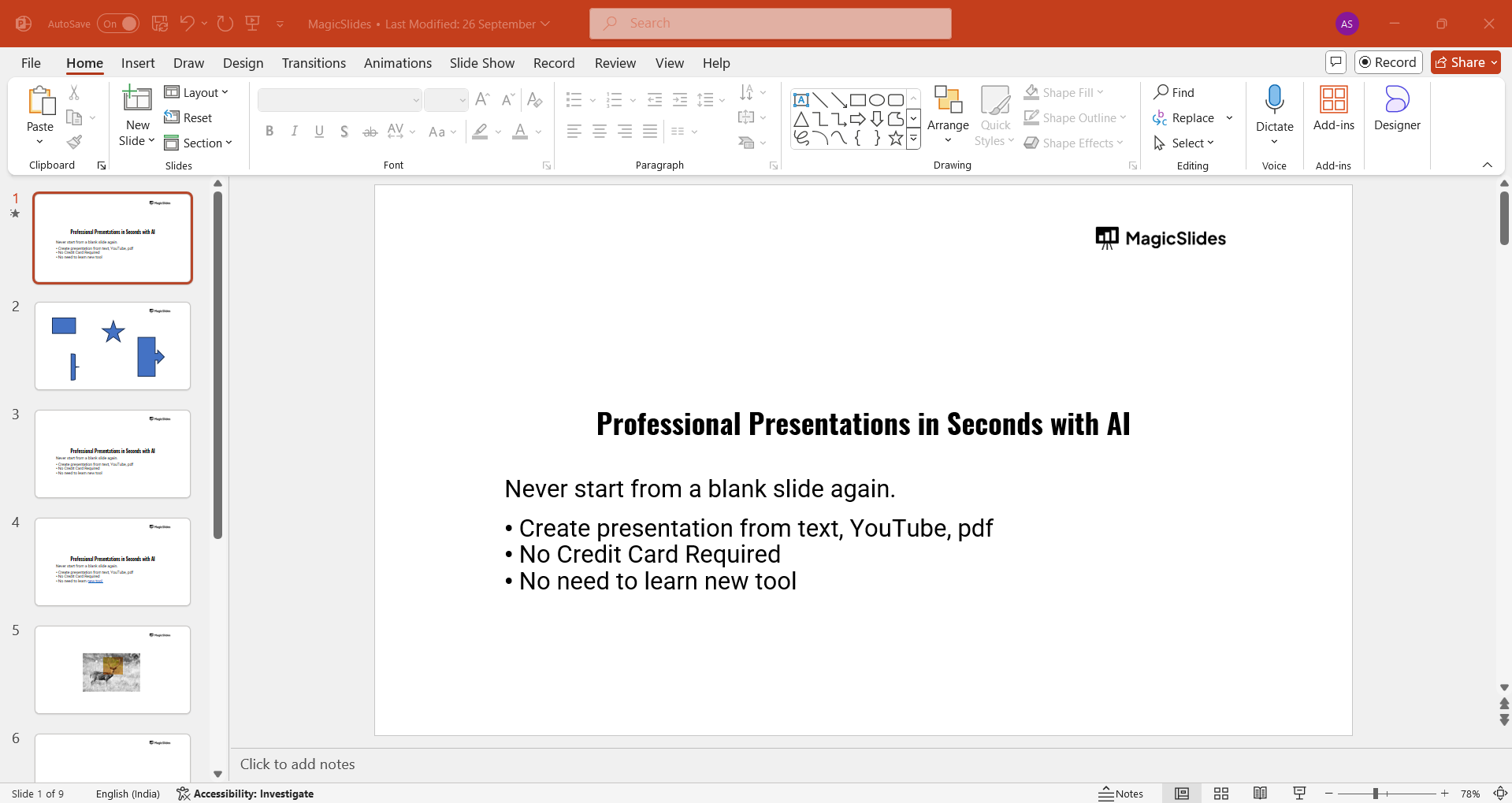
If you haven’t created your slides yet, you can insert content such as text, images, or shapes. Once you have the elements in place, you're ready to animate them.
Step 2: Select the Object You Want to Animate
Click on the object you wish to animate, such as a text box, image, or shape.
Make sure it is highlighted so that any animation effects you apply will be added to that particular object.
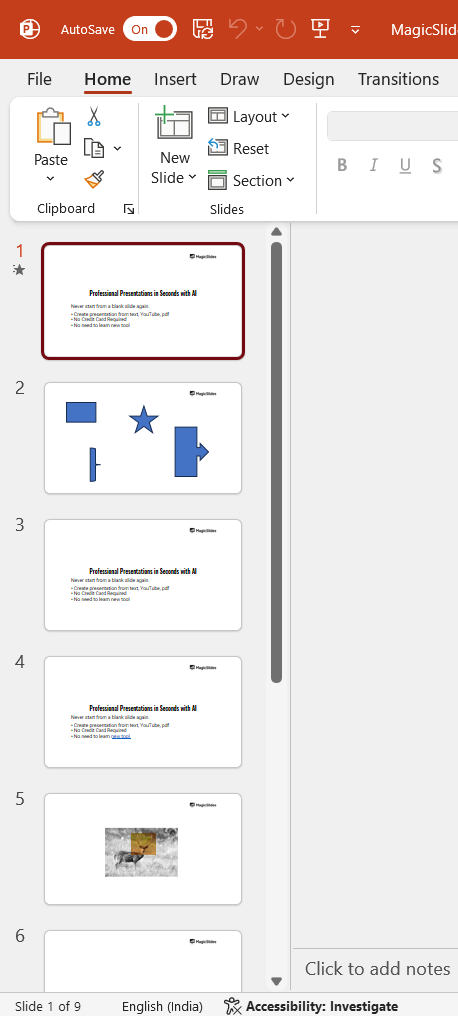
You can animate multiple objects on a slide by selecting them one at a time.
Step 3: Open the Animations Tab
Once your object is selected, navigate to the “Animations” tab at the top of the screen.
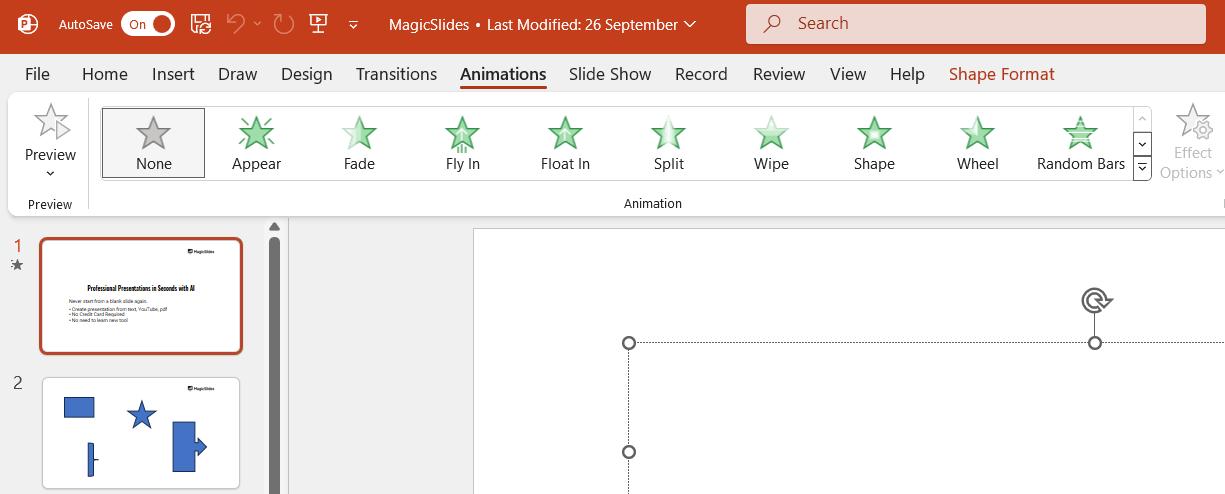
This tab contains all the animation options you’ll need. In the ribbon, you’ll see various animation effects such as "Appear," "Fade," "Fly In," and "Zoom."
Click the drop-down arrow to see the full list of animations available.
Step 4: Choose an Animation Effect
From the list of animations, select the effect that best suits your slide’s design and purpose.
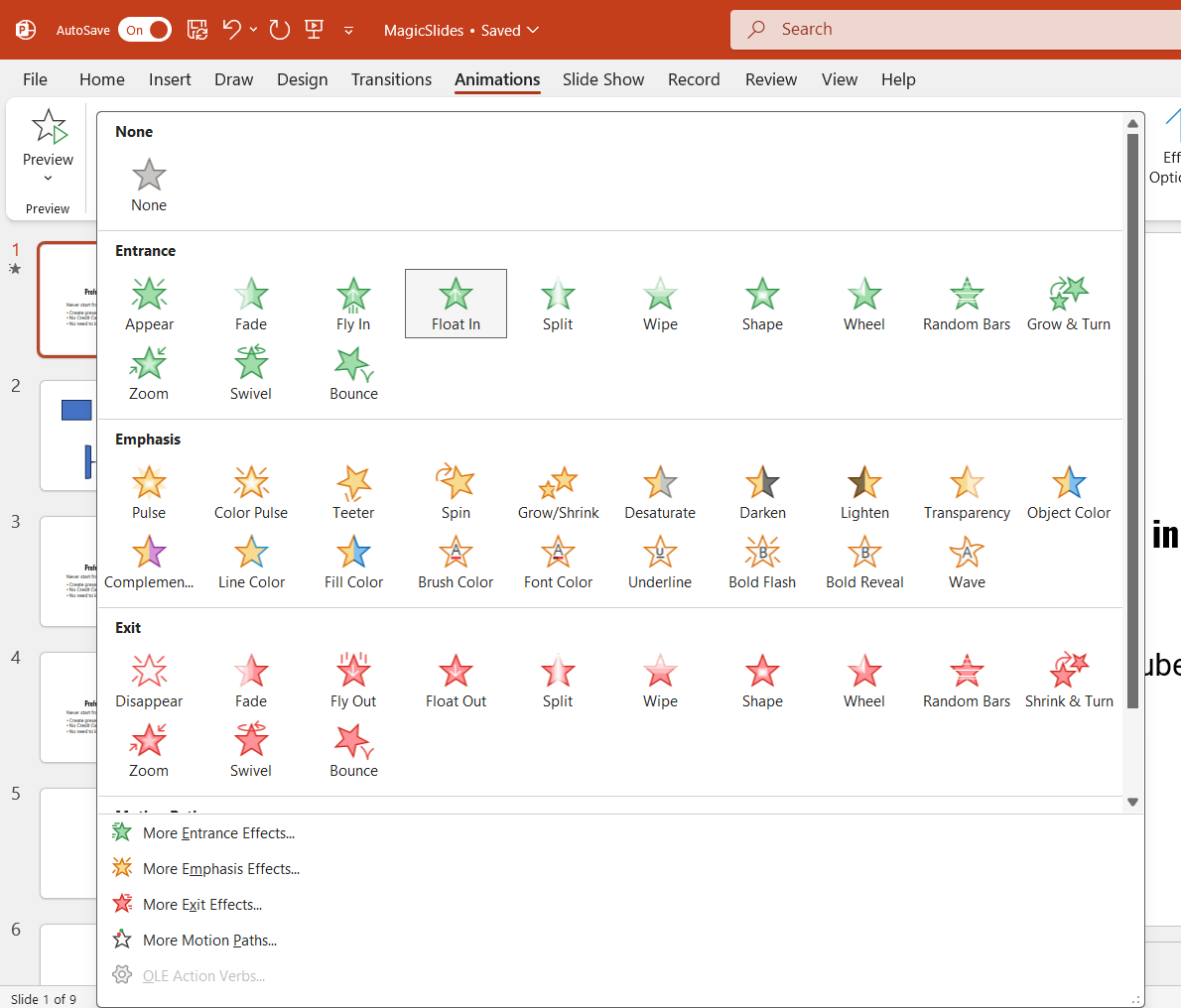
For example, "Appear" or "Fade" works well for simple text, while more dynamic effects like "Fly In" or "Zoom" are better for images or headings.
Click on the animation effect, and it will automatically be applied to the selected object.
Step 5: Customize the Animation Timing and Direction
After selecting an animation, you can further customize it using the options in the "Animation Pane."
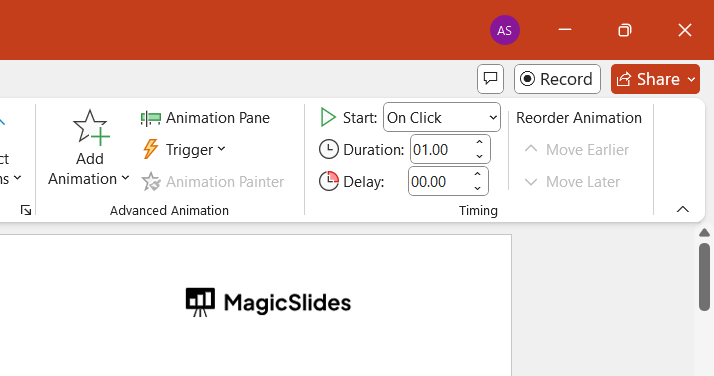
Here, you can adjust the start timing of the animation (On Click, With Previous, or After Previous), set the duration, and modify the direction of the animation (such as sliding in from the left, right, top, or bottom).
This helps control when and how the animation appears during your presentation.
Step 6: Preview Your Animation
To make sure your animation looks just the way you want it, use the "Preview" button located in the Animations tab.
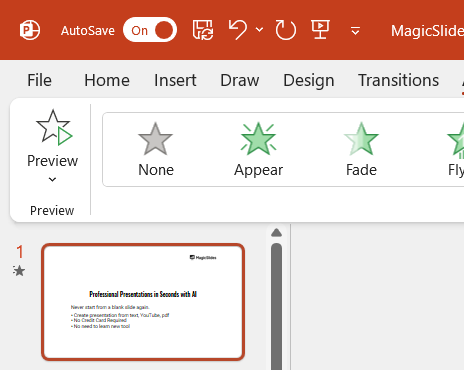
This allows you to see how the effect will appear when played during the presentation.
You can make adjustments if necessary by changing the animation type, timing, or sequence.
Step 7: Apply Animations to Other Slides or Elements
Repeat the process for any additional slides or objects you want to animate.
You can add different animations to various elements on each slide or keep the style consistent by applying the same animation across multiple slides.
Once you've added animations to your PowerPoint slides, learn how to stop screen recording started in PowerPoint for better control during presentations.
Conclusion
Animating slides in PowerPoint is a simple yet effective way to create engaging and visually appealing presentations.
With PowerPoint’s wide range of animation effects and customization options, you can easily tailor the timing and motion of your slides to suit your presentation’s theme and purpose.
By following these steps, you'll be able to add professional-quality animations that make your presentation stand out and hold your audience's attention.
FAQs are here to help!
Can I apply multiple animations to one object?
Yes, you can apply multiple animations to a single object by selecting it and adding additional effects from the "Add Animation" option in the Animations tab.
How do I remove an animation from an object?
To remove an animation, select the object, open the "Animations" tab, and click on "None" from the list of animation options, or you can delete the animation from the Animation Pane.
Can I control the order in which animations play?
Yes, you can control the order by using the "Animation Pane" where you can drag and rearrange animations to set the sequence in which they appear.


