How to combine shapes in PowerPoint


Combining shapes in PowerPoint allows you to create unique, custom designs for your presentations effortlessly
Combining shapes in PowerPoint is a powerful feature that allows you to create custom designs by merging, subtracting, or intersecting multiple shapes.
Whether you're working on a creative presentation or need unique graphics, the "Merge Shapes" tool in PowerPoint gives you endless possibilities to customize your slide visuals.
In this guide, I’ll walk you through the process of combining shapes in PowerPoint step by step.
How to Combine Shapes in PowerPoint: A Step-by-Step Guide
Step 1: Open Your PowerPoint Presentation
Begin by opening your PowerPoint presentation or starting a new one. Navigate to the slide where you want to combine shapes.
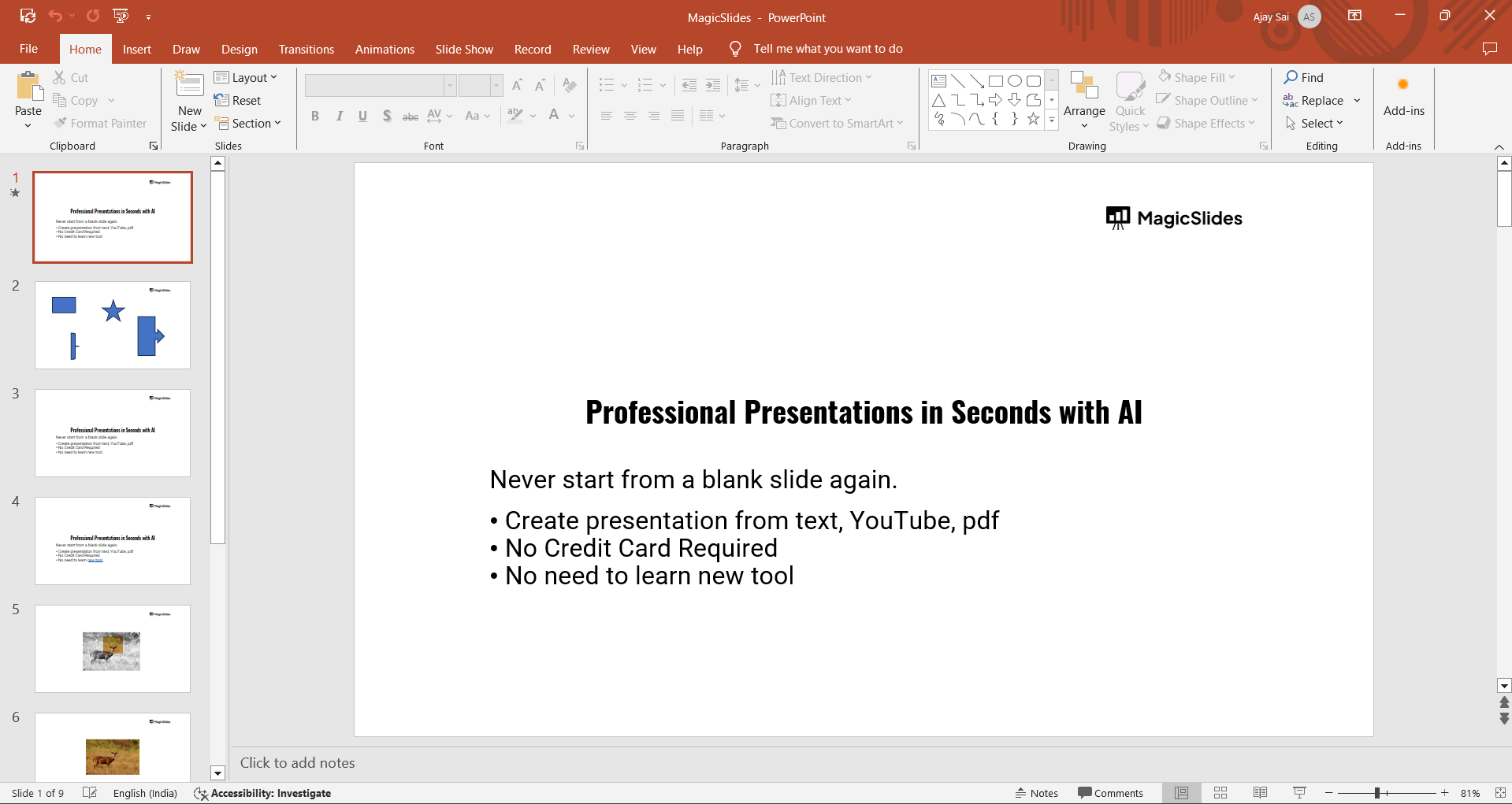
If needed, create a new slide by clicking on the "New Slide" button in the "Home" tab.
Step 2: Insert Shapes
To insert shapes, go to the "Insert" tab in the toolbar and click on "Shapes."
From the dropdown menu, select the shapes you want to combine and place them on the slide.
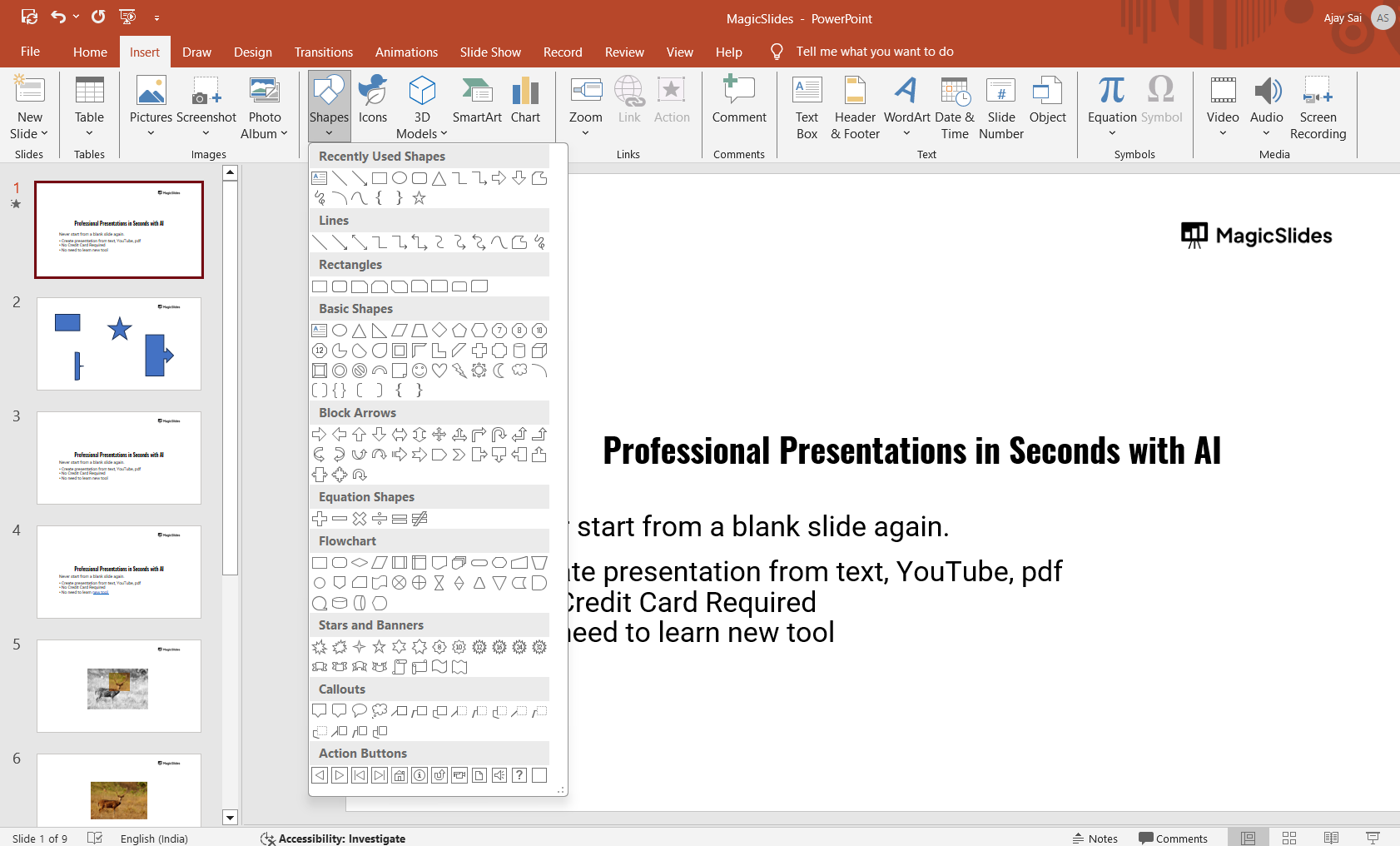
You can insert multiple shapes by repeating this process, dragging and positioning them as needed.
Step 3: Select the Shapes
After placing the shapes on your slide, you need to select all the shapes you want to combine.
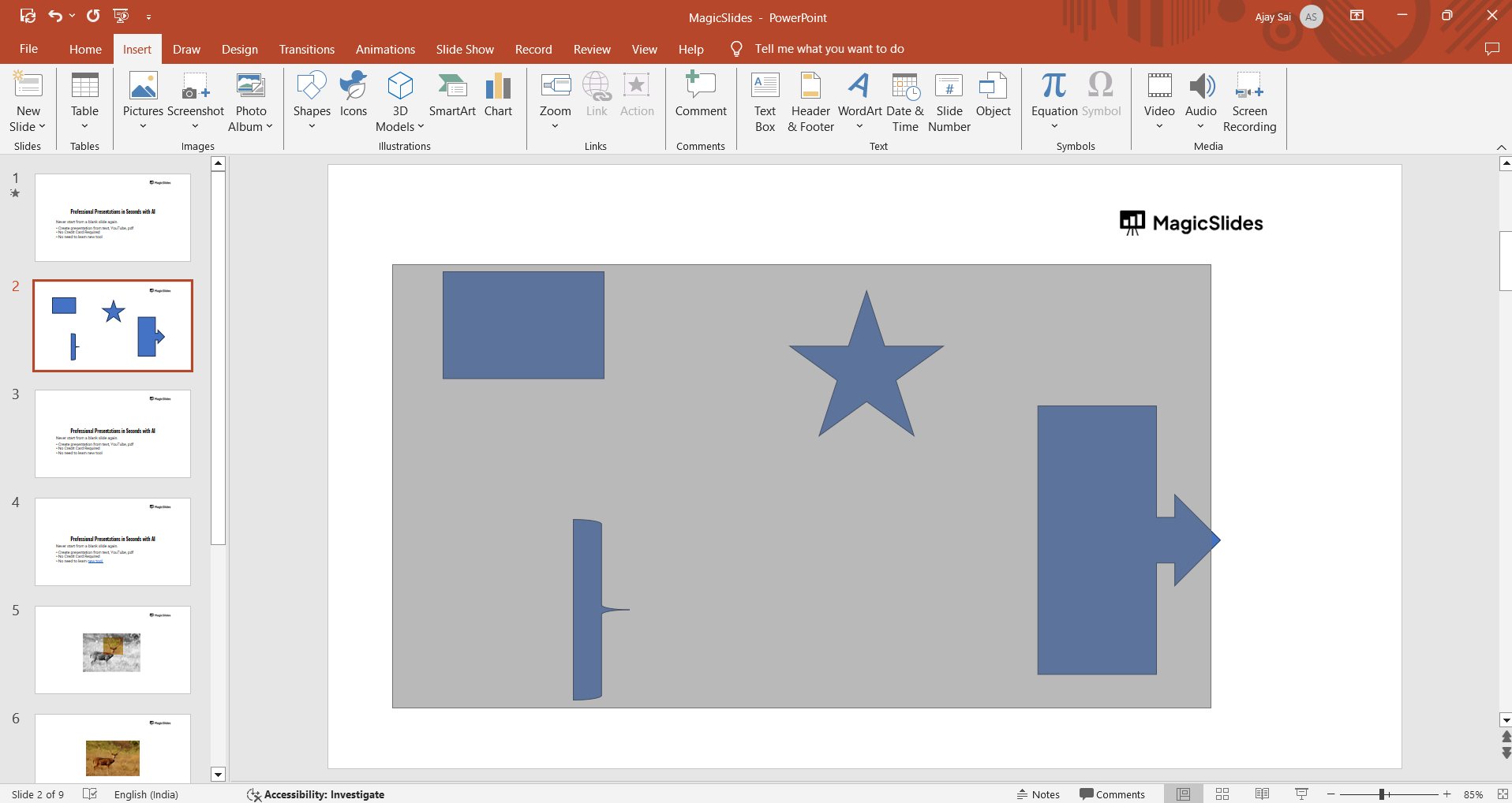
Hold down the "Shift" key and click on each shape, or press "Ctrl + A" if you want to select all objects on the slide.
Step 4: Access the Merge Shapes Tool
Once your shapes are selected, go to the "Shape Format" tab, which appears when shapes are highlighted.
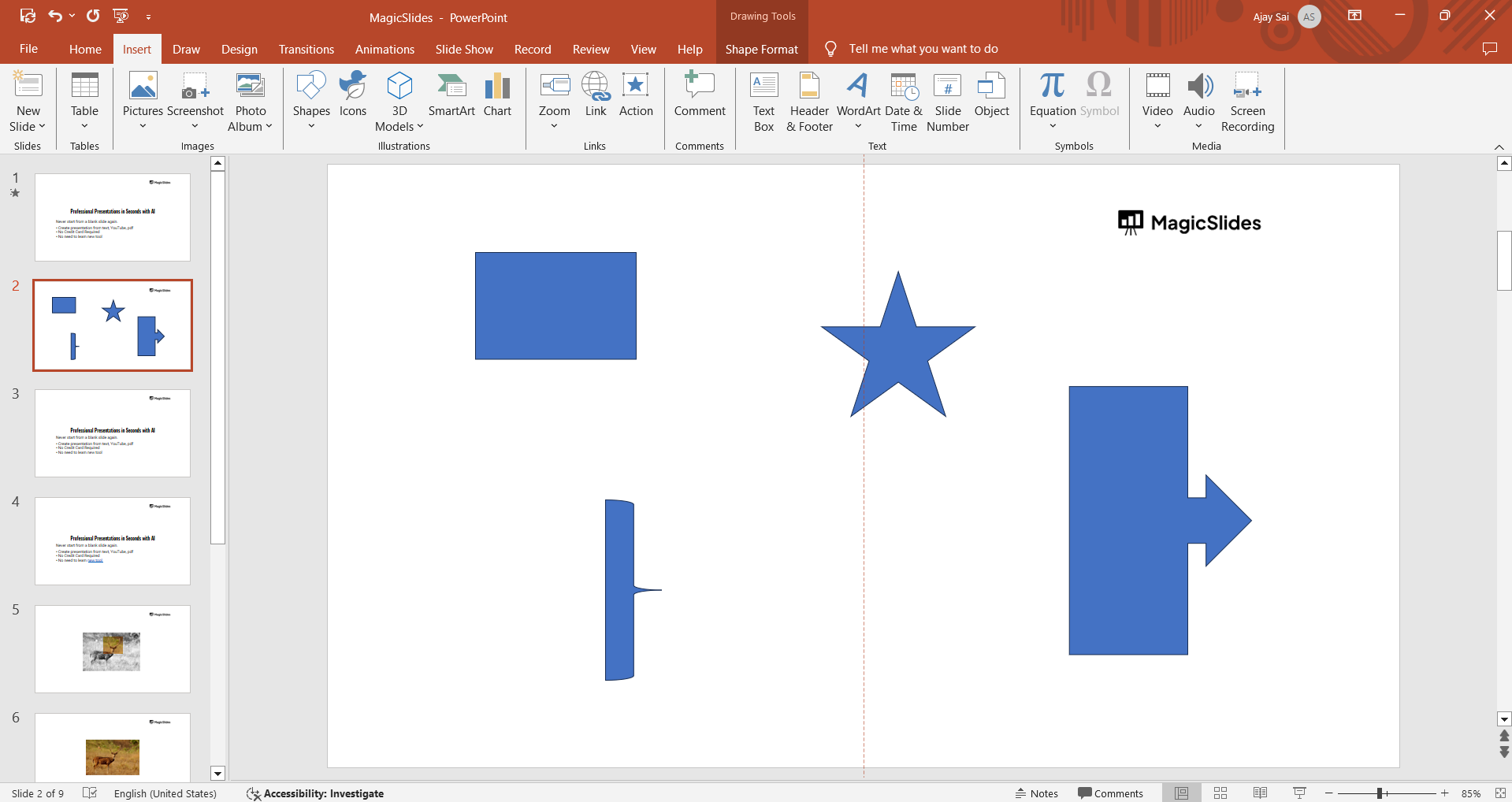
In the "Insert Shapes" section, click on the "Merge Shapes" button. A dropdown menu will appear with various combination options, including "Union," "Combine," "Fragment," "Intersect," and "Subtract."
Step 5: Adjust or Reposition the Combined Shape
Once you've combined the shapes, you can still adjust the size or position of the new shape by dragging it across the slide or using the resizing handles.
If needed, you can also apply formatting, such as changing the color or adding effects, from the "Shape Format" tab.
Once you've learned how to combine shapes in PowerPoint, explore how to change the opacity of a shape in Google Slides to refine your designs across platforms.
Conclusion
Combining shapes in PowerPoint is an easy and creative way to enhance your presentations by adding customized graphics.
With the "Merge Shapes" tool, you can create unique visuals that align with your message and design needs.
Experiment with different shape combinations to make your presentations stand out with one-of-a-kind visuals.
FAQs are here to guide!
Can I edit shapes after combining them in PowerPoint?
Once combined, the shapes become one object, but you can still resize or format the new shape.
What does the "Subtract" option do in the Merge Shapes tool?
The "Subtract" option removes the shape on top from the shape below, creating a cut-out effect.
Can I combine different types of shapes, like circles and squares?
Yes, you can combine any shapes in PowerPoint, regardless of their type or size.


