How to Convert Complex Paragraphs into Presentations


Learn the art of transforming intricate paragraphs into captivating presentations with our expert guide. Elevate your communication skills effortlessly.
Creating compelling presentations from dense paragraphs is an essential skill, especially in today's fast-paced digital environment. With the help of innovative tools like MagicSlides GPT, the process becomes a breeze. In this guide, we'll walk you through the entire journey, from the basics to the final presentation, ensuring your content is not only understood but also visually engaging.
How to Convert Complex Paragraphs into Presentations
Before diving into the step-by-step process, it's crucial to have the basic tools in place.
Visit Google Slides
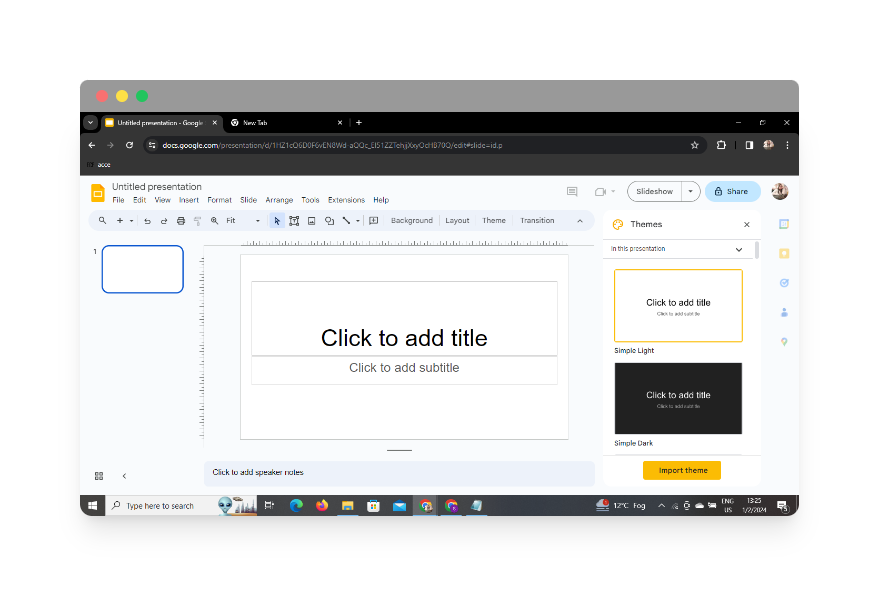
Navigate to Google Slides, a user-friendly, cloud-based presentation tool offered by Google. If you don't have a Google account, create one to get started.
Sign In with Google to Google Slides
Once on Google Slides, sign in with your Google account. This step ensures that your work is saved and accessible across devices.
Access MagicSlides GPT in Extensions
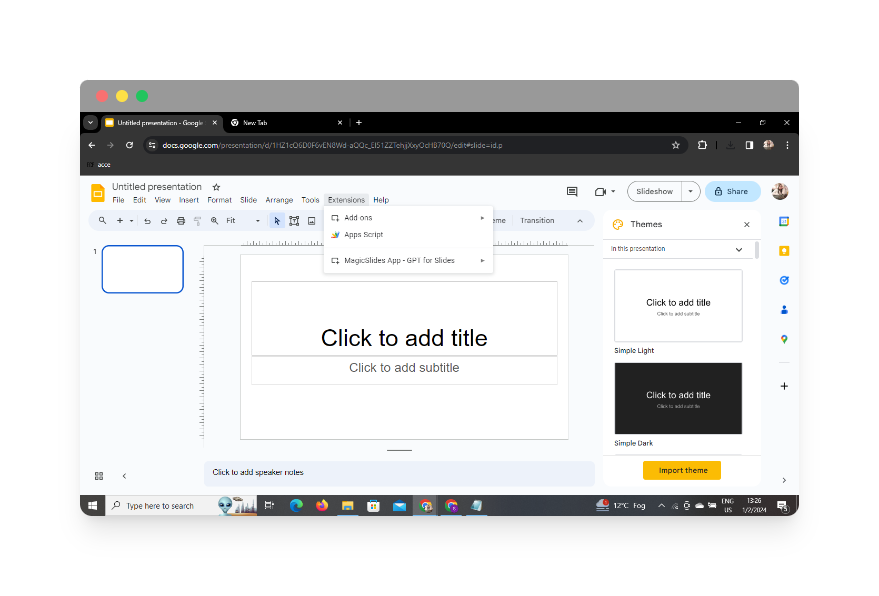
In the extensions section of Google Slides, locate and click on MagicSlides GPT. If you haven't downloaded it yet, proceed to download it as an extension. Once downloaded, open the extension within Google Slides.
Click on 'Generate PPT' in MagicSlides GPT
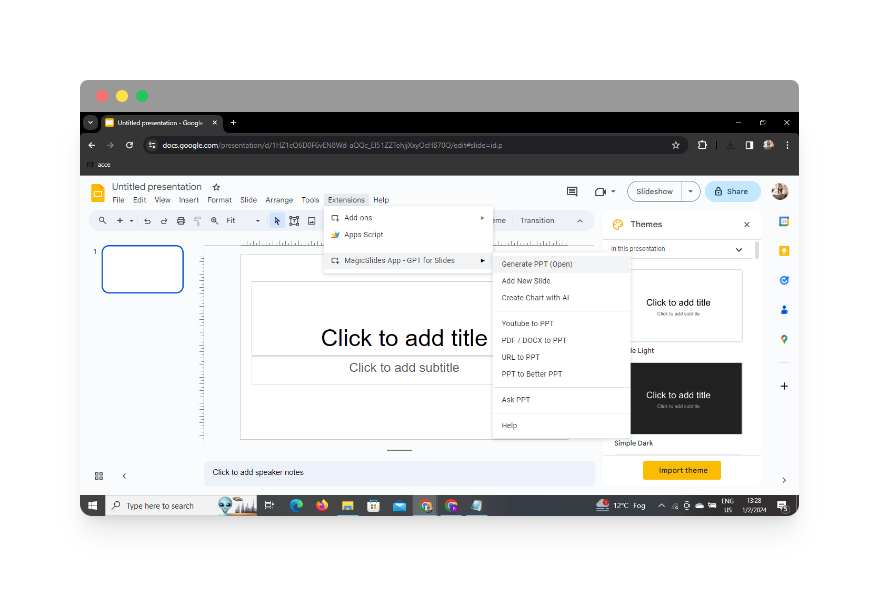
With MagicSlides GPT activated, click on the 'Generate PPT' option. This is the starting point for transforming your complex paragraphs into a presentation.
Click on 'Summarize' Option
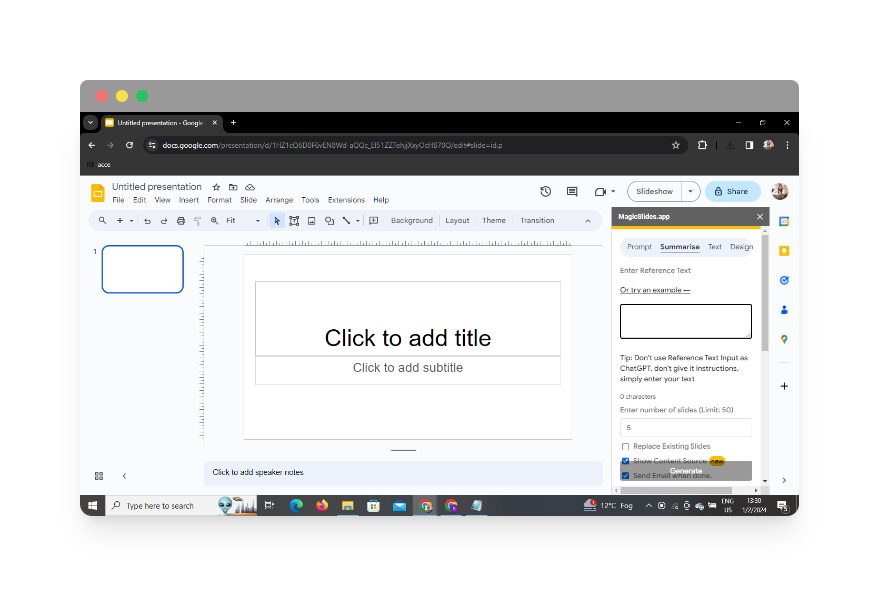
MagicSlides GPT offers a 'Summarize' option that simplifies the process further. Click on this option to prepare your content for the presentation.
Paste Your Complex Paras
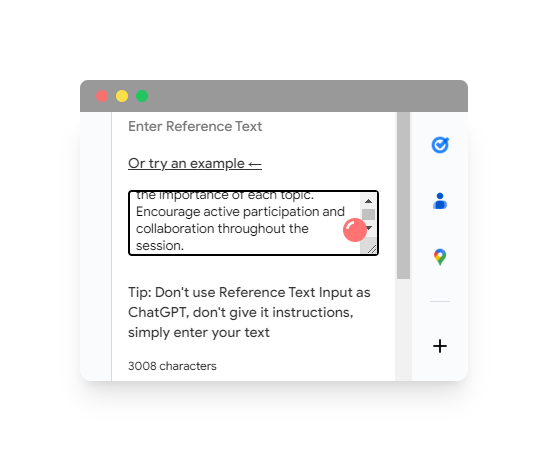
Copy and paste the text from your complex paragraphs into the designated area. MagicSlides GPT will then analyze the content and generate a presentation outline.
Select the Number of Slides
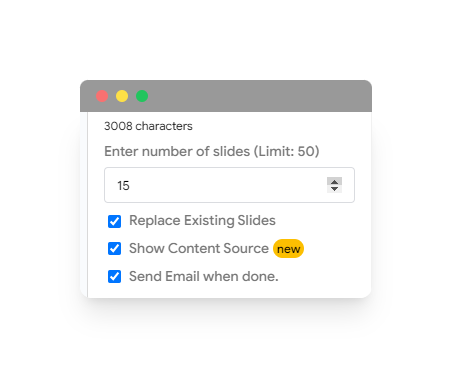
Tailor your presentation by selecting the desired number of slides. Adjust this based on the complexity of your content and the level of detail you wish to include in each slide.
Click on 'Generate Presentation'
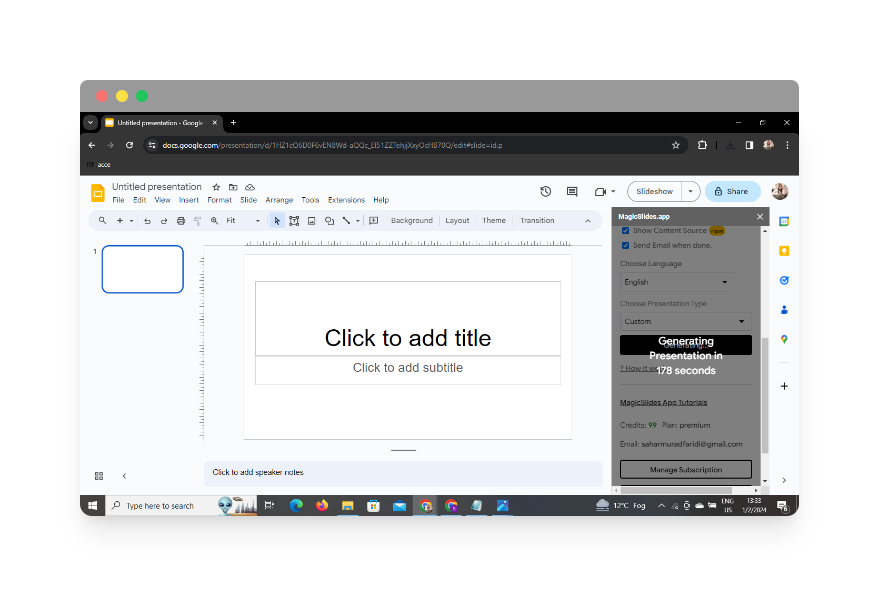
Initiate the presentation generation process by clicking on the 'Generate Presentation' button. MagicSlides GPT will use its advanced algorithms to create visually appealing slides that capture the essence of your content.
Your Presentation is Ready
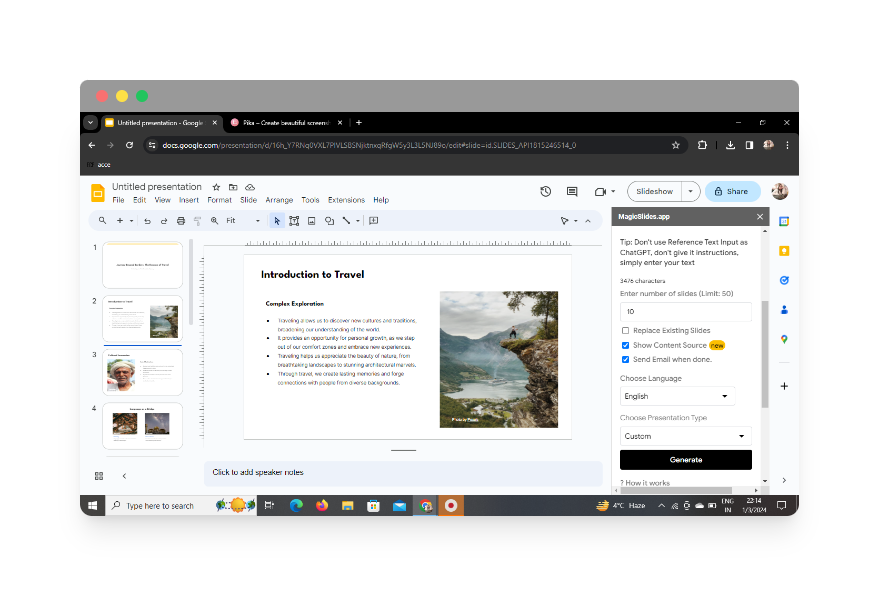
Upon completion of the generation process, your presentation is ready to be viewed and shared. Save your work and make any final adjustments to ensure it meets your presentation standards.
Conclusion
In a matter of minutes, you've transformed intricate paragraphs into a dynamic presentation. MagicSlides GPT streamlines the process, allowing you to focus on delivering your message effectively.
Frequently Asked Questions (FAQs)
Is MagicSlides compatible with all browsers for converting PDFs to PowerPoint in Google Slides?
Yes, MagicSlides is designed to work seamlessly with popular browsers, ensuring broad compatibility.
Can I edit the converted presentation in Google Slides after using MagicSlides?
Absolutely, the converted presentation is fully editable in Google Slides, allowing for further customization.
Is there a limit to the number of pages or size of the PDF that MagicSlides can handle?
MagicSlides is designed to handle a variety of PDF sizes and page counts, making it versatile for different lecture materials.
Embrace the power of MagicSlides GPT to effortlessly transform complex paragraphs into captivating presentations, revolutionizing the way you communicate your ideas.


