How to Convert Hisotrical Texts into Interactive PowerPoint Workshops


Transform static text guidelines into engaging PowerPoint workshops with our step-by-step guide. Create dynamic, interactive presentations effortlessly for impact.
Creating engaging and interactive PowerPoint workshops from text guidelines has never been easier, thanks to tools like MagicSlides GPT. In this step-by-step guide, we'll walk you through the process, starting from the basics.
How to Convert Historical Texts into Interactive PowerPoint Workshops
Step 1: Open Google Slides and a Blank Presentation
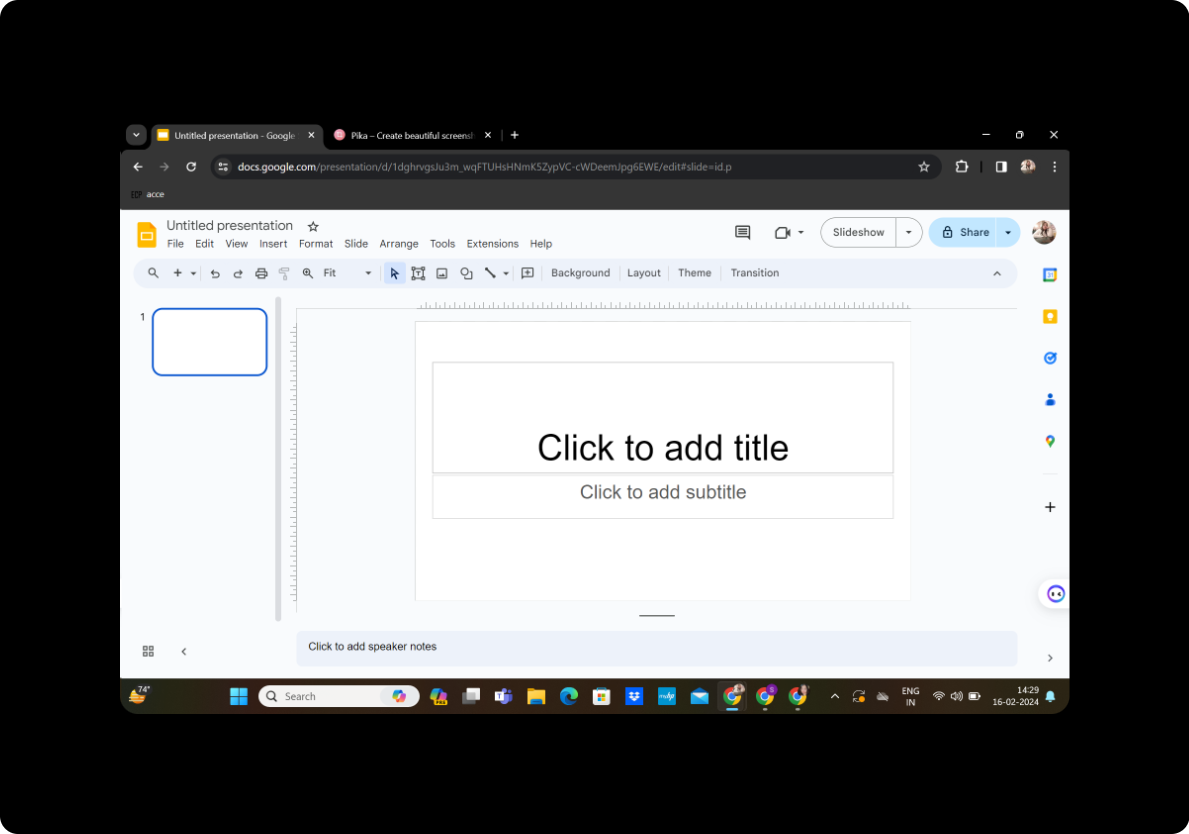
Navigate to Google Slides and open a new, blank presentation. This will serve as the canvas for your interactive workshop.
Step 2: Click on Extensions and MagicSlides GPT
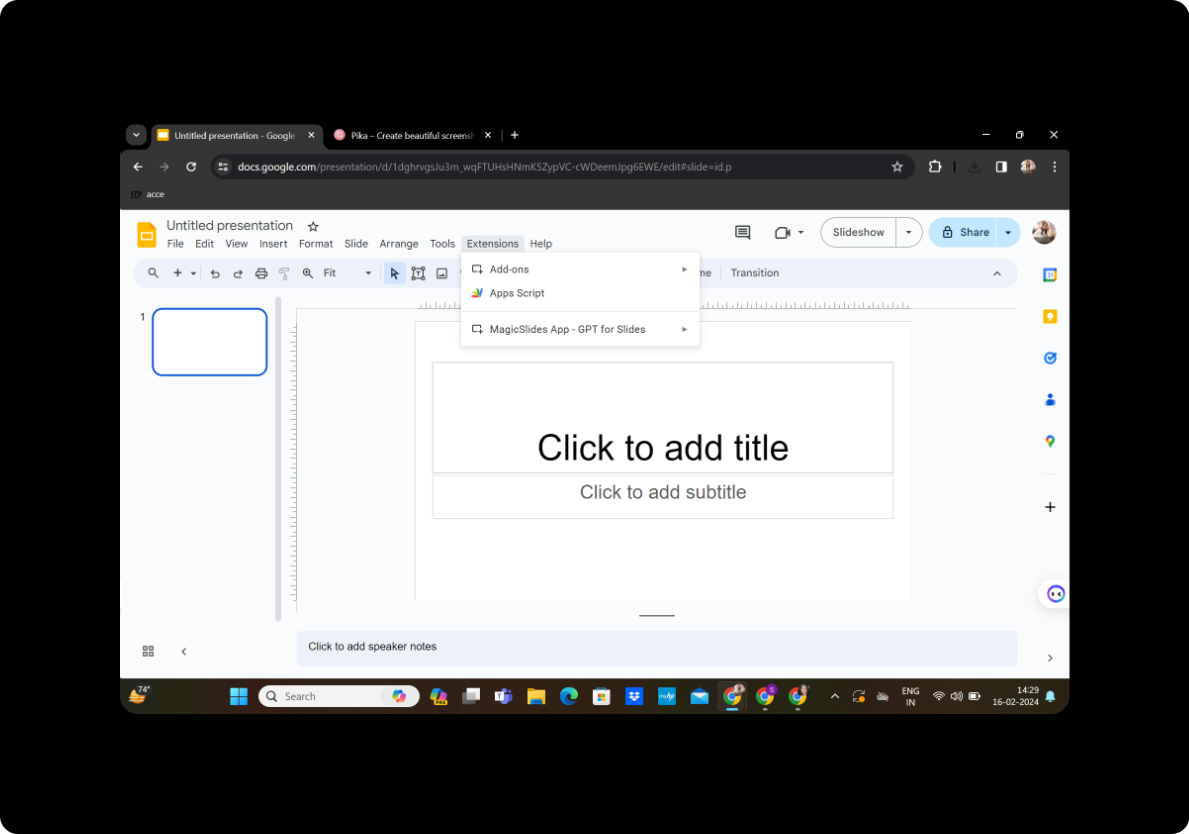
In the Google Slides interface, locate the "Extensions" tab and click on it. Then, select "MagicSlides GPT" from the dropdown menu. This will activate the MagicSlides tool within Google Slides.
Step 3: Click on 'Generate PPT'
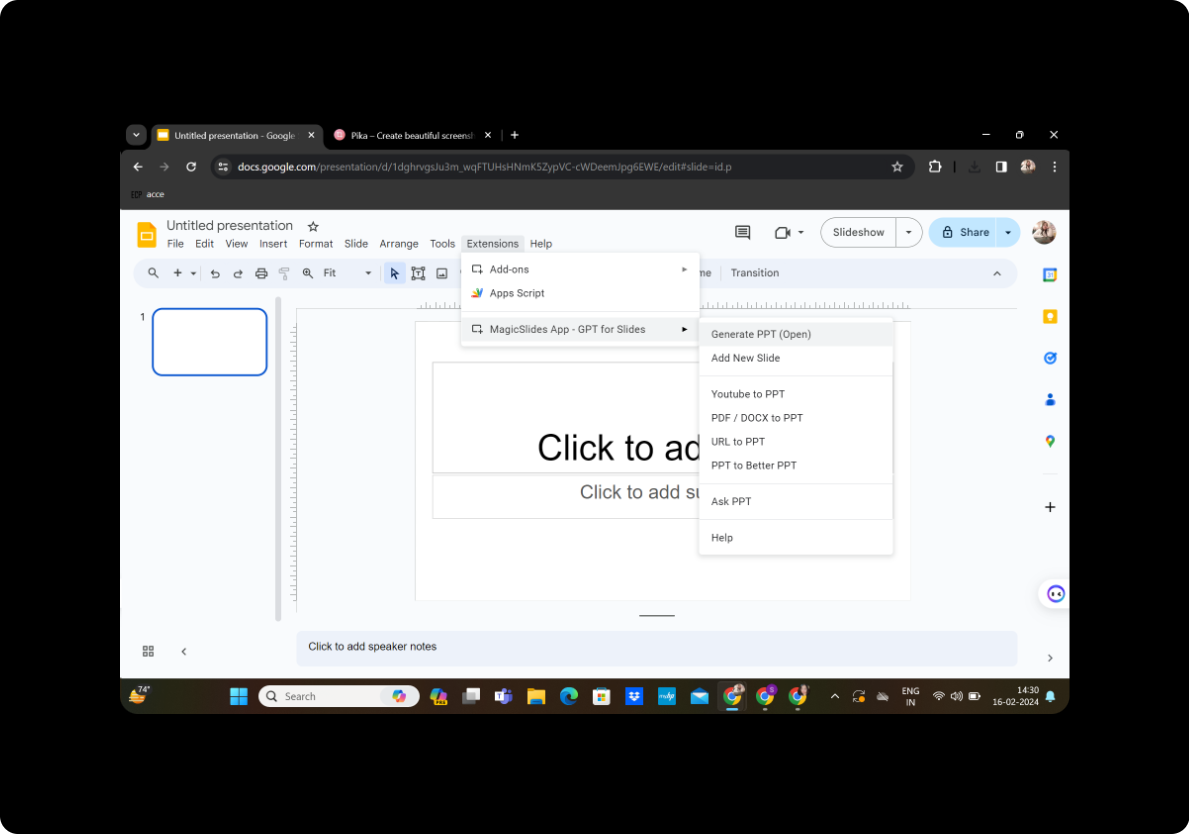
Once MagicSlides GPT is activated, click on the "Generate PPT" button to begin the conversion process.
Step 4: Enter Title and Text Content
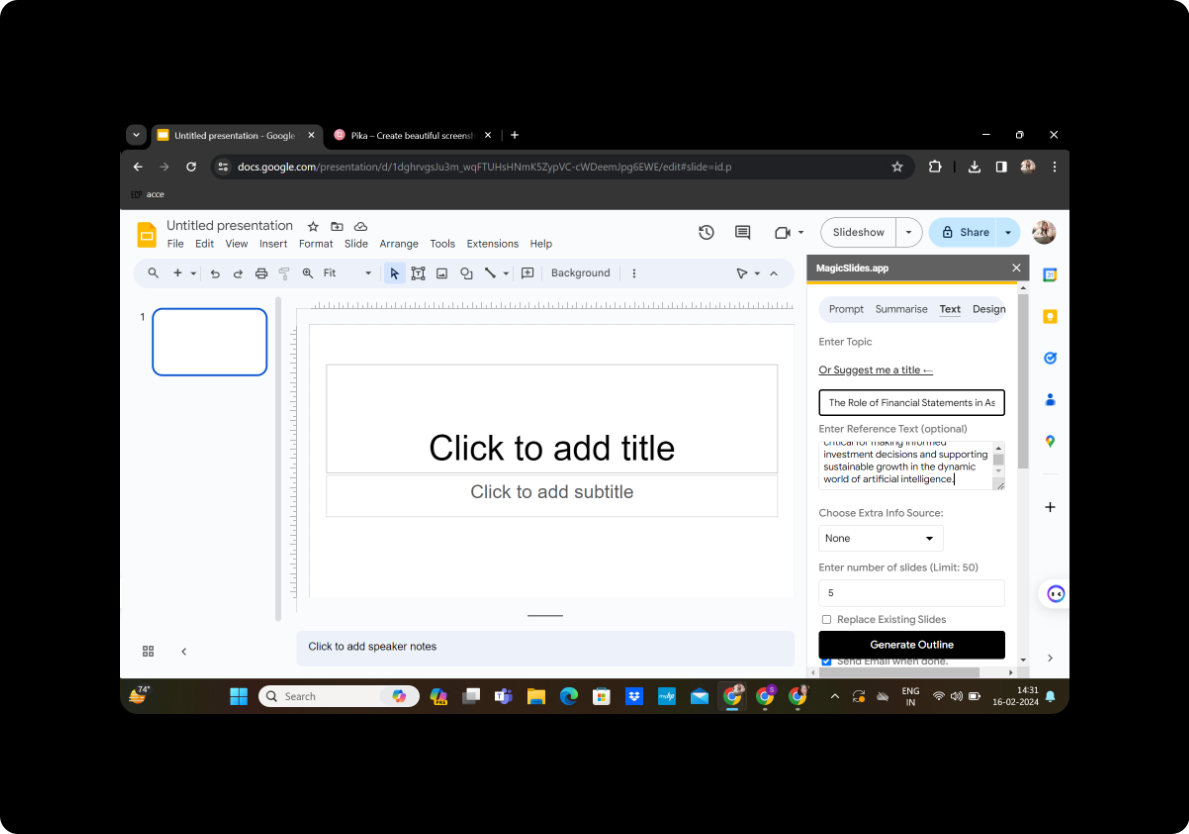
In the space provided, enter the title of your workshop and paste the text content of your guidelines. This could include key points, instructions, or any other relevant information you want to include in your presentation.
Step 5: Select Number of Slides
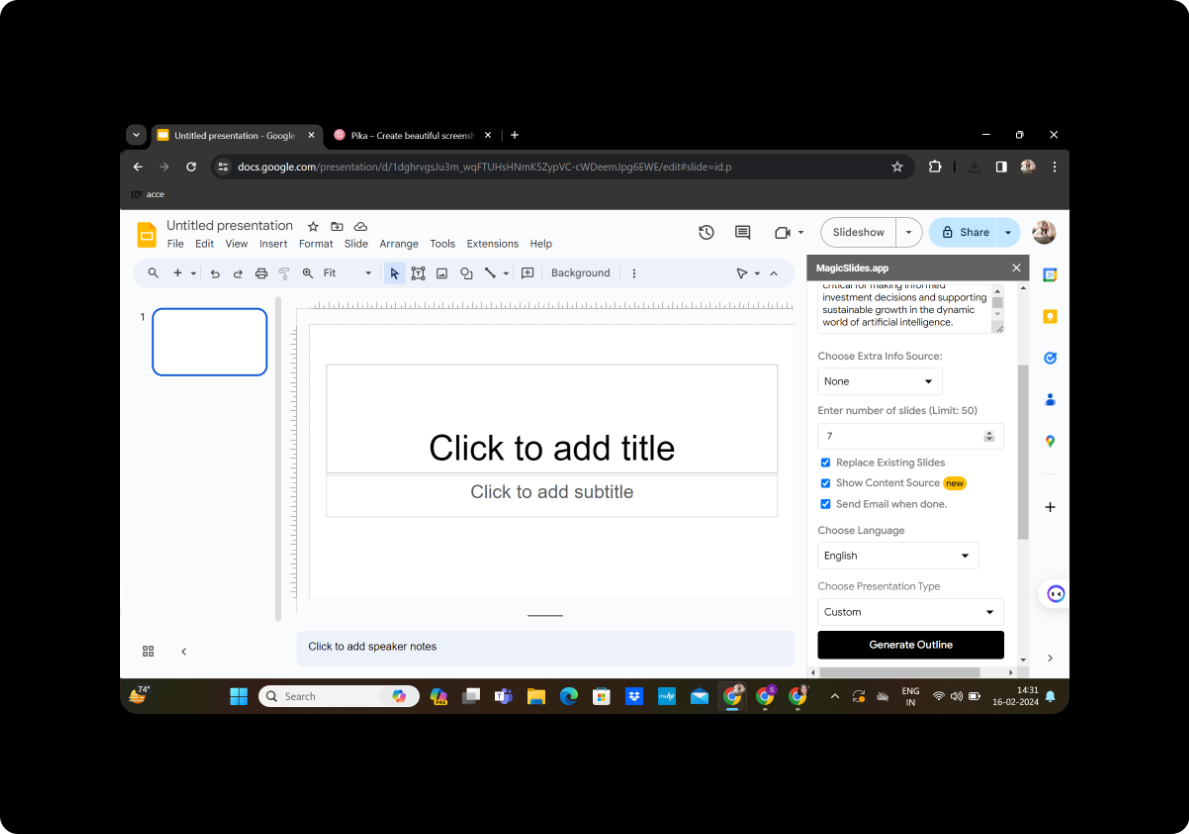
Review the generated outline and select the number of slides you want in your presentation. You can adjust the slide count based on the content and complexity of your guidelines.
Step 6: Click on Generate Outline
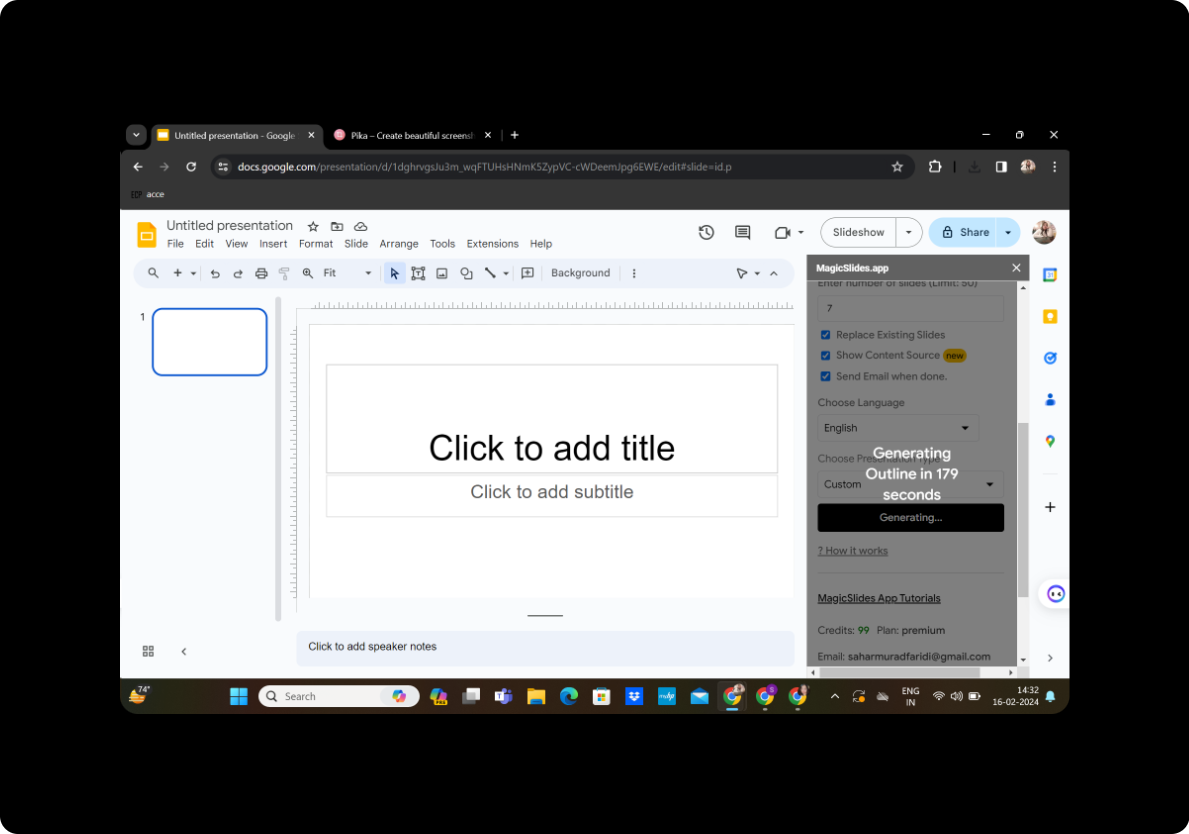
After entering the title and text content and choosing slides, click on the "Generate Outline" button. MagicSlides GPT will analyze your text and generate an outline for your presentation.
Step 7: Generate Presentation
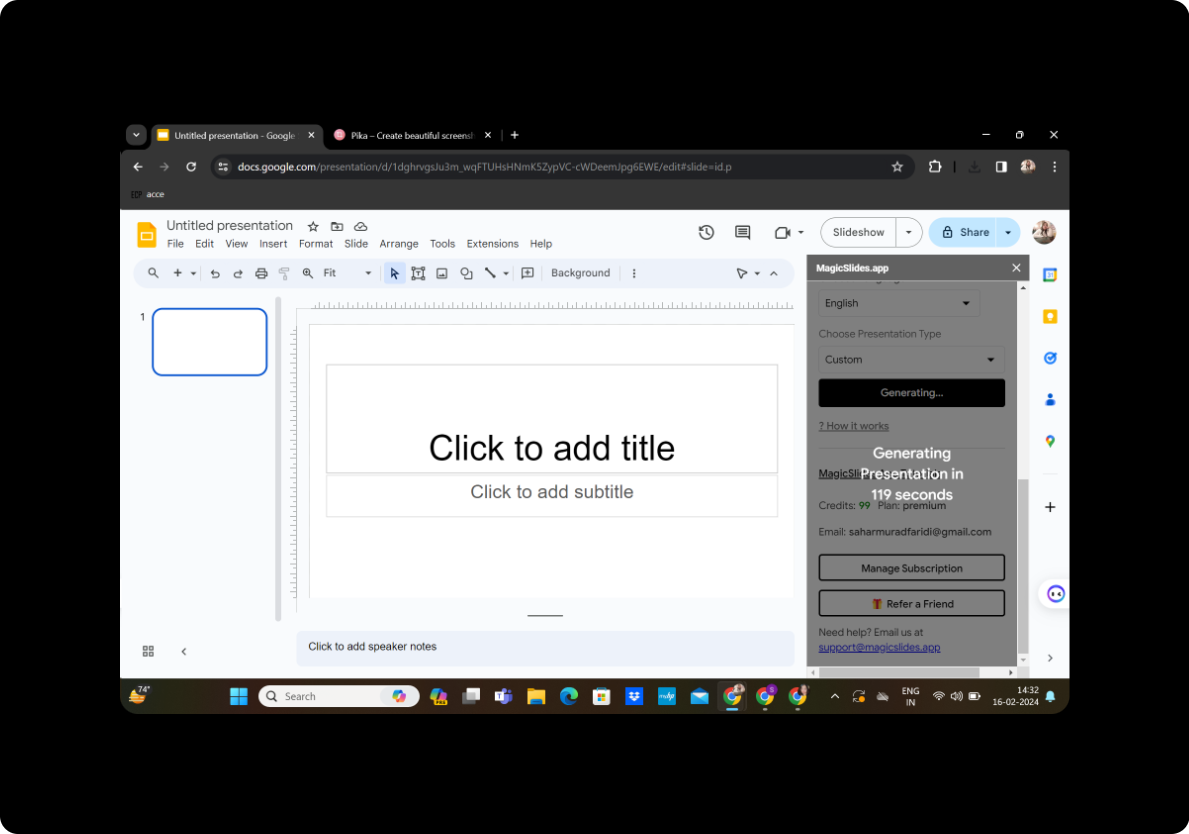
Once you're satisfied with the outline and slide count, click on the "Generate Presentation" button. MagicSlides GPT will automatically create a PowerPoint presentation based on your text guidelines.
Conclusion
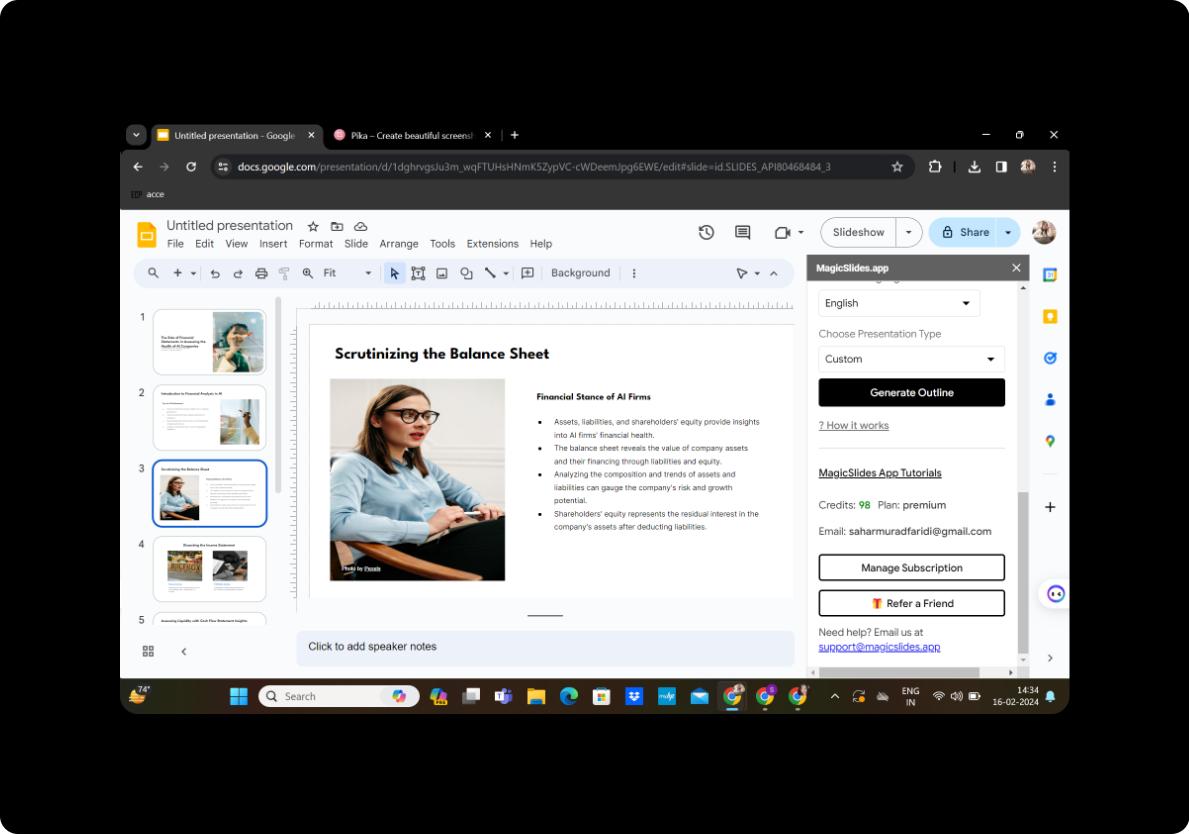
In just a few simple steps, you've transformed static text guidelines into an engaging and interactive PowerPoint workshop. MagicSlides GPT streamlines the process, allowing you to focus on delivering compelling content.
Frequently Asked Questions
Can I edit the generated slides? Yes, MagicSlides GPT provides editing features, allowing you to refine and customize your presentation.
Is a Google account necessary? Yes, you'll need a Google account to access Google Slides and utilize MagicSlides GPT.
Can I add multimedia elements? Absolutely! Enhance your workshop by incorporating images, videos, and other multimedia elements directly into your presentation.
How long does the process take? The duration varies, but MagicSlides GPT expedites the conversion process, saving you valuable time.
Is the tool user-friendly for beginners? Yes, MagicSlides GPT is designed with simplicity in mind, making it accessible for users of all skill levels.
Your presentation is ready to captivate your audience. Explore the possibilities and elevate your workshop experience with MagicSlides GPT!


