How to convert selected Text to Capitals in PowerPoint


Enhance PowerPoint presentations by strategically converting text to uppercase, emphasizing key points for visual impact.
Converting text to uppercase in PowerPoint holds significance as it adds visual emphasis, guiding the audience's attention to key details. This formatting choice enhances clarity, creates a professional aesthetic, and ensures a cohesive presentation design. Utilize this feature to underscore important points and elevate the overall impact of your slides.
Transforming selected text to uppercase in PowerPoint is a valuable feature for maintaining consistent formatting and emphasizing specific content. Follow these detailed steps for a seamless conversion:
How to convert selected Text to Capitals in PowerPoint
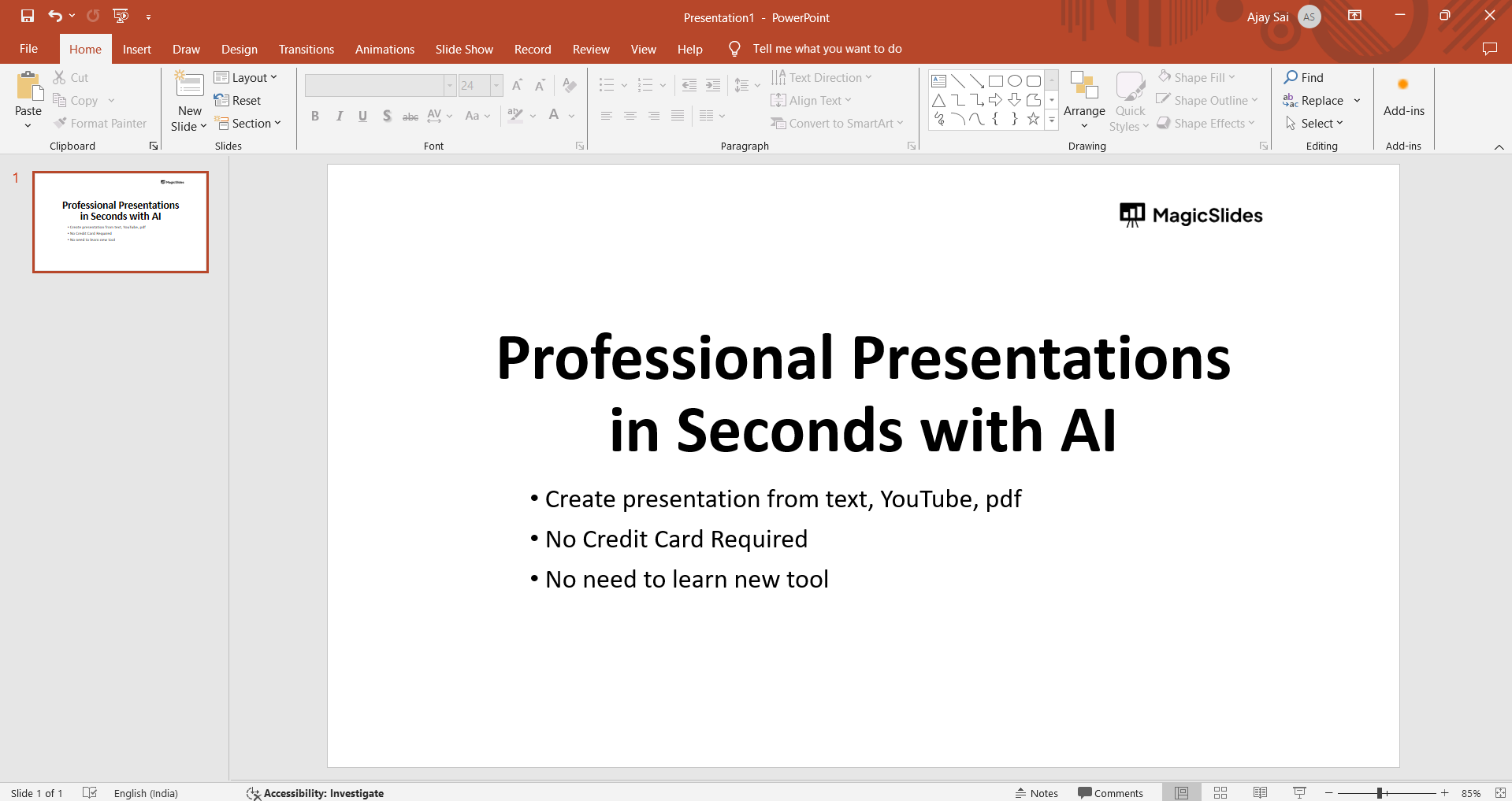
Open PowerPoint and Select Text:
Launch PowerPoint and open the presentation. Click and drag to select the text or highlight the entire text box.
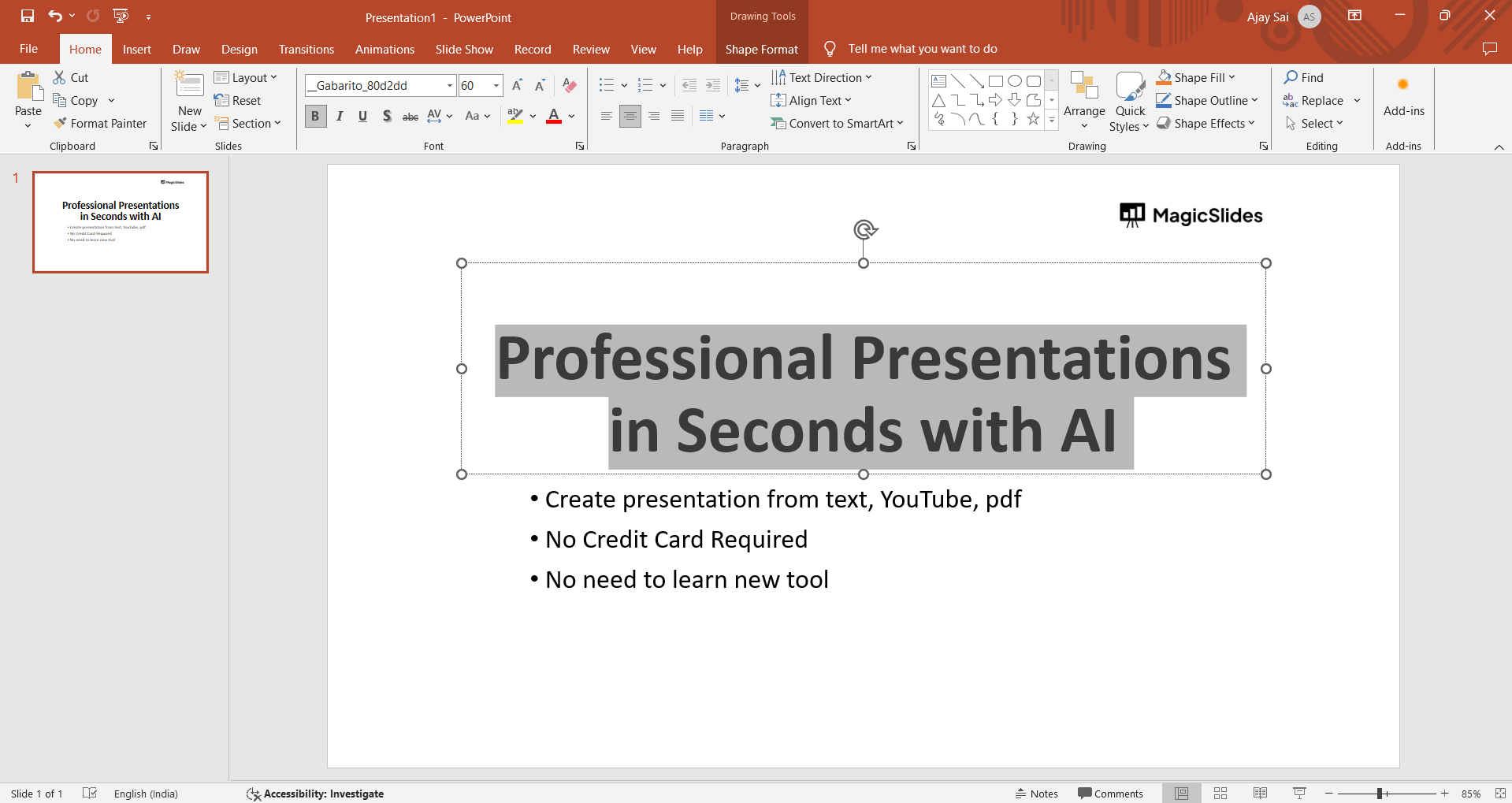
Access Font Options on the Home Tab:
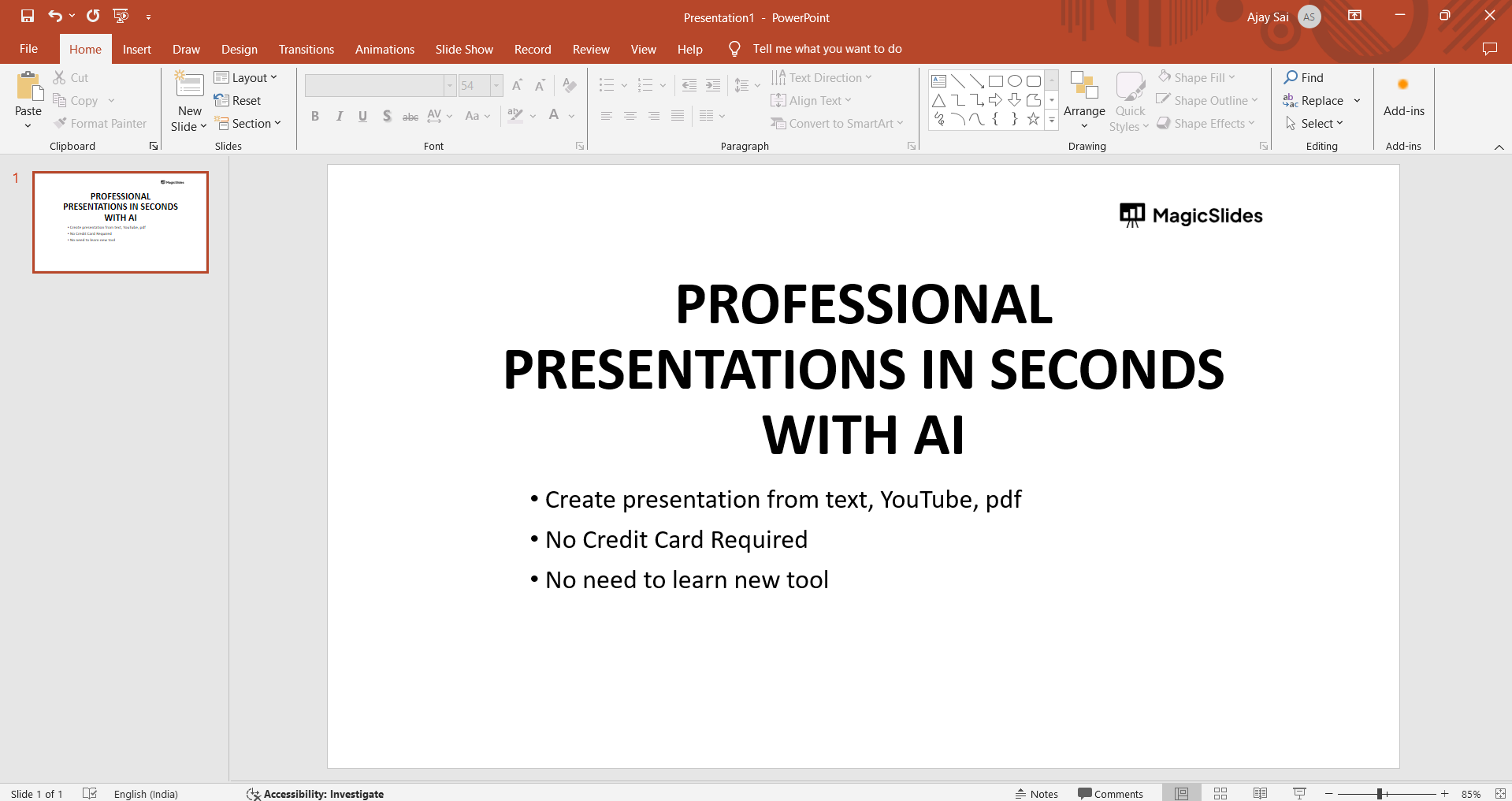
Head to the "Home" tab on the PowerPoint ribbon, where you'll find various font formatting tools.
Locate the "Change Case" Button:
Look for the "Change Case" button in the Font group. It typically features an "Aa" or "AΩ" icon, depending on your PowerPoint version.
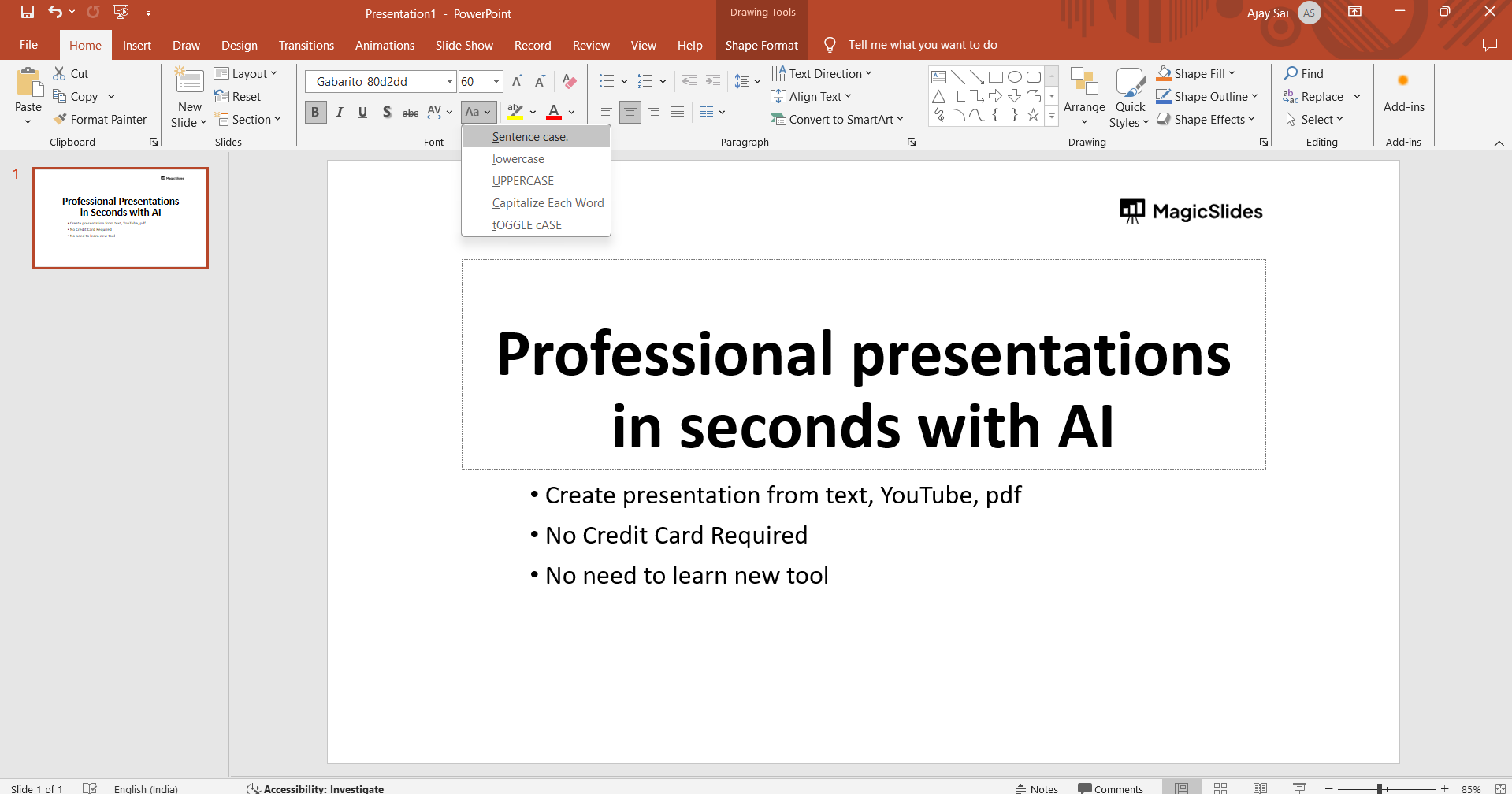
Explore the "Change Case" Options:
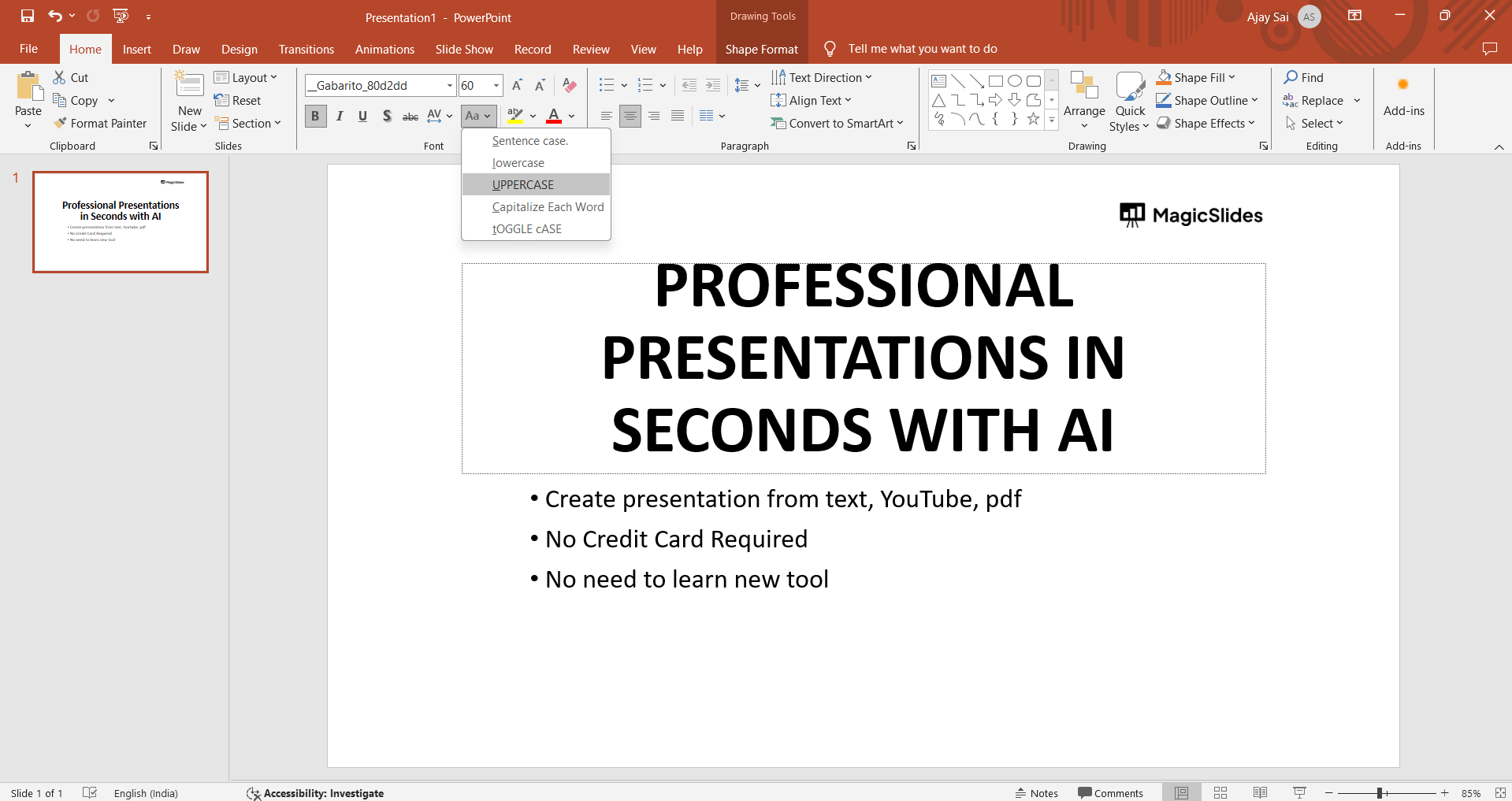
Clicking the "Change Case" button reveals a drop-down menu with different case options. Select "UPPERCASE" to convert the selected text.
Alternative: Use Keyboard Shortcuts:
If your PowerPoint version lacks a dedicated button, employ keyboard shortcuts. For Windows/Linux, press Ctrl + Shift + A; for Mac, use Command + Shift + A.
Verify and Refine:
Confirm that the text has been successfully converted to uppercase. Review the entire presentation to ensure consistency in formatting.
Conclusion:
By following these steps, you can quickly convert selected text to uppercase in PowerPoint, helping to maintain consistent formatting and visual appeal in your presentation. By incorporating these steps, you empower yourself to wield PowerPoint's features effectively, creating visually appealing presentations with consistent text formatting. The ability to convert selected text to uppercase is a valuable tool in the arsenal of presentation design, contributing to clarity and professionalism.
Frequently Asked Questions:
Why should I convert text to uppercase in PowerPoint?
Converting text to uppercase enhances visual emphasis, making important points stand out in your presentation.
What if my PowerPoint version lacks a "Change Case" button?
No worries! Use keyboard shortcuts like Ctrl + Shift + A (Windows/Linux) or Command + Shift + A (Mac) for efficiency.
Can I convert only specific text or entire text boxes to uppercase?
Absolutely! Click and drag to select specific text or highlight entire text boxes before applying the uppercase conversion.
Is converting text to uppercase beneficial for overall presentation aesthetics?
Yes, maintaining consistent formatting, including uppercase text for emphasis, contributes to a polished and professional appearance in your PowerPoint slides.


