How to copy a Google form


Master the art of duplication with this guide on effortlessly copying Google Forms for efficiency.
Streamlining your workflow often involves duplicating existing forms to save time and maintain consistency. In Google Forms, making a copy is a straightforward process, enabling you to replicate quizzes, surveys, or any form effortlessly. In this step-by-step guide, we'll walk you through the process of copying a Google Form, making your form creation and sharing experience more efficient than ever.
Steps to Copy a Google Form:
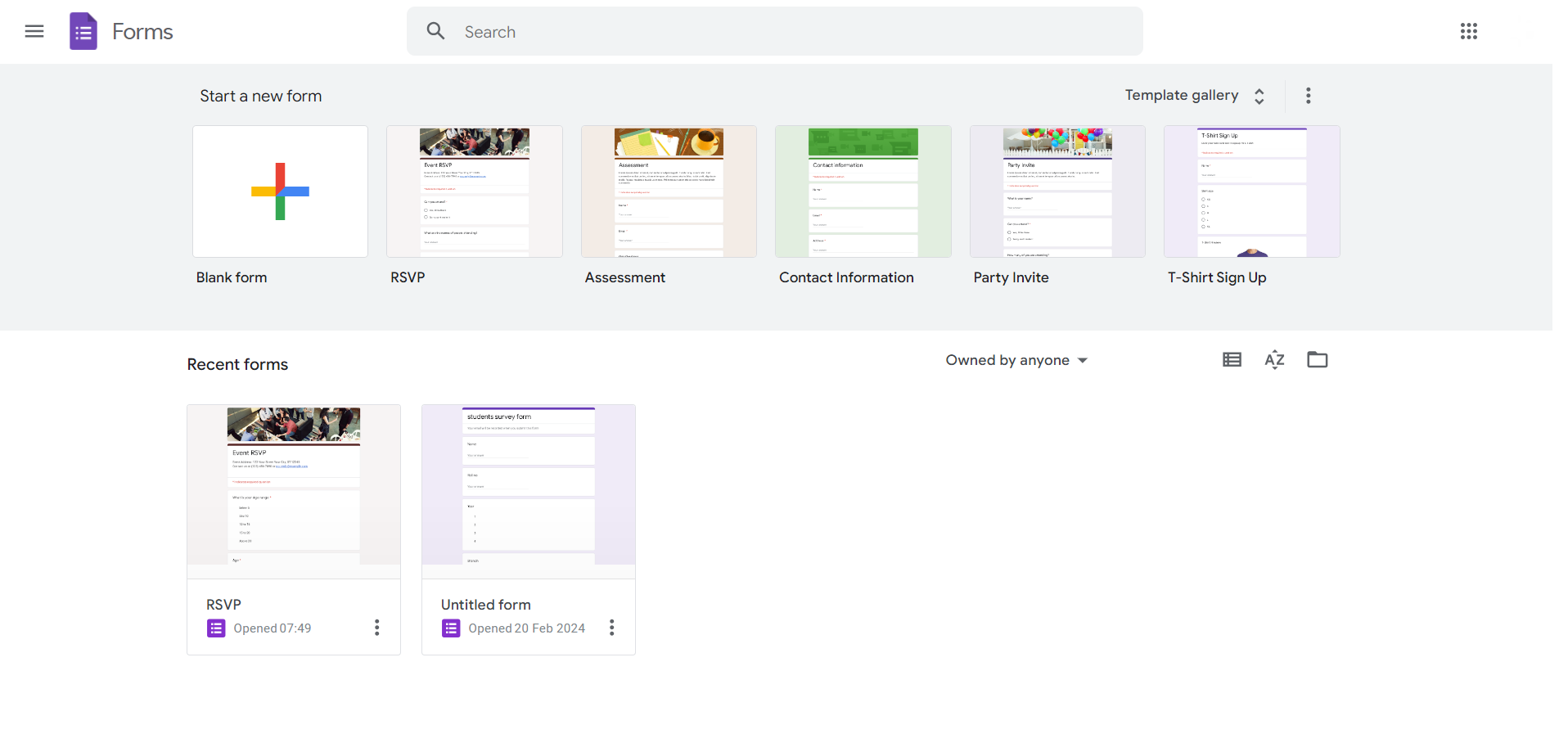
Step 1: Open Google Forms
Commence by opening the Google Forms platform and accessing the form or quiz you wish to duplicate.
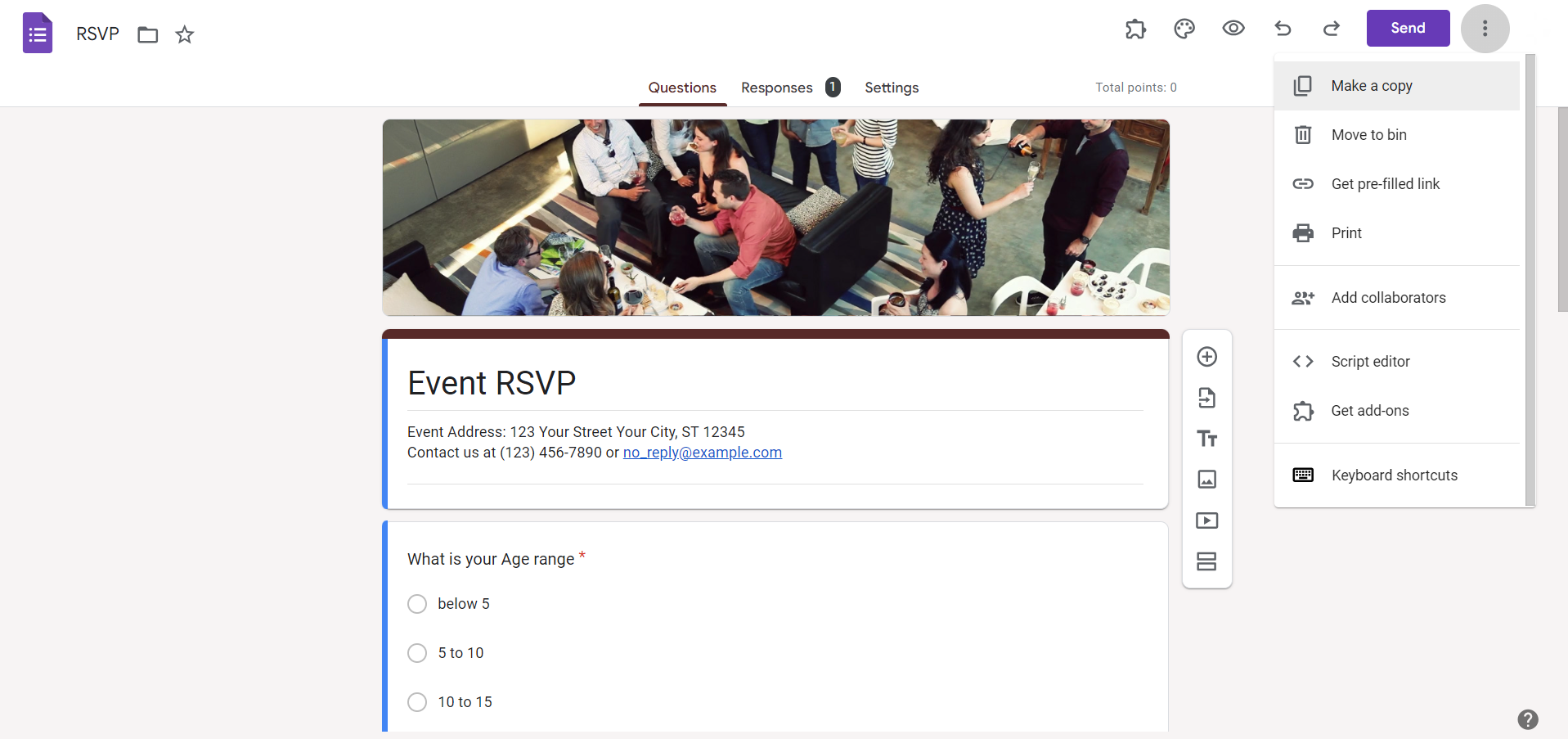
Step 2: Click on "More"
In the top-right corner of the form interface, locate the "More" option. Click on it to reveal a dropdown menu.
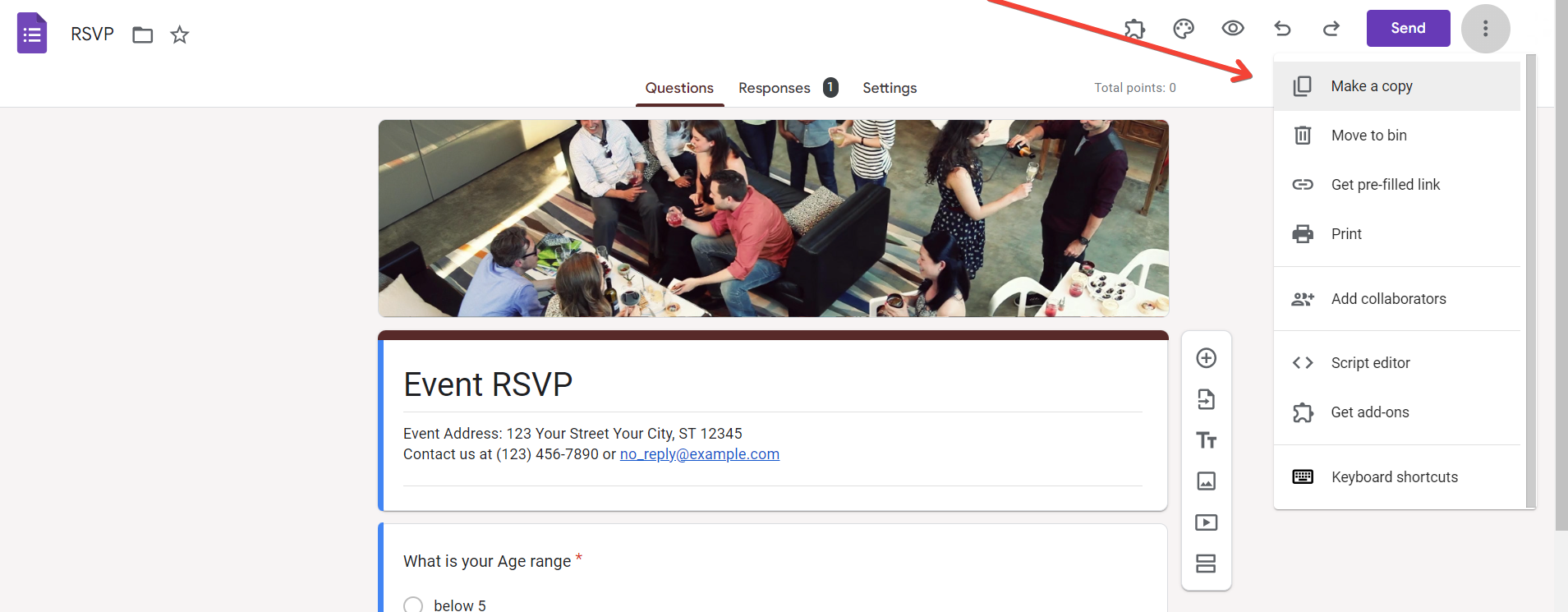
Step 3: Select "Make a Copy"
From the dropdown menu, find and click on "Make a copy." This initiates the duplication process.
Step 4: Name the Copy
A dialog box will appear prompting you to name the copied form. Enter a distinctive name for clarity.
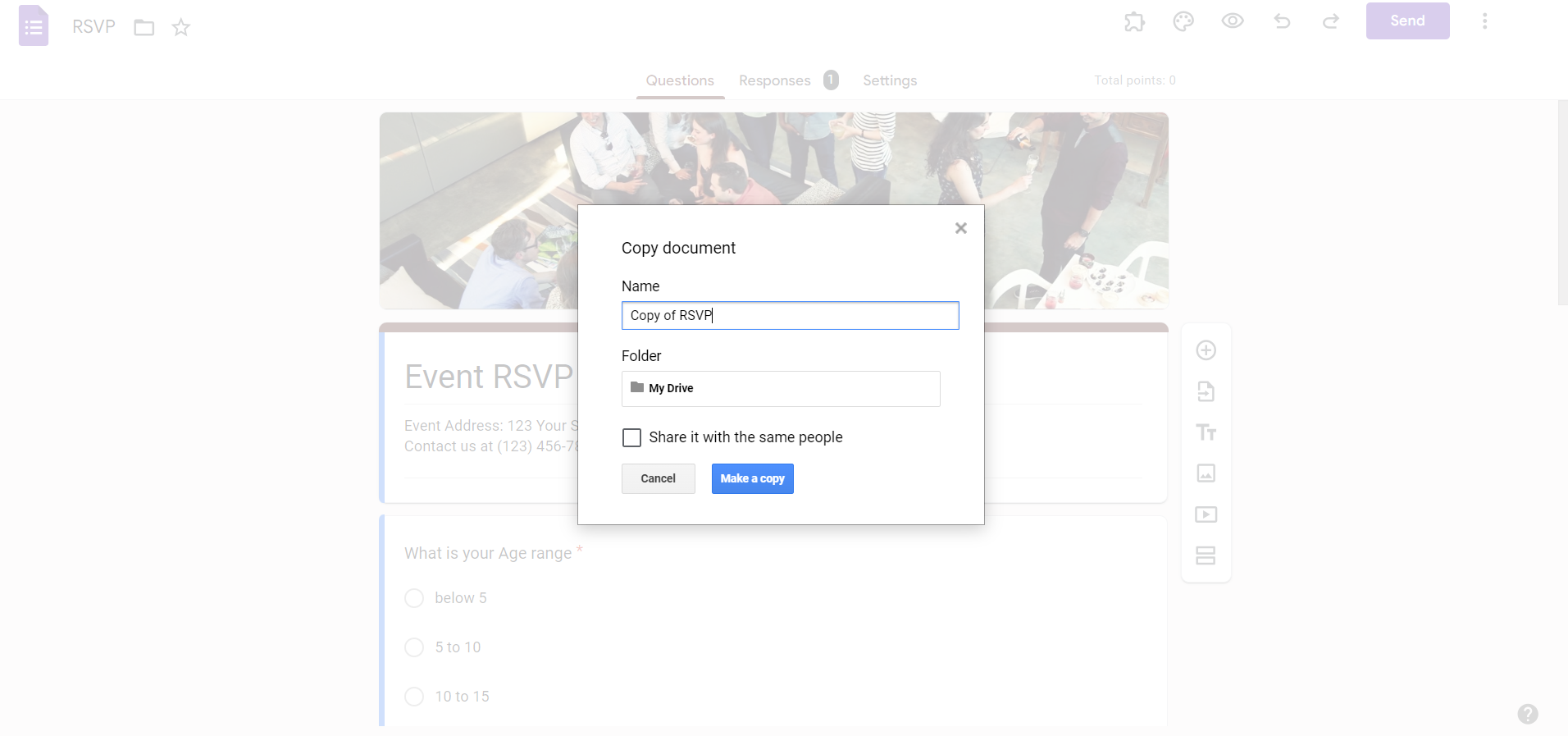
Step 5: Choose a New File Location (Optional)
If you prefer a different location in Google Drive for the copied form, click the folder icon and specify the new location.
Step 6: Share with Same Collaborators (Optional)
To share the copied form with the same collaborators, tick the "Share it with the same people" box.
Step 7: Click "OK"
Complete the process by clicking "OK." Your copied form is now ready for use or further customization.
Conclusion:
Copying a Google Form is a valuable skill that expedites your form creation process. This guide has demonstrated how simple it is to duplicate forms, enabling you to maintain consistency, save time, and collaborate seamlessly with others. Whether you're an educator, a business professional, or an event organizer, the ability to copy and share forms efficiently enhances your productivity and ensures a hassle-free experience in Google Forms. Duplicate with confidence and make the most out of your form-building endeavors.
Frequently Asked Questions:
Can I copy a Google Form if I am not the original creator or owner?
No, you must have edit access to the form to make a copy.
Will copying a form also duplicate responses and collected data?
No, copying a form only duplicates the structure; responses and data remain with the original form.
Can I customize the copied form immediately after making a duplicate?
Yes, the copied form is ready for customization right away to meet your specific needs.
What happens if I share the copied form with different collaborators than the original?
The copied form will be shared with the collaborators you specify during the copy process.


