How to Make a Cinematic Presentation: A Step-by-Step Guide


Learn how to make a cinematic presentation with storytelling, visuals, smooth transitions, and AI tools like MagicSlides. Create stunning slides fast.
How to make a cinematic presentation means using storytelling, cinematic visuals, smooth transitions, and clean slide design to create a presentation that feels engaging and memorable. Most presentations feel dull because they rely on too much text and weak visuals.
A cinematic presentation is different. It uses full-screen images, minimal text slides, strong typography, and scene-by-scene flow to hold attention.
Learning how to make a cinematic presentation is not about flashy effects. It is about guiding your audience through a story with emotion, clarity, and smart pacing. This style works for business pitches, startup pitch decks, student seminars, TED-style presentations, and product launch presentations.
In this guide, you will learn how to make a cinematic presentation using practical design tips, storytelling methods, and the best tools like PowerPoint, Canva, Google Slides, and Keynote.
What Is a Cinematic Presentation?
A cinematic presentation is like a movie on slides. It is made to make you feel something look modern and grab your attention.
When you want to learn how to make one think of each slide like a scene in a movie. Every slide should do one thing well. It should get people interested explain a problem show a solution or make people want to act.
Some common things you see in presentations are:
- Big visuals that fill the screen
- Headlines that stand out
- Dark backgrounds
- Animations between slides
- A story that flows well
- Last slides that leave an impression
This style is good, for many things. You can use it for business presentations when you are trying to get investors for your startup for school projects and when you are giving a talk.
Understanding what a cinematic presentation is can help you make one that people will remember.
How to Create a Cinematic Presentation?
The best way to learn how to make a cinematic presentation is to build it like a short film. Focus on story, visuals, and pacing.
1. Start With a Story- Plan your presentation in three parts:
- Strong opening hook
- Main problem or challenge
- Clear solution or message
2. Use Cinematic Visuals- Choose full-screen images that create emotion and interest. Good visuals instantly improve presentation design.
3. Keep Text Minimal- Use one bold statement or one key number per slide. Minimal text slides look cleaner and feel more professional.
4. Add Smooth Transitions- Use fade, morph, or zoom effects. These transitions help guide attention naturally.
5. Control the Pace- Pause after important points. Move slowly during key moments. Pacing matters when learning how to make a cinematic presentation.
6. End With Impact- Finish with a memorable closing slide, clear message, or call to action.
Best Tools to Make a Cinematic Presentation
Choosing the right tool makes how to make a cinematic presentation faster and more effective. The best platform depends on your design needs, speed, and presentation style.
MagicSlides
A smart option for creating presentations quickly. MagicSlides AI presentation tool helps with layouts, content generation, and modern slide design, making it useful for cinematic presentation ideas.
PowerPoint
Best for advanced control, cinematic PowerPoint slides, and Morph transitions. Ideal for business decks.
Canva
Great for beginners who want templates, cinematic visuals, and simple drag-and-drop editing.
Google Slides
Best for collaboration and quick projects with clean presentation design.
Keynote
Excellent for smooth animations and premium cinematic keynote presentation styles.
Choose the tool that matches your workflow and helps you create a polished cinematic slideshow.
How to Instantly Create a Cinematic Presentation with AI
Creating a cinematic presentation manually can be time-consuming. However, MagicSlides.app simplifies the process using AI-powered automation.
Follow These Steps to Generate a Cinematic Presentation in Minutes:
- Visit the software website and enter your topic into the designated space.
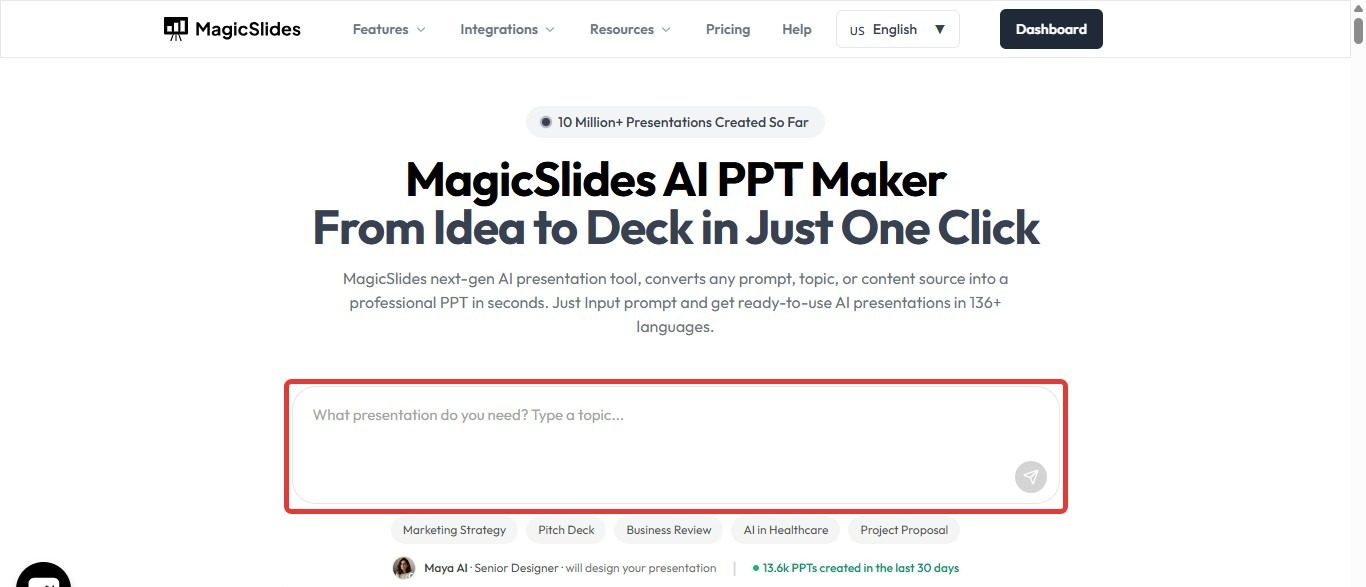
- Click ‘Generate Instant PPT’ to let AI create a structured presentation. Then set the number of slides as prompted.
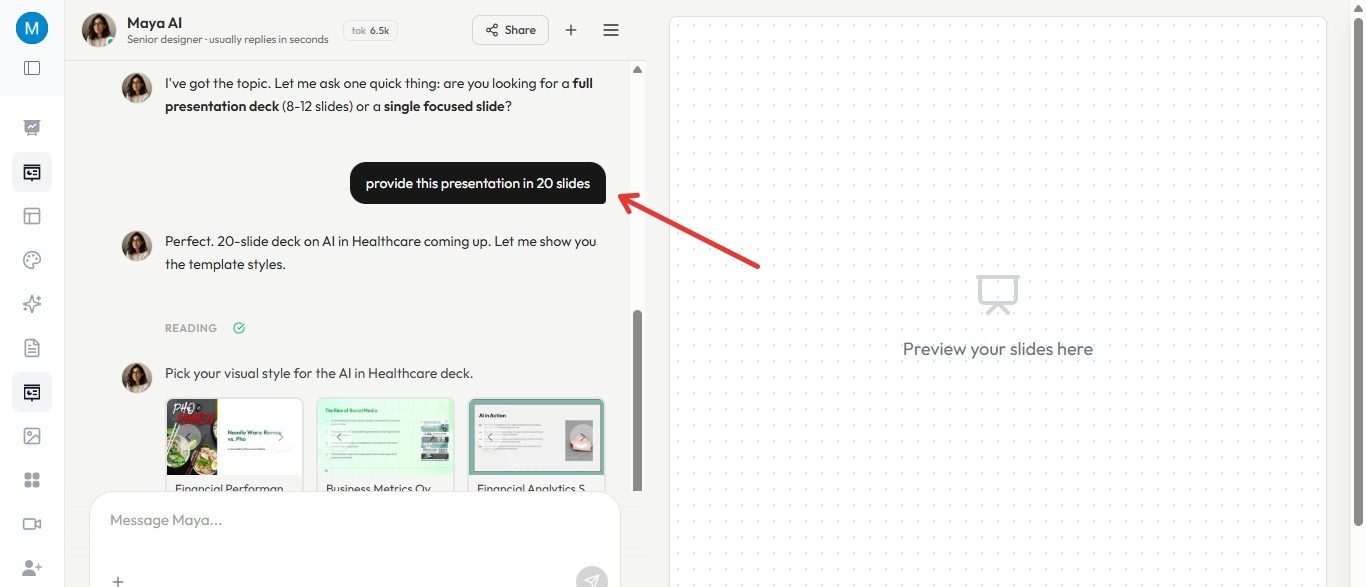
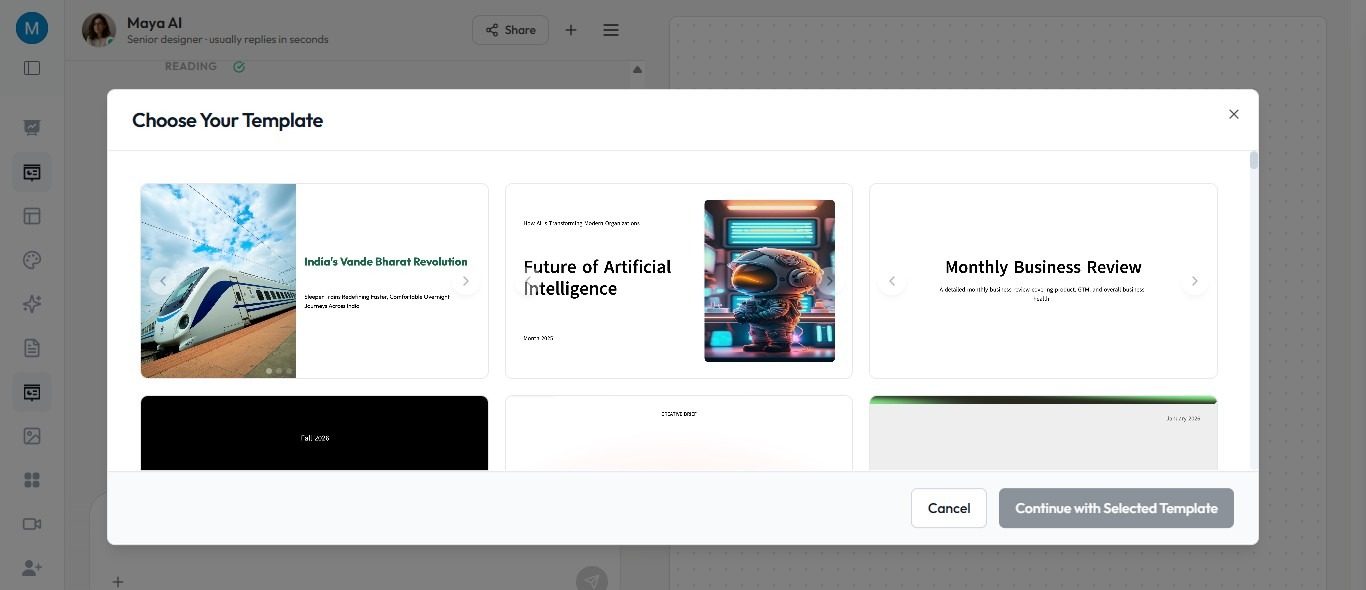
- Now choose a Template as per your requirement
- Software will provide you with the complete outline of the presentation on right side of the screen.
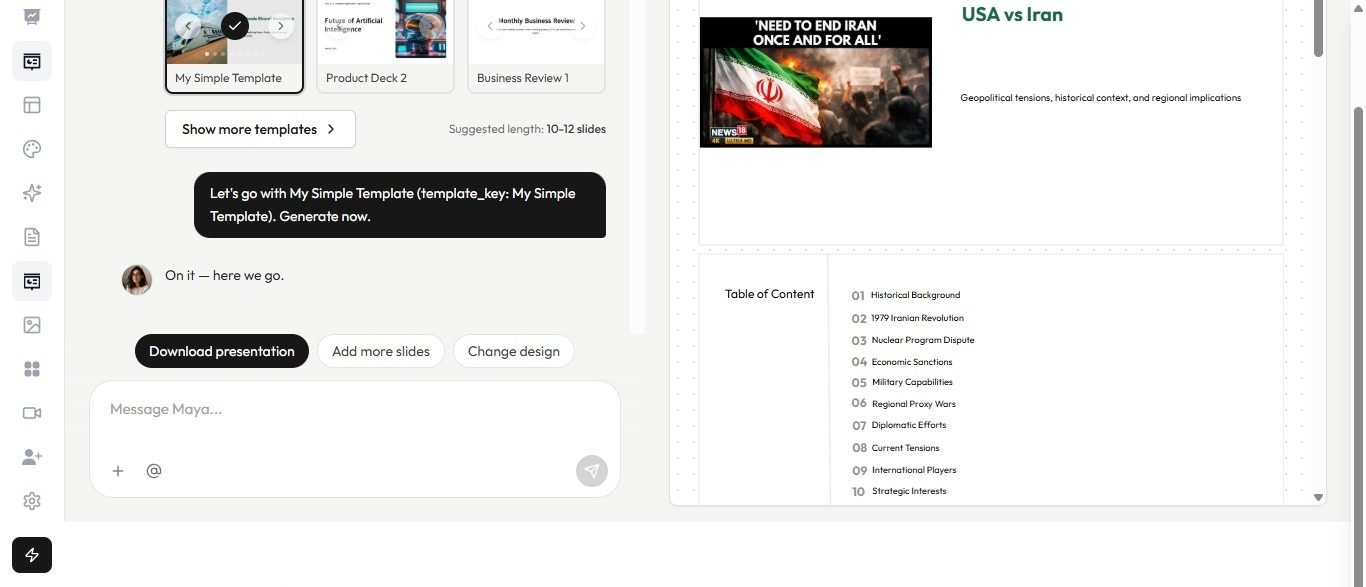
- You can change design or add more slides through the options given above chatbot.
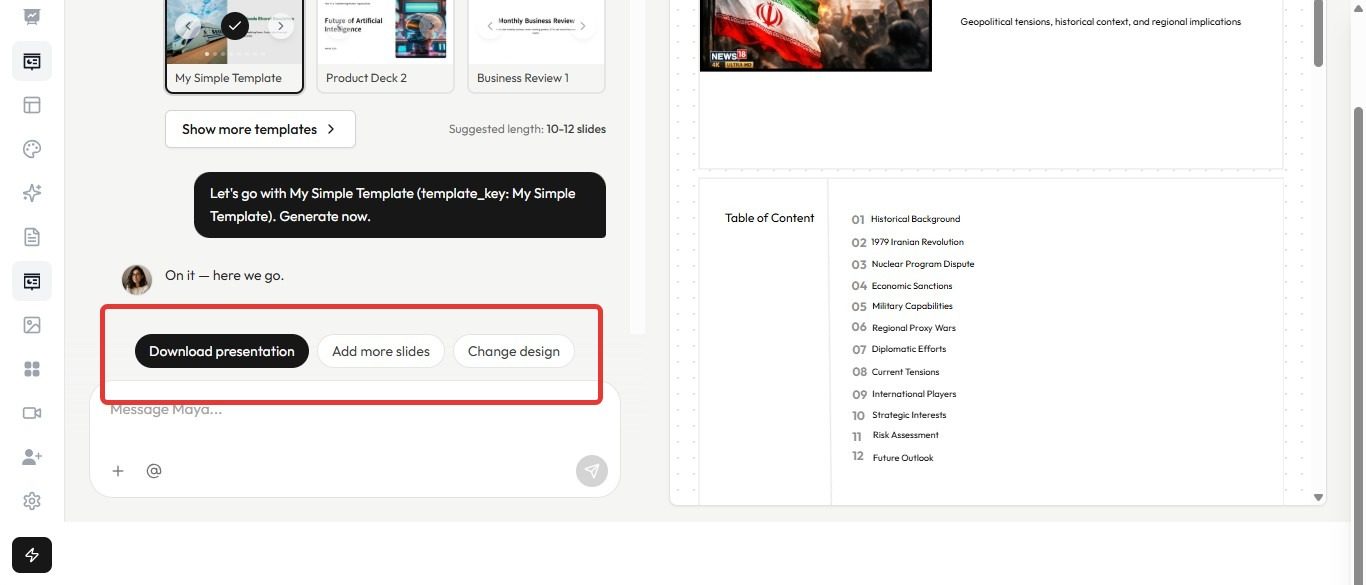
- Download & Customize your presentation as needed.
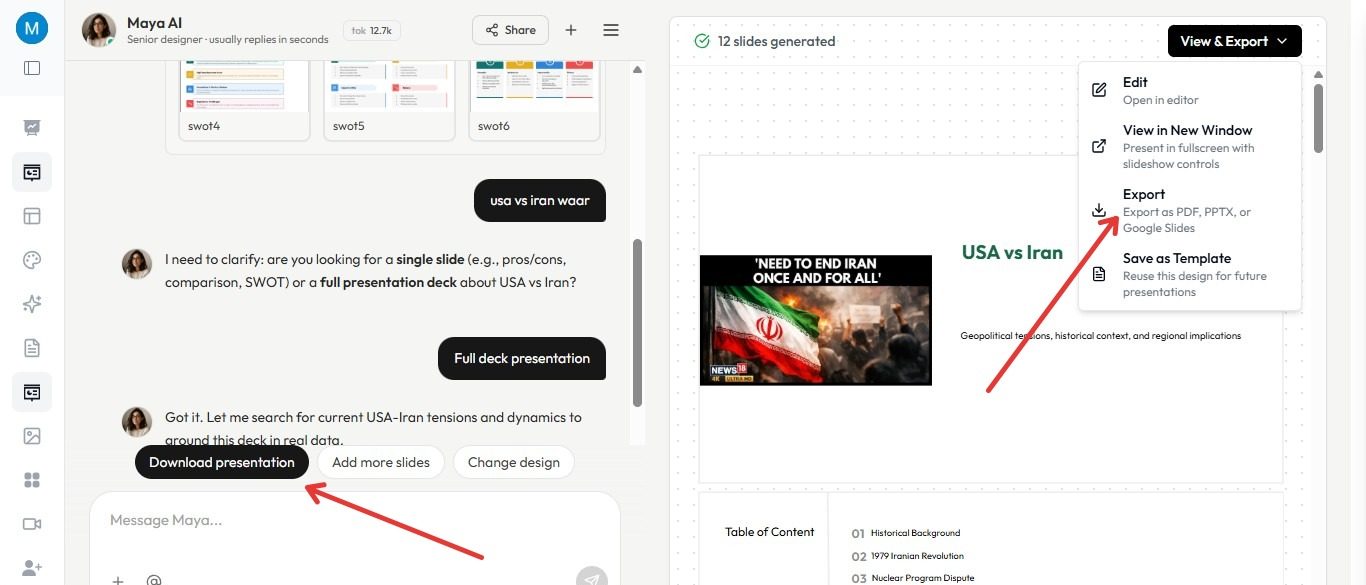
By following these steps, you can instantly generate a cinematic-style presentation and make additional tweaks for perfection.
Why Use AI for Cinematic Presentations?
MagicSlides.app is an AI-powered tool that creates presentations instantly, saving time and effort. Instead of spending hours on design, transitions, and structuring, you get a ready-made presentation with: ✔ Professional templates
- AI-generated structured slides
- Customizable content
- Google Slides & PowerPoint compatibility
- Data from Google & Wikipedia integration
- YouTube to PPT conversion
Tips to Enhance Your Cinematic Presentation
1. Use a Cohesive Color Palette
- A cinematic aesthetic often follows a color scheme inspired by movies: Dramatic & Bold: Dark backgrounds with neon accents.
- Warm & Inviting: Gold, soft orange, deep red tones.
- Modern & Futuristic: Cool blues, purples, and gradients.
Use Colors or Adobe Color to generate professional color schemes.
2. Add Background Music or Subtle Sound Effects
Background music enhances emotional impact. Choose royalty-free cinematic music from platforms like: Epidemic Sound
Artlist.io
Bensound
Use PowerPoint or Google Slides to insert ambient sound effects (whooshes, subtle piano music).
3. Incorporate AI-Generated Images & Videos
If you need high-quality visuals, use:
- MagicSlides AI Image Generator (available in Pro & Premium)
- Unsplash, Pexels, or Pixabay (for free stock images)
- Canva & Adobe Express (for custom graphics)
4. Optimize Text & Font Choices
Fonts play a crucial role in the cinematic feel. Use:
- Serif fonts for a classic & elegant look (e.g., Playfair Display, Times New Roman).
- Sans-serif fonts for a modern & minimal look (e.g., Montserrat, Poppins).
- Script fonts for a dramatic touch (use sparingly for headings).
Common Mistakes to Avoid
A lot of people have a time making a cinematic presentation because they make it too complicated. It is usually better to keep things
Cinematic presentations are all about choices. Simple choices are usually the way to go when you are making a cinematic presentation.
Too Much Text
When there is too much text on a slide it is hard to read. This is why you should use slides with text and one clear message.
Cinematic presentations should have text on each slide. Each slide should have one message that the audience can understand.
Random Animations
Using many special effects can make your cinematic presentation look bad. You should only use animations when you really need to.
Cinematic presentations should use slide animations. These animations should only be used when they are really needed.
Weak Visuals
If you use low-quality images it can hurt your presentation. You should choose clear visuals that help tell your story. Cinematic presentations need visuals. These visuals should be sharp. Help tell the story you are trying to tell.
No Story Structure
If your slides do not flow well you will lose your audiences attention quickly. You should make a beginning, a middle and an end.
A cinematic presentation needs to have a story structure. This structure should have a beginning, a middle and an end.
Inconsistent Colors
If you change the style on every slide it will look messy. You should keep the fonts and colors throughout your cinematic presentation. Cinematic presentations should have fonts and colors. This will make your cinematic presentation look neat and tidy.
Weak Ending
You should not end your cinematic presentation abruptly. You should end with a closing slide or a call to action. A cinematic presentation should have an ending. This will leave a lasting impression, on your audience.
If you avoid these mistakes it will be a lot easier to learn how to make a presentation. Making a presentation will be much easier if you avoid these common mistakes. You will be able to make a cinematic presentation if you avoid these mistakes and follow these tips.
Final Thoughts
Creating a cinematic presentation requires attention to storytelling, visuals, and design. With MagicSlides.app, you can automate the process and generate a professional-grade, cinematic slide deck in minutes.
Whether you’re presenting for business, education, or entertainment, the right combination of AI automation, professional design, and engaging storytelling will leave a lasting impression on your audience.


