How to create correct answer for Questions on Google forms quiz


Learn to define correct answers for Google Forms quizzes with this comprehensive step-by-step guide.
Google Forms quizzes are a versatile tool for creating assessments, surveys, and evaluations. One critical aspect of setting up a Google Forms quiz is ensuring that the correct answers are accurately defined for each question. Correct answers not only provide immediate feedback to respondents but also facilitate the automatic grading process. In this comprehensive guide, we'll walk you through the steps to create correct answers for questions on a Google Forms quiz, empowering you to design effective assessments for various purposes.
How to create correct answer for Questions on Google forms quiz
Access Google Forms:
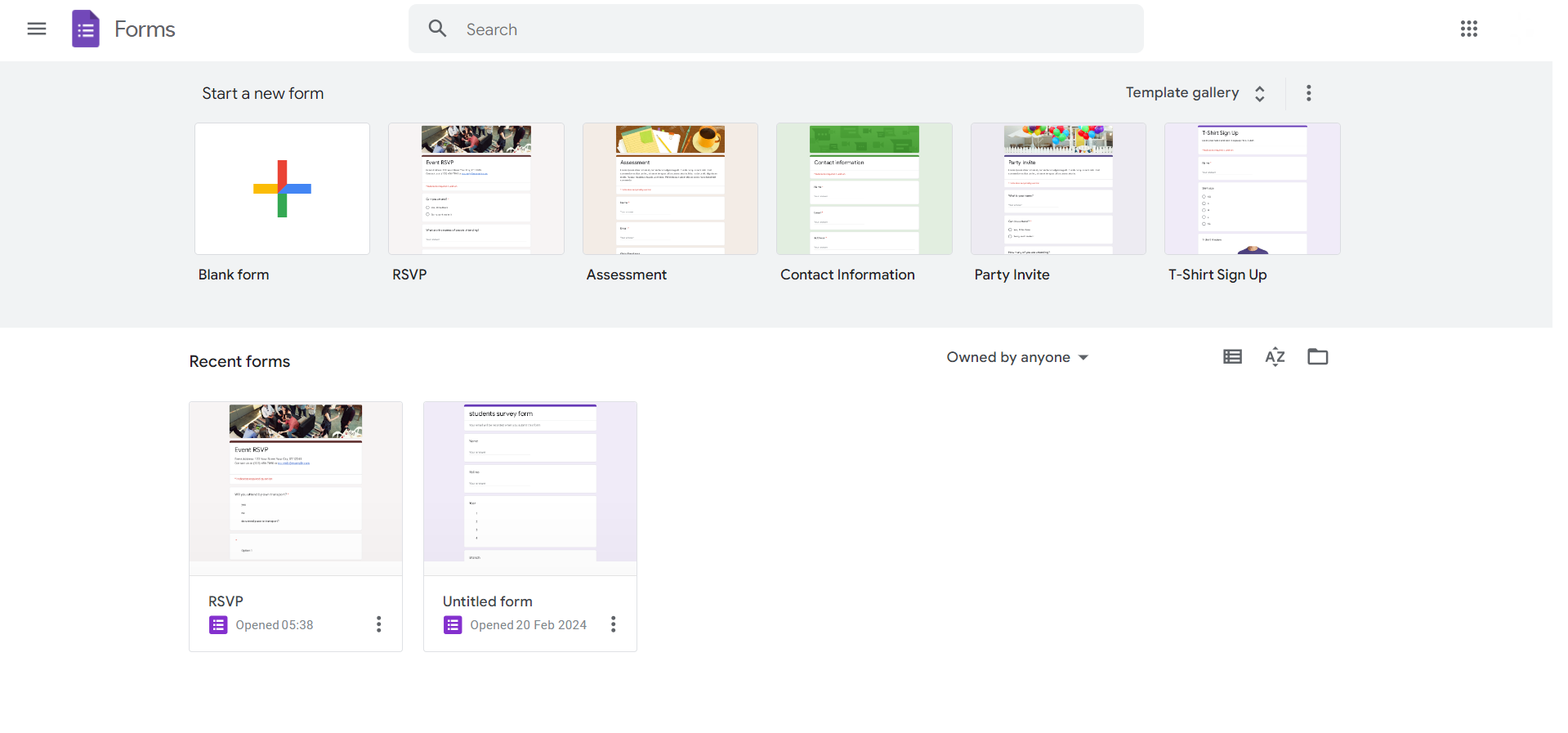
Open your web browser and navigate to Google Forms by visiting forms.google.com or accessing it through Google Drive.
Create a new quiz or open an existing one:
Start by either creating a new quiz from scratch or opening an existing one that you wish to edit.
Add or select a question:
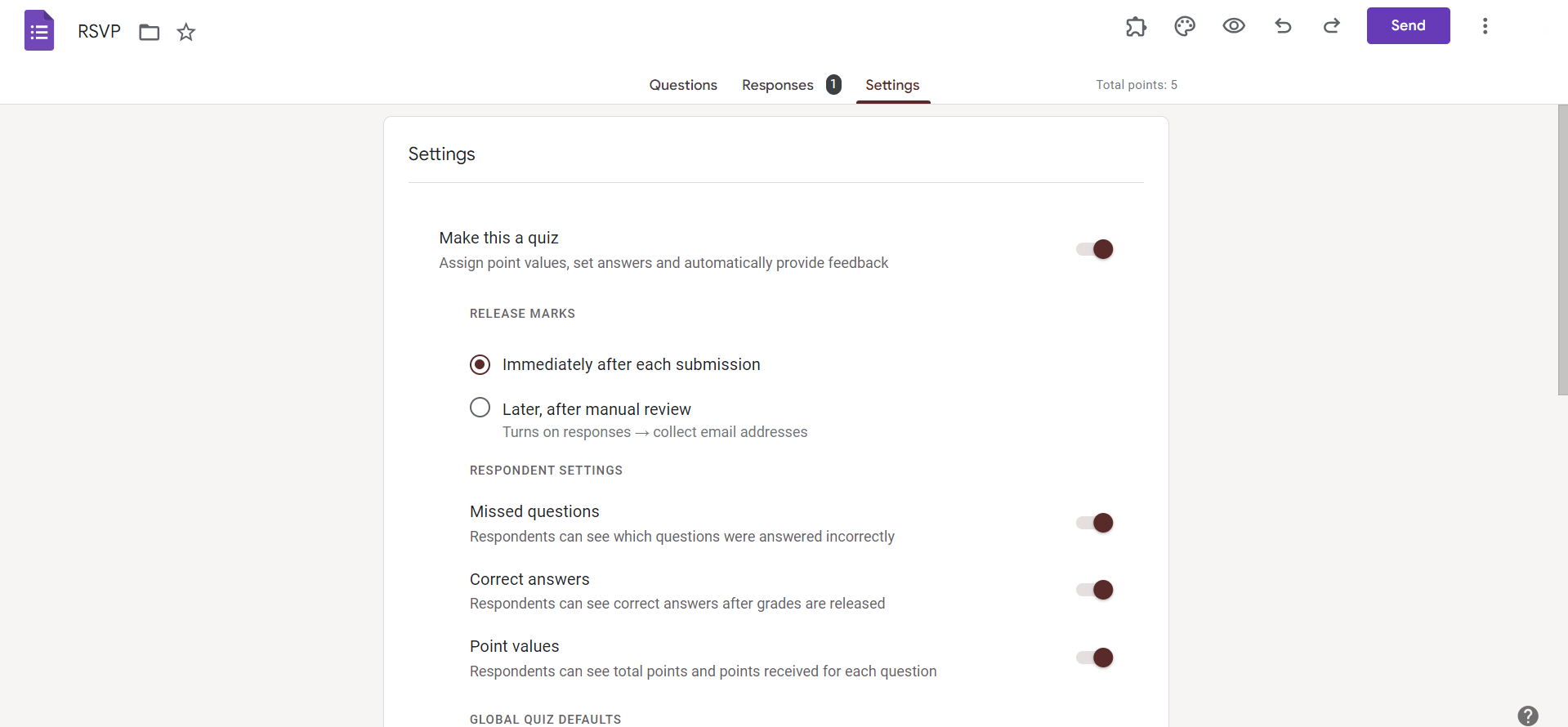
Click on the "+" icon to add a new question or select an existing question by clicking on it.
Define the correct answer:
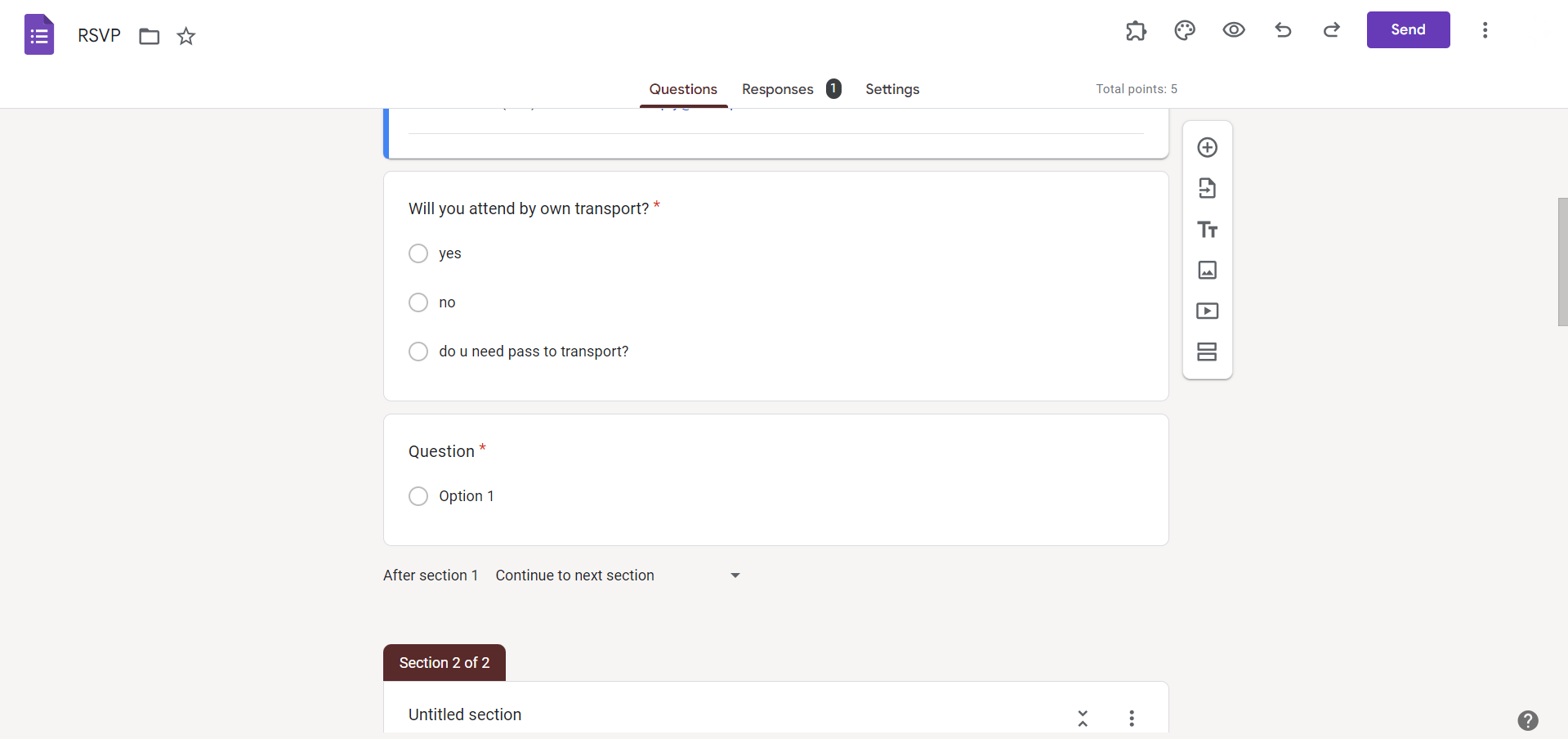
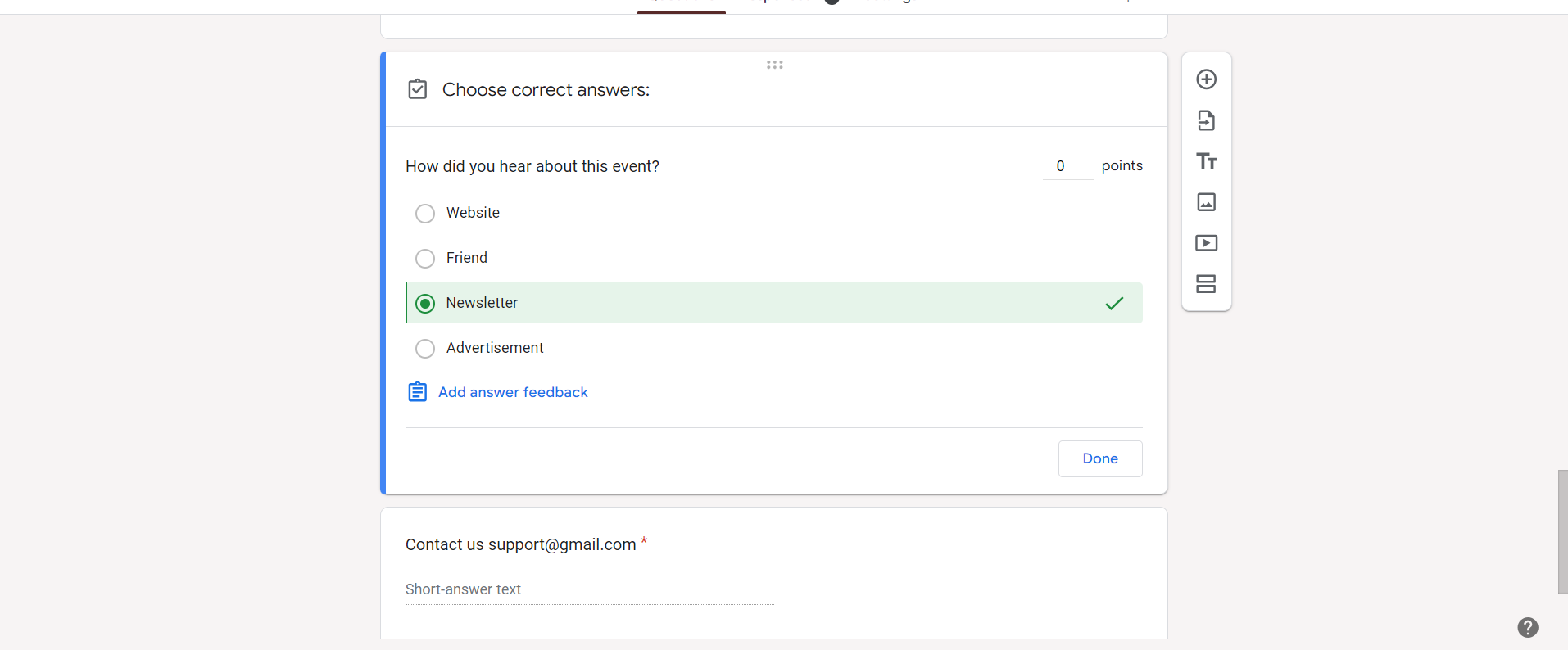
For multiple-choice, checkbox, dropdown, or grid questions, select the correct answer(s) by ticking the appropriate option(s). For short answer or paragraph questions, type the correct answer(s) in the designated space.
Enable answer key (if applicable):
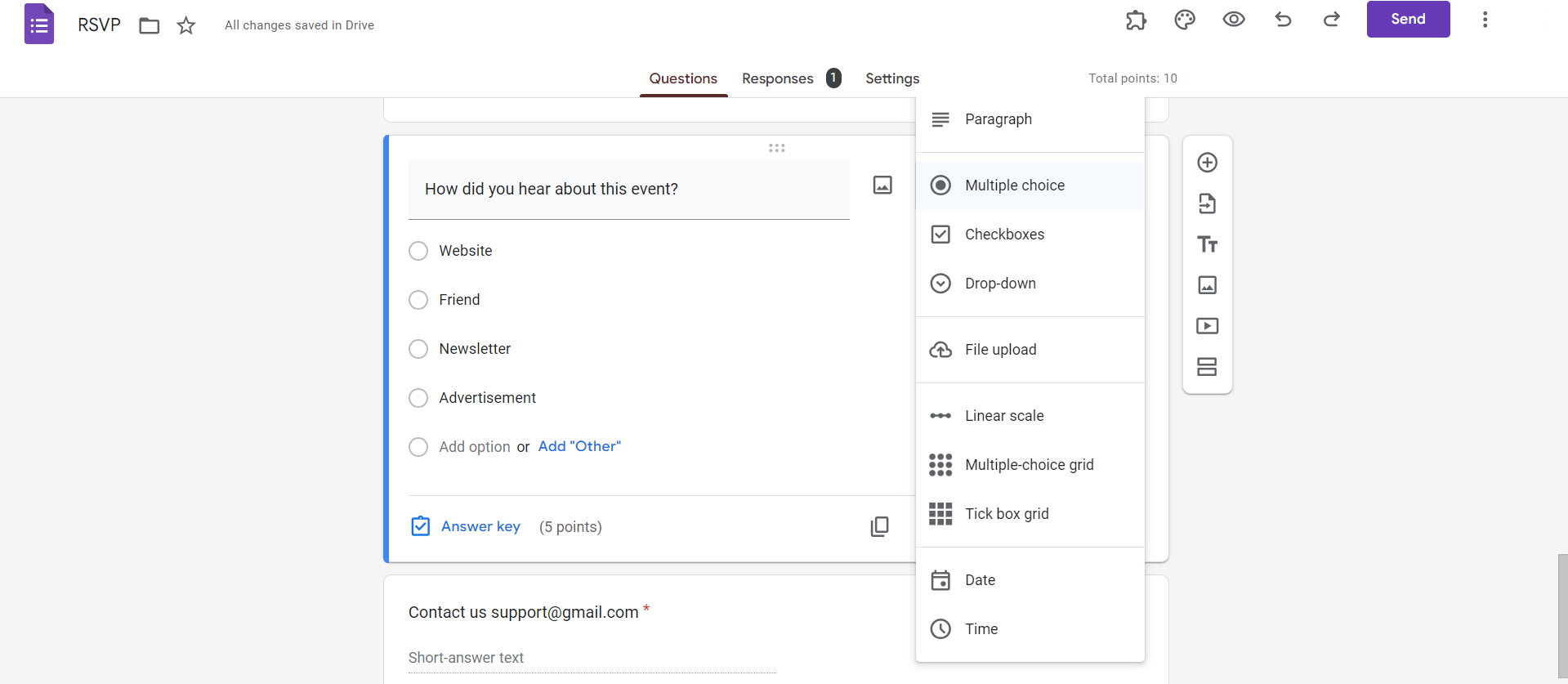
If you're creating a quiz, click on the "Answer Key" button located at the bottom of the question. Toggle the switch to enable the answer key feature.
Assign points (if applicable):
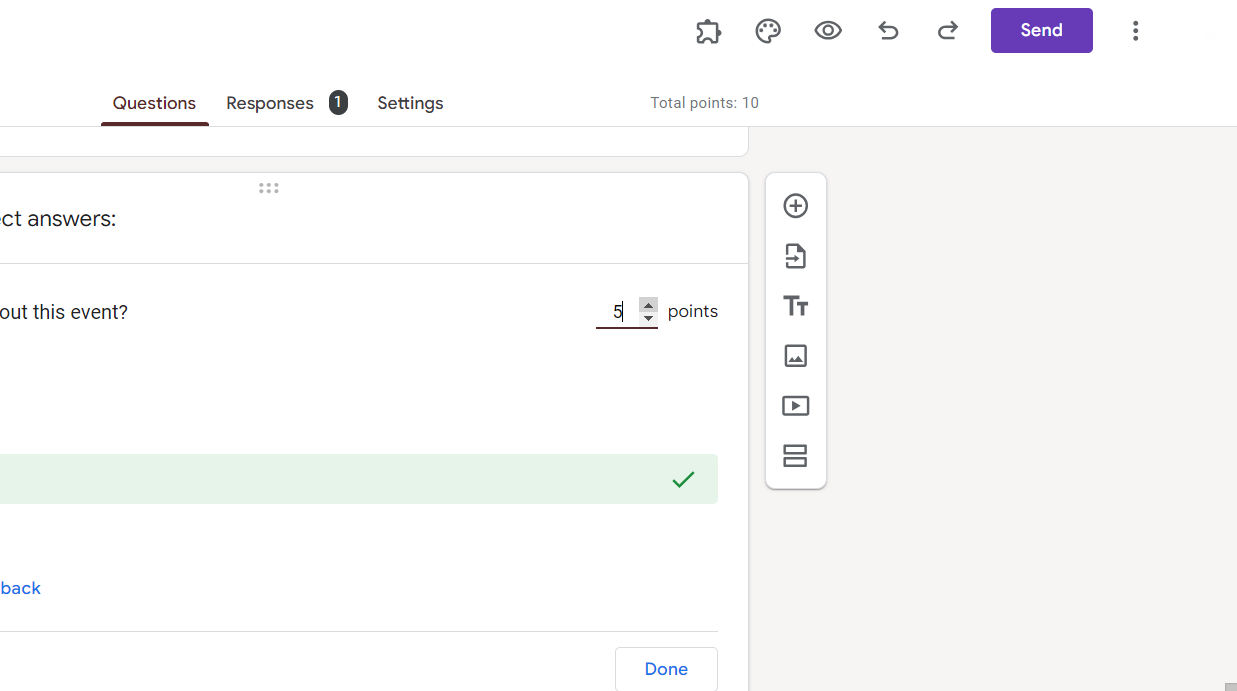
Specify the number of points assigned to the question by entering the point value in the designated field.
Review and finalize:
Double-check the correctness of the defined answers for each question. Make any necessary adjustments or corrections before finalizing the quiz.
Conclusion:
By following the step-by-step guide outlined above, you can accurately define the correct answers for various types of questions, including multiple-choice, checkbox, short answer, and more. Additionally, enabling the answer key feature and assigning points where applicable ensure that your quiz is set up correctly for automatic grading. With this guide, you're now equipped with the knowledge and tools to confidently create quizzes on Google Forms with accurate and effective correct answers.
Frequently Asked Questions:
Why are correct answers important in Google Forms quizzes?
Correct answers provide accurate feedback to respondents and facilitate automatic grading for efficient assessment.
Can I edit correct answers after creating the quiz?
Yes, you can easily edit correct answers in Google Forms quizzes even after creating them.
How do I enable the answer key feature in Google Forms?
To enable the answer key, click on "Answer Key" at the bottom of the question while creating the quiz.
Is it possible to assign different point values to questions?
Yes, you can assign different point values to questions by specifying the point value for each question.


