How to create hyperlinks in Google Docs?


Learn how to easily create hyperlinks in Google Docs with step-by-step instructions and helpful tips for efficient document navigation.
Creating hyperlinks in Google Docs can be a useful skill, especially when you want to add references, direct readers to additional resources, or cite sources within your document. Hyperlinks can enhance the readability and accessibility of your content. Whether you're a student, a professional, or anyone looking to master this feature, this guide will walk you through the process step by step.
How to create hyperlinks in Google Docs?
Before we delve into the specifics of creating hyperlinks, ensure you're logged into your Google account and have access to Google Docs. If not, sign in to your Google account and navigate to Google Docs.
1. Open Google Docs
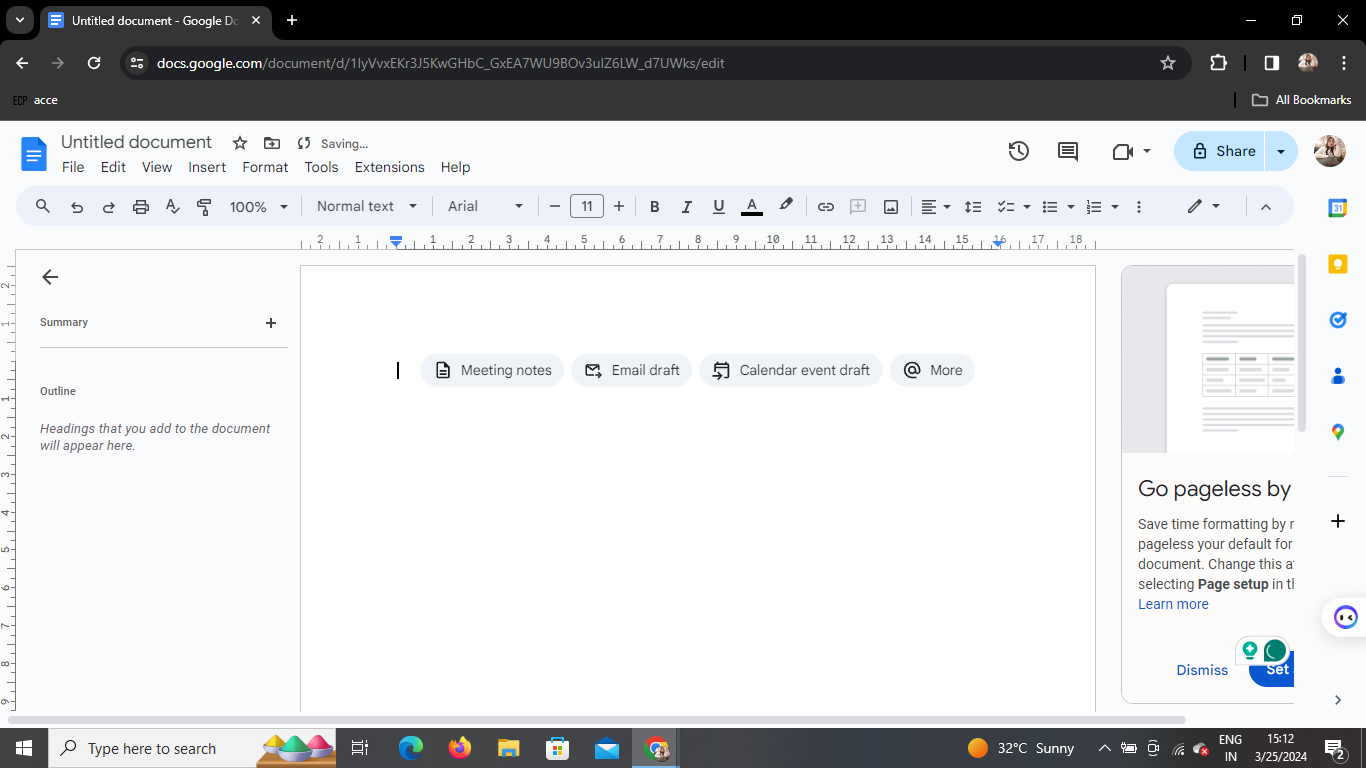
Begin by opening Google Docs in your web browser. If you're already logged in to your Google account, you can access Google Docs directly from the Google Apps menu.
2. Type in Your Content
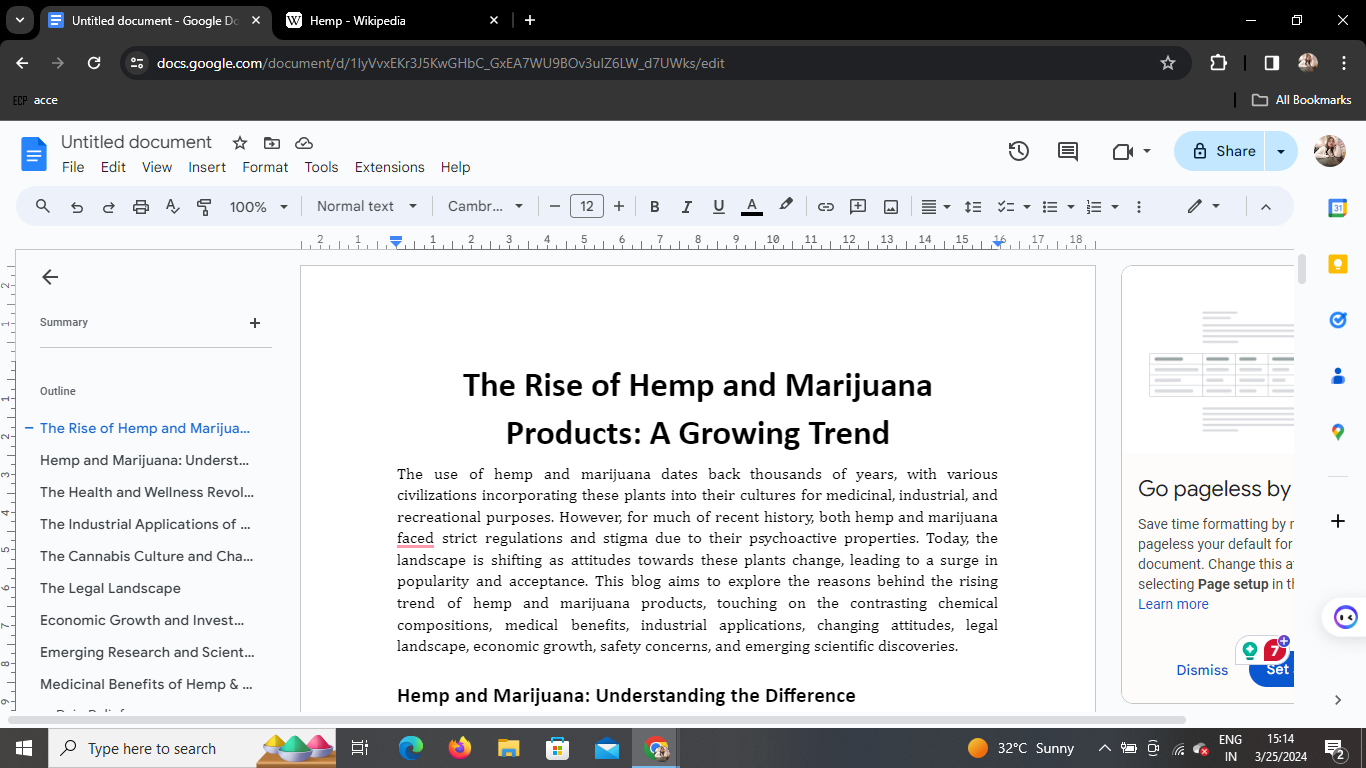
Once you've opened Google Docs, start typing or paste the content where you want to insert a hyperlink. Identify the text that you wish to link to a website or another document.
3. Select the Text
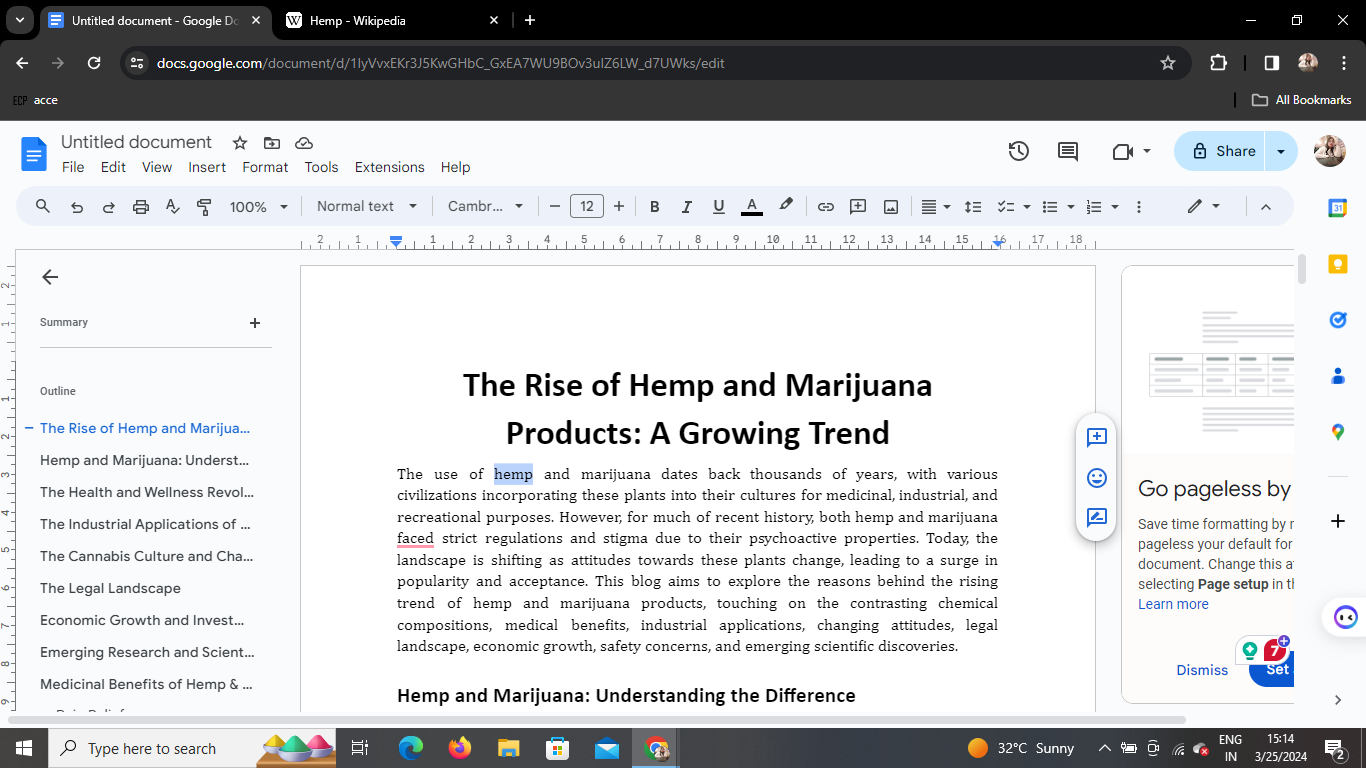
Click and drag your cursor over the text you want to hyperlink. This action will highlight the selected text.
4. Insert Hyperlink
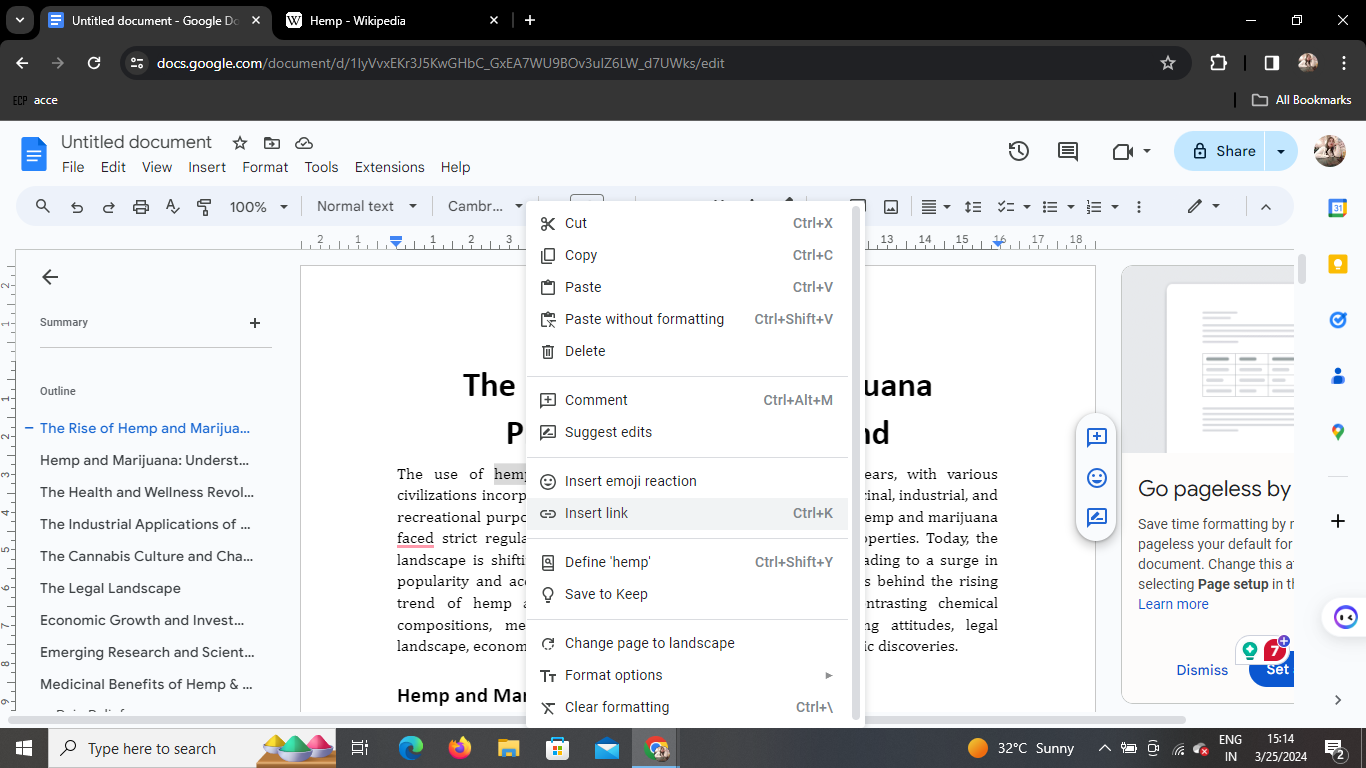
Right-click on the highlighted text to open a dropdown menu. From the options provided, select "Insert link." Alternatively, you can use the keyboard shortcut Ctrl + K.
5. Paste the Hyperlink
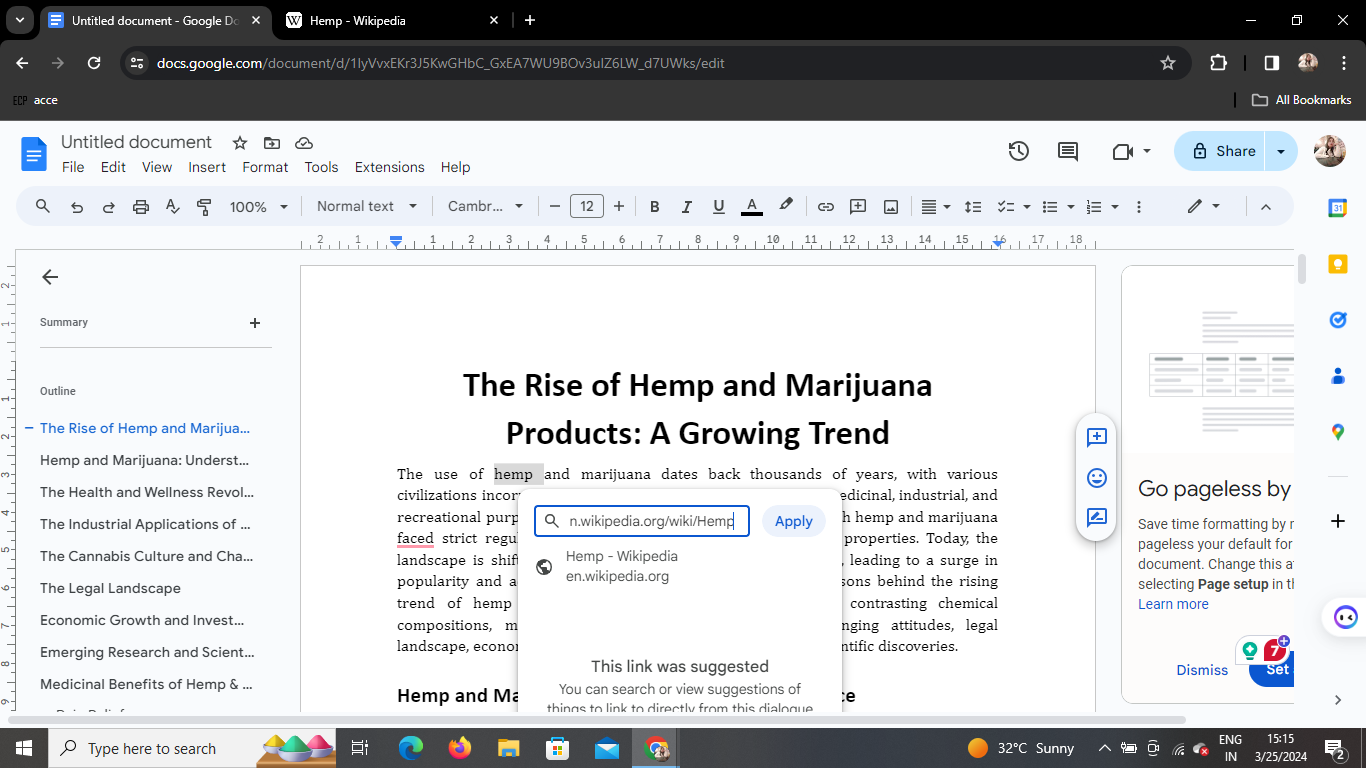
A submenu will appear, allowing you to paste the URL you want to link to. Paste the desired link into the provided field.
6. Finalize the Link
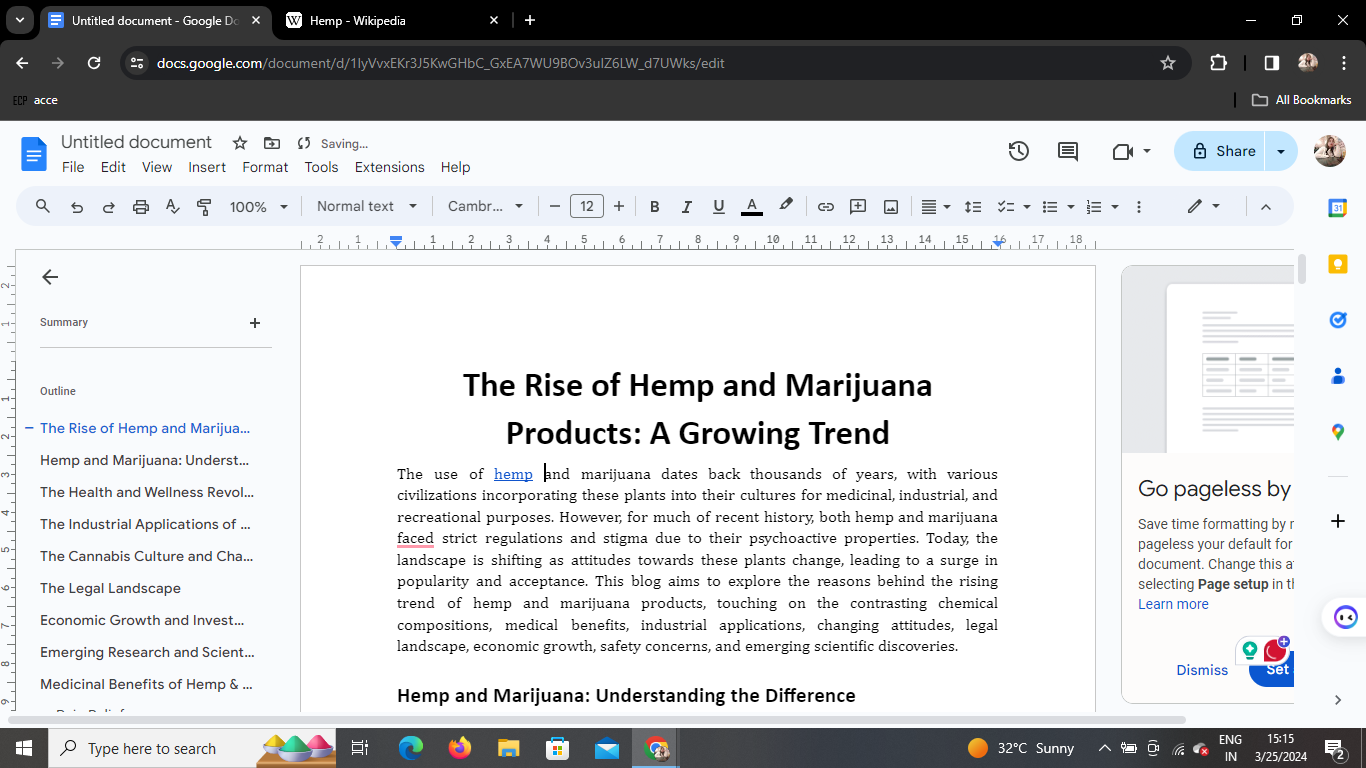
After pasting the hyperlink, press Enter or click outside the submenu. Google Docs will automatically hyperlink the selected text to the provided URL.
Conclusion
Creating hyperlinks in Google Docs is a straightforward process that can greatly enhance the functionality and interactivity of your documents. By following the steps outlined in this guide, you can easily insert hyperlinks to direct readers to external sources or additional information. Experiment with different types of hyperlinks to optimize the accessibility and engagement of your documents.
Frequently Asked Questions (FAQs)
How do I remove a hyperlink in Google Docs?
To remove a hyperlink, simply right-click on the linked text and select "Remove link" from the dropdown menu.
Can I hyperlink images in Google Docs?
Yes, you can hyperlink images in Google Docs by selecting the image and following the same process outlined for text hyperlinks.
Is there a limit to the number of hyperlinks I can add in a Google Docs document?
There is no specific limit to the number of hyperlinks you can add in a Google Docs document. However, excessive use of hyperlinks may affect the readability and aesthetic appeal of your document.
Can I customize the appearance of hyperlinks in Google Docs?
Google Docs does not offer extensive customization options for hyperlink appearance. However, you can change the color of hyperlinks by modifying the document's overall text color settings.
Are hyperlinks preserved when exporting Google Docs to other formats?
Yes, hyperlinks added in Google Docs are preserved when exporting the document to other formats such as PDF or Microsoft Word.
By mastering the art of creating hyperlinks in Google Docs, you can effectively enhance the accessibility and interactivity of your documents, making them more engaging for readers. Experiment with different types of hyperlinks to explore the full potential of this feature.


