How to delete a workspace slack Application

Optimize your workspace by learning how to effortlessly delete a Slack workspace with this guide
As team dynamics evolve and projects conclude, it's essential to declutter your workspace tools.
If you've migrated to a new platform or want to tidy up your digital environment, knowing how to delete a workspace in the Slack application is crucial.
In this guide, we'll walk you through each step, empowering you to efficiently manage your Slack workspaces and organize your collaboration landscape.
Before we begin, if you are looking to send Google form submissions directly to Slack, check SlackNotify.app. It will include all info submitted and sent directly to the Slack channel of your choice
How to delete a workspace slack Application
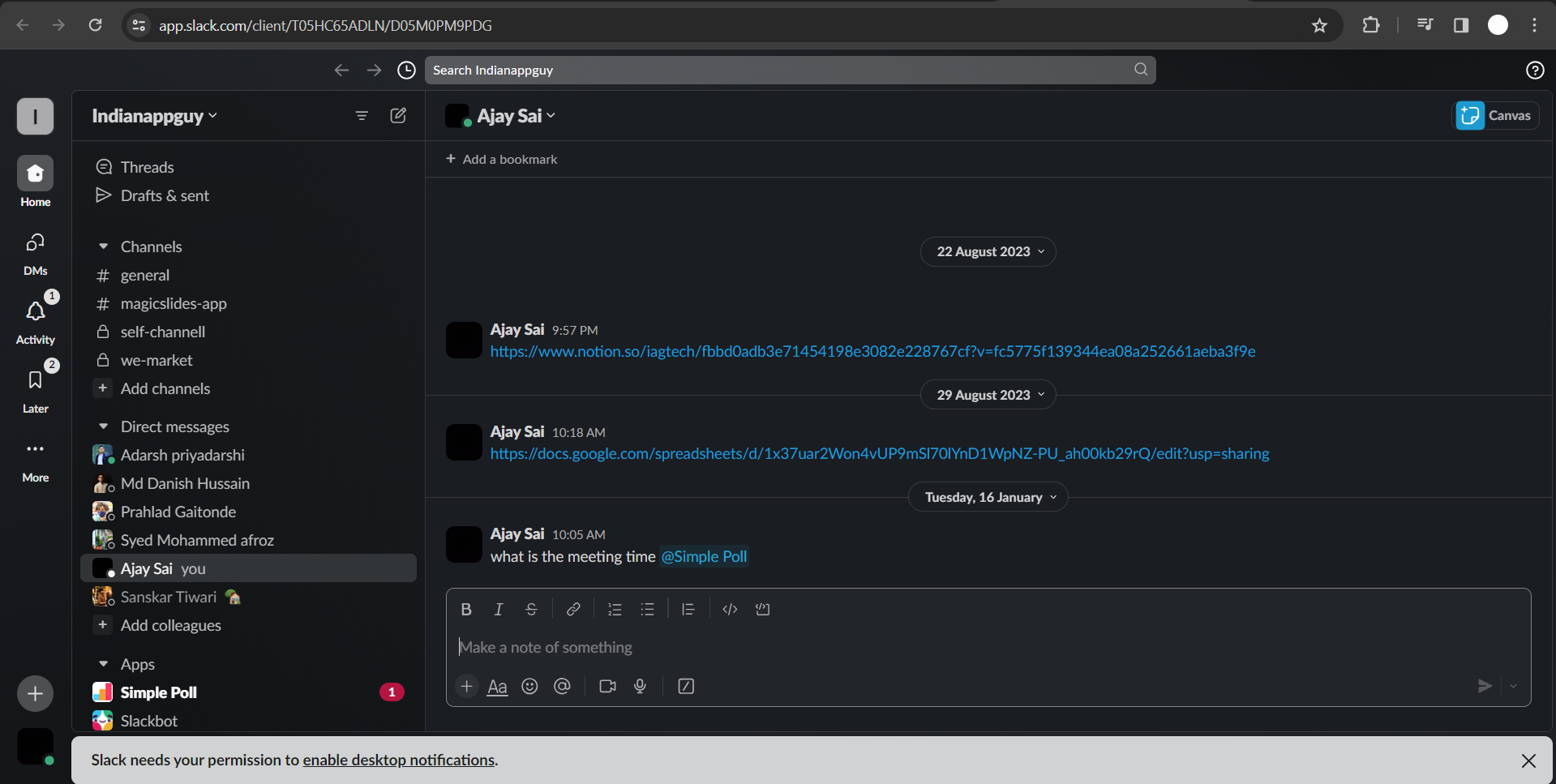
Step 1: Open the Slack Application
Launch the Slack application on your desktop or mobile device. Log in to the workspace that you want to delete. Ensure you have the necessary permissions as an admin to delete the workspace.
Step 2: Access Workspace Settings
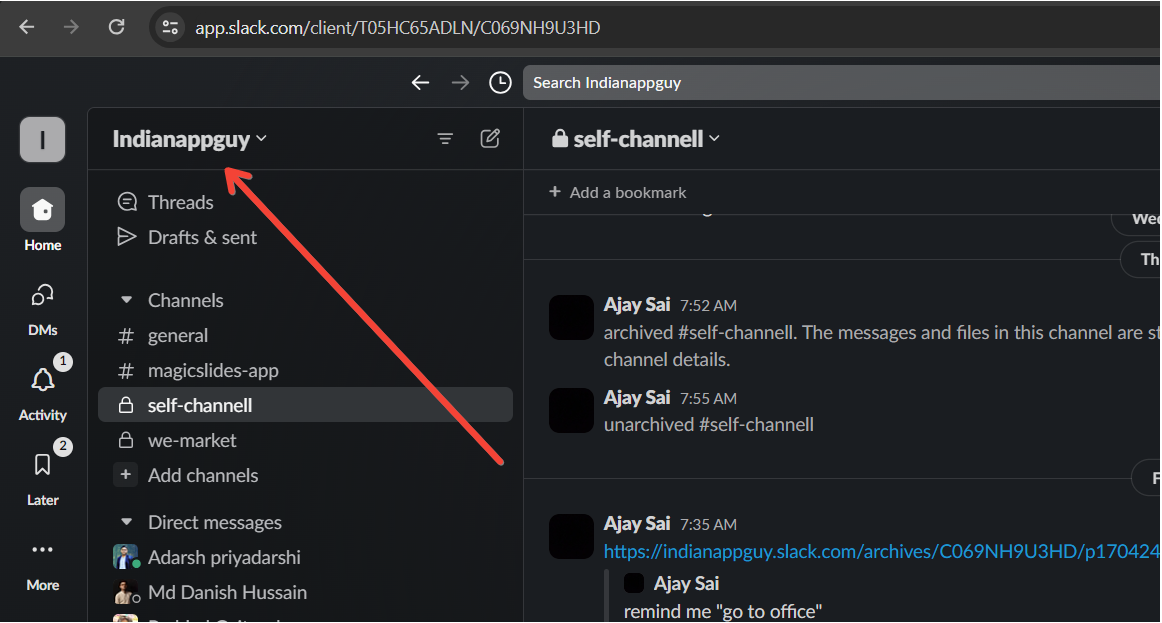
Navigate to the workspace you wish to delete and click on the workspace name in the upper-left corner.
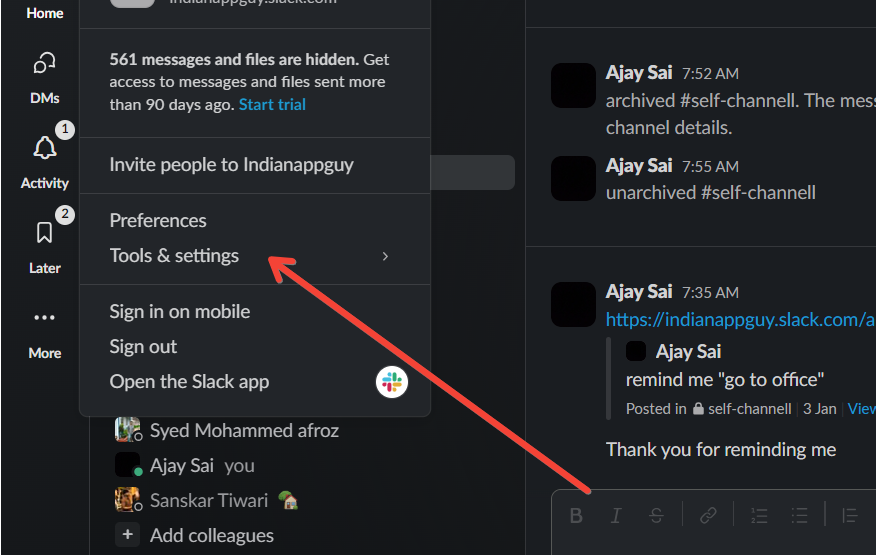
This will open a dropdown menu; scroll down and select "Settings & administration" and then click on "Workspace settings."
Step 3: Navigate to Additional Options
Within the Workspace settings, look for additional options related to workspace management.
Find and click on the option that allows you to manage or delete the workspace.
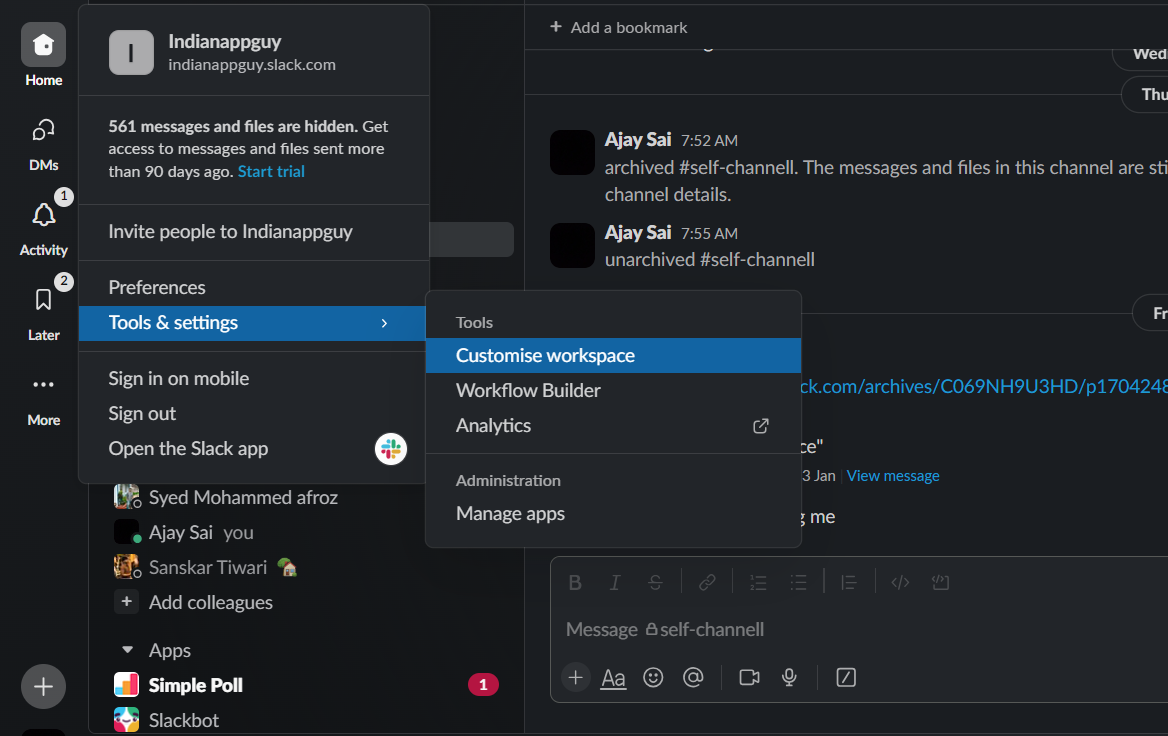
Step 4: Choose "Settings"
Select "Settings" from the available options. In this section, you should find a button or link related to deleting the workspace. Click on it to proceed.
Step 5: Confirm Workspace Deletion
Before finalizing the deletion, Slack will usually prompt you to confirm your decision.
Follow the on-screen instructions, which may include entering your workspace password or providing additional verification.
Managing multiple workspaces? You can streamline notifications by setting up a Google Form Slack integration, so every form submission triggers an alert in the correct workspace, enhancing productivity.
Conclusion:
Efficiently managing your digital workspaces is integral to a streamlined workflow, and Slack provides the tools needed to adapt to your team's changing needs.
By following these simple steps within the Slack application, you can confidently delete a workspace, freeing up your collaboration landscape.
Whether you're transitioning to a new platform or simply decluttering, stay in control of your digital workspace with this easy-to-follow guide.
Simplify your collaboration journey and make room for new endeavors by mastering the process of deleting a workspace in Slack.
Frequently Asked Questions:
Can any member delete a Slack workspace, or is this exclusive to administrators?
Typically, only administrators have the permission to delete a Slack workspace for security and control.
Will deleting a workspace erase all messages and files, or are they archived?
Deleting a workspace permanently removes its data, including messages and files; ensure to archive essential information.
Can I retrieve a deleted workspace in Slack, or is it irreversible?
Workspace deletion is irreversible; make sure to back up critical data before initiating the deletion process.