How to Design the Best PPT Layouts for Maximum Engagement


Create engaging PowerPoint layouts with structure, visuals, and AI-powered tools like MagicSlides.app. Learn best practices and streamline your presentation process!
PowerPoint presentations are a staple in professional, academic, and creative fields. However, a poorly designed PowerPoint can quickly lose your audience’s interest. To make an impact, your slides must be visually appealing, well-structured, and easy to follow. In this guide, we’ll cover everything you need to know about how to design the best PPT layouts for maximum engagement and introduce MagicSlides.app, an AI-powered tool that streamlines the presentation creation process.
Why PPT Layouts Matter
A well-designed PowerPoint layout is not just about aesthetics; it plays a crucial role in delivering your message effectively. A good layout:
- Enhances readability and comprehension.
- Keeps the audience engaged and interested.
- Provides a structured flow to guide the audience through key points.
- Makes a professional and lasting impression.
- Helps presenters stay on track and maintain a smooth delivery.
Whether you’re creating a business proposal, a sales pitch, an investor deck, or an educational lecture, a well-structured PowerPoint layout can make a significant difference in how your message is received.
Key Principles of an Engaging PPT Layout
To design an engaging and professional PowerPoint layout, follow these fundamental principles:
1. Keep It Simple and Focused
Too much information on a slide can overwhelm the audience. Stick to minimal text and only essential visuals. A good rule of thumb is the 6×6 rule—no more than six words per line and six lines per slide.
2. Use a Consistent Theme
Maintaining uniformity in fonts, colors, and design elements creates a polished and professional look. Select a theme that aligns with your content, brand, or audience expectations.
3. Follow the 10-20-30 Rule
Guy Kawasaki’s famous rule suggests:
- No more than 10 slides for impactful delivery.
- A presentation should last 20 minutes to maintain engagement.
- Use at least 30-point font size for readability, ensuring even those at the back can read clearly.
4. Leverage Visual Hierarchy
Ensure the audience’s eyes move naturally across the slide:
- Use headlines to introduce sections.
- Highlight key points with bold text or icons.
- Align text properly to maintain a clean look and structure.
5. Use High-Quality Images and Graphics
Avoid pixelated images. Instead, use high-resolution photos, vector graphics, or AI-generated visuals for clarity and professionalism.
6. Balance Text and Visuals
PowerPoint presentations should support your spoken content, not replace it. Avoid slides that look like paragraphs of text. Instead, use bullet points, infographics, charts, and visuals to convey information concisely.
7. Choose Engaging Colors
Color psychology plays a vital role in audience perception:
- Blue – Trust and professionalism (ideal for corporate presentations)
- Red – Energy and urgency (great for calls to action)
- Green – Growth and harmony (commonly used for sustainability topics)
- Yellow – Optimism and attention (effective for marketing and engagement)
8. Use Smart Animations and Transitions
Animations can enhance engagement, but excessive effects can be distracting. Use simple fades and transitions sparingly to keep the focus on your content.
How to Create an Engaging PPT with MagicSlides.app
Designing an engaging PowerPoint manually can be time-consuming, especially when creating multiple presentations. MagicSlides.app offers a fast and AI-powered solution to generate well-structured, visually appealing PowerPoints effortlessly.
Steps to Use MagicSlides.app:
- Visit MagicSlides.app.
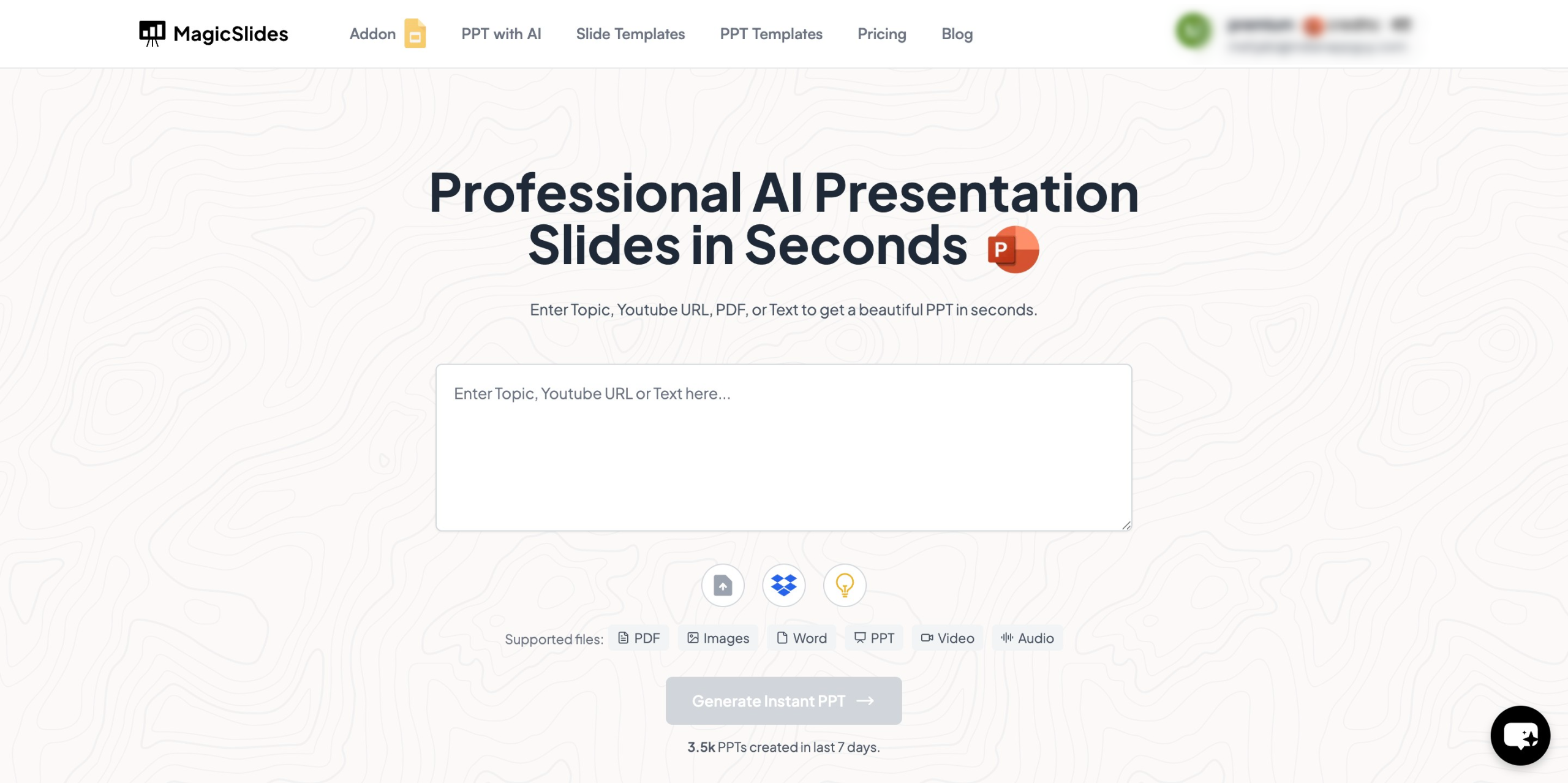
- Enter Your Topic in the provided input space
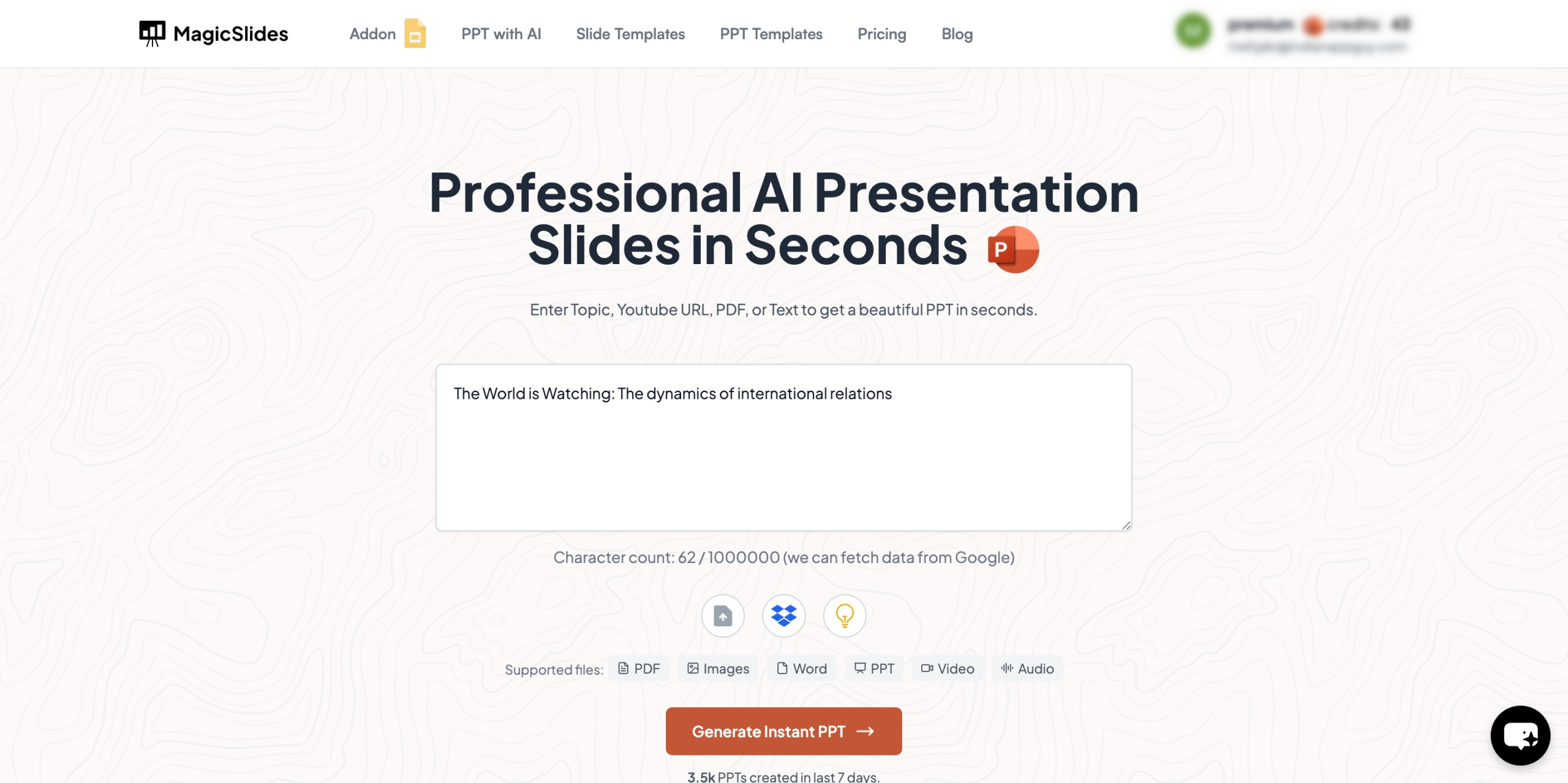
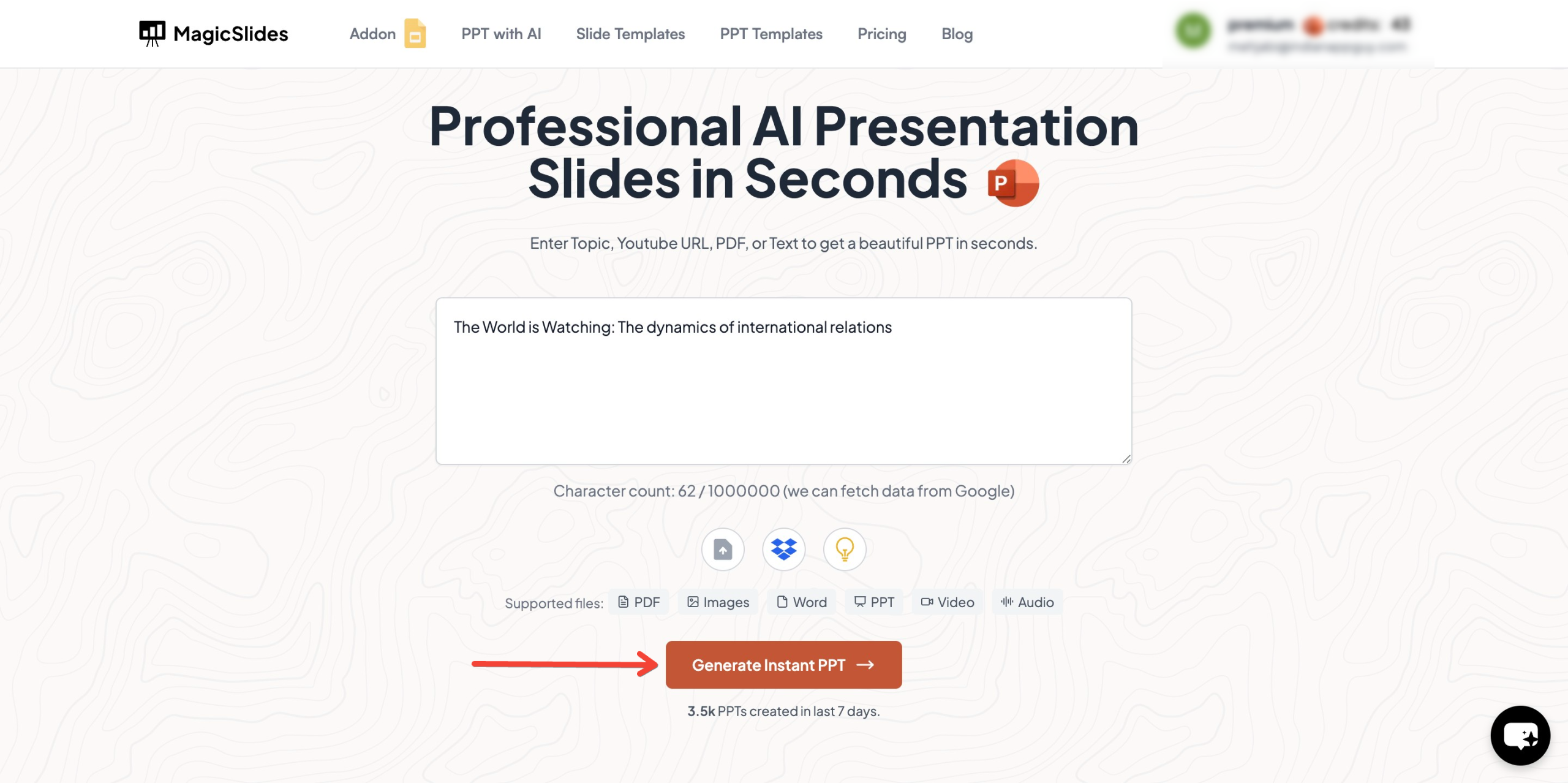
- Click ‘Generate Instant PPT’ to let AI generate a structured slide deck based on your topic.
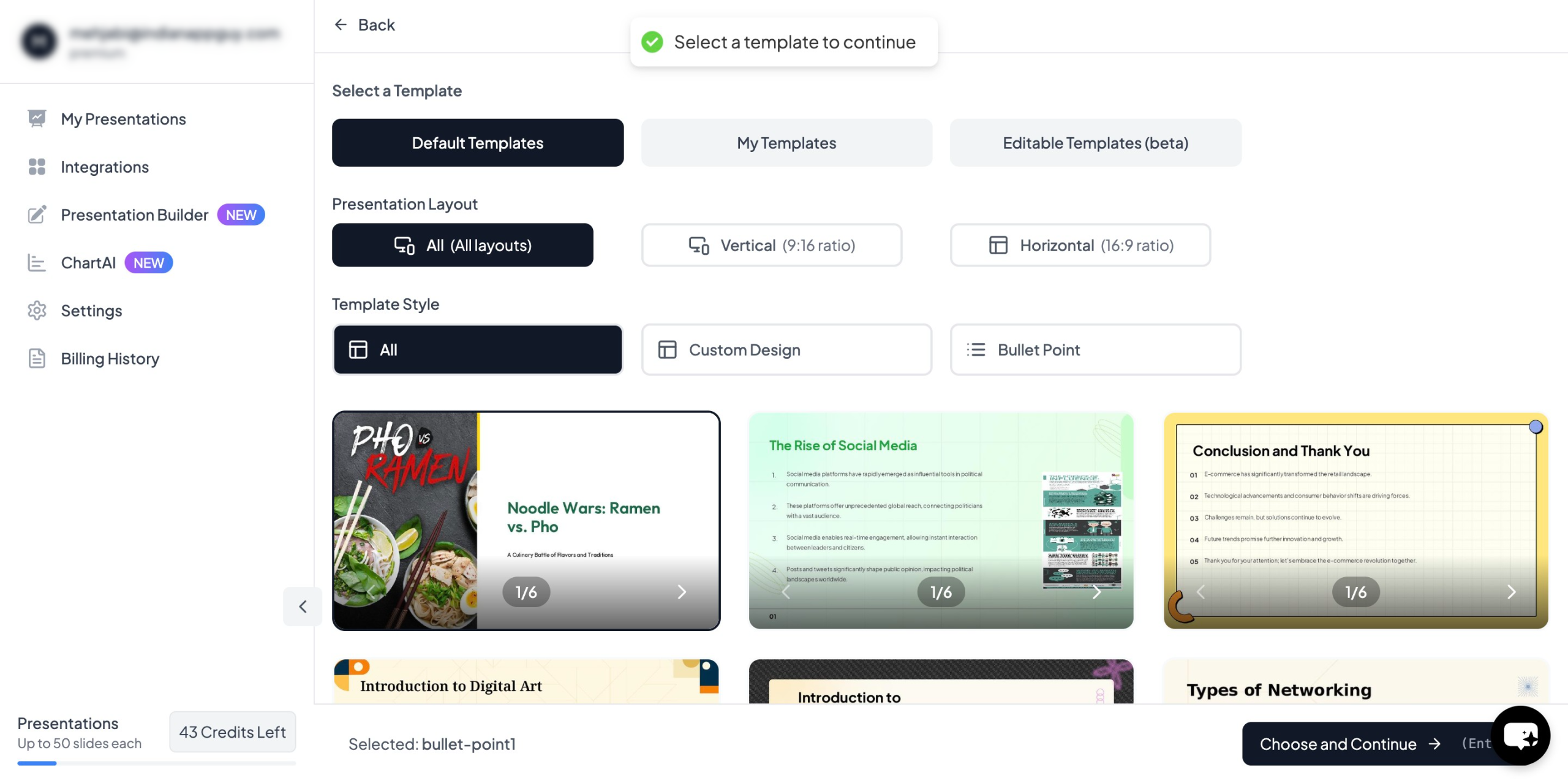
- Choose Your Template & Number of Slides as per your preferences.
- Fill in Additional Details (e.g., adding data points, images, or key takeaways).
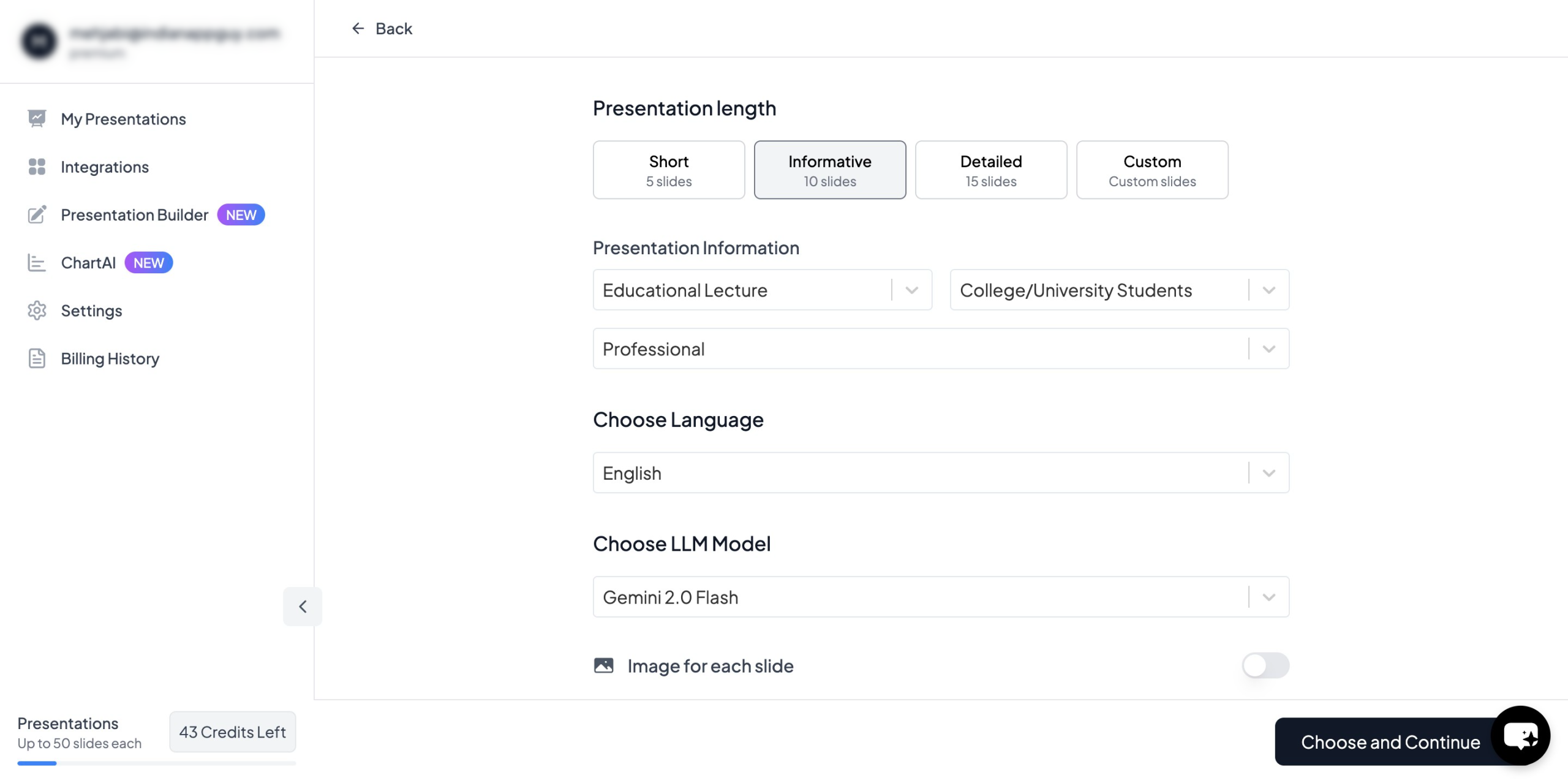
- Click ‘Generate Instant PPT’, and your slides will be created in seconds.
Benefits of Using MagicSlides.app:
- Saves Time: No need to manually format each slide.
- AI-Generated Content: Ensures structured and relevant information.
- Customizable Templates: Choose designs that fit your needs.
- Integration with Google Slides & Figma: Seamlessly import content into your existing workflow.
MagicSlides.app Pricing Plans
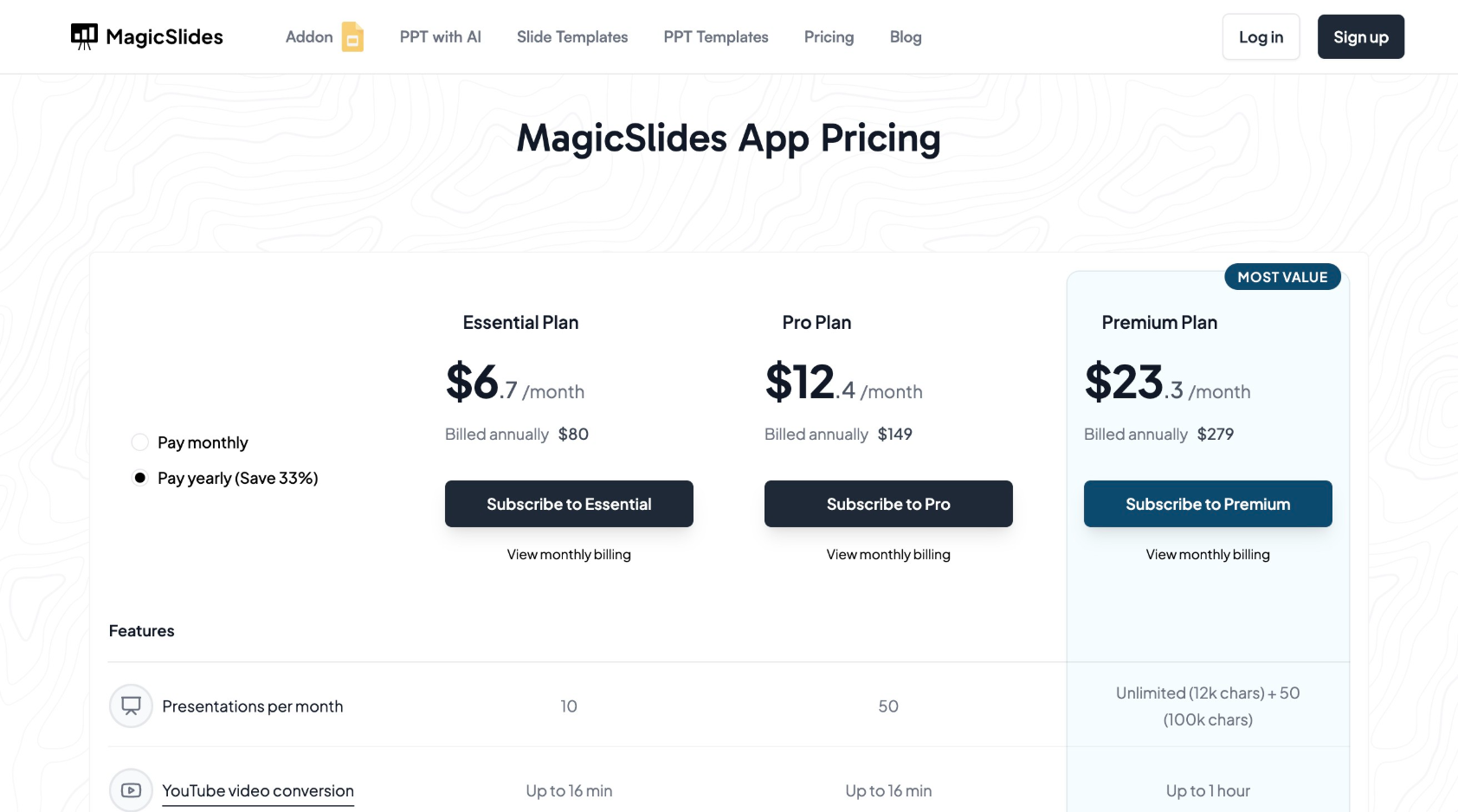
MagicSlides offers flexible pricing options to suit different user needs:
| Plan | Price | Features |
|---|---|---|
| Essential | $6.7/month (Billed annually at $80) | 10 presentations/month, 12k character limit, up to 10 slides per presentation, Google & Wikipedia data, Video to PPT (10 videos/month) |
| Pro | $12.4/month (Billed annually at $149) | 50 presentations/month, 12k character limit, up to 15 slides, AI Images, Add-on for Google Slides, Plugin for Figma, Zapier Integration, 100+ language support |
| Premium | Custom Pricing | Unlimited presentations, 100k character input, up to 50 slides, AI-generated images, advanced integrations |
For individuals or professionals who frequently create presentations, the Pro or Premium plans offer the best value with enhanced AI capabilities and higher limits on slides and character inputs.
Additional Tips for Enhancing Your PPT Layout
- Use White Space Effectively: Avoid clutter and give your content room to breathe.
- Incorporate Charts & Infographics: Data-driven presentations are more compelling when visuals illustrate key insights.
- Limit Bullet Points: Use them wisely to highlight key takeaways, not as a script.
- Practice Before Presenting: A great layout means nothing if the delivery is weak. Rehearse your slides beforehand.
- Consider Audience Engagement: Interactive slides, polls, or Q&A segments can make your presentation more dynamic.
Conclusion
Designing the best PowerPoint layouts requires a balance of structure, design, and engagement techniques. Following best practices such as maintaining simplicity, leveraging visuals, and structuring content effectively will ensure your presentation is both professional and impactful.
However, if you want to streamline the process and create high-quality presentations effortlessly, MagicSlides.app is a powerful AI-driven tool worth considering. With instant slide generation, customizable templates, and AI-powered structuring, MagicSlides allows you to focus on delivering your message rather than spending hours on formatting.
Try MagicSlides.app today and elevate your PowerPoint presentations with ease!


