How to Do Line Spacing in PowerPoint: Step-by-Step Guide


Learn how to do line spacing for text in PowerPoint, adjust paragraph spacing, double-space text, and fix common spacing issues.
Proper line spacing can make PowerPoint slides easier to read and more professional. If your text looks crowded or has too much space between lines, adjusting the line spacing can improve the overall layout without changing the font or text size.
In PowerPoint, you can quickly change line spacing from the Home tab using the Line and Paragraph Spacing option. You can also adjust paragraph spacing to create more separation between blocks of text. In this guide, you’ll learn how to do line spacing for text in PowerPoint, how to adjust paragraph spacing, and how to double-space text for a cleaner presentation.
How to Change Line Spacing in PowerPoint
Changing line spacing in PowerPoint takes only a few steps:
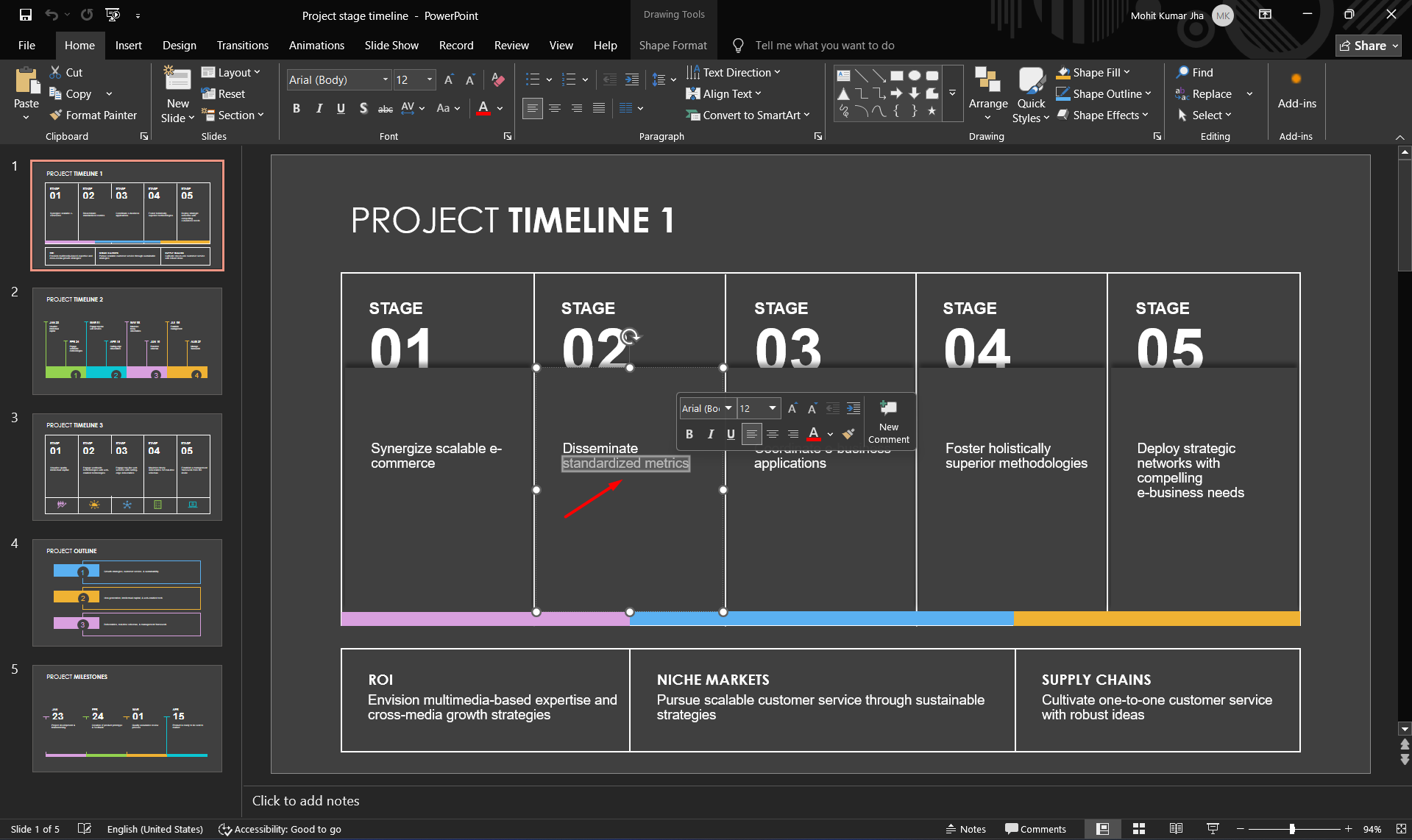
Step 1. Select the text you want to adjust. You can select a specific paragraph, multiple paragraphs, or all the text in a text box.
Step 2. Go to the Home tab in the PowerPoint ribbon.
Step 3. In the Paragraph section, click Line and Paragraph Spacing.
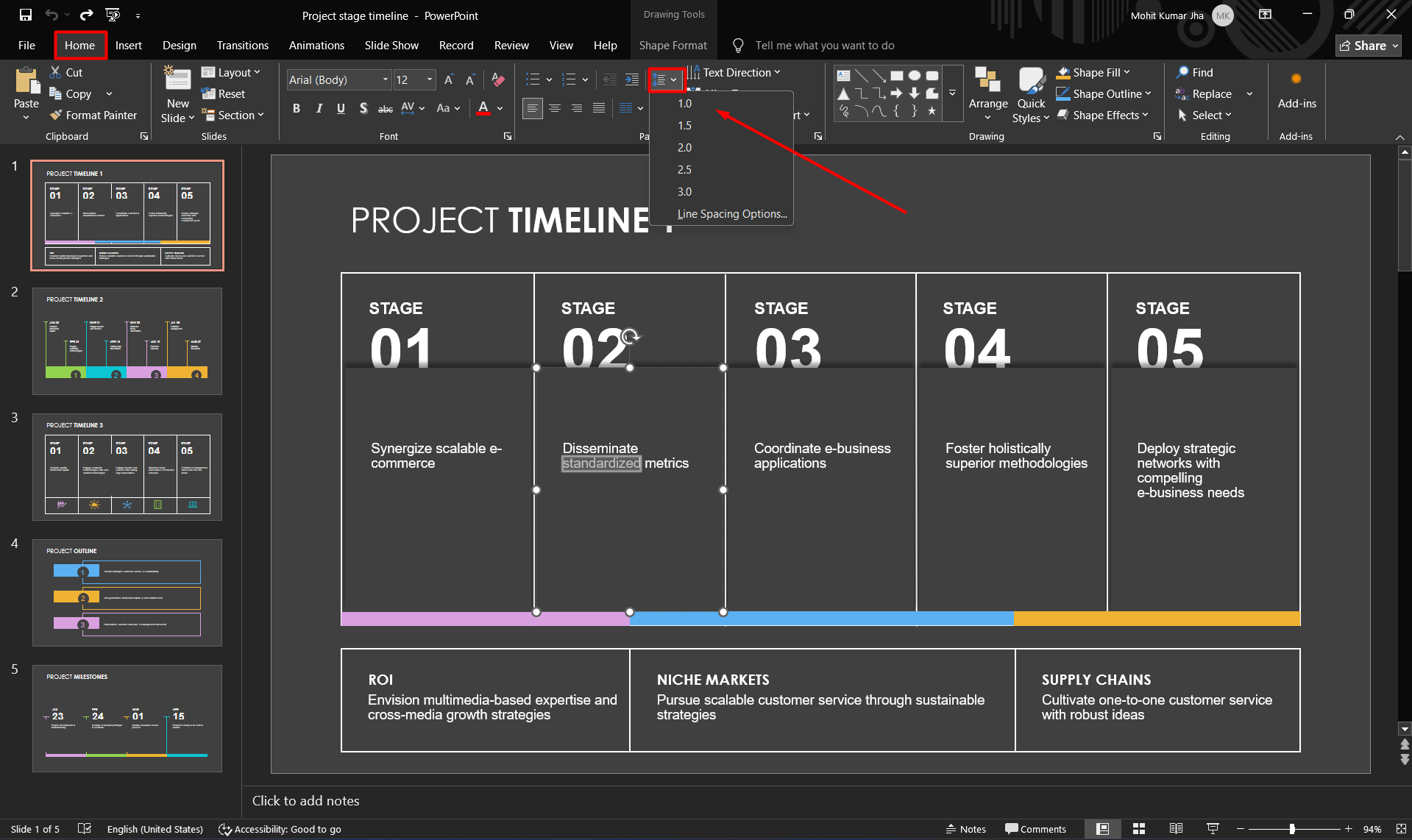
Step 4. Choose the spacing option you want, such as 1.0, 1.5, 2.0, or another available value.
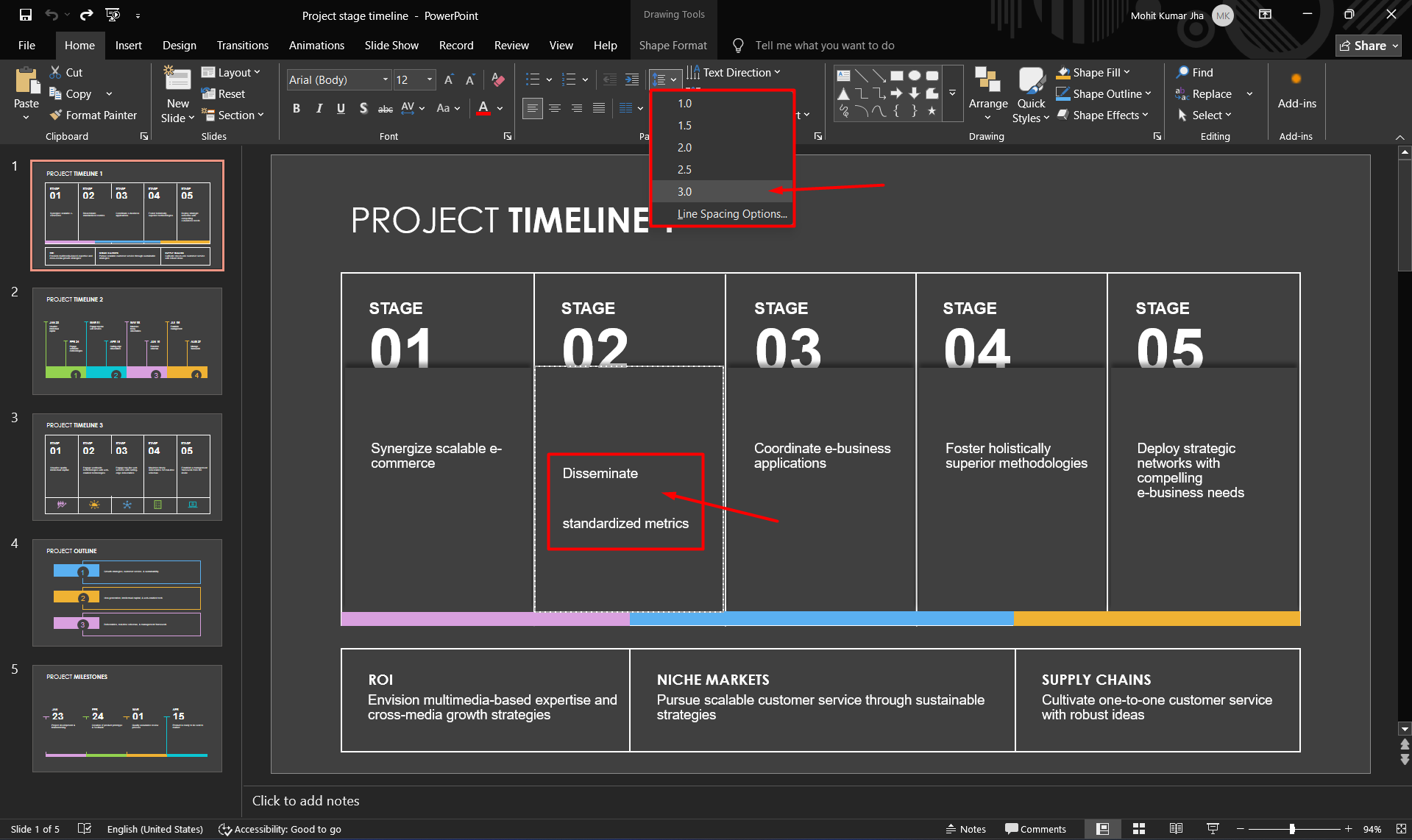
You can also select Line Spacing Options for more control over the spacing. From there, PowerPoint lets you adjust the line spacing and the space before or after paragraphs.
For most presentation slides, avoid using excessive spacing. A moderate amount of space between lines makes text easier to scan while keeping the slide compact enough to avoid unnecessary scrolling or overcrowding.
How to Adjust Paragraph Spacing in PowerPoint?
Line spacing controls the distance between lines within a paragraph, while paragraph spacing controls the space before or after separate paragraphs. Knowing the difference helps you create cleaner, easier-to-read slides.
To adjust paragraph spacing:
- Select the paragraph or text box you want to edit.
- Open the Home tab.
- In the Paragraph section, select Line and Paragraph Spacing.
- Choose Line Spacing Options.
- Under Spacing, adjust the Before or After settings.
- Select OK to apply the changes.
For presentation slides, paragraph spacing can be especially useful when you have multiple points of text. Instead of adding extra blank lines, use paragraph spacing to create consistent separation.
Keep the spacing proportional to your font size and available slide space. Too little spacing can make text feel cramped, while too much can make related information appear disconnected.
How to Double Space Text in PowerPoint?
If you need extra space between lines, for example, when creating a draft, educational presentation, or text-heavy slide, you can double-space your text in PowerPoint.
To do this:
- Select the text you want to change.
- Go to the Home tab.
- Find the Paragraph section.
- Click Line and Paragraph Spacing.
- Select 2.0 to apply double spacing.
If you need more precise control, select Line Spacing Options and choose the spacing settings manually.
Keep in mind that double spacing is not always ideal for presentation slides. While it can improve readability in some situations, it also uses more vertical space. For slides with limited room, a smaller line-spacing value may create a cleaner and more balanced layout.
| Feature | Line Spacing | Paragraph Spacing |
| What it controls | Space between individual lines of text | Space between separate paragraphs |
| Where it applies | Within the same paragraph | Before or after a paragraph |
| Best for | Improving readability between lines | Separating different text sections |
| Example | Changing spacing from 1.0 to 1.5 | Adding 6 pt or 12 pt after a paragraph |
| PowerPoint option | Line and Paragraph Spacing → Line Spacing Options | Line and Paragraph Spacing → Line Spacing Options → Before/After |
| Presentation tip | Use moderate spacing to avoid cramped text | Use it to create clear visual separation without blank lines |
Common Line Spacing Problems in PowerPoint
Even after changing the spacing settings, text can sometimes look uneven or crowded. These common issues are usually easy to fix.
- Text looks too crowded: Select the text and increase the line spacing slightly. You can also reduce the amount of text on the slide instead of relying on larger spacing.
- Text has too much space: Open Line Spacing Options and reduce the spacing value. Also check the Before and After paragraph settings, as excessive paragraph spacing can make the text appear unusually spread out.
- Different text has inconsistent spacing: Select all the text that should have the same formatting and apply the same spacing settings. This helps maintain consistent formatting throughout the text box.
- Text no longer fits on the slide: Avoid solving the problem by continuously shrinking the font. Instead, reduce unnecessary text, adjust paragraph spacing, or use a slightly smaller line-spacing value while maintaining readability.
For polished presentations, consistent spacing matters just as much as font choice and alignment. A clean text layout makes slides easier to scan and understand.
Create Better Presentations with MagicSlides
If you’re creating a presentation from scratch, adjusting text spacing is only one part of making slides look polished. MagicSlides can help streamline the presentation-creation process by generating slides from a topic, prompt, or existing content.
Instead of spending time building every slide manually, you can use MagicSlides AI PPT Maker to create a presentation structure and then refine the content, formatting, and layout as needed. This can be particularly useful when you need to turn written information into a structured presentation quickly.

Once your slides are generated, review the text size, spacing, alignment, and overall layout before presenting. Even with AI-generated slides, a quick formatting check can help ensure that text remains readable and doesn’t overcrowd the slide.
Conclusion
Adjusting line spacing in PowerPoint is a simple way to make text more readable and slides more polished. Use Line and Paragraph Spacing to control the distance between lines, and adjust paragraph spacing when you need clearer separation between sections.
For text-heavy presentations, focus on consistent spacing, concise content, and a balanced layout. Whether you’re formatting an existing PowerPoint or creating a new presentation with tools such as MagicSlides, good spacing can make your content easier to read and understand.
Also read: What Is a Thesis Statement? Definition, Examples & How to Write One
Frequently Asked Questions
Q1. How do I change line spacing in PowerPoint?
Select your text, go to Home → Line and Paragraph Spacing, and choose the spacing you want. For more control, select Line Spacing Options.
Q2. How do I double-space text in PowerPoint?
Select the text and choose Home → Line and Paragraph Spacing → 2.0. This applies double spacing to the selected text.
Q3. Where is line spacing in PowerPoint?
The Line and Paragraph Spacing option is located under the Paragraph section of the Home tab.
Q4. What is the difference between line spacing and paragraph spacing?
Line spacing controls the distance between lines within a paragraph. Paragraph spacing controls the space before or after a paragraph.
Q5. What is the best line spacing for PowerPoint?
There is no single setting that works for every slide. Use enough spacing to keep text readable while ensuring the content fits comfortably within the available slide space.
Also read: How to Remove Background in PowerPoint: Step-by-Step Guide


