How to Save an Image from Google Slides? Top Method Explained


Learn how to save image from Google Slides using 5 easy methods. Download single or multiple images in PNG, JPEG, Keep, PowerPoint, or mobile app.
Google Slides doesn’t include a built-in “Save Image As” option, which can make downloading individual images frustrating. Unlike desktop applications such as PowerPoint, images in Google Slides are embedded within the presentation rather than treated as separate downloadable files.
Fortunately, there are several reliable ways to save images without sacrificing quality. In this guide, I’ll walk you through five proven methods I’ve personally tested, including using Google Keep, downloading slides as PNG images, exporting the presentation as a PowerPoint (.pptx) file, and extracting the original image files.
Whether you need to save a single picture or extract every image from a presentation, these methods work on Windows, Mac, and mobile devices.
Before getting started, here’s why Google Slides doesn’t offer a direct image download option.
Quick Answer: To save an image from Google Slides, you can use the Save to Keep feature, download the slide as a PNG, export the presentation as a PowerPoint (.pptx) file and save the image, or extract images from the PPTX file. These methods let you save individual images even though Google Slides doesn’t have a dedicated Save Image As option.
| Method | Best For | Image Quality | Cropping Required |
|---|---|---|---|
| Save to Google Keep | Single image | ⭐⭐⭐⭐⭐ | No |
| Download as PNG | Entire slide | ⭐⭐⭐⭐⭐ | Yes |
| Publish to Web | Public presentations | ⭐⭐⭐⭐☆ | No |
| PowerPoint (.pptx) | Multiple images | ⭐⭐⭐⭐⭐ | No |
| Screenshot | Mobile users | ⭐⭐⭐☆☆ | Yes |
Why Google Slides Doesn’t Let You Save Images Directly
Google Slides is designed as a cloud-based presentation tool, so images are stored as elements within a slide rather than as standalone files. Because of this, there isn’t a built-in “Save Image As” option like you’ll find in many desktop applications.
This design helps keep presentations easy to edit and collaborate on, but it also means you’ll need to use a workaround to download individual images. Fortunately, Google provides a few built-in options—such as Save to Google Keep and downloading slides as PNG files—and there are additional methods that let you extract images without losing quality.
How to Save Image from Google Slides – Step by Step
Exporting images from Google Slides is straightforward once you know the right methods. Here are five practical techniques I’ve personally tested.
Method 1. Download Slide as an Image
Best for: Saving the entire slide as a high-quality image.
If the image you want fills most of the slide or you don’t mind cropping afterward, downloading the slide as an image is the quickest built-in option. Google Slides lets you export the current slide as either a PNG or JPEG file.
I usually use this method when I need the complete slide for documentation or when the image already occupies most of the canvas.
Still, I use this whenever I’m in a hurry. You can also try this by following these instructions:
- Open the Google Slides presentation
- Go to the slide that contains the image
- Click File > Download > PNG image (.png) or JPEG image (.jpg)
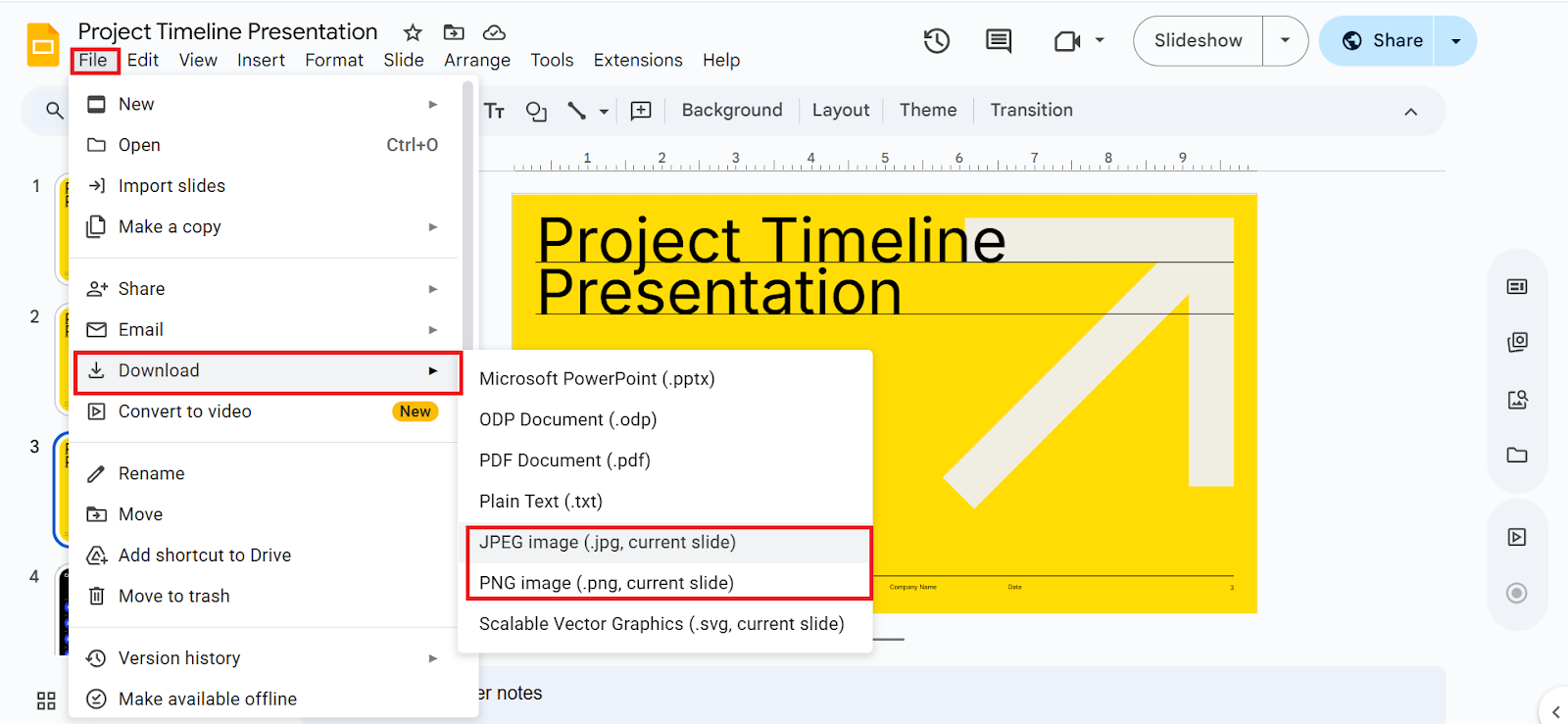
- The entire slide downloads as an image to your computer
- Open the downloaded image and crop the picture you need
Once the image is extracted, you can further style it inside Slides accordingly. If you’d like to further edit the extracted image, you can also learn how to make an image a circle in Google Slides. This lets you preserve a high-quality version of the image for reuse.
Pros
- Built into Google Slides
- Fast and easy to use
- PNG maintains excellent image quality
- No additional tools required
Cons
- Downloads the entire slide, not just the selected image
- Requires cropping if there are multiple objects on the slide
If you plan to edit the extracted image before reusing it, you can also learn how to make an image a circle in Google Slides or apply other formatting after importing it back into your presentation.
Method 2. How to Save Image from Google Slides Via the “Save to Keep” Option
Best for: Downloading a single image without cropping or losing quality.
If you only need one image from a Google Slides presentation, Google Keep is the easiest and fastest solution. Instead of exporting the entire slide, Google Slides lets you send the selected image to Keep, where you can save it directly to your computer.
In my testing, this was the quickest method because it downloads only the selected image, eliminating the need to crop the slide afterward.
- Right-click the image inside Google Slides
- Click Save to Keep
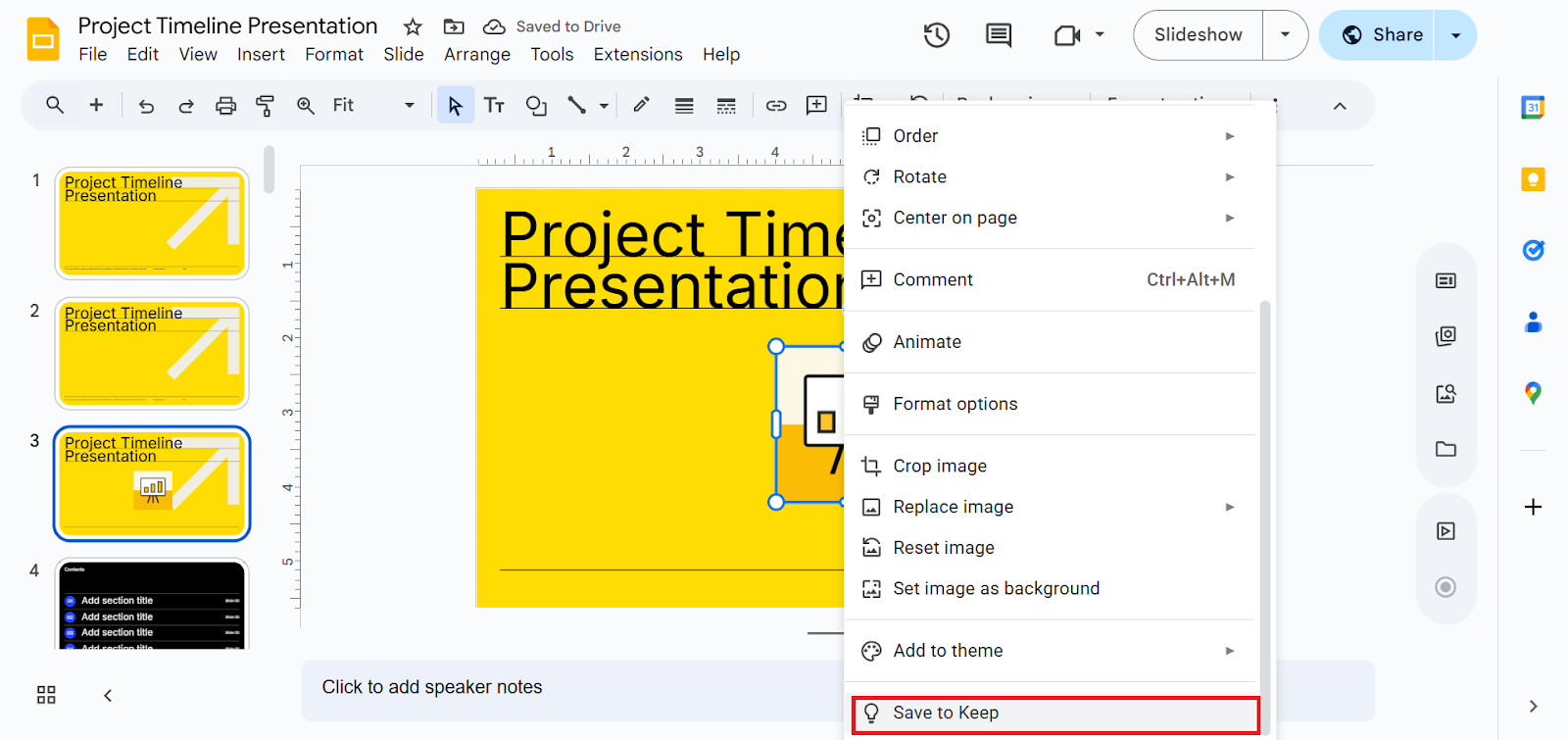
- Google Keep opens on the right side
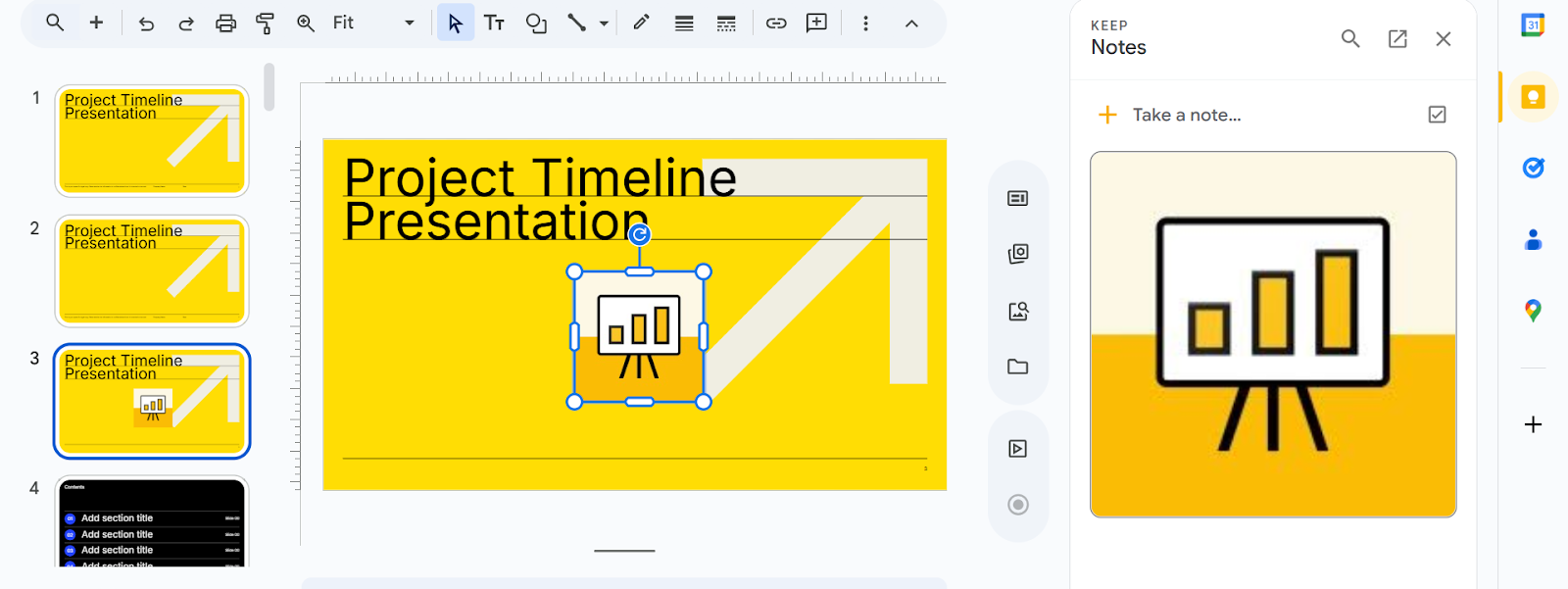
- Right-click the image in Google Keep, and click Save image as
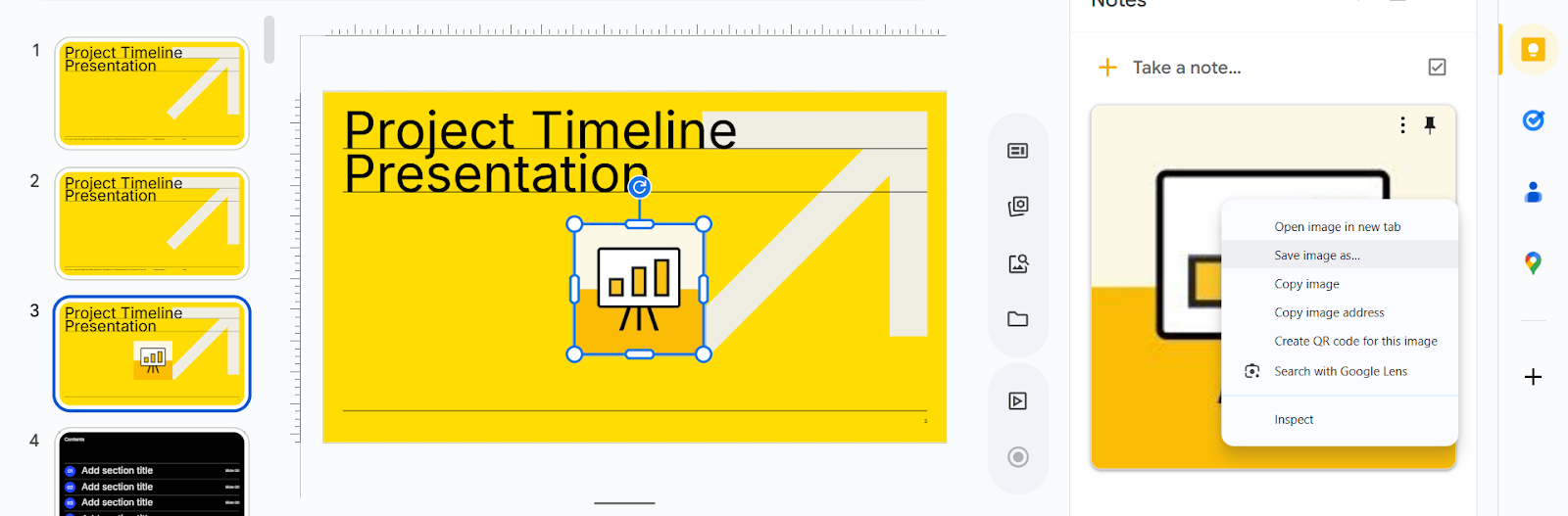
Now the image is downloaded directly to your system without any cropping required. In my experience, this is the quickest and most convenient way to save a single image without needing to crop the slide.
Pros
- Saves only the selected image
- No cropping required
- Fast and easy to use
- Preserves image quality
- Doesn’t require PowerPoint
Cons
- Available only in the desktop version of Google Slides
- Requires Google Keep integration
Method 3. Publish the Presentation to the Web
When I need images from a full presentation, I use this professional trick:
- Click File > Share > Publish to the web
- Click Publish.
Note: Publishing a presentation creates a public web version that anyone with the link can access. Avoid using this method for presentations containing confidential or sensitive information.
- Open the generated link
- Right-click the image to export
- Click Save image as
This method allows you to save images from the published presentation one at a time. After exporting images, many users combine them with custom sketches, which you can do by reading this article on how to insert drawing in Google Slides.
#Method 4. Download as PowerPoint and Extract Images
This method is useful if you want to extract multiple images from a presentation.
Follow these steps:
- Click File > Download > Microsoft PowerPoint (.pptx)
- Open the downloaded file on your PC
- Right-click the image itself and select Save as Picture.
Tip: If you need to extract every image, rename the downloaded .pptx file to .zip, extract it, and open the ppt/media folder. You’ll find all original images stored there.
This is the fastest way to extract multiple images from a large presentation. You only need Microsoft PowerPoint to be installed on your device.
If you later want to bring those slides back into Google Slides, you can easily do that by following this guide on how to convert PPT to Google Slides.
#Method 5. Take a Screenshot on Mobile
If you’re using Google Slides on Android or iPhone:
- Open the presentation in the Google Slides app.
- Navigate to the slide containing the image.
- Take a screenshot.
- Crop the screenshot using your phone’s photo editor.
While this isn’t ideal, it’s the quickest solution when you’re working from a mobile device.
Apart from this, if you are building a multimedia presentation, the saved images can also be paired with video content using the steps in how to add MP4 to Google Slides.
Use a Professional Solution for Better Slide Images
Sometimes users don’t just want to save an existing image; they want to create a brand-new, presentation-ready visual. In those cases, tools like MagicSlides AI PPT Maker can help you generate custom images directly inside Google Slides.
I personally use MagicSlides AI Image Generator because it can create presentation-ready visuals from a simple prompt, such as “business growth chart.” If you need custom graphics instead of extracting existing images, it’s a quick solution to try.
During testing, I compared each method using presentations containing photos, illustrations, and icons. For downloading a single image, the Save to Keep method was the quickest. For extracting every image from a presentation, exporting as PowerPoint and using the ZIP method produced the best results.
Author’s Verdict
If you only need one image, the Save to Keep method is the fastest option. If you need every image from a presentation, exporting the file as PowerPoint and extracting the images provides the most efficient workflow.
People Also Ask
Q1. Can I directly save images from Google Slides?
No, Google Slides does not provide a built-in save image option.
Q2. What is the easiest way to save an image?
Save to Keep is the quickest method for single images.
Q3. Does downloading a slide reduce quality?
Downloading the slide as a PNG preserves the exported image quality without JPEG compression, making it the best choice in most situations.
Q4. How to save image from Google Slides on a Mac?
The steps are the same as Windows. You can use any of the discussed tricks to export the numerous images simultaneously.
Q5. How to extract all images from Google Slides at once?
Download the presentation as a PowerPoint (.pptx) file. You can either save individual images in Microsoft PowerPoint or rename the .pptx file to .zip and extract all images from the ppt/media folder.
Q6. What is the best format to save images from Google Slides?
PNG is the best format because it preserves clarity.


