How to download Fonts for PowerPoint


Downloading custom fonts for PowerPoint adds a unique and professional touch to your presentations effortlessly
Fonts play a crucial role in giving your PowerPoint presentations a unique and polished look.
While PowerPoint comes with a variety of fonts, you might want to download additional fonts to make your presentations stand out. Luckily, downloading and installing new fonts for PowerPoint is a simple process.
In this guide, I'll walk you through how to download and use custom fonts in PowerPoint to elevate your presentation design.
How to Download Fonts for PowerPoint: A Step-by-Step Guide
Step 1: Find a Reputable Font Website
The first step is to find a trustworthy website that offers fonts for download. Some popular sites include Google Fonts, DaFont, and FontSquirrel.
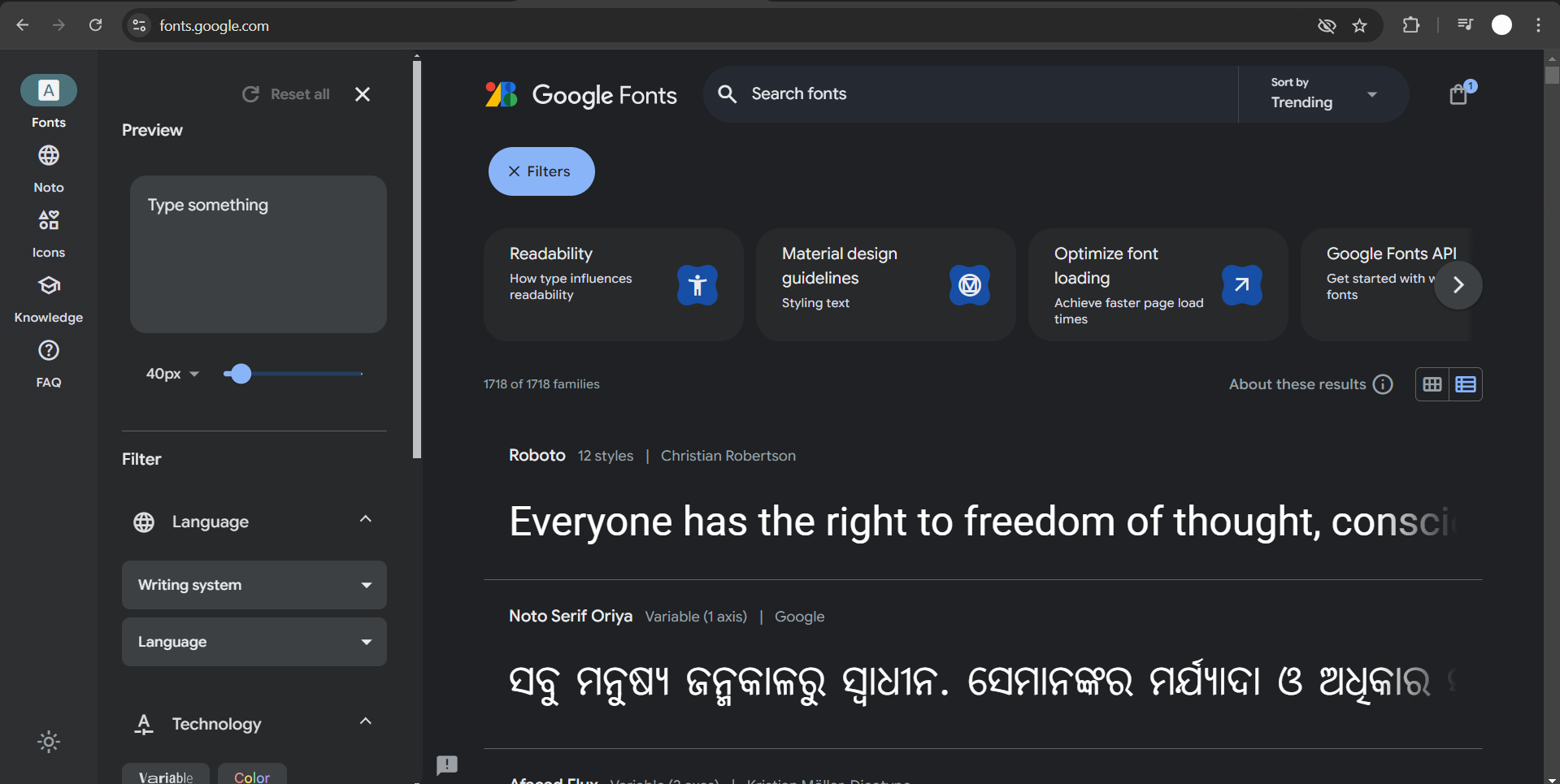
These websites offer a wide range of fonts, many of which are free for personal and commercial use.
Once you’re on the site, browse through the available fonts and select one that fits your design needs.
Step 2: Download the Font File
After selecting a font, click the "Download" button. The font file will typically be downloaded as a ZIP file containing several versions of the font, such as regular, bold, and italic.
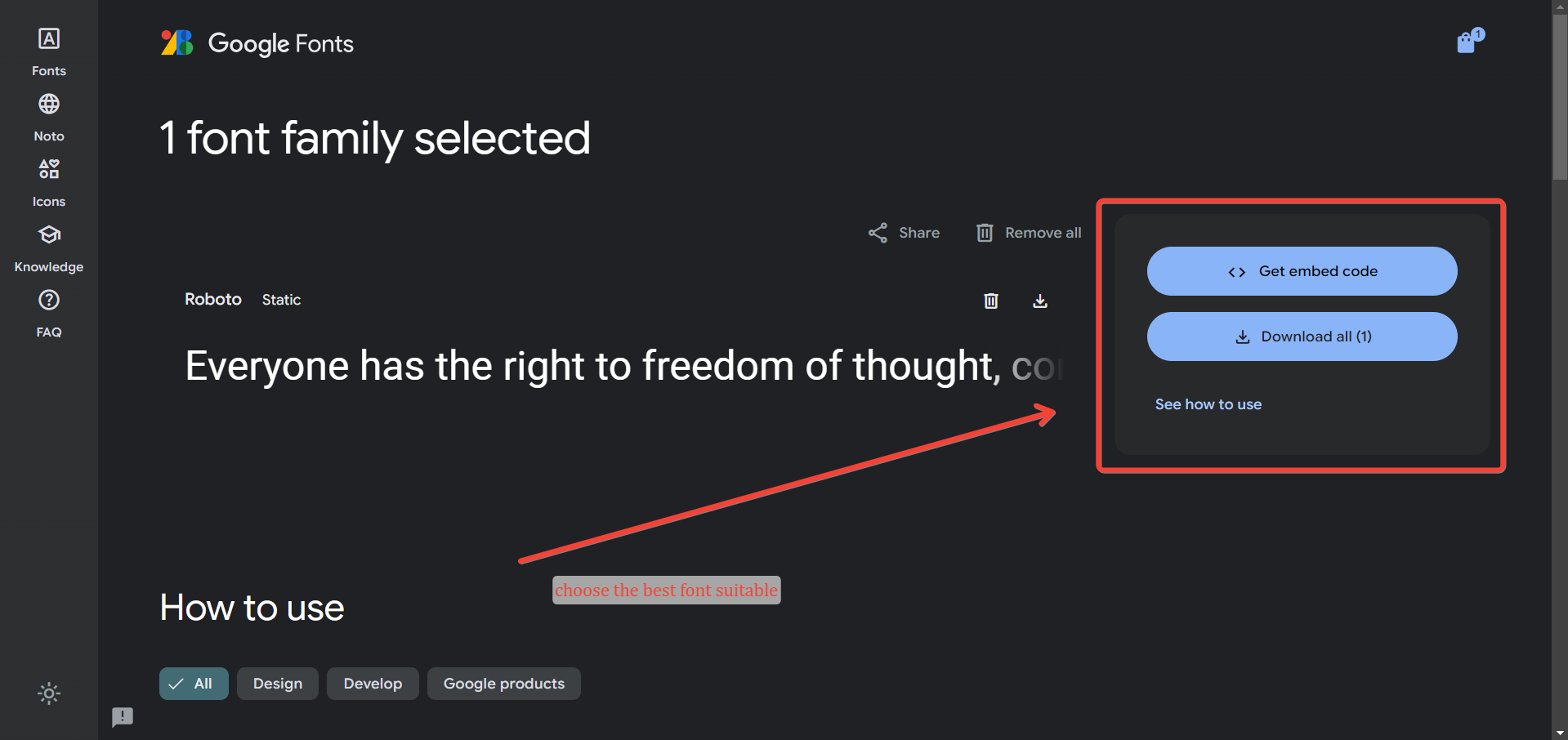
Locate this file in your downloads folder and extract it by right-clicking and choosing "Extract All" to unzip the contents.
Step 3: Install the Font on Your Computer
Once the font is unzipped, locate the extracted files, which will usually be in .ttf (TrueType) or .otf (OpenType) format.
Right-click on the font file and choose "Install." Alternatively, you can double-click the font file to open a preview window and then click "Install" in the top left corner.
This will add the font to your system, making it available across all programs, including PowerPoint.
Step 4: Open PowerPoint and Use the New Font
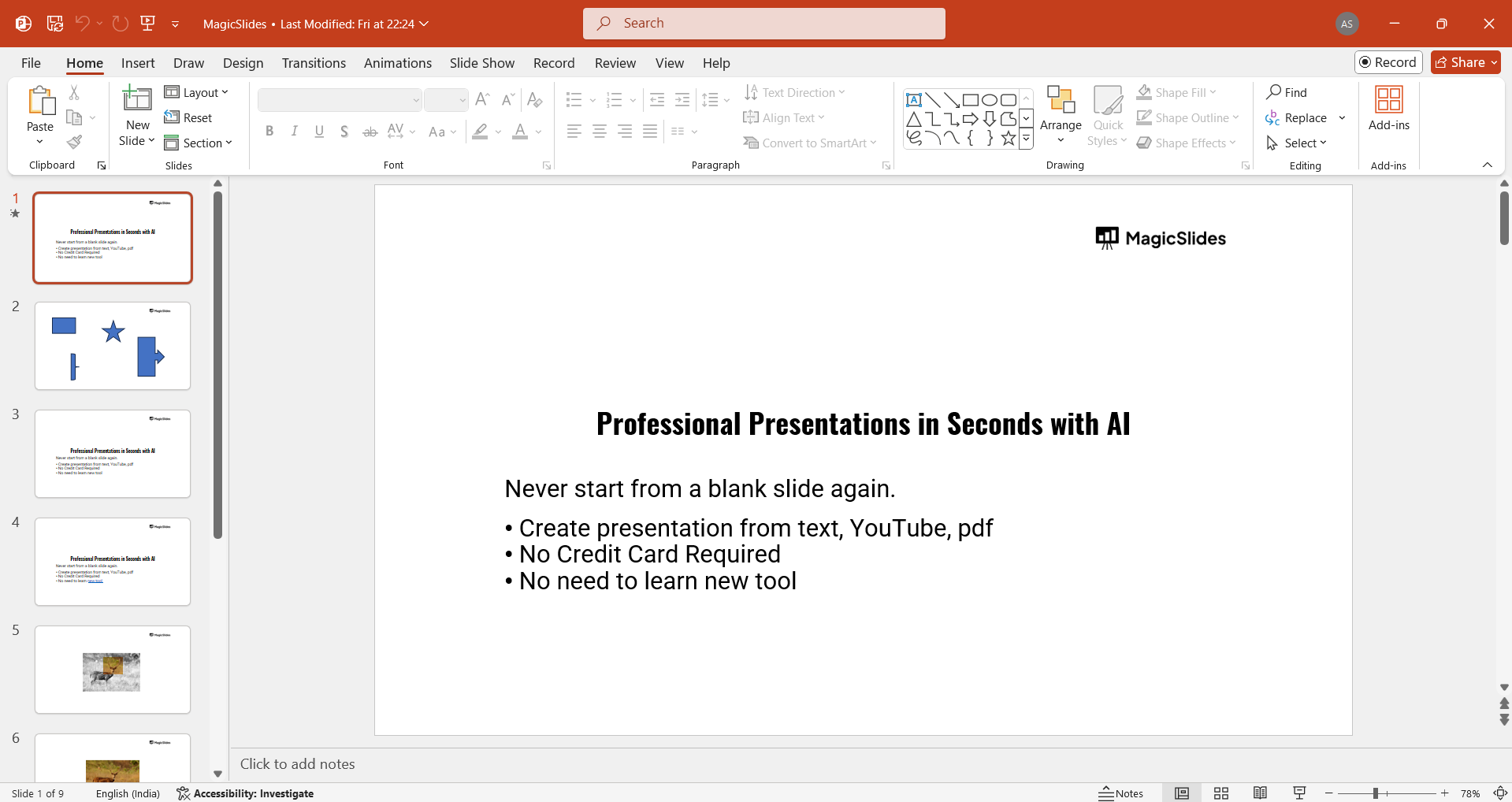
After the font is installed, open PowerPoint or restart the program if it was already open.
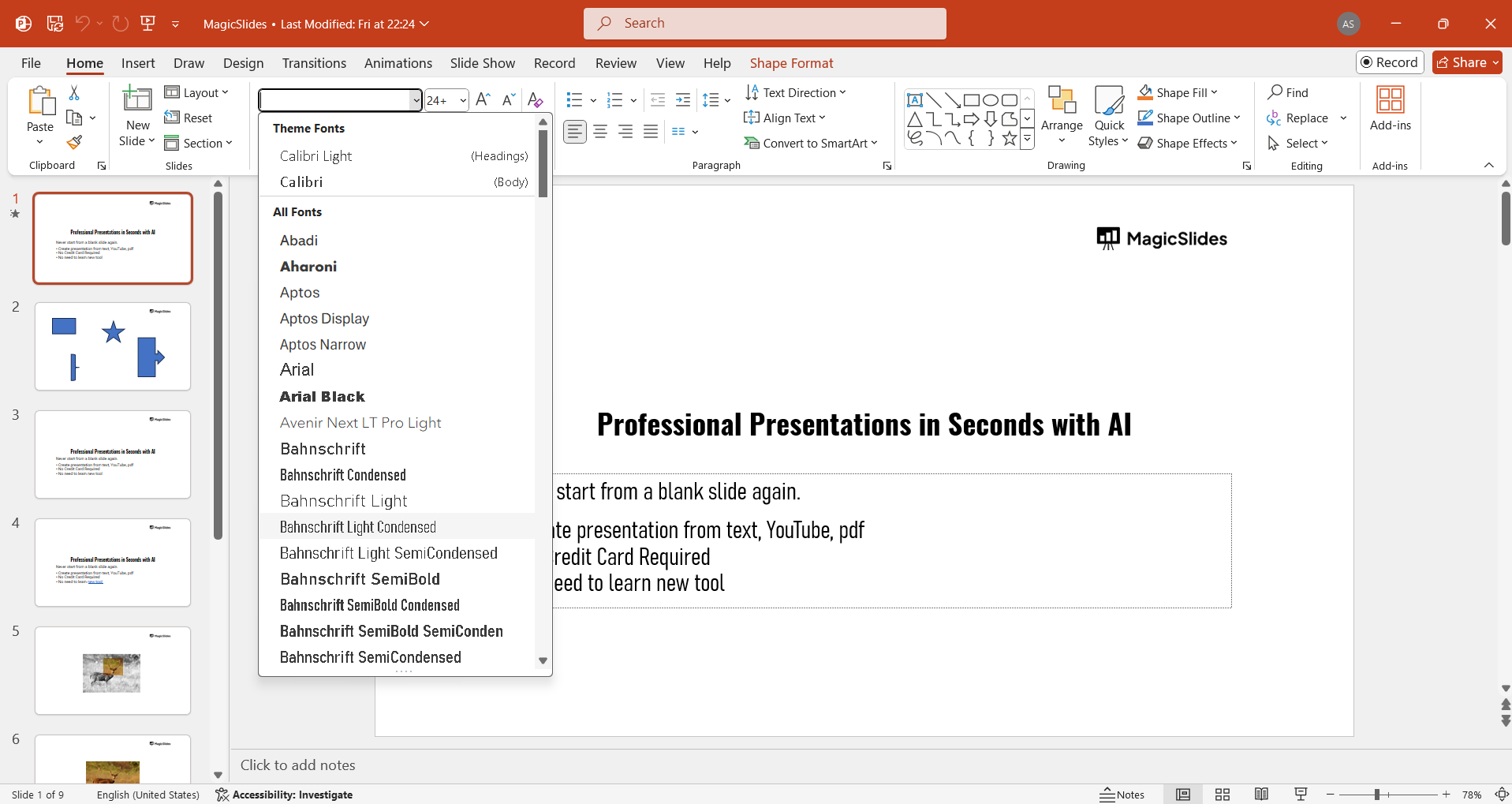
Now, when you click on a text box and navigate to the font dropdown menu in the "Home" tab, you’ll see the newly installed font listed among the available options. Select it and start using it in your presentation.
Step 5: Ensure Font Compatibility on Other Devices
If you plan to share your PowerPoint presentation with others, make sure the new font is embedded or converted into a standard font to avoid compatibility issues.
To embed the font, go to "File" > "Options" > "Save" and check the box that says "Embed fonts in the file."
This ensures that the font appears correctly when the presentation is opened on different devices.
Now that you've downloaded fonts for PowerPoint, enhance your design skills by learning how to combine shapes in PowerPoint for more creative slide layouts.
Conclusion
Downloading and installing custom fonts for PowerPoint allows you to add a personalized touch to your presentations.
By following these steps, you can easily enhance your slides with unique fonts that make your design stand out.
Just remember to embed your fonts when sharing your presentation, so your text looks consistent on any device. Experiment with different fonts to create the perfect look for your next PowerPoint project!
FAQs are here to help!
Can I use downloaded fonts in PowerPoint for Mac?
Yes, the process of downloading and installing fonts is similar for both Windows and Mac.
After installation, your new fonts will be available in PowerPoint for Mac.
Are there any restrictions on using downloaded fonts in presentations?
Some fonts are only licensed for personal use, while others allow commercial use.
Be sure to check the licensing terms on the font’s download page to avoid legal issues.
What if the downloaded font doesn’t show up in PowerPoint?
If the new font doesn’t appear in PowerPoint, ensure that the font was correctly installed on your system.
Restart PowerPoint or even your computer if necessary to refresh the font list.


