How to find answers on Google forms


Uncover the art of extracting insights: Learn how to efficiently find answers within Google Forms!
Google Forms is an incredible tool for collecting data, but what if you need to sift through the responses and find specific answers? In this comprehensive guide, we'll walk you through the steps to efficiently find the answers you seek on Google Forms, helping you streamline the process of data analysis.
How to find answers on Google forms
Step 1: Collect Responses
Before diving into finding answers, ensure you've collected responses to your form. Share your form with your audience, whether through email, a link, or other means, and let the data roll in.
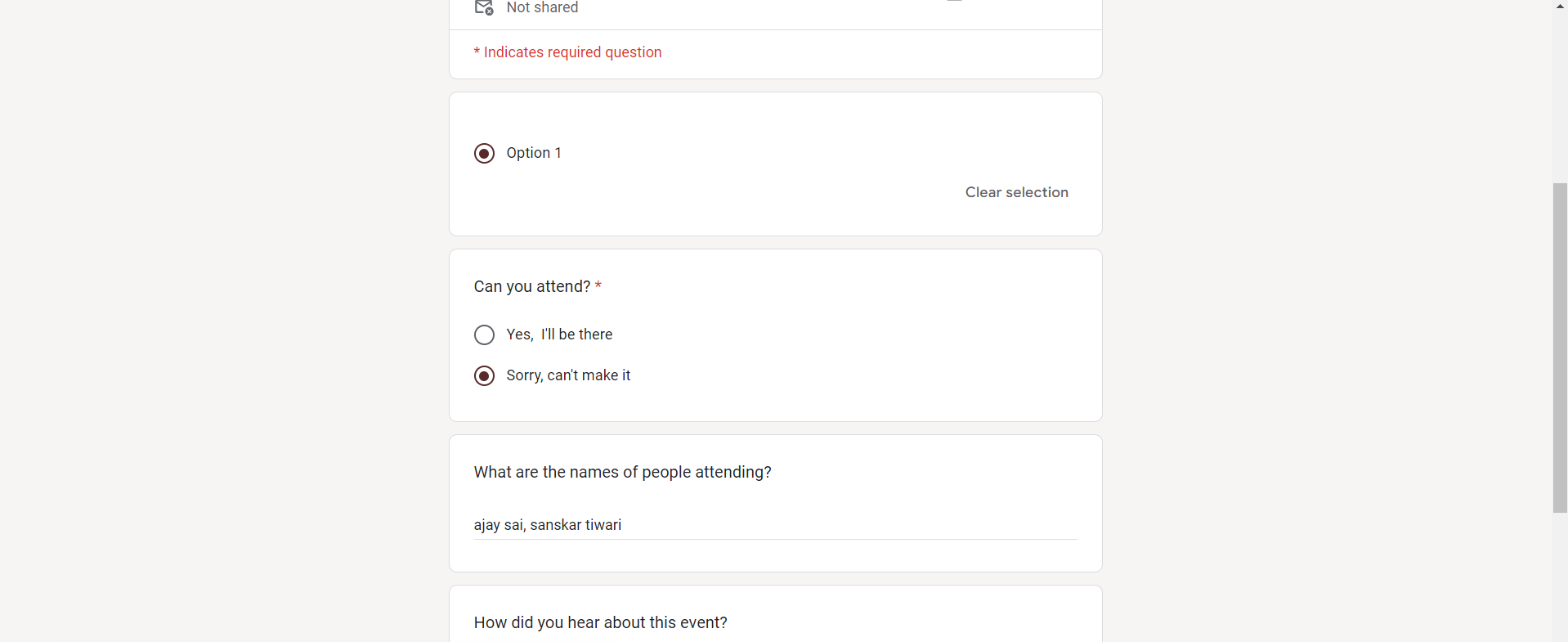
Step 2: Access the Responses Tab
After receiving responses, open your Google Form and click on the "Responses" tab at the top of the form editor. This tab is your gateway to all collected data.

Step 3: View Summary of Responses
Within the "Responses" tab, you'll find a summary of your responses, including charts and graphs for a quick overview. Take a glance to get a sense of the overall trends.
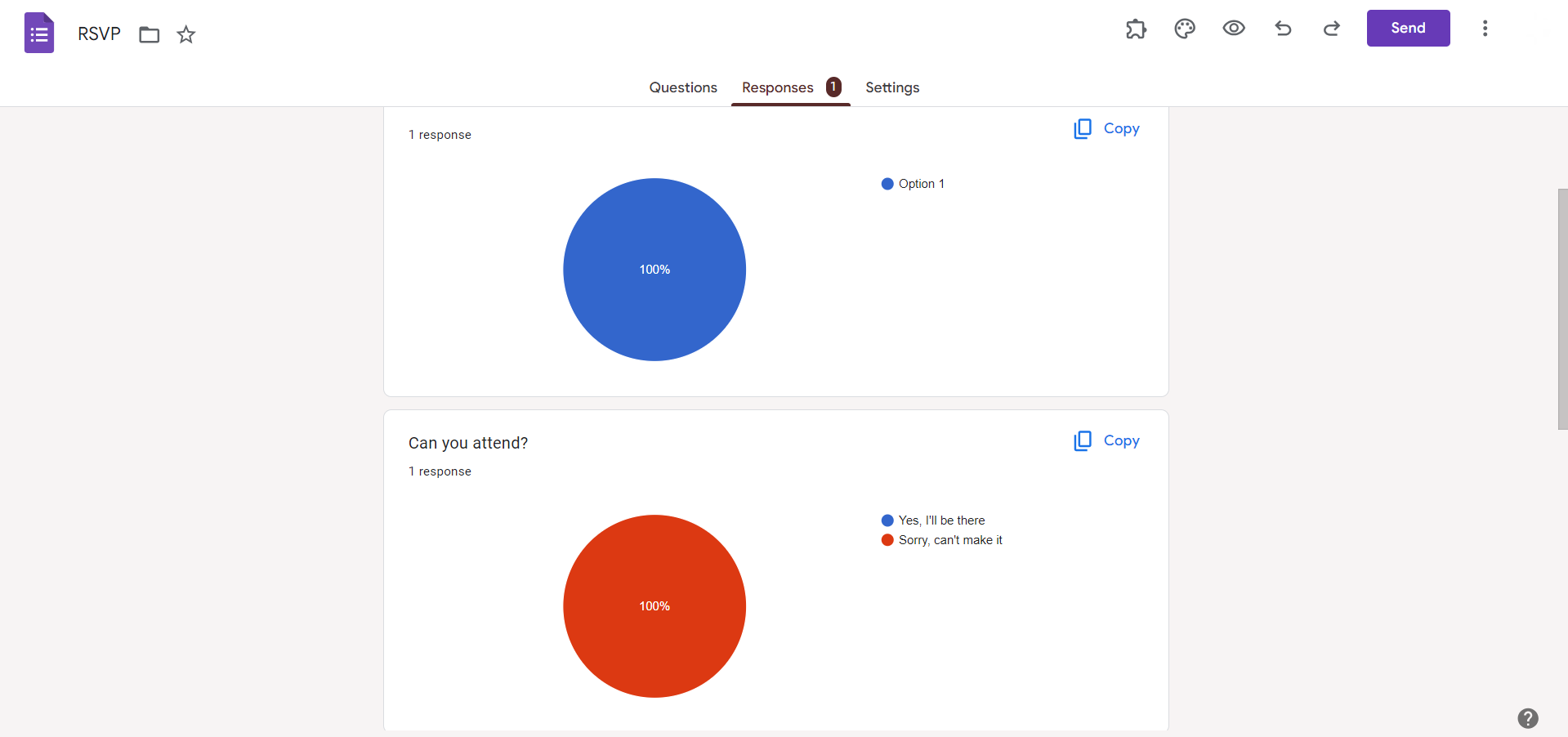
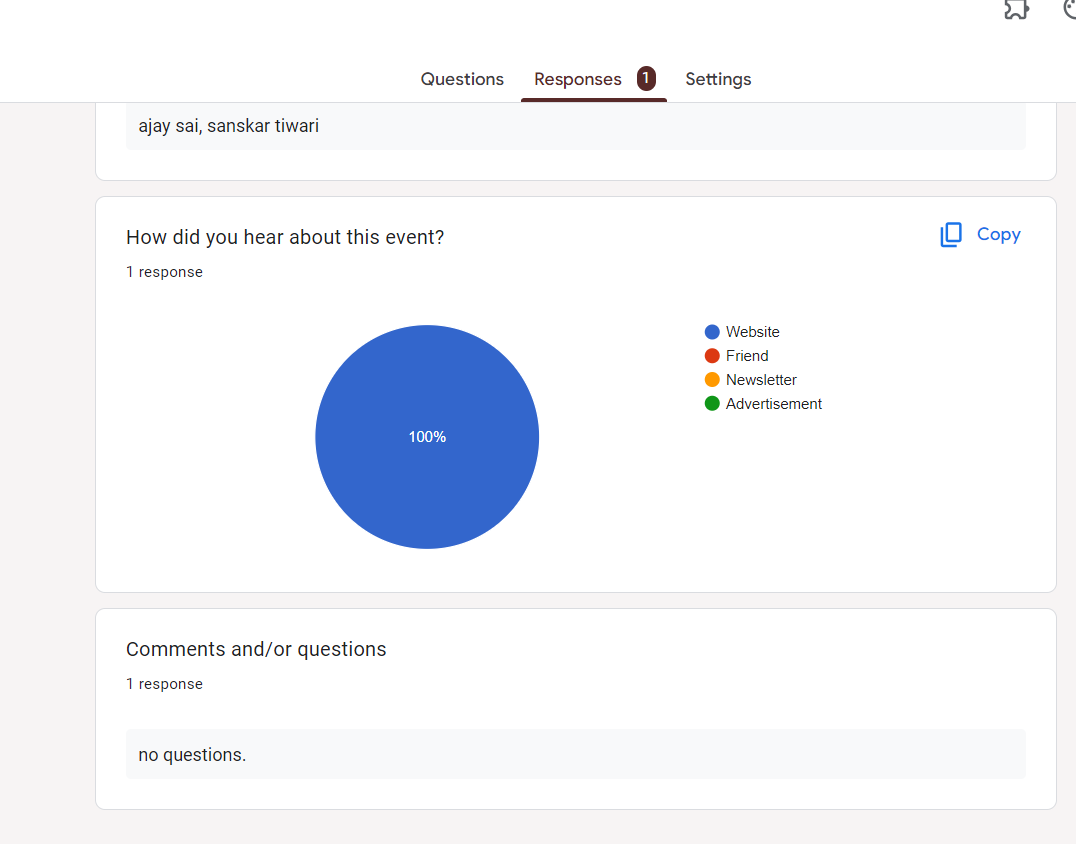
Step 4: Explore Individual Responses
To dig deeper into individual responses, click on the "Individual" tab within the "Responses" section. Here, you can scroll through each response to view specific answers provided by respondents.
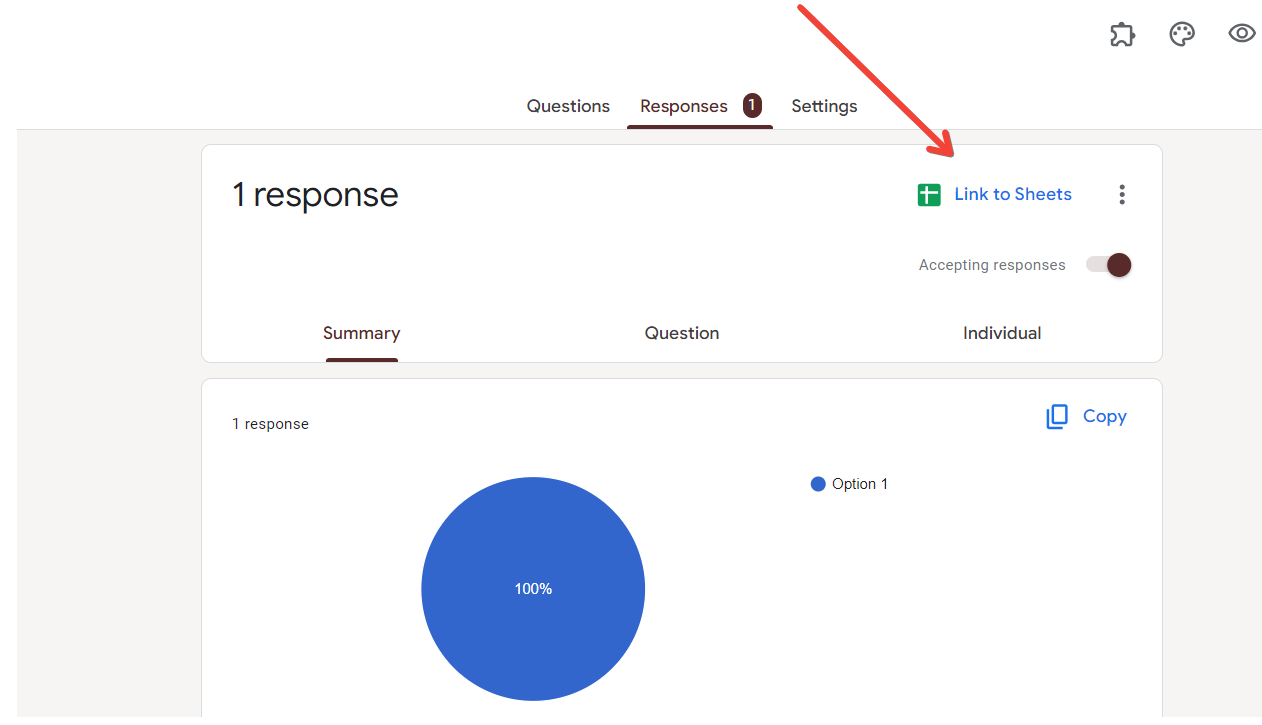
Step 5: Utilize Google Sheets Integration
For a more organized approach, click on the Google Sheets icon within the "Responses" tab. This will create a linked spreadsheet where you can manipulate and analyze data more comprehensively.
Conclusion:
Finding answers on Google Forms doesn't have to be a daunting task. With a systematic approach to the "Responses" tab and the integration with Google Sheets, you can efficiently analyze and extract valuable insights from the data collected through your form. Empower yourself with the knowledge to navigate responses effortlessly, turning your Google Forms experience into a powerful tool for informed decision-making.
Frequently Asked Questions:
Can I download responses from Google Forms for offline analysis?
Yes, within the "Responses" tab, click on the Sheets icon to export data to Google Sheets.
How do I search for specific answers or keywords within responses?
Use the built-in search bar in Google Sheets, where your form responses are conveniently organized.
Can I apply filters to analyze responses based on specific criteria?
Absolutely! Google Sheets allows you to apply filters and sort data for targeted analysis.
Is it possible to share access to responses with team members for collaborative analysis?
Yes, collaborate seamlessly by sharing your Google Sheets document with team members for collective insights.


