How to Flip an Image in Canva (Horizontally or Vertically)


Learn how to flip an image in Canva using the Flip tool. Follow this step-by-step guide to flip images horizontally or vertically and improve your Canva designs.
Flipping an image in Canva is a quick and effective way to create balanced layouts, mirror photos, correct image orientation, or add creative visual effects to your designs. Whether you’re designing social media posts, presentations, marketing materials, or personal projects, Canva’s built-in Flip tool makes it easy to transform images in just a few clicks.
In this guide, you’ll learn how to flip an image in Canva step by step, including how to flip images horizontally and vertically. We’ll also share practical tips, common use cases, and best practices to help you create polished, professional-looking designs without affecting image quality.
Note: Canva’s Flip tool works with images, photos, graphics, illustrations, and many design elements. If you’re trying to flip editable text, you’ll need to use a different workaround, as the Flip tool doesn’t support text boxes directly.
Why Would You Flip an Image in Canva?
Flipping an image is more than just a creative effect—it can help improve the composition, balance, and overall appearance of your designs. Whether you’re working on marketing materials, social media posts, presentations, or personal projects, the Flip tool gives you greater flexibility without changing the image quality.
Here are some common reasons to flip an image in Canva:
- Create symmetrical designs: Mirror images to achieve a balanced and visually appealing layout.
- Improve composition: Flip an image so the subject faces the direction of your text or other design elements.
- Create reflection effects: Design realistic reflections for water, mirrors, glass, or other reflective surfaces.
- Correct image orientation: Adjust photos that look better when viewed from the opposite direction.
- Enhance social media graphics: Experiment with different layouts to make your posts more engaging and visually appealing.
- Design presentations and marketing materials: Align images with your branding, slide layouts, or promotional content for a more professional look.
Before flipping an image, check whether it contains text, logos, or directional elements such as arrows or road signs. Flipping these elements may reverse their appearance and make them confusing or incorrect.
Knowing when and why to flip an image helps you create more polished, professional, and visually balanced Canva designs.
Step-by-Step Guide to Flip an Image in Canva
Canva makes it easy to flip images using its built-in Flip tool. You can mirror an image horizontally or flip it vertically in just a few clicks without affecting its quality.
Follow these steps to flip an image in Canva.
Step 1: Open Your Canva Design
Log in to your Canva account and open the design where you want to flip an image. You can either create a new design or edit an existing project.
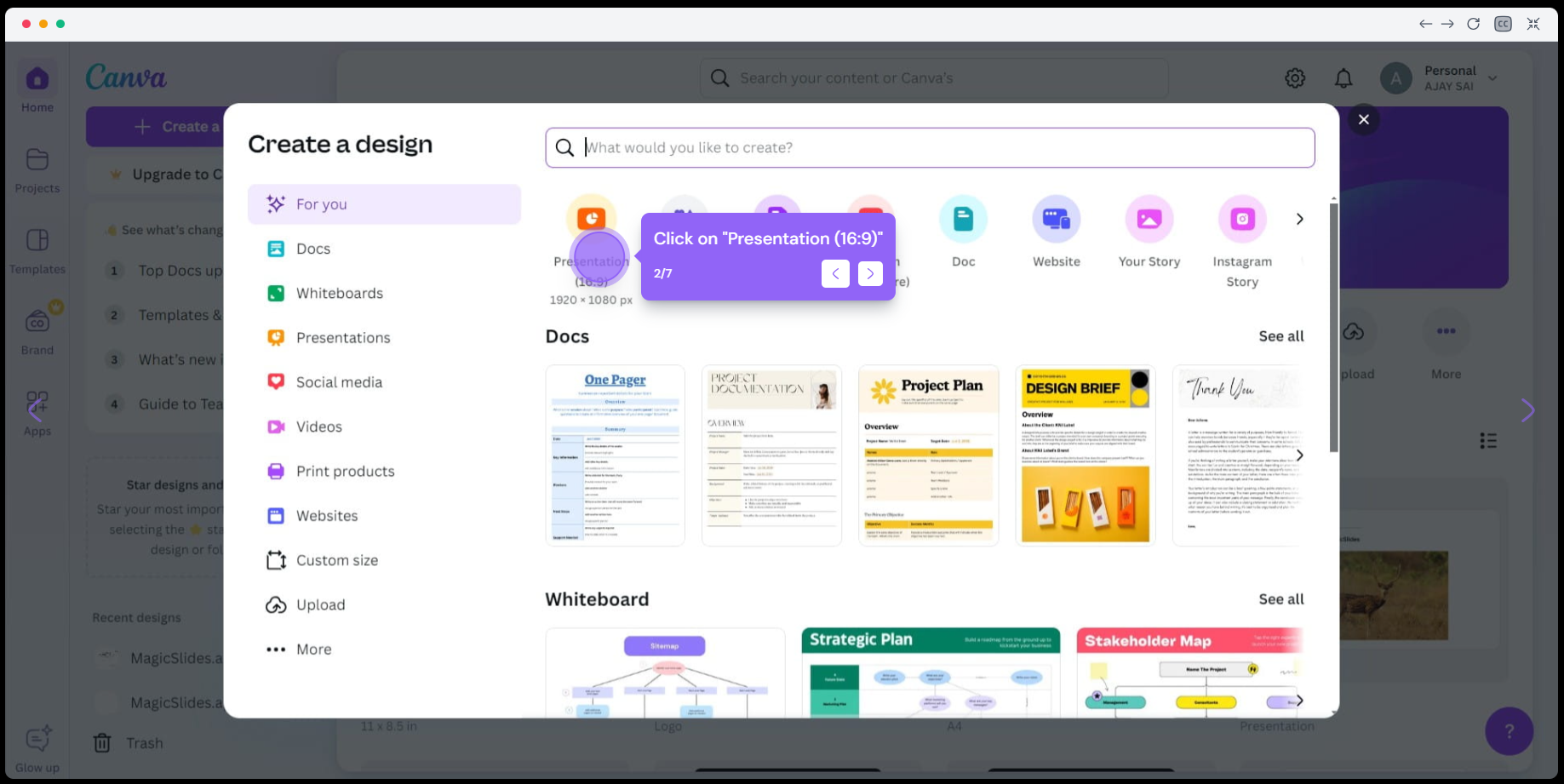
Step 2: Upload or Select an Image
If you’re using your own photo, click Uploads from the left sidebar and upload the image you want to edit. You can also choose an image from Canva’s Photos or Elements library and add it to your design.
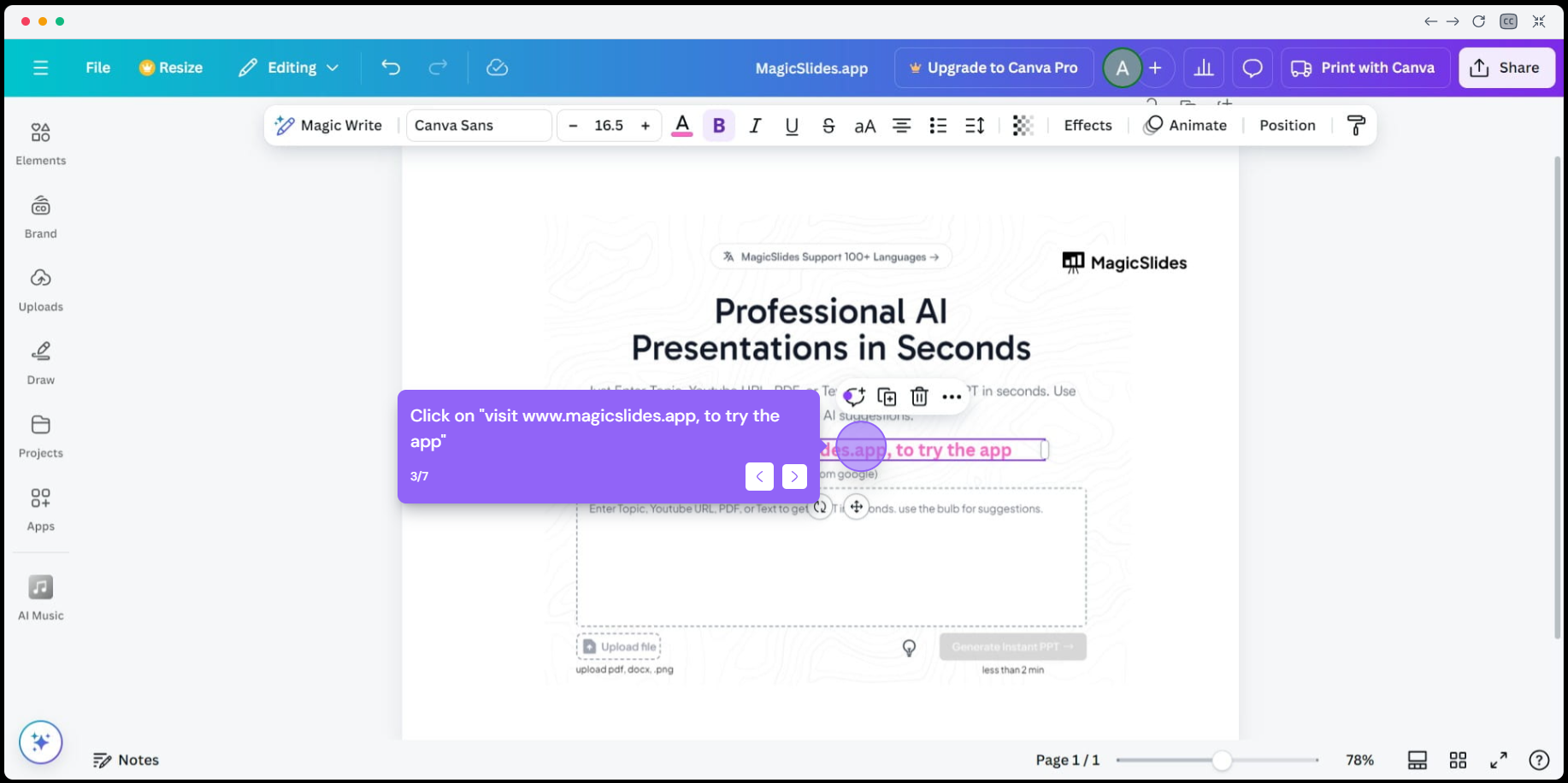
Step 3: Select the Image
Click the image on your canvas to select it. Once selected, you’ll see resize handles around the image and additional editing options appear in the top toolbar.
Step 4: Use the Flip Tool
Click Flip in the top toolbar to open the available options.
Choose one of the following:
- Flip Horizontal to mirror the image from left to right.
- Flip Vertical to turn the image upside down.
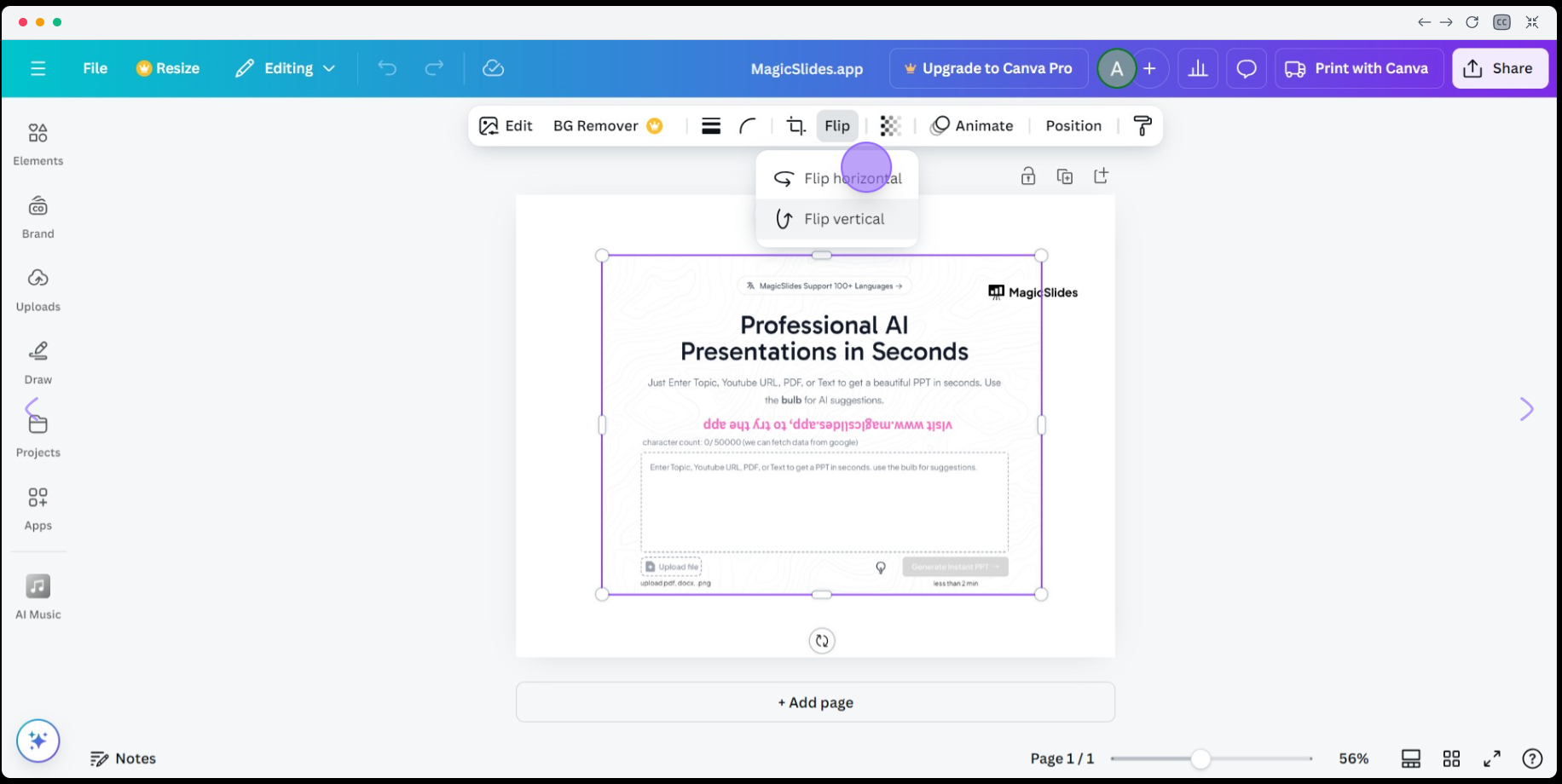
The selected transformation is applied instantly, allowing you to preview the result in real time.
Step 5: Adjust and Save Your Design
After flipping the image, reposition or resize it if needed to fit your design. You can also apply filters, effects, crop the image, or combine it with other Canva elements before downloading or sharing your finished design.
Pro Tip: If your image contains text, logos, arrows, or other directional elements, preview the flipped version carefully before exporting. Flipping these elements can reverse their appearance and make them difficult to read or visually incorrect.
Tips for Flipping Images in Canva
To achieve the best results, keep these practical tips in mind when flipping images in Canva.
- Use high-resolution images: Starting with a high-quality image helps maintain a sharp and professional appearance, especially if you plan to resize it later.
- Duplicate your image first: Create a copy of the original image before flipping it. This allows you to compare both versions or revert to the original if needed.
- Check for reversed text or logos: If your image contains text, icons, arrows, or branding elements, make sure they still appear correctly after flipping.
- Flip before making major edits: It’s often easier to flip an image before applying crops, filters, or effects, as this helps maintain your intended composition.
- Use guides for perfect alignment: Canva’s alignment guides and snap-to-grid feature can help you position flipped images accurately within your design.
- Experiment with both flip options: Try both Flip Horizontal and Flip Vertical to see which orientation works best for your layout and overall design.
- Preview your design before exporting: Zoom in and review your design to ensure the flipped image looks natural, aligned, and free from any unintended visual issues.
Following these best practices will help you create balanced, visually appealing designs while making the most of Canva’s built-in image editing tools.
Create Professional Presentations Faster with MagicSlides
If you’re creating presentations in Canva, MagicSlides AI PPT Maker can help you save valuable time by turning documents, PDFs, YouTube videos, websites, or simple text prompts into professionally designed presentation slides within minutes.
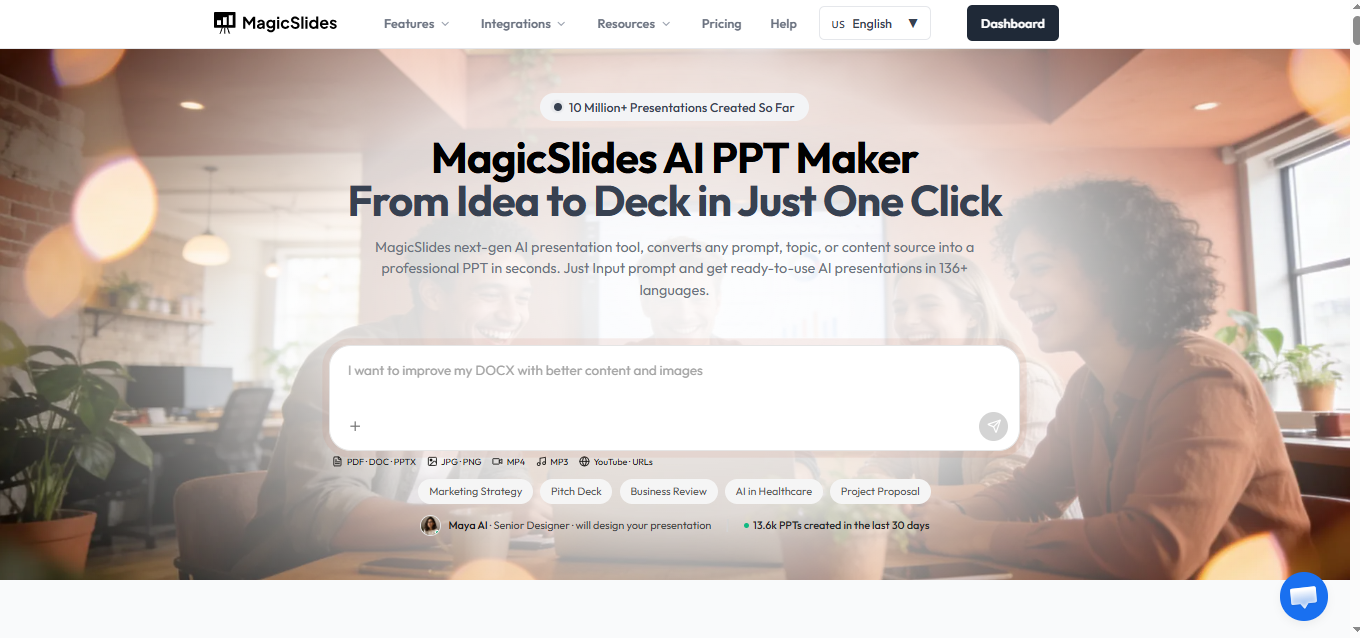
Instead of spending hours building slides from scratch, MagicSlides automatically organizes your content, suggests layouts, and generates visually appealing presentations. Once your slides are ready, you can import or customize them in Canva by adding your preferred images, branding, colors, and design elements.
MagicSlides is an excellent solution for students, educators, marketers, business professionals, and teams who want to create high-quality presentations quickly while still enjoying Canva’s flexible design capabilities.
Conclusion
Flipping an image in Canva is a quick and effective way to improve the layout and visual appeal of your designs. Whether you want to create a mirrored effect, correct an image’s orientation, or build a more balanced composition, Canva’s built-in Flip tool makes the process simple and intuitive.
By following the steps and best practices in this guide, you can flip images horizontally or vertically without affecting their quality. Remember to review images containing text, logos, or directional elements before exporting to ensure everything appears correctly.
With Canva’s easy-to-use editing tools, you can confidently create professional-looking graphics, presentations, social media posts, and marketing materials in just a few clicks.
Frequently Asked Questions (FAQs)
Q1. How do I flip an image in Canva?
Select the image on your Canva canvas, click Flip from the top toolbar, and choose either Flip Horizontal or Flip Vertical. The image will be flipped instantly without reducing its quality.
Q2. Can I flip an image horizontally and vertically?
Yes. Canva allows you to flip images both horizontally and vertically. You can even apply both options one after the other if you want to rotate the image’s orientation further.
Q3. Does flipping an image reduce its quality?
No. Flipping an image only changes its orientation and does not reduce its quality. However, repeatedly resizing or exporting images at low resolution may affect the final output.
Q4. Can I flip multiple images at once in Canva?
Yes. If you’ve selected multiple supported images or elements together, you can apply the Flip option to them simultaneously. Otherwise, you’ll need to flip each image individually.
Q5. Can I undo a flipped image?
Yes. If you don’t like the result, simply use Canva’s Undo button or press Ctrl + Z (Windows) or Command + Z (Mac) to restore the original orientation.
Q6. Can I flip text in Canva using the same Flip tool?
No. Canva’s Flip tool works with images, graphics, and most design elements, but it doesn’t support editable text boxes. To flip text, you’ll need to use a workaround, such as converting the text into an image first.
Q7. Is there an easier way to create presentation designs?
Yes. If you’re creating presentations alongside your Canva designs, MagicSlides AI PPT Maker can automatically generate professional slides from documents, PDFs, websites, YouTube videos, or prompts, helping you create polished presentations in much less time.


