How to Force Copy Google Slides in 2026 – Quick Guide


Learn how to force a copy of Google Slides in seconds. Create a Google Slides force copy link to let anyone make their own editable copy while protecting your original PPT.
If you’re wondering how to force a copy of Google Slides, this guide will show you exactly how to do it. Creating a Google Slides force copy link ensures that anyone opening your presentation is prompted to make their own copy instead of requesting edit access. Whether you’re sharing templates, classroom assignments, training materials, or presentation decks, a force copy link protects your original Google Slides presentation while allowing others to edit their own version.
Why Force a Copy of Google Slides?
A Google Slides force copy link is the easiest way to share editable presentations without giving others access to your original file. Instead of requesting edit permissions, recipients are automatically prompted to create their own copy. This keeps your original presentation safe while making it easy to distribute templates, assignments, business presentations, and reusable slide decks.
How Do You Force a Copy of Google Slides?
To force a copy of Google Slides, open your presentation, copy the shareable link, and replace edit?usp=sharing (or edit) at the end of the URL with copy. When someone opens the new link, Google Slides will prompt them to make their own copy, ensuring your original presentation remains unchanged.
Step-by-Step Guide to Force a Copy of Google Slides
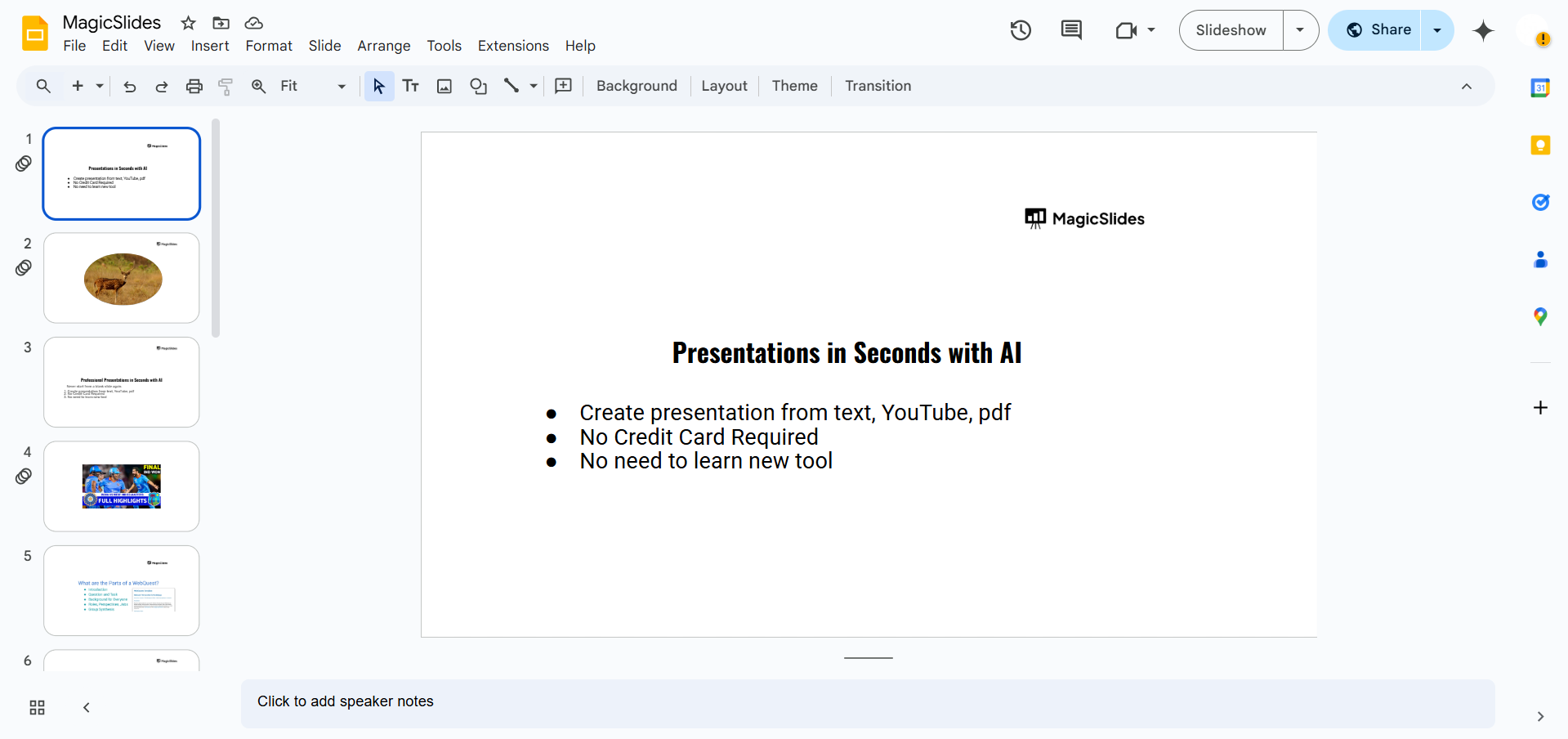
Step 1. Open Your Google Slides Presentation
Go to Google Slides and open the presentation you want to share.
Step 2. Get the Shareable Link
Click on the “Share” button in the top-right corner. Under “General access”, select “Anyone with the link” and set it to “Viewer”.
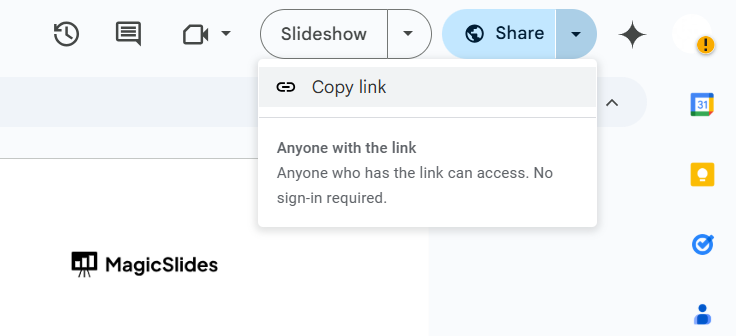
Click “Copy link” to copy the shareable URL.
Step 3. Modify the Link for Force Copy
Paste the copied link into a document or browser tab. Locate the word “edit” at the end of the URL.
Replace “edit?usp=sharing” with “copy”. Your new link should look like this:
https://docs.google.com/presentation/d/your-presentation-ID/copy
Step 4. Share the Forced Copy Link
Copy the modified link. Share it via email, chat, or a website.
When someone clicks on it, they’ll be prompted to make a copy of the presentation. After clicking “Make a copy,” the presentation is saved to their Google Drive, where they can edit it freely without affecting your original Google Slides file.
When Should You Use a Google Slides Force Copy Link?
A Google Slides force copy link is perfect whenever you want others to edit a presentation without changing your original file. It’s commonly used by teachers, students, businesses, marketers, and teams that share reusable presentation templates.
- Classroom assignments
- Google Slides templates
- Client presentations
- Employee training
- Marketing presentations
- Team collaboration
Benefits of Using a Google Slides Force Copy Link
A Google Slides force copy link is a simple but effective way to share presentations while keeping your original file secure. Instead of managing edit permissions for every recipient, you can let users create their own copy automatically. This makes sharing presentations faster, safer, and more organized.
- Protect your original Google Slides presentation
- Prevent accidental edits or deletions
- Share editable templates with anyone
- Simplify classroom and team collaboration
- No additional tools or extensions required
- Works on desktop and mobile devices
Create Professional Google Slides Faster with MagicSlides AI
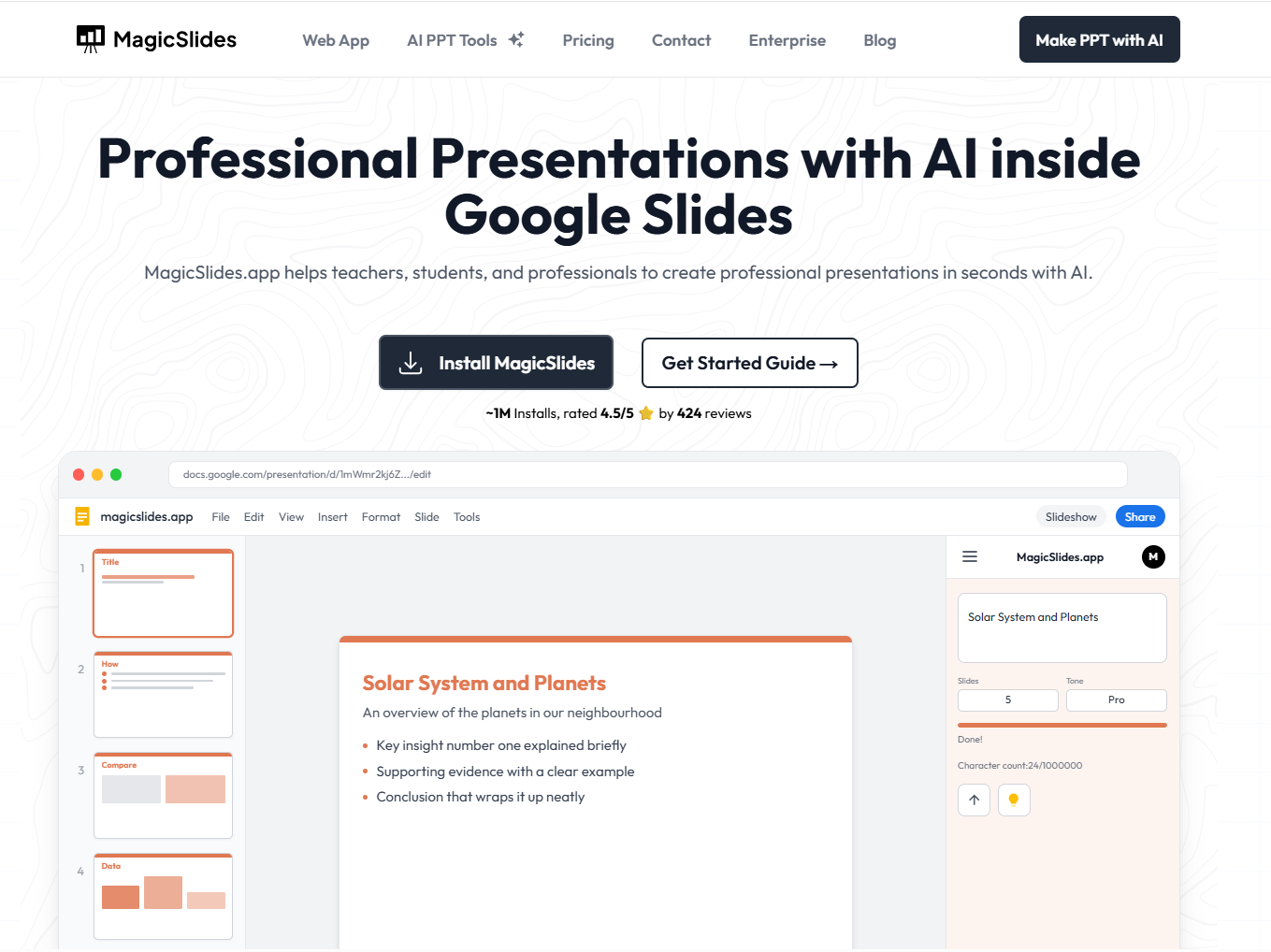
Need to create a presentation after sharing your Google Slides template? MagicSlides AI PPT Maker helps you build professional presentations in minutes instead of hours. Simply enter a topic, upload a PDF, Word document, Excel file, image, website URL, or YouTube video, and MagicSlides automatically generates a polished PowerPoint or Google Slides presentation complete with well-structured content, modern layouts, and visuals.
Whether you’re a student, teacher, marketer, consultant, or business professional, MagicSlides Google Slides Addon makes it easy to turn ideas and documents into presentation-ready Google Slides without starting from a blank page.
Why Choose MagicSlides?
- Generate presentations from text, PDFs, Word, Excel, URLs, and YouTube videos
- Create editable PowerPoint and Google Slides presentations
- Choose from hundreds of professional templates and themes
- Save hours of manual slide creation with AI-powered automation
- Perfect for education, business, sales, marketing, and training presentations
Start creating professional presentations with MagicSlides AI and turn any idea into beautiful slides in seconds.
Also read: How to Download SlidePlayer Slides in PPT or PDF (Easy Guide)
Conclusion
Now you know how to force a copy of Google Slides in just a few clicks. Simply replace edit?usp=sharing with copy in your presentation URL to create a Google Slides force copy link. This ensures every recipient receives their own editable copy while your original presentation remains secure. It’s one of the simplest ways to share Google Slides templates, assignments, and presentations without worrying about accidental edits.
FAQs can take you forward!
Q1. How do I force-copy a Google Slides presentation?
To force a copy of Google Slides, replace edit?usp=sharing at the end of your presentation URL with copy. When users open the link, they’ll be prompted to make a copy before accessing the presentation.
Q2. How do I force a copy in Google Slides?
Open your presentation, copy the share link, change the end of the URL from edit to copy, and share the updated link. This creates a Google Slides force copy link.
Q3. Can someone edit my original Google Slides presentation?
No. If you’ve shared the presentation with Viewer permission, users cannot edit your original file. They can only edit the personal copy created from the force copy link.
Q4. Does a force copy keep animations and formatting?
Yes. A force copy preserves all slides, themes, layouts, animations, images, transitions, charts, and formatting from the original Google Slides presentation.
Q5. Does the Google Slides force copy link work on mobile?
Yes. The force copy link works on desktop browsers, mobile browsers, and the Google Slides mobile app.
Q6. Can I use this method for Google Docs and Google Sheets?
Yes. The same technique works for Google Docs, Google Sheets, and Google Forms by replacing the edit portion of the URL with copy.
Q7. Can I create a force copy link for a single Google Slide?
No. A force copy link creates a copy of the entire Google Slides presentation. If you only want to share one slide, you’ll need to duplicate it into a separate presentation before creating the force copy link.


